Are your offers or important announcements not getting enough attention because customers don’t notice them? The Promotional Bar helps you display key messages prominently at the top of your store, making it easier to highlight discounts, announcements, and store updates; which boosts engagement and increases sales.
In this article, you’ll learn how to add and manage the promotional bar effectively.
📌 Article overview
- Steps to add a promotional bar
- Managing the promotional bar
- How to use it to increase engagement and sales
Steps to add a promotional bar
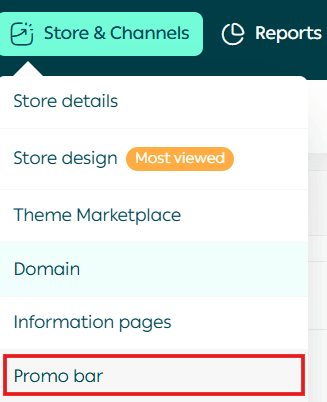
- From the main menu, click Store & Channels, then select Promo Bar.
2. From the theme customization menu, click Customize the Promotional Bar at the Top of the Store.

To add a new bar, click + Add New Announcement.
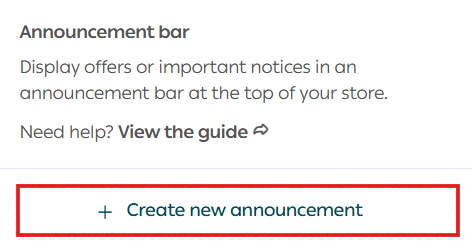
3. In the new announcement bar, click Announcement Settings.

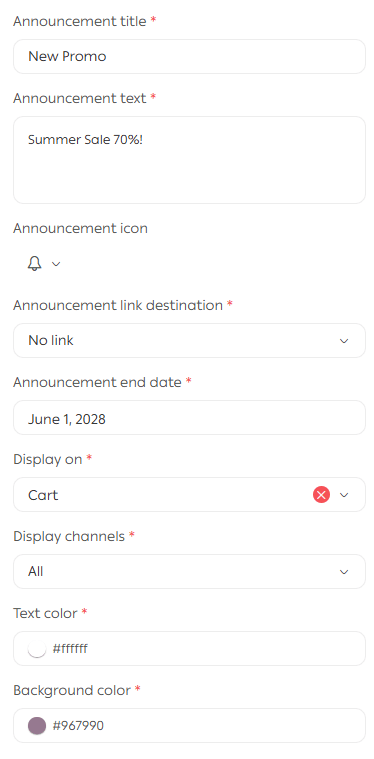
4. Enter the required details, then click Save.
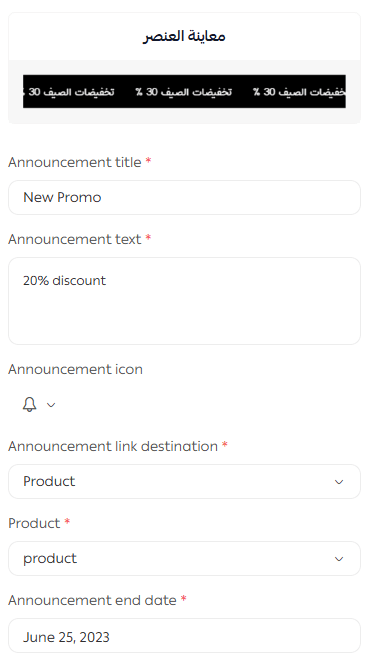
Announcement settings include:
- Announcement Title
Write a short and clear headline.
2. Announcement Content
Add a direct message that attracts customers.
3. Icon Selection
Choose an icon from the available symbol list.
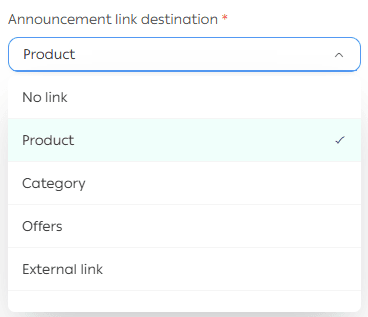
4. Announcement Link
Set where the bar should redirect customers (product page, category, external link, etc.).
5. Expiration Date
Define when the announcement should end.
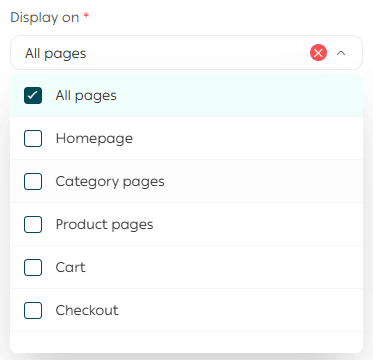
6. Display Pages
Select which store pages the announcement will appear on.
7. Design Customization
Choose the background color and text color.
8. Scrolling Text Option
Enable or disable the moving announcement text.
Be sure to select the correct pages from the available list.
Once saved, the promotional bar will appear on your store pages like this.

Managing the promotional bar
You can easily control the promotional bar from the same customization section, including:
- Enable or disable the promotional bar display in your store

- Reorder announcements using drag-and-drop
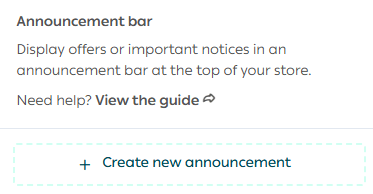
- Edit announcement content at any time
You can also edit an announcement directly by hovering over it.

Delete an announcement
To remove a promotional bar announcement, choose the delete option from the announcement controls.

Using the promotional bar to increase engagement and sales
The promotional bar is a powerful marketing tool. Here are practical ways to use it:
1. Promote Limited-Time Offers
Example: “⚡ Today Only: 25% off all summer products – Use code SUMMER25”
This creates urgency and encourages immediate purchases.
2. Highlight Competitive Advantages
Example: “🚚 Free shipping on all orders above SAR/AED 200 – Don’t miss out!”
These messages reduce hesitation at checkout.
3. Encourage Newsletter Signups
Example: “🎁 Subscribe and get 10% off your first order!”
You can link the bar to a simple signup form.
4. Promote New Arrivals or Seasonal Collections
Example: “🆕 Just Arrived: Our new oriental perfume collection – Explore now!”
This drives visitors directly to featured sections.
5. Add Countdown-Style Urgency
Example: “⏳ Only 3 days left before our biggest sale ends!”
A strong attention-grabbing approach for campaigns.
6. Direct Customers to a Store Feature
Example: “🎨 Customize your product now – Choose colors and engraving!”
Ideal for personalized or interactive products.
7. Build Customer Trust
Example: “🔒 Shop with confidence – All payments are 100% secure and encrypted”
Especially helpful for new or hesitant customers.
Frequently asked questions
Where will the promotional bar appear in the store?
It will appear at the very top of your store pages.

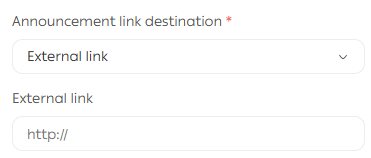
Can I link the announcement to an external website?
Yes. From the link options, select External Link
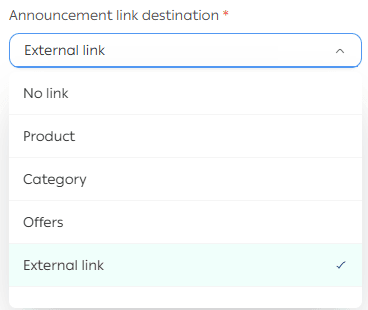
then paste the URL into the designated field.
Can I choose which pages the announcement appears on?
Yes. In the announcement settings, click Announcement Pages, then select the pages where you want it to appear.