The e-commerce journey is full of challenges and opportunities. Experience grows through sharing, and success is built through connection.
That is why we opened the doors to the Salla Community Platform, an interactive space that brings you together with merchants who share similar challenges, goals, and ambitions.
Here, you can shorten your learning curve, exchange real experiences, and find reliable answers. With a community that shares your passion, your path to success becomes clearer.
📌 Article overview
- Full access to Salla Community features
- Browsing the Salla Community Platform
- Getting started in the Salla Community
- Main channels and sections
- Filters and categories
- Creating a new post
- Writing content
- Choosing a section and adding tags
- Account settings
Full Access to Salla Community Features
1. Join the community
You can browse all sections of the Salla Community and explore trusted answers to common merchant challenges.
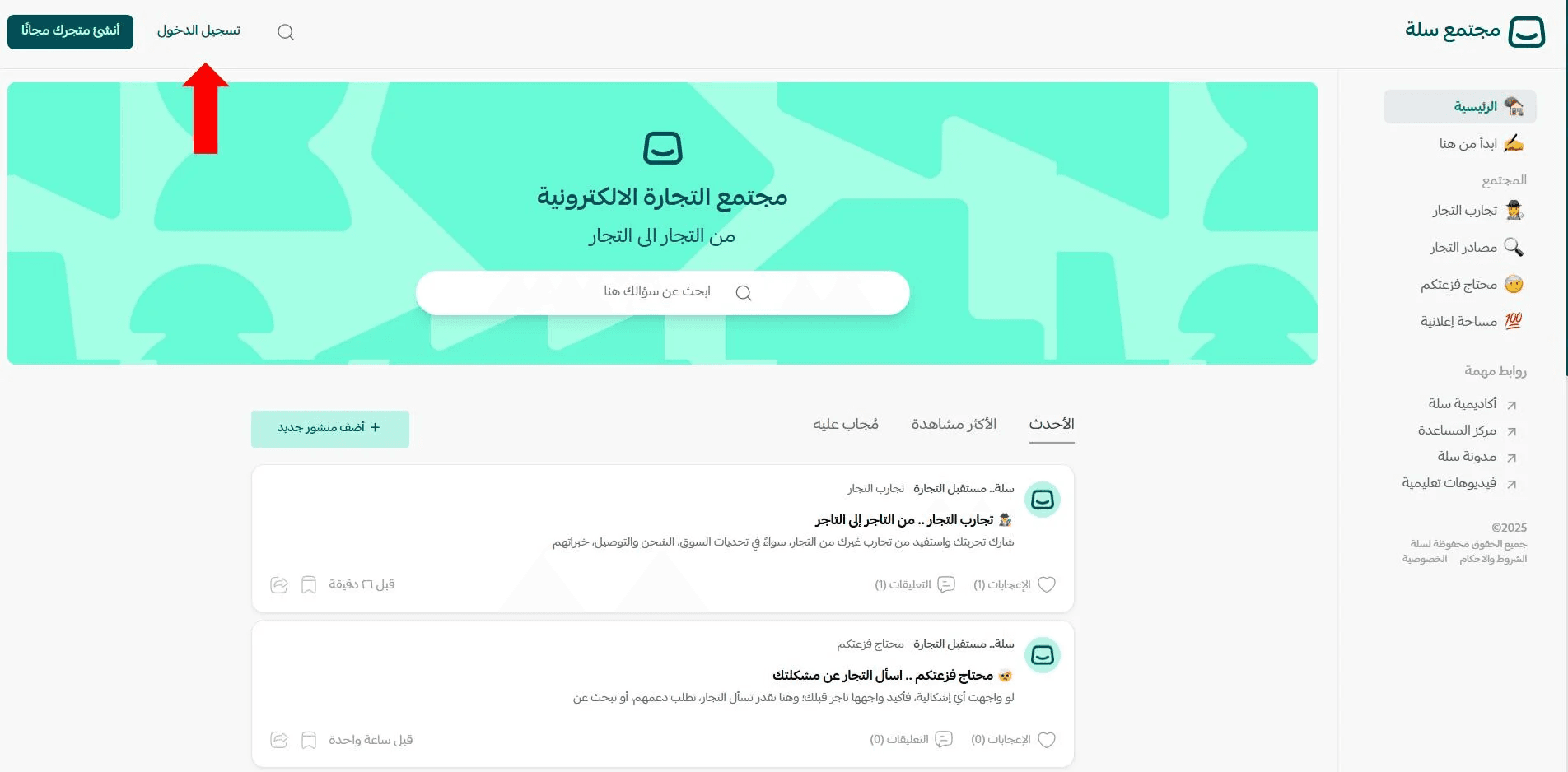
To interact freely and without limitations, you need to log in and become an active community member.
2. Sign in using your Salla store account
Log in using your existing Salla store credentials.
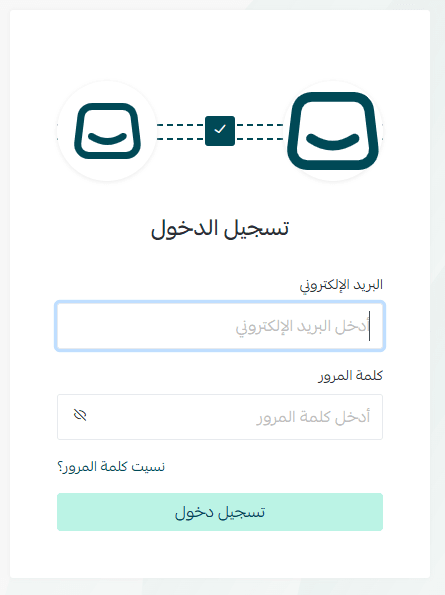
3. Grant app permissions
Approve the requested permissions so the application can be installed successfully.
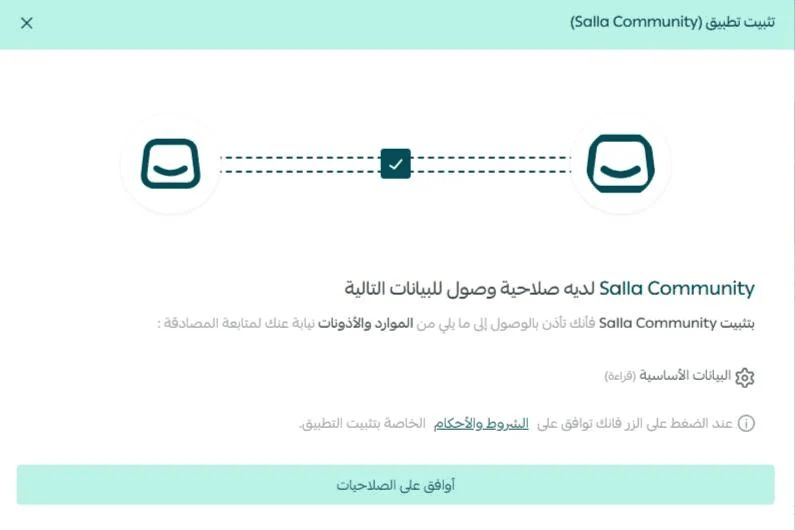
Once installed, you are officially a member of the Salla Community.
Browse the Salla Community Platform
1. Getting started in the Salla Community
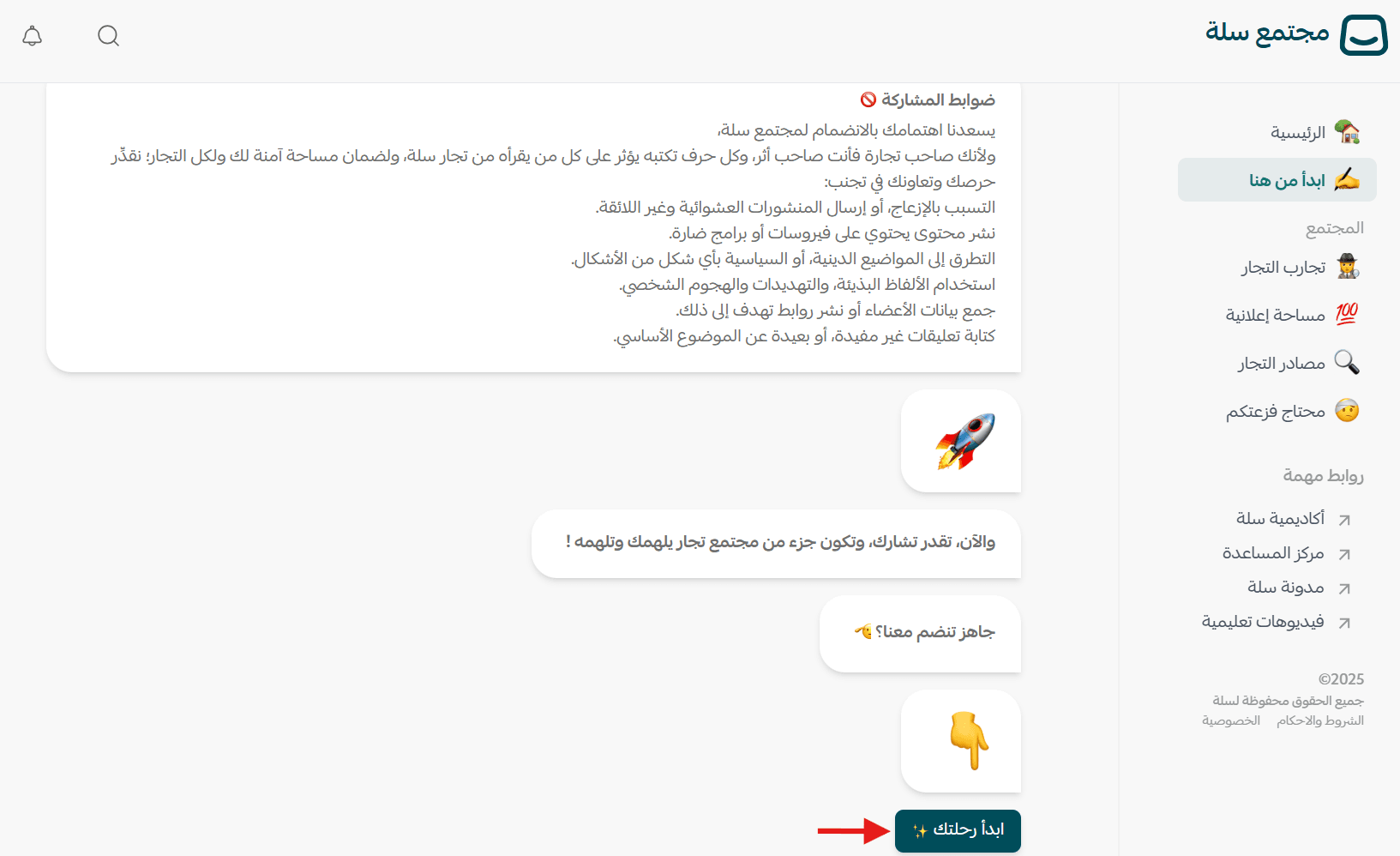
To make your experience smooth and respectful for everyone, the platform follows a few simple guidelines that protect your rights and the rights of others.
To continue, click Start your journey.
2. Main channels
Home page
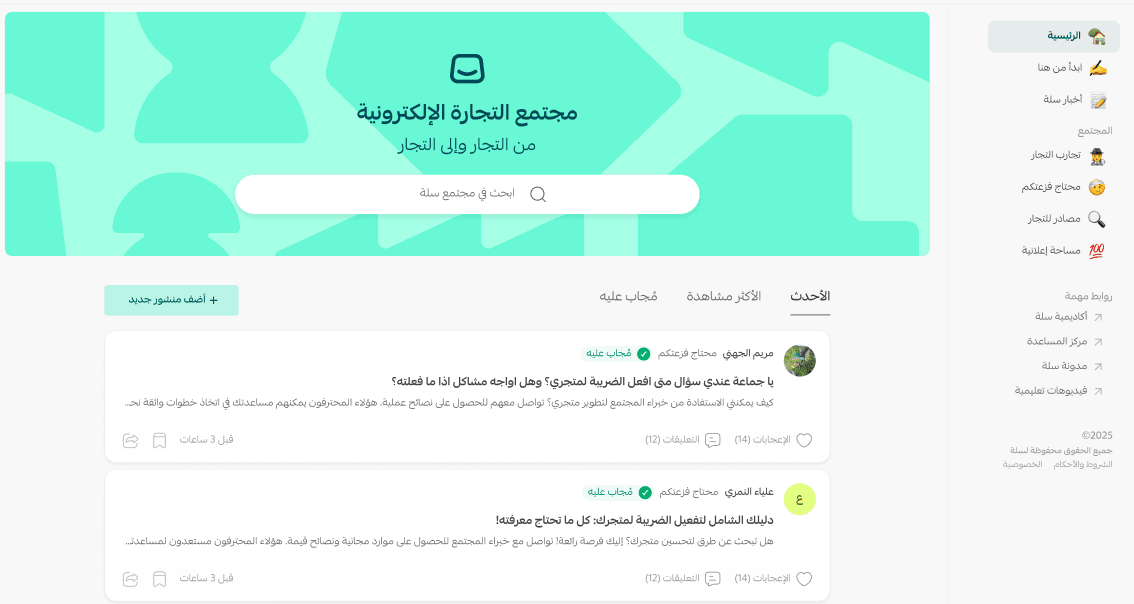
The home page highlights the most relevant and engaging posts, where you can explore and interact with content such as:
Latest
The newest posts from Salla merchants. These may include experiences, solutions, challenges, resources, or ideas.
Most viewed
Posts with the highest number of views, often reflecting topics that attract wide interest and discussion.
Answered
Posts that have already been solved, making it easier to find clear answers and proven solutions quickly.
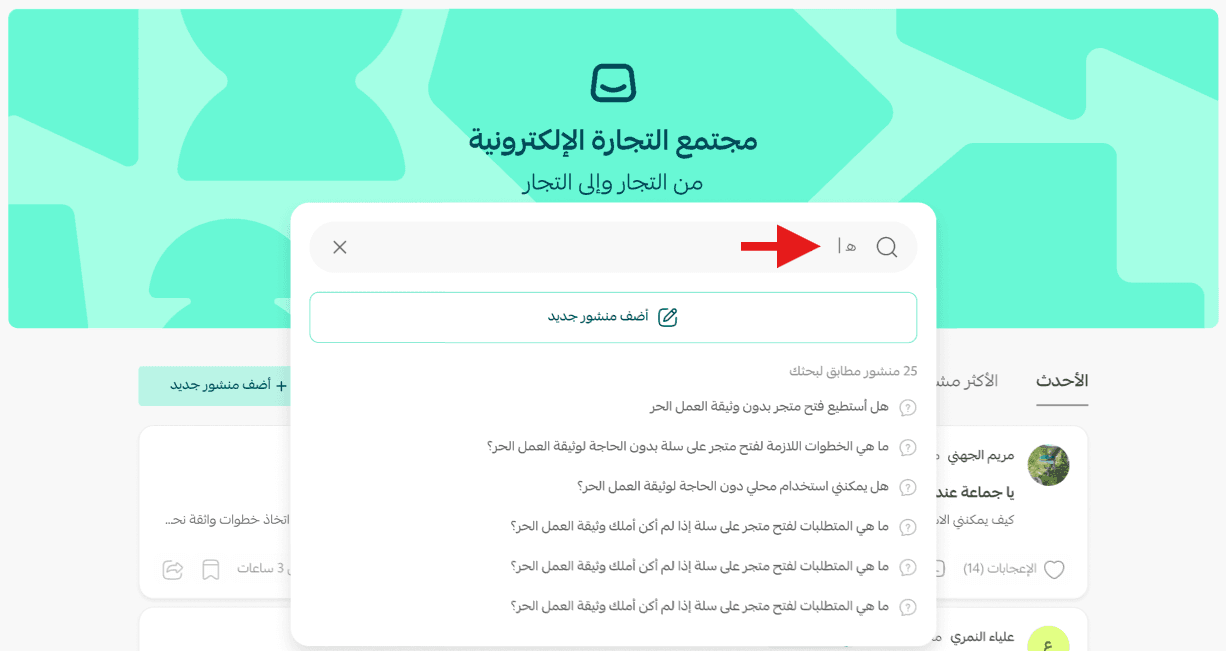
Search feature
By entering keywords, you can quickly reach the information you need across the entire platform.
3. Interacting with posts
From the post page, you can engage in several ways:
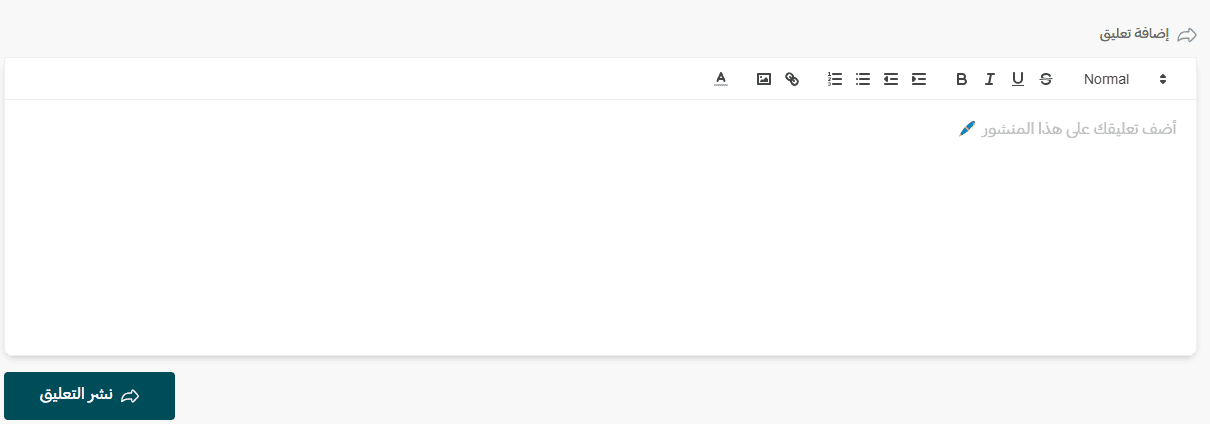
Write a comment
Share your opinion or suggestions with the author. You can format your text using the editor and attach images, links, or videos.
Favorite a post
Save a post to your favorites list by clicking the favorite icon.

Read later
Add a post to your Read Later list so you can return to it at any time.

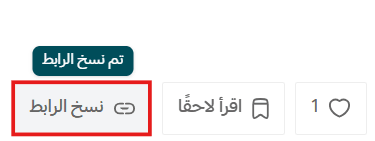
Copy post link
Copy the post link to save it or share it easily with others.
Community section
The Community section organizes merchant interests into dedicated channels, including:
Merchant experiences
An interactive space to explore real merchant stories, insights, and practical advice.
Need help
A dedicated space for asking questions, requesting support, and offering answers.
Merchant resources
A reference section for answered and resolved posts that help merchants solve recurring issues.
Advertising space
A dedicated area for advertisements and offers that are relevant to merchants.
4. Filters and categories
Filters help you organize and narrow down content so you can find what matters most.
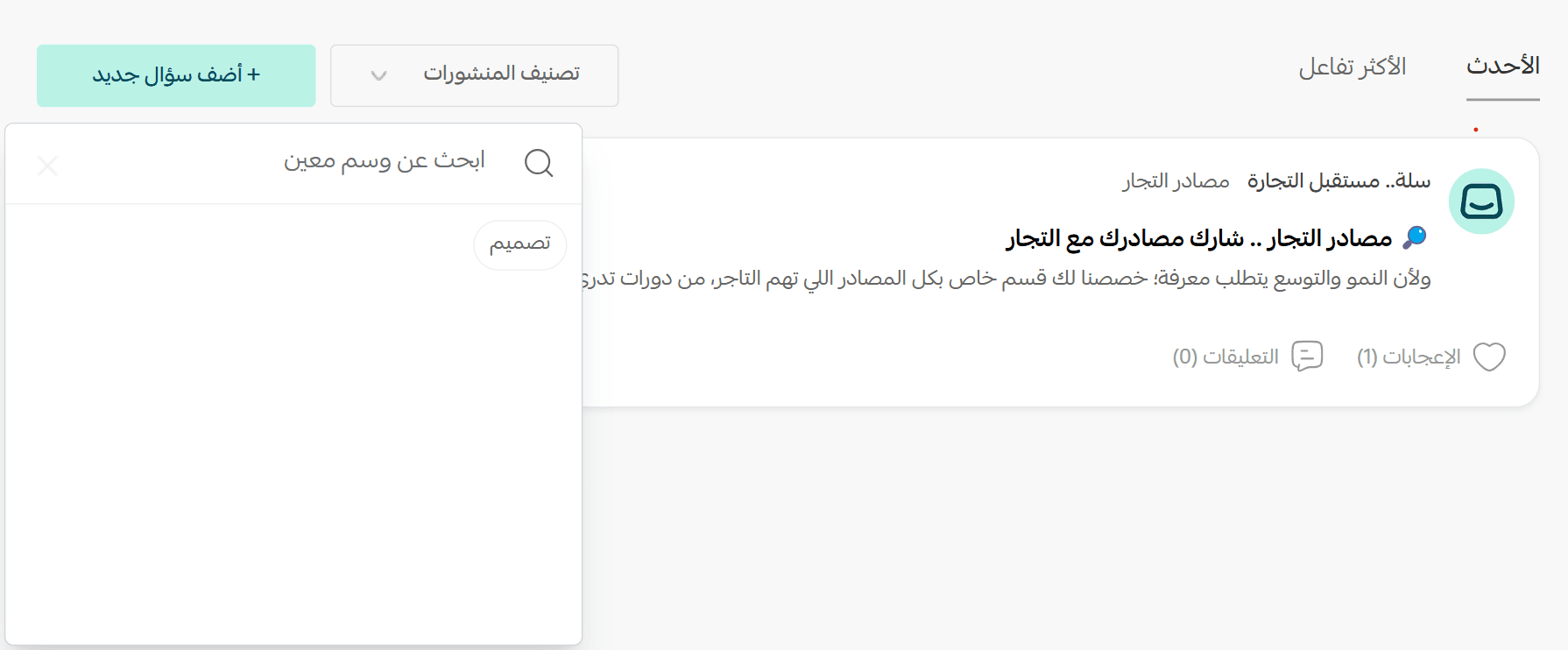
You can:
- Filter search results by newest or most engaging posts
- Sort content based on tags for more accurate results
Create a New Post
1. Write your content
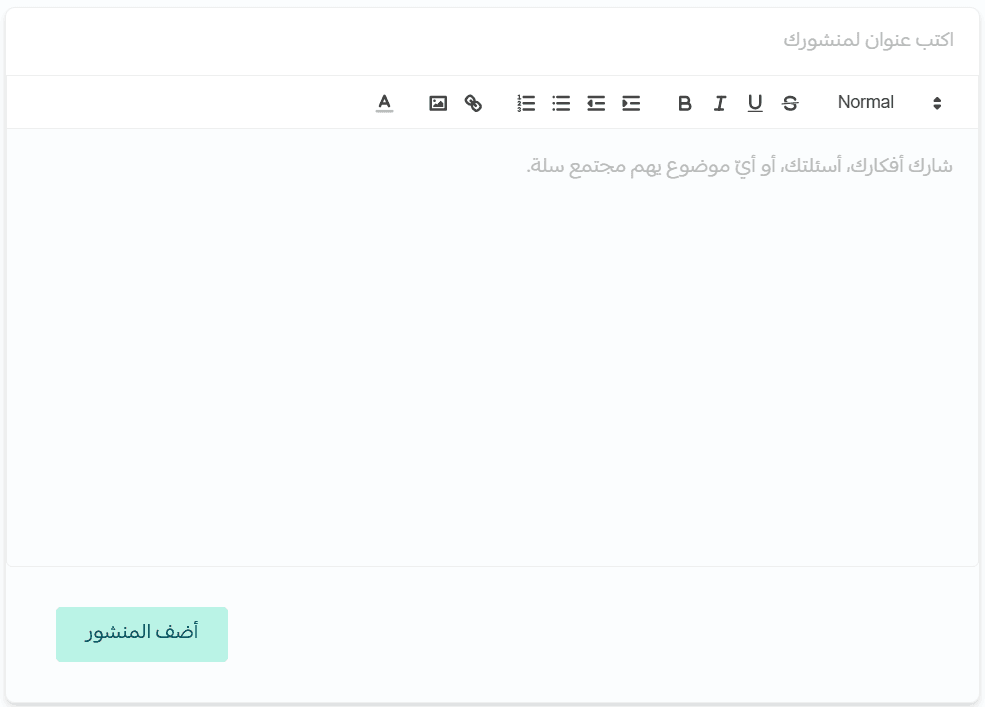
To add a new post, click Add New Post from the Home page or any Community section.

Enter a clear title, then write your post content. You can format the text and add images, links, or videos using the editor.
2. Choose a section and add tags
Select the most relevant section for your post, then add appropriate tags related to the content.

Click Add Content, then click Publish Post.

Your post will be published successfully.
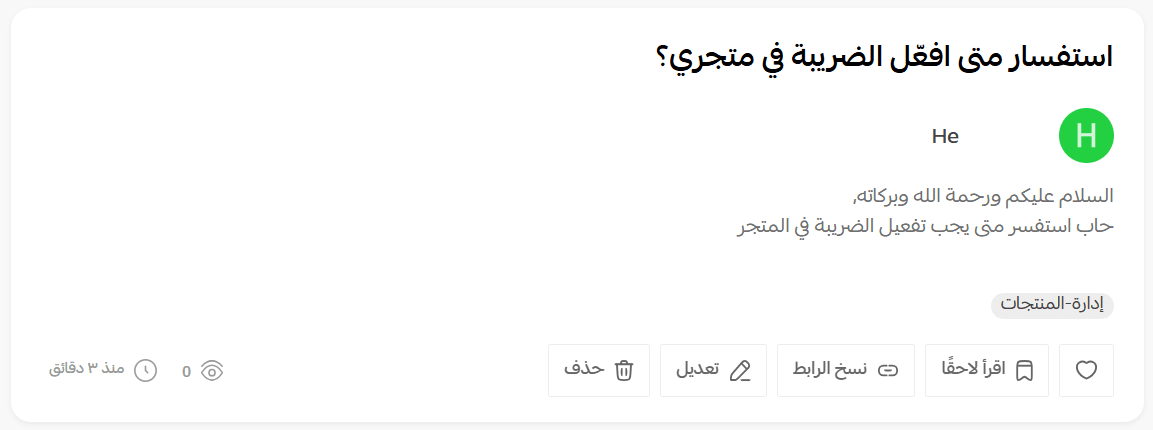
3. Notifications and interactions
From the top bar, click the notifications icon, then browse notifications by:
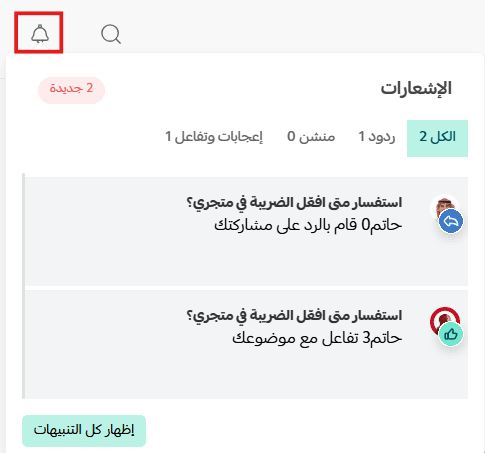
- Replies
- Mentions
- Likes and interactions
- All notifications
Pin the best answer
From the post details page, review the comments and pin the best response by clicking Set as Answer.

The comment will then be marked as the official solution.

Account settings
Profile settings
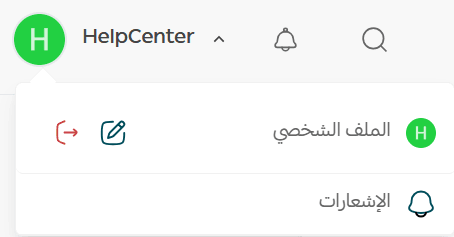
To manage your profile settings, go to the top bar and click your account name, then select Profile.
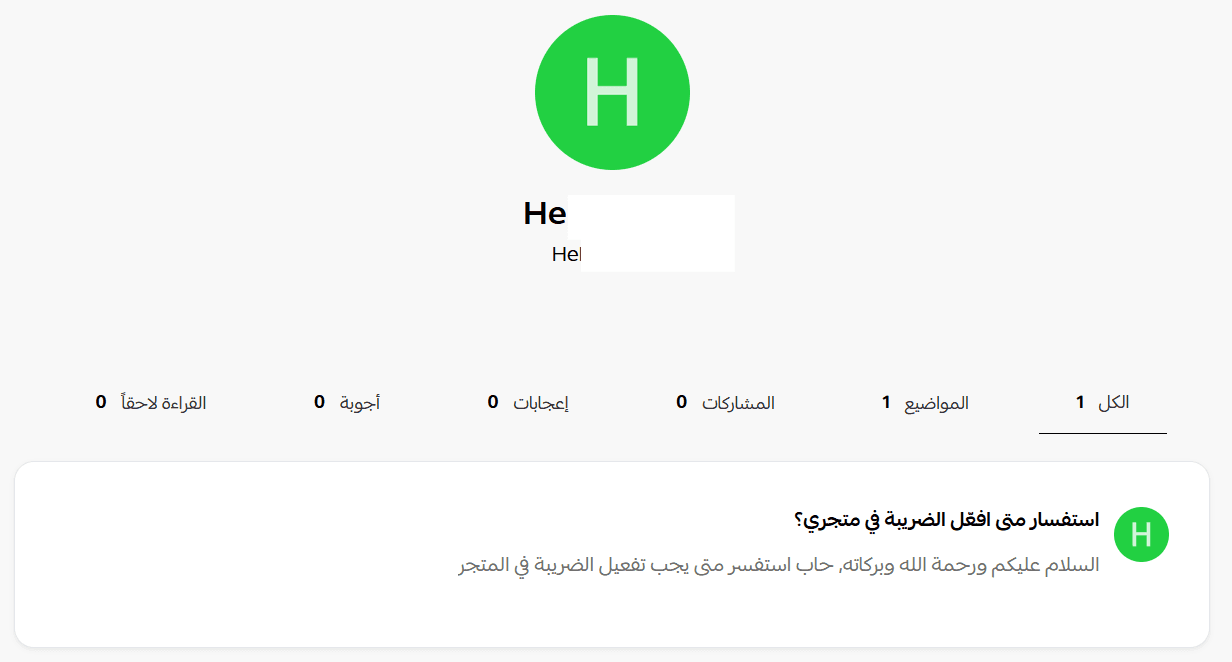
You will see a history of your interactions across all Salla Community sections.
Edit personal information
Add or update your personal details by clicking the edit option in your profile.
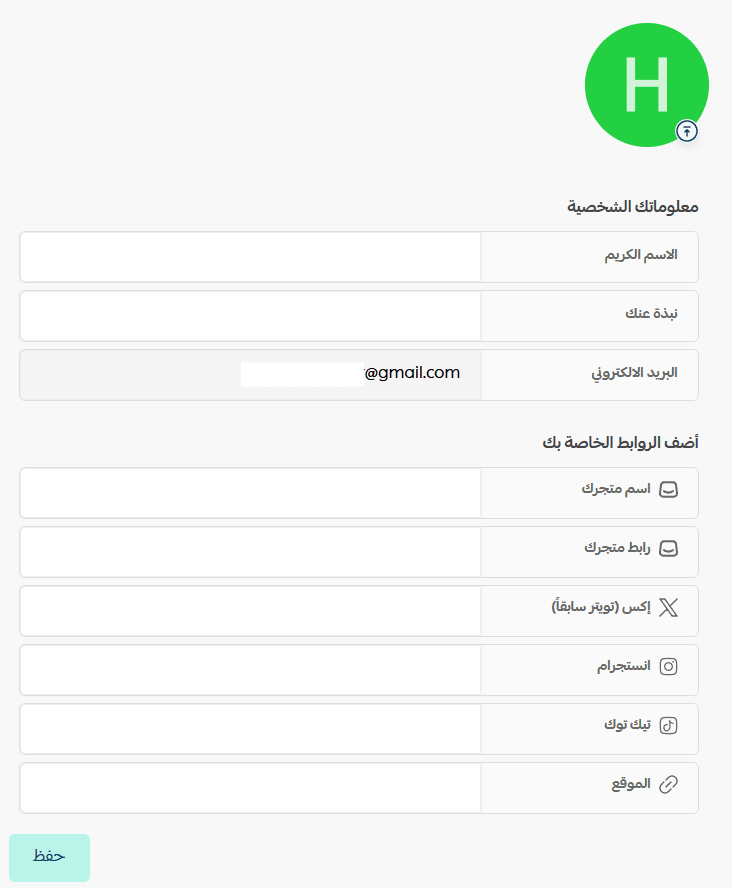
Save your changes to keep your profile up to date.
Final takeaway
The Salla Community Platform is more than a discussion space. It is a shared knowledge hub built by merchants, for merchants.
By asking, answering, and sharing, you grow faster and help others grow with you.
Start your journey today and turn experience into collective success.