Choosing the right theme for your online store is one of the most important steps in creating a smooth and attractive shopping experience.
In this guide, you will learn how to access the Theme Store, understand its sections, explore theme details, and use available controls to choose a design that reflects your brand identity and meets your customers’ expectations.
📌Article overview
- About the Theme Store
- Theme Store sections
- Theme card details
- Theme Store control options
About the Theme Store
What is a theme?
A theme is a design template that includes layout elements, features, and visual enhancements that shape how your store looks and feels. It controls how customers experience your store, from browsing products to completing purchases.
What is the Theme Store?
Salla provides a dedicated Theme Store where you can install themes on your store and preview how your store will look before purchasing a theme. This ensures you deliver a consistent and professional experience to your customers.
Does my visitor type affect how I choose a theme?
Yes, absolutely.
Before choosing a store design, you should define your target audience and understand their preferences, such as colors, product layout, navigation style, and shopping behavior. Based on this, you can design your store and organize products in a way that creates an enjoyable and intuitive shopping journey.
Each theme offers a different user experience depending on its design.
For example, a skincare store may benefit from a calm and luxurious design, while an electronics store may look better with a dynamic and modern layout.
Theme Store Sections
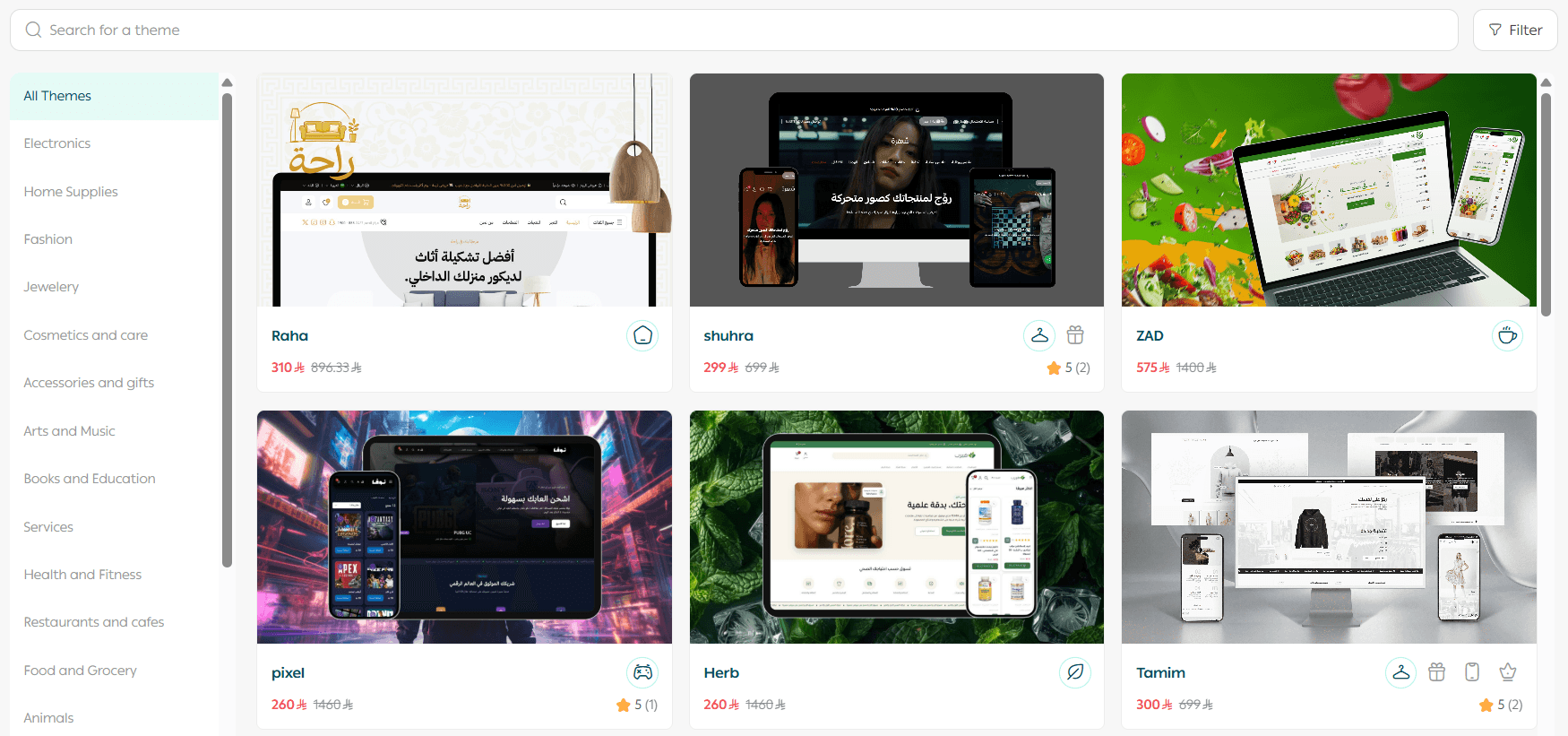
From the main navigation bar, click Store & Channels, then click Theme Marketplace.
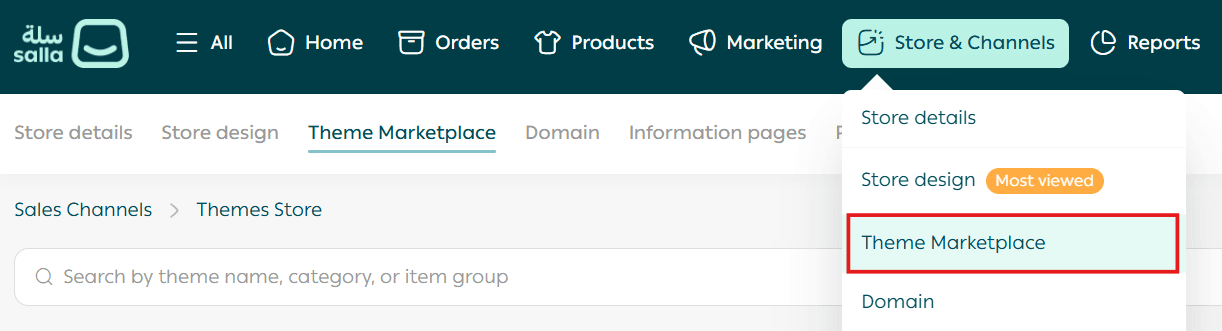
On the Theme Marketplace page, you will find several sections along with promotional offers.
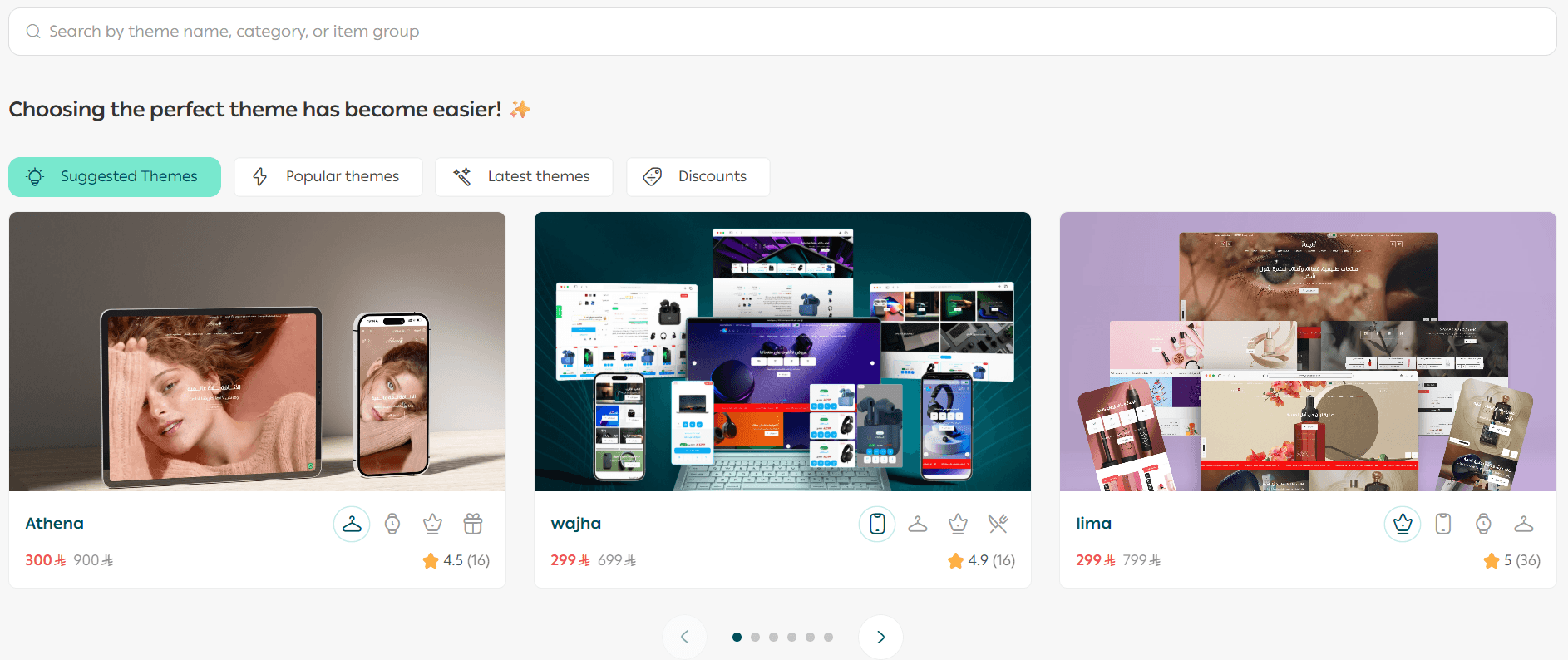
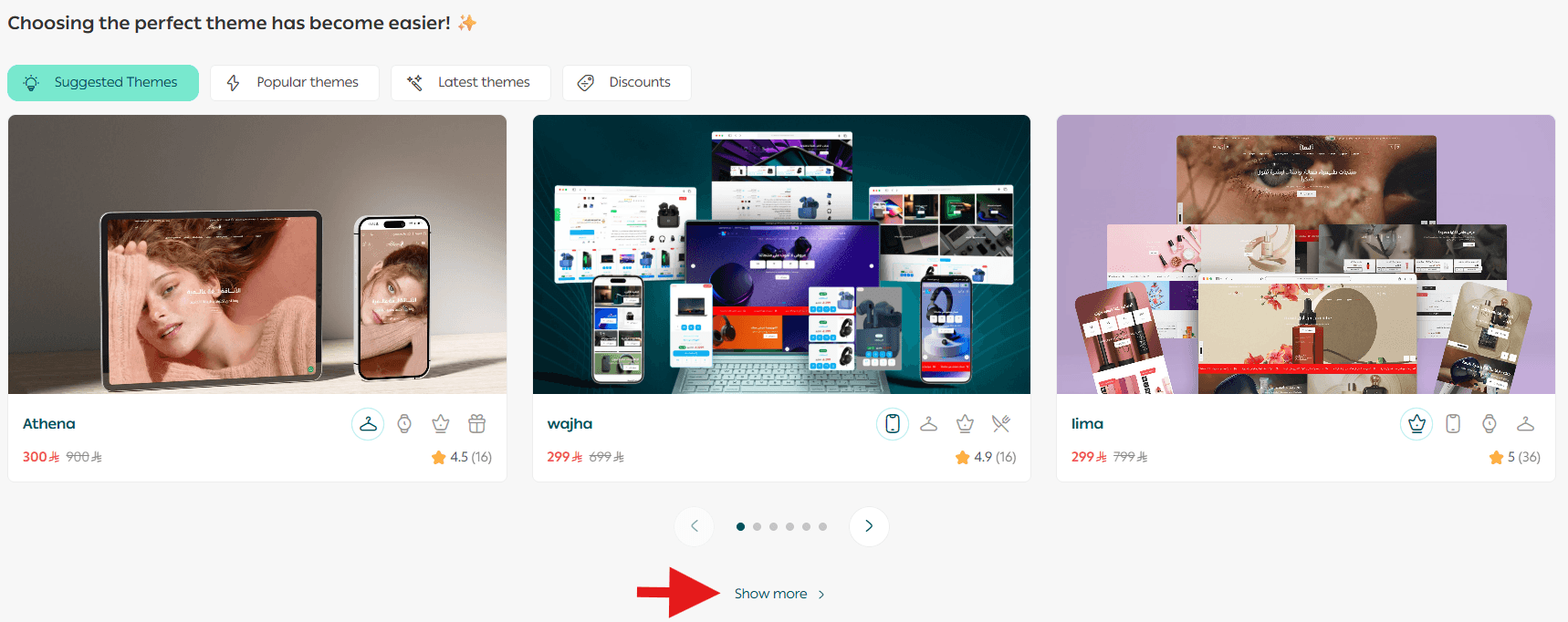
Suggested themes
Themes suggested by Salla based on your business type and preferences.
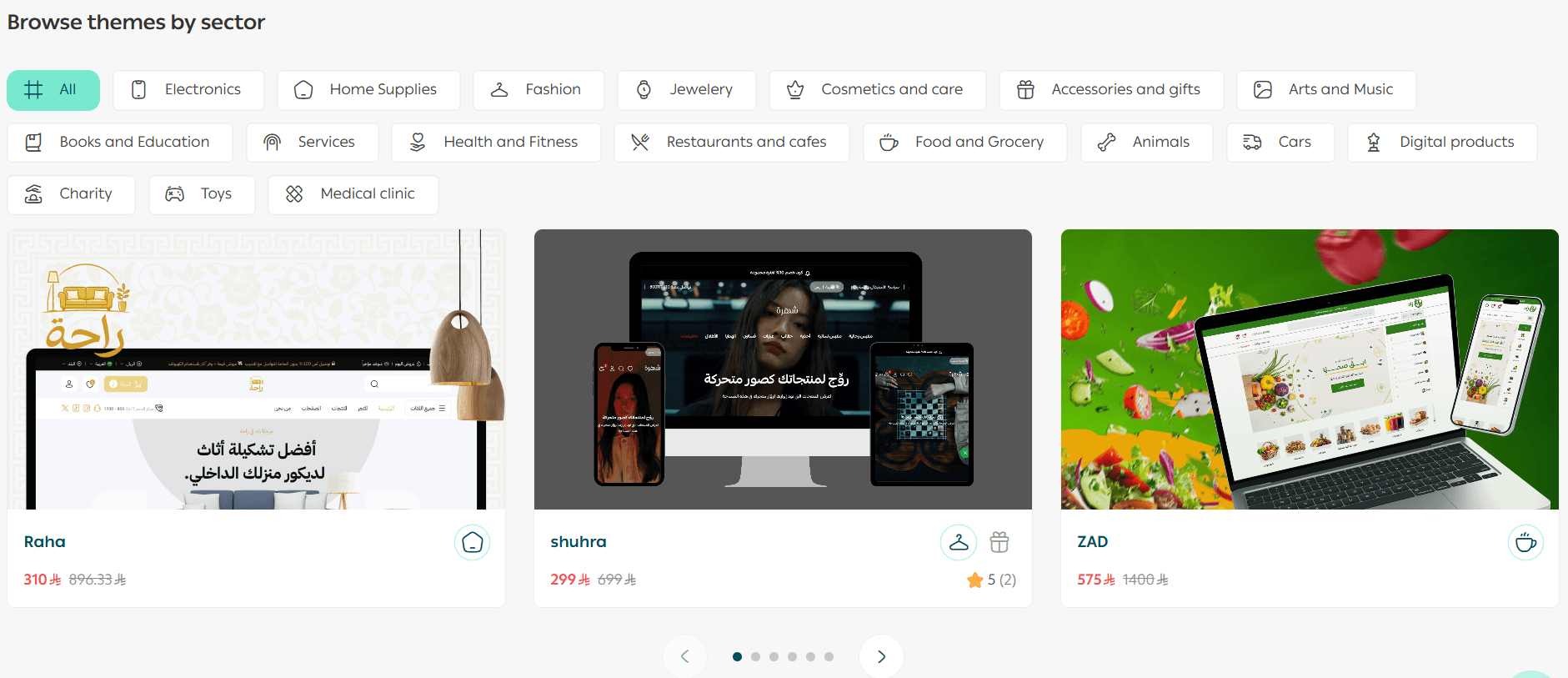
Browse themes by industry
View all themes grouped by sectors such as electronics, home supplies, and more, making it easier to find a suitable design.
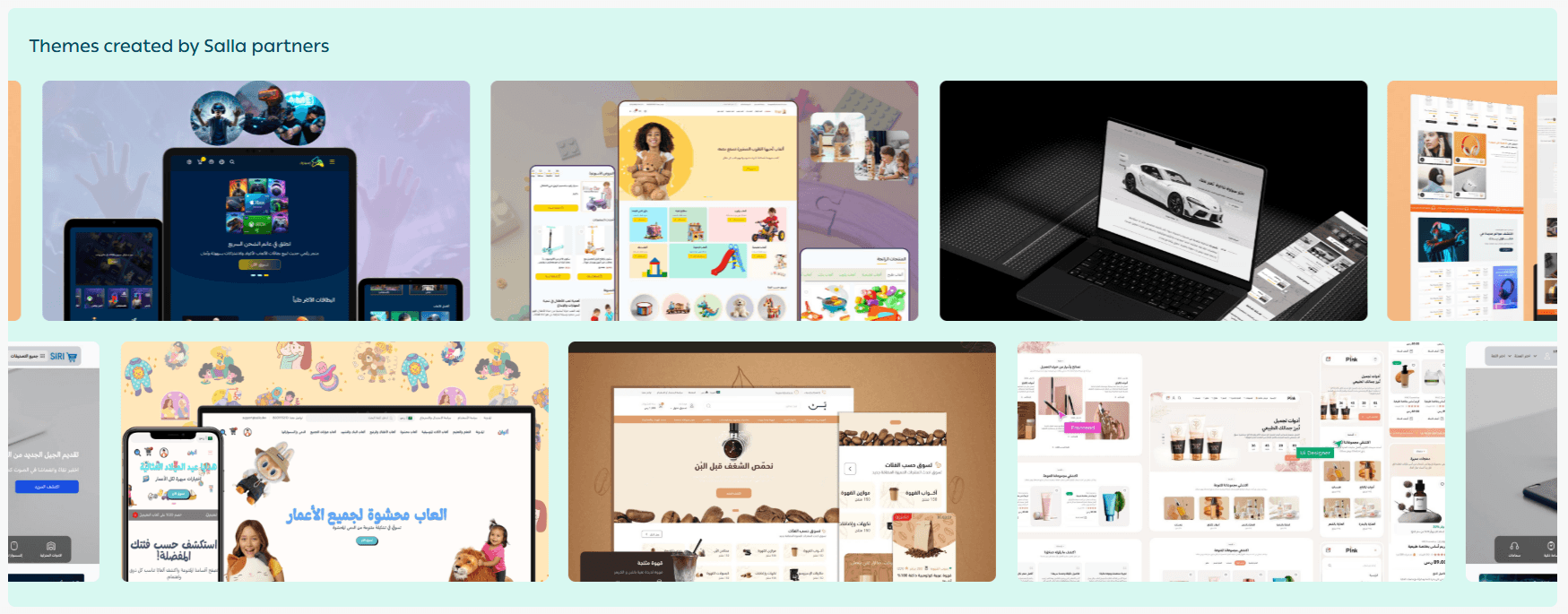
Themes by Salla partners
Featured themes created by Salla partners.
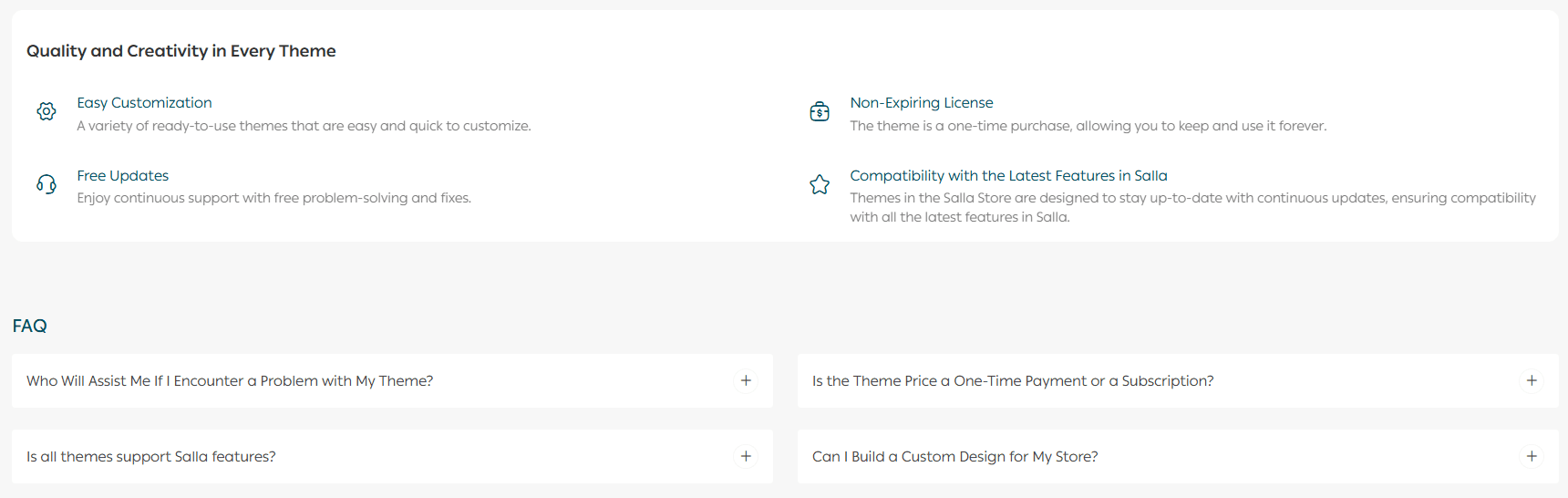
Theme Store features and common questions
Information about Theme Store features and frequently asked questions.
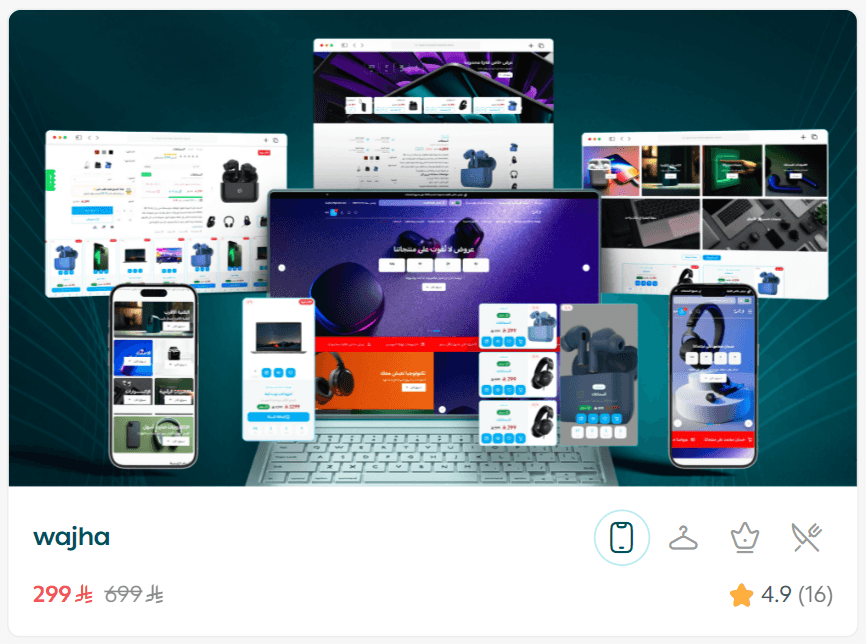
Theme Card Details
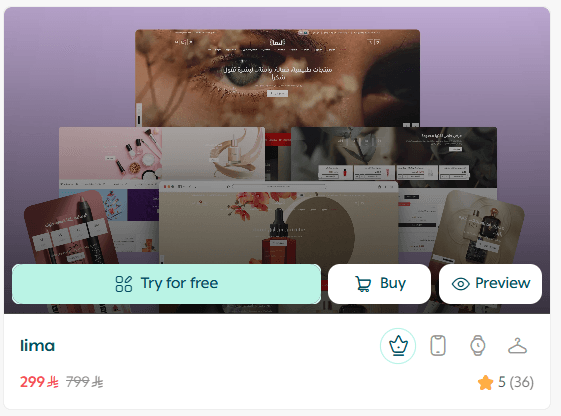
Each theme card contains important information to help you evaluate and manage the theme easily, including:
- Theme name
- Price
- Rating
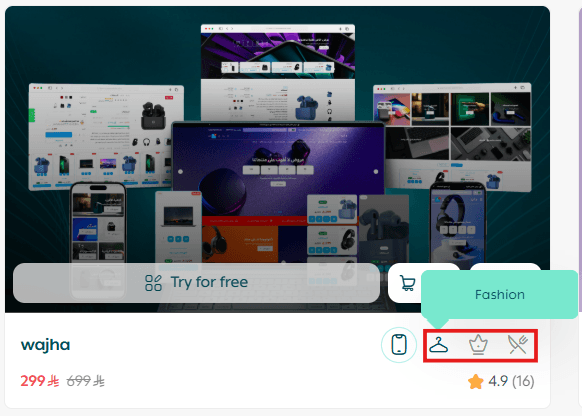
You can also see which business activities the theme is best suited for.
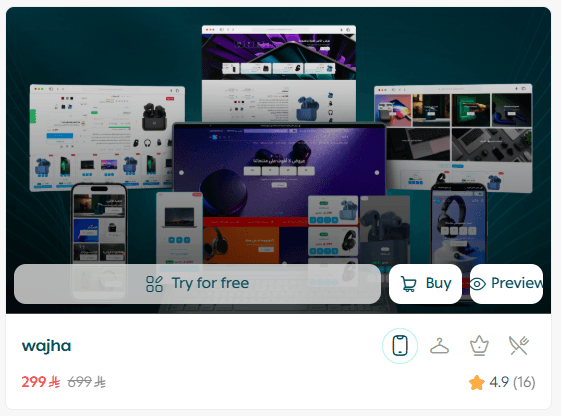
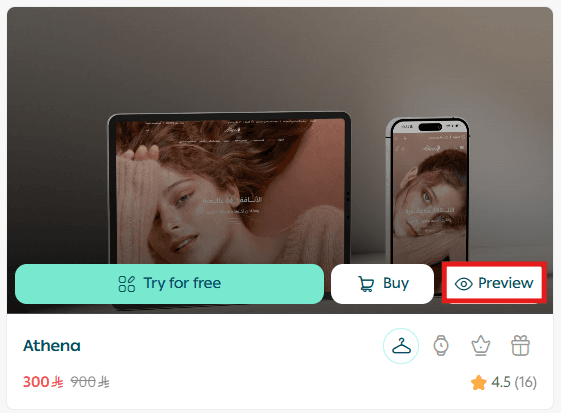
When you hover over a theme, the following buttons appear:
- Try for free
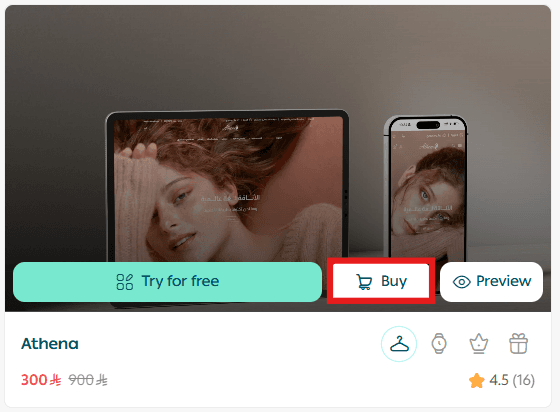
- Buy
- Preview
To browse and purchase new themes, open the Theme Store and explore available categories.
Theme Statuses
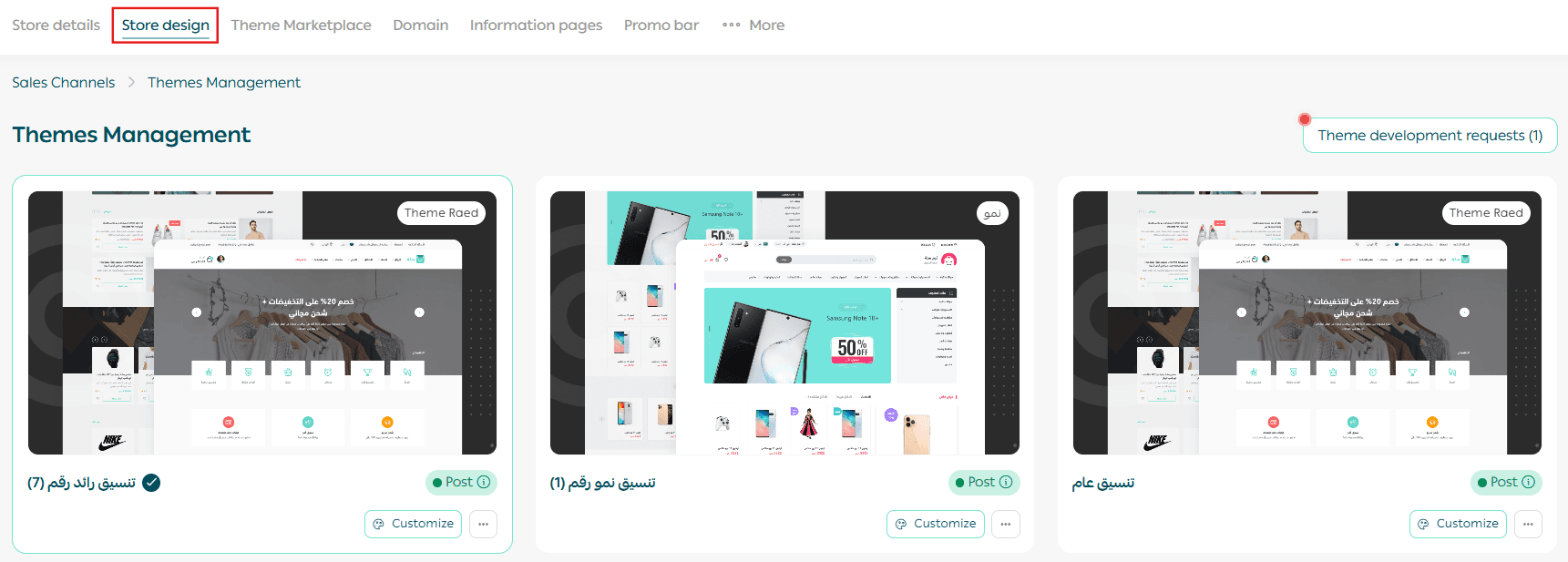
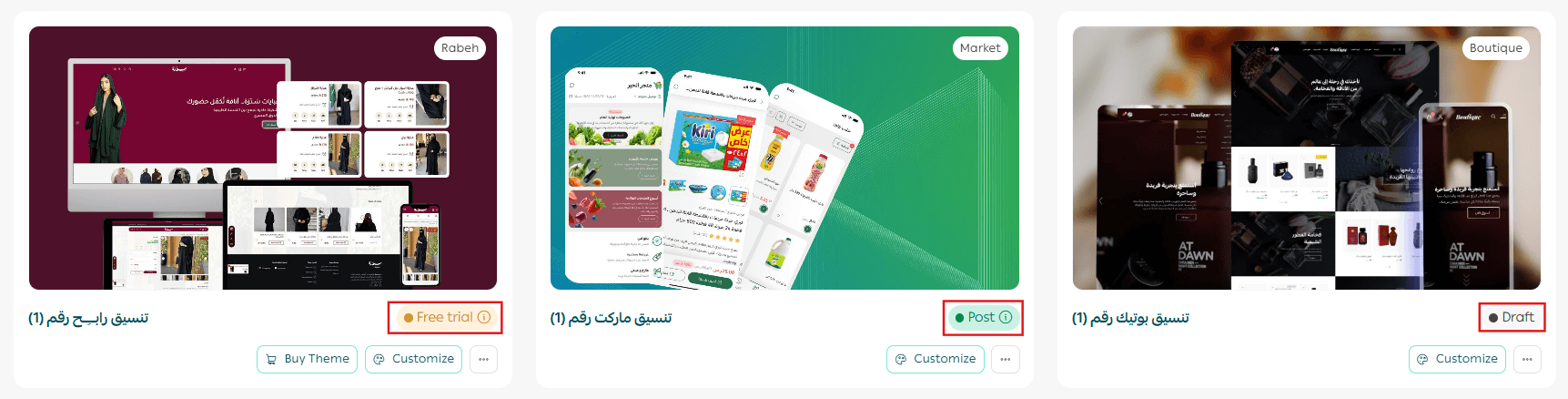
From the Store Design tab, each theme displays a status below its image, indicating its current state:
- Draft
A theme that is not published yet and can be edited before publishing.
- Scheduled
A theme that is set to be published at a specific future time.
- Published
The active theme currently used on your store.
📝 Note: A country flag appears below each theme to indicate supported countries.
More options in the Theme card
Clicking the three dots icon opens additional actions such as:
- Edit
- Unpublish
- Preview
- Copy link
- Rename
- Duplicate
- Edit rating
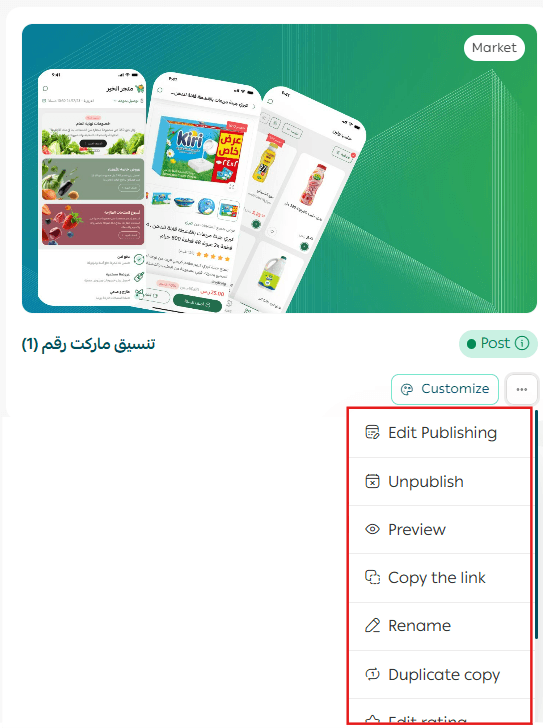
📝 Note: The available options change based on the theme’s status. If a theme is scheduled or unpublished, additional options such as publish or reschedule will appear.
Publishing and Editing Details
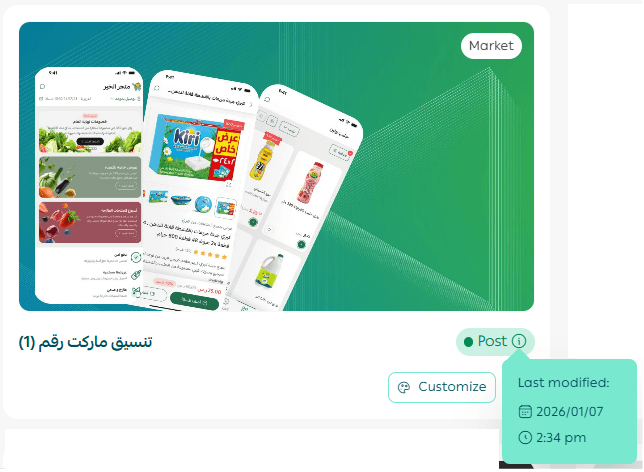
If you create multiple copies of a theme, all versions will appear on the theme management page.
Below each theme, you can see its status, whether published or scheduled, along with the publishing date. If the theme is published, the last edited date will also be shown.
Theme Store Control Options
The Theme Store provides several tools to help you manage and explore themes efficiently.
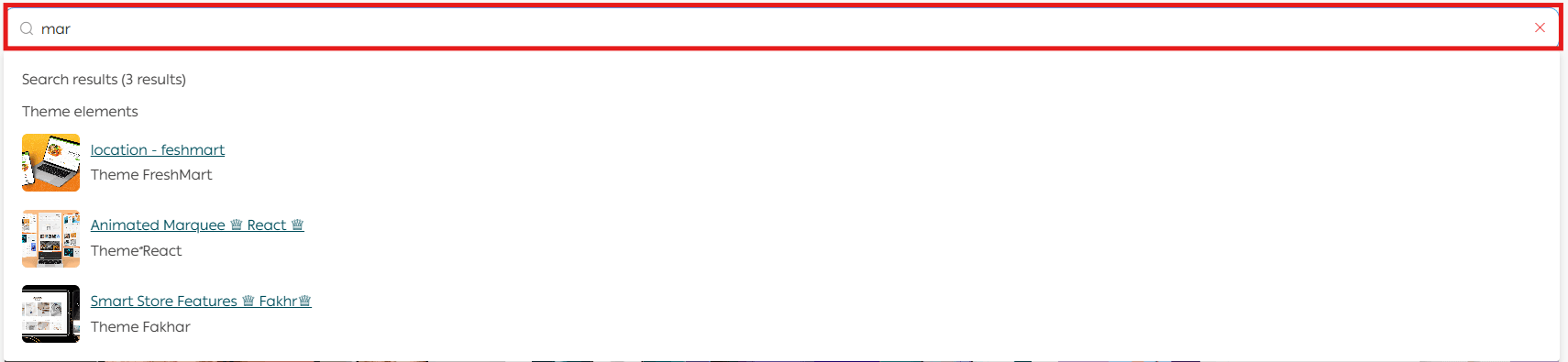
Search for a theme
Use the search bar at the top of the Theme Store to find a specific theme or theme feature.
Try a theme before purchasing
The try before purchase feature allows you to test up to five paid themes on any paid plan before making a purchase decision.
Steps to try a theme:
- Visit the Theme Marketplace
- Choose a paid theme and click Try theme
🔔 You can activate and test up to five themes at the same time.
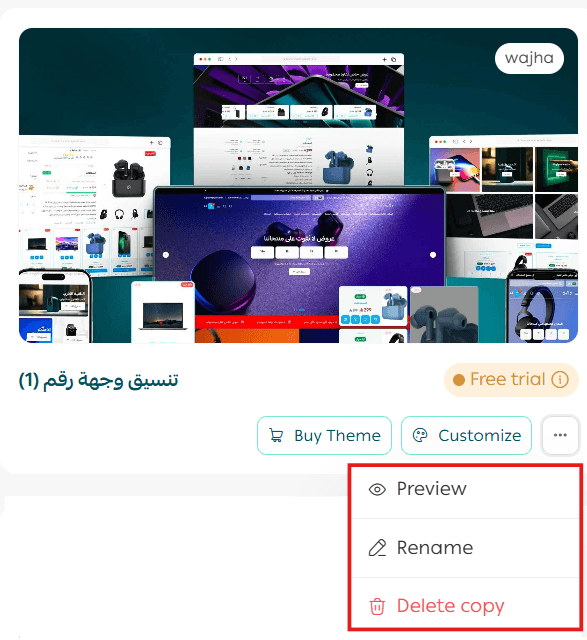
A trial copy of the theme will be created and marked as a trial.

The theme will appear in the Store Design tab.
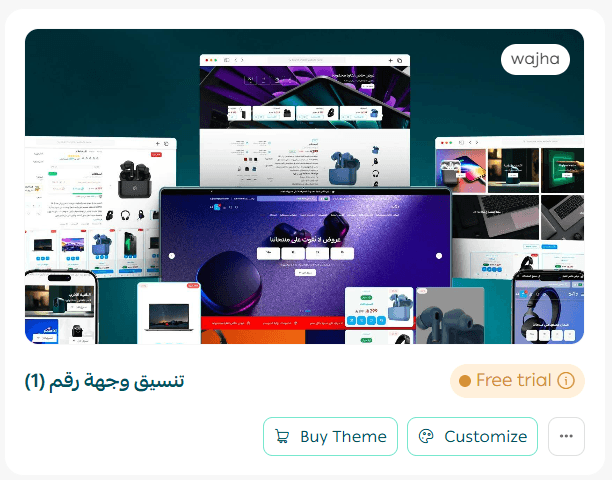
You can manage the trial version by customizing it, previewing it, renaming it, or deleting it.
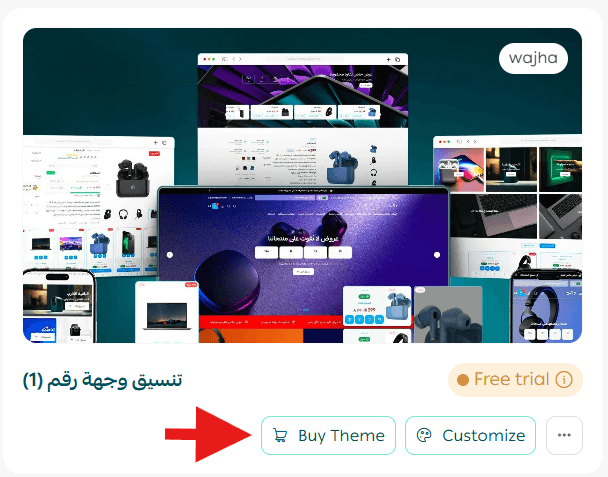
Once you decide, you can purchase and activate the selected theme immediately.
Preview your store with a theme
You can preview your store with any theme before purchasing or activating it to ensure it fits your needs.
From the Theme Marketplace, click Preview to see how your store will look with the selected theme, or preview a specific section.
Preview theme suitability for different business types
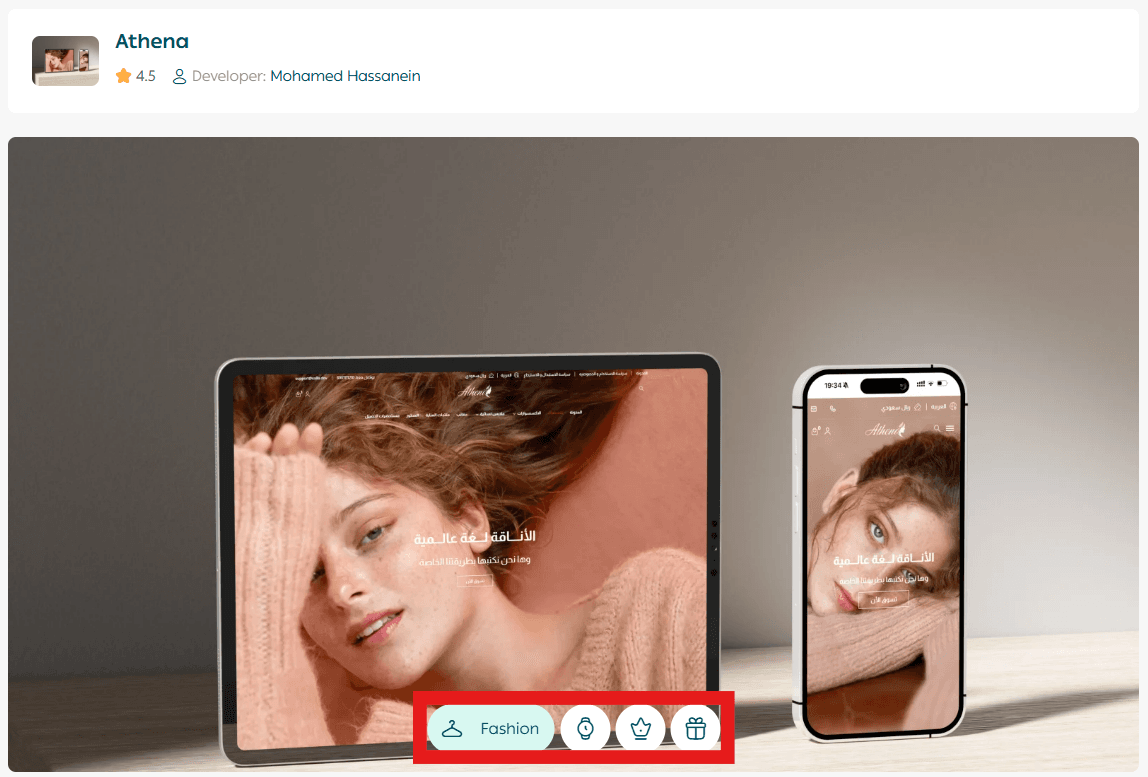
Use multi-preview mode to explore how a theme adapts to different business activities. This helps you visualize how the theme can fit your store regardless of your industry and makes the design process more inspiring.
View more themes and apply filters
From the Theme Marketplace, click View more within any section to browse additional themes.
All themes will appear grouped by industry.
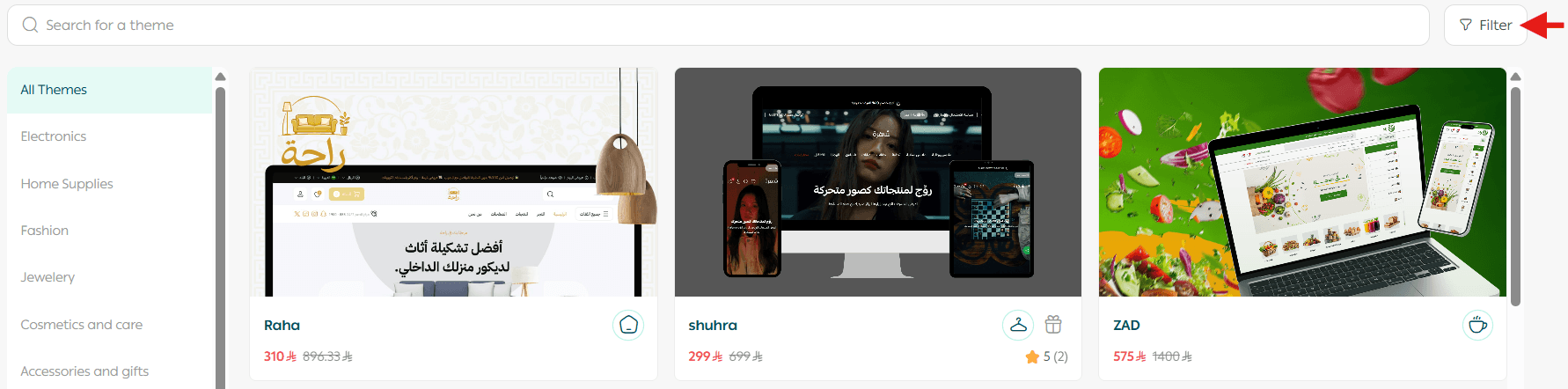
To filter themes, click Filter, select the criteria that suit you, then click Show results.
Purchase a theme
From the Theme Store, select the theme you want to buy and click Buy.
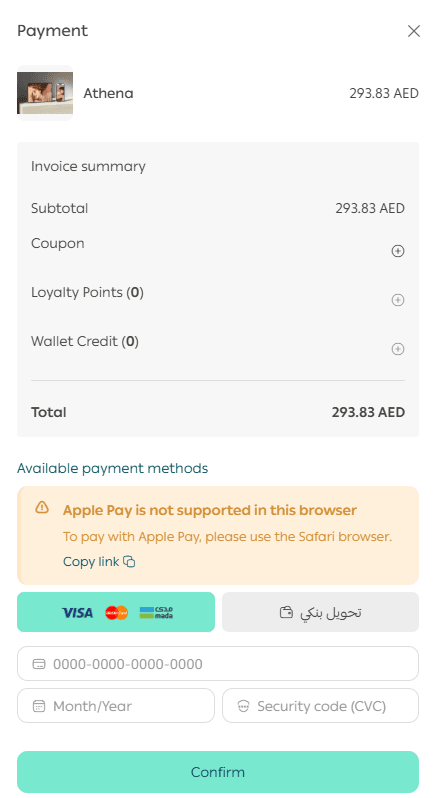
Complete the payment process.
Once installed, customize the theme from the Store Design page to match your needs.
View theme details
Clicking on a theme opens its full details page, including access to technical support.
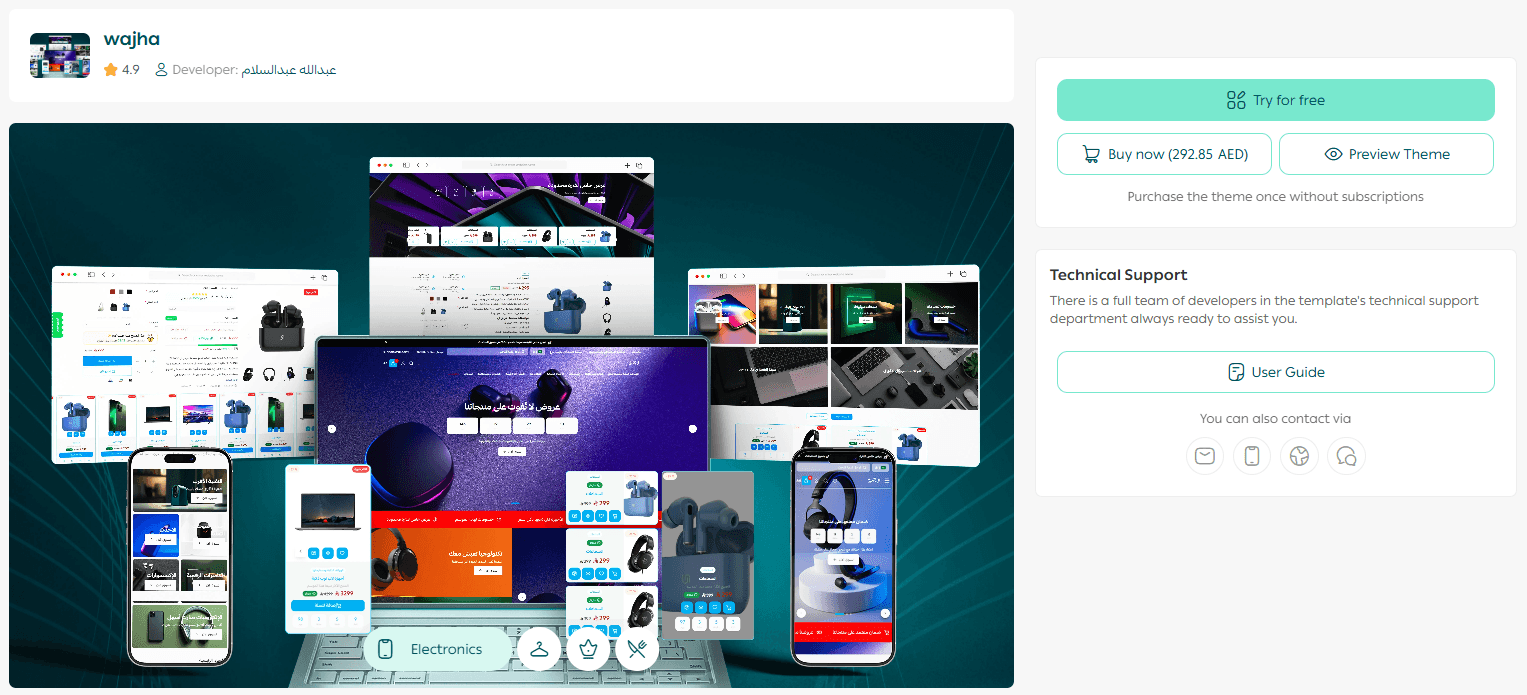
You will find clear descriptions for each image and new feature.
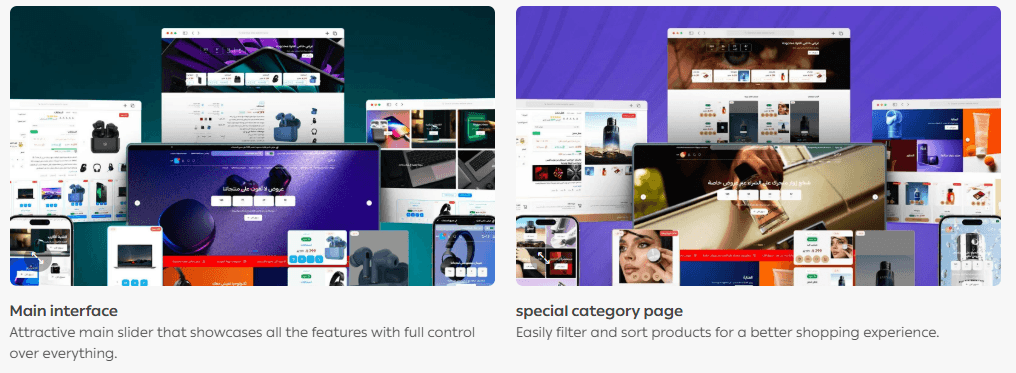
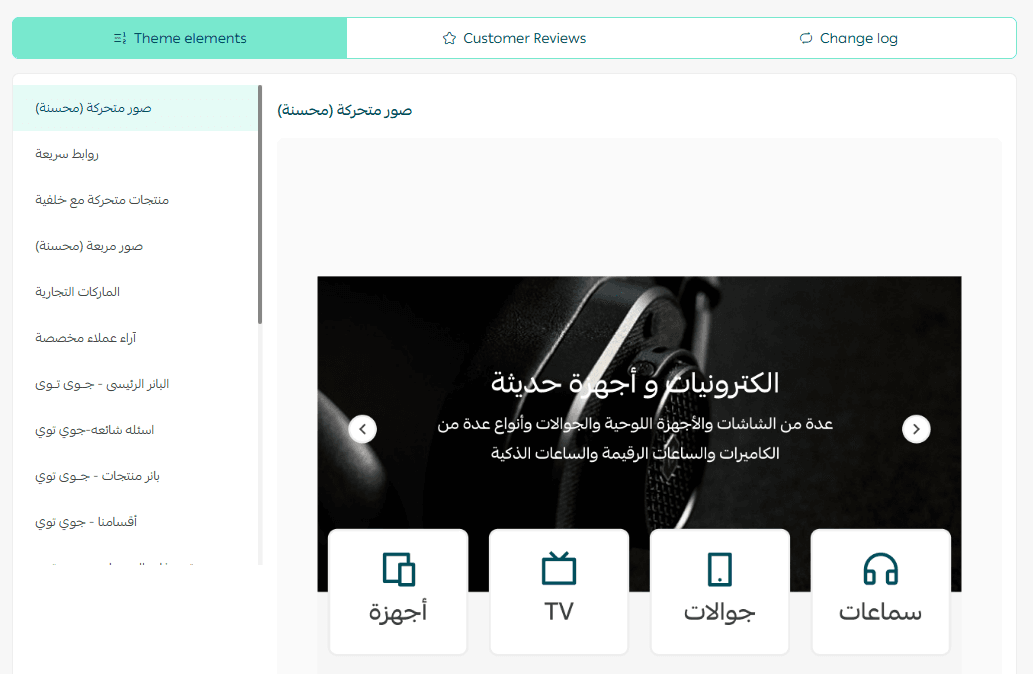
You can also explore supported elements, homepage sections, and internal settings before purchasing.
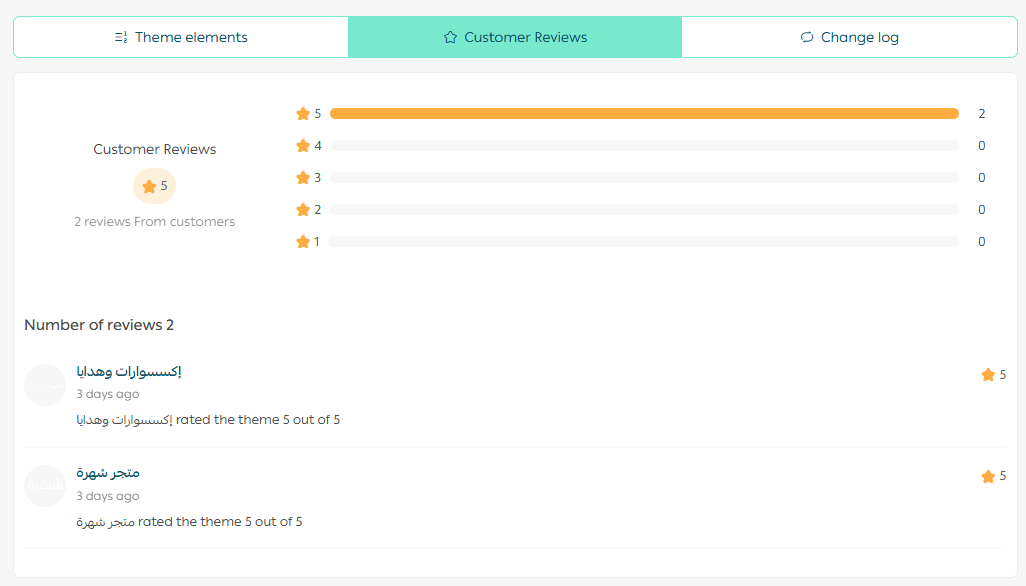
From the Reviews tab, you can read feedback and ratings from other merchants.
From the Changelog tab, you can view the theme update history.
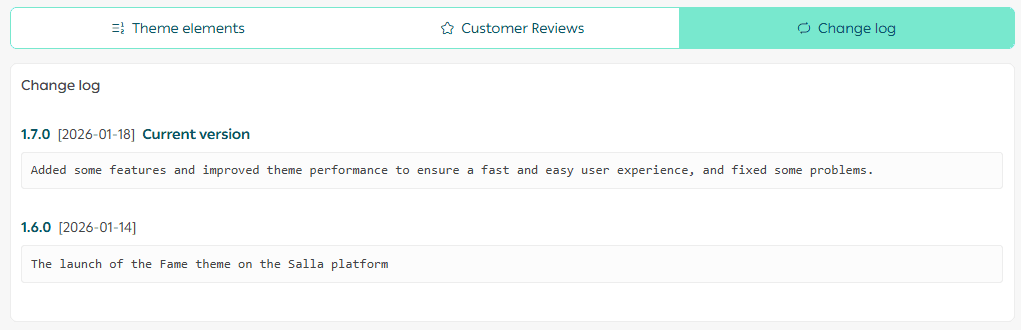
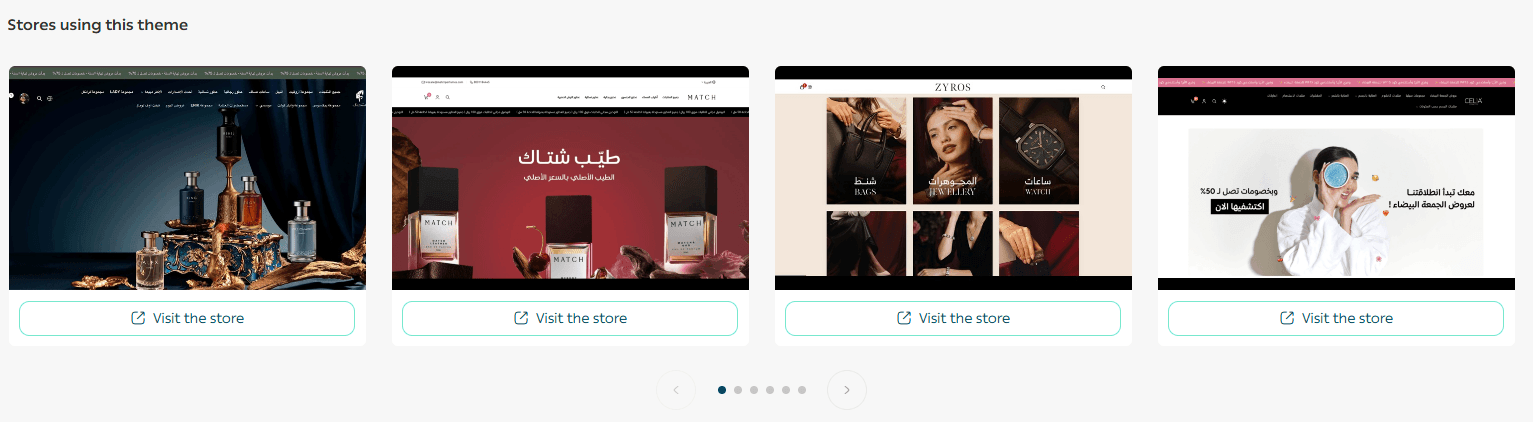
At the bottom of the theme details page, you can browse stores currently using this theme to see real examples of its capabilities.
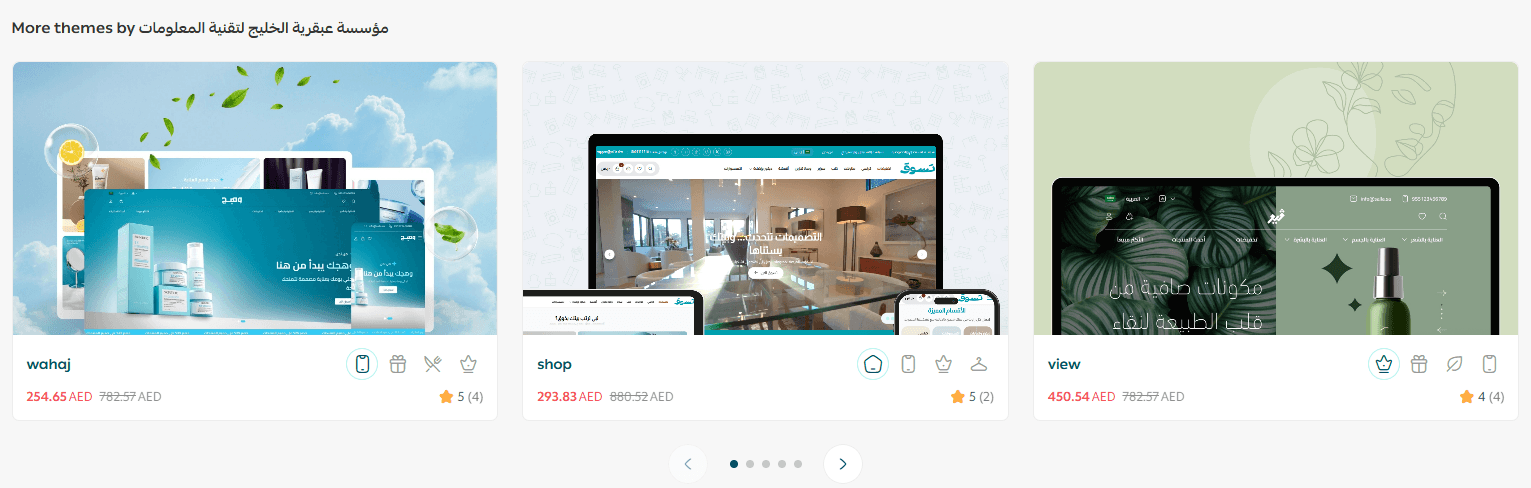
You will also see other themes created by the same developer, if available.
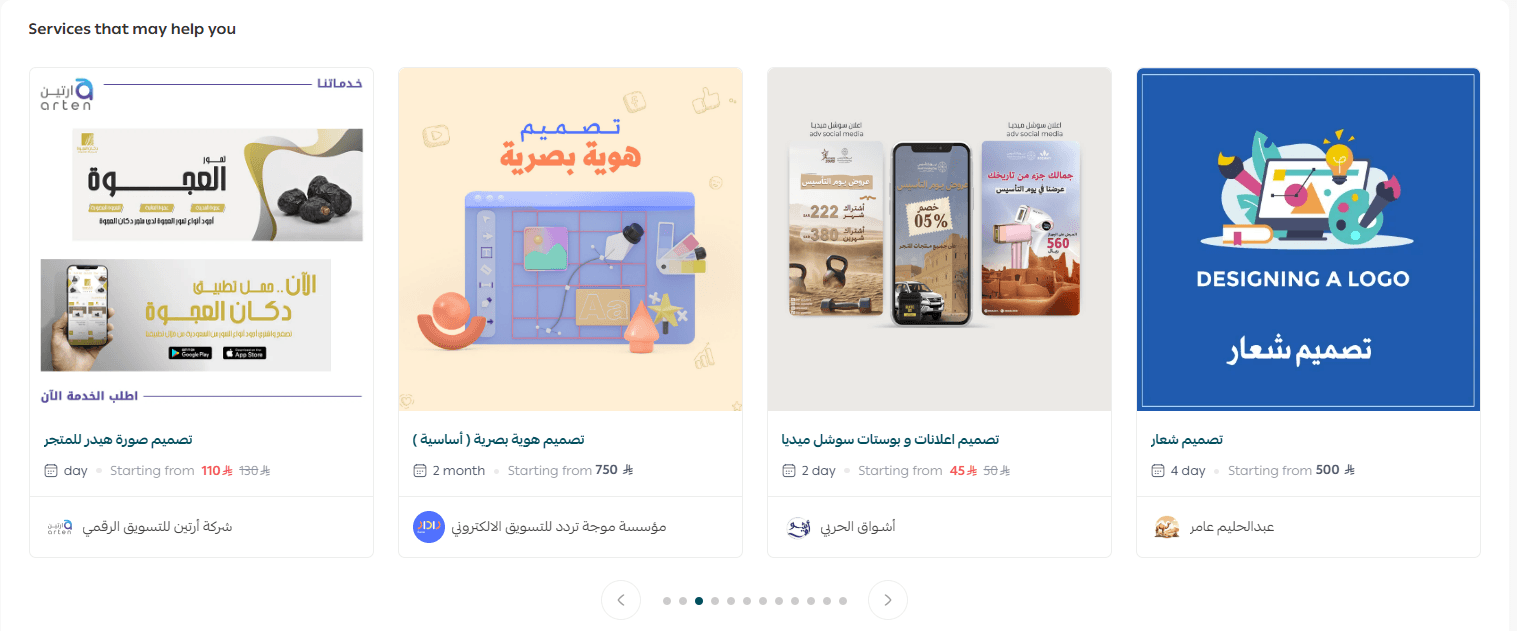
In addition, suggested services from the Merchant Services page may appear.
Merchant Services
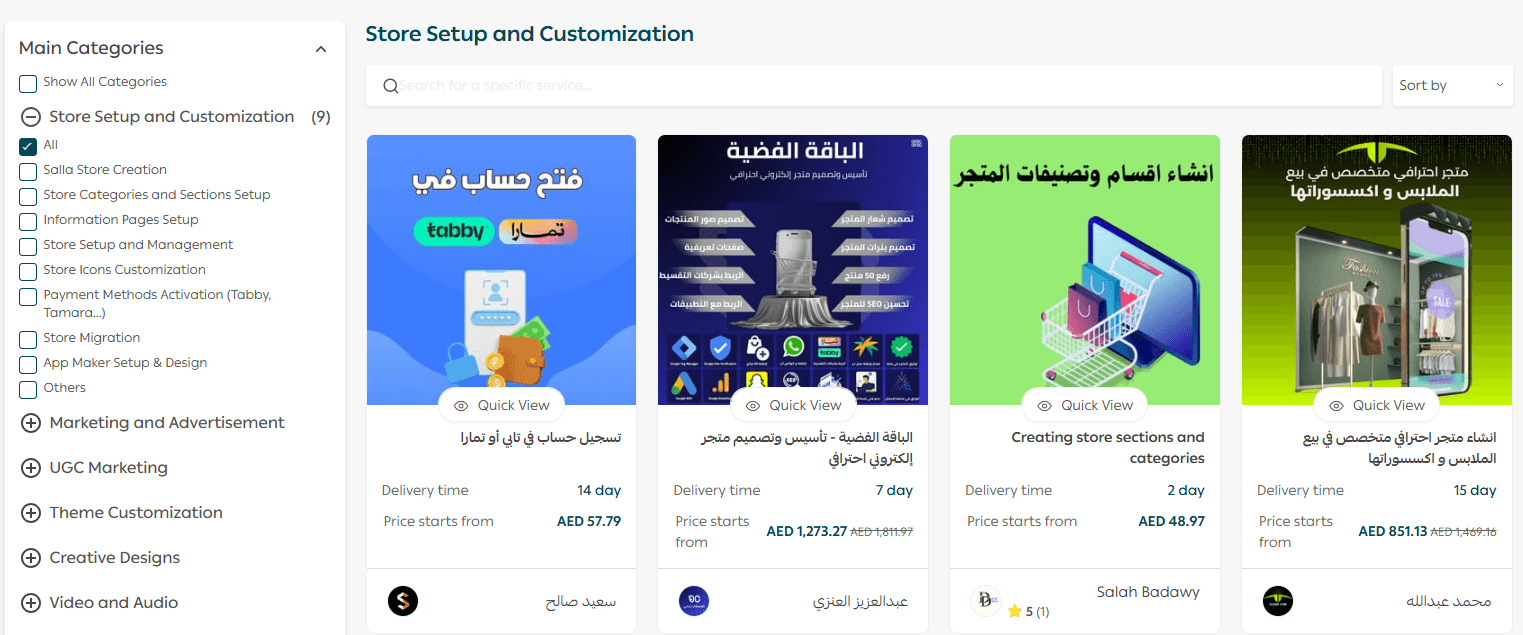
To present your store with a professional design that fits your target audience, you can request help from professional service providers.
These services include:
- Creating core store pages
- Logo design
- Image design
- Brand identity design
- Store design customization using CSS
Final Takeaway
The Theme Marketplace gives you full control over how your store looks and feels.
With previews, trials, detailed comparisons, and professional support options, you can confidently choose a theme that aligns with your brand and delivers a seamless shopping experience for your customers.