Have you ever ordered clothing online only to discover the size does not fit? This experience often leads to frustration, returns, and a loss of trust in the store.
To reduce size related returns and protect customer loyalty, it is essential to help shoppers choose the correct size from the start. With the Product Size Chart feature, you can clearly display measurements for clothing, accessories, and gold or silver jewelry directly on the product page. This allows customers to review sizing details instantly and make confident purchase decisions.
📌Article overview
- Create a new size chart
- Customize size charts
Create a New Size Chart
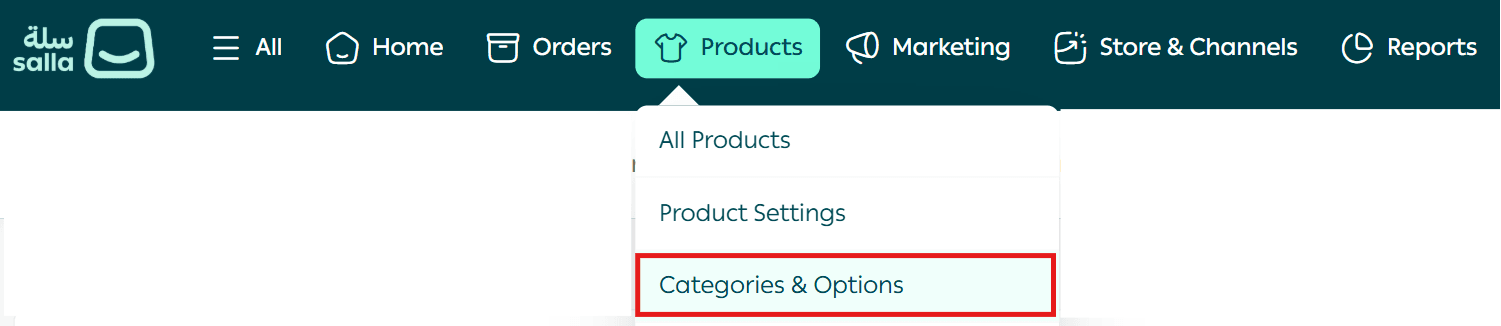
- From the main menu, go to Products, then select Categories and Options.
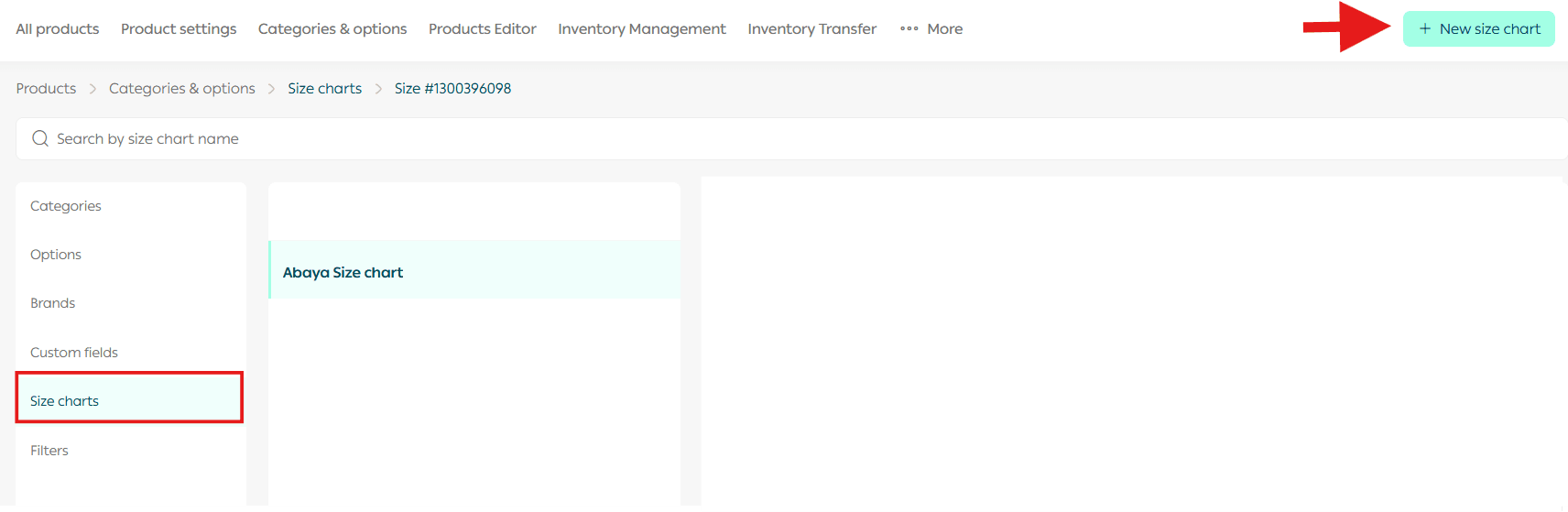
- From the Categories and Options page, click Size Charts, then select Create New Chart.
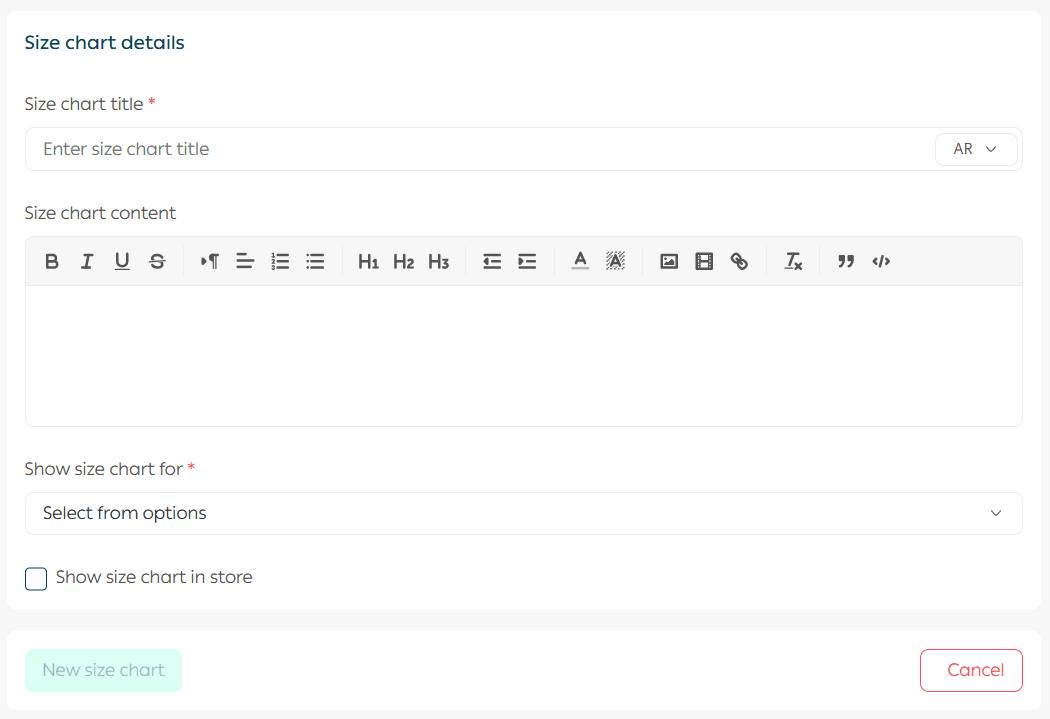
3. Enter the size chart details, add measurement information, choose the chart type, then click Add Size.
Design Your Size Chart With the Text Editor
The built in text editor gives you full creative control to design a clear and professional size chart that is easy for customers to understand.
You can enhance your size chart using the following tools:
Insert Images

Upload a pre designed size chart image created using tools like Canva or Photoshop and insert it directly into the content.
Add Links

Link the size chart or specific text to helpful pages such as a Size Guide or Return Policy to provide extra reassurance for customers.
Format Text

Use formatting tools to:
- Increase font size
- Apply bold or italic styles
- Align text and tables
- Add bullet or numbered lists
- Highlight important notes or measurements with colors
Insert HTML Code

For advanced customization, you can add an HTML table instead of an image. This allows you to create interactive size charts with custom colors, borders, and layouts.
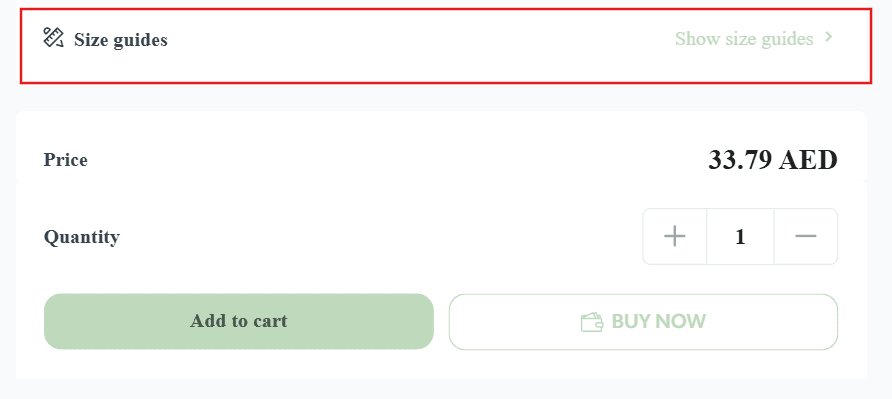
How the Size Chart Appears on the Product Page
Once added, the size chart will appear directly within the product card, allowing customers to view measurements with a single click.
Customize the Size Chart
After creating a size chart, you can edit or delete it at any time.
To do this:
- Click on the size chart you want to modify
- Update the information
- Click Save or Delete as needed
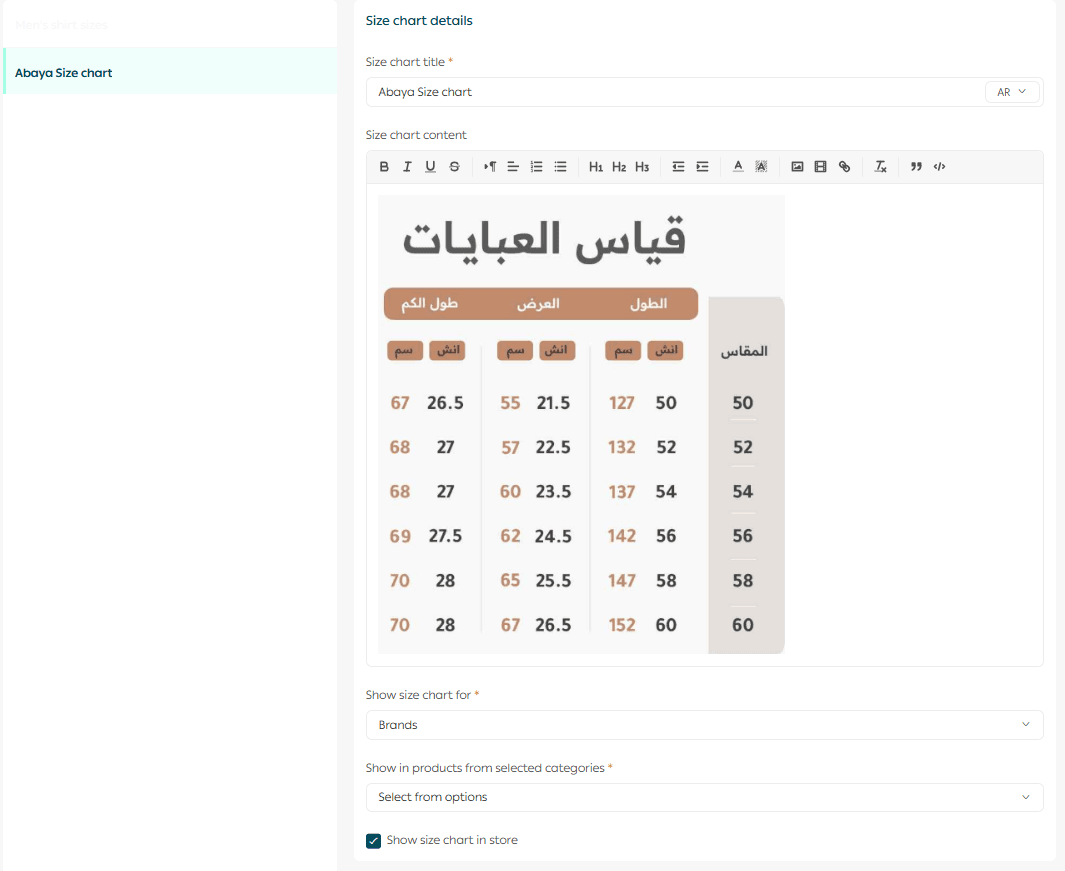
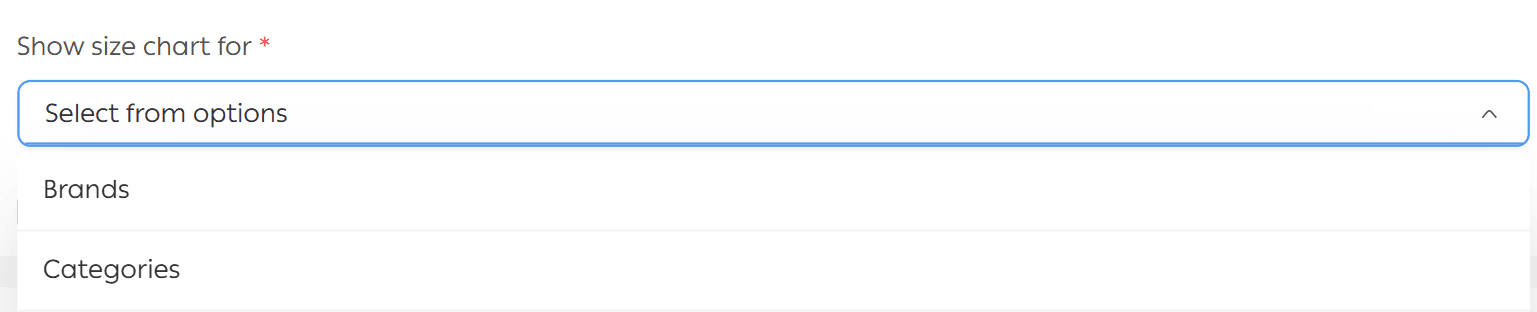
Limit Size Chart Display by Brand or Category
You can control where each size chart appears by assigning it to:
- Specific brands, with the option to select multiple brands
- Specific product categories, with the option to select multiple categories
This ensures that each product shows only the most relevant size chart.
Show or Hide the Size Chart
Use the Display Size Chart in Store option to enable or disable the chart’s visibility in your store.

Delete a Size Chart
To permanently remove a size chart:
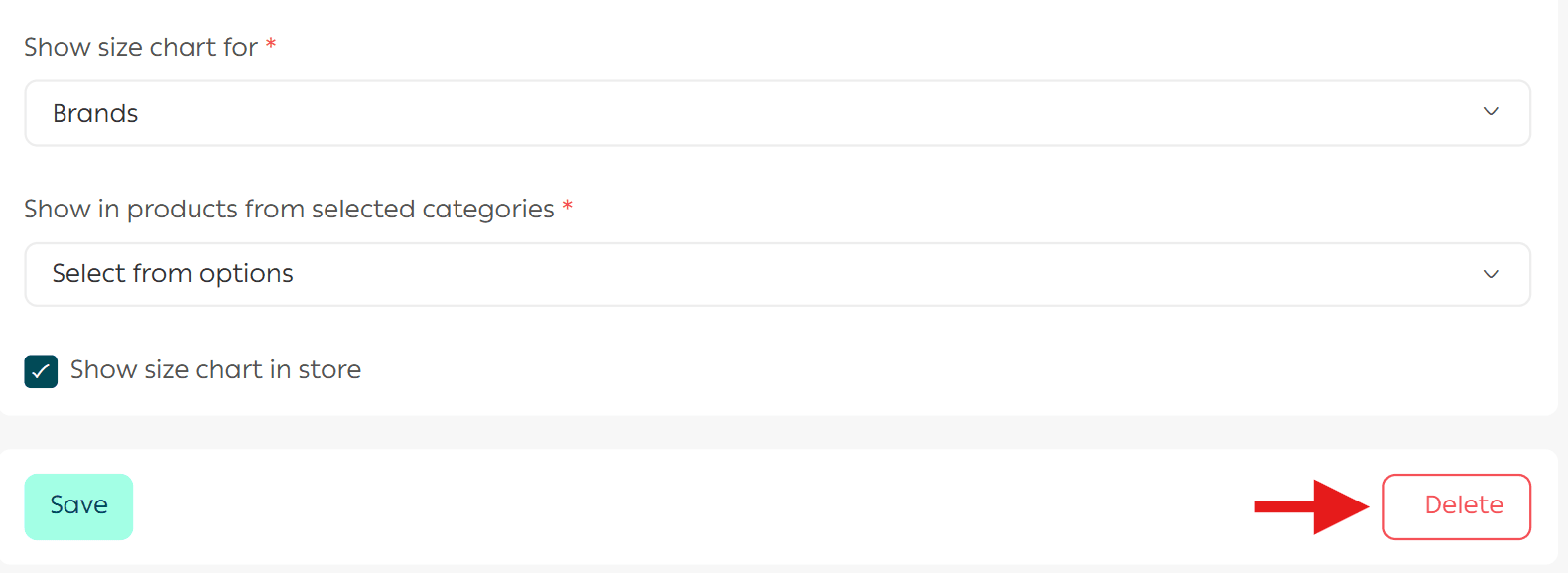
- Open the size chart you want to delete
- Click Delete
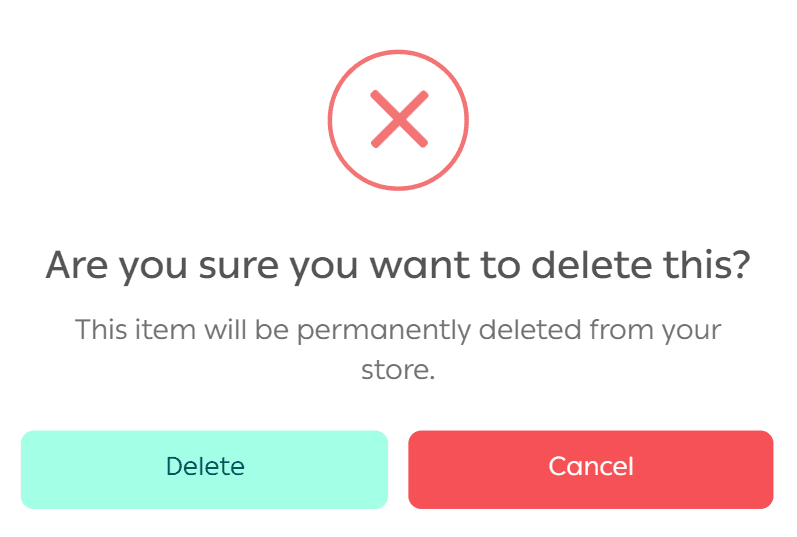
- Confirm the deletion by clicking Confirm Delete
Frequently Asked Questions
Can I add more than one size chart?
Yes. You can create multiple size charts and assign each one to a specific product category.
Which plans support the Size Chart feature?
This feature is available for all merchants on paid plans, including:
- Plus
- Pro
- Special
Why Using Size Charts Matters
- Adding clear and accurate size charts helps:
- Reduce return rates caused by incorrect sizing
- Increase customer confidence before purchase
- Improve overall shopping experience
- Strengthen trust and long term loyalty
By making sizing information accessible and easy to understand, you create a smoother buying journey that benefits both your customers and your business.