Selling to customers who speak different languages? Your theme should handle that for you.
The Nomow theme is the first Salla theme with full multilingual support built in. It translates your store content and flips the direction of every element automatically based on the language your customer is browsing in, and its flexible components give you room to put the right products in front of them. In this guide, you'll learn how to customize the Nomow theme, what new components it adds to your home page, and how to set each one up.
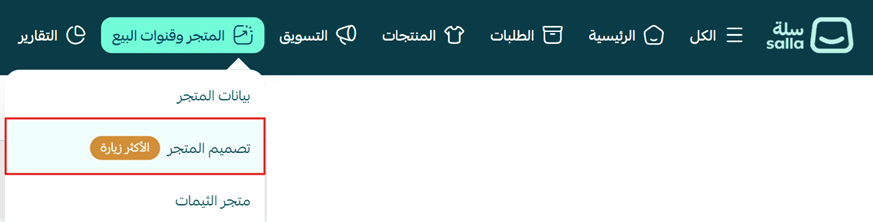
The Nomow theme is customized from Store and sales channels, then Store design. Click Customize to open the theme, adjust the design to match your brand, and use the Store pages tab to add the theme's new home page components: an animated image list and a featured products component.
📌 Article overview
- How to customize the Nomow theme
- New components added to the Nomow theme
- Frequently asked questions
🚀 How to customize the Nomow theme
1. From the main menu, click (Store and sales channels), then choose (Store design).
2. Click (Customize).
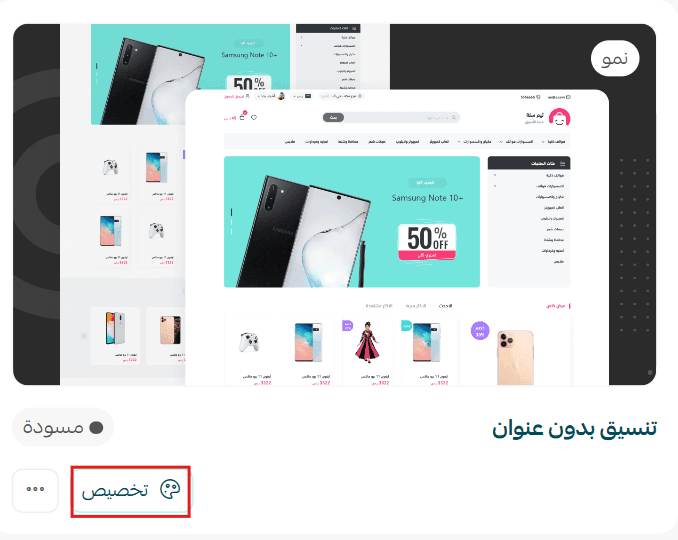
🚀 From here, shape the design around your brand and use everything the theme offers to give customers a more polished shopping experience.
- Manage theme versions and schedule when they go live.
- Manage and customize your theme design.
✨ New components added to the Nomow theme
The Nomow theme comes with a set of components built to highlight your products and make browsing your store easier.
To add the new components:
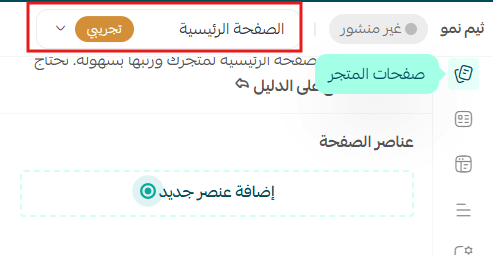
1. From the (Store pages) tab inside the Nomow theme customization page, choose (Home page).
2. Click (Add new component).
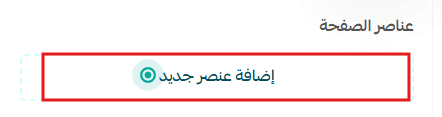
The new components you can add to your home page appear in the list.
Animated image list
This component shows a set of animated images, and each image can point to a category, a product in your store, or any external link.
You customize it by:
- Entering the list name in every language your store supports.
- Uploading images at 640 × 640 pixels.
- Choosing the link type for each image: product, category, or external link.
Featured products
This component displays your featured products and offers on the home page in more than one layout.
You can choose to:
- Show featured products only.
- Put one main product in focus alongside a group of others.
- Show up to 4 products in a single component.
📝 Important notes
Enter the component text in every language your store supports. Anything left untranslated will not appear correctly for customers browsing in that language.
Stick to the 640 × 640 pixel size for animated list images so they display consistently across devices.
Frequently asked questions
❓ Have new design options been added to the Nomow theme?
Yes. A Slogan option has been added, which shows a short introductory or promotional message next to your store logo to reinforce your brand identity.
❓ What makes the Nomow theme different from other themes?
It is the first theme with full language support. Store content can be translated, and element direction changes automatically depending on the language the customer is browsing in.
❓ Where do I add the new home page components?
Open the theme customization page, go to the (Store pages) tab, choose (Home page), then click (Add new component).
❓ What image size should I use for the animated image list?
Upload images at 640 × 640 pixels.
❓ How many products can one featured products component show?
Up to 4 products in a single component.
🌟 Launch with the Nomow theme, give customers a multilingual shopping experience with a professional design, and use its flexible components to highlight your products and open up more chances to sell. 🚀