Klaviyo App:
This app specializes in connecting your Salla store with the Klaviyo platform for email and message marketing, allowing you to track all important events in your store and send them automatically in real-time. This helps you build smart marketing campaigns, increase customer engagement, and improve conversion rates.
📌 Main topics of the article:
- Steps to connect with the Klaviyo app
- Events synchronized with Klaviyo
- Managing the Klaviyo app
👣 Steps to connect with the Klaviyo app
From the main menu, click (All), then from the Utilities section, click App Store
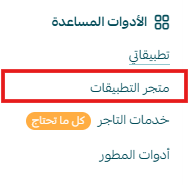
2. Search for the app using the search field

3. From the Klaviyo app page, click (Install).
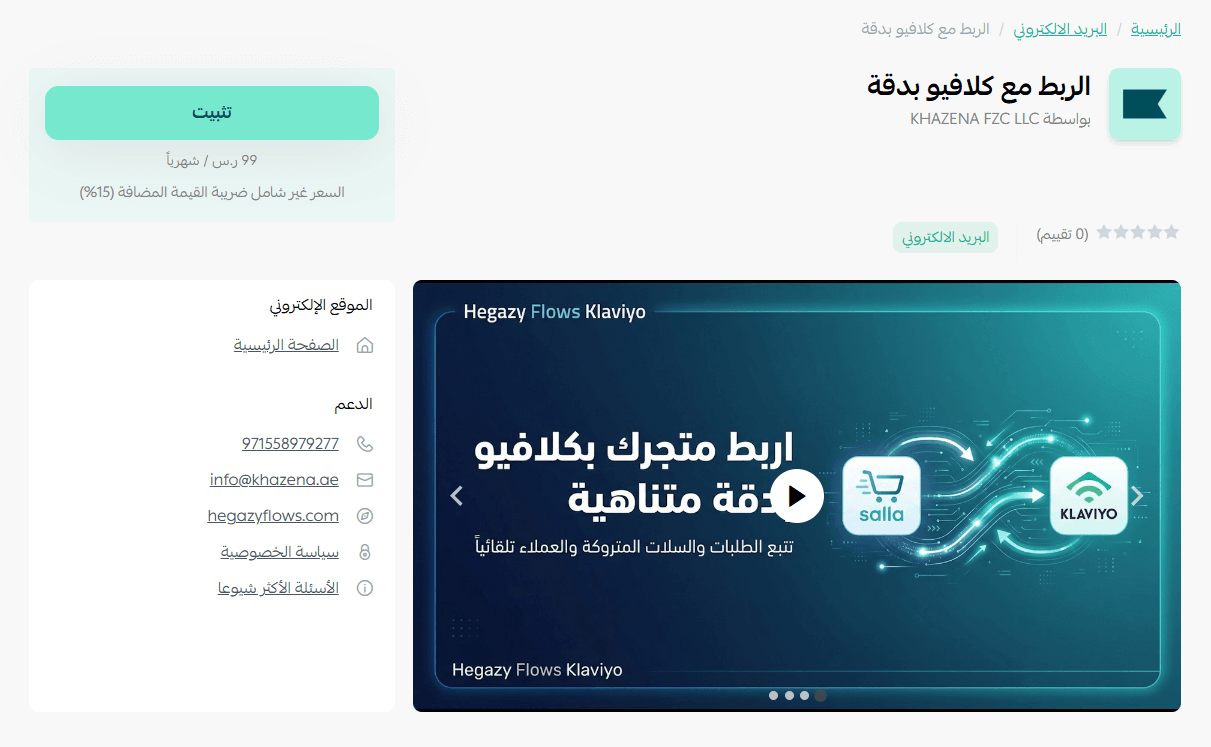
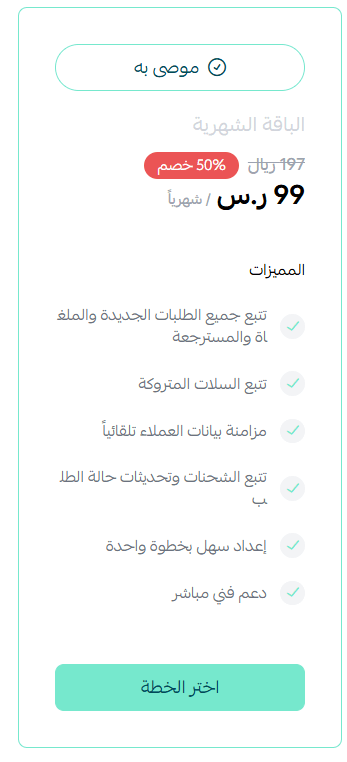
4. Choose the appropriate package
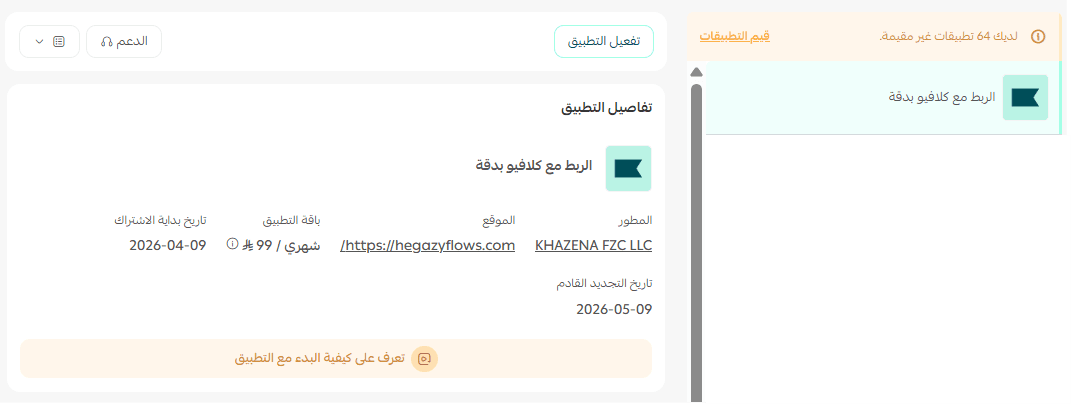
5. The app will appear on the My Apps page in the store
6. From the new account registration page on Klaviyo, enter the required information:
- Password
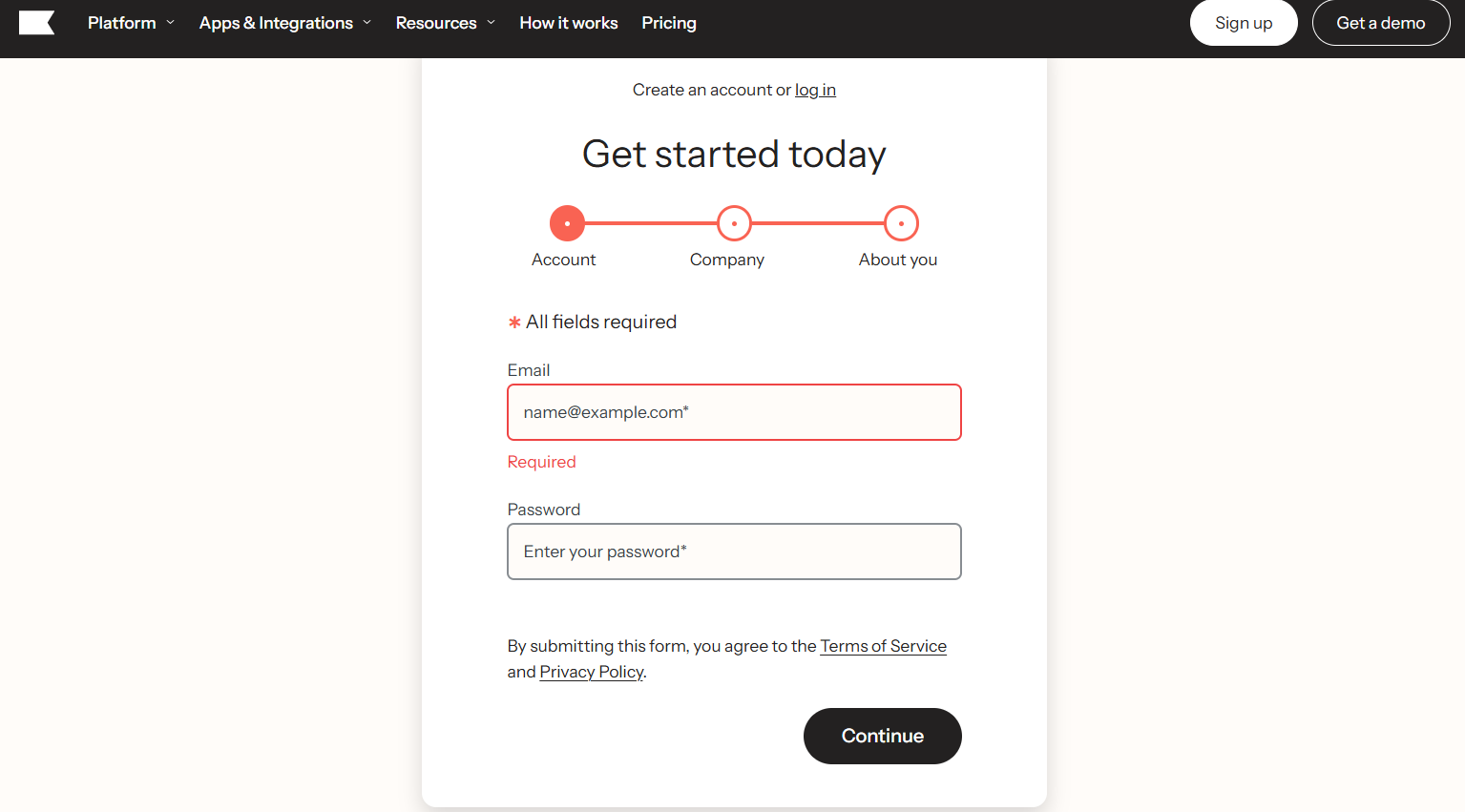
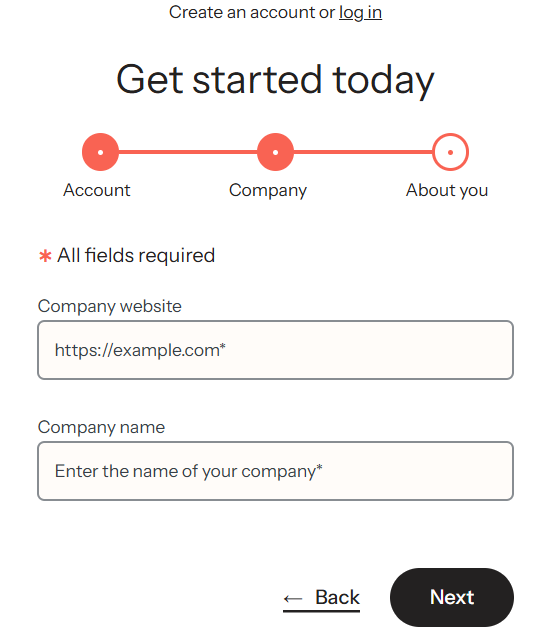
7. Enter the store domain and store name
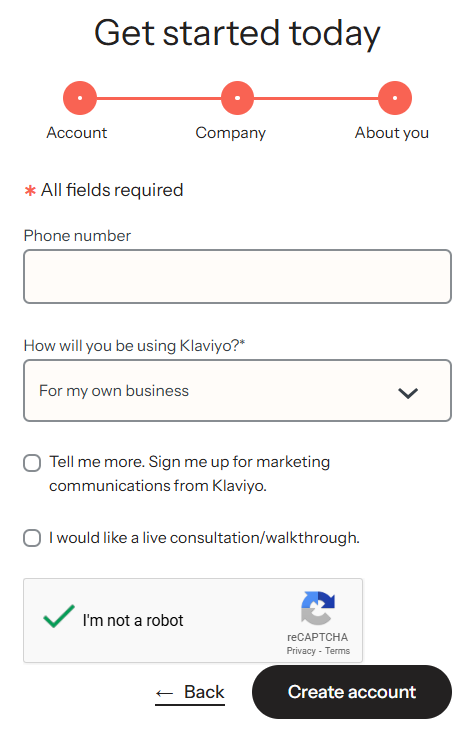
8. Enter the phone number and the nature of the business you will use Klaviyo for, and click (Create Account).
9. Complete the setup steps which require the number of contacts, company address, etc.

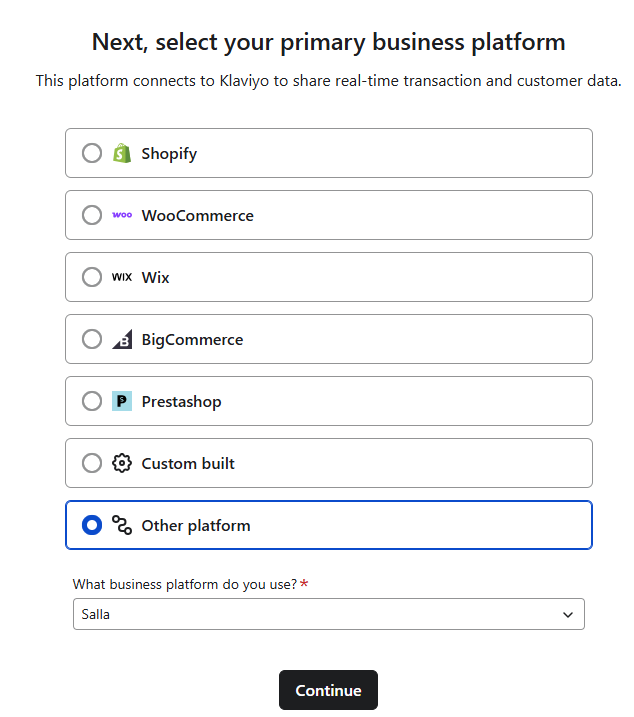
10. Select the platform you are working on.
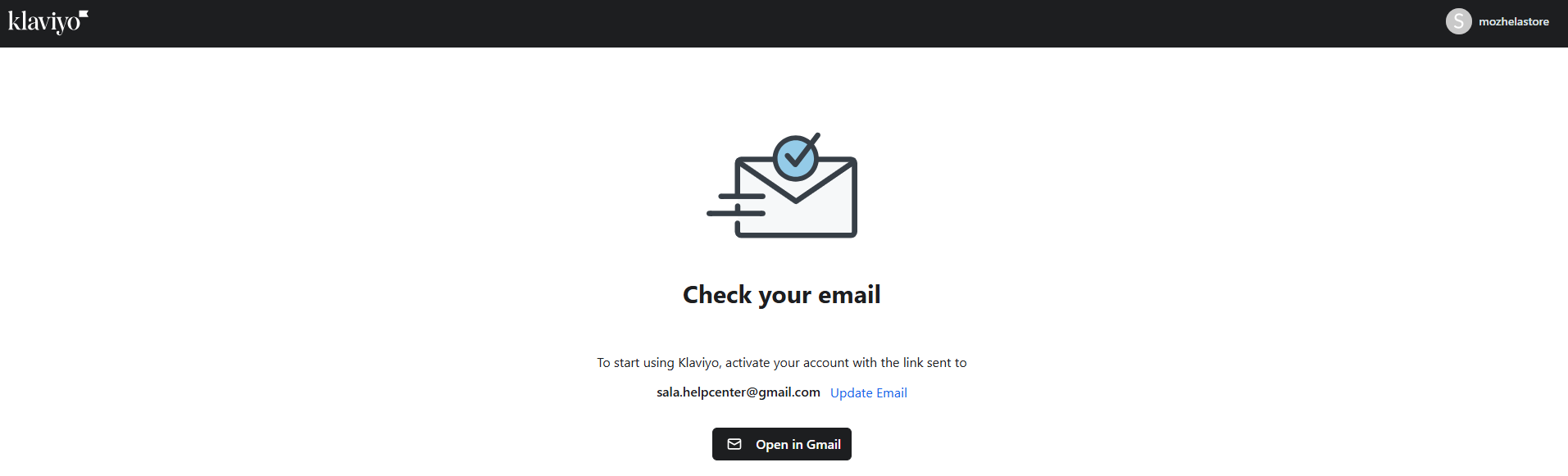
11. Confirm the email.
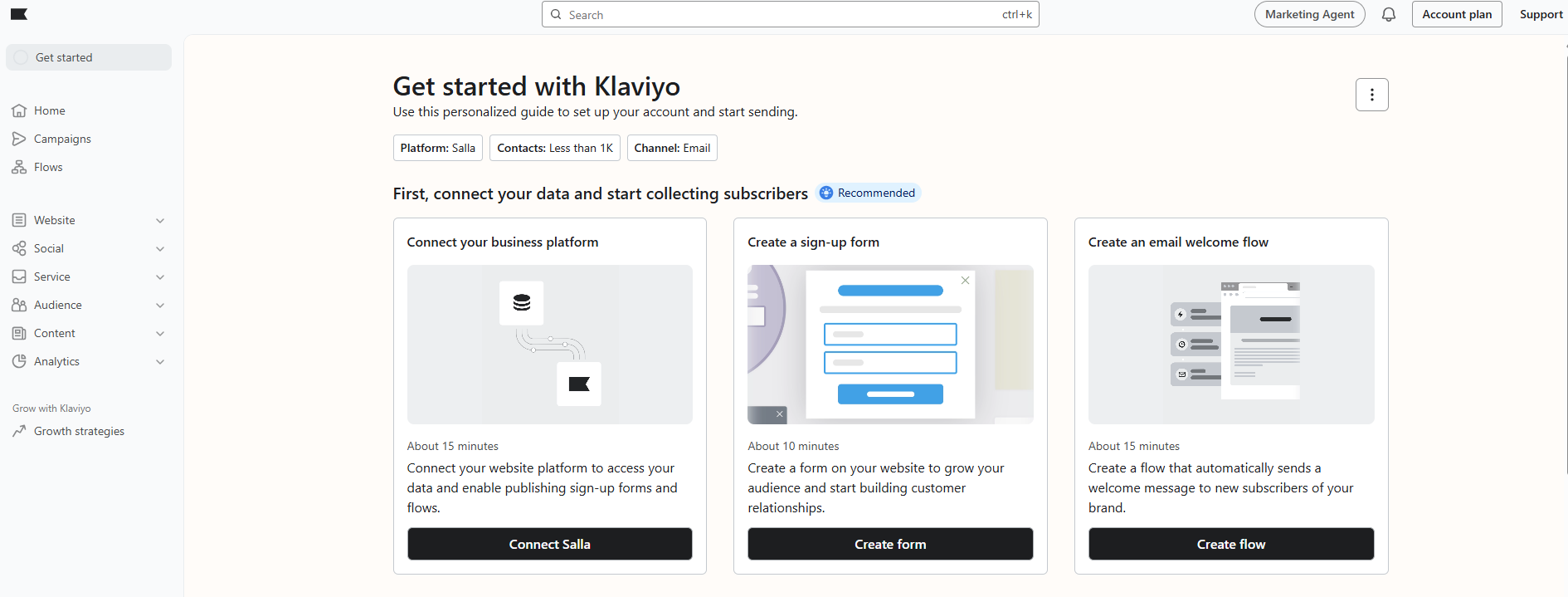
Congratulations, your Klaviyo account is ready, and the homepage will appear as follows:
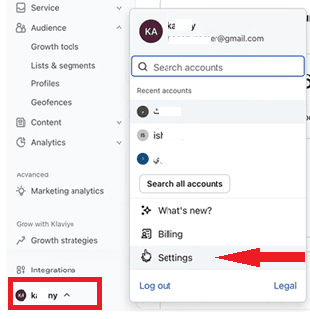
12. From the bottom of the sidebar, click on your account icon, then click (Settings).
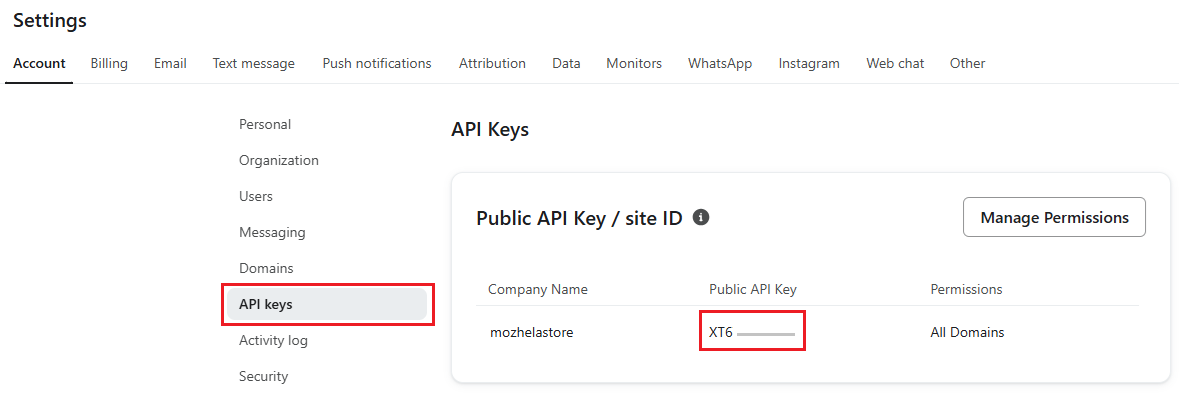
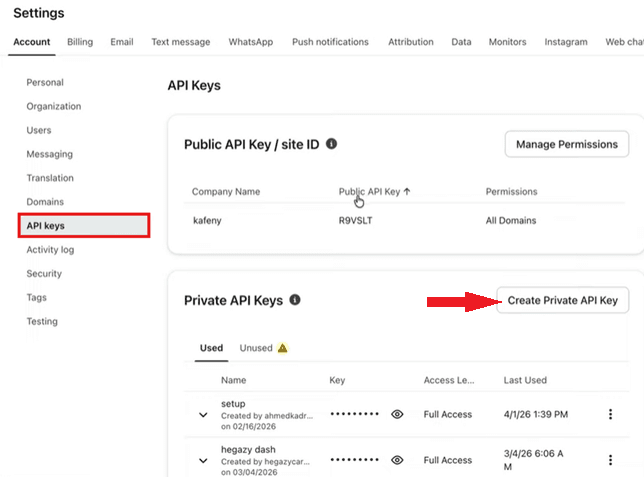
13. Choose (API Keys), you will find two sections of keys, look for the Public API Key, and copy the key displayed next to it.
14. Also from the (API Keys) tab, click (Create private API key).
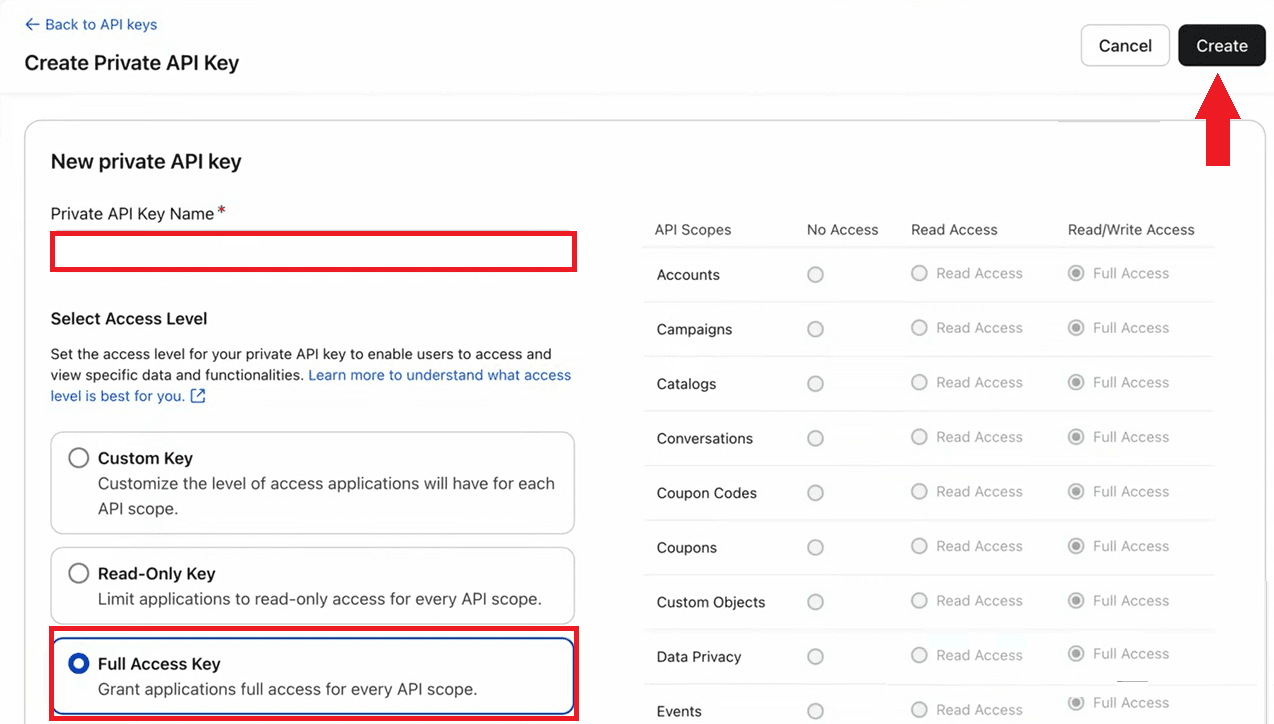
15. Enter the key name, choose (full Access key), then click (Create).
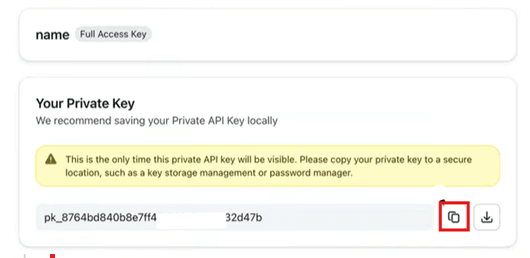
16. Copy the (Private key).
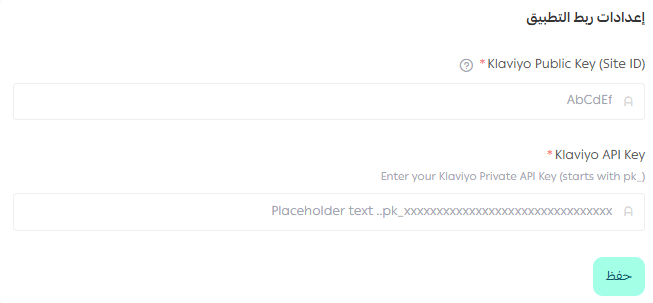
17. Go to your store in Salla, then add the previously copied keys on the Klaviyo app page in your store, then click (Save).
📡 Events synchronized with Klaviyo
After completing the connection, the following events are automatically sent to Klaviyo:
🛒 Placed Order (New Order): When a new order is created, including order data, products, discounts, and shipping.
📦 Ordered Product: Sent for each product in the order, including product details such as name, price, quantity, and category.
🚚 Fulfilled Order: When the order status is updated to shipped or delivered.
❌ Cancelled Order: When the order status is updated to canceled.
↩️ Refunded Order: When the order status is updated to refunded.
👤 Customer data is also sent with all events automatically, such as: name, email, mobile number, gender, date of birth, city, country, and currency.
🔔 Note: These are the currently supported events in the Klaviyo integration with Salla.
For more details about the Klaviyo platform.
🛠️ Managing the Klaviyo app
Upgrade the package
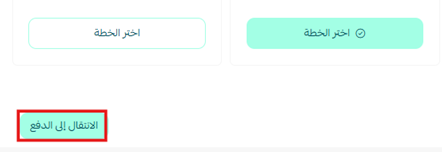
1. From the app details page in your store, click (Upgrade Package).

2. Choose the appropriate plan, then click (Proceed to Payment).
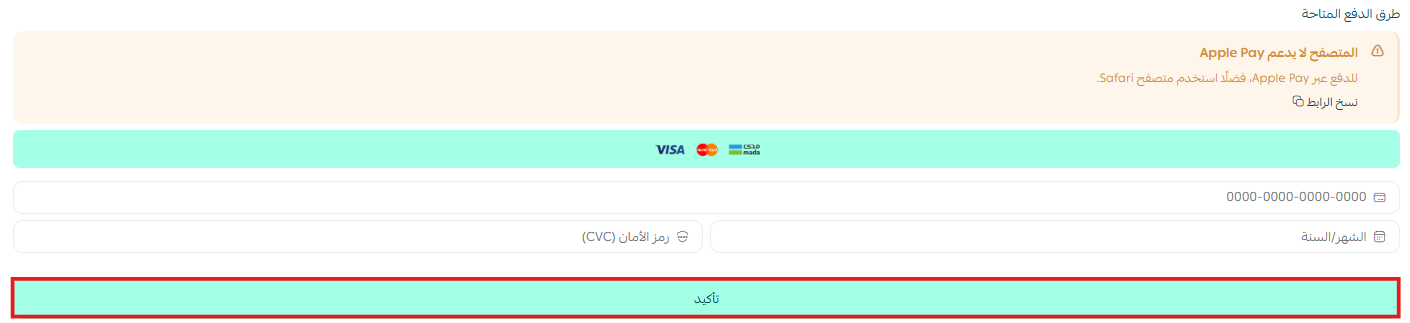
3. Complete the payment details, and click (Confirm) to complete the package upgrade.
Customize the app
🎯You can manage the app from your Klaviyo account control panel.
Delete the app
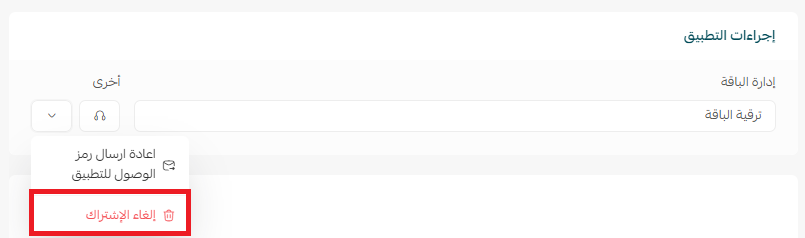
1. From the app options menu, click (Unsubscribe), and choose the reason for cancellation.
2. From the app options menu, click (Delete App), and choose the reason for deletion.
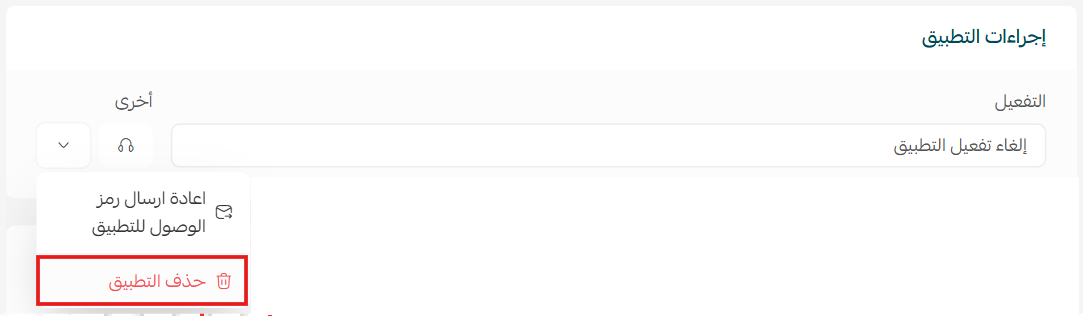
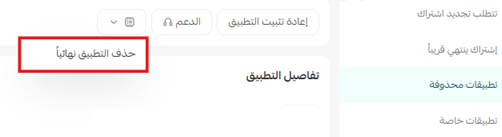
3. From the Deleted Apps page, from the app options menu, click (Permanently Delete App) to permanently remove the app from the store.
For more details about the Klaviyo app