Want to sell products without holding any stock yourself?
That is the promise of dropshipping, and DropIt is the dropshipping app you install on your Salla store to do it. It comes from the Salla App Store like any other app, which means installing it, picking a plan, and paying for it all happen inside your store dashboard. In this guide, you'll learn how to connect DropIt to your store, how to upgrade its plan later, and how to cancel and remove it if it is not the right fit.
DropIt is a dropshipping app you install on your Salla store from the App Store. You search for it, install it, choose a plan, and complete payment. From then on you upgrade the plan, manage settings, or cancel and remove the app from the app's page in your store dashboard.
📌 Article overview
- How to connect DropIt to your store
- How to manage DropIt
- Frequently asked questions
👣 How to connect DropIt to your store
1. From the main menu, click (All), then under helper tools click (App Store).

2. Search for the app using the search field.

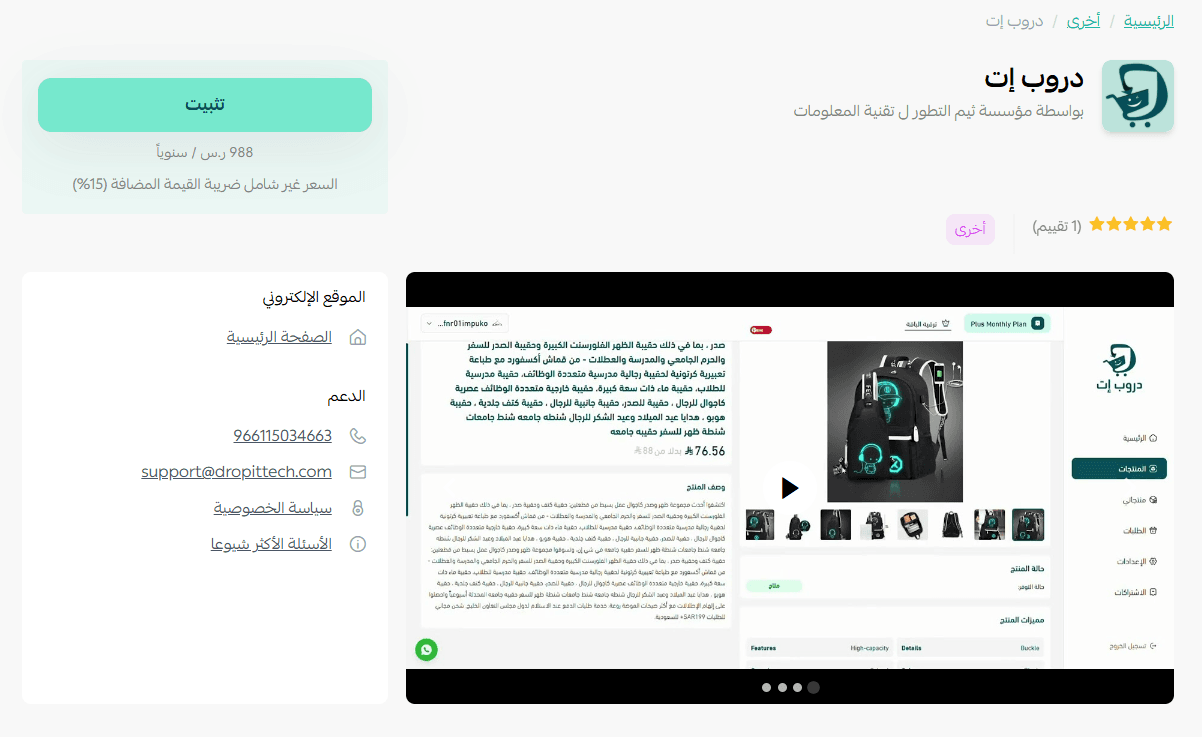
3. On the DropIt app page, click (Install).
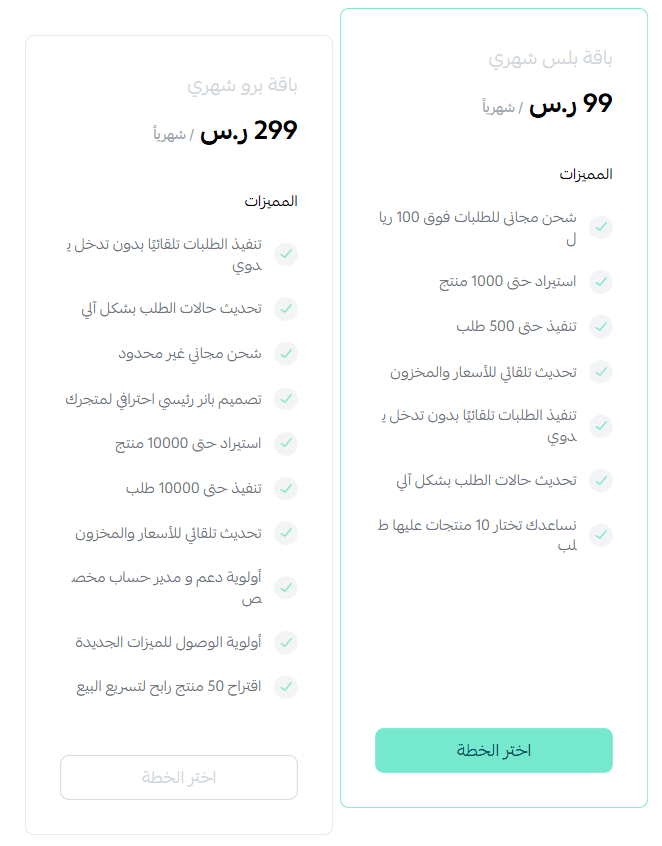
4. Choose the plan that suits you.
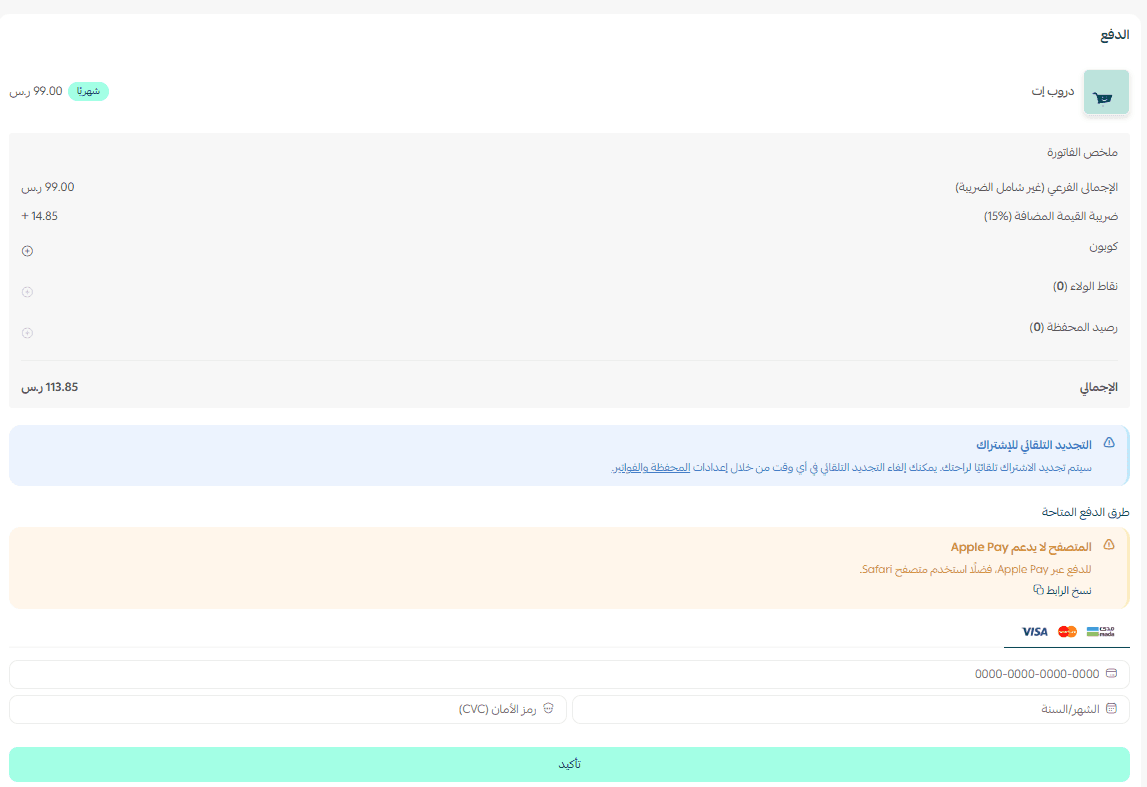
5. Fill in your payment details, then click (Confirm).
[Verify: the source breaks off here with an unfinished editorial note about an email. Confirm what happens once payment goes through, for example whether a confirmation email is sent and what it contains.]
🚀 How to manage DropIt
Upgrade the plan
1. On the app details page in your store, click (Upgrade plan).

2. Choose the plan you want, then click (Go to payment).

3. Fill in your payment details and click (Confirm) to finish the upgrade.

Customize the app
🎯 You manage the app itself from your own account dashboard on [Verify: the source sentence ends mid-way — confirm where the DropIt dashboard lives and link it here].
Remove the app
1. From the app's options menu, click (Cancel subscription) and choose a reason for canceling.

2. From the same options menu, click (Delete app) and choose a reason for deleting it.

3. Open the deleted apps page, and from the app's options menu click (Delete app permanently) to remove it from your store for good.

📝 Important notes
Canceling the subscription and deleting the app are two separate actions. Cancel first, then delete.
Deleting an app moves it to the deleted apps page. It is only gone for good once you delete it permanently from there.
❓ Frequently asked questions
Is DropIt free?
No. You choose a plan and complete payment during installation, so the app is paid from the start.
Can I move to a different plan after installing?
Yes. Open the app details page in your store, click (Upgrade plan), pick the plan you want, and complete the payment.
Does canceling my subscription remove the app from my store?
No. Canceling stops the subscription; the app stays installed until you delete it from the same options menu.
I deleted the app but it still appears. Why?
A deleted app moves to the deleted apps page rather than disappearing. To remove it completely, open that page and choose (Delete app permanently).
For more details about the app, see DropIt.