Have you ever felt that you lost visibility over the changes happening in your online store?
From text messages sent to customers, to edits made to products or accounts, tracking everything can sometimes feel scattered or confusing.
This is where activity logs come in. They are designed to be your reliable tool for monitoring everything that happens in your store, with accuracy, transparency, and real-time visibility.
Comprehensive logs give you clearer insights and better control. Continue reading to learn how to use them effectively.
📌 Article overview
- Logs page
- SMS messages
- Activity log
- Export log
- Practical use cases for logs
Logs page
From the All menu, navigate to the Logs section.
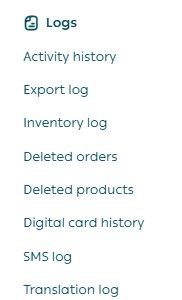
The Logs page provides a comprehensive view of the following records:
- SMS messages
- Activity log
- Export log
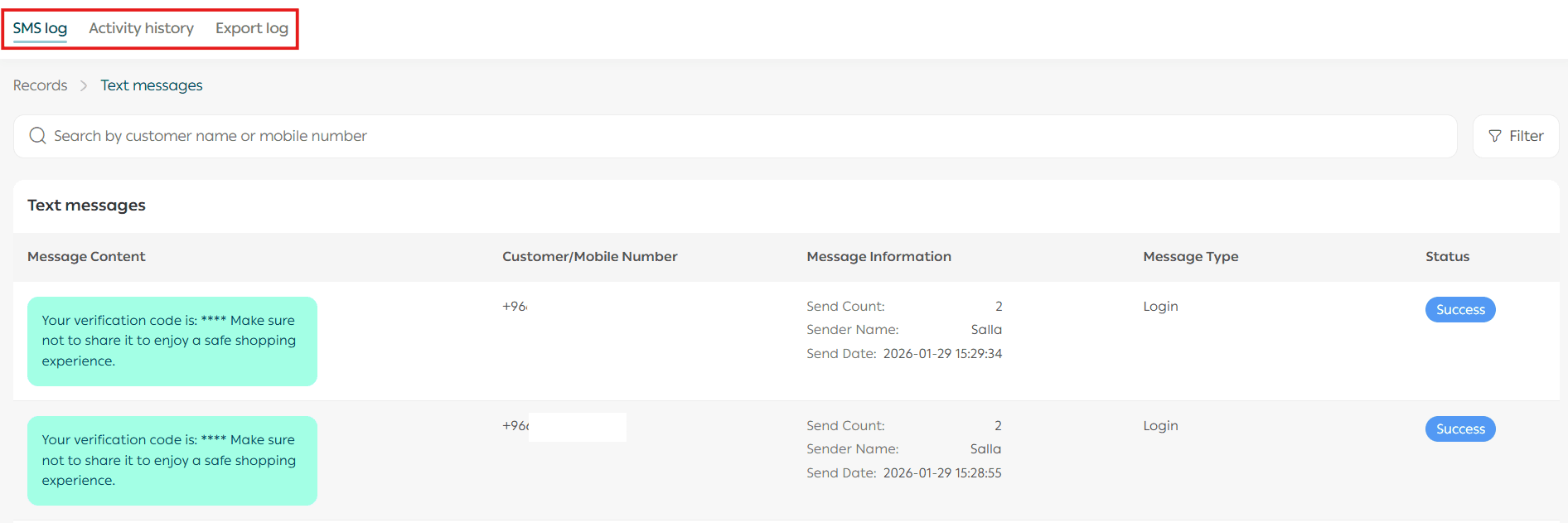
Important note: All logs displayed include actions performed during the last 10 days only.
1. SMS messages
You can view all SMS and WhatsApp messages sent from your store to customers. This includes details related to order actions or verification codes sent to customers.
Each message record displays:
- Message content
- Customer phone number
- Date and time
- Message type
- Message status
You can also view messages sent to a specific customer using the search field by entering the customer name or phone number.
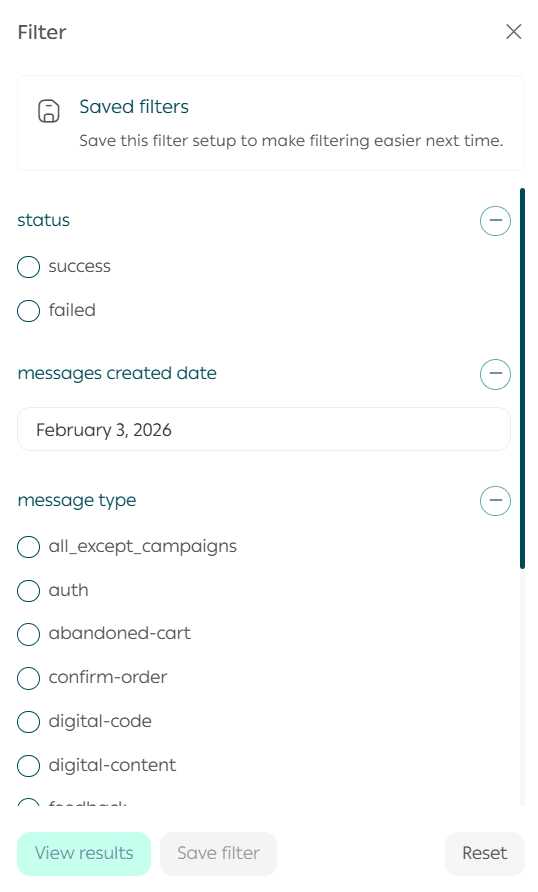
For more advanced options, click Filter.

This allows you to filter messages by:
- Message date
- Message status
- Message type
2. Activity log
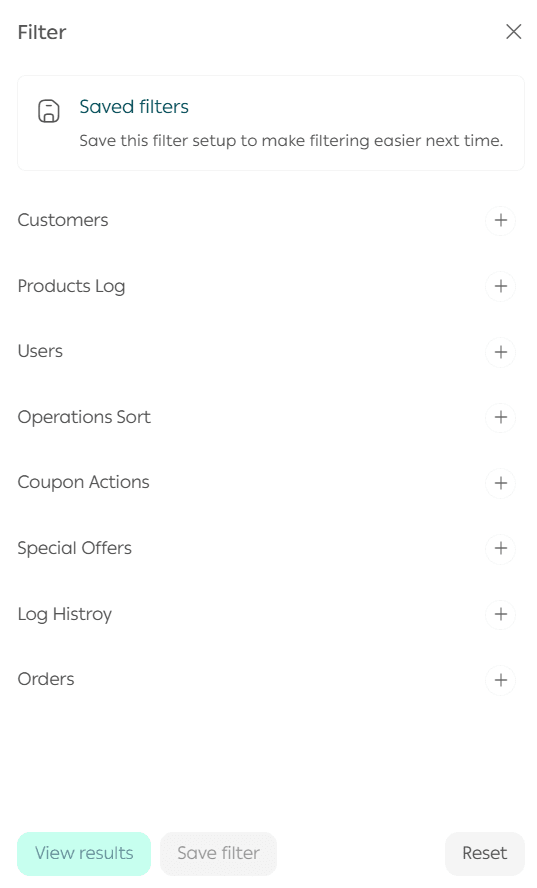
The activity log displays the most recent actions performed in the store, including:
Customer actions
- Add customer
- Update customer
- Block customer
- Unblock customer
- Add customer to group
- Add customer group
- Update customer group
Product actions
- Add product
- Update product
- Delete product
- Hide product
- Show product
Employee actions
- Select one or more employees
Sorting actions
Log date
Coupon actions
- Add coupon
- Edit coupon
- Delete coupon
- Activate coupon
- Deactivate coupon
Special offers
- Add special offer
- Edit special offer
- Delete special offer
- Activate special offer
- Deactivate special offer
Order actions
- Create order
- Change order status
- Delete order
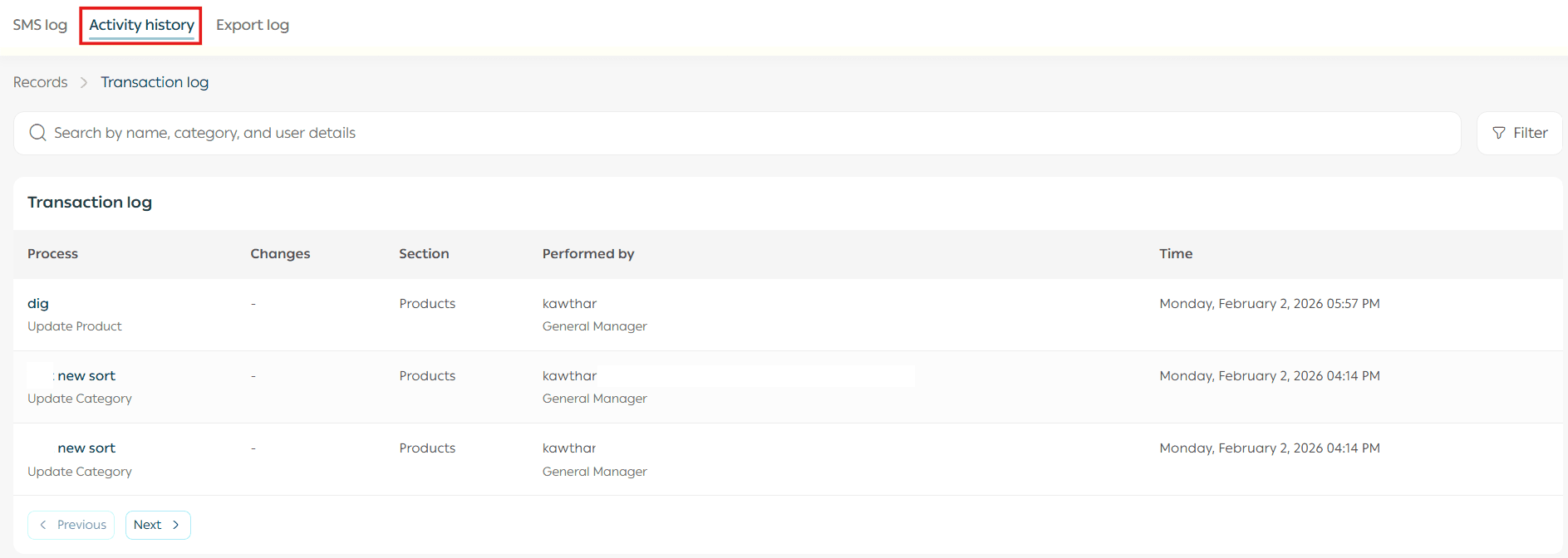
You can search for a specific action using the search field by name, category, or user details.
For more precise filtering, click Filter and select the required criteria.
3. Export log
Through the export log, you can view the most recent export operations performed.
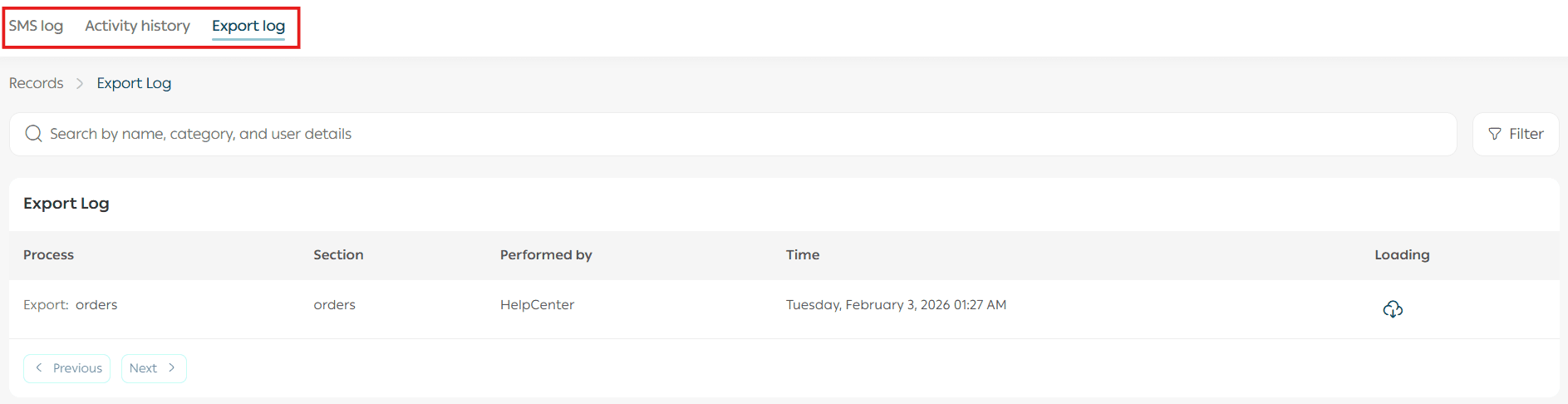
You can re-download any exported file by clicking the download icon next to the required file.

You can also search for an export operation using the search field by name, category, or user details.
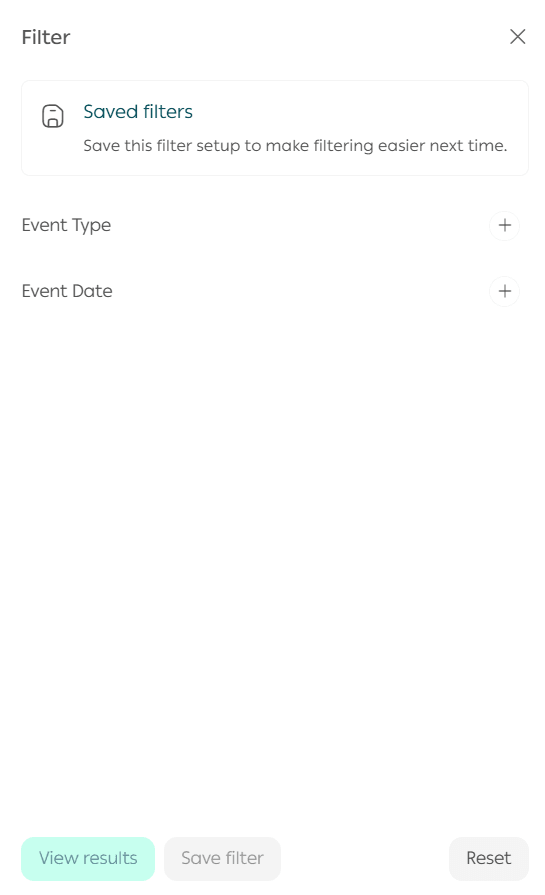
For advanced filtering, click Filter and specify criteria such as event type or date.
Practical use cases for logs
SMS log use cases
A customer reports not receiving a verification code during registration
→ Check the SMS log to confirm whether the code was sent successfully and at what time.
Temporary interruption in messaging service and you want to check failed messages
→ Review message statuses to identify messages that failed due to technical or network issues.
Analyzing the effectiveness of order notification messages
→ Filter messages by type to analyze how many notification messages were sent during a specific period.
Verifying WhatsApp payment reminder messages
→ Confirm whether the customer received and read the message by checking its status and timestamp.
Comparing the number of messages sent during a specific campaign
→ Use date and type filters to identify message volume during a promotional campaign.
Reviewing communication history with a VIP customer
→ Search by customer name to view the complete communication log, useful for documentation and follow-up.
Activity log use cases
Identifying who changed a product price unexpectedly
→ The log shows who made the change, when it occurred, and the type of modification.
An important discount coupon was deleted by mistake
→ Check the log to see who deleted it and when, making recovery or follow-up easier.
A customer reports being blocked without explanation
→ Review the activity log to determine when the block occurred and who performed it.
An order status was changed to “Completed” before actual shipment
→ Use the log to verify the change and trace operational errors.
Monitoring new employees’ activity during their first week
→ Filter the log by employee name to review actions they performed.
Tracking changes made to a specific customer group
→ The log shows group updates, customer additions or removals, and property changes.
Ensuring orders are processed according to store policy
→ Review order-related logs to track order status updates.
Detecting unauthorized product deletions
→ Check the log to identify deletion actions and responsible users.
Monitoring unexpected activation or deactivation of promotional offers
→ The log records all offer changes, helping you maintain control.
Investigating why a product was hidden without prior notice
→ The log displays the time and user responsible for hiding the product.
Export log use cases
You lost an exported file containing order data
→ Return to the export log and re-download the required file.
Reviewing who exported sensitive product data
→ The log shows the exporting user and date, improving accountability.
Verifying that a report was exported and sent externally
→ The log confirms the export and its timing for documentation purposes.
Repeating a previously successful export process
→ Review the export log and replicate the same filters or export settings.
Attempted to export offer data but unsure if the process completed
→ The log indicates whether the export was successful or if an error occurred.
Identifying responsibility for an unauthorized exported file
→ The log clearly shows who exported the file and when.
Ensuring daily export files are generated regularly
→ The log enables periodic review to confirm operational compliance.