Customer reviews are among the most influential factors in purchase decisions. They provide strong proof of the quality of your products and services. However, collecting reviews can sometimes be difficult, as customers may ignore review requests or find the process of logging in to submit feedback inconvenient.
Salla provides a comprehensive order review system that makes the process simple and efficient for both merchants and customers. You can send review requests manually or automatically and receive customer feedback directly within your store. This helps you measure customer satisfaction and improve the overall experience.
To increase engagement, a new improvement allows customers to submit reviews directly without logging in, making the process faster and smoother.
📌 Article overview
- Benefits of sending order review requests
- Customizing order review messages
- Sending a review request to a specific customer
- How the login-free review feature works
- Copying the order review link
- Frequently asked questions
Benefits of sending order review requests
By enabling review settings in your store, you can:
- Increase the number of order and product reviews easily.
- Collect genuine feedback that helps improve your products and services.
- Build trust with new customers through the experiences of previous buyers.
- Reduce the effort required to manually request and track reviews.
Customize order review messages
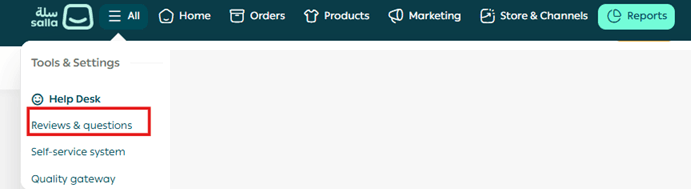
From the main menu, click All, then from the Help desk section select Reviews & questions.
Open the Settings tab to control how reviews appear to customers.

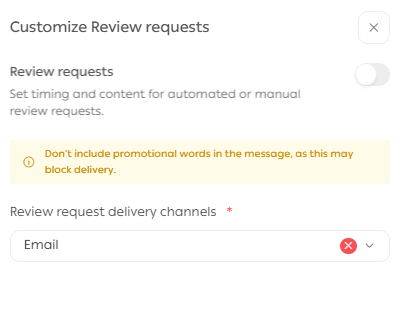
Click Customize for review request messages.

Enable Review Request Messages, then choose the order statuses that will trigger sending the review request to customers. Adjust the remaining settings as needed and click Save.
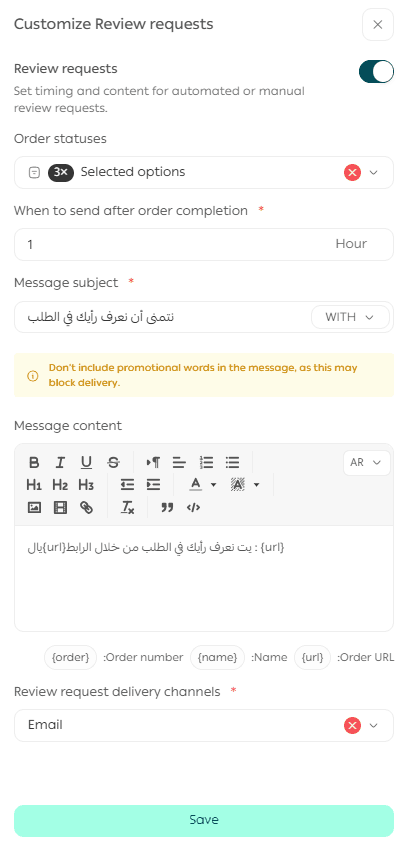
🔔 The review message will be sent automatically when the order status matches one of the selected conditions.
Send an order review request to a specific customer
You can also send review requests manually. This is useful when a customer did not respond to the automatic message.
Method 1: From the Orders section
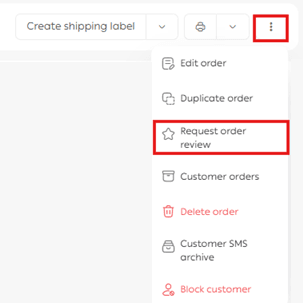
- Go to Order Management and open the Order Details page.
In the Order Actions section, click Send Review Request.
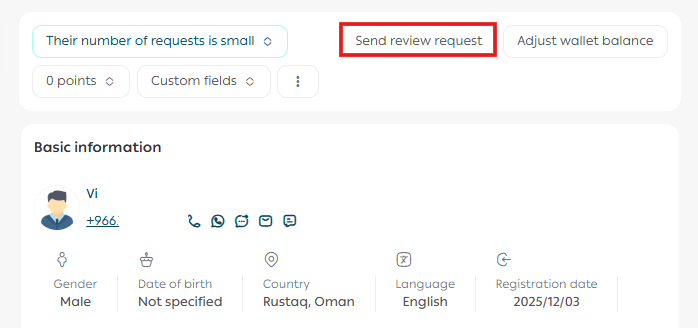
Method 2: From the Customers section
- Go to Customer Management.
- Open the Customer Details page.
Click Send Review Request.

The review link will be sent through the previously activated channels such as:
SMS

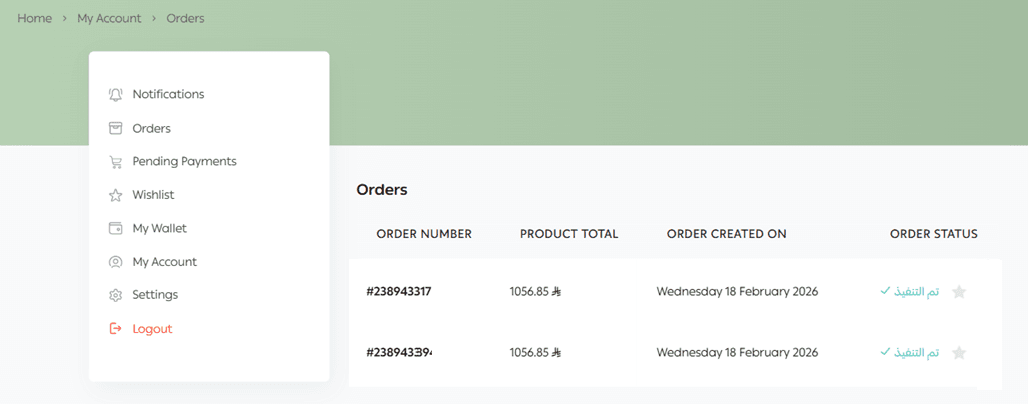
The review request will also appear for the customer in the Orders page under orders that have not yet been reviewed.
How the login-free review feature works
The merchant can send the review link from either:
- The customer page, or
- The order details page
When the customer clicks the link, they can submit their review immediately without logging in.
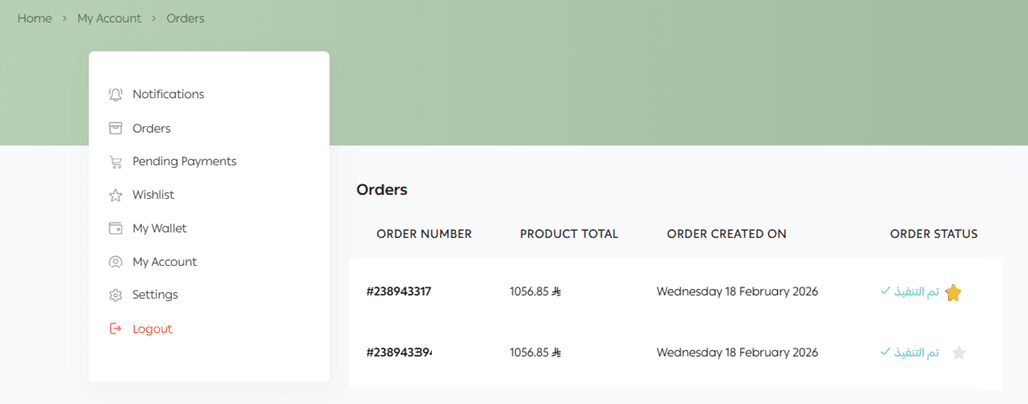
💡Example: The system automatically sends a review request after order delivery, but the customer forgets to review it.
You can reopen the order page and click Send Review Request again. The system will resend the official link, allowing the customer to review their experience instantly without additional steps.
Important notes
- The login-free review feature works only if you use Salla’s official messaging apps (such as email or SMS) to send review links.
- If you send review requests using external applications, the customer will need to log in first before submitting a review.
Copy the order review link
This option allows you to copy the review link manually and share it with customers through any communication channel you prefer, such as:
- Telegram
- Any external messaging platform
Steps:
- Go to Order Management.
- Open the Order Details page.
In the Order Actions section, click Copy Order Review Link.
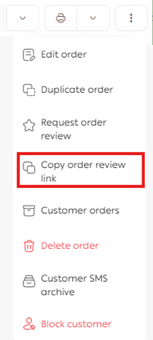
Note: When using the manual link, the login-free review feature will not work because the link is considered manual and is not connected to Salla’s internal verification system.
As a result, the customer will need to log in before submitting the review.
Example: If a customer messages you on WhatsApp after receiving their order and expresses satisfaction but hasn’t written a review yet, you can copy the review link and send it directly in the same conversation.
Frequently asked questions
❓Can I stop sending automatic review requests?
Yes. You can disable the automatic sending feature anytime from the review settings in the dashboard.
❓Does the login-free review feature work for all orders?
It works only for review links sent through Salla’s official apps such as email or SMS.
❓What happens if I send the review link manually?
The login-free review option will not work, and the customer will be asked to log in before submitting the review.
❓How long is the login-free review link valid?
The customer can use the review link without logging in for 7 days from the time it is received. After that, they must log in to complete the review.
❓Can customers submit reviews without logging in through the store app?
Currently, login-free reviews are only available through the store website, not through the mobile app.
❓When is the best time to ask customers for reviews?
It is recommended to send the review request 24–48 hours after the customer receives their order, while the experience is still fresh.
❓How can I increase the number of reviews in my store?
- Write a friendly message encouraging customers to share their feedback.
- Provide an excellent shopping experience that motivates customers to leave reviews naturally.
🚀 Don’t miss any opportunity to boost your sales! Learn how to manage the Questions & Reviews page effectively to improve customer experience and build stronger trust in your store.