Struggling to translate your store quickly and accurately? Manually translating content can be time-consuming and exhausting, especially when you want to expand into new markets. With Instant Translation, you can translate your entire store with a single click, saving time and delivering a smooth multilingual experience for customers worldwide.
This guide walks you through how to enable Instant Translation and recharge your translation balance step by step.
📌 Article overview
- How to translate your store using Instant Translation
- How to top up your translation balance
How to translate your store using instant translation
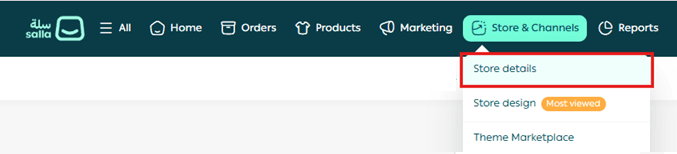
- From the main menu, go to Store & Channels, then click Store details.
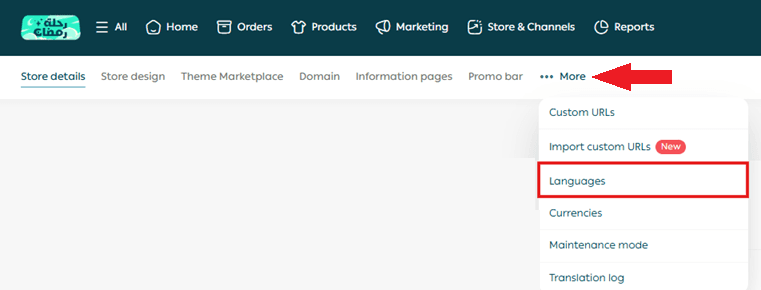
2. From the More menu, select Languages.
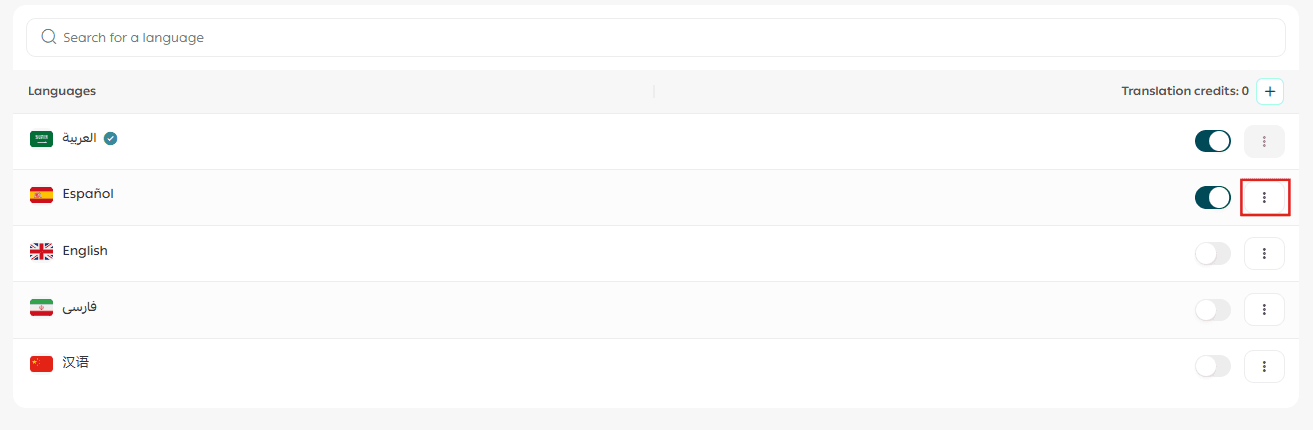
3. On the Languages page, click the three dots ( … ) next to the language you want to translate.
4. From the language actions menu, select Enable auto-translation.

5. The system will calculate the total number of characters required to auto translate that language.
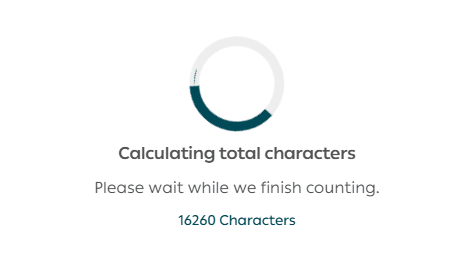
6. Click Start to begin the auto translation process.
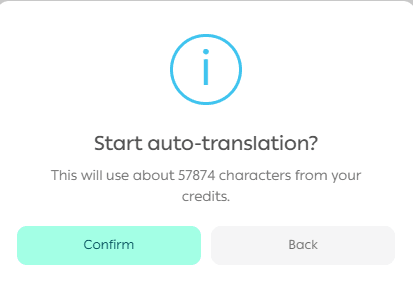
Once completed, a confirmation message will appear at the top of the page, confirming that auto translation has been successfully enabled.

How translation credit works
Translation credit represents the number of characters available to translate content in your store, including:
- Products
- Categories
- Interface text
- Other store content

How to top-up translation credit
You can add more translation credit using one of the following methods:
Method 1: From the Languages Page
- Click the ( + ) button next to the Translation credit bar

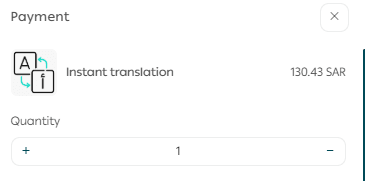
2. Complete the payment details
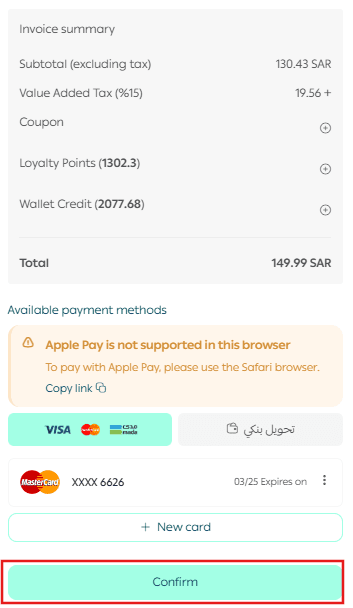
3. Click Confirm Payment
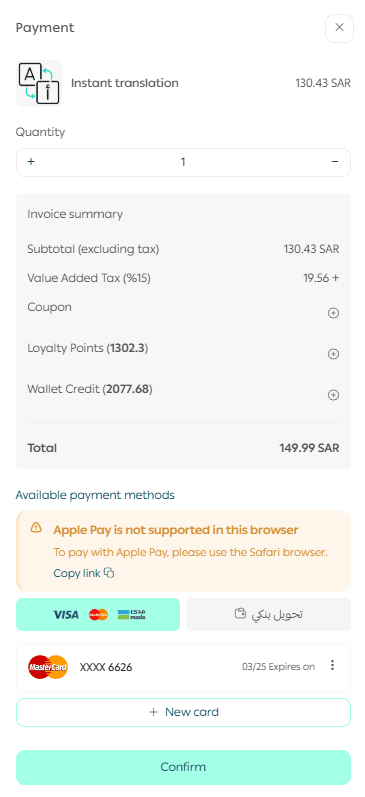
Method 2: From the Salla Store
- Select Instant Translation – 1 Million Characters
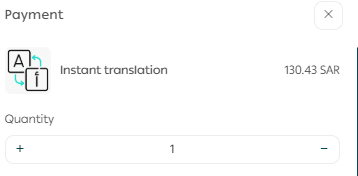
2. You will be redirected to the same checkout page to complete payment
Frequently asked questions
Is Instant Translation free?
No. Instant Translation is a paid service.
Can I use Instant Translation on a disabled language?
No. The language must be enabled first.

Does Instant Translation take a long time?
The processing time depends on the amount of content being translated, such as products, categories, and descriptions. Larger stores may take longer.
Do I need Instant Translation to support multiple languages?
No. Instant Translation is optional.
It is designed to help you expand faster with minimal effort, but manual translation is the default option for any newly added language.
Is Instant Translation accurate?
Instant Translation is not as precise as manual translation, but it is significantly faster and easier, making it ideal for quick launches.
I don’t want to use Instant Translation. How can I translate manually?
You can translate your store manually using the Text Editor.
Learn more: Manual translation using the Text Editor
Can I edit content after using Instant Translation?
Yes. You can edit translated content at any time. Instant Translation is meant to help you get started quickly, not limit future edits.
How do I translate content that wasn’t translated automatically?
Disable the language that contains untranslated content, then enable it again. Any missing translations will be processed automatically.
Will new or updated content be translated automatically?
Yes. Any new content added or updates made in the default language will be automatically translated into other languages, as long as Instant Translation is enabled.