Have you ever wondered how a customer actually finds your products inside the Mahally app, and what happens between that first tap and a completed order?
Once you understand the Mahally customer journey, a lot of small decisions get easier: how you name a product, which category you put it in, which payment methods you offer. Every one of those choices sits somewhere on the path a shopper takes through the app. In this guide, you'll learn how that path works from installing Mahally to receiving the order in your dashboard.
A Mahally shopper installs the app, searches or browses a category, opens your product, chooses a quantity, and taps Buy now. They pick a shipping company and address, pay electronically, then track the order in the Orders tab. The order lands in your Salla dashboard like any other.
📌 Article overview
- Installing the Mahally app
- How customers find your products on Mahally
- How customers reach your store on Mahally
- The favorites tab
- How customers follow their orders on Mahally
- How you track and manage a Mahally order
- Frequently asked questions
🚀 Installing the Mahally app
The journey starts when the customer installs the Mahally app from the store that matches their phone:
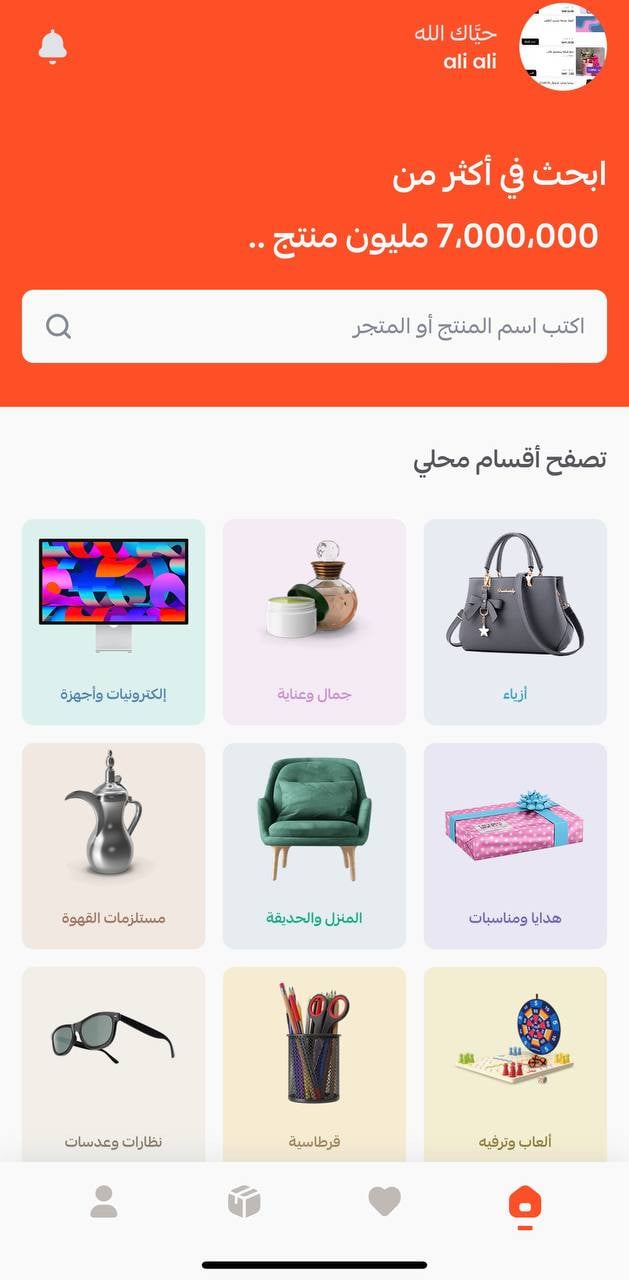
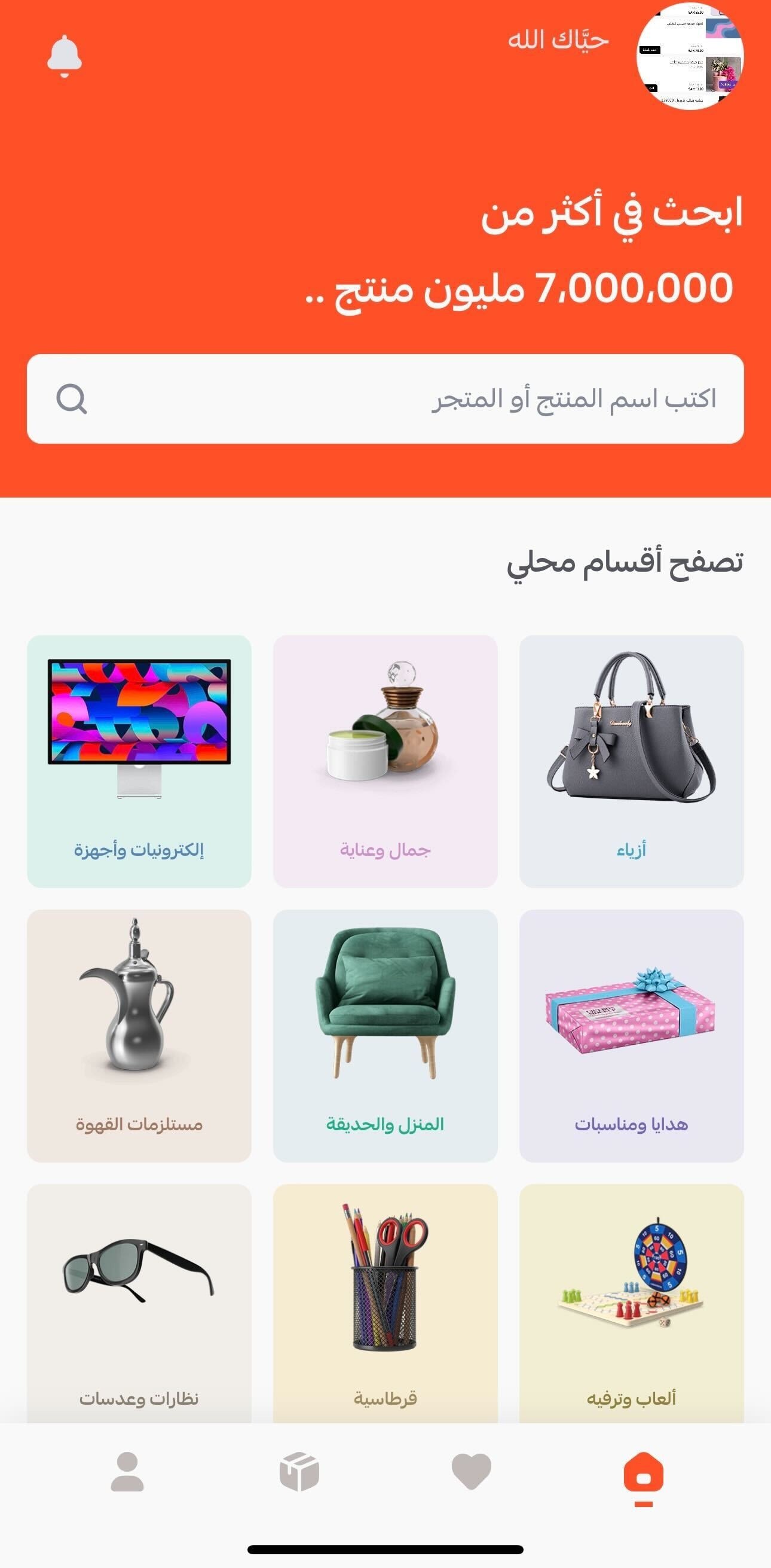
After installing and signing in, the Mahally home page opens with its main sections, like this:
🔍 How customers find your products on Mahally
1. Searching inside the app
1. From the search field on any main category page, the customer types the product they want, and every matching result appears.
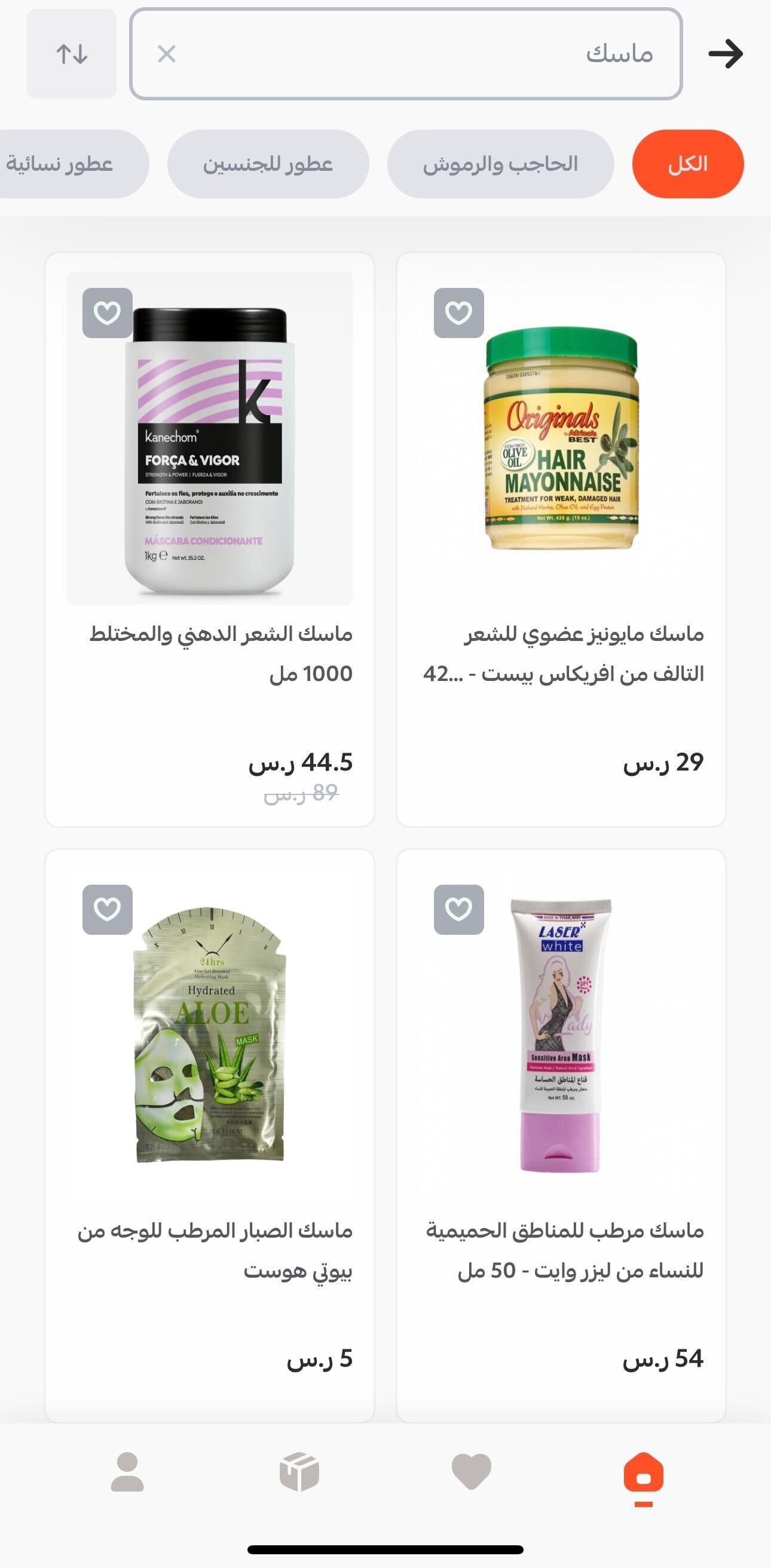
💡 Tip: Give every product a clear name that includes the words shoppers actually search for. It directly affects whether your product shows up here.
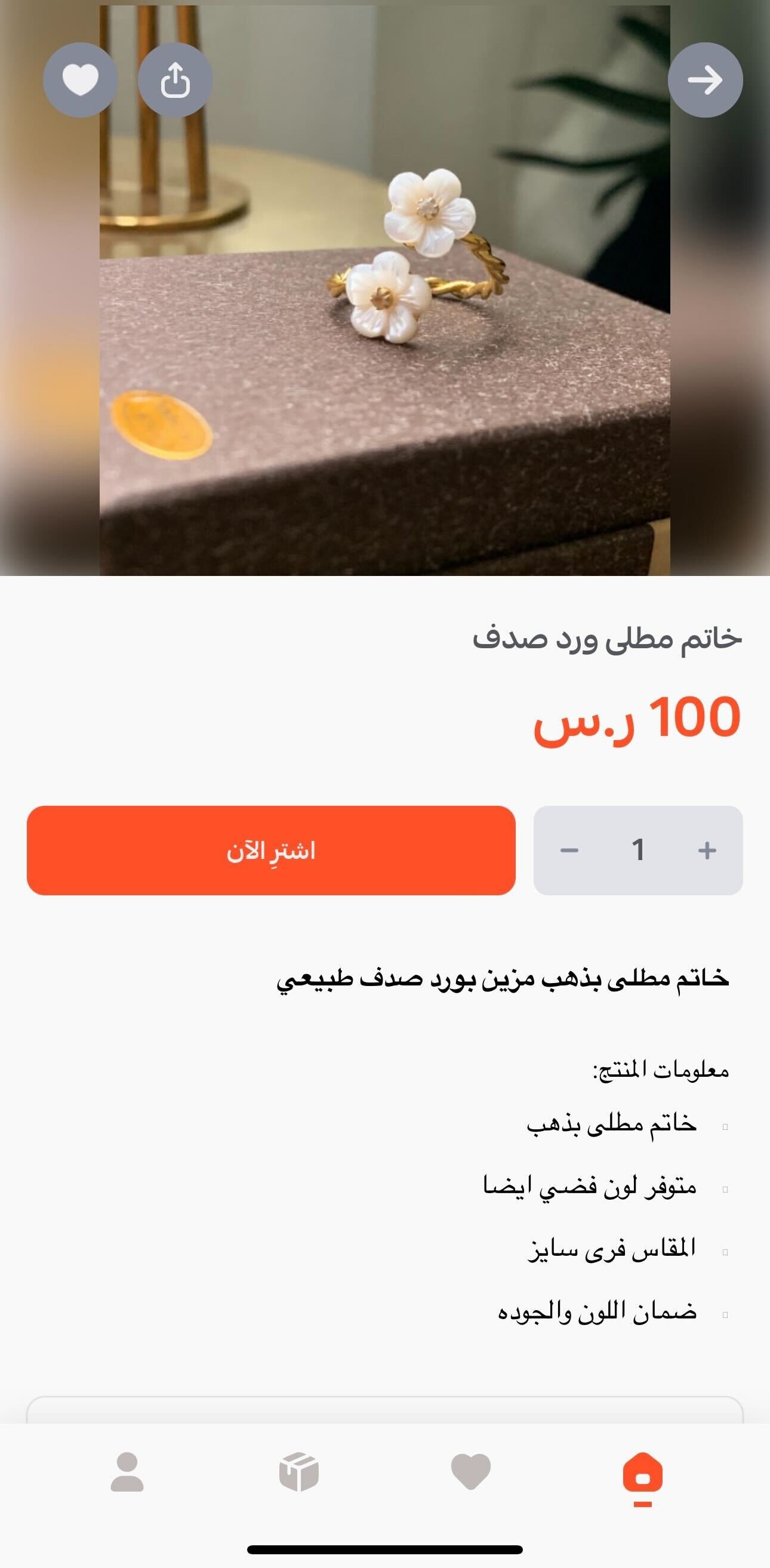
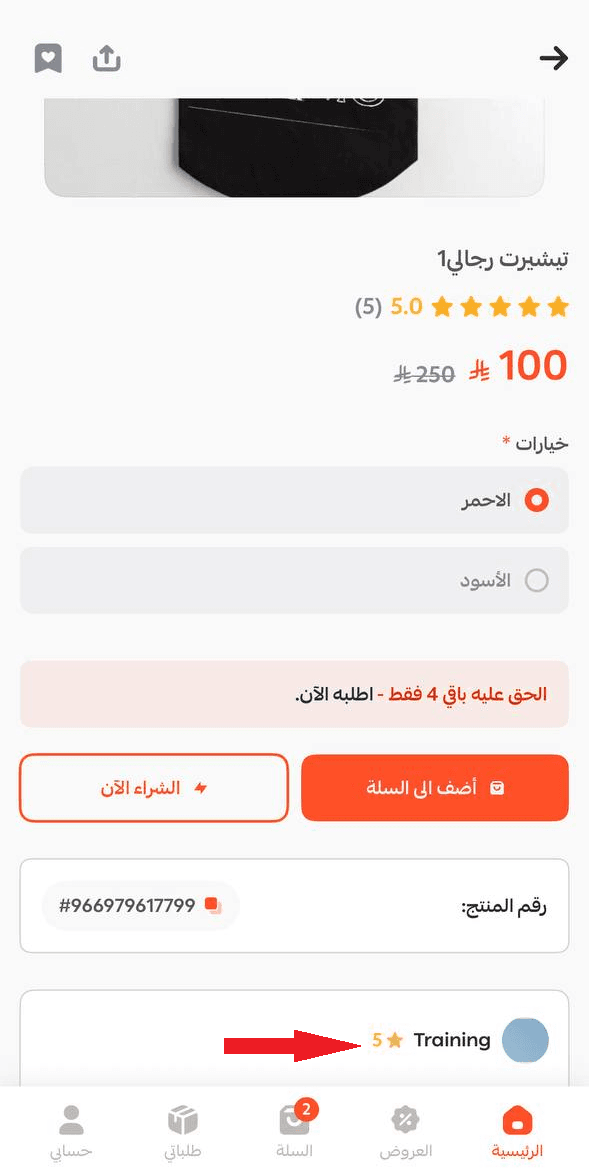
2. The customer taps the product card to see the details, selects the quantity they want, then taps (Buy now).
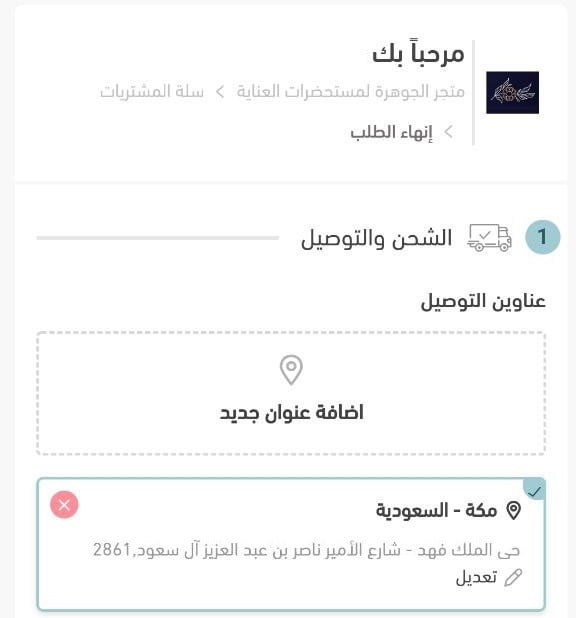
3. They choose a shipping company from the ones available in your store and set the delivery address, either a previously saved address or a new one.
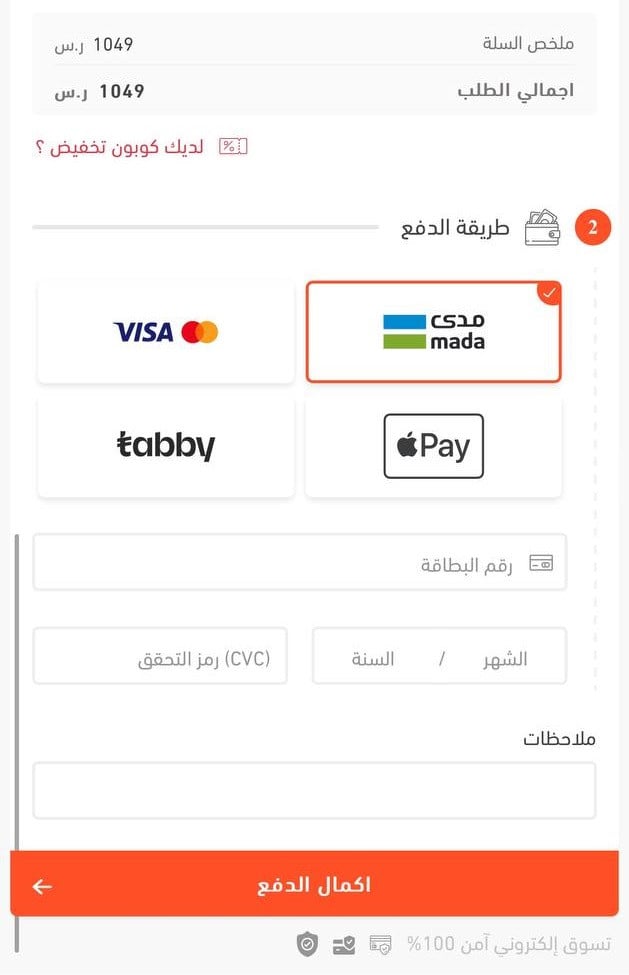
4. They complete payment using one of the methods available in your store, then tap (Complete payment).
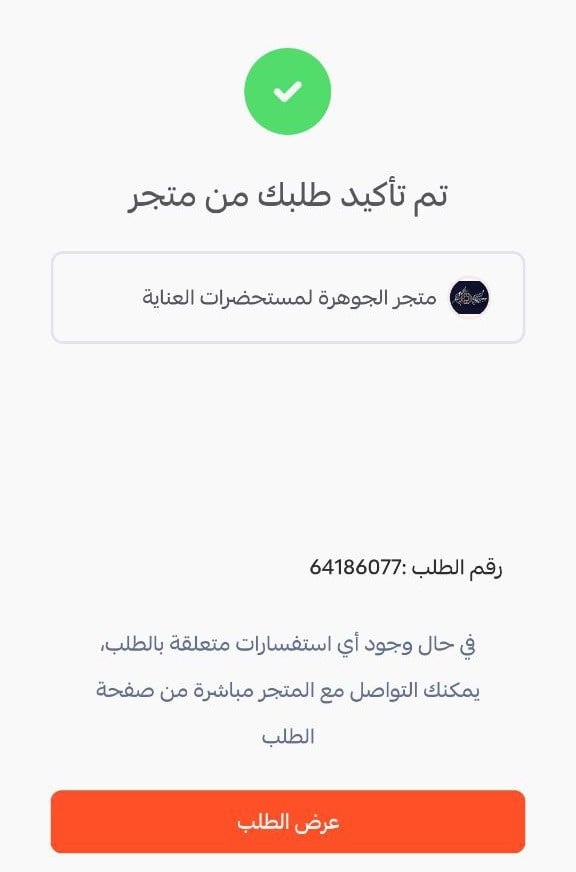
Once payment goes through, a message confirms the order from your store, and the customer can review the details by tapping (View order).
2. Browsing by category
The Mahally home page lists the main store categories. When a customer taps one, they see the products of every store listed under that category, including yours if your store belongs there.
How customers reach your store on Mahally
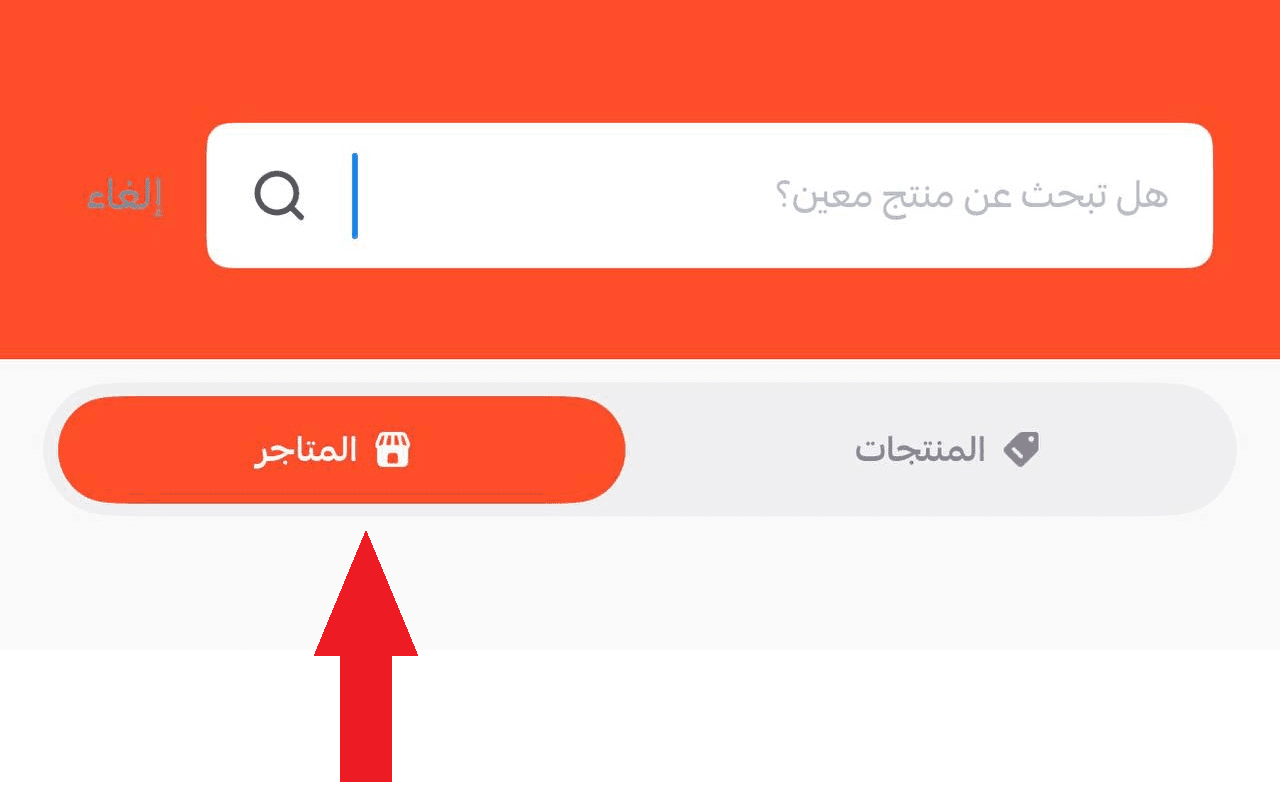
A customer can open your store directly in two ways:
1. From a product page, by tapping the store name.
2. By searching for your store name inside the app.
✅ The favorites tab
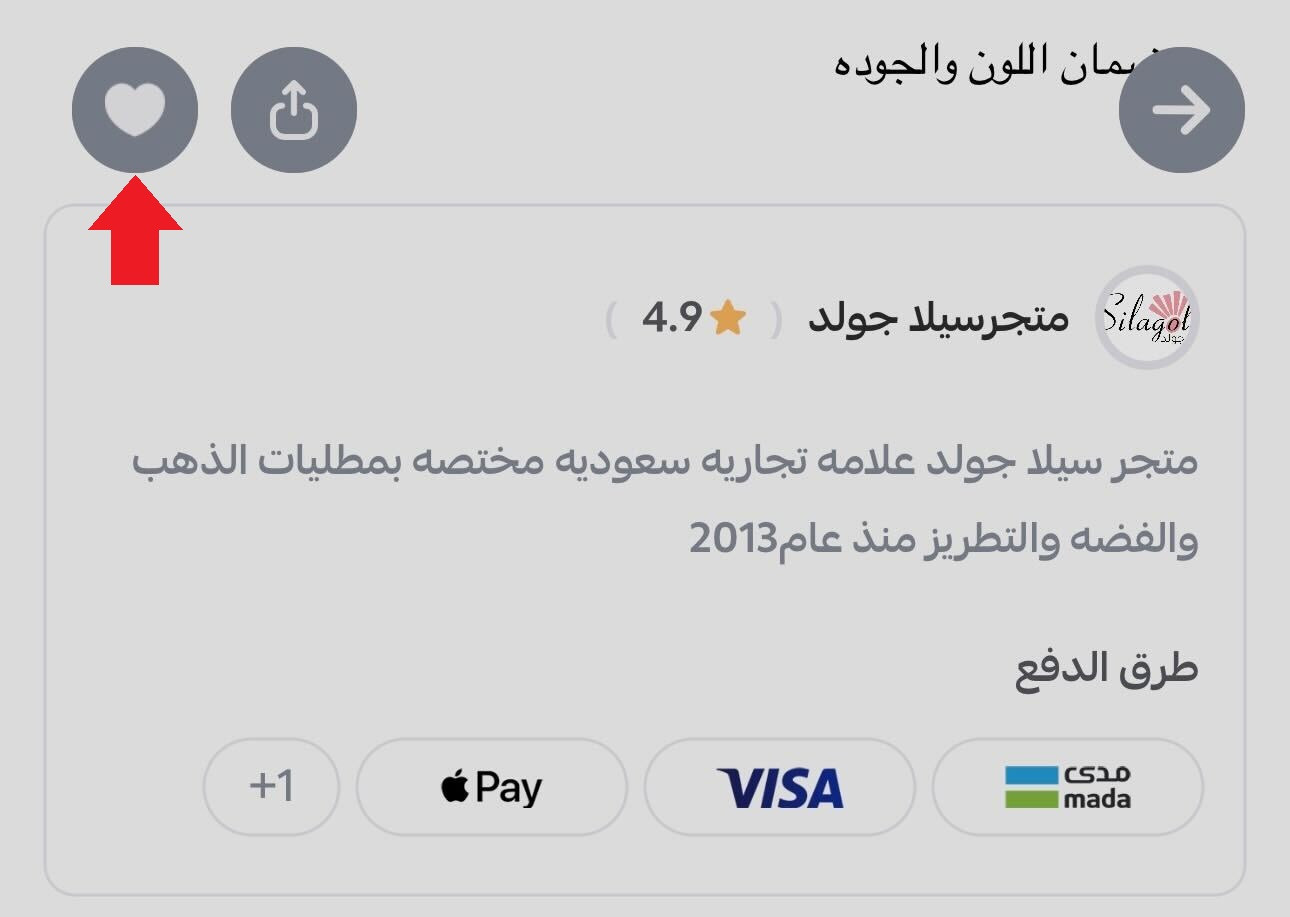
Favorites is one of the strongest signals you get in Mahally. It is how a customer parks something they want and comes back to finish the purchase later. They can:
- Add individual products they like to their favorites.

- Add your whole store to their favorites.
How customers follow their orders on Mahally
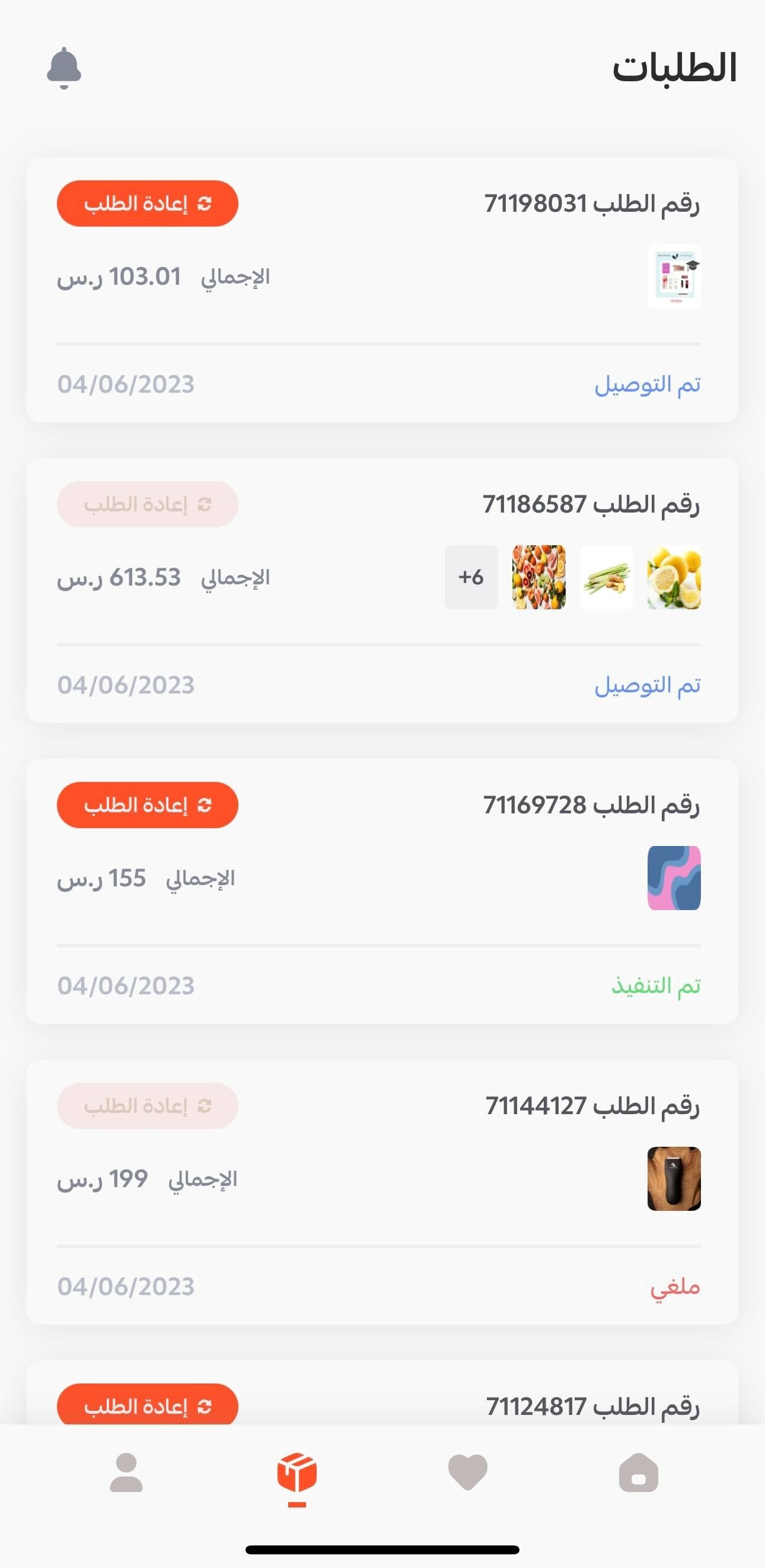
The (Orders) page shows a customer's past and current orders together, whether they were placed through Mahally or in a Salla store, along with the status of each one.
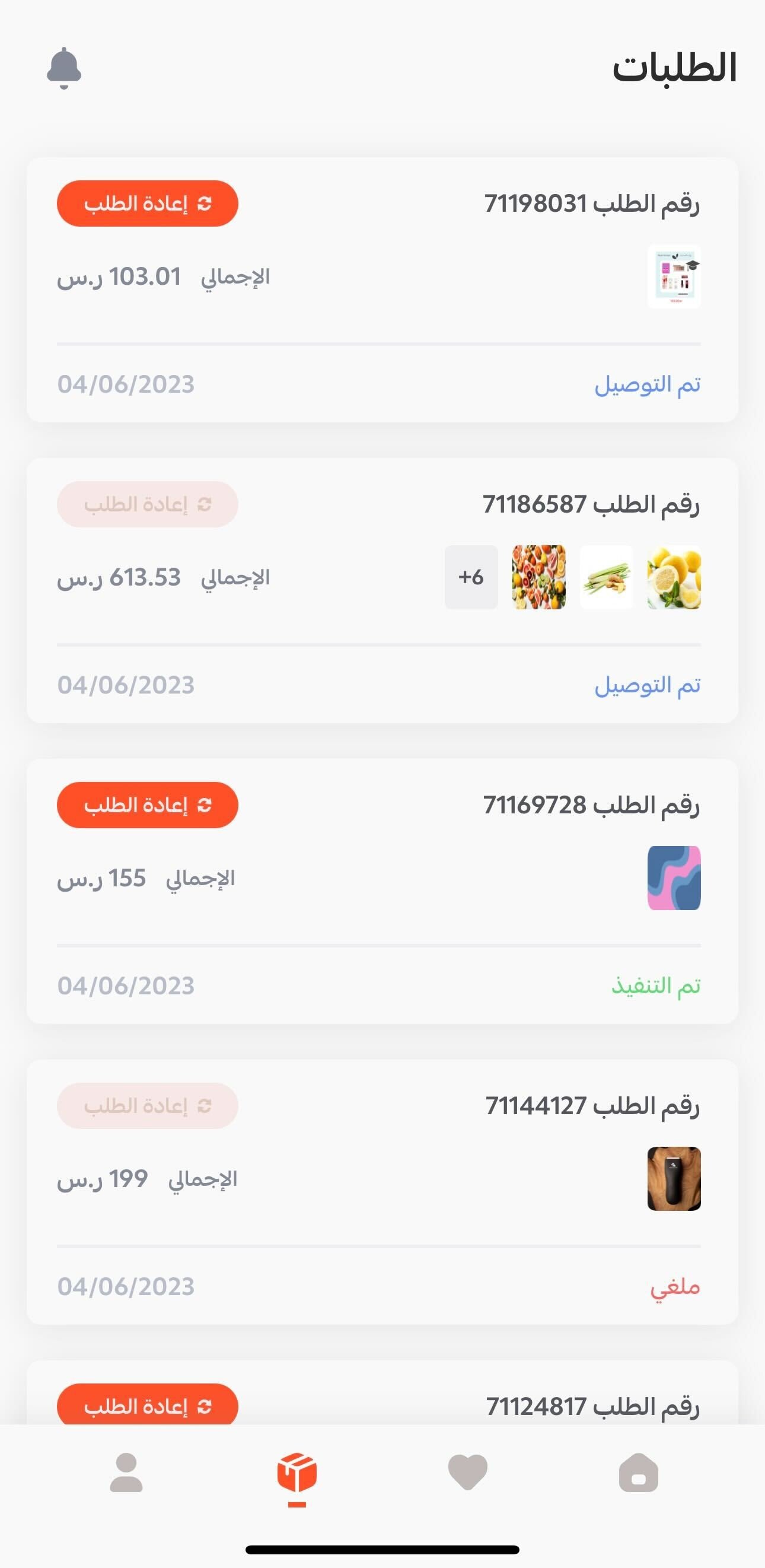
If the customer has not ordered anything yet, Mahally suggests products they might like instead.
👣 How you track and manage a Mahally order
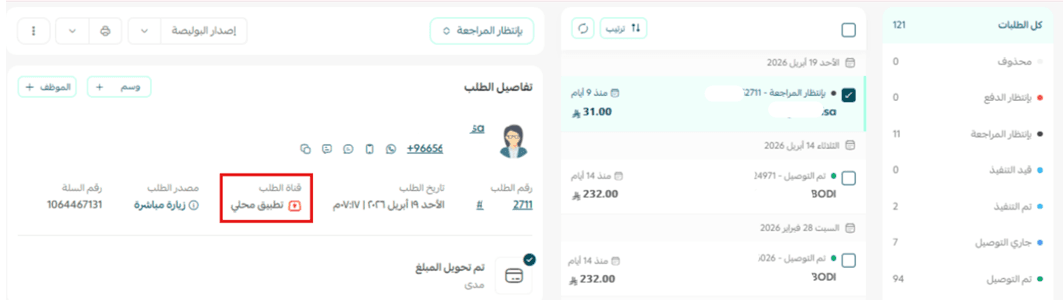
Nothing changes on your side. A Mahally order is handled exactly like an order placed in your store or in your store app.
The order appears on the orders page of your Salla dashboard, and the order details page marks it clearly as coming from Mahally.
Frequently asked questions
❓ Can a customer use their Salla account to shop on Mahally?
Yes. If they have already bought from a Salla store, they can sign in with the same account details and start browsing Mahally right away.
❓ How does a customer follow their orders?
From the home page, they tap the (Orders) icon.
❓ Are all the payment methods in my store available on Mahally?
Not yet. Mahally currently supports electronic payment methods only.
So if your store offers cash on delivery or bank transfer, those options will not appear to the customer on the payment page when they complete an order through Mahally.
❓ Can a customer share a product page link?
Yes, by tapping (Share) at the top of the product page.
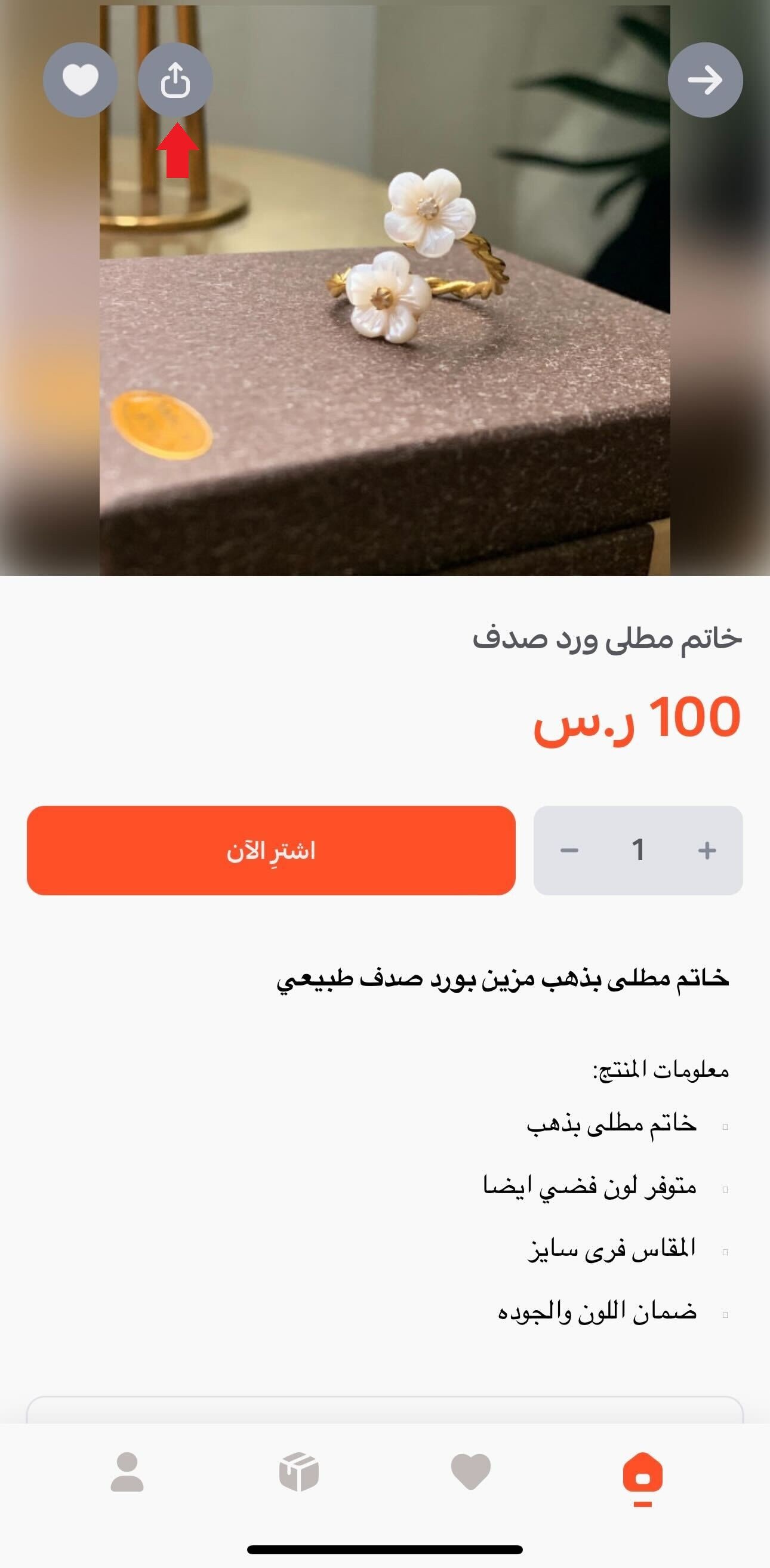
They then choose who to send it to, or copy the share link.
❓ Can a customer report a product?
Yes. At the bottom of the product page they tap (Report a product), enter the reason for the report, then tap (Send).
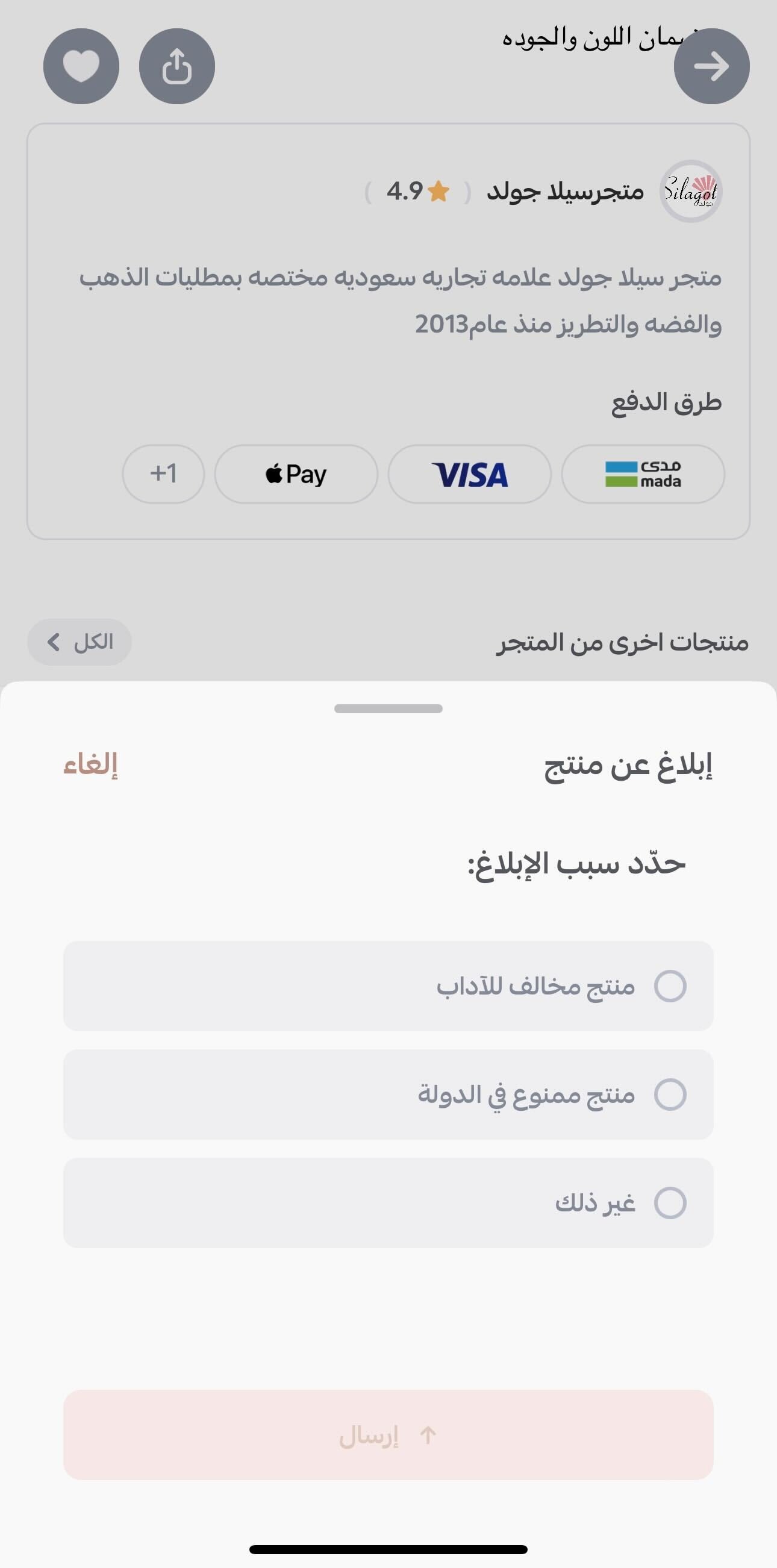
The Mahally team reviews the reasons given, checks whether the product breaks Mahally policy, and takes the appropriate action.
📝 Important notes
- Only electronic payment methods work on Mahally today, so an order that would normally be cash on delivery in your store cannot be completed there.
- The shipping companies and payment options shown to the customer are the ones configured in your own store.
Knowing the customer journey inside the Mahally app tells you where to put your effort: clear product names, the right category, and payment and shipping options that do not stop a shopper at the last step. Start tuning your store now so it performs at its best inside Mahally 🚀.