Discount coupons are one of the most powerful marketing strategies in e-commerce. They help attract customers, encourage purchases, boost sales, and strengthen brand loyalty.
In this article, we explain how to create and manage coupons, whether individually or in groups, and walk through the key settings and strategies to help you get the most value from them.
📌Article overview
- Coupons page
- Creating a new coupon step by step
- Creating a coupon group
- Creating a Mahally coupon
Coupons page
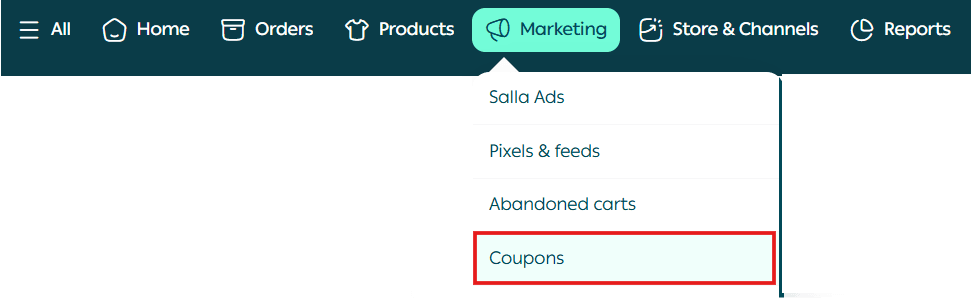
From the main menu, click Marketing, then select Coupons.
Creating a new discount coupon step by step
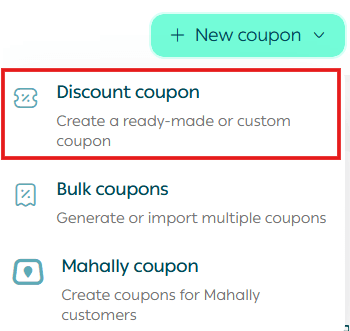
From the Coupons page, click New coupon, then select Discount coupon.
Creating a discount coupon using coupon templates
From the Create Discount Coupon page, you will be redirected to the Coupon Templates page, where you can choose the most suitable template based on your goal.
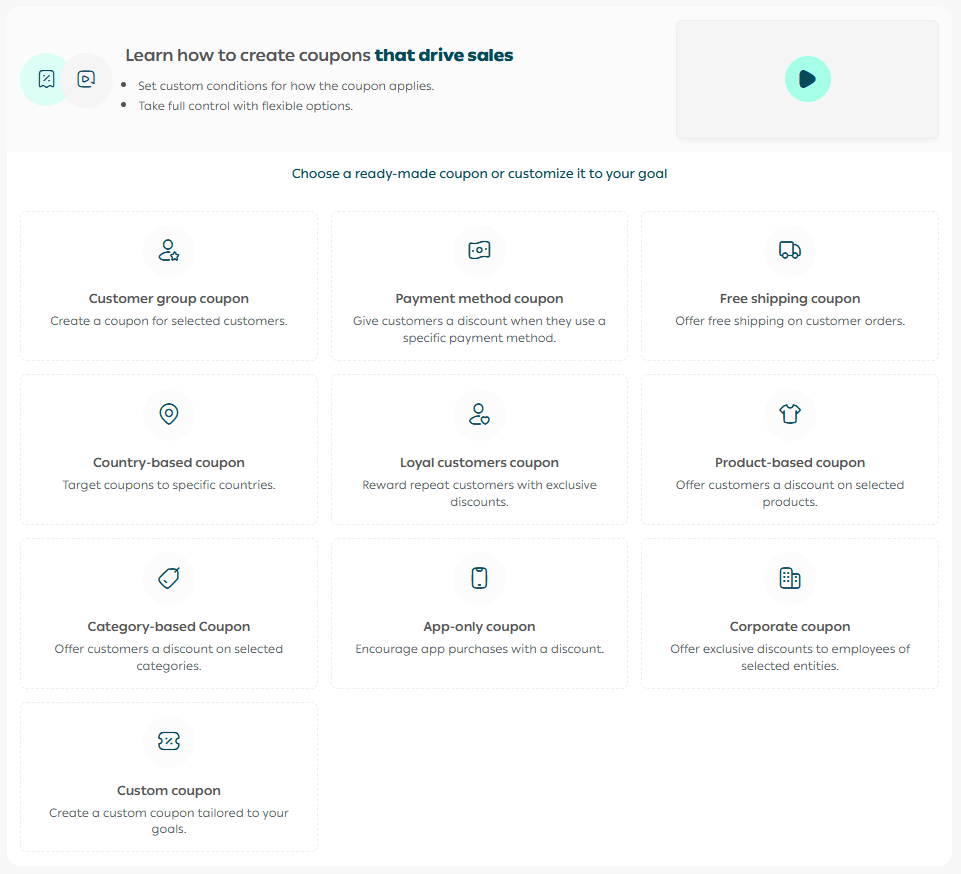
These templates are built around predefined scenarios to help you achieve your objective quickly, while still allowing full customization to match your business needs.
Creating a custom discount coupon
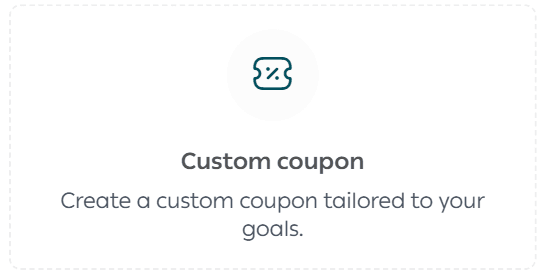
From the Coupon Templates page, select Custom coupon.
Basic information
Enter the required details in the Basic information section. These fields are mandatory to publish the coupon.
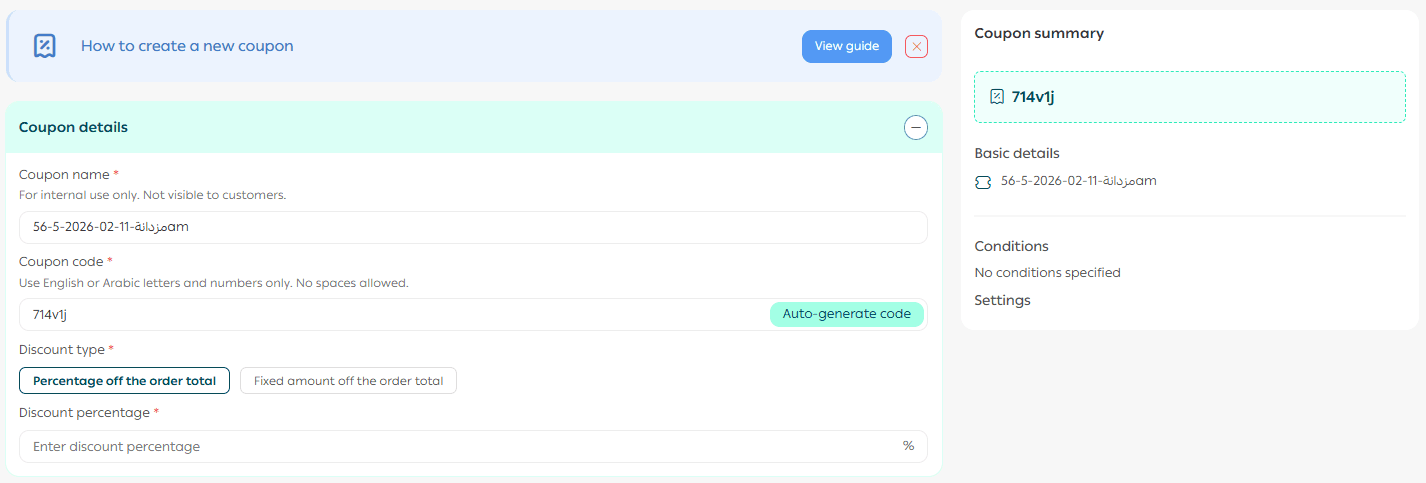
- Coupon name
A default name is provided, and you can easily customize it as needed.

2. Coupon code
A default code is generated automatically. You can regenerate it or customize it manually.

The code must consist of Arabic or English letters and numbers only, with no spaces.
3. Discount type
Choose whether the discount is:
- A percentage discount applied to the order value, or
- A fixed amount discount regardless of the order total

Coupon conditions (optional)
This section gives you full control over how the coupon works and how it is applied.
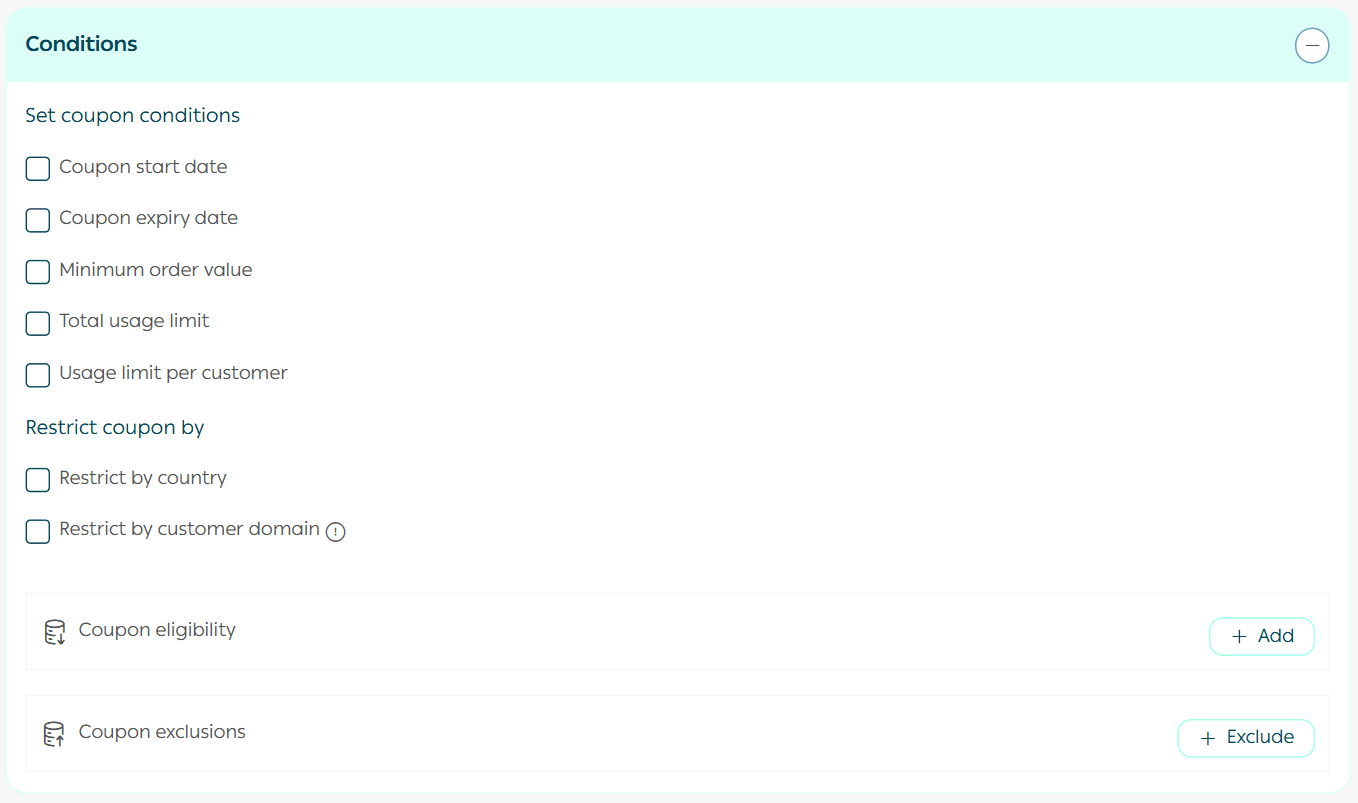
Define coupon conditions
- Coupon start date
Set the start date manually. If no date is selected, the coupon creation date will be used by default.
2. Coupon end date
If you want the coupon to remain open, do not set an end date.
3. Minimum purchase amount
Enter the minimum cart value required for the coupon to apply.
4. Total usage limit
Limit how many times the coupon can be used overall, regardless of the number of customers.
5. Usage limit per customer
Define how many times a single customer can use the same coupon.
Customize the coupon by
- Country targeting
Limit coupon usage to specific countries based on your selected options.
2. Customer domain targeting
Restrict coupon usage to specific customer domains.
Define what the coupon applies to
Select the items the coupon applies to, such as:
- Products
- Categories
- Customer groups
- And more
The coupon will only be applied to the selected items.
Define what is excluded from the coupon
Exclude specific elements from the discount while keeping the coupon active across the rest of the store, such as:
- Specific products
- Specific categories
- Payment methods
- Other exclusions
Settings (optional)
This section controls how the coupon behaves and how it can be used.
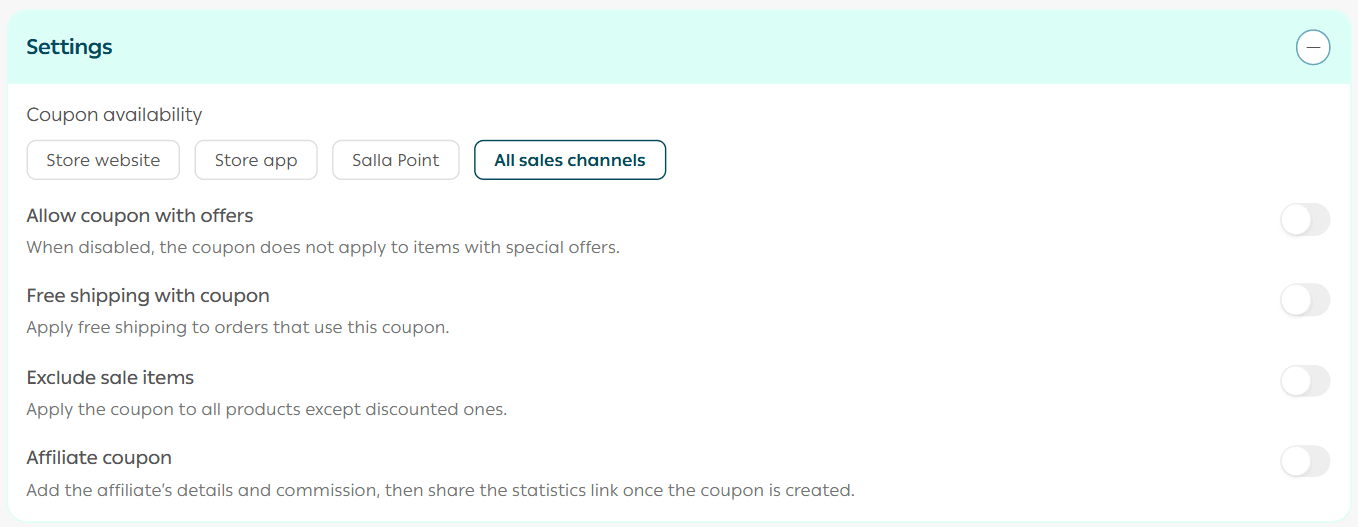
- Coupon publishing platforms
Choose where the coupon is available, such as the store, app, or all points of sale.
2. Allow combining coupons with offers
Enable the coupon to work alongside promotional offers.
3. Free shipping with coupon
Choose whether the coupon:
- Grants free shipping, or
- Does not affect shipping costs
4. Exclude discounted products
Decide whether the coupon applies to already discounted products.
5. Marketing coupon
If the coupon is a marketing coupon, you can add full marketing details.
Marketing coupon explanation
A marketing coupon is created specifically for an affiliate marketer to share with customers.
When a customer uses the coupon, they receive a discount, and the marketer earns a commission after the purchase is completed.
After enabling the marketing coupon option, enter:
- Marketer name
- Commission type (fixed amount per order or percentage of total order value)
- Commission value
You can also:
- Hide total sales from the marketer’s statistics page
- Show or hide the maximum commission amount in the marketer contact form
Creating a coupon group
This feature allows you to create multiple coupons at once using the same coupon data, without repeating the setup process.
- From the Coupons page, click Add, then select Bulk coupon.
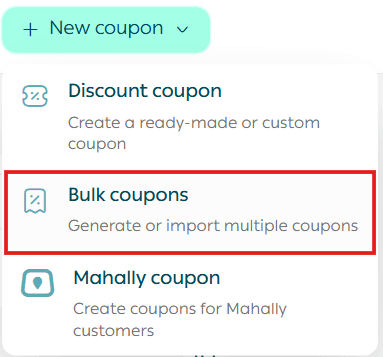
2. Enter the required coupon details, including:
- Coupon group name
- Coupon creation method
- Number of coupons in the group
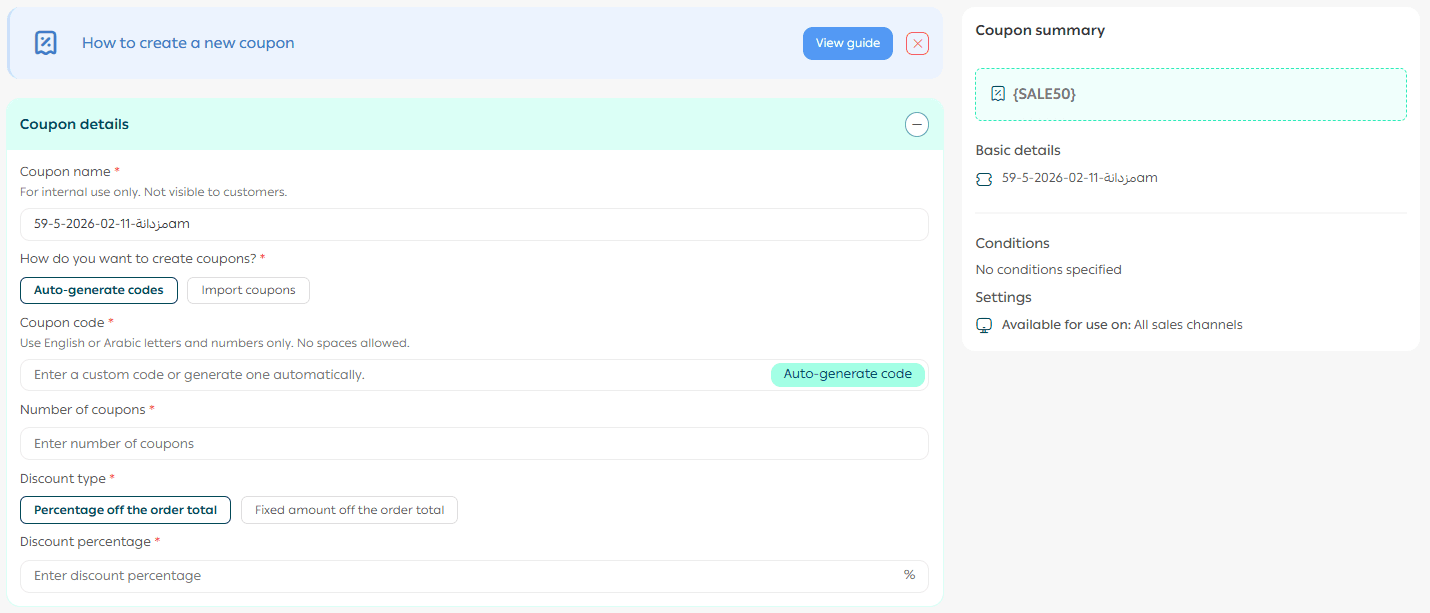
Complete all required fields using the same steps as the individual coupon setup, then click Save.
Coupon group details
- Enter a simple and descriptive group name
- Choose how coupons are added:
- Automatic generation, or
- Import from a file in XLSX or CSV format
- Enter the prefix for coupon codes:
- Maximum of five characters
- English letters only
- Enter the number of coupons in the group
- This number cannot be changed after saving
Creating a Mahally coupon
A Mahally coupon is the simplest type of coupon, designed for general use without advanced settings or customization.
- From the Coupons page, click Create new coupon, then select Mahally coupon.
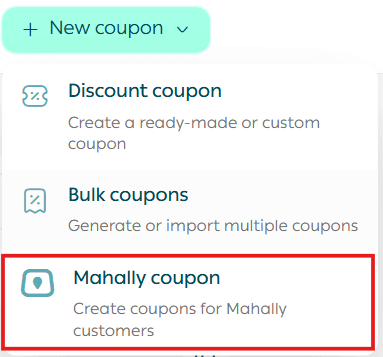
Important note: Mahally coupons are currently available only for stores in Saudi Arabia.
2. Complete all required fields following the same steps as the previous sections, then click Save.
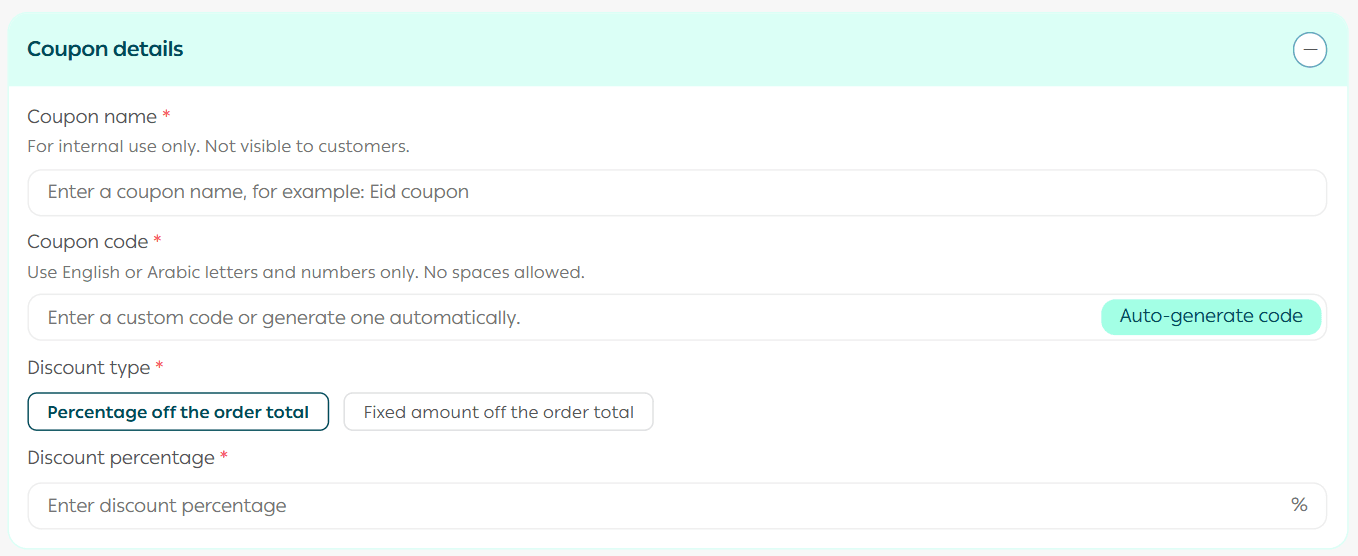
Mahally coupon characteristics
- Applies to all products or orders with no inclusions or exclusions
- No domain-level targeting
- No advanced customization such as customer groups, regions, channels, or conditions
- Quick and easy to create with minimal setup
Frequently asked questions
What are the main use cases for coupon groups?
Coupon groups can be used in many scenarios, including but not limited to:
- A school uniform store partnering with a school, providing a group of coupons for students where each coupon grants a specific discount or free product
- A training course provider creating a coupon group where each trainee receives a unique coupon for a future course registration with a defined discount
Can I import a group of coupon codes from a ready-made file?
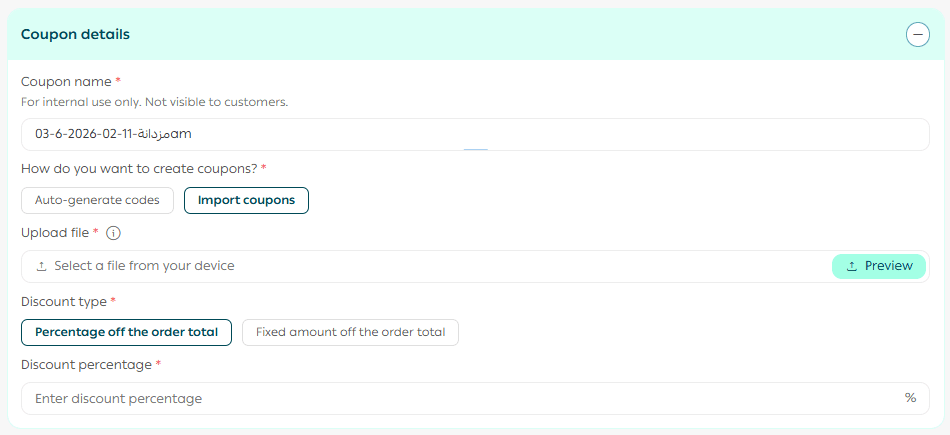
Yes. This feature is available for stores on the Special plan.
- From the Coupons page, click Create new coupon, then select Bulk coupons.
2. Enter the coupon details, choose Upload file as the coupon creation method, attach the import file, then click Save.
How can I view the coupons inside a coupon group?
From the Coupons page, click the number displayed next to the coupon group name.
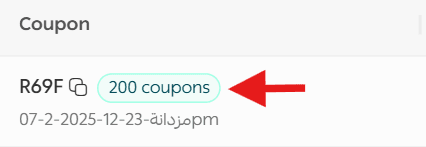
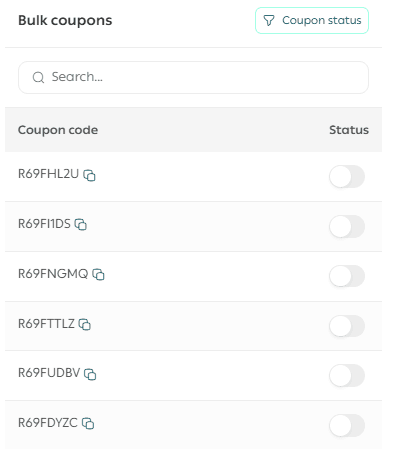
The coupons within the group will be displayed, and you will notice that all coupons share the same prefix.
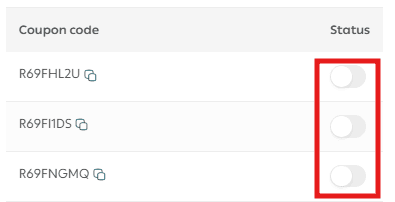
Can I disable a single coupon within a coupon group?
Yes. Enter the coupon group and unselect the coupon you want to disable.
How can I enable or disable an entire coupon group?
From the Coupons page, enable or disable the coupon group directly.

Can I reuse a previously created individual coupon and add it to a coupon group?
Yes, by disabling the individual coupon and including its code within a coupon group.
Are statistics available for each coupon inside a group?
Yes. Each coupon has its own statistics, in addition to aggregated statistics for the entire group.
Additional learning resources
🎯 Make every offer feel personally tailored to your customers.
Learn how to use coupon customization and customer segmentation to drive higher sales and stronger engagement.
🚀 Discover how to increase average order value intelligently.
Learn how to use Salla smart offers to double sales and deliver a personalized shopping experience for every customer.