This FAQ answers the most common questions merchants ask about Special Offers in Salla, including how offers work with coupons, category limits, multiple promotions in one cart, and exporting offer statistics.
If I add a coupon to the cart, will the special offer still apply?
Yes. The offer will still be applied even if a coupon is added to the shopping cart.
What is the maximum number of categories I can include in special offers?
There is no maximum limit. You can add an unlimited number of categories to special offers.
Can the same category be used in more than one offer?
Yes. The same category can be included in multiple offers at the same time.
Can I apply more than one offer in a single cart?
Yes. You can apply multiple offers in one cart, up to 5 offers per cart.
If one product is included in more than one offer, which offer will be applied?
In this case, the system will select one offer randomly for that product.
You also have the option to customize offer priority settings, either by:
- Applying the newest offer first
- Ordering offers based on active offer priority
Can I reactivate an old seasonal offer and edit it?
Yes. You can reuse a previous seasonal offer in the current season by following these steps:
- Re-enable the offer you want to activate again.
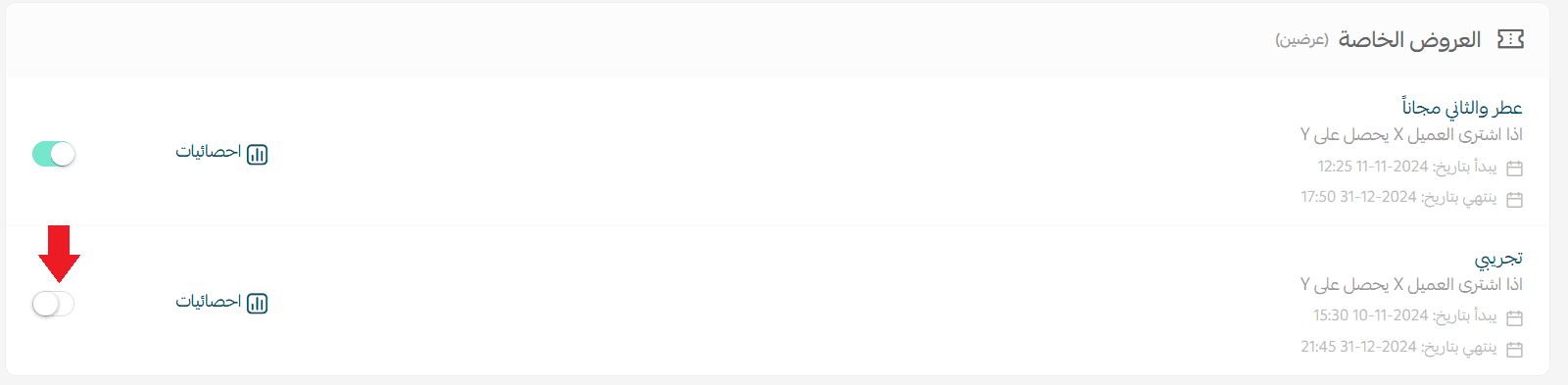
2. Update the offer dates to match the current season, adjust any product details if needed, then click (Save Offer).
Can I delete an offer from the Special Offers list?
Yes. To delete an offer:
- Open the offer you want to remove
- Click (Delete) at the bottom of the page

How will the offer appear to the customer?
The offer will appear to the customer as shown below:
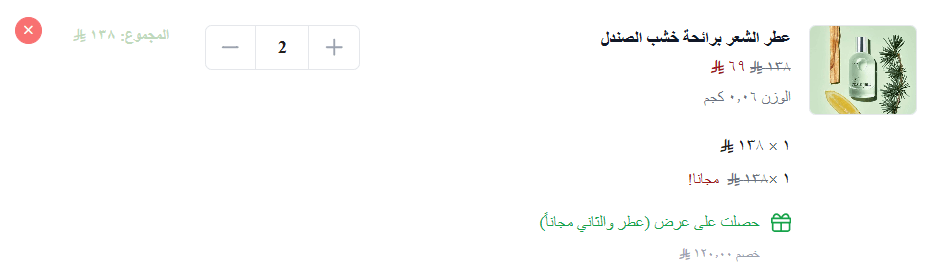
How is the price shown before and after the discount in the cart?
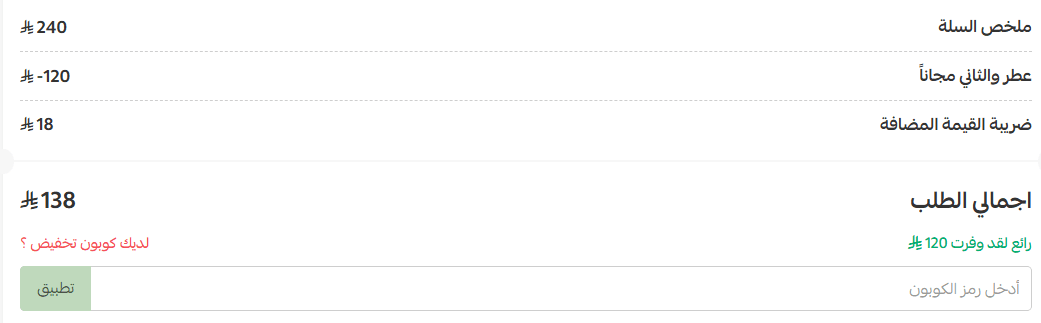
The “before and after” pricing display appears in the customer’s cart when the offer type is either:
- A percentage discount
- A fixed discount amount
- And when the offer applies to the entire order.
Can I export Special Offer statistics?
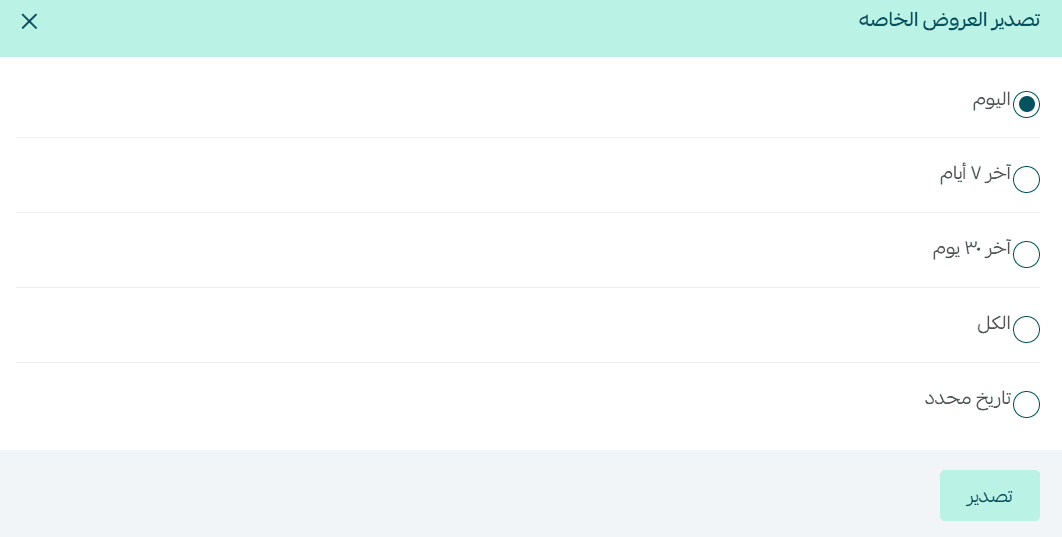
Yes. You can export Special Offer statistics for the following time ranges:
- Today
- Last 7 days
- Last 30 days
- All time
- A custom date range
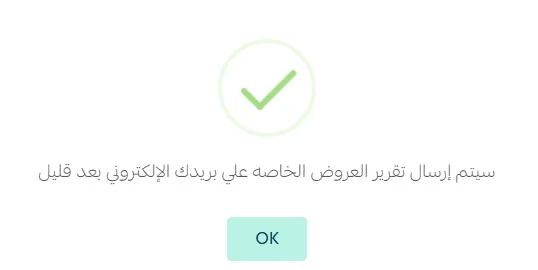
The report will be sent directly to your store email.
This feature is available only for stores on the Special plan.
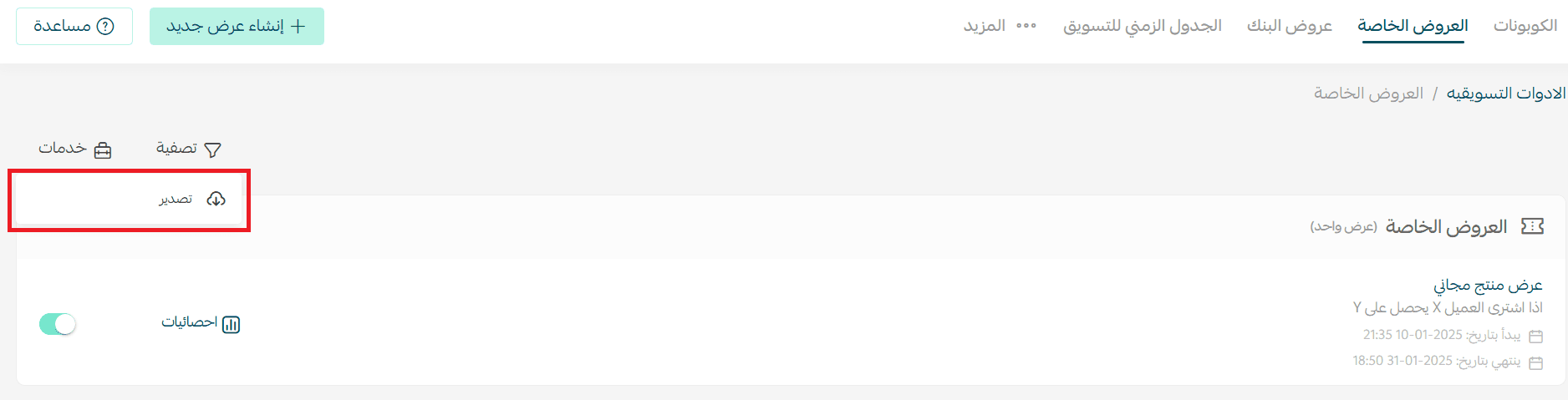
Steps to export offer statistics:
- From the Special Offers page, open the (Services) menu and click (Export).
2. Select the period you want to export, then click (Export).
3. A report containing the requested statistics will be emailed to your store.