Google Play Console provides a centralized workspace that gives you full control over every aspect of your app, from core app data and releases to analytics and ratings. It helps you manage your app with clarity, confidence, and professionalism throughout its lifecycle.
This guide explains how to access your app page and introduces the main sections of the Google Play Console app dashboard.
📌 Article overview
- How to access Google Play Console
- Main sections of the Google Play Console dashboard
How to access Google Play Console
1️⃣ Open Google Play Console
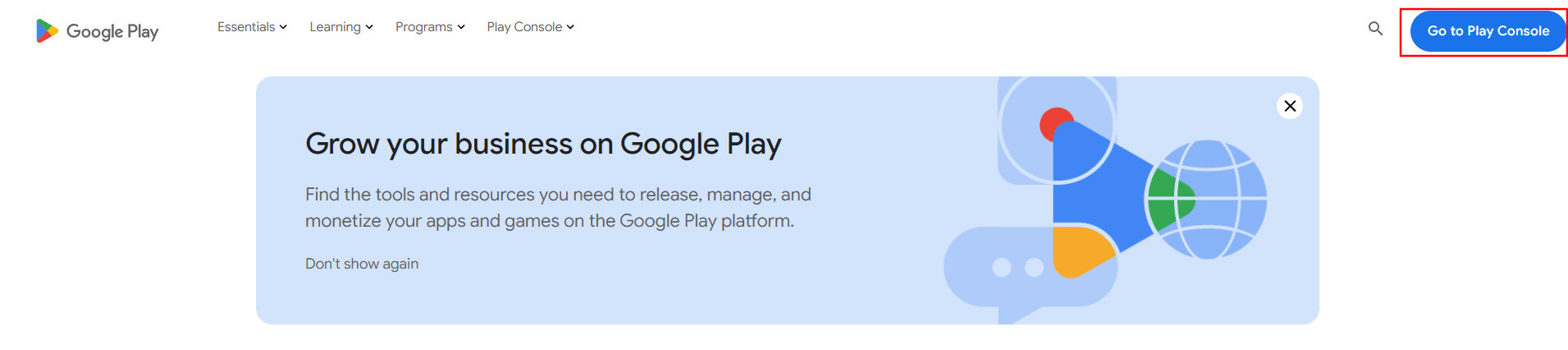
Go to Google Play Console, then click Go to Play Console.
2️⃣ Select your developer account
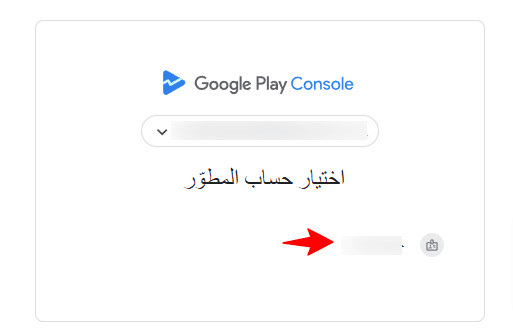
Choose the developer account associated with your email address.
For more details, see: How to purchase a Google Play Developer account
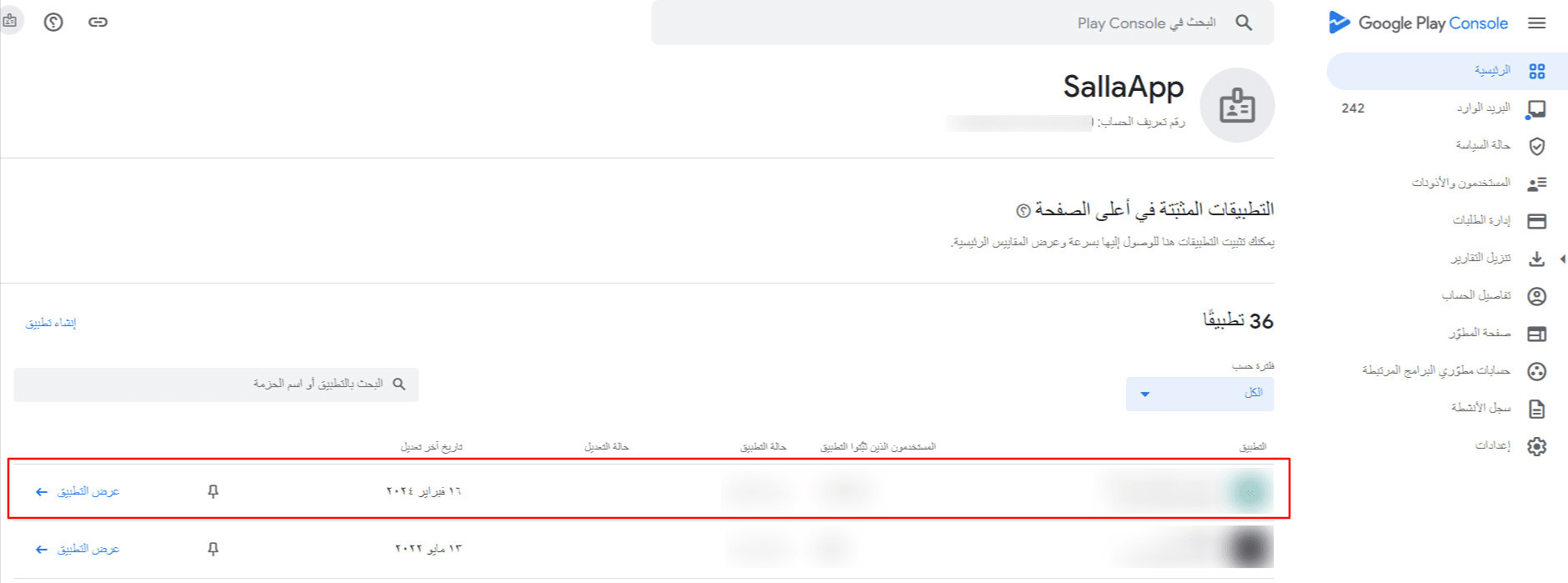
Once logged in, you will see the account home page. Click View app to open the app details page and manage all related settings.
Main sections of Google Play Console
Dashboard
The Dashboard provides a comprehensive overview of your app’s most important information.
💡 It includes insights such as:
- Inbox summary
- App alert status
- Key performance indicators
- Latest release performance
- Store listing performance
- Android Vitals metrics

From this section, you can also:
- Return to the full list of apps in your account
- View the app Package Name/Bundle Name
- Copy the Google Play Store app link to share with customers
- Customize dashboard reports by selecting a specific date range
Inbox
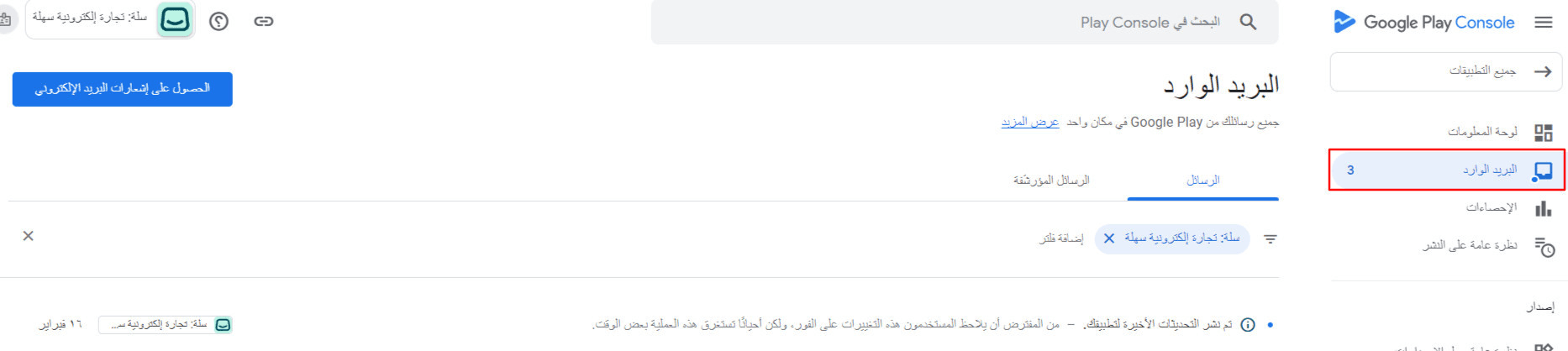
The Inbox displays Google notifications related to publishing, policy updates, and required actions.
Reviewing these alerts regularly and enabling notifications helps you:
- Stay compliant with Google Play policies
- Respond quickly to important updates
- Protect your app and developer account from potential issues
Statistics
The Statistics section allows you to analyze your app’s performance, including:
- Installs and uninstalls
- Ratings and reviews
- Revenue
- Crashes and stability issues
You can also compare your app’s performance with similar apps to make informed product and growth decisions.
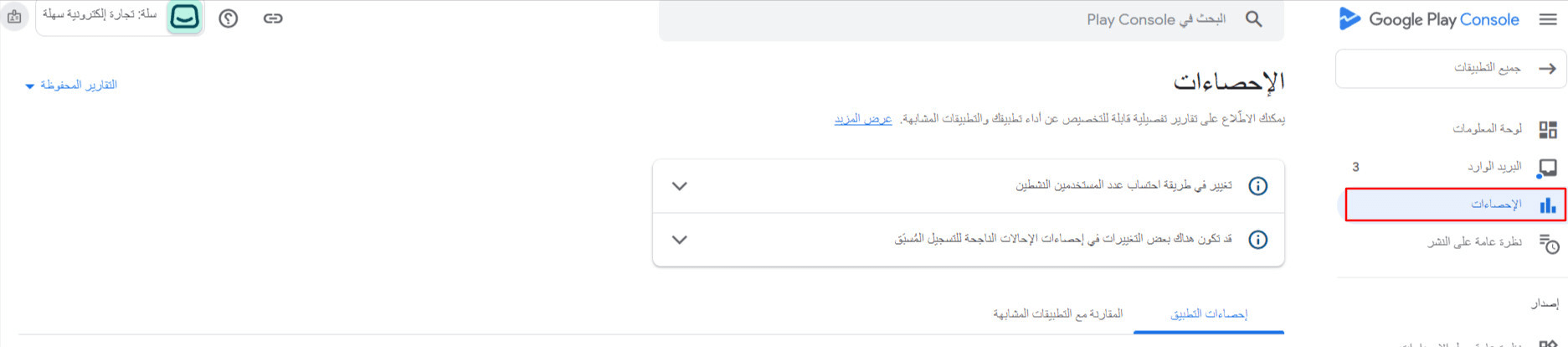
For more details, see: Viewing app performance analytics on Google Play
Publishing overview
The Publishing Overview section helps you track and manage all changes made to your app.
From here, you can:
- Review pending updates
- Control when changes are sent for review
- Enable managed publishing
- Allow automatic publishing after approval

This section ensures you always know what is live and what is under review.
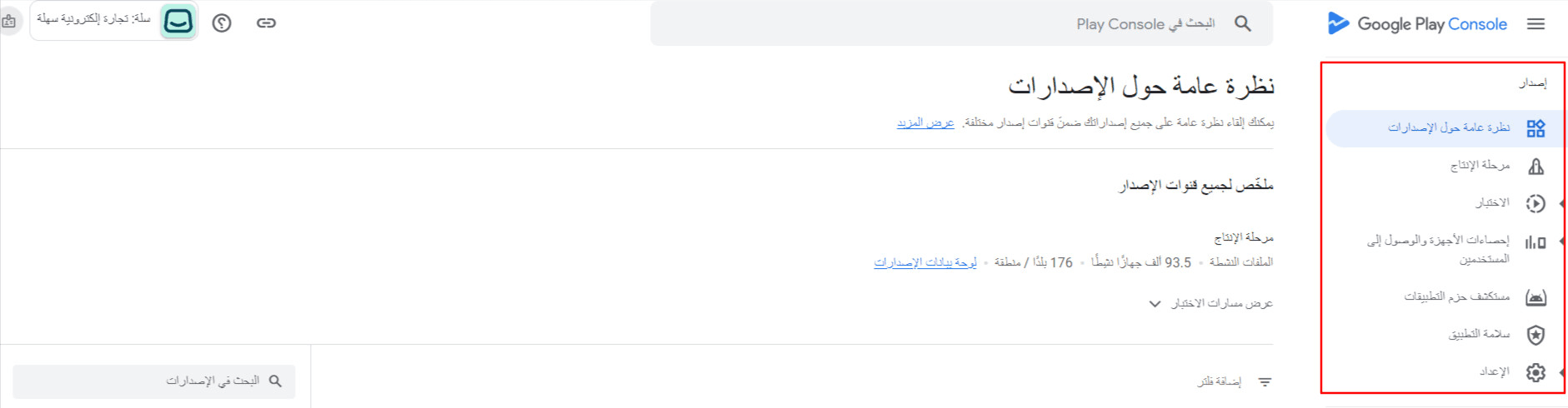
Release Management
This section allows you to manage app availability across different release tracks and countries.
You can:
- Monitor app distribution by release track
- View the list of supported countries for each track
- Review individual release details
Control app availability by country
- Go to Production
- Open Countries and regions
- Select or deselect countries
- Save your changes

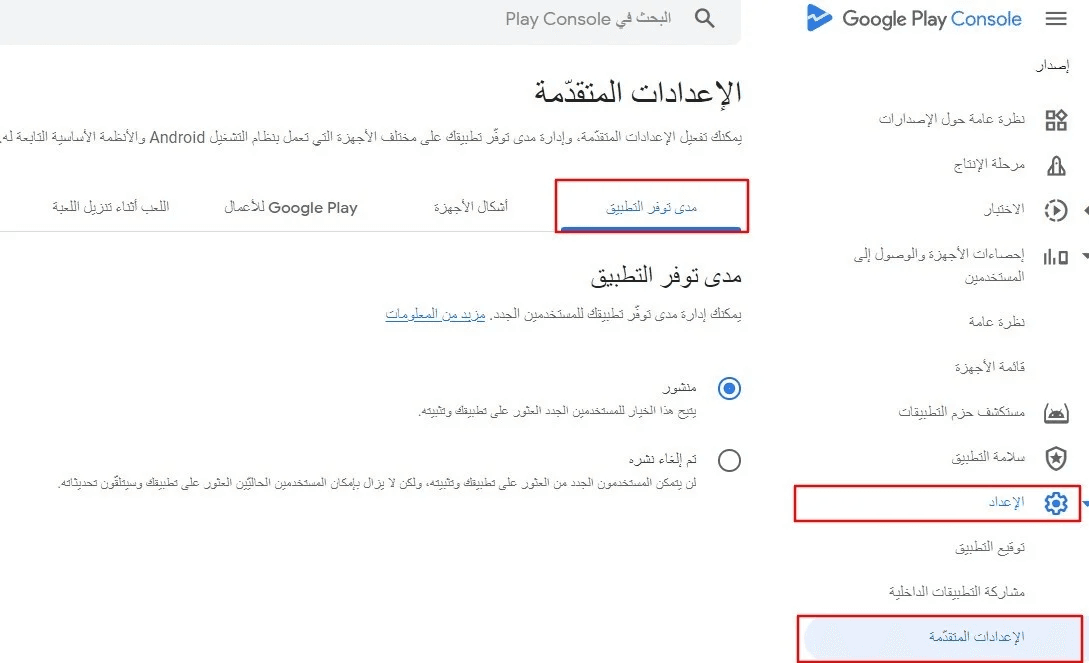
Unpublish or republish your app
- Go to Settings
- Open Advanced settings
- Under App availability, choose:
- Published
- Unpublished
- Save changes
Growth
The Growth section focuses on optimizing your app’s visibility and store presence.
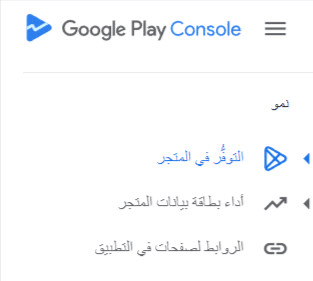
Store presence
Your store listing is how users discover your app on Google Play. You can manage:
- App name
- App icon
- Description
- Screenshots
- Videos
Optimizing these elements improves discoverability and increases downloads.
Updating your store listing
You can update your app’s store listing in one of two ways:
Option 1: With Salla support (recommended)
🔹 See: Requesting an app store listing update
Option 2: Manual update
- Go to Store presence
- Open Main store listing
- Edit app details according to Google’s content guidelines
- Save and submit changes for review
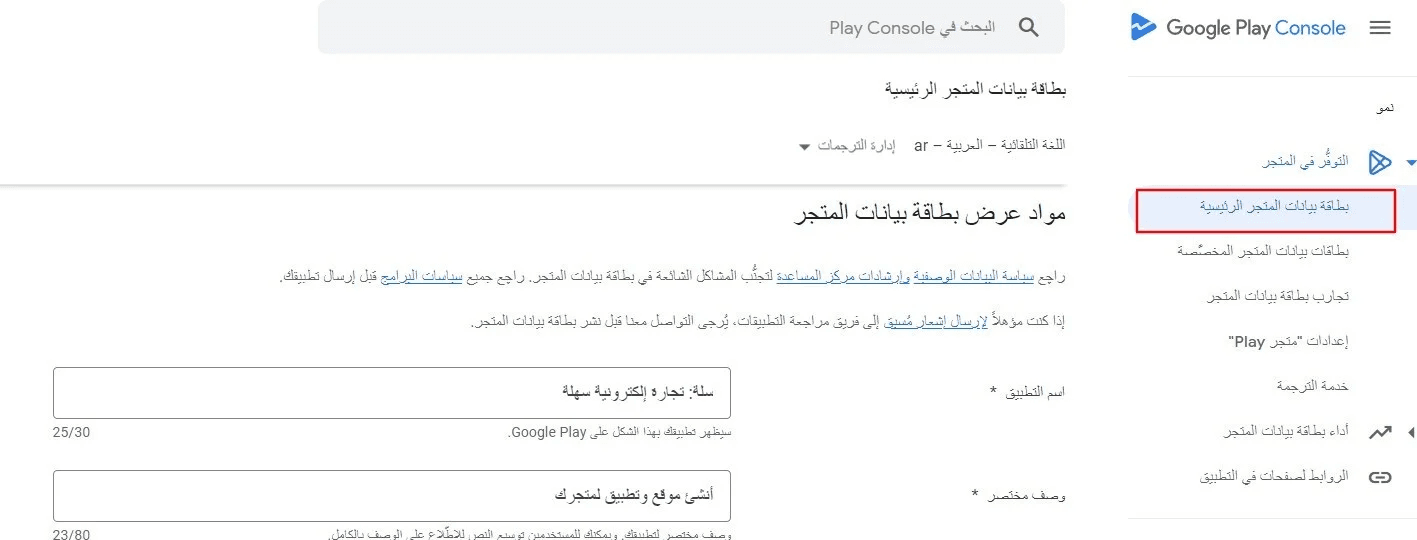
Store settings
Store settings allow you to control app categorization and user contact details.
- From Store presence, open Play Store settings
- Edit the app category and tags
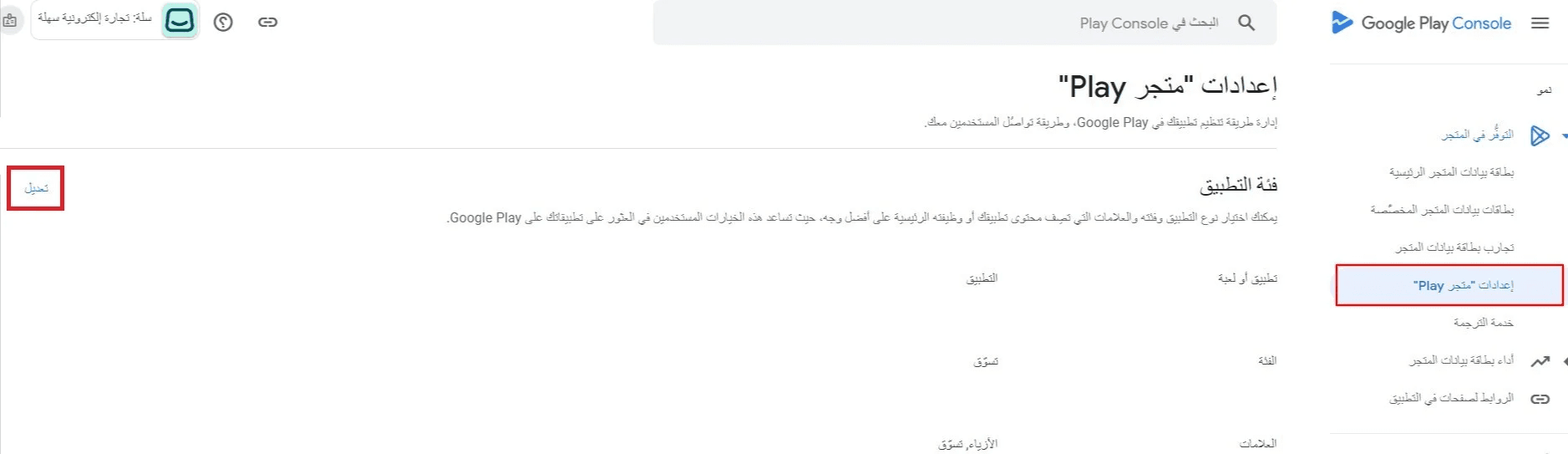
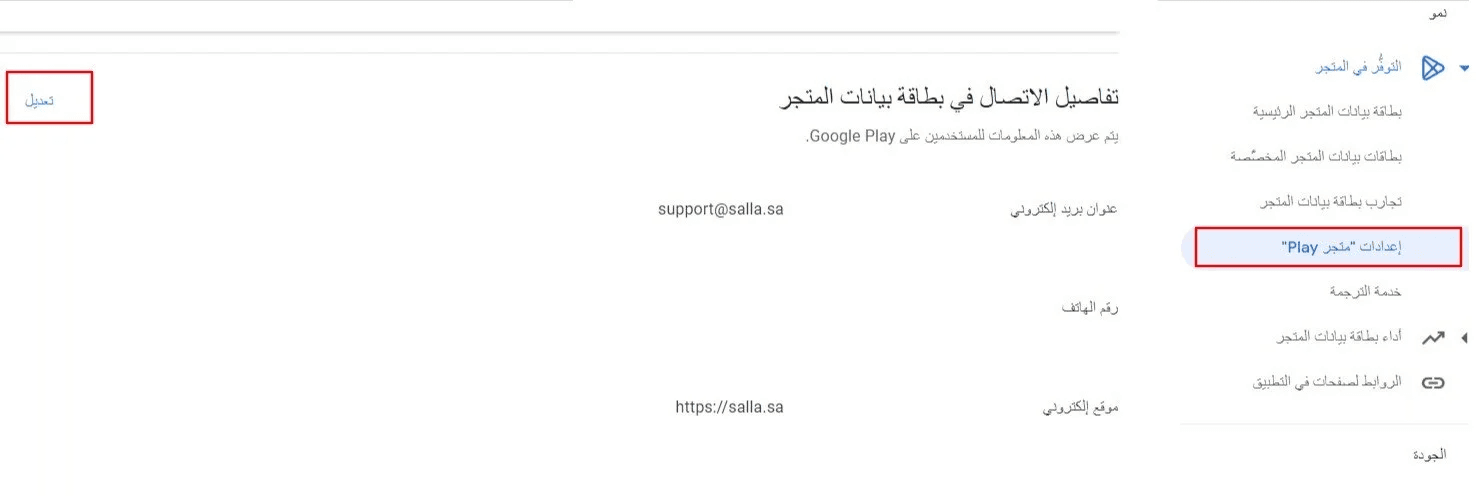
3. Update public contact details such as:
- Email address
- Phone number
- Website
4. Save changes
Quality
The Quality section helps you:
- Manage app ratings and reviews
- Monitor performance indicators and stability metrics
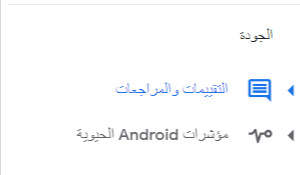
For more details, see: Managing ratings and reviews on Google Play
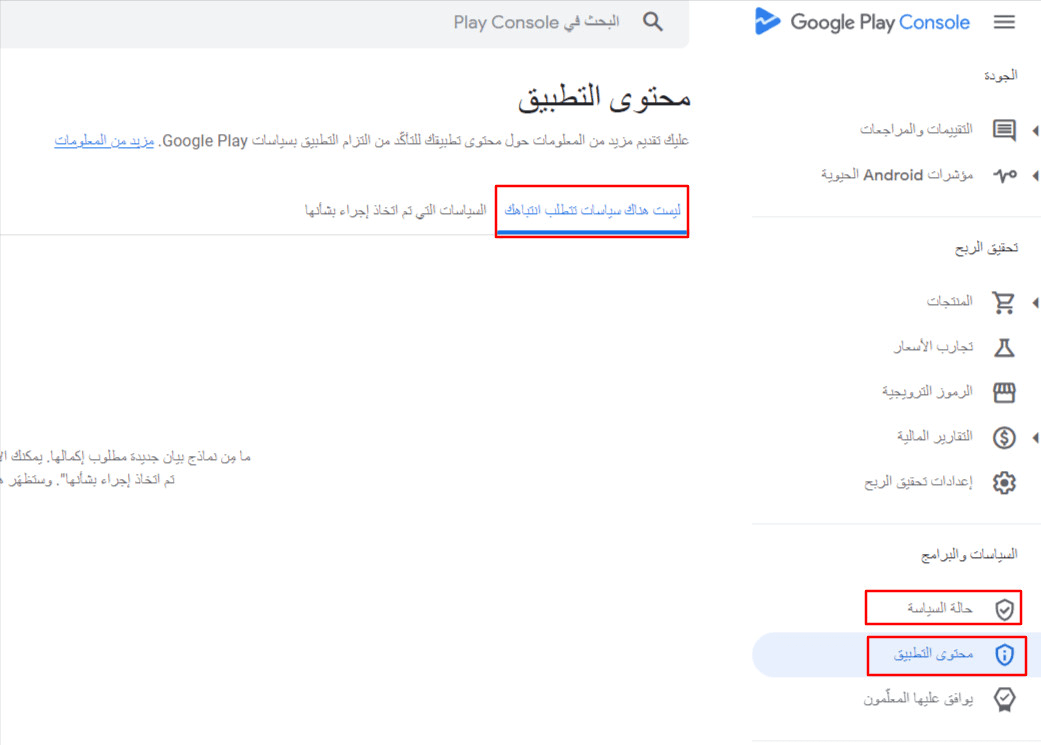
App Content
The App Content section ensures your app complies with Google Play Developer Policies.
Here, you must:
- Declare app content information
- Confirm compliance with policies
- Provide required disclosures related to app behavior and data usage
If you encounter any compliance issues, it is recommended to work with your app development team to resolve them promptly and avoid enforcement actions.
Frequently asked questions
Google Play Console is displayed in English. How can I change it to Arabic?
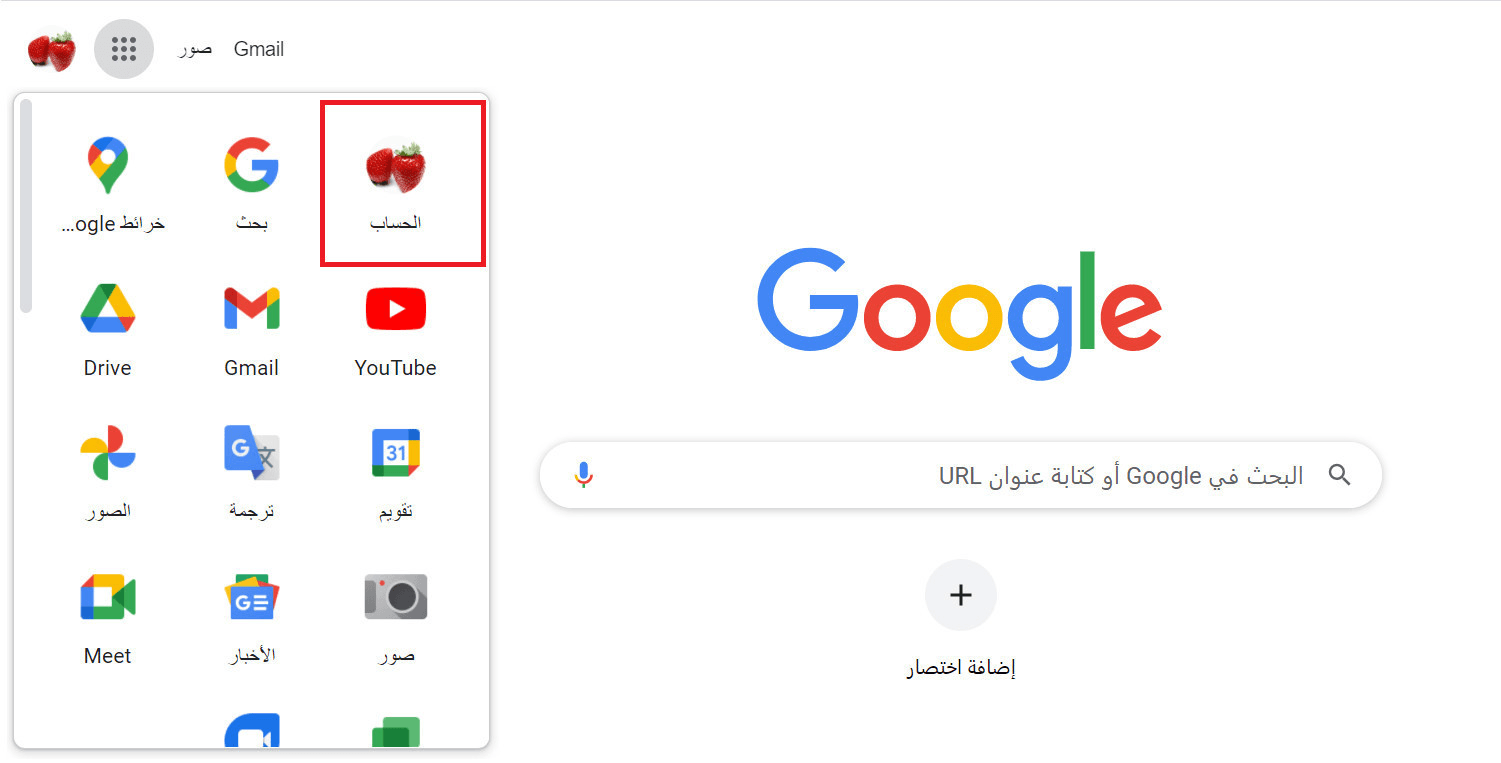
You can change the interface language through your Google Account settings:
- From the Google homepage, click the apps icon and select Account
2. Go to Data & Privacy
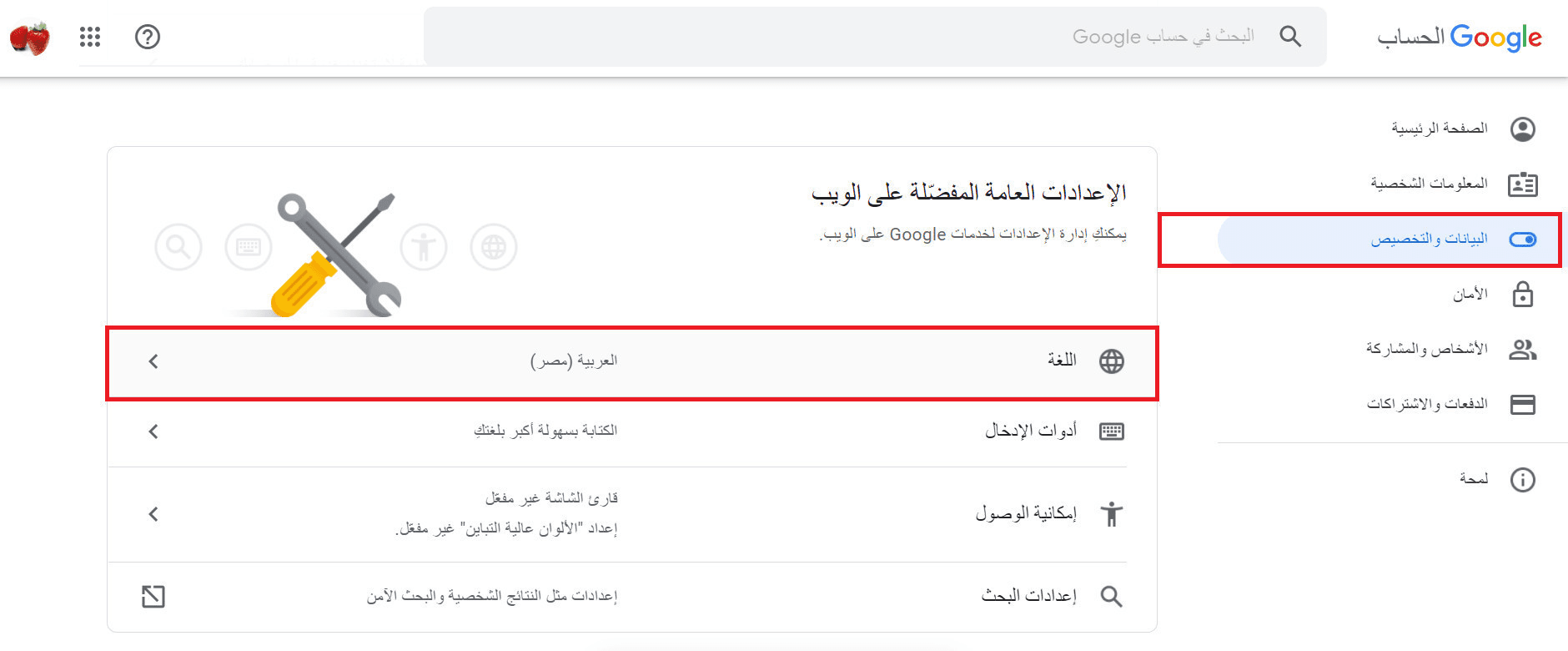
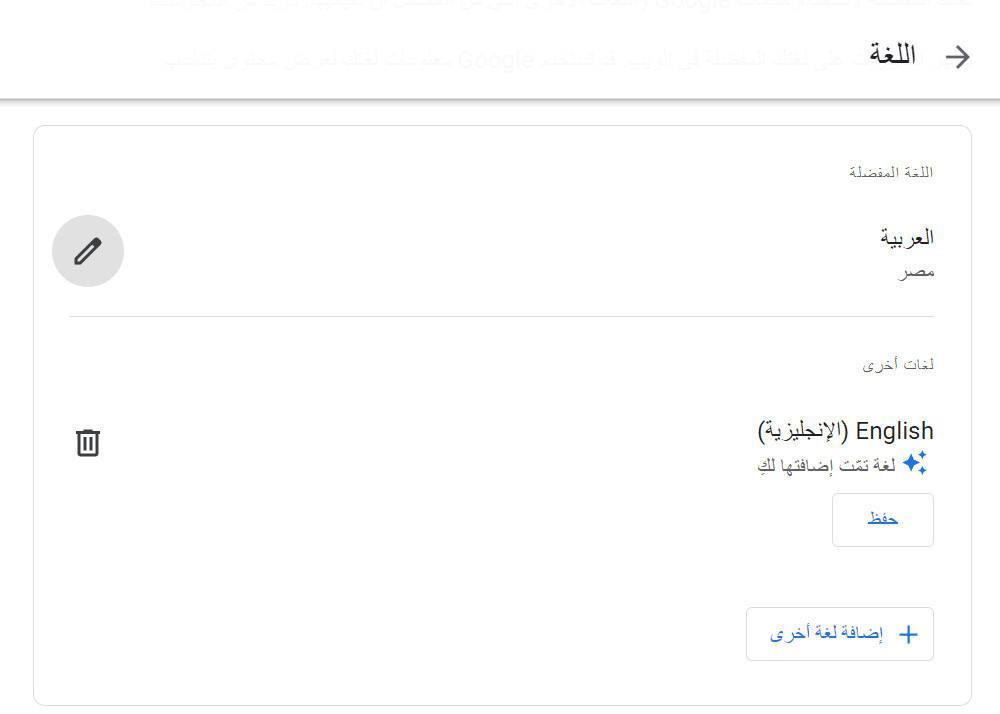
3. Scroll to Language
4. Select your preferred language or add a new one
I received a policy violation email from Google. What should I do?
Contact your app development team and provide:
- The full email message
- A screenshot of the notification
Policy alerts are typically sent only to the account owner. Ignoring these alerts may affect your app or developer account.
I want to move my app outside Salla and need the app signing keystore. What should I do?
Apps developed through Salla use Google-managed app signing. To transfer the app to another developer:
- Go to Release
- Open Settings
- Select App integrity
- Under Upload key certificate, choose Request upload key reset
- Provide the required information and submit the request
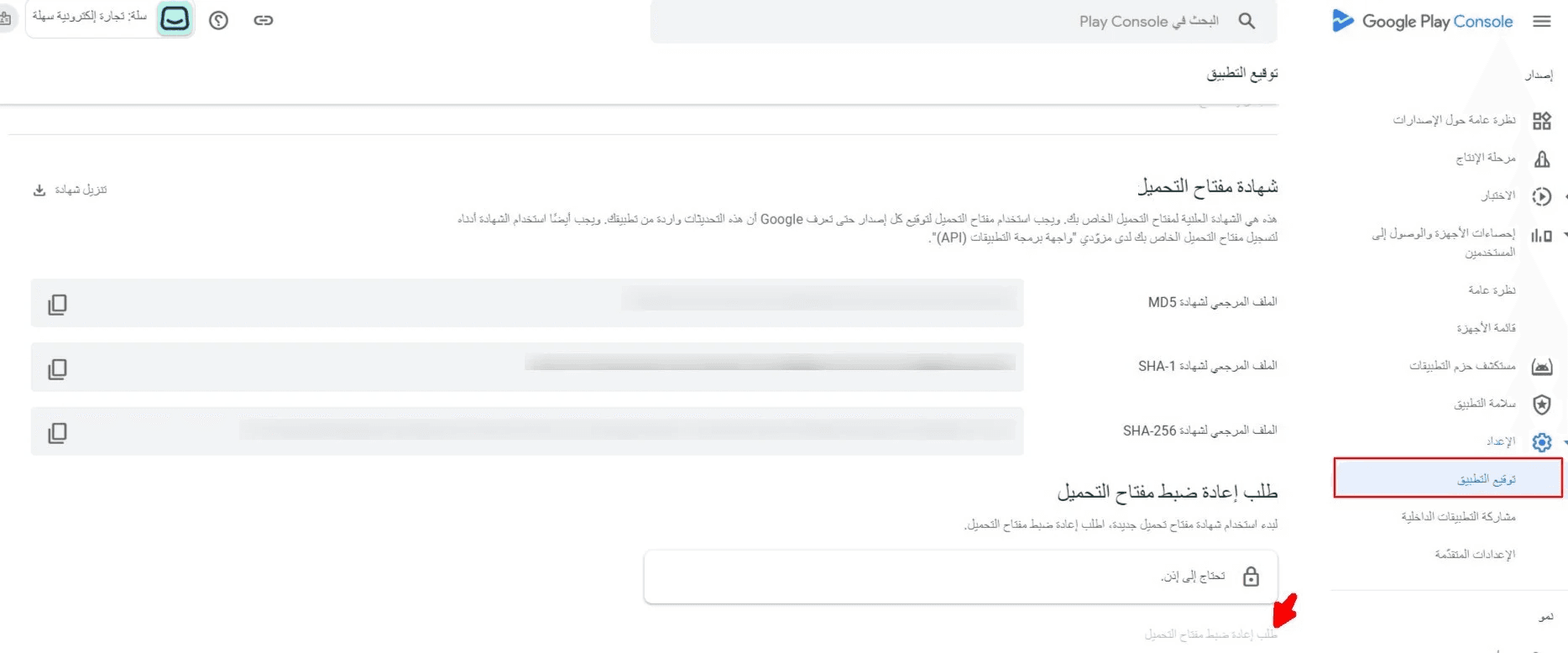
Google will review the request and update the key within two business days. Your new developer can then continue app updates using the new signing key.