The inventory log section allows you to closely track quantity changes while showing the source, reason, and timing of each update. This improves transparency in inventory data, reduces manual effort, and increases confidence in the accuracy of your inventory records.
📌 Article overview
- Steps to access the inventory log
- Filtering the inventory log
Steps to access the inventory log
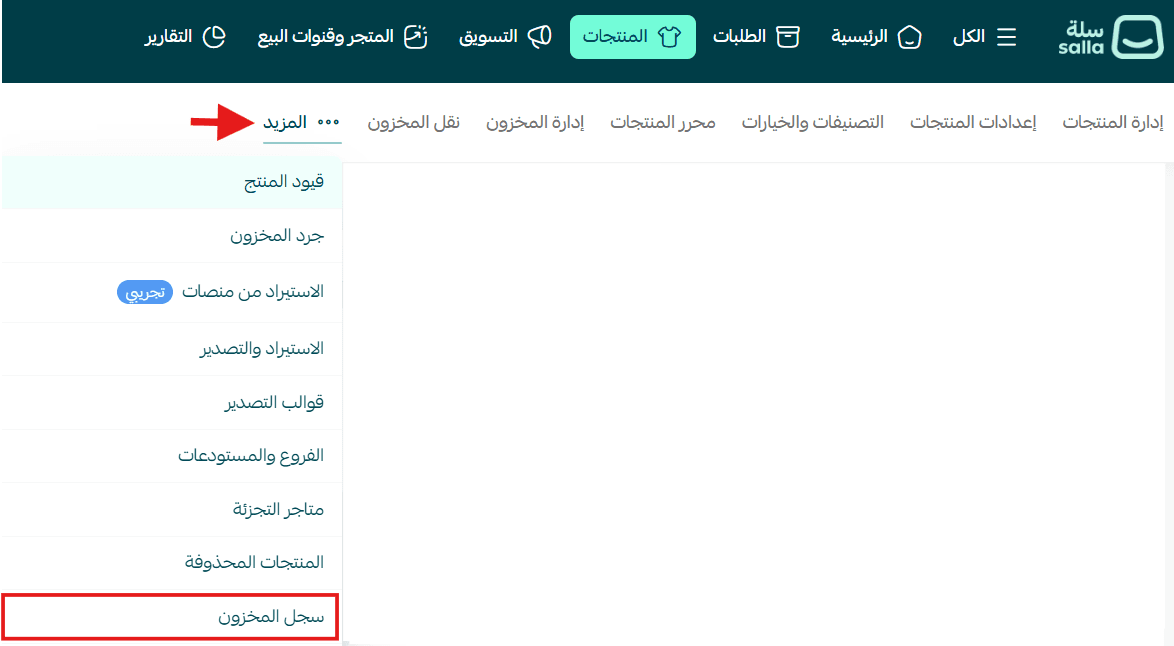
- From the main menu, click Products, then More, and select Inventory Log.
The inventory log displays important information such as the product name, SKU, quantity before and after modification, the employee who made the change, the modification date, and the reason for the change.
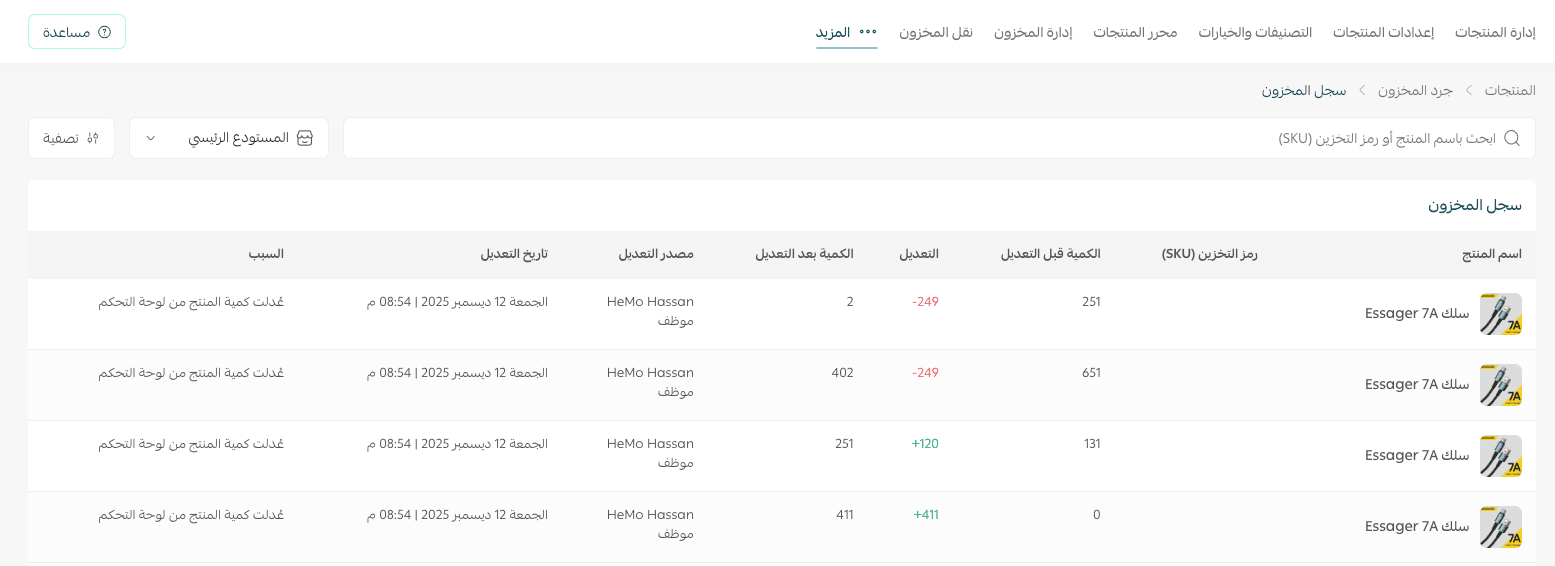
Key fields in the inventory log table
Product Name
Displays the product that was modified.
SKU (Stock Keeping Unit)
A unique identifier for each product, which reduces errors—especially when products are similar—since tracking relies on a precise code.
Quantity Before Adjustment
The quantity recorded before any modification was made, serving as a clear reference for verifying changes.
Adjustment
Shows the amount added or deducted from inventory (+ increase, − deduction) to clarify the type of change.
Quantity after adjustment
The final quantity after the operation, reflecting the current inventory level.
Source of Adjustment
Indicates who or what performed the update (employee, customer, or API system) to identify the origin of the change.
Modification Date
The date and time when the update occurred, helping track when sudden changes happened.
Reason
Explains why the modification occurred, such as:
- Direct quantity adjustments
- Changes during order management or manual cart updates from the dashboard
- Order-related inventory changes through the store
- Inventory transfer or management actions
- Updates via import operations
- Changes triggered by connected apps or external systems
The inventory log elements provide a comprehensive and accurate overview of your stock, helping you manage sales, fulfillment, and delivery operations more efficiently.
Filtering the inventory log
Search history
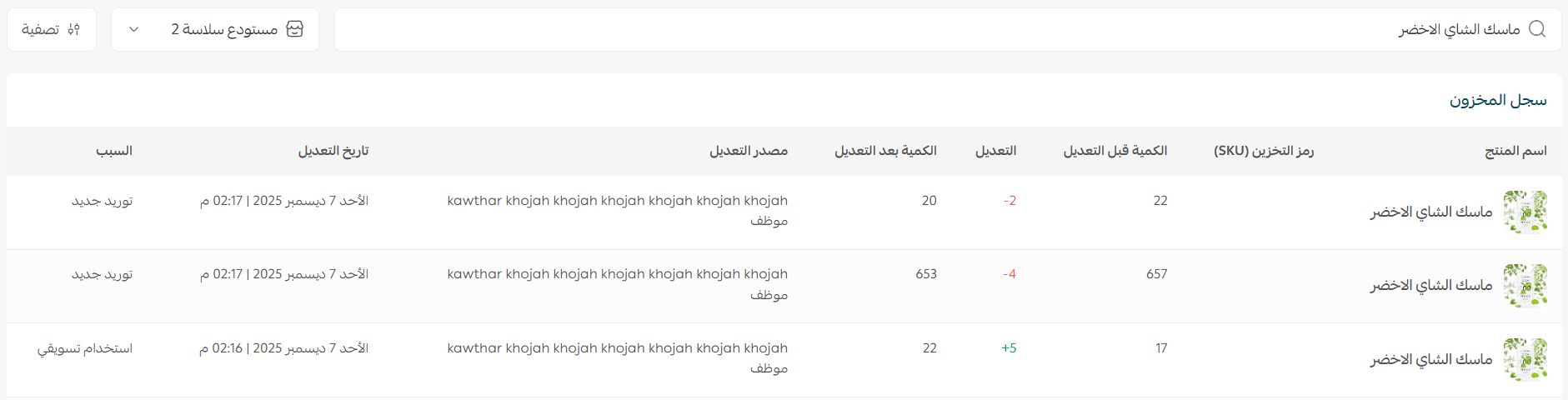
From the Inventory Log page, within the Inventory Management tab, you can search for a specific product using the search bar.

The system will then display the product’s inventory log and quantity changes.
Warehouse log
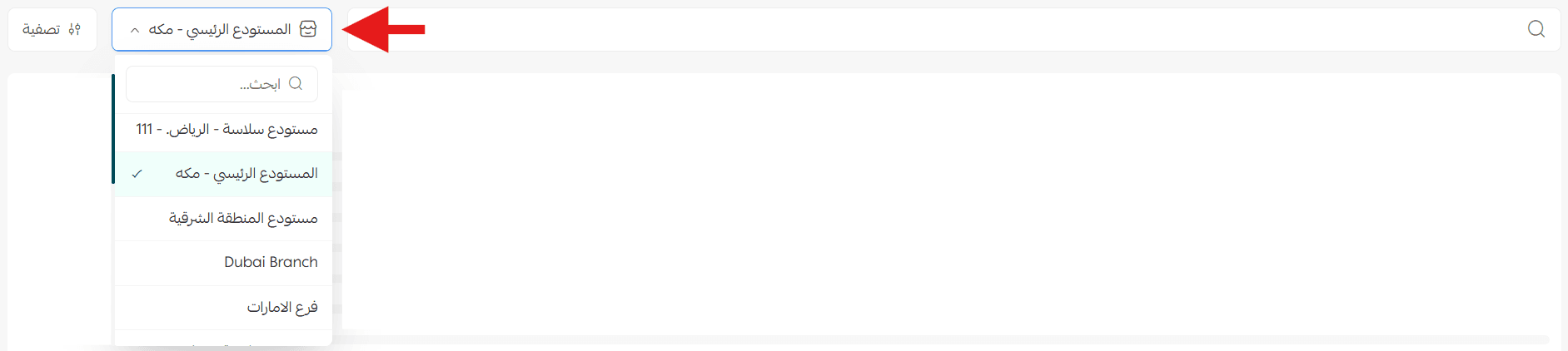
You can display the inventory log for a specific warehouse to track quantities accurately and manage each warehouse separately.
Filter button
- From the Inventory Management table page, click Filter.
- Select the desired filter conditions from the list, then click Show Results.
- You can save specific filter criteria as a saved filter template for repeated use.

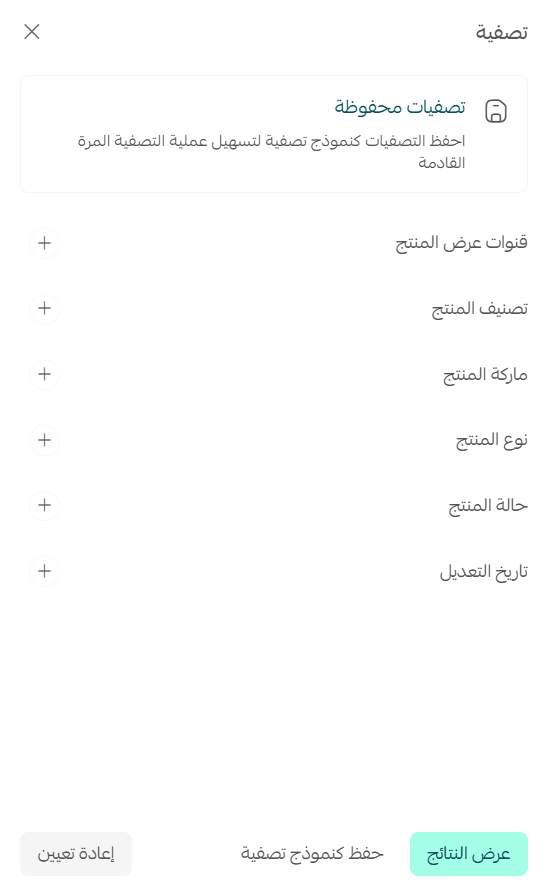
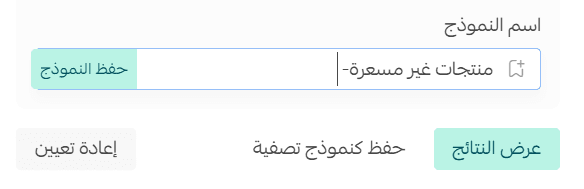
After selecting the desired filters, click Save as Filter Template

and enter a name for the template.
Next time, you can simply select the saved filter from the saved filters bar to apply it instantly.
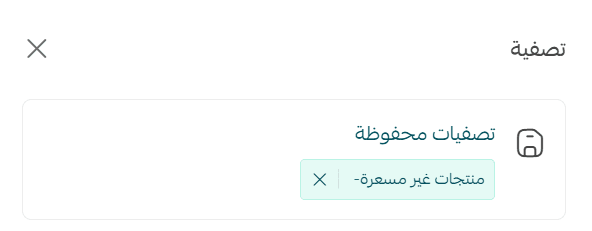
To cancel the current filter, click the (X) icon.
