Do you notice customers hesitating at checkout or stopping after adding only one product?
Cart offers are a smart way to encourage shoppers to add more items by unlocking attractive discounts based on the number of products in the cart or the total cart value.
With this approach, you not only increase your average order value, but also create a more rewarding and exciting shopping experience that keeps customers coming back.
📌 Article overview
- What are cart offers?
- How do cart offers appear to customers?
- The cart offers page
- Creating a cart offer
- Managing active offers: view and edit easily
- Practical examples
- Frequently asked questions
🔔 Important note: This feature is currently available only for stores in Saudi Arabia.
What are cart offers?
A cart offer is a type of promotion that allows merchants to create discounts with multiple conditions. Each time the customer meets a specific condition, a corresponding discount can be applied, giving you flexible control over how offers work inside the cart.
How do cart offers appear to customers?
Once a cart offer is activated, customers will start seeing it while shopping. For example:
- A progress bar appears during checkout, showing how much discount the customer can unlock by adding one more item or increasing the cart total.
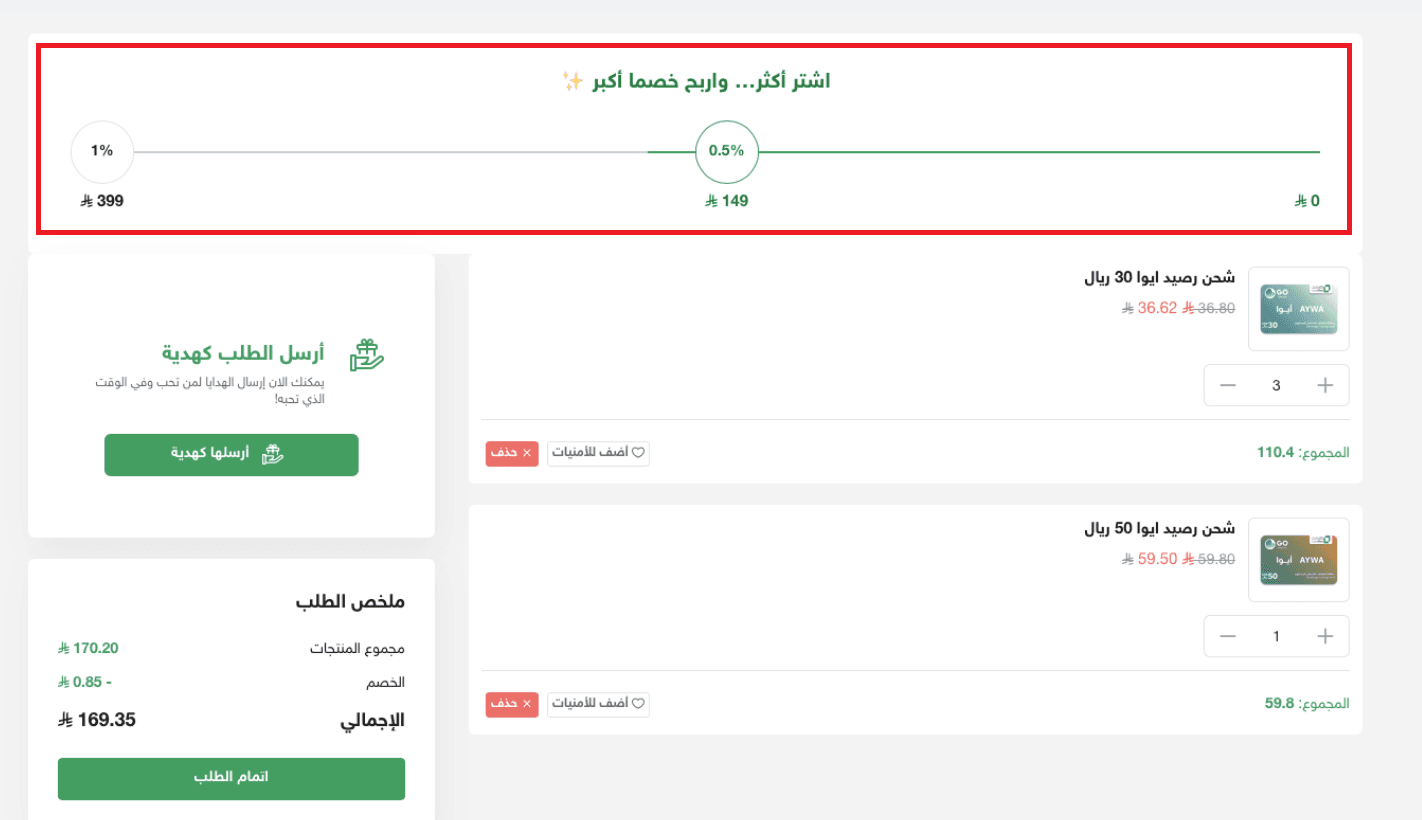
- Once the condition is met, the discount is applied automatically at payment and appears clearly in the order summary.
This experience motivates customers to increase their cart size and reach the maximum discount available, boosting sales in a smooth and automated way.
The cart offers page
To access cart offers:
- From the main menu, click Marketing
- Select Cart offers
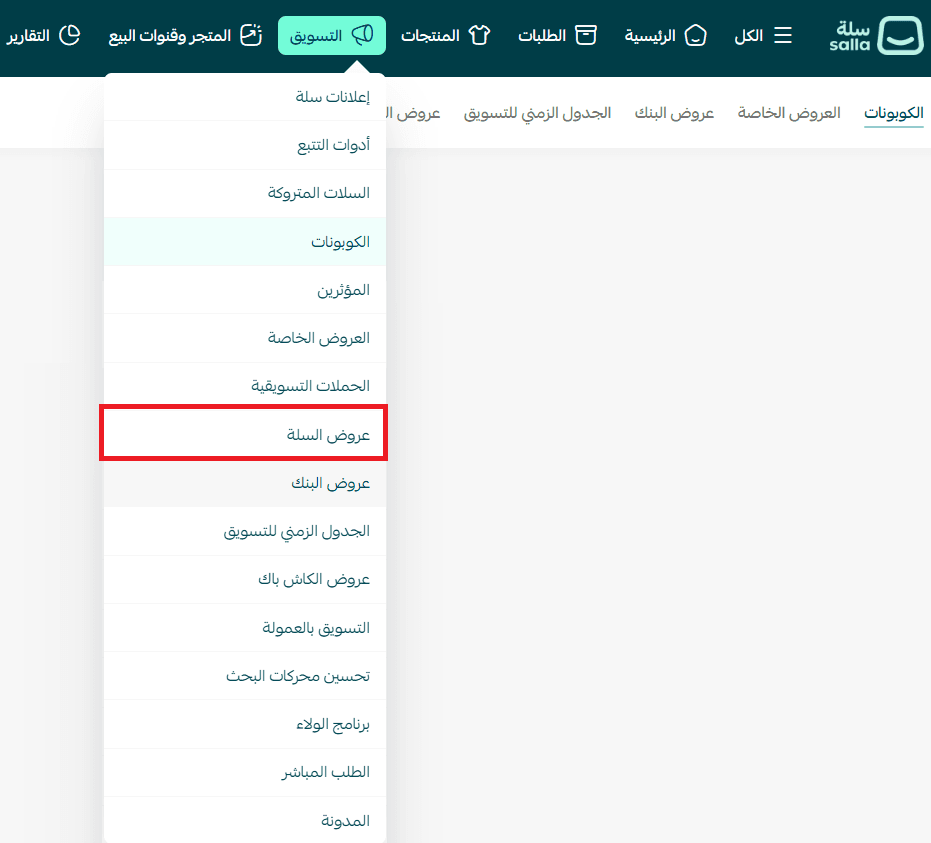
The cart offers page will appear as follows:
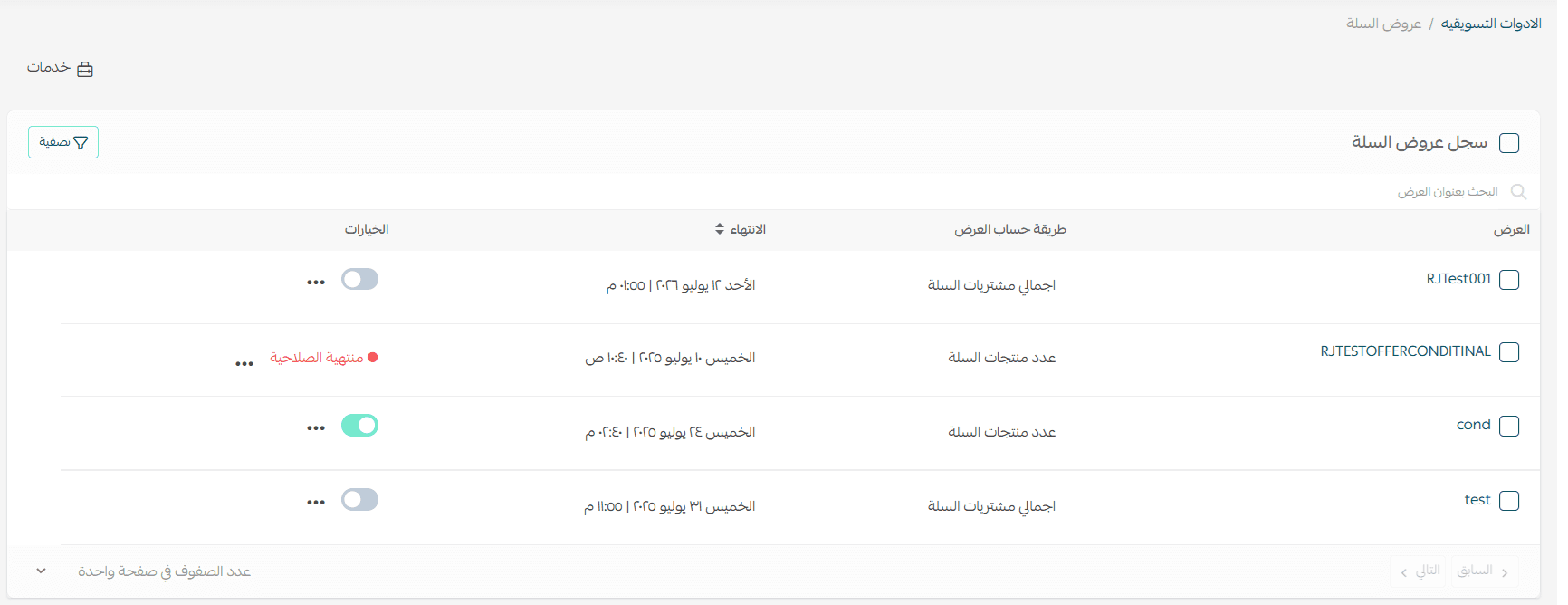
The page includes several key components:
- Services button
You can view offer statistics by clicking (Services) then selecting (Statistics)
- Filter button
Allows you to search for a specific offer or narrow down results using filters
- Cart Offers list
Lets you select all offers or choose specific ones to disable or delete
Creating a cart offer
To create a new Cart offer, click Create cart offer.

1. Enter the required offer details, then click Publish offer
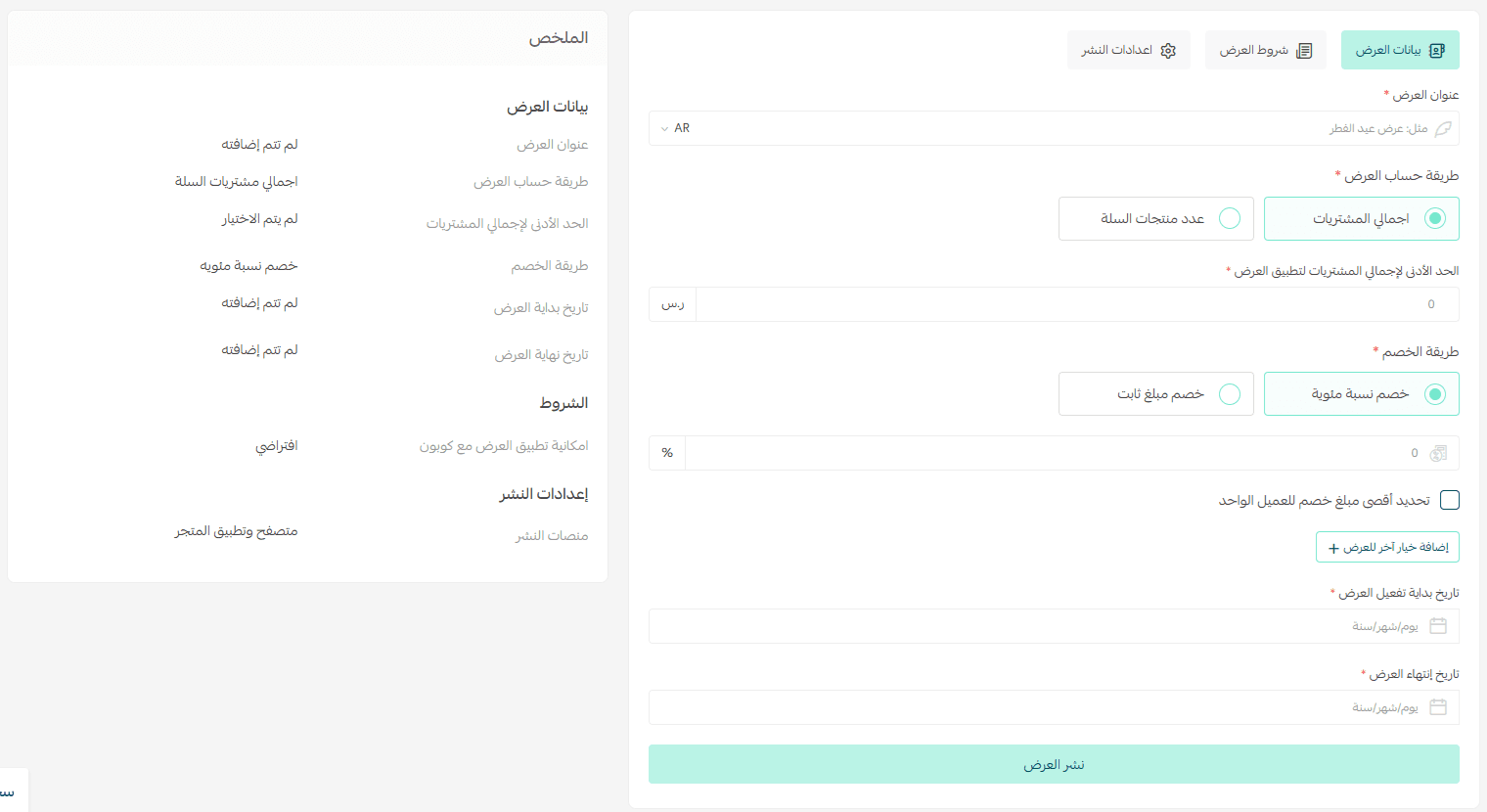
The offer setup is divided into three tabs:
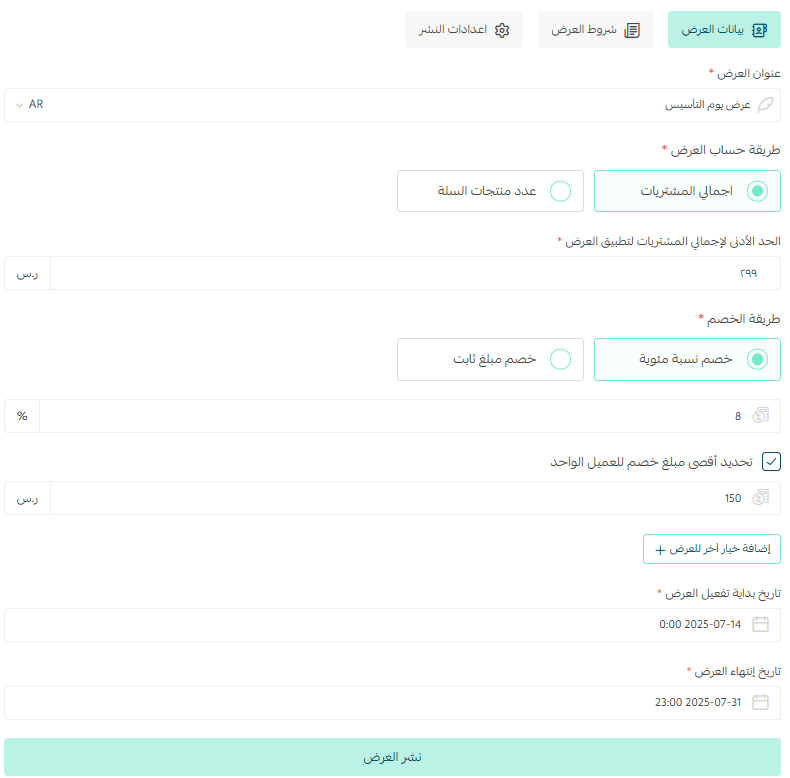
Offer information
- Enter the offer title (required)
- Choose whether the offer applies based on:
- Total cart amount
- Number of products in the cart
- Set the minimum purchase amount (if based on cart value)
- OR define the required number of products (if based on quantity)
- Select the discount type:
- Percentage discount
- Fixed amount discount
You can add up to three discount levels within a single offer.
- Define the offer start and end date
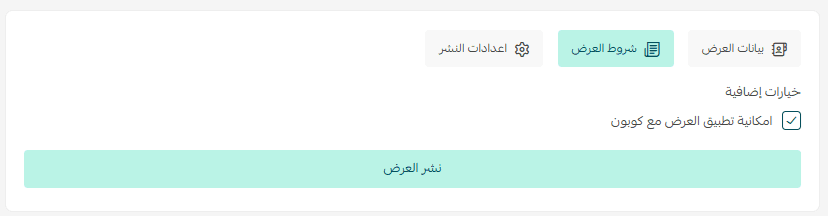
Offer conditions
Choose whether customers are allowed to use discount coupons along with the offer
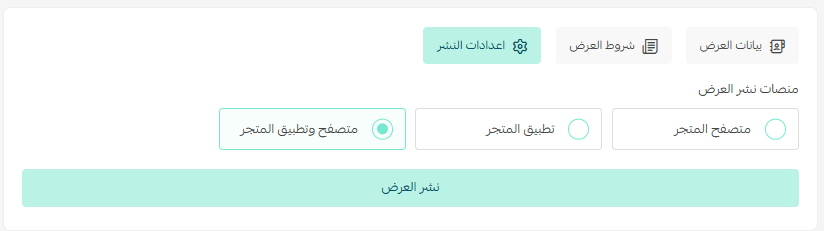
Publishing settings
Select where the offer will appear:
- Store browser
- Store app
- Both browser and app
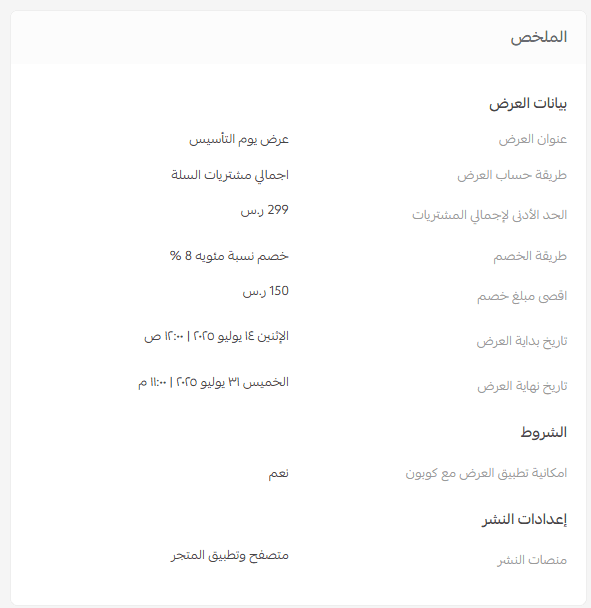
You can preview a full offer summary beside the setup fields before publishing to ensure everything is configured correctly.
Managing active cart offers
Disabling a cart offer
From the Cart Offers page:
- Select the offers you want to disable
- From the Status menu, click Disabled

Deleting multiple cart offers
- Select the offers
- From the More menu, click Delete
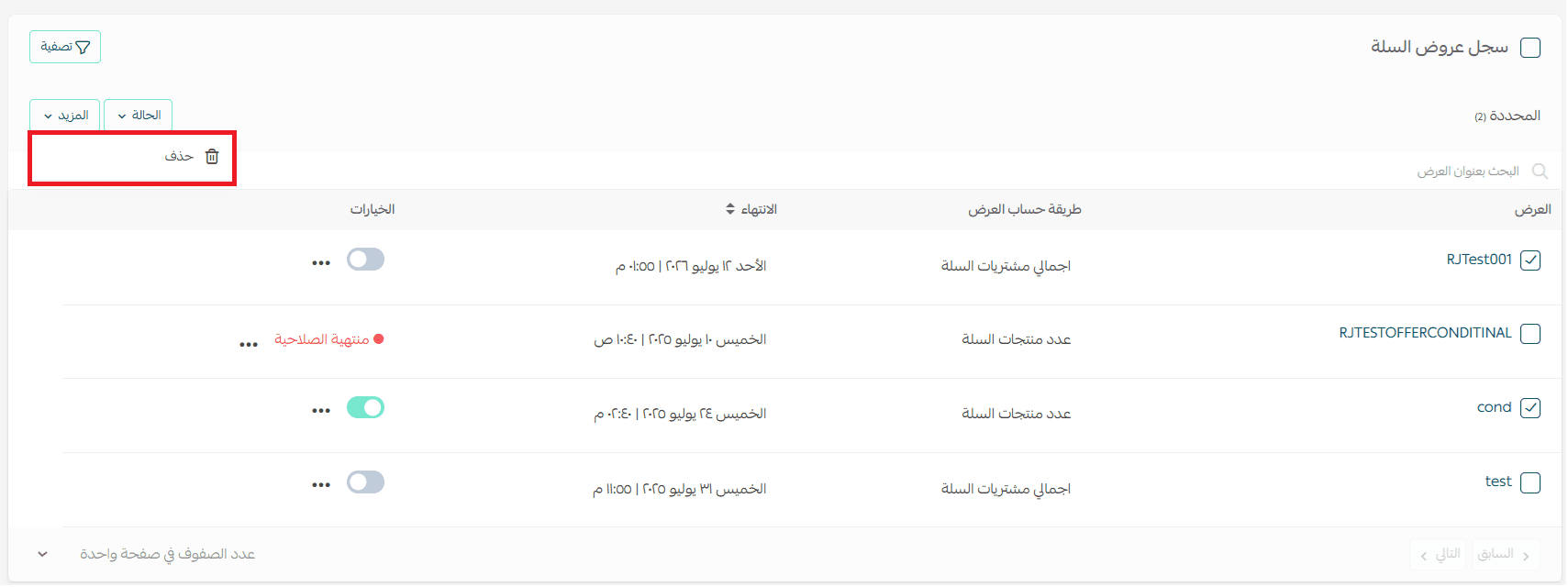
Editing or deleting a single offer
- From the offer card, click (...), then choose:
- Edit to modify the offer
- Delete to remove it

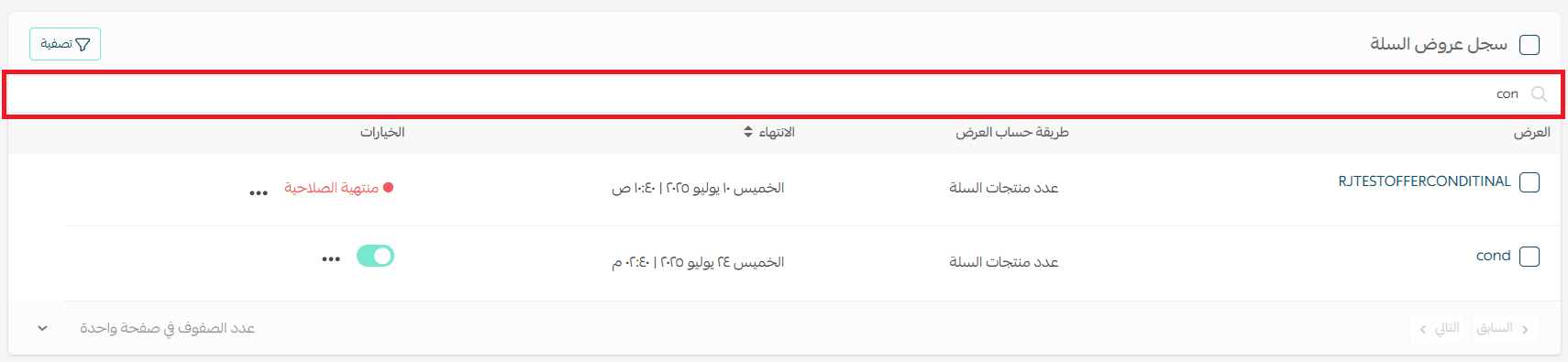
Searching for an offer
Type part of the offer name in the search field and press Enter.
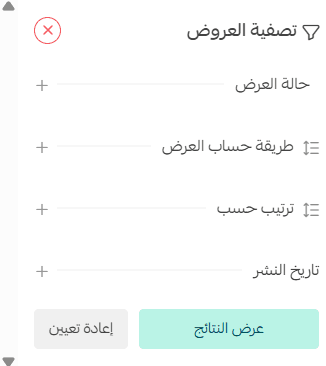
Filtering cart offers
Click Filter, then select the criteria you need.

How customers benefit from the offer
After the customer adds products and views their cart, a progress bar will appear at the top showing the available discounts.
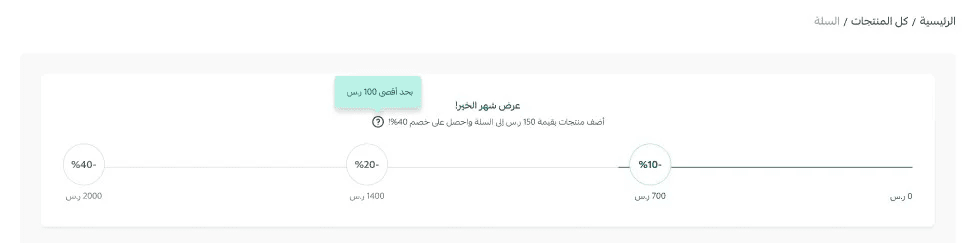
As the customer adds more products and reaches the next discount tier, the savings increase until they unlock the maximum discount.
The final discount will appear clearly during checkout within the total purchase summary.
Offer performance analytics
You can review offer statistics from the offer details under (Statistics).
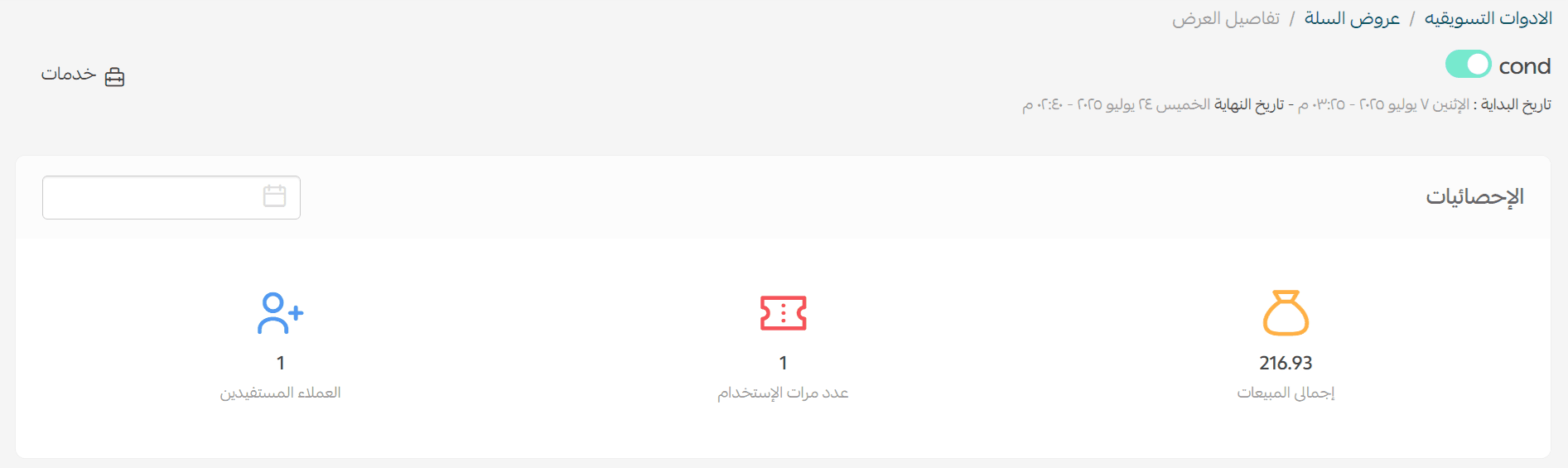
These insights include:
- Number of uses
- Number of customers
- Offer sales
- Offer-related orders

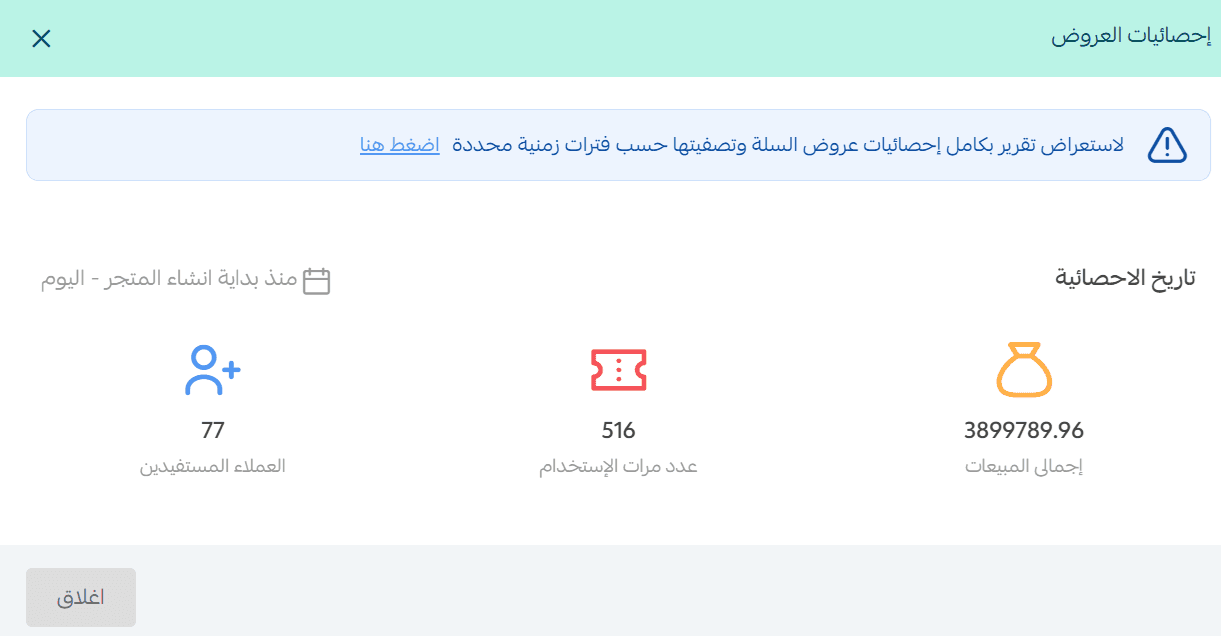
You can also view general statistics for all offers from:
Services → Statistics
Practical examples
Increasing average order value for frequently purchased items
"Buy more, save more"
A personal care store offers discounts when customers buy 3 or more items from the same product group.
A customer adds toothpaste, then sees:
- "Get SAR/AED 15 off when you buy 3 items"
So they add two more to unlock the discount.
Seasonal promotions
"Eid is coming, shop more and celebrate the savings!"
A merchant activates a holiday offer to raise cart value.
During back-to-school season, customers see:
- "Get 10% off when buying 5 or more school supplies"
Encouraging them to buy everything in one order.
Supporting new or slow-moving products
"Try something new and get rewarded"
A merchant links a discount to a specific new product.
Customers see:
- "Add the new perfume and get SAR/AED 20 off your total cart"
Making it easier to try new items without hesitation.
Frequently asked questions
How many cart offers can a merchant activate during the same period?
Only one cart offer can be active during a specific time period to prevent conflicting promotions in the customer’s cart.
Can I activate more than one cart offer at the same time?
No. Multiple cart offers cannot run simultaneously.
This ensures discounts do not overlap and keeps the shopping experience clear and smooth.
How is cart offer priority determined when other discounts exist?
You can control cart offer priority by arranging discounts in the Discounts Management page.
The system applies offers based on the set priority, considering Cart Offers, coupons, and other promotions.
What offer statuses are available?
A cart offer can appear as:
- Active (currently visible to customers)
- Scheduled (not started yet)
- Disabled (stopped by the merchant)
- Expired (offer end date has passed)
What happens if there are multiple percentage discount tiers?
The customer receives the highest percentage discount tier reached, not a combined total.
Example:
- SAR/AED 200 → 5%
- SAR/AED 500 → 7%
- SAR/AED 1000 → 15%
If the cart total is SAR/AED 700, the customer receives 7%, not 12%.
What happens with multiple fixed discount tiers?
The customer receives the highest fixed discount amount reached, not a sum of previous tiers.
Example:
SAR/AED 200 → SAR/AED 25
SAR/AED 500 → SAR/AED 55
SAR/AED 1000 → SAR/AED 100
If the cart total is SAR/AED 700, the discount is SAR/AED 55, not SAR/AED 80.
Activate cart offers today and start increasing your average order value while motivating customers to buy more, with no extra cost.
Additional learning resources
🚀 Discover how to increase your average order value smartly. Read the article to learn how Salla’s intelligent offers can help you double sales and deliver a personalized shopping experience for every customer.