Switching between multiple stores can break your focus and slow down your work.
The multi store list feature allows you to manage all your stores using a single phone number, without having to sign in repeatedly. The result is a faster, smoother way to stay on top of your business.
📌 Article overview
- Link stores with the same phone number for the first time
- Link all stores to a single email address
- View the list of linked stores
- Accept an employee invitation
In this guide, you will learn how to manage multiple stores more easily by using one phone number and one unified email address.
Important note
🚨 All stores linked to the same mobile number will be merged under the email address used for login.
Once linked:
- The process cannot be reversed
- Previous email addresses cannot be restored
- All notifications and messages will be sent to the unified email address
- Please review this carefully before proceeding.
Link stores with the same phone number for the first time
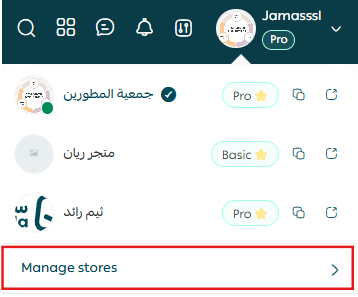
1. Access store management
From the side menu in the control panel, click Manage Stores.
2. Review linked stores
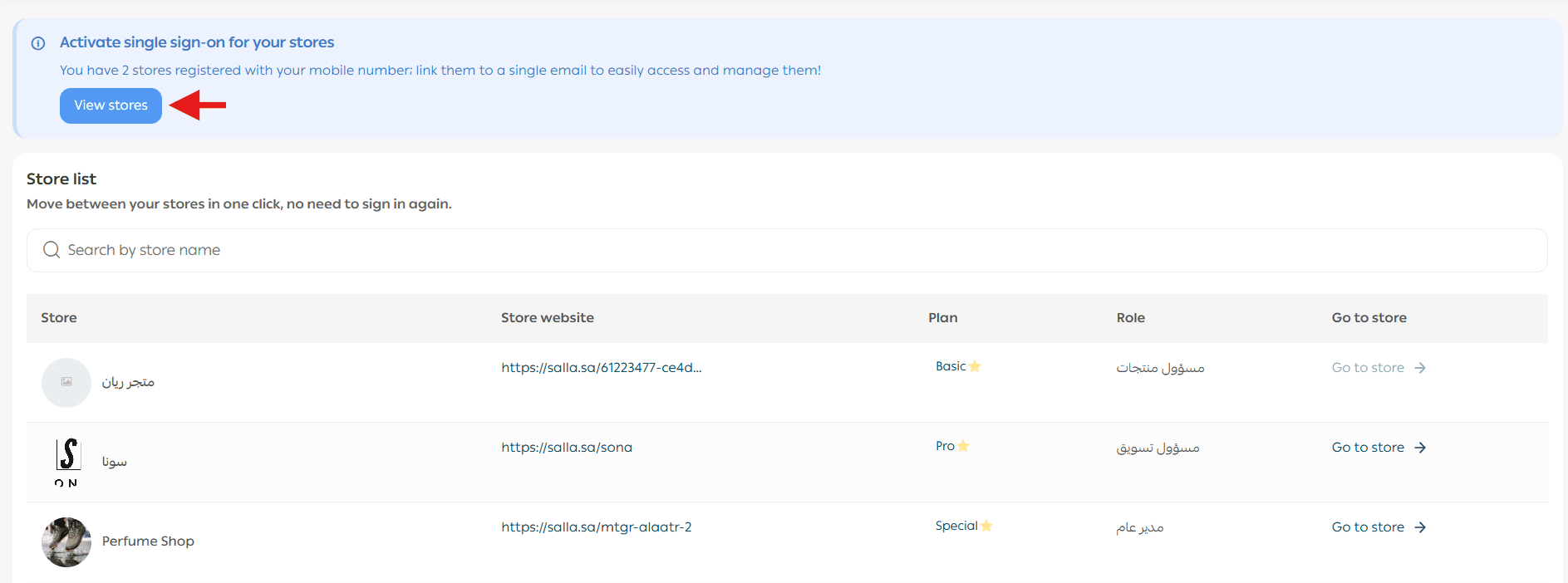
A list of stores associated with your phone number will appear.
You can manage all stores together once they are linked to a single email address.
To permanently hide the banner, click X. The banner will not appear again.

To start linking stores, click Manage Linked Stores.
3. Confirm store linking
A list of stores that require email unification will appear.
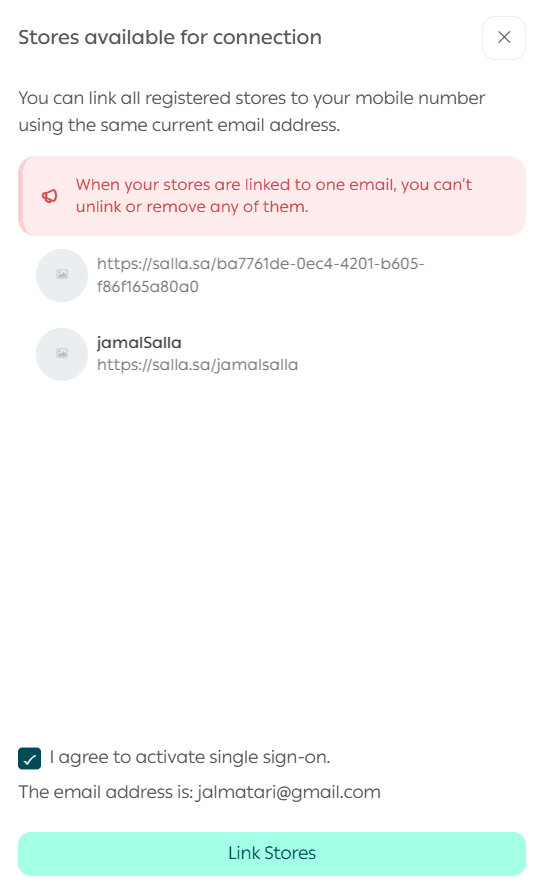
🚨 You must accept the confirmation notice. All your accounts will be merged under one email address, and you will be automatically logged into the last store you visited.
Link all stores to a unified email address
🛑 Warning: After linking, the action cannot be undone.

A verification code will be sent to your phone number.
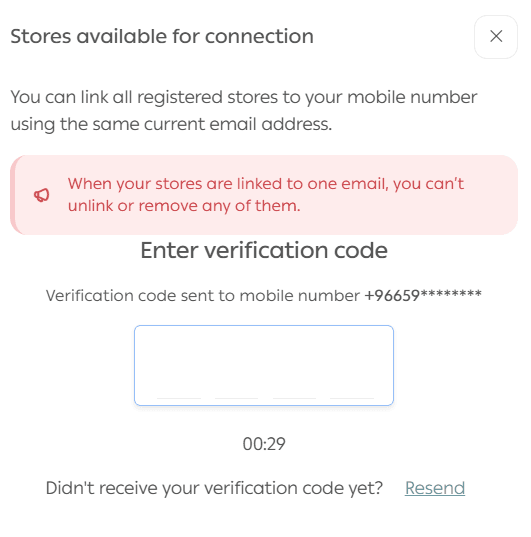
Once completed, you will see a confirmation message indicating that the stores have been linked successfully.
View the list of linked stores
1. Open the linked stores list
From the side menu in the control panel, click Manage Stores to view all stores linked to your phone number.
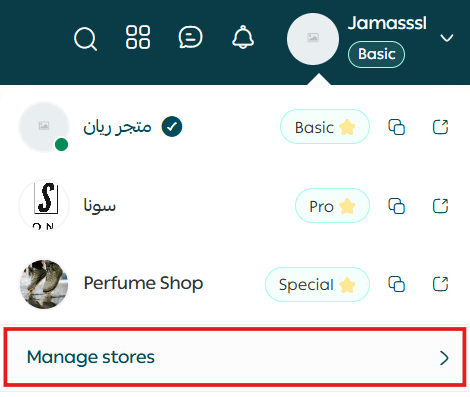
2. Switch between stores
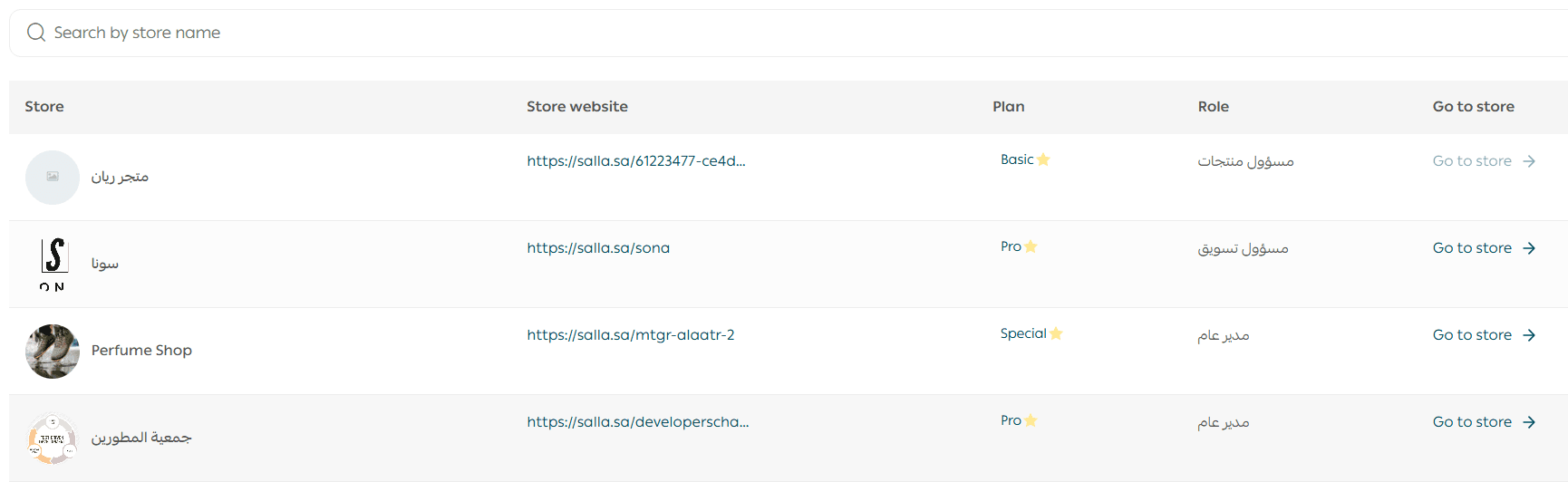
A list of all linked stores will appear.
You can access any store instantly by clicking Go to Store.
Accept an Employee Invitation
If you are invited as an employee to a store, you will see a notification banner requesting your approval.

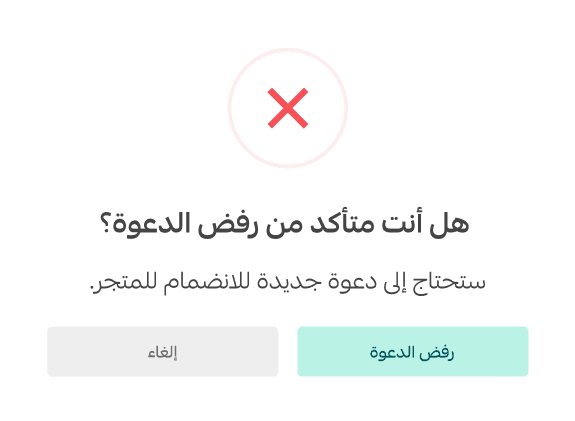
To reject the invitation

A confirmation message will appear. Click Confirm to decline the invitation.
Manage all your stores from one place
You can now manage all your stores from a single dashboard with ease. Try the feature directly from your store control panel and simplify your daily workflow.
Frequently asked questions
Who can use this feature?
Account owners with more than one store
Managers and team members who have access to multiple stores
What are the requirements to activate store management?
The store must have been active within the last six months
The same phone number must be used across the stores
Which plans support this feature?
Store switching and linked store management are available on all plans
Final takeaway
The Linked Stores feature removes friction from managing multiple businesses.
With one phone number, one email address, and one dashboard, you stay focused, move faster, and manage everything with clarity.