Abandoned carts are one of the most powerful opportunities to recover lost sales and bring customers back to complete their purchase.
Below are the most common questions merchants ask about managing abandoned carts in Salla, including cart statuses, reminders, temporary discounts, and exporting data.
How many days does a cart remain in the “New” status?
An abandoned cart stays in the New status for 15 days, as long as no changes or actions are applied to it.
Why does an abandoned cart remain “New” instead of moving to “Not Updated”?
A cart will remain marked as New if the merchant has not taken any action, such as sending a reminder.
The cart status will only change to Not Updated after:
- A reminder is sent (automatic or manual), and
- The customer does not interact with that reminder for 15 days
After that period, the system automatically updates the cart to Not Updated.
Will all products added by the customer appear in the abandoned cart?
Not always.
Products that have gone out of stock will not appear inside the abandoned cart.
What reminder channels are available?
Salla supports multiple channels for sending abandoned cart reminders, including:
- SMS messages
- Mobile push notifications (for App Maker subscribers)
- WhatsApp notifications (for Salla WhatsApp subscribers)
How can I view abandoned carts?

You can browse abandoned carts using different cart status categories:
- All: Displays all abandoned carts regardless of status
- New: Shows newly abandoned carts
- Reminder Sent: Carts where a reminder was successfully sent
- Reminder Sending Failed: Carts where reminder delivery failed
Example cases:
- Sending an SMS reminder to a phone number that is inactive
- Targeting international numbers not supported by the SMS provider
- Sending an email reminder when the email address is missing or invalid
- Scheduled: Carts included in two reminders, where the second reminder is sent 12 hours after the first
- Customer Returned to Store: Carts where the customer clicked the abandoned cart link and returned
- Not Updated: Carts that have remained inactive for 15 days
- Order Completed: Carts where the customer successfully completed checkout
- Hidden Carts: Carts manually hidden by the merchant
How can I send a temporary discount for abandoned carts?
You can apply a temporary discount to encourage customers to return and complete their purchase.
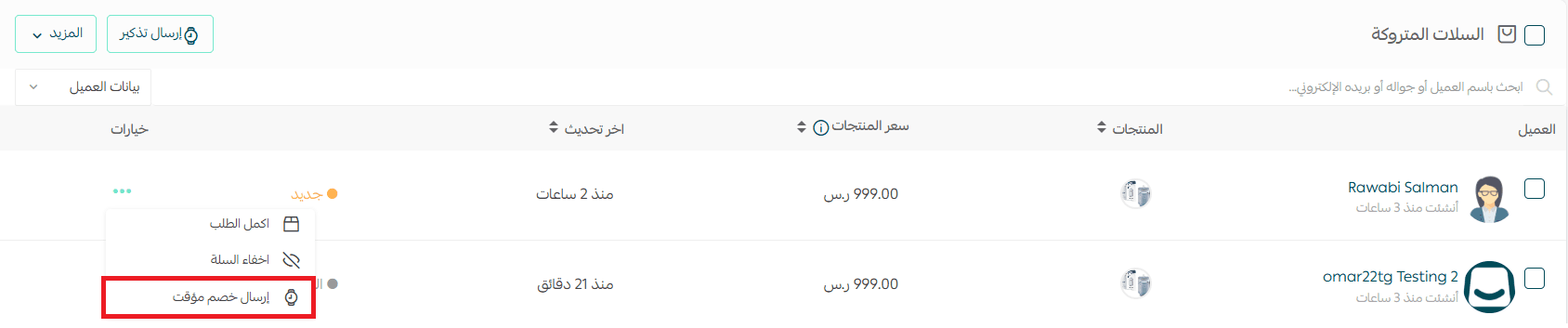
Sending a discount for a single cart
- Go to the Abandoned Carts page
- Find the customer’s cart
- Click the More menu (...)
- Select Send Temporary Discount
Sending a discount for multiple abandoned carts
- From the Abandoned Carts page, select the customers you want

2. Click Send Reminder
3. Enter the discount details, then click Send Discount
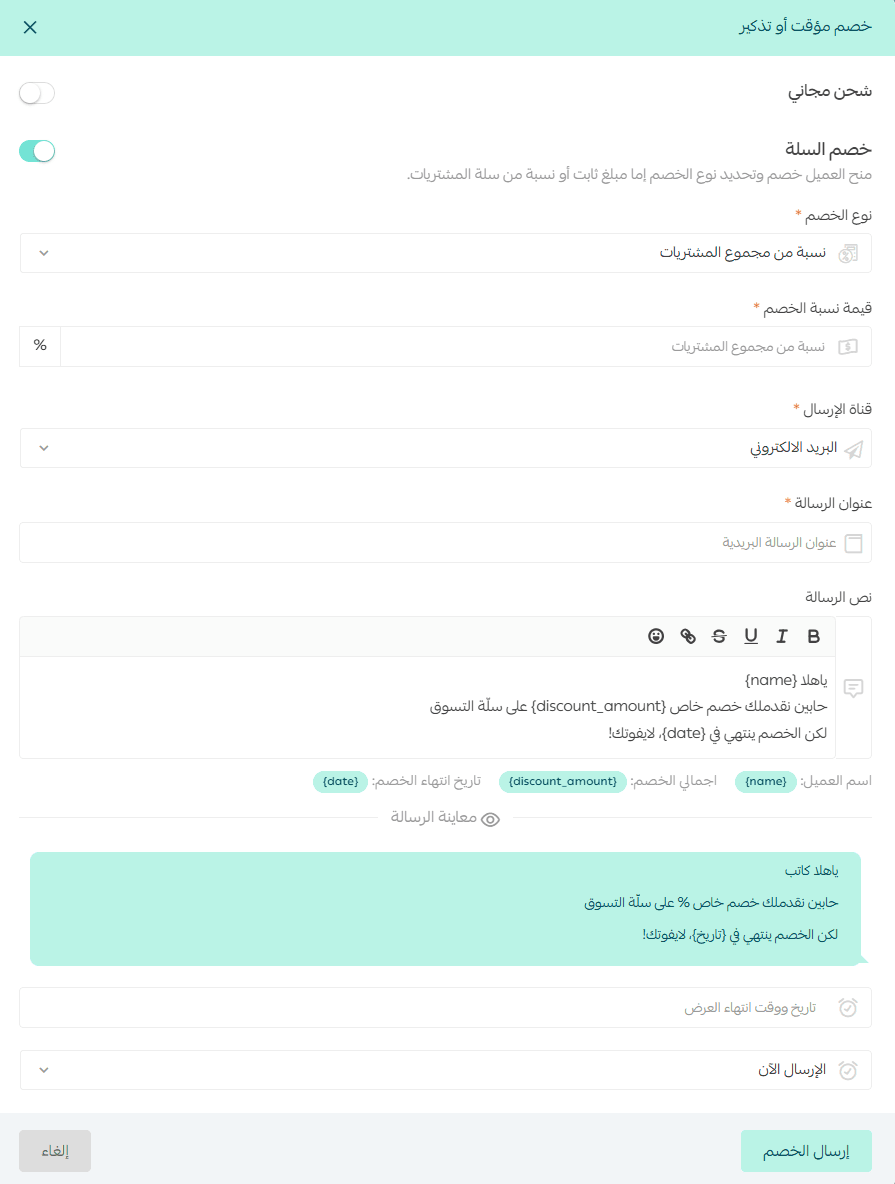
For full details, refer to: Activating temporary discounts for abandoned carts
How can I customize reminder settings?
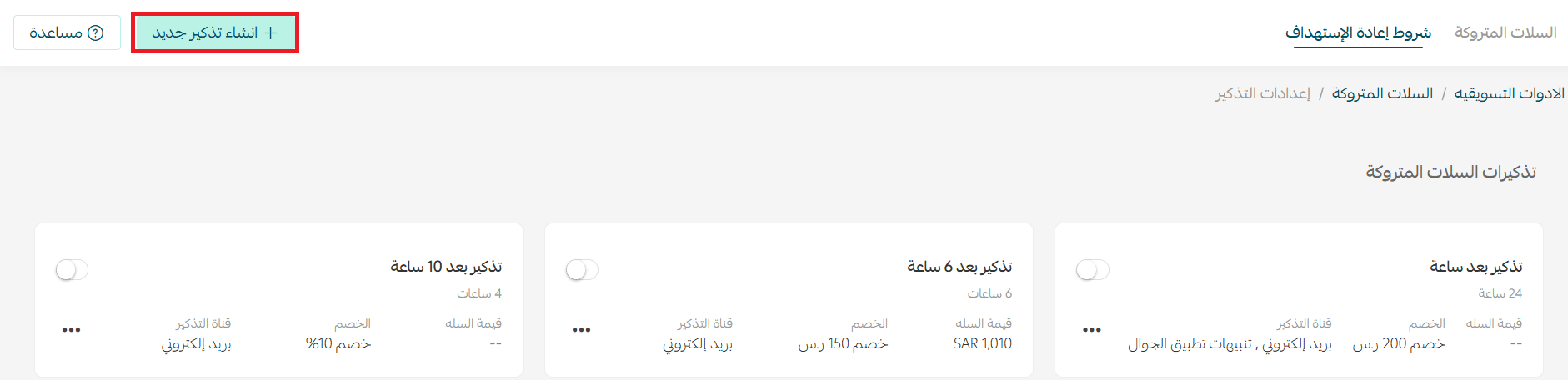
To create and manage abandoned cart reminders:
- From the main menu, click Marketing

2. Select Abandoned Carts
3. Open the Retargeting Rules tab
4. Click + Create New Reminder
More details are available here:
- Reminder without a discount
- Reminder with a discount
How many reminder settings can I create?
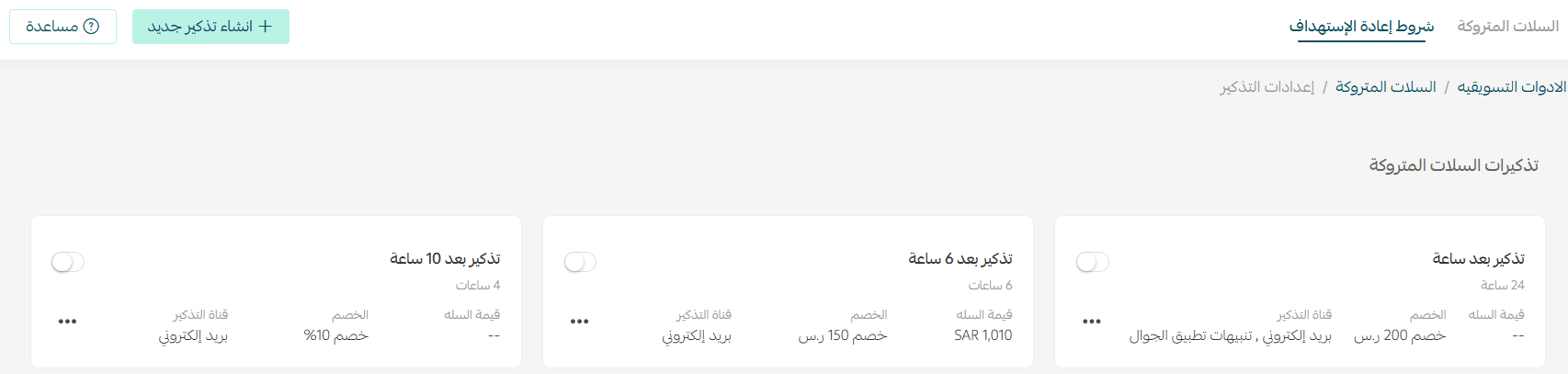
You can create up to five abandoned cart reminders from the reminder settings page.
Can I preview the discount status from the Abandoned Carts page?
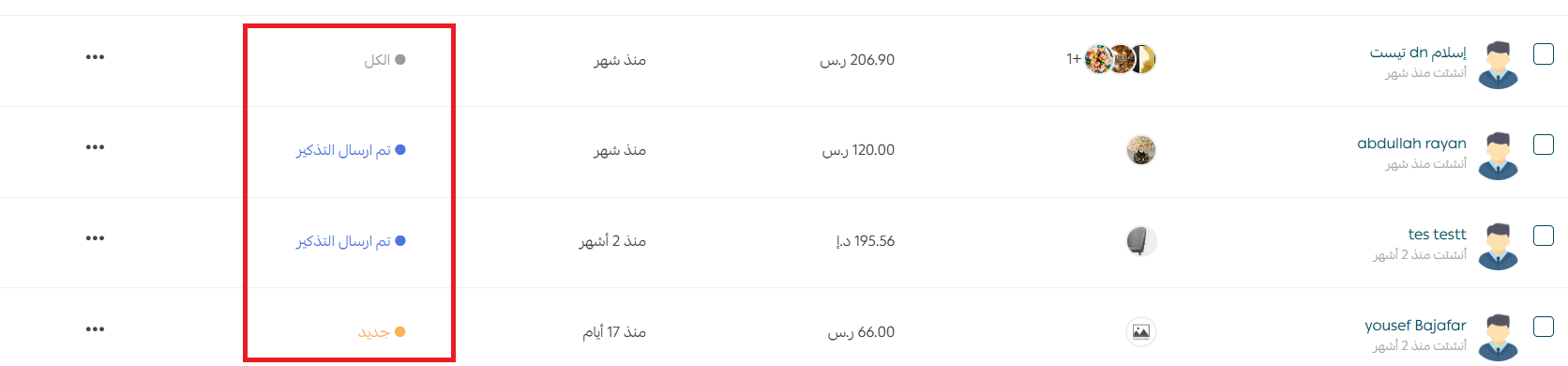
Yes. The Abandoned Carts page will display the discount status directly, as shown in the interface preview.
Why can’t I send discount messages at any time?
This restriction exists to comply with the service regulations and anti-spam policies approved by the Saudi Communications and Information Technology Commission (CST).
For more information, see: Anti-spam messaging regulations
Can I export abandoned carts data?
Yes. You can export abandoned cart data easily:
- From the Abandoned Carts page, click Services
- Select Export Abandoned Carts

The exported file will be sent directly to your store email address.