Do you know exactly how much your in-store counter is selling every day?
Every sale you ring up through Salla Point, Salla's free cashier app, is recorded in your store dashboard alongside your online orders. The Salla Point reports turn that raw activity into numbers you can act on: which products move, which branch is pulling its weight, and which team member is closing the most sales. In this guide, you'll learn how to open each Salla Point report and what it tells you.
Salla Point reports live in your store dashboard under the reports menu. Open (Reports), choose Salla Point from the report categories, and you'll see three breakdowns: product sales, branch sales, and employee sales. Together they show quantity sold, order counts, and net and total sales for your cashier activity.
📌 Article overview
- How to view Salla Point reports
- Product sales report
- Branch sales report
- Employee sales report
- Frequently asked questions
🔥 Sharpen your sales performance with Salla Point, and explore the cashier features built to grow your store and give your customers a faster checkout that keeps your online and in-store sales in one place.
👣 How to view Salla Point reports
1. From the reports menu in the top bar, click (Reports).

2. From the list of report categories, choose (Salla Point) to open its reports.
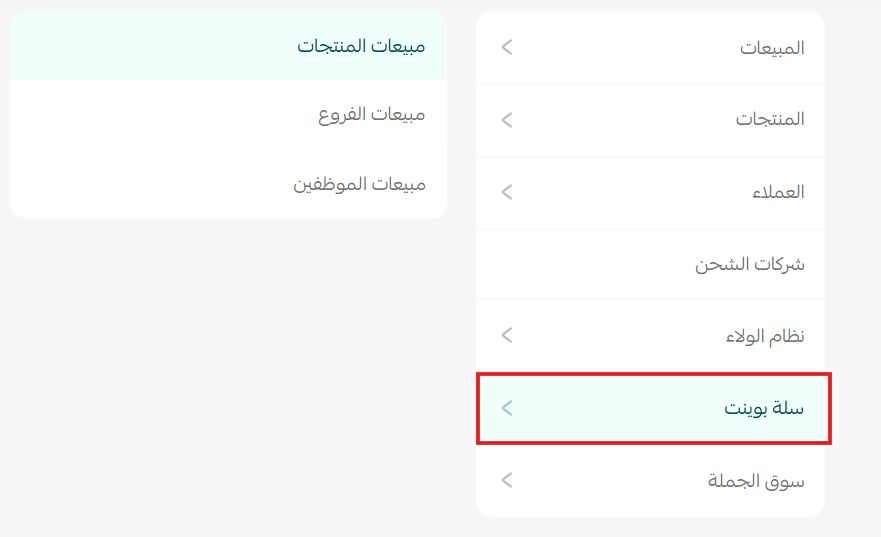
🎯 The Salla Point reports let you measure how the cashier app is performing from several angles.
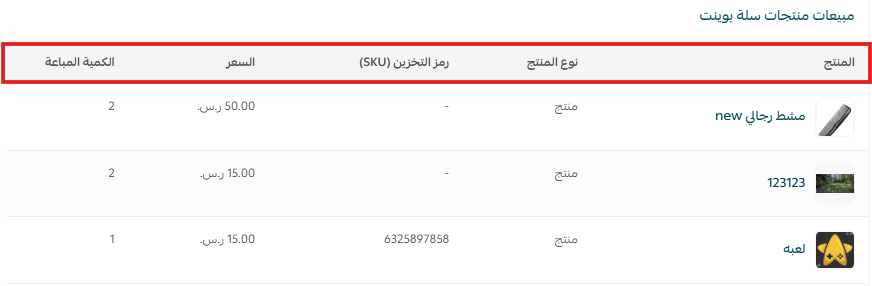
- Product sales report
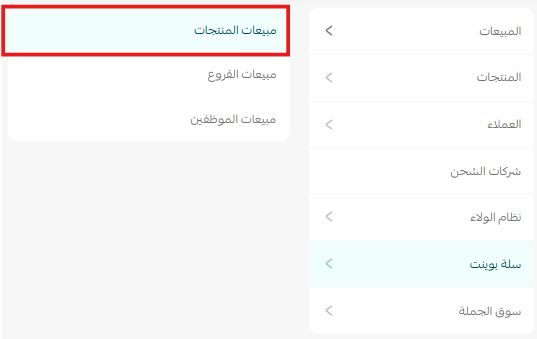
🚀 This report tracks product sales by quantity sold and price, so you can spot your best performers and make better pricing and inventory calls.
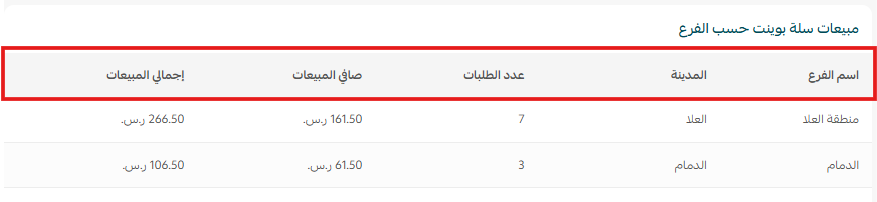
- Branch sales report
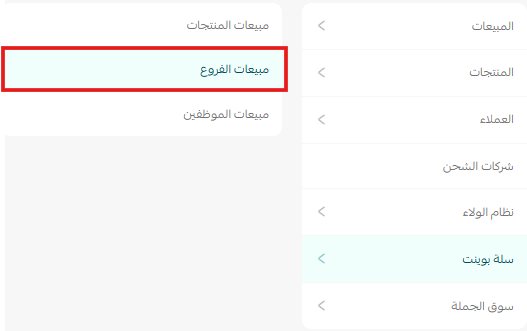
🚀 This report compares your branches by order count, net sales, and total sales, which makes it easier to decide where to push performance and how to allocate resources.
- Employee sales report
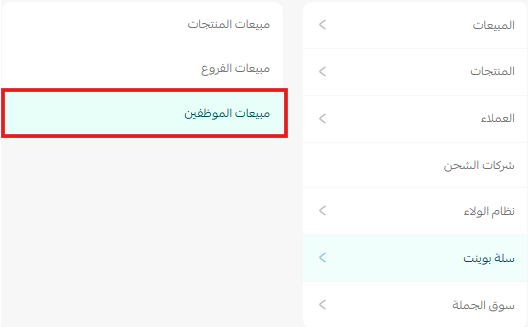
🚀 This report measures each employee's activity by number of orders and sales value, which supports performance reviews, keeps the team motivated, and improves how your sales floor runs.

📝 Important notes
- Salla Point reports cover sales recorded through the cashier app. Your online store orders are reported separately in the other report categories.
- The branch and employee reports are only as useful as your setup, so make sure every branch and every cashier user is created correctly before you compare them.
❓ Frequently asked questions
Where do I find Salla Point reports?
In your store dashboard, open the reports menu in the top bar, click (Reports), then choose (Salla Point) from the list of report categories.
Which Salla Point reports are available?
Three: a product sales report, a branch sales report, and an employee sales report.
Can I see which product sells best at the counter?
Yes. The product sales report lists quantity sold and price for each product, so your top performers stand out immediately.
Can I compare the performance of two branches?
Yes. The branch sales report shows order count, net sales, and total sales per branch, which is exactly the comparison you need.
Does Salla Point cost anything?
No. Salla Point is a free cashier app for your Salla store.
Reports are only valuable when they change what you do next. Check your Salla Point numbers regularly, and let the products, branches, and people who perform best shape where you put your stock, your budget, and your attention.