Moving your catalog to a new platform should not mean retyping every product.
Salla lets you import products from Shopify through a direct connection to your Shopify store, so product data moves across without being added from scratch, and you can follow the result of the import step by step. The setup happens in two stages: first you collect a few credentials inside Shopify, then you paste them into Salla and start the import. In this guide, you'll learn how to import products from Shopify into your Salla store.
To import products from Shopify, create a custom app in your Shopify admin, give it read access to products, inventory, listings, publications, locations, and customers, then install it and copy the access token, client ID, and secret key. Paste those plus your myshopify.com store URL into Salla's importer and start the import.
📌 Article overview
- Importing products from external platforms
- How to import products from Shopify
- Frequently asked questions
Importing products from external platforms
If you are moving your products from another platform to Salla, you can import them without re-entering anything by hand. The feature transfers your product data and lets you follow the import status from one place, quickly and in an organized way.
🔗 Pick the import guide that matches your platform:
Importing products from WooCommerce
Importing products from Magento
🚀 How to import products from Shopify
Stage one: gather the links and details you need
First: your Shopify store URL
What you need is the myshopify.com URL, not your live storefront URL.
To find it, open your Shopify admin and copy the store URL from the top of the main menu.
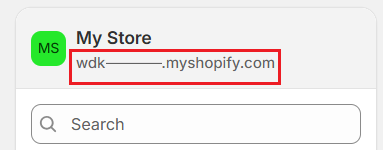
Second: the access token, client ID, and secret key
🔔 To get the access token, you need to set up the API connection and enable a few permissions so the app can read your data.
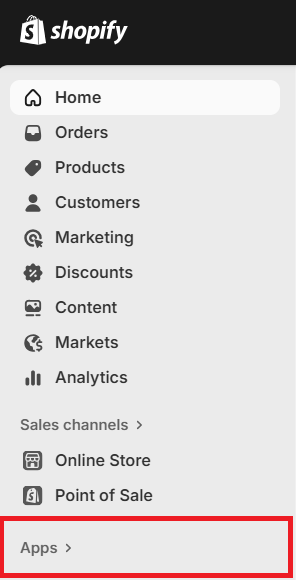
1. In your Shopify admin, click (Apps) in the side menu.
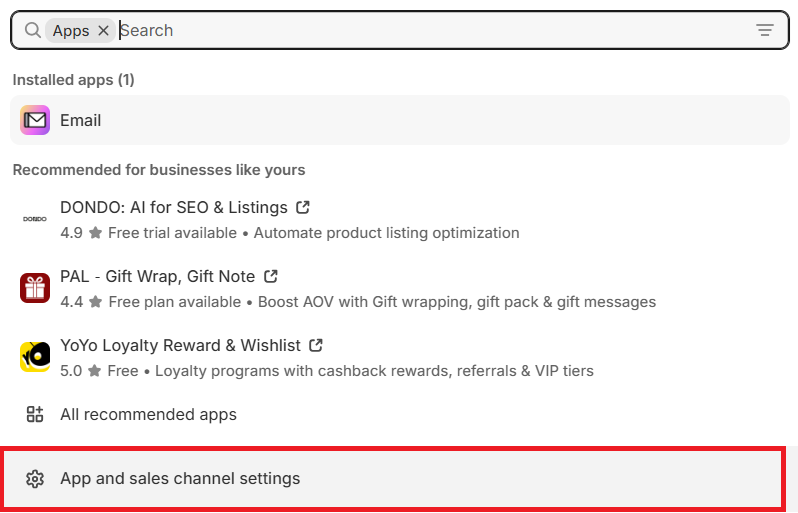
2. On the Apps page, click (App and sales channel settings).
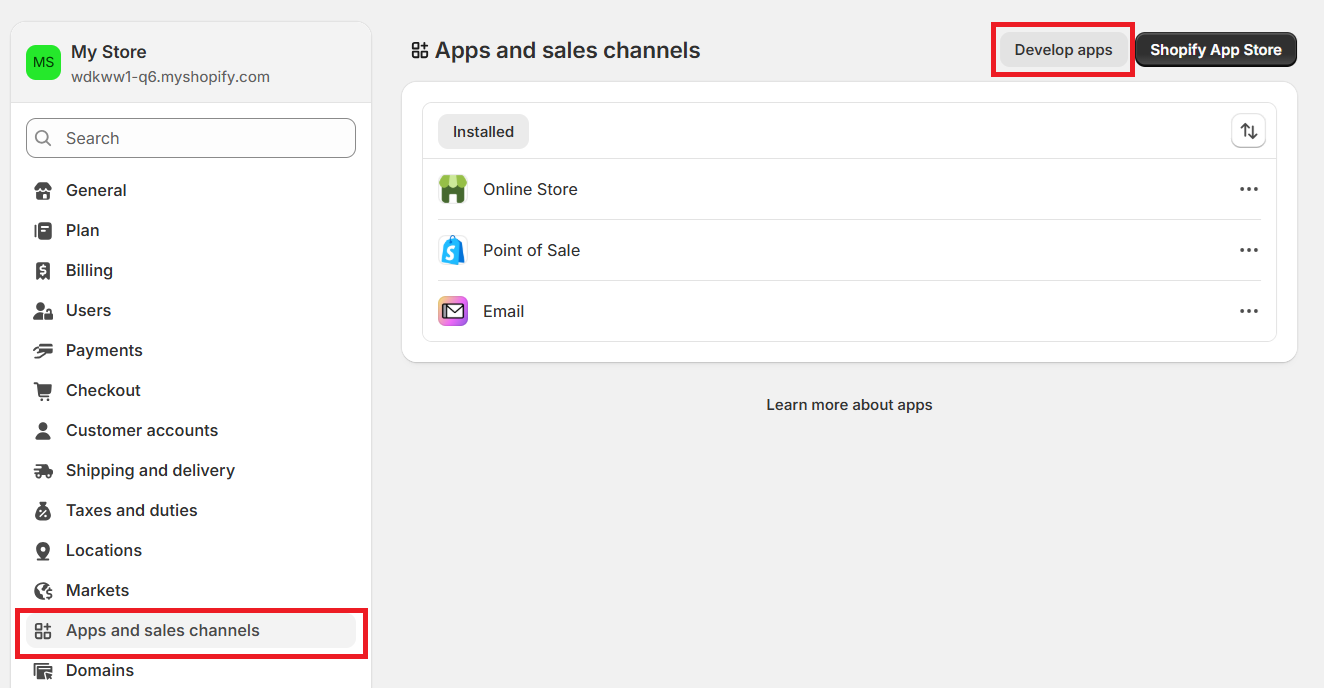
3. From the (App and sales channels) tab, click (Develop apps).
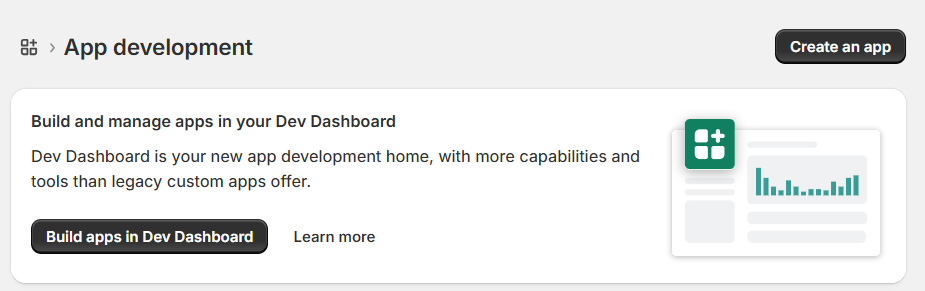
4. On the App development page, click (Create an app).
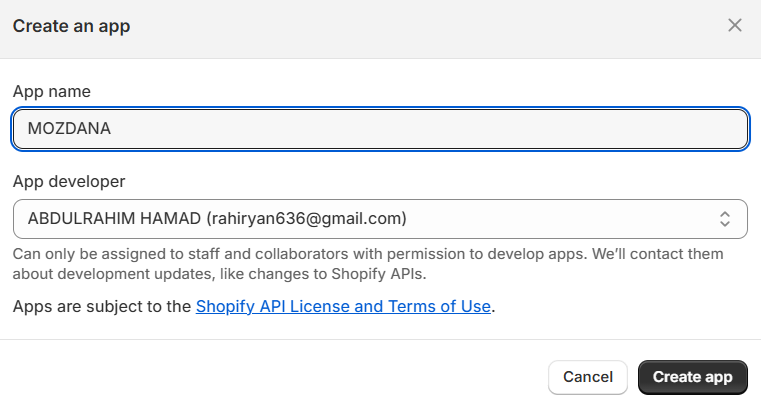
Enter a descriptive name for the app, then click (Create App).
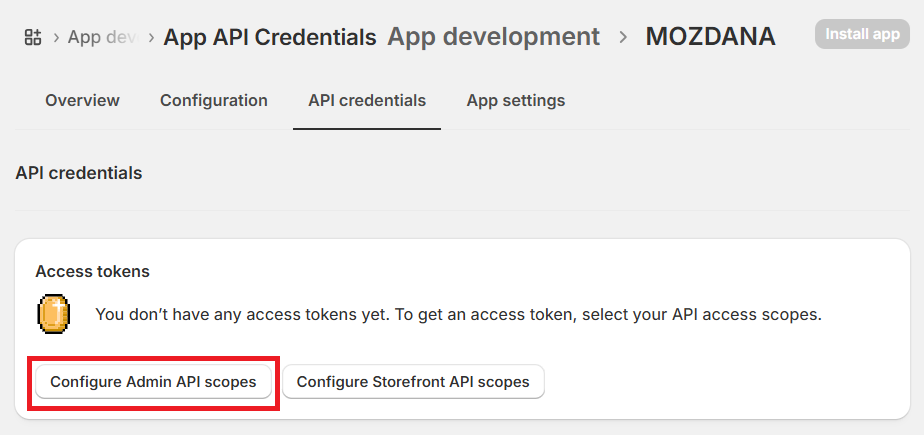
5. From the (API credential) tab, click (Configure Admin API scopes) to grant the permissions needed to read the required records.
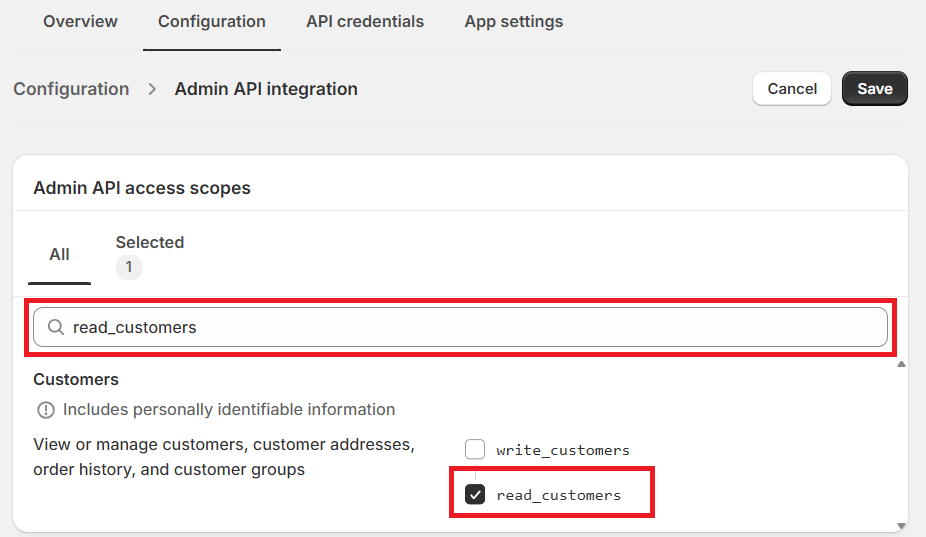
6. Search for each required permission and enable them one at a time, clicking (Save) after each one.
These are the permissions you need to enable:
read_product_feeds: lets the app read the product feed data normally used in ads or sales channels.
read_inventory: lets the app read stock levels and product quantities across your warehouses.
read_product_listings: lets the app read the product listings published to your storefronts (public listings).
read_products: lets the app read complete product information (title, price, images, attributes, and so on).
read_publications: lets the app see where and when products are published (channels, storefront, collections, and so on).
read_locations: lets the app read the storage locations or branches linked to the store.
read_customers: lets the app read customer data (name, email, order history, and so on) without editing it.
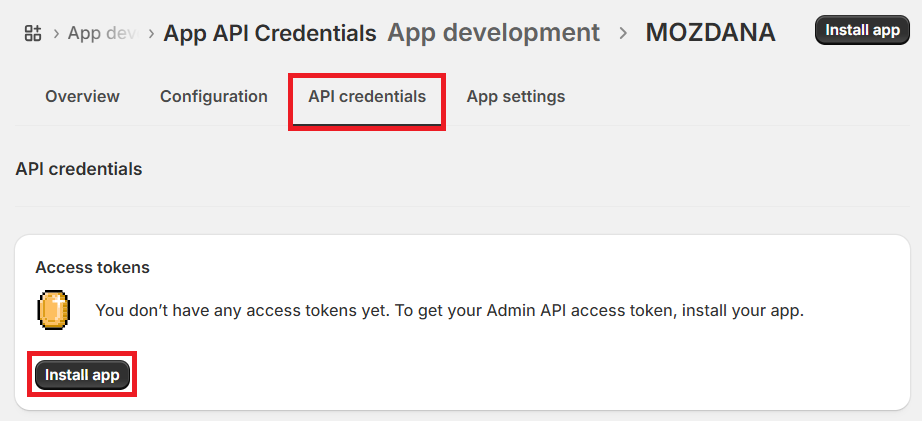
7. From the (API credentials) tab, install the app by clicking (Install app).
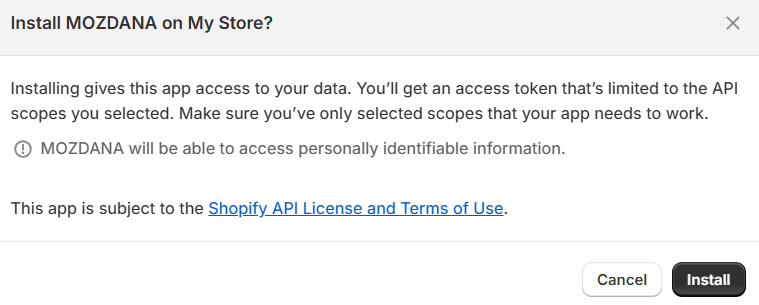
On the install page, click (Install).
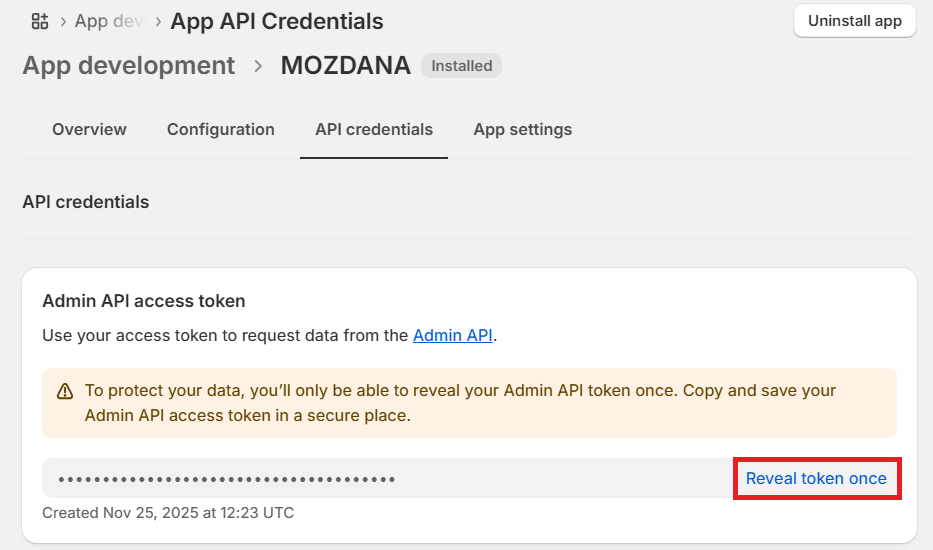
8. To display the access token, click (Reveal token once).
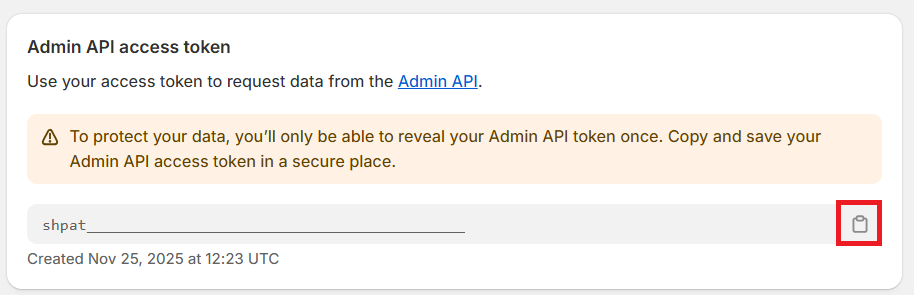
Copy the access token so you can paste it into the matching field on the product import page in your Salla dashboard.
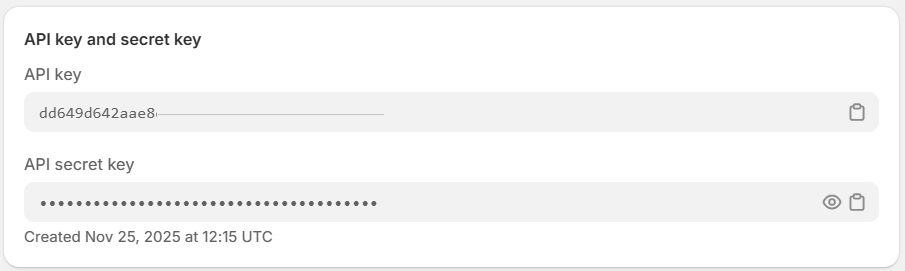
Further down the same page you will find the API key and secret key.
Stage two: import your products from Shopify
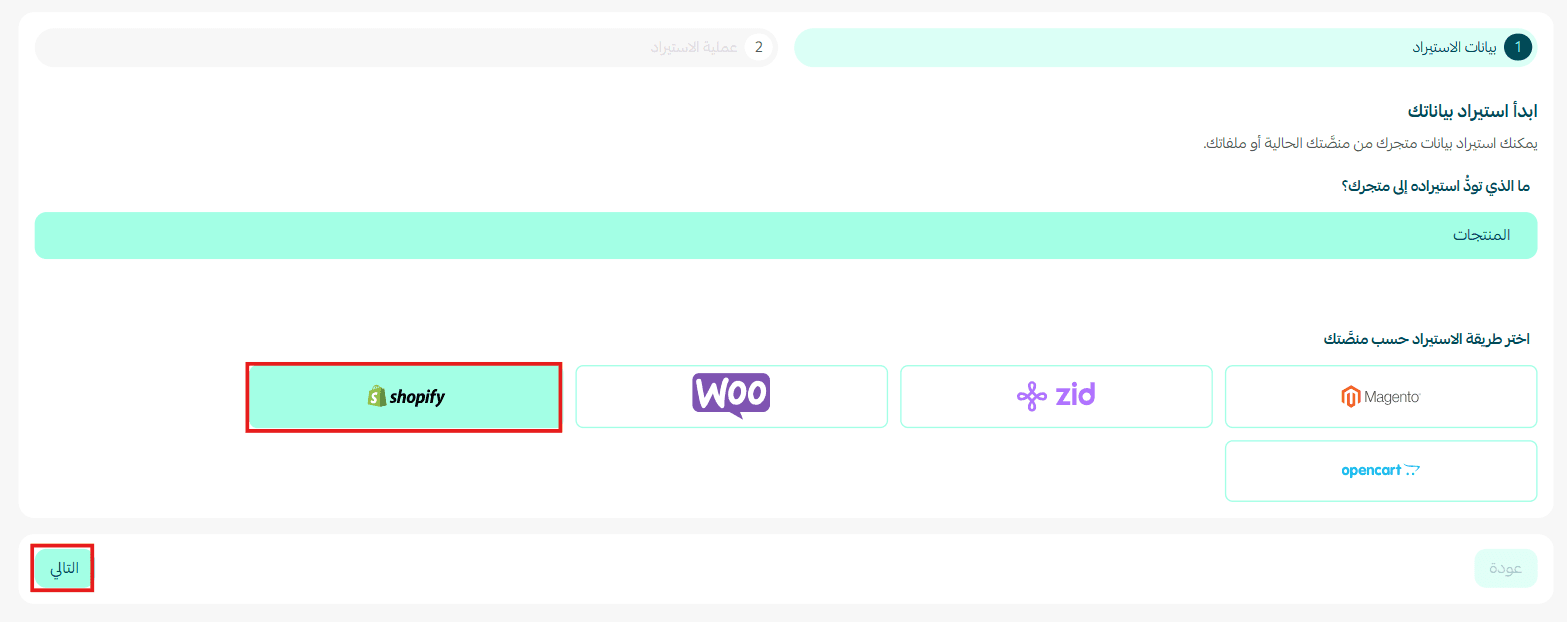
1. From the import from platforms page, choose Shopify, then click (Next).
2. Enter the connection details you collected in stage one:
- Store URL
- Account token
- Client ID
- Secret key
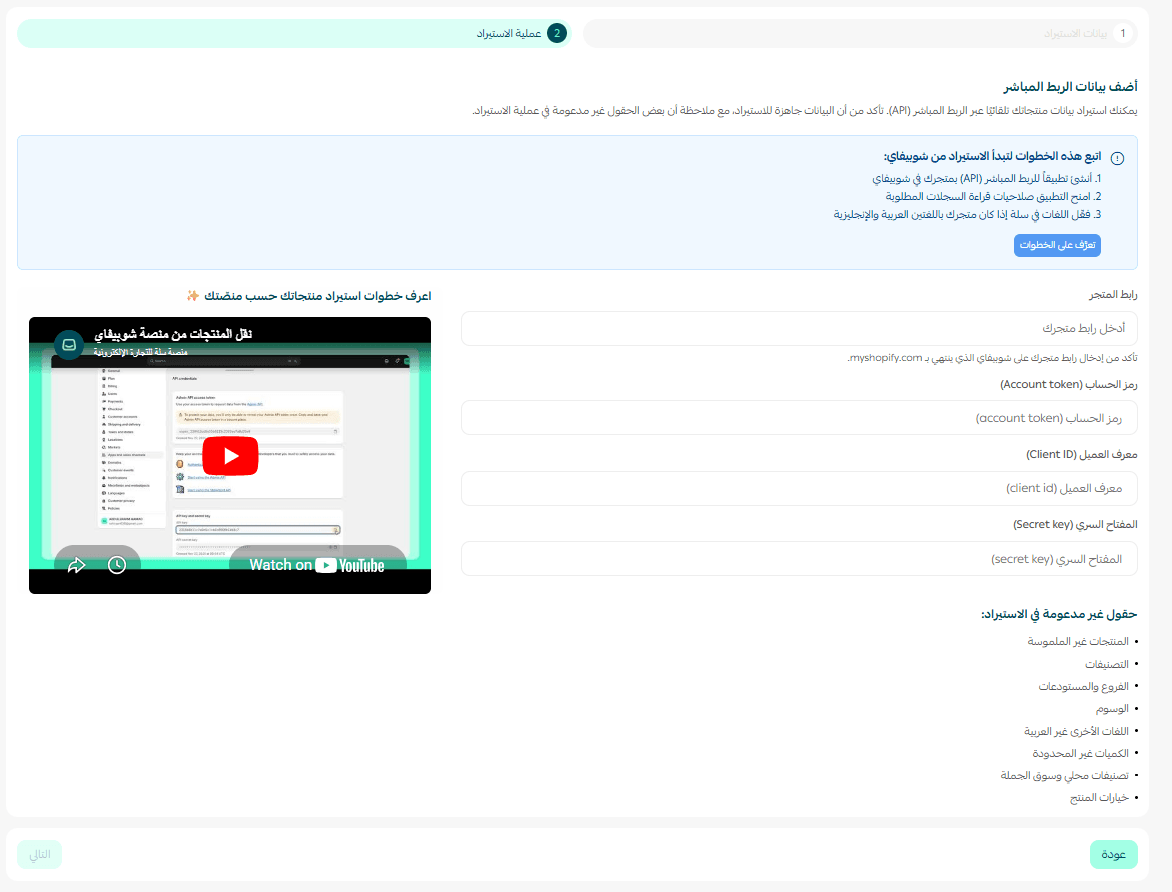
Then click (Next).
⏳ Give it a little time while your products finish importing from your Shopify store.

❓ Frequently asked questions
❓ If I have more than one branch or warehouse, where do the imported products go?
Products imported from other platforms land in your default branch, so check which branch is set as the default before you start the import.
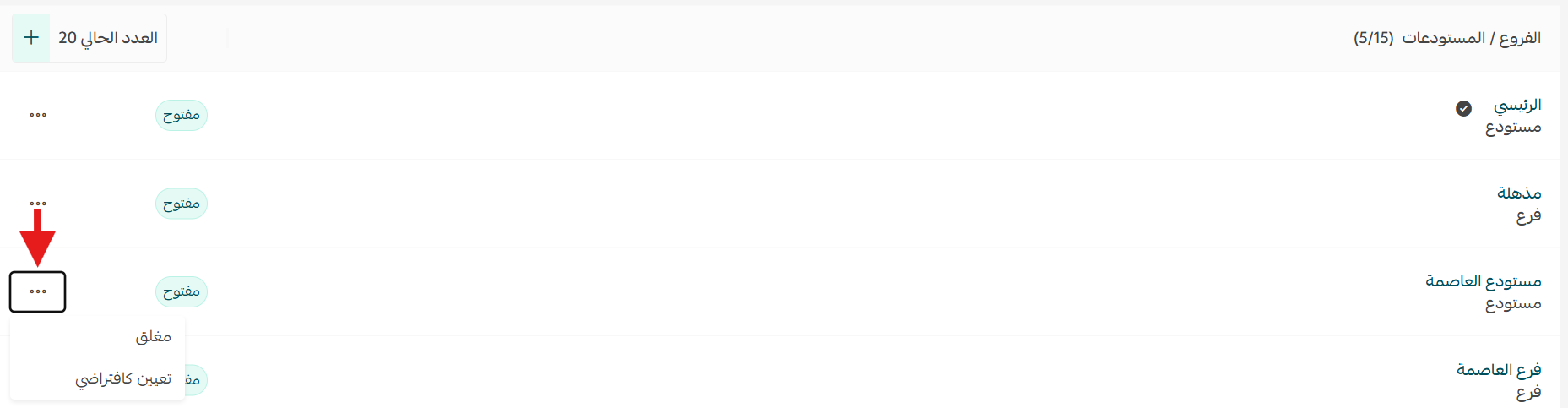
For more details, see adding and managing branches and warehouses.
❓ Are digital product contents such as codes and PDF files imported?
At the moment the importer supports physical products only from external platforms.
Digital products, and any other kind of non-physical product, are not supported by the import process.
❓ How do I get the import details from Shopify if I already have an app?
If you already have an app, you can skip creating a new one.
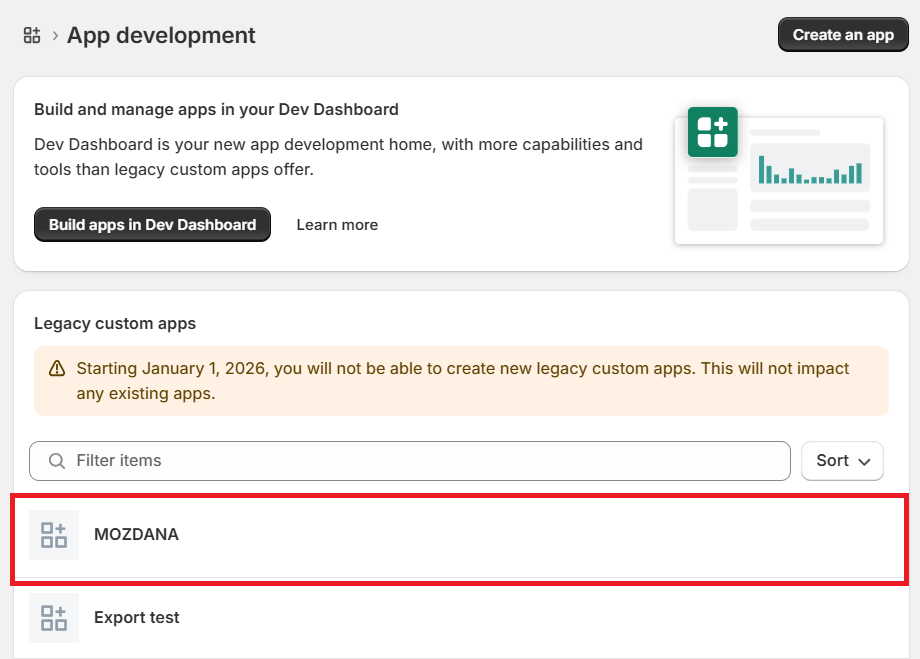
1. On the App development page, click the name of the app you want to use.
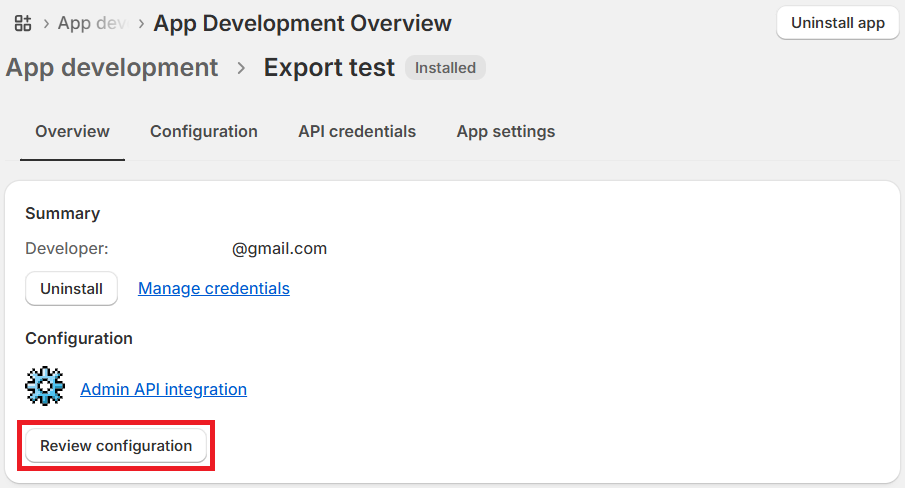
2. On the app page, click (Review configuration).
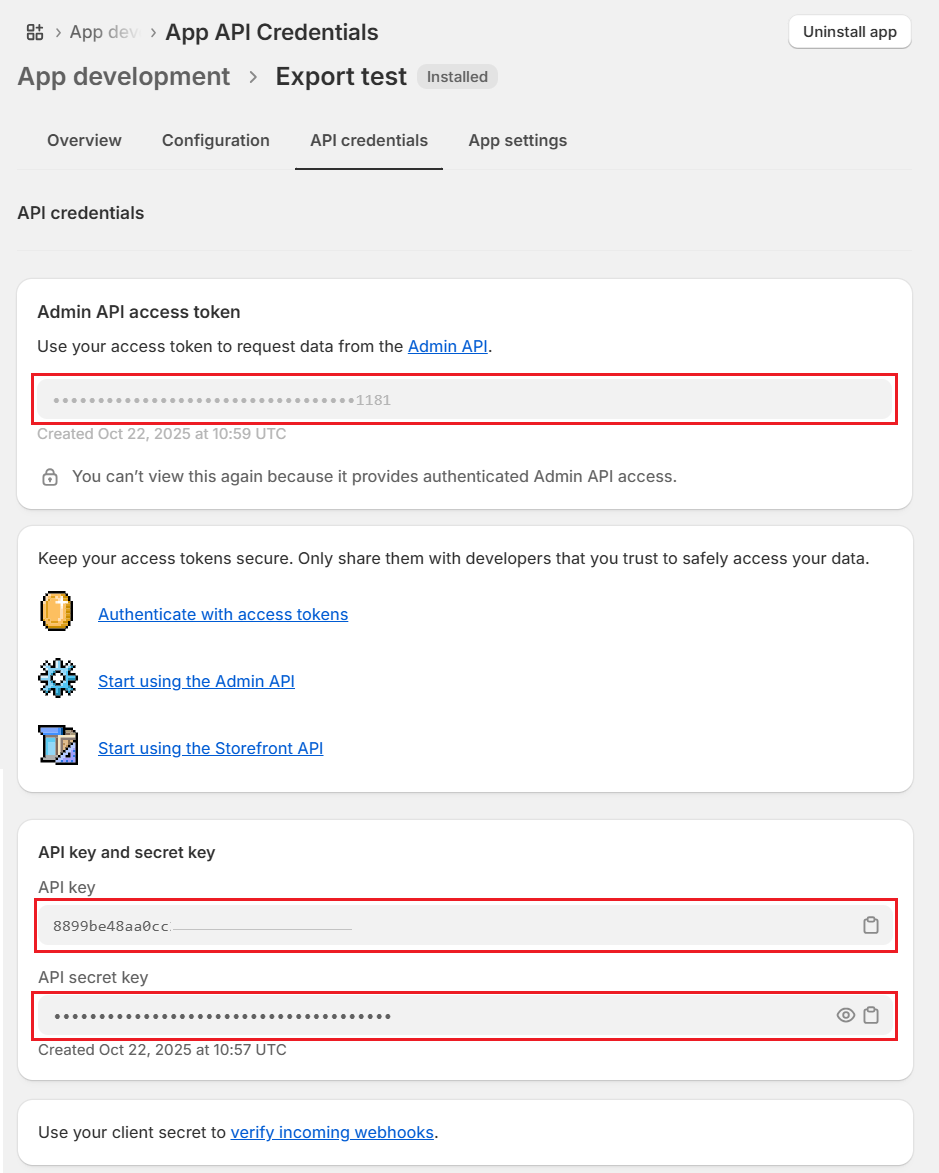
3. From the API credentials tab you can collect:
- Account token
- Client ID
- Secret key
💪 With a direct connection to Shopify, you can move your products into Salla smoothly and manage your store from a single platform.