Managing the languages available in your store gives you full control over how customers experience your content. In this article, you’ll learn how to enable, disable, and manage added languages to ensure a smooth and consistent multilingual experience for both you and your customers.
📌 Article overview
- How to manage added languages
- Enabling or disabling a store language
- What happens when a language is disabled
How to Manage Added Languages
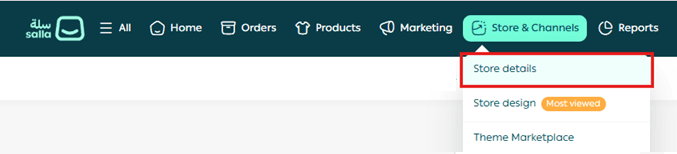
- From the main menu, go to Sales & Channels, then select Store details.
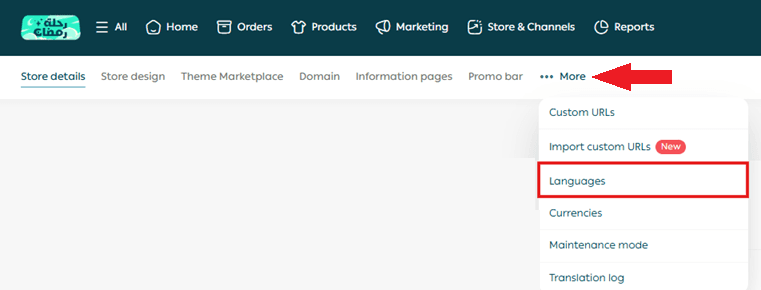
2. From the sub-menu, click More, then choose Languages.
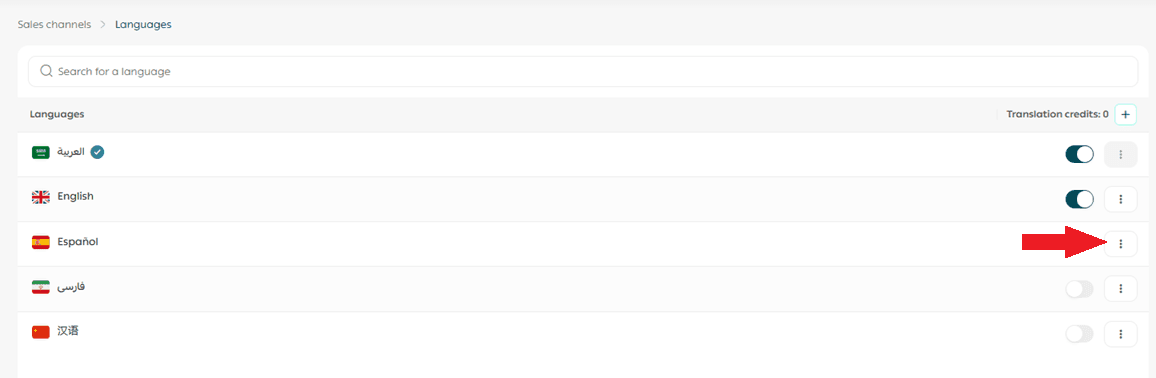
3. On the Languages page, click the three-dot menu ( … ) next to the language you want to manage.
A control menu will appear, allowing you to manage that language.
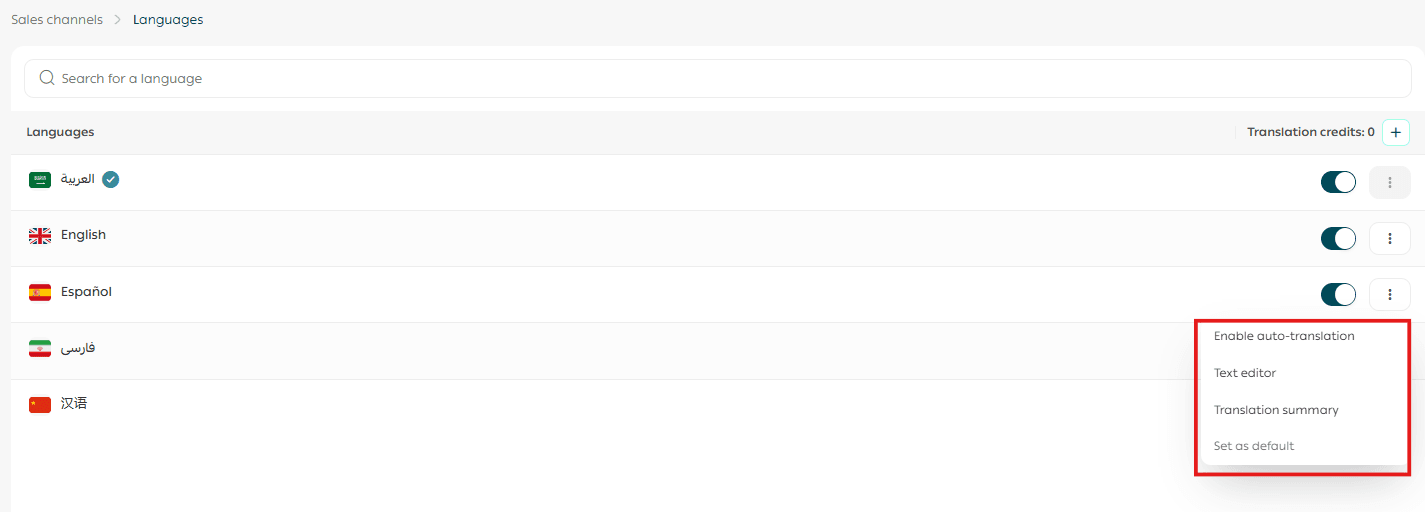
Enable or Disable a Store Language
Use the toggle button to enable or disable the language in your store.
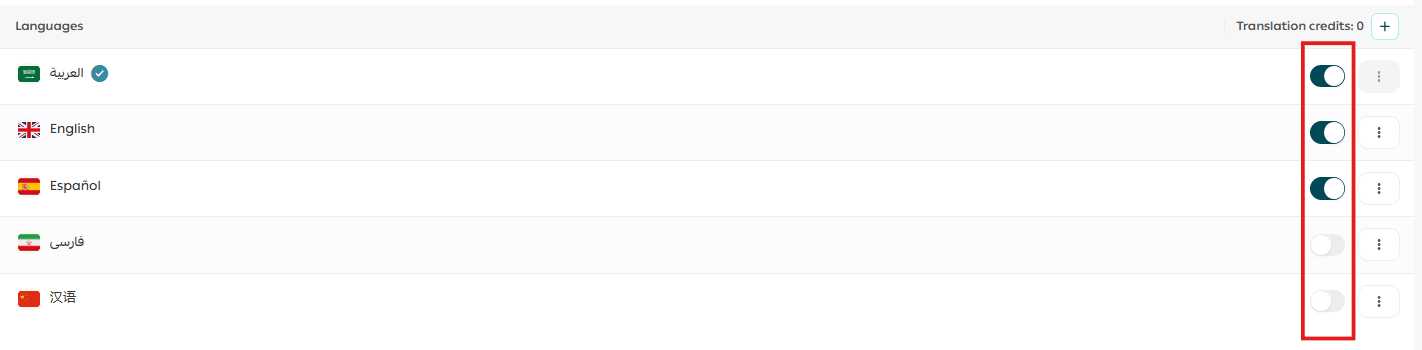
What Happens When You Disable a Language
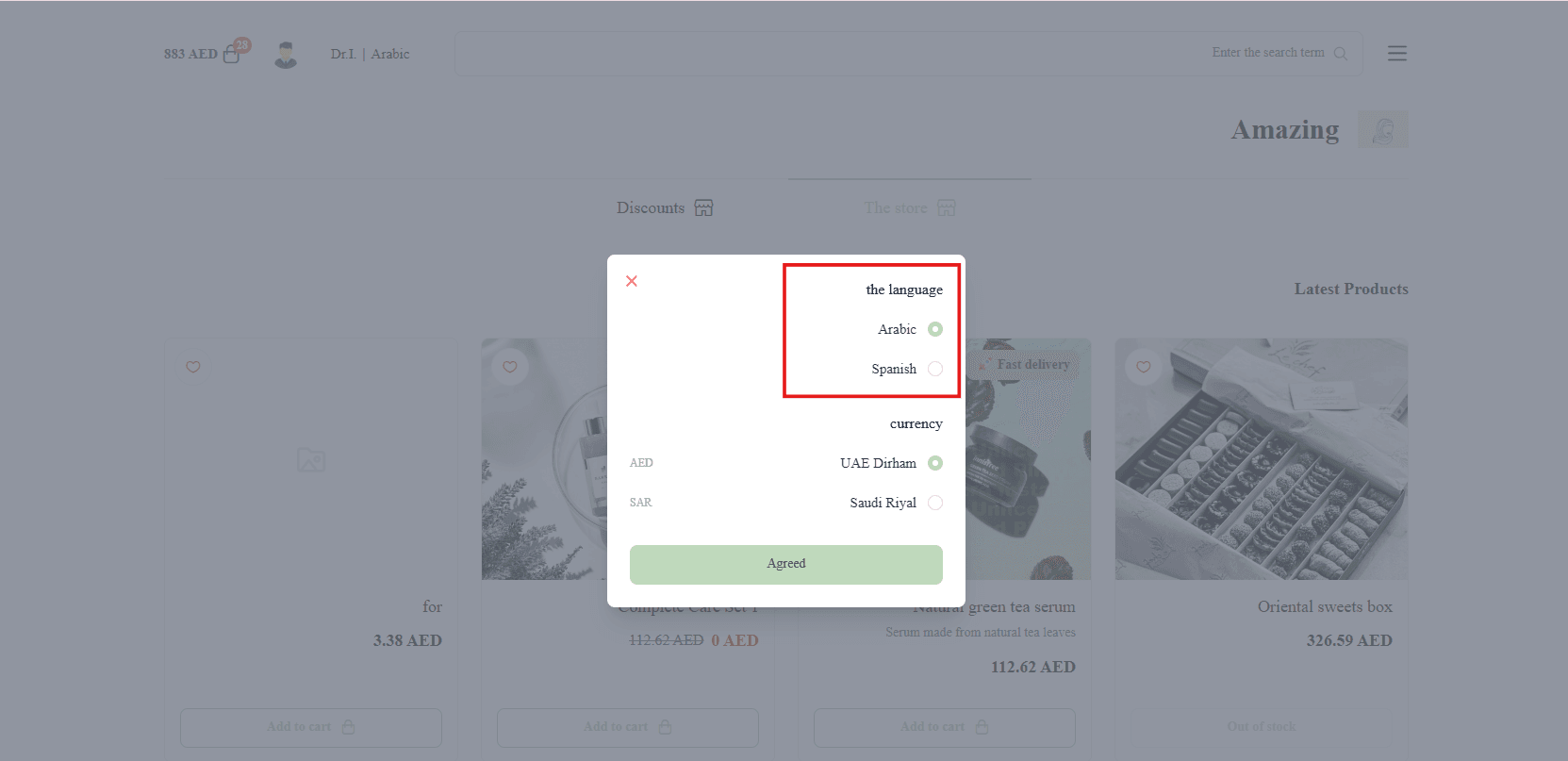
When a language is disabled in your store, for example disabling English:

- It will no longer appear to store visitors
Customers will not see the language option or be able to switch to it.
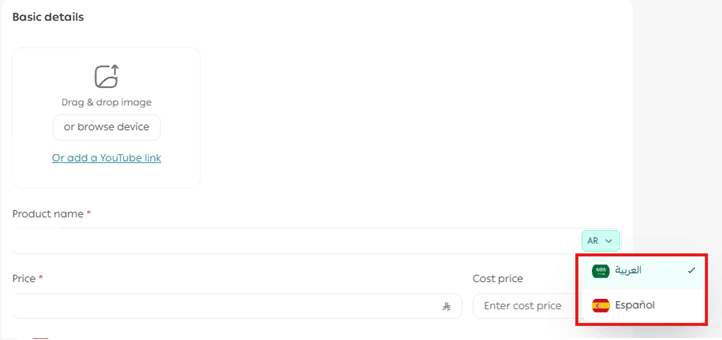
2. It will not appear in the control panel’s translatable fields
Language selectors for editable fields will no longer include the disabled language.
3. It will still be available in the Text Editor
The language remains accessible inside the text editor.
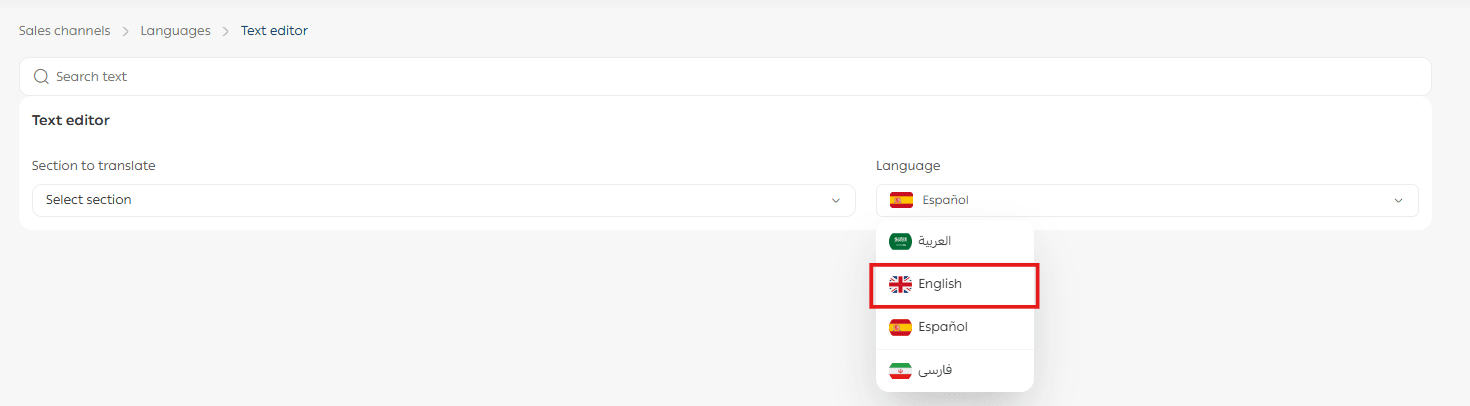
This allows you to keep a language disabled while you complete its translation, then enable it only when the content is ready.
For more details, see: Languages – Frequently Asked Questions.
Frequently Asked Questions
What translation options does Salla offer for my store?
You can translate your store using one or both of the following methods:
1. Instant Translation
With Instant Translation enabled, your store content is translated automatically with a single click.
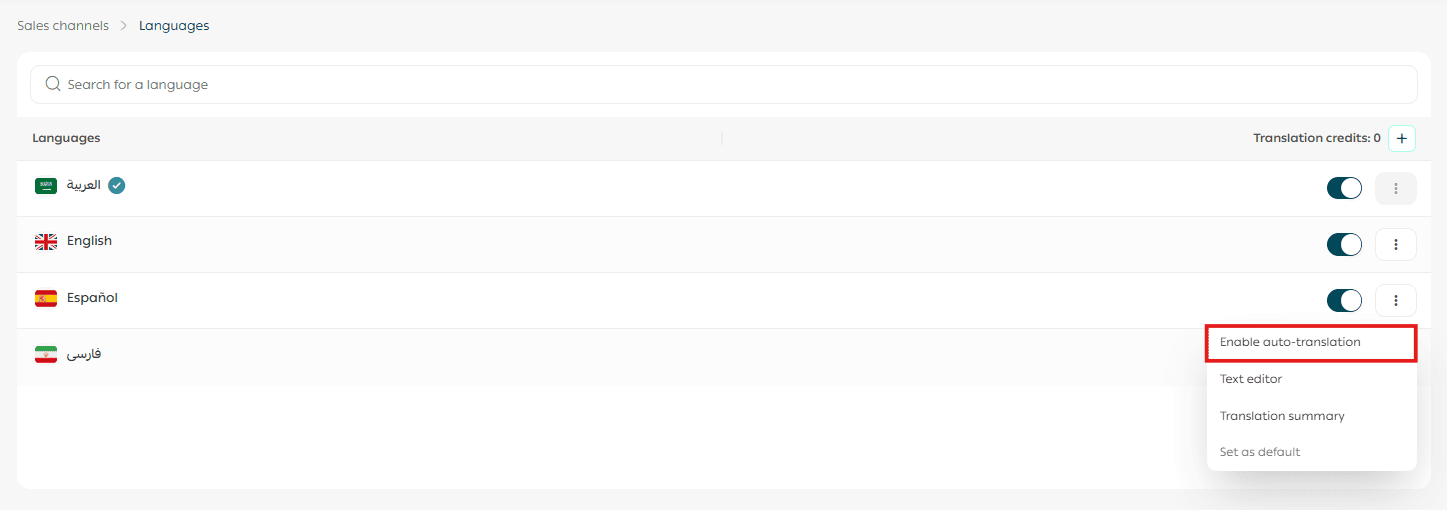
Learn more: Translating your store using Instant Translation.
2. Manual Translation
You can manually translate and refine content using the text editor for better accuracy and control.
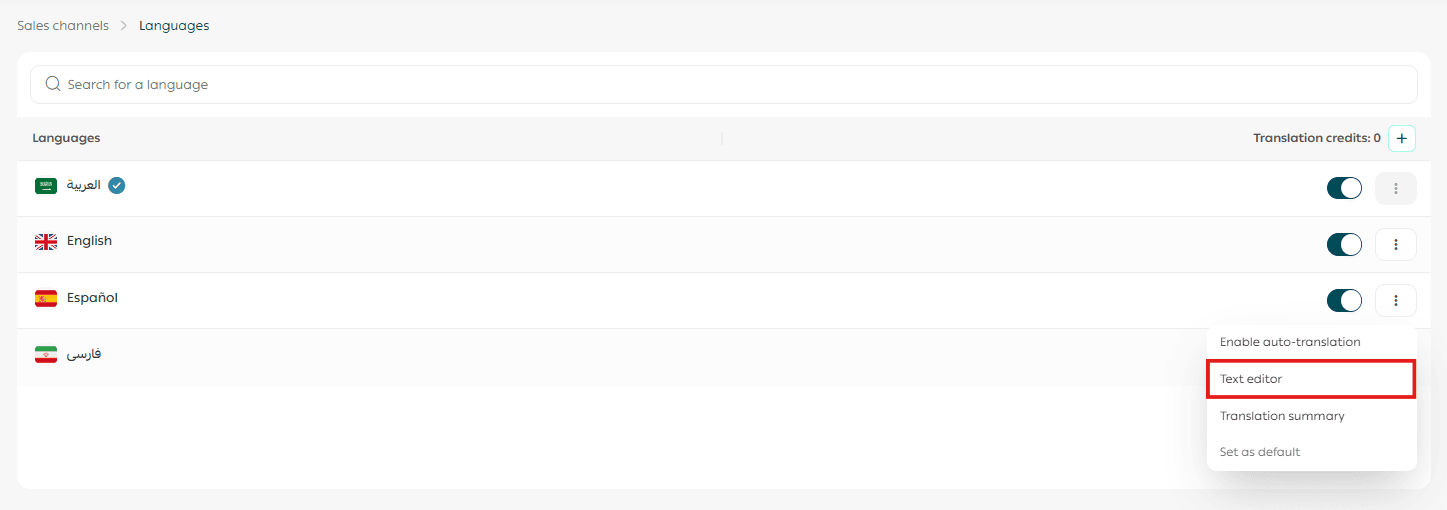
Learn more: Manual translation using the Text Editor.
What is the Language Translation Summary and why is it important?
The Translation Summary helps you track translation progress across your store.
For each language, it shows:
- Translation completion percentage for each store section
- Number of untranslated characters
- The last update date for each section
You can click on any section that is not fully translated to view detailed progress.
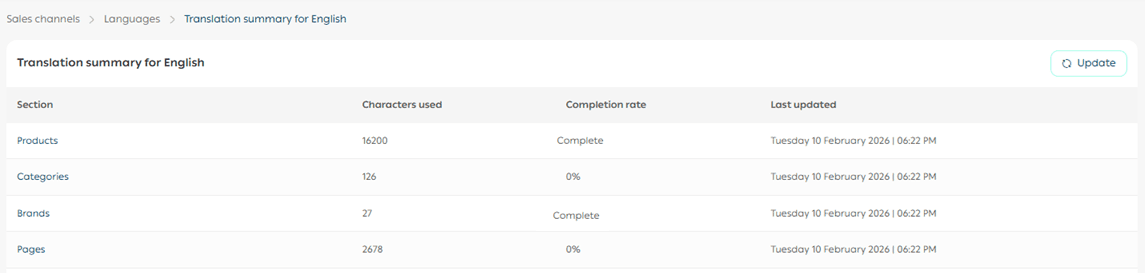
Example: Click Categories to see which content has been translated and what still needs work.

Learn more: Manual translation using the Text Editor.