The ticketing system is designed to help customers manage and follow up on their requests. It allows customers to submit tickets, track request status, and attach all required details. The ticketing system acts as a direct communication channel between the customer and the merchant.
📌 Article overview
- Ticketing system sections
- How customers submit a ticket
- Customer control of tickets and adding replies
- Merchant control of tickets and adding replies
Ticketing system sections
The ticketing system consists of two main parts: one for customers and one for merchants.
Customer ticket submission
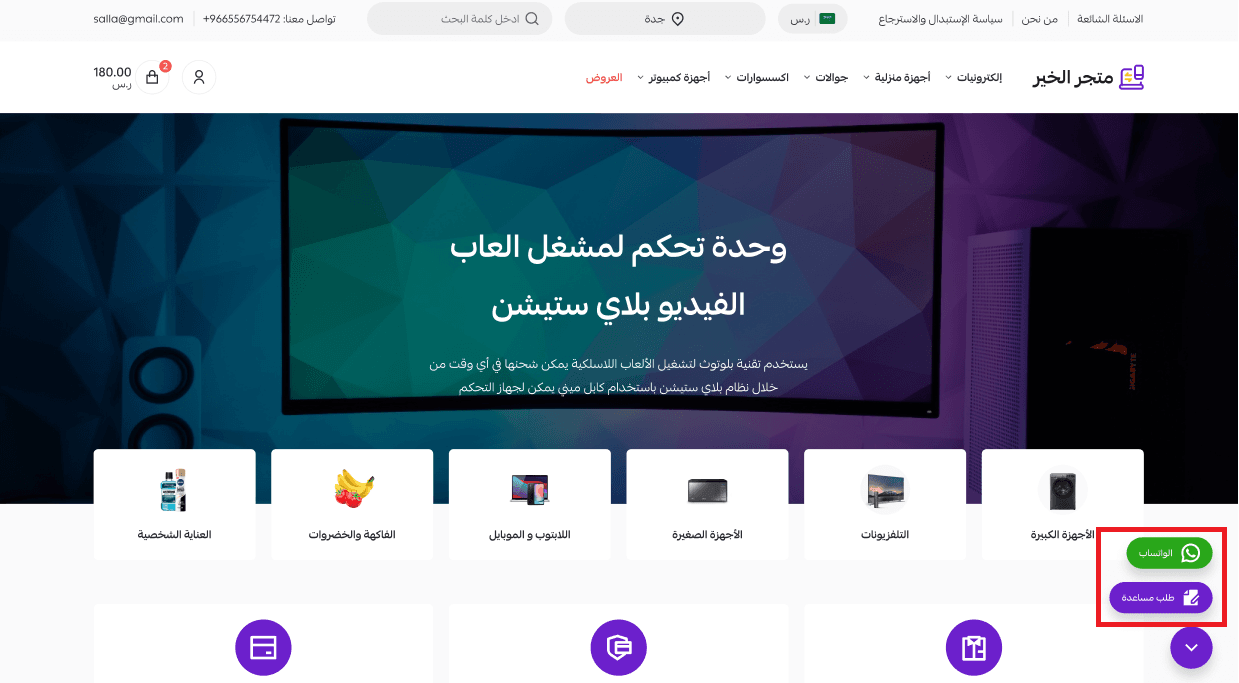
A fixed icon appears at the bottom right of the screen across all Salla stores. Through this icon, customers can contact the store directly via WhatsApp or submit an inquiry through the ticketing system.
Merchant interaction with tickets
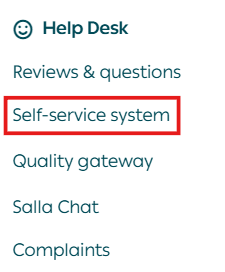
Merchants can access the ticketing system from the main menu by selecting All, then Self-Service System.
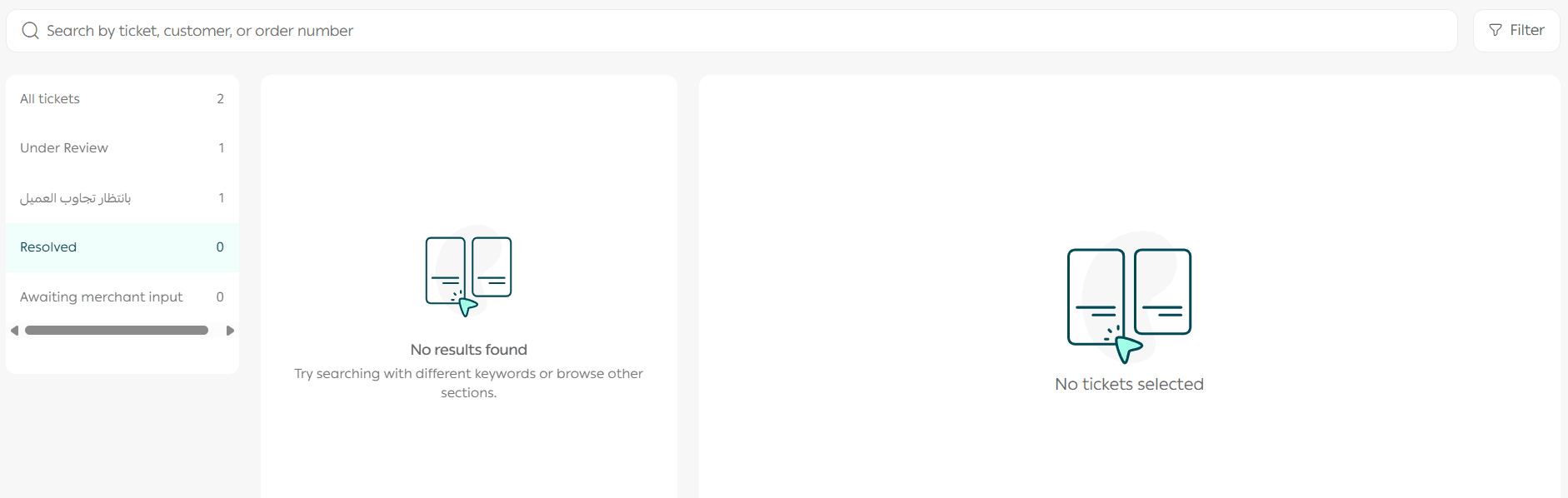
When opening the system for the first time, the ticketing system home page appears.
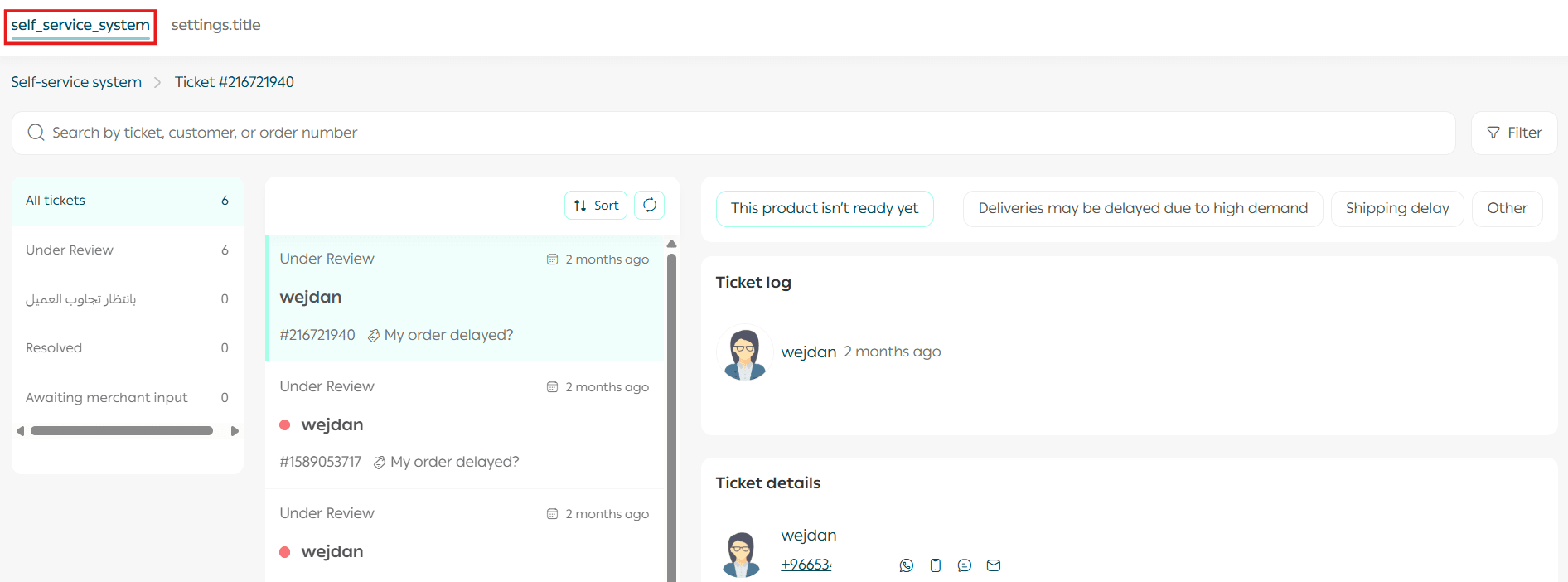
Once one or more tickets exist, merchants can view, manage, and follow up on submitted tickets
How customers submit a ticket
The system supports two types of tickets that customers can submit.
First type: Payment deducted without receiving an order number
- From the store home page, click Request help.
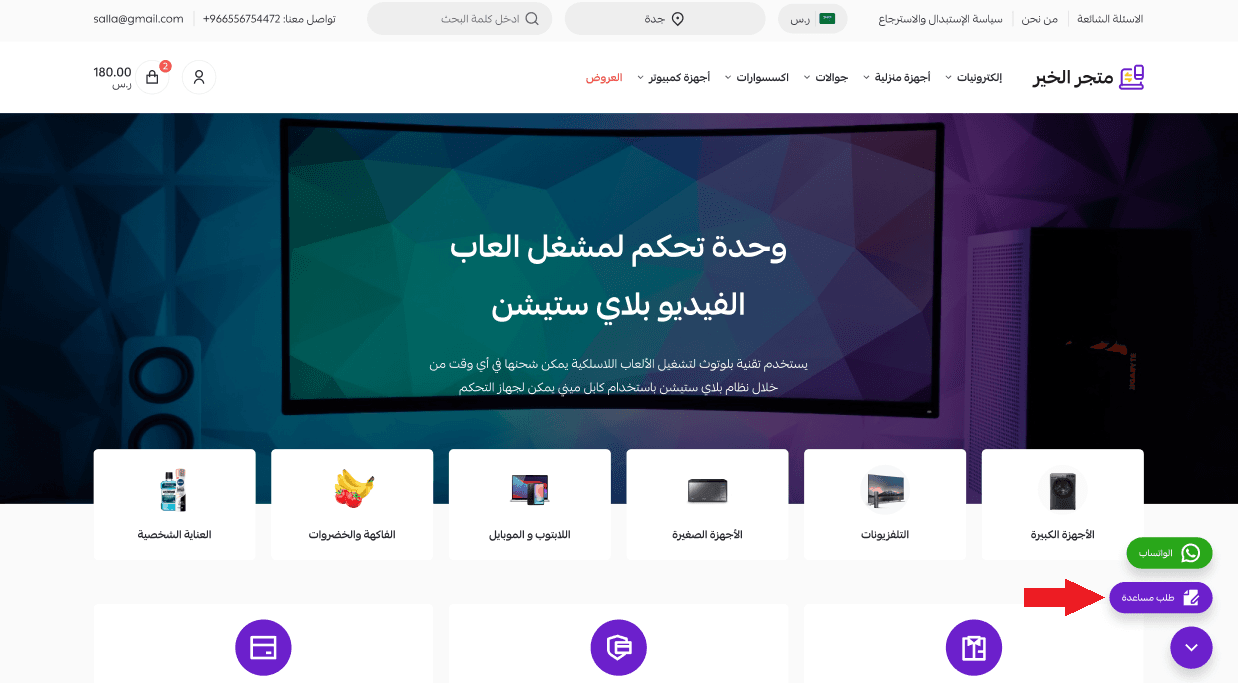
2. Select Amount deducted without creating an order.
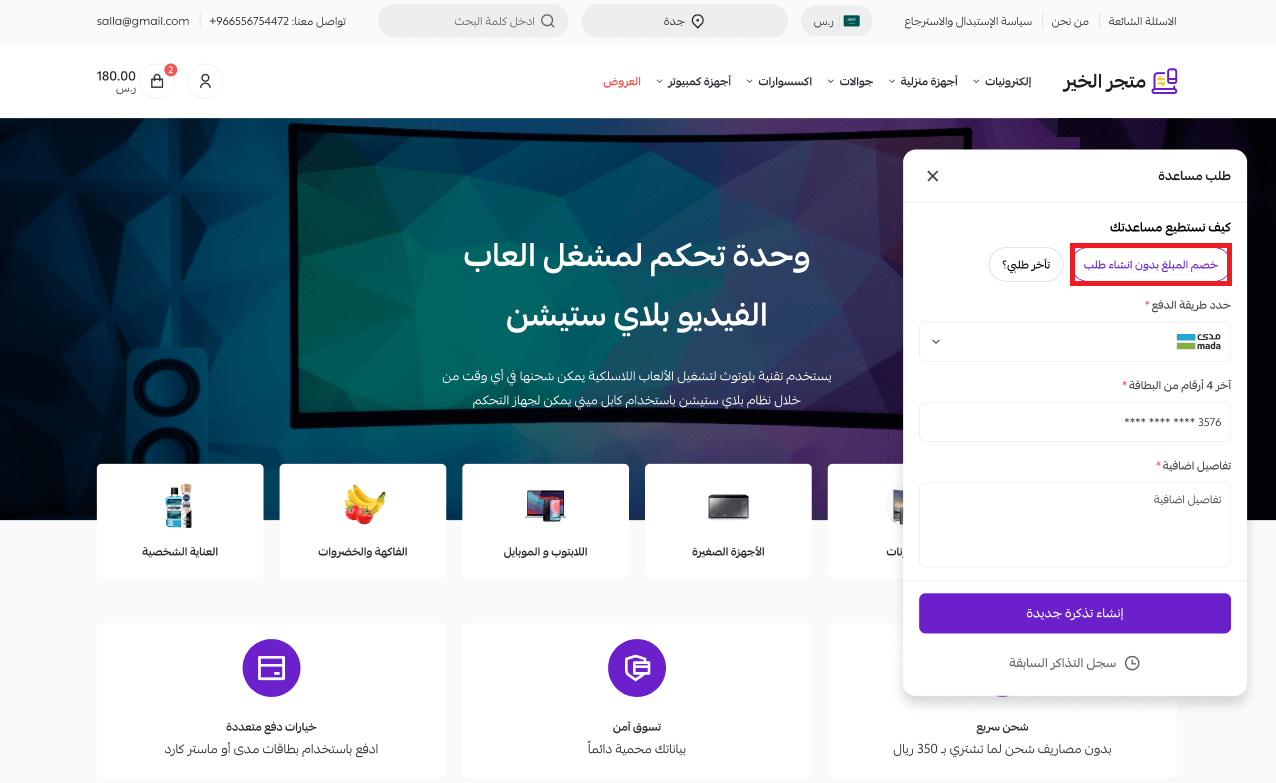
3. Select the payment method.
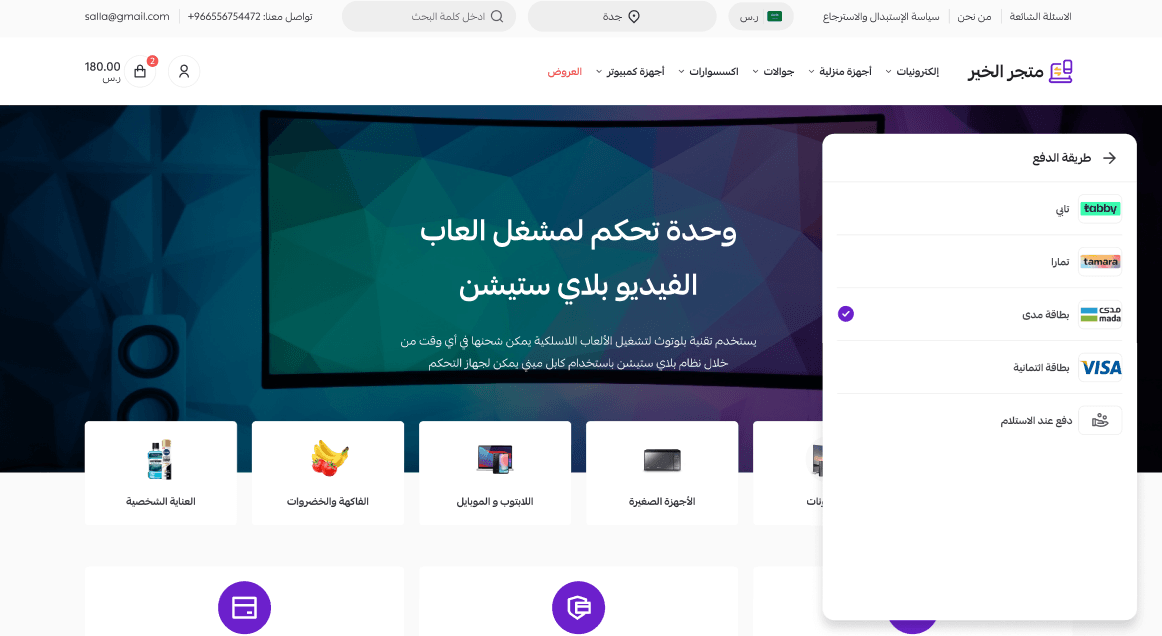
4. Enter the last four digits of the card that was charged, add any additional details if needed, then click Create new ticket.
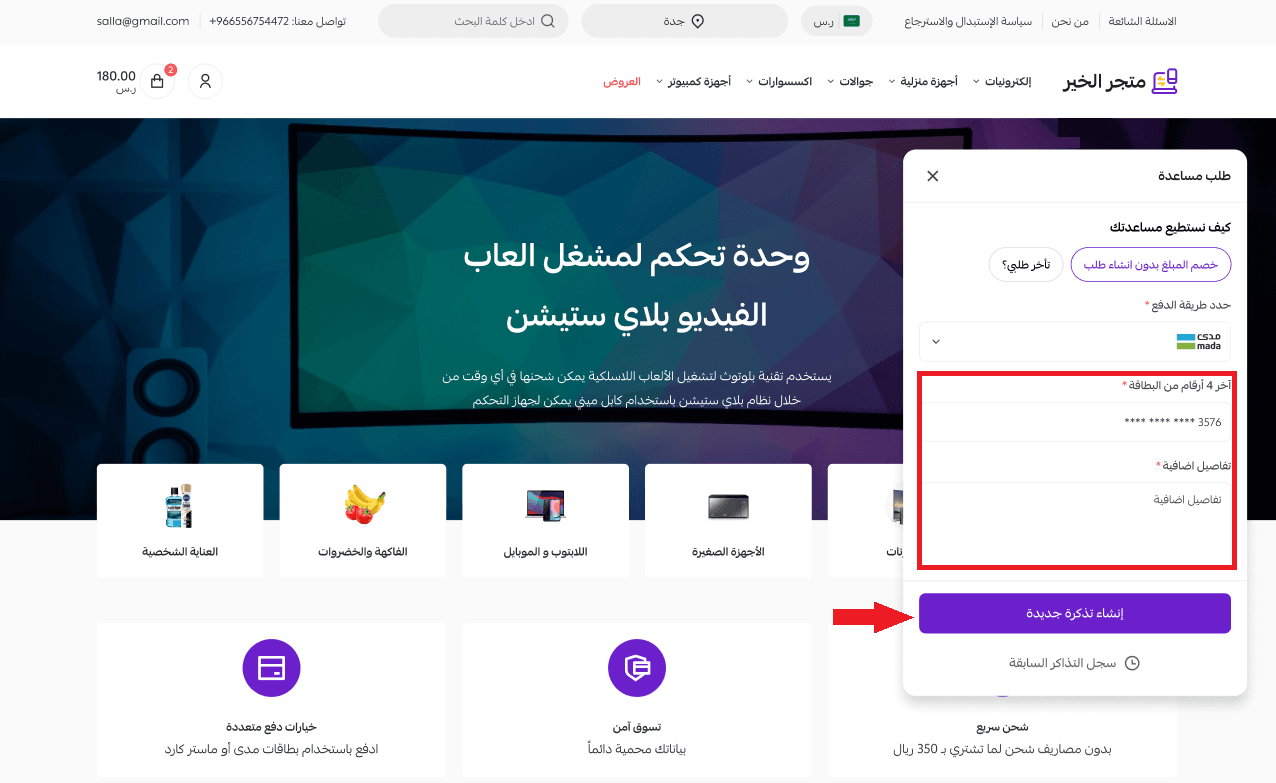
The ticket is created successfully and will be reviewed. The customer will be contacted within a few days.
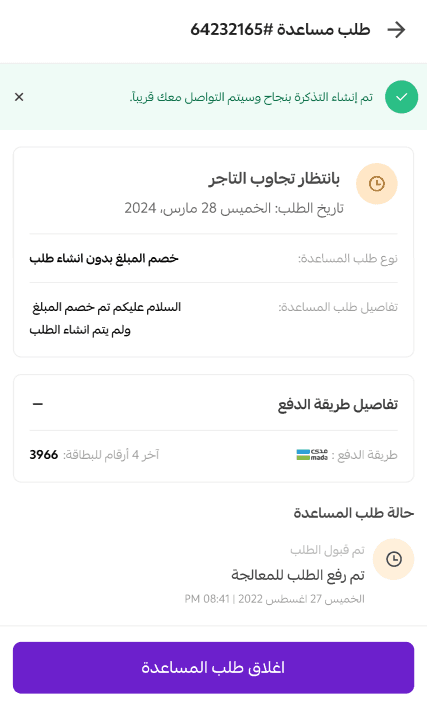
Second type: My order is delayed
- From the store home page, click Request help.
2. Select My order is delayed, then click Next.
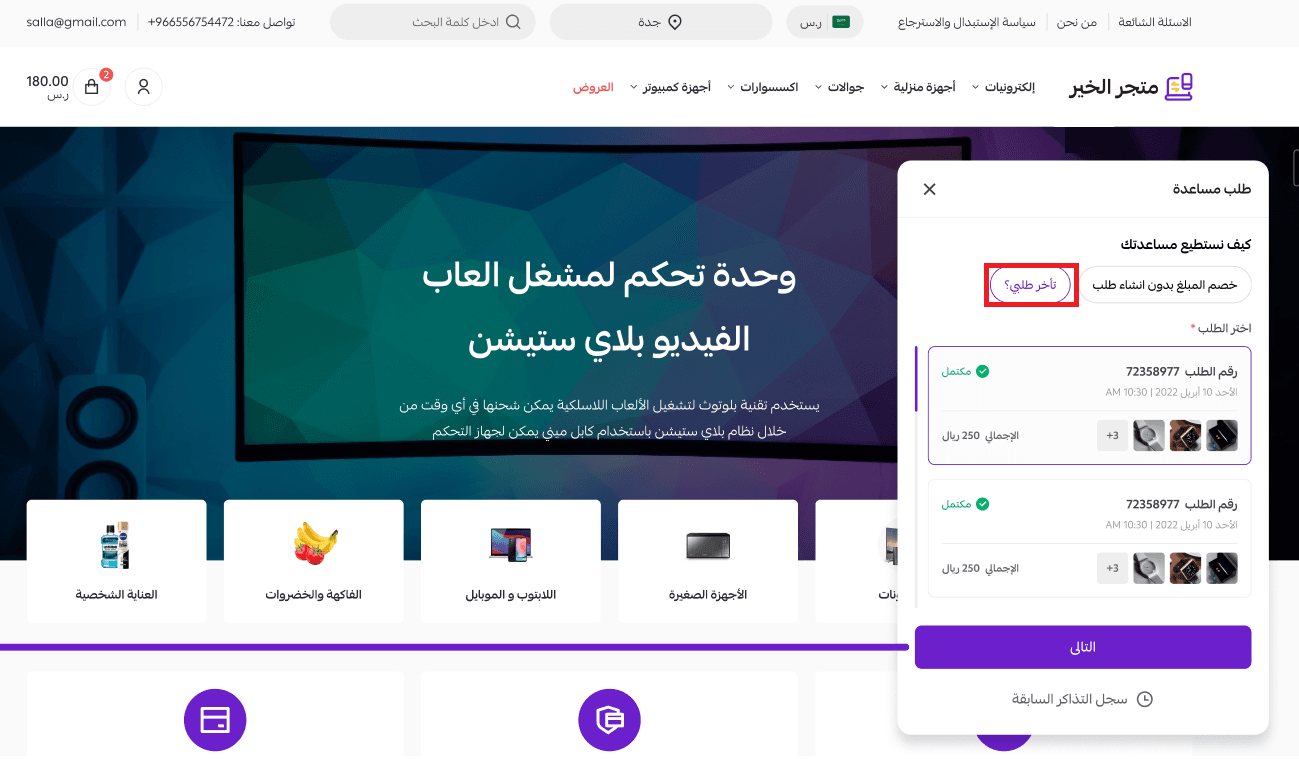
This option allows customers to check their order status based on the following scenarios.
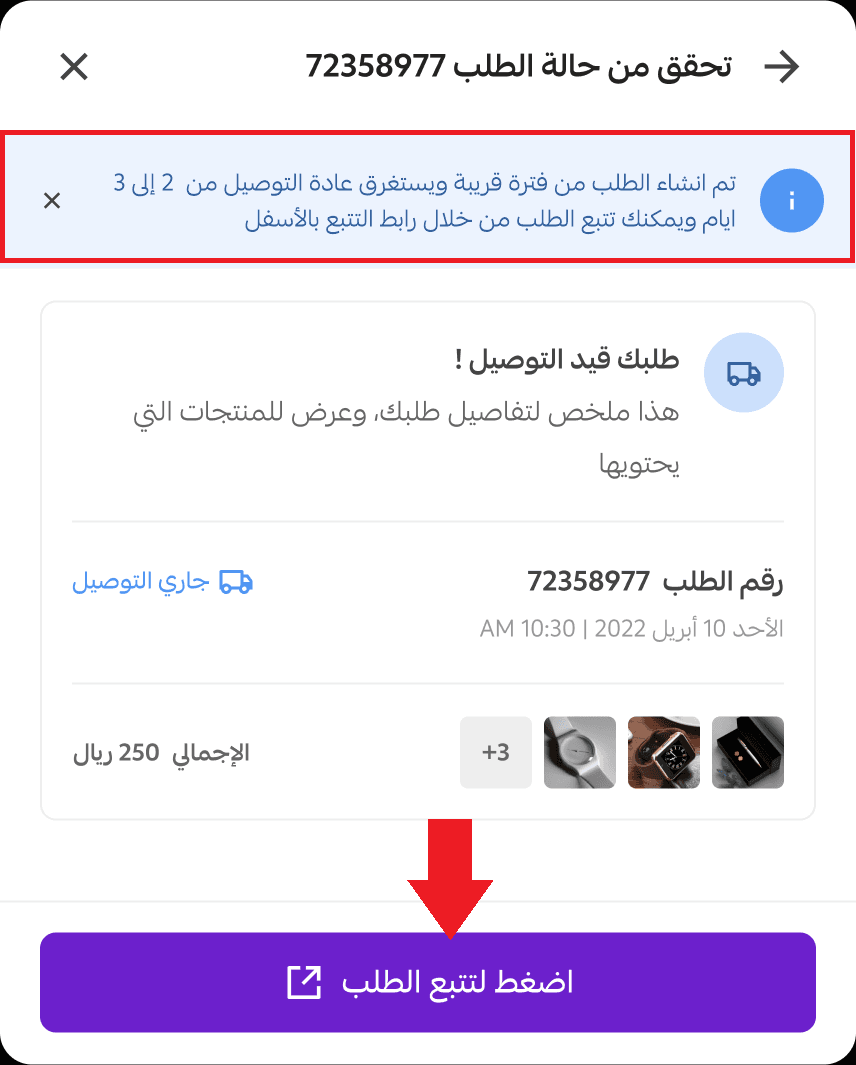
Case one
If the order was created less than 48 hours ago and its status is:
- Out for delivery
- Pending review
- Completed
In this case, the customer can track the order without submitting a ticket. A tracking link is sent directly to the customer.
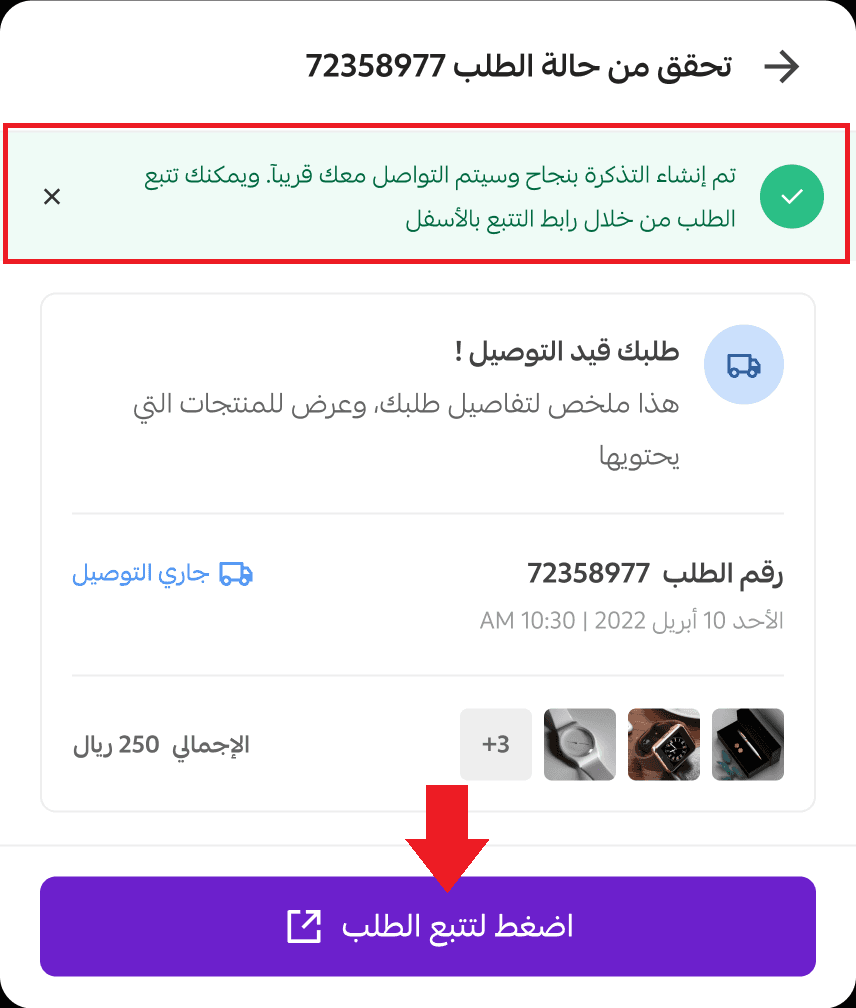
Case two
If more than 48 hours have passed since order creation and the order status is:
- Completed
- Out for delivery
The system automatically creates a ticket and sends the tracking link to the customer.
Case three
If more than 48 hours have passed and the order status is:
- Pending review
The customer can submit an inquiry to the merchant and add additional details by clicking Create ticket.
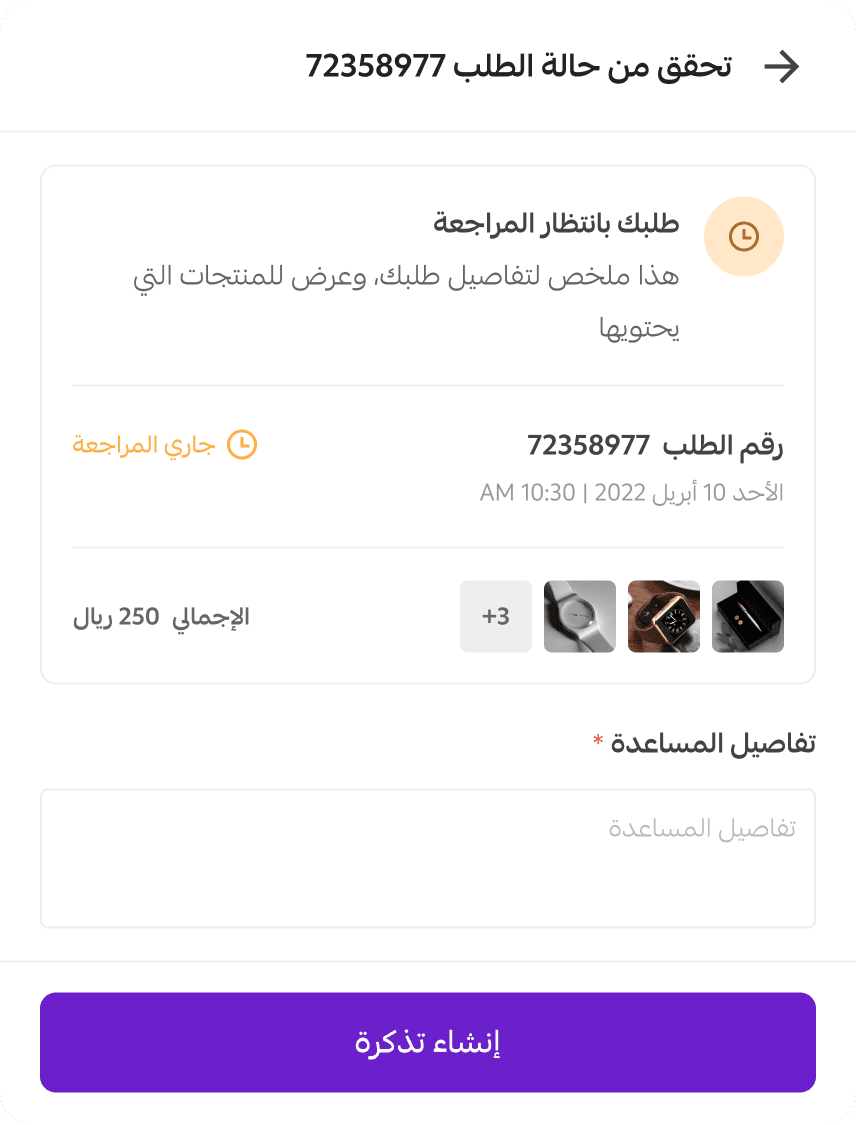
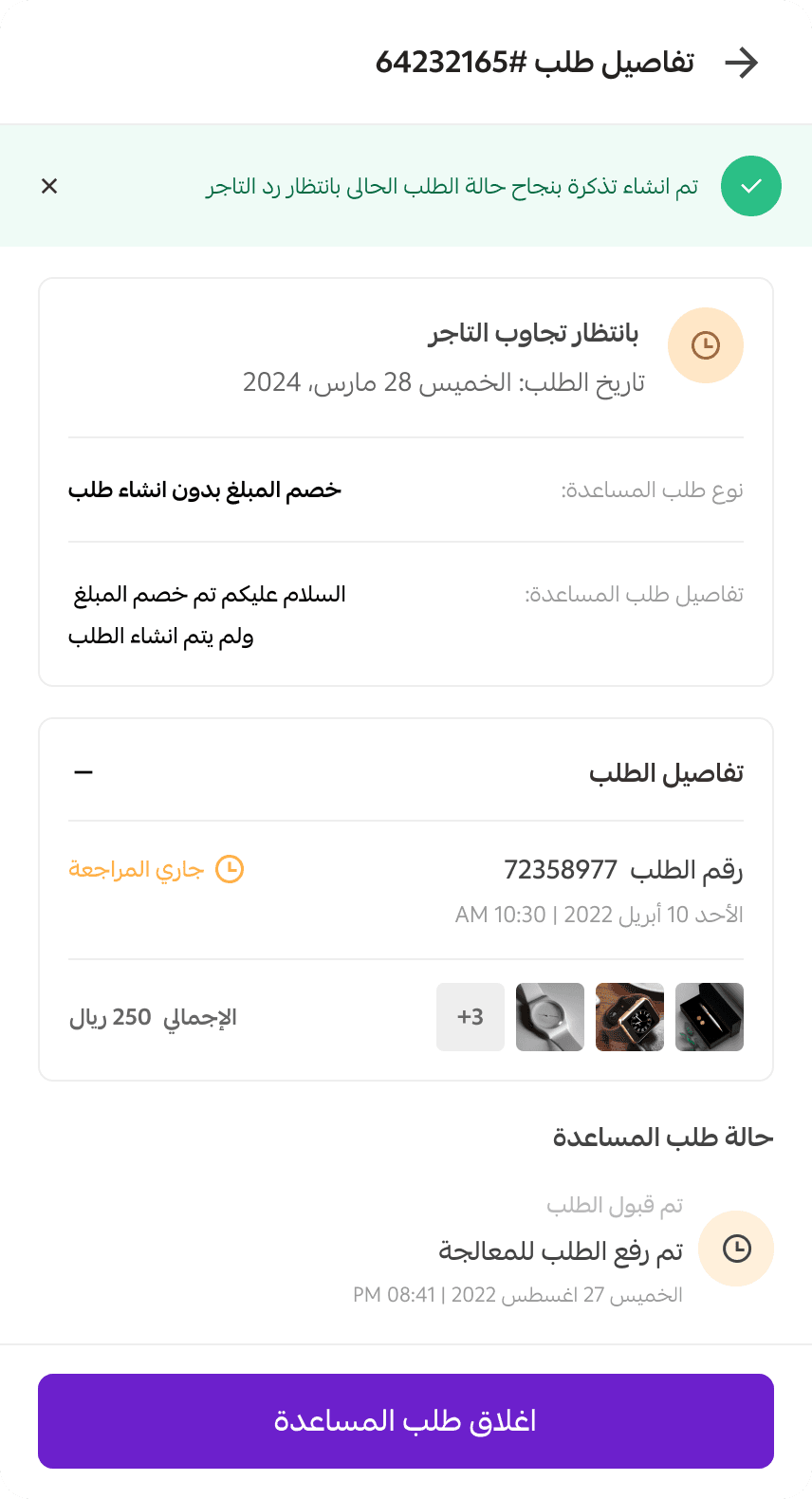
After a successful submission, the ticket status appears as Under merchant review.
Case four
If the order status is:
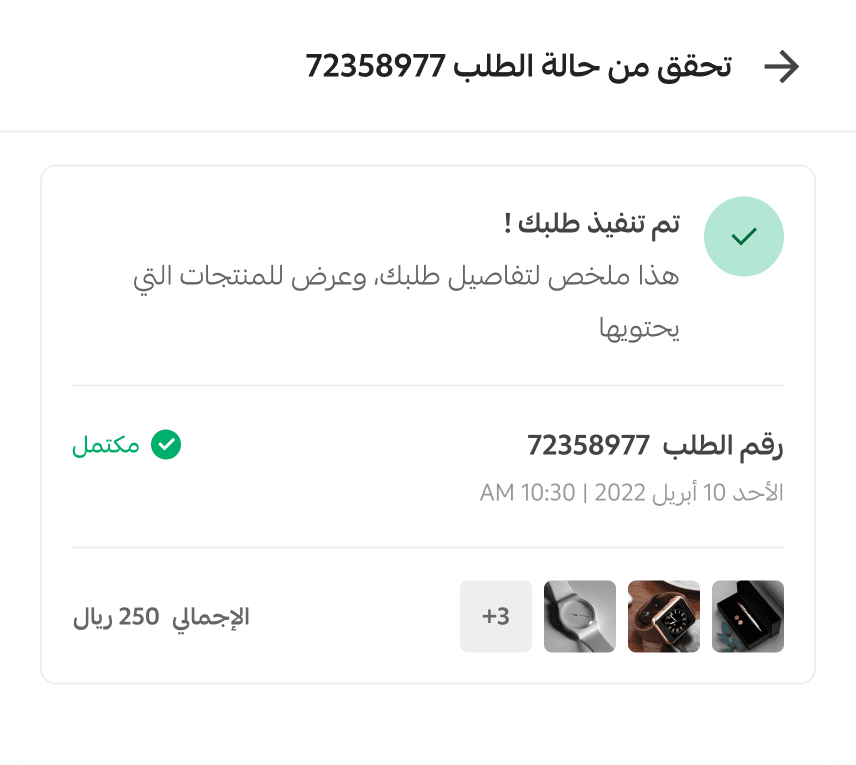
- Delivered
All order details and information are sent directly to the customer.
Customer control of tickets and adding replies
Customers can reply to merchants by clicking Reply to merchant.
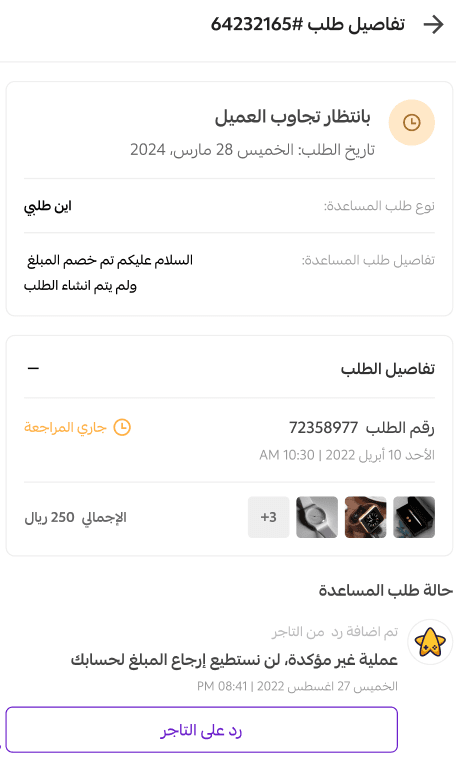
After clicking Reply to merchant, a text field appears where the customer can add details or attach supporting images.
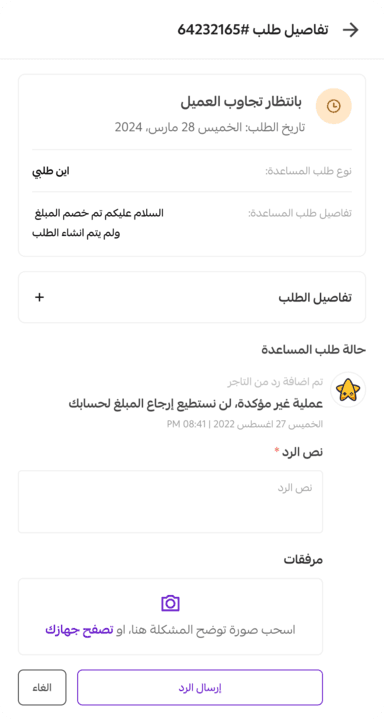
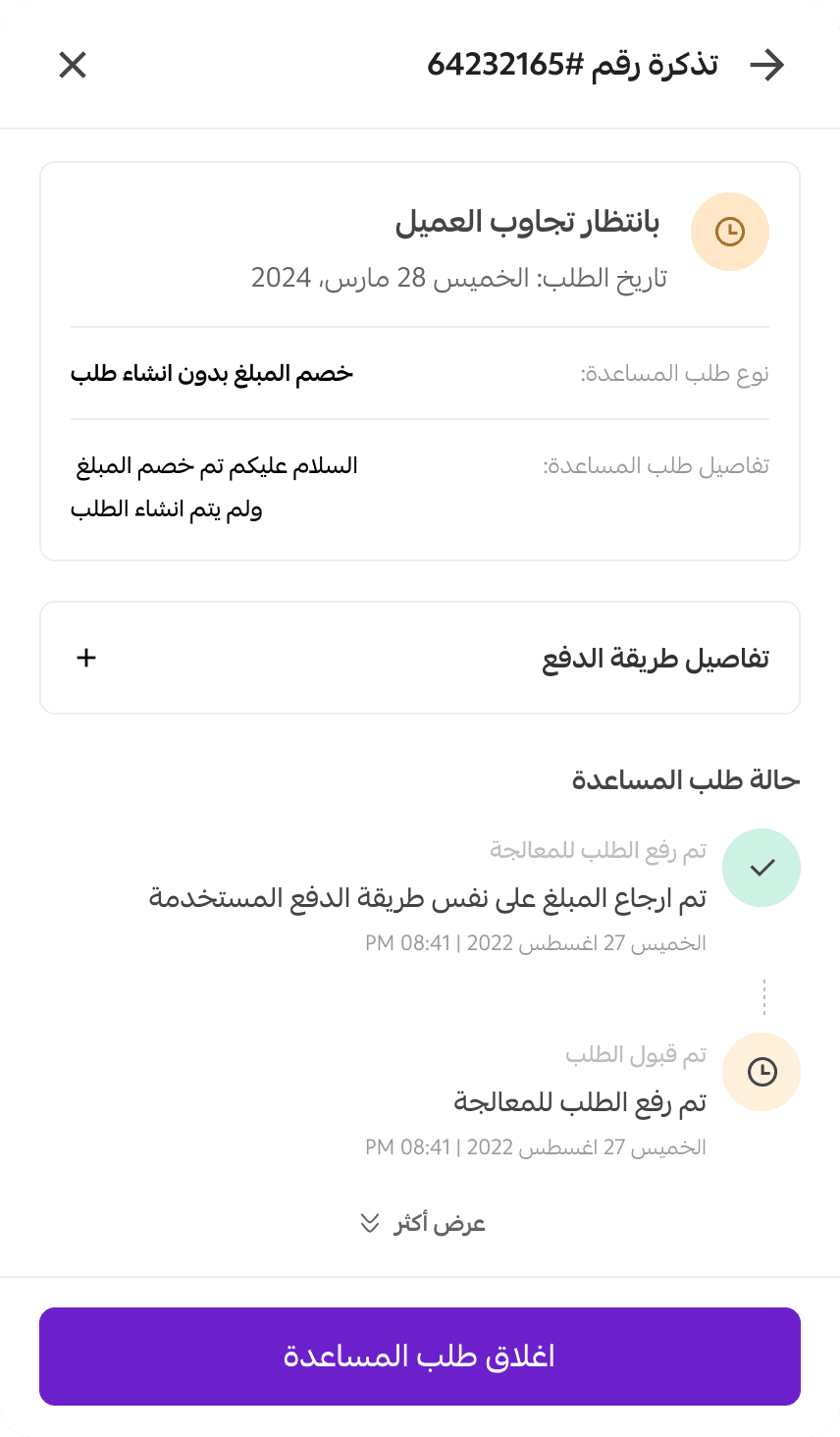
Customers can then close the ticket and rate their experience.
Merchant control of tickets and adding replies
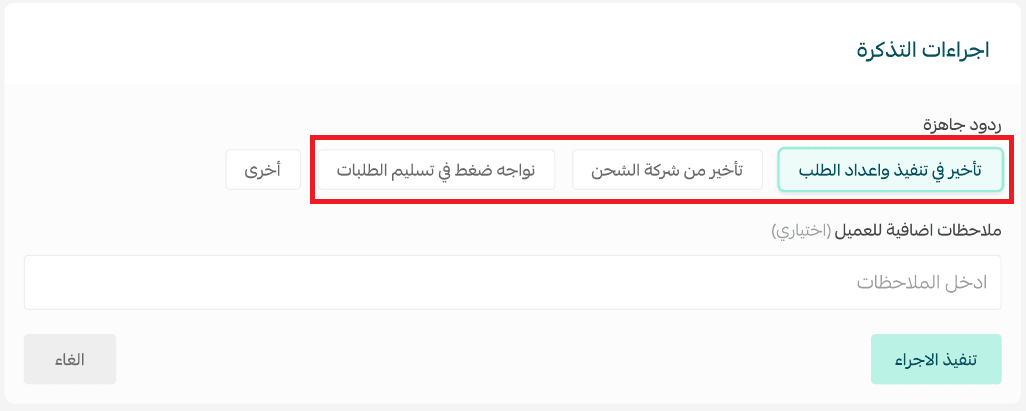
Merchants can respond to customers using predefined responses and add internal notes.
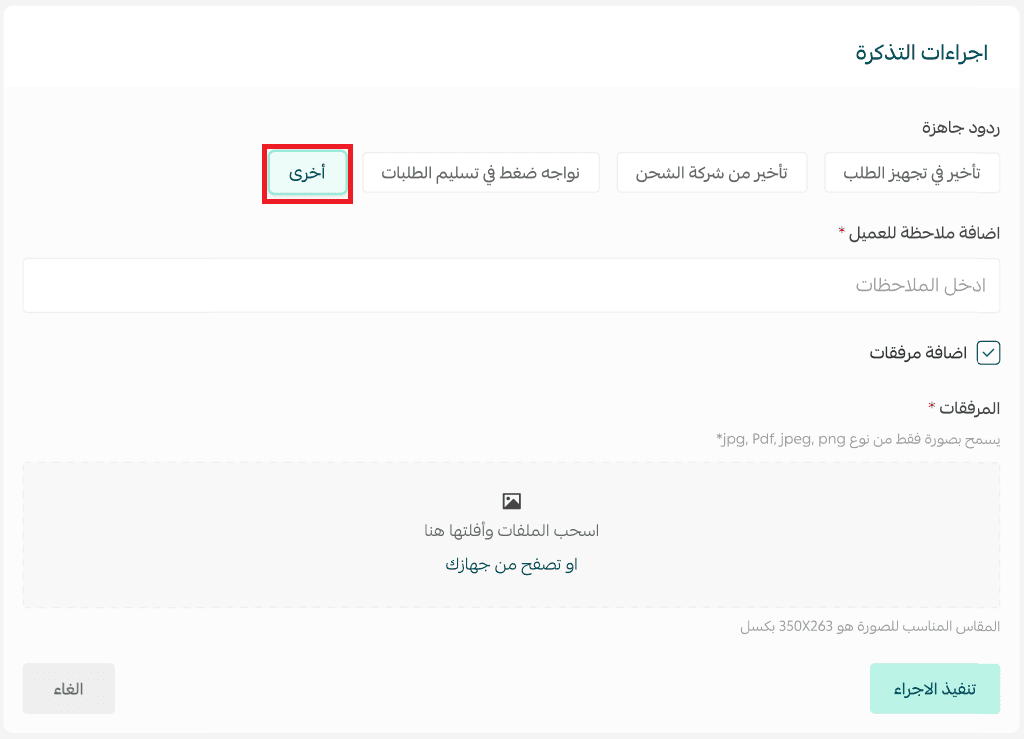
Merchants can also choose Other reply to enter custom notes, attach files, and provide additional information.
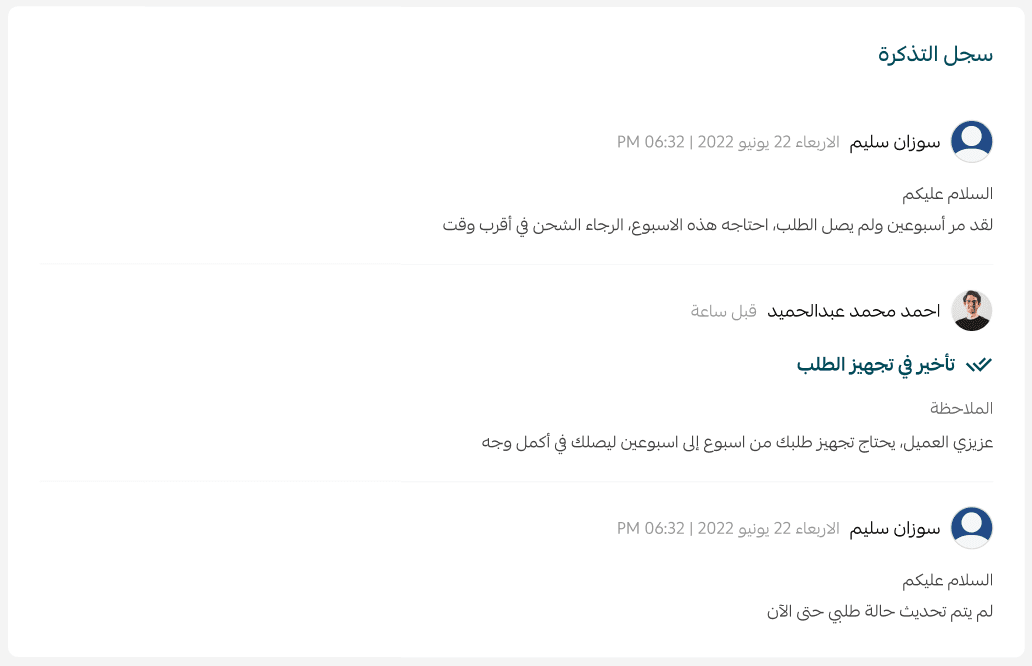
All interactions between the customer and merchant appear in the ticket activity log.
Frequently asked questions
How long does it take to respond to a customer?
Response time depends on how quickly the merchant replies.
Where are replies delivered when a customer or merchant responds?
Replies appear inside the ticket and a notification is sent to email.
Is this feature supported in both the old and new control panels?
The feature is supported in the new control panel only.
How can customers access the self-service system?
Customers must be logged in to their Salla account to access the self-service system.
How are cases of “payment deducted but order not completed” handled?
These tickets are sent directly to the Salla team for review and response. No action is required from the merchant or customer.
How do I enable the self-service system?
- From the main menu, open More, then select Self-Service System.
2. From self-service settings, click Enable self-service system.

Which platforms support this feature?
Currently, the service is supported on web browsers only.
Can I customize the icon color in the store?
At the moment, the icon color cannot be customized manually. It automatically appears using the store’s default color.
Will additional ticket cases be added in the future?
Yes. Additional cases such as product exchange requests and customer data updates will be added.