Google Tag Manager:
GTM is a free program offered by Google to control the codes you can add to your website.
📌 Main topics of the article:
- Steps to link Google Tag Manager with your Salla store
- Phase one | Registering in Google Tag Manager
- Phase two | Installing and activating the Google Tag Manager app
For morefrequently asked questions about Google Tag Manager
🚀Steps to link Google Tag Manager with your Salla store
- Registering in Google Tag Manager
🔔You don't need to complete this phase if you already have a Google Tag Manager account.
1.Go to theGoogle Tag Managerwebsite, and from the homepage, click (Create Account) to create an account.

2.Enter the account setup information.
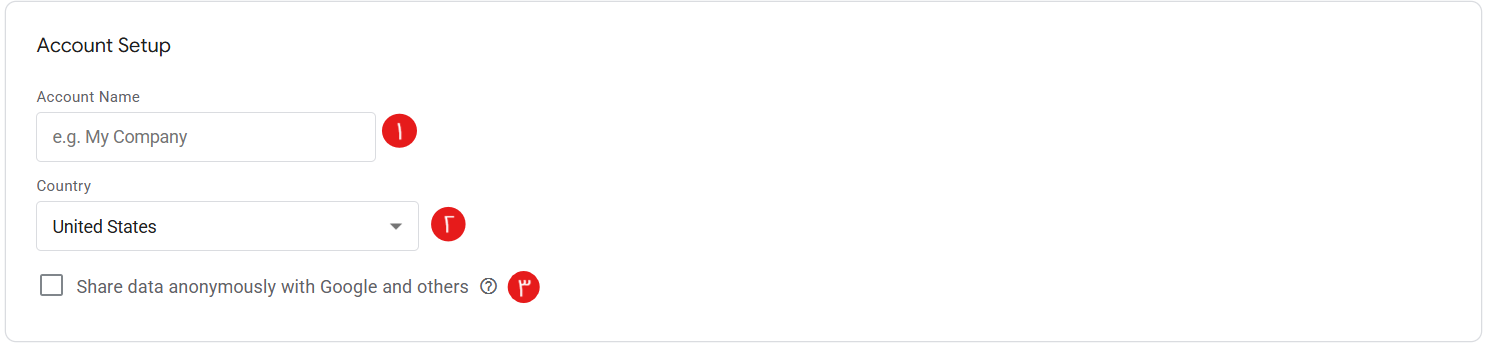
1- Enter your account name, preferably answering the question"Why this account?"Is it for clients, websites, apps, or other purposes?
2- Choose the country.
3- Set the data sharing option with Google and others anonymously (Enable performance measurement by sharing your data anonymously. Google will remove all identifiable information about your website, aggregate the data with hundreds of other anonymous sites, and report overall trends in the performance measurement service.)
3. Enter your site information (Container Setup), then click Create ( ).
).

1- Enter your site URL.
2- Select the target platform:
Web, for use on desktop and mobile web pages
IOS, for use in IOS apps
AMP, for use in Android apps
server, for server-side devices and measurement
4. Agree to the data terms, then click (Yes) to accept the Google Tag Manager Terms of Service Agreement.
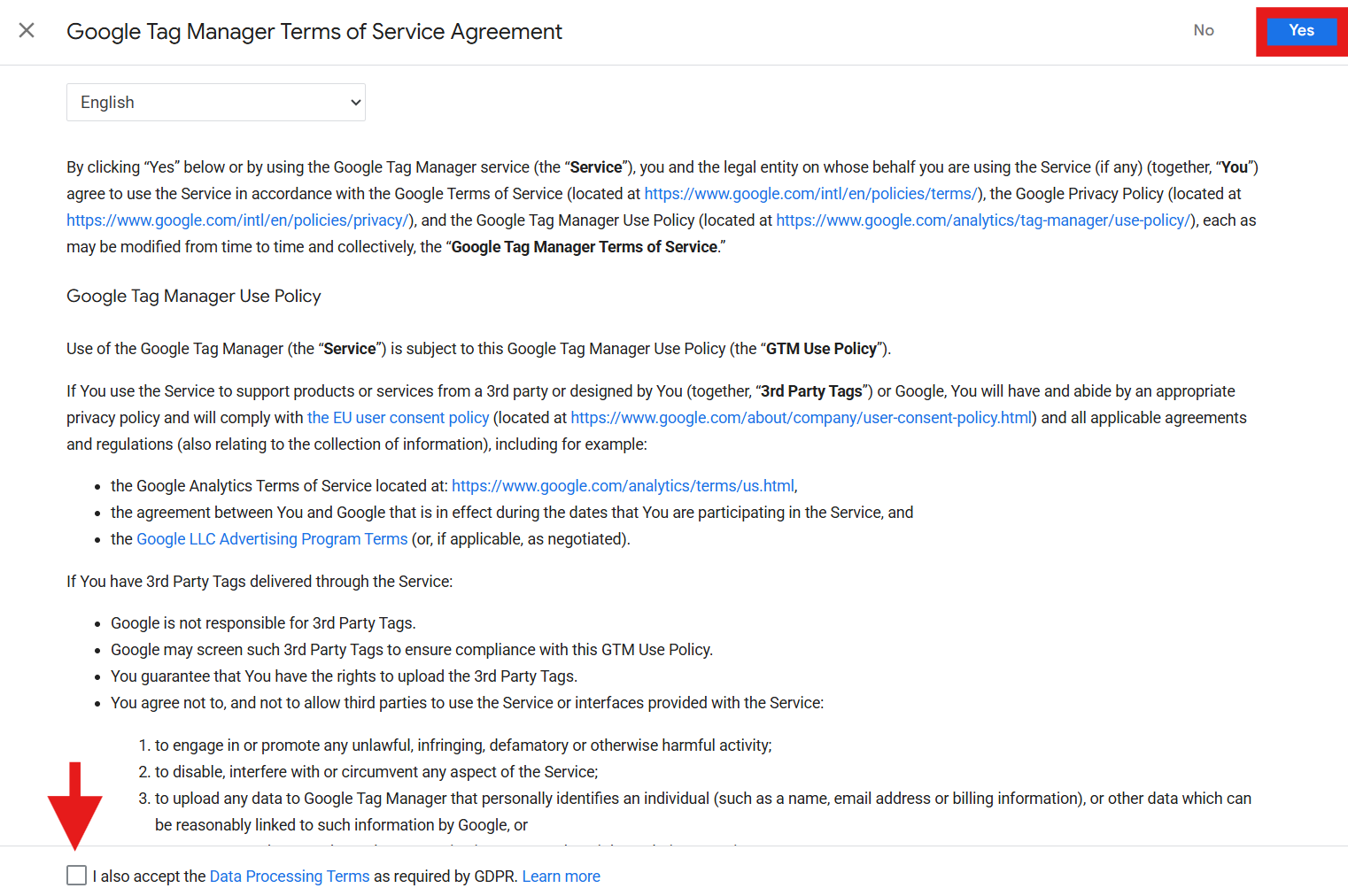
5. Copy the two codes.

- Installing and activating the Google Tag Manager app
1. From the side menu of the control panel, click on (Installed apps).

2. From the Salla App Store banner, click(Browse Salla App Store).

3. From the Google Tag Managerapp page, click (Install)

4.From the (Link Data) tab, click (Extract ID by code).
Then paste the code you obtained from your Google Tag Manager account in the last step of phase one, then click (Extract).
After successfully extracting the Container ID, click (Activate Link).
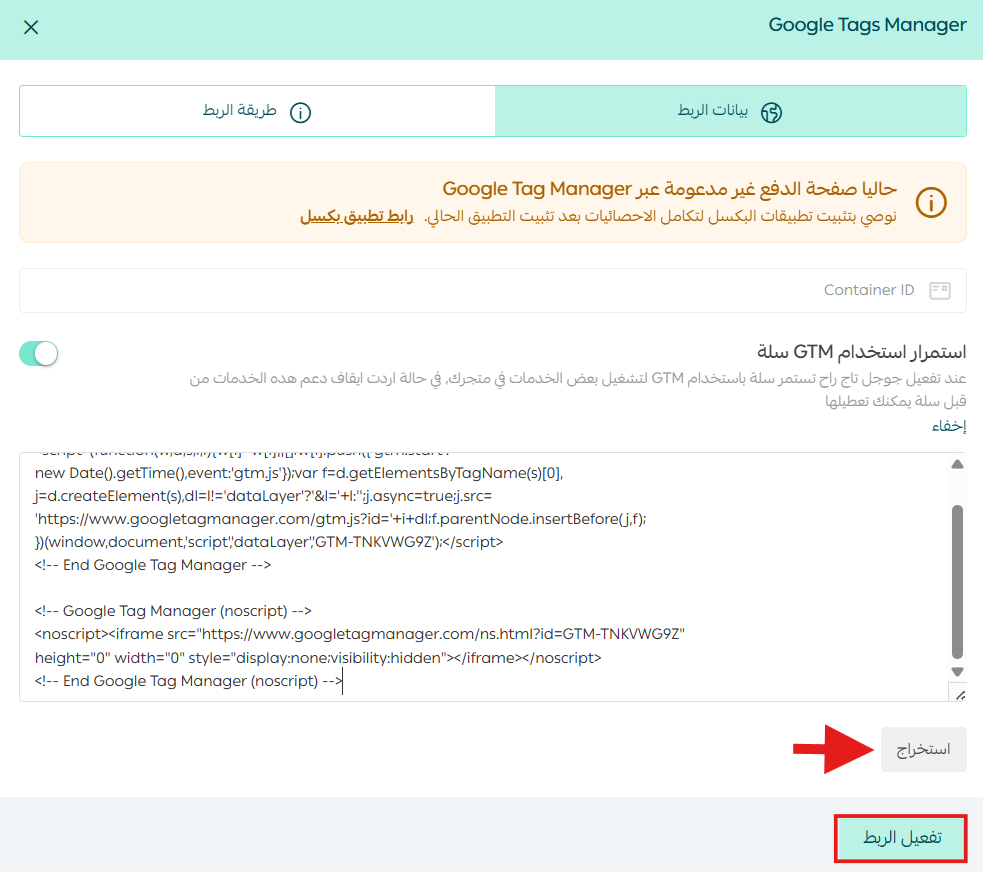
Congratulations on successfully linking your store with Google Tag Manager. 
The homepage forGoogle Tag Manager In the form of:

For more details aboutmanaging my store applications
For a deeper understanding of ways to benefit from Google Tag Manager:
Ideas and methods to improve your store's SEO using Google Tag Manager
Support services
Take advantage ofthe merchant services sectionwhere experts are ready to assist you in various fields with everything you need fromconnecting your store's infrastructure via Google Tag Manager, linking your store on Salla with Google Tag Manager, and defining all eventsand other services to streamline your work and focus on your success.
