Customers may hesitate to complete a purchase if they don’t have an extra reason to choose a specific payment method. With Bank Offers, you can encourage shoppers to pay using cards from selected banks by providing attractive discounts, helping you boost conversions, increase sales, and strengthen customer loyalty.
In this article, you’ll learn how to create and manage bank offers easily to get the most value from this feature.
📌 Article overview
- What is a bank offer?
- Bank offers in your store
- Creating a bank offer
- Managing bank offers
- Practical examples
- Frequently asked questions
🔔 Important note: This feature is currently available only for stores in Saudi Arabia.
What is a bank offer?
A bank offer is a discount applied automatically when a customer pays using a card issued by a specific bank. Its main purpose is to encourage customers to complete checkout through a bank you choose, by rewarding them with an exclusive discount.
Bank offers in your store
To access bank offers:
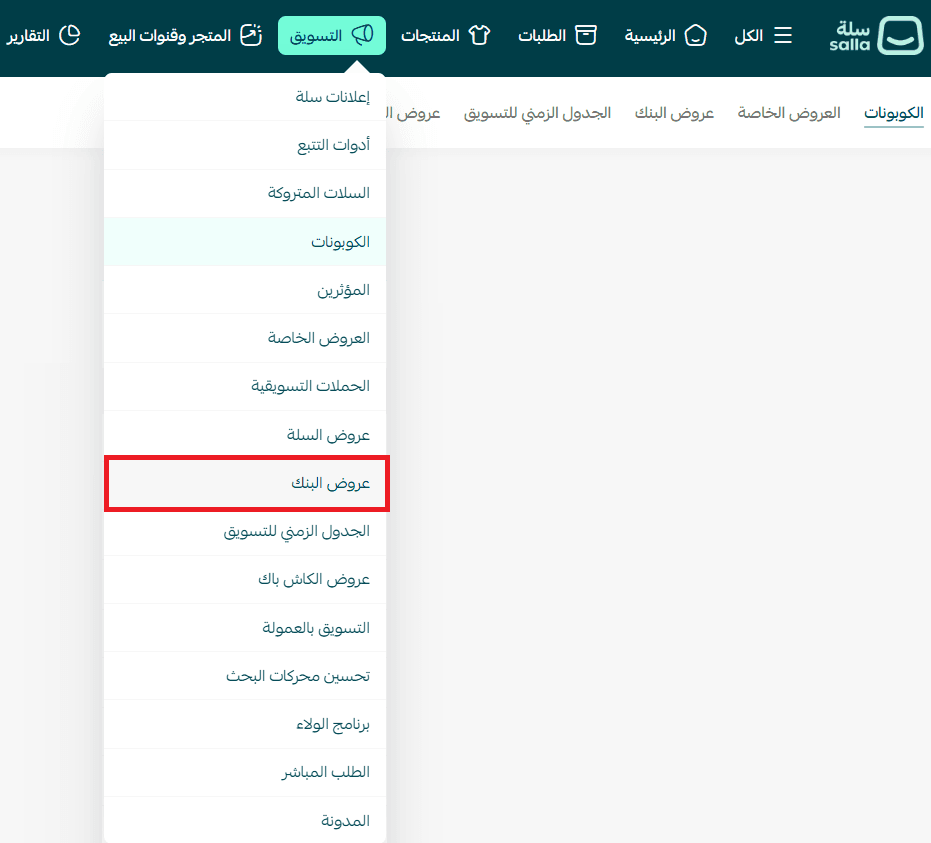
- From the main menu, click Marketing
- Select Bank offers
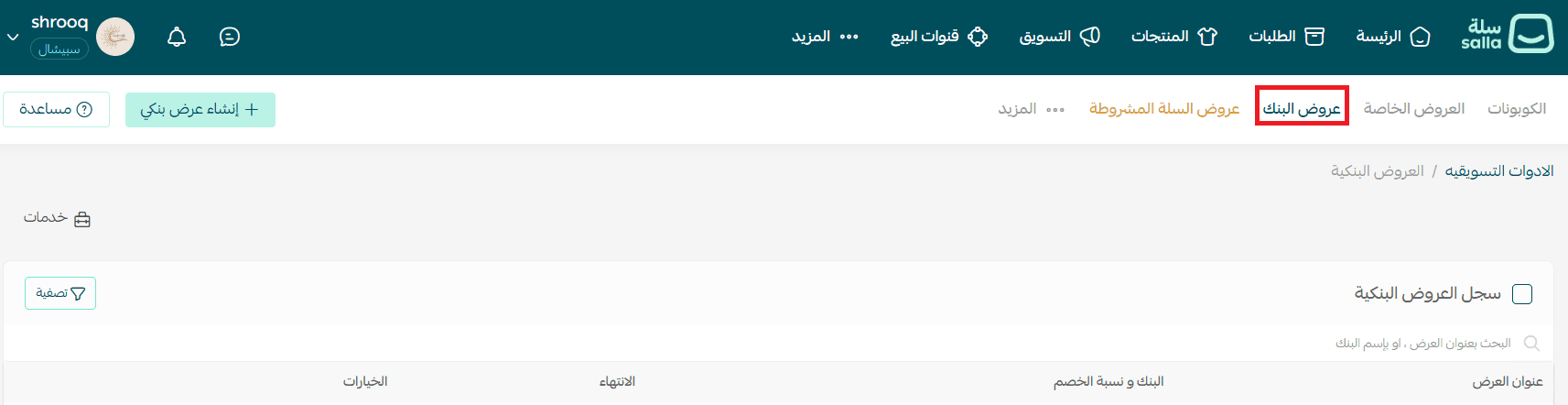
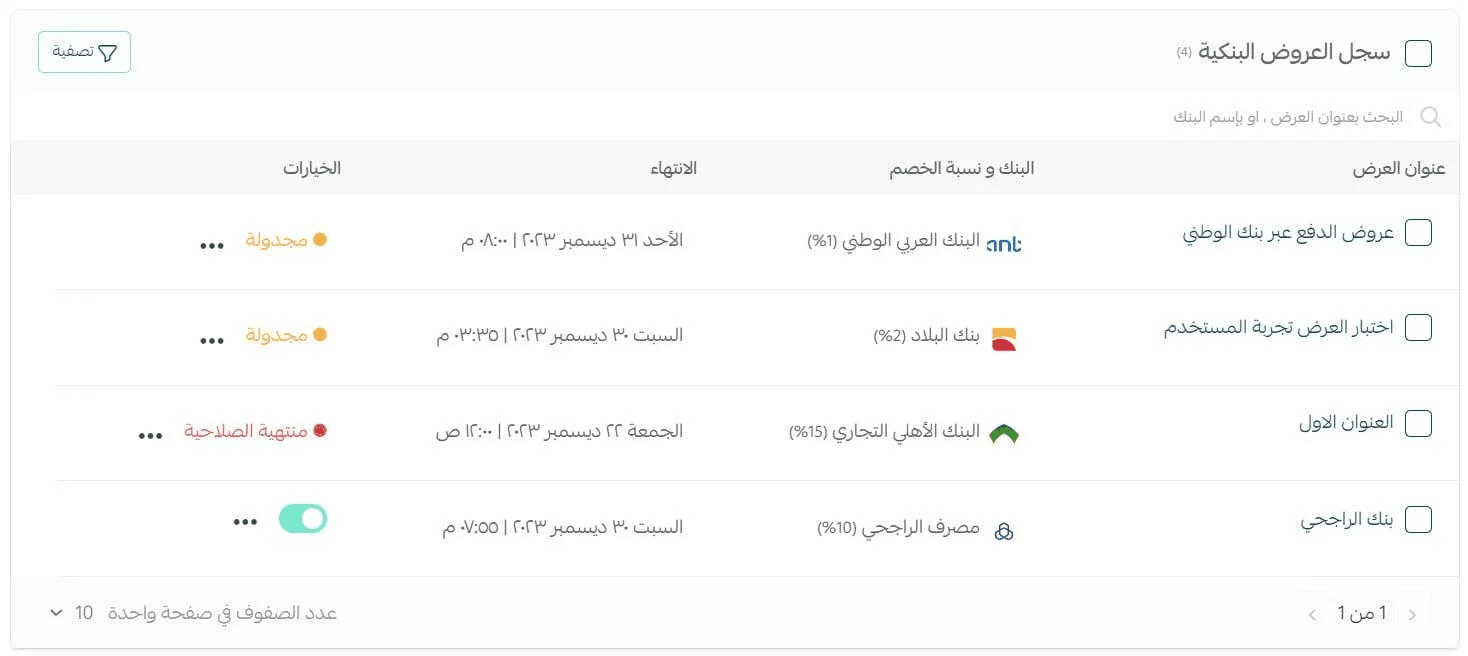
The bank offers page will appear as follows:
Creating a bank offer
To create a new bank discount:
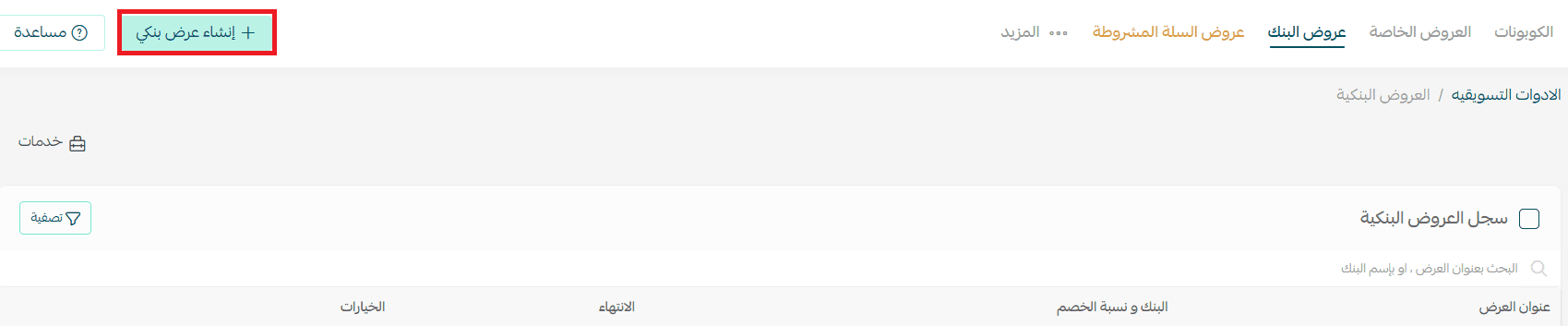
1. Click + Create bank offer
2. Enter offer details
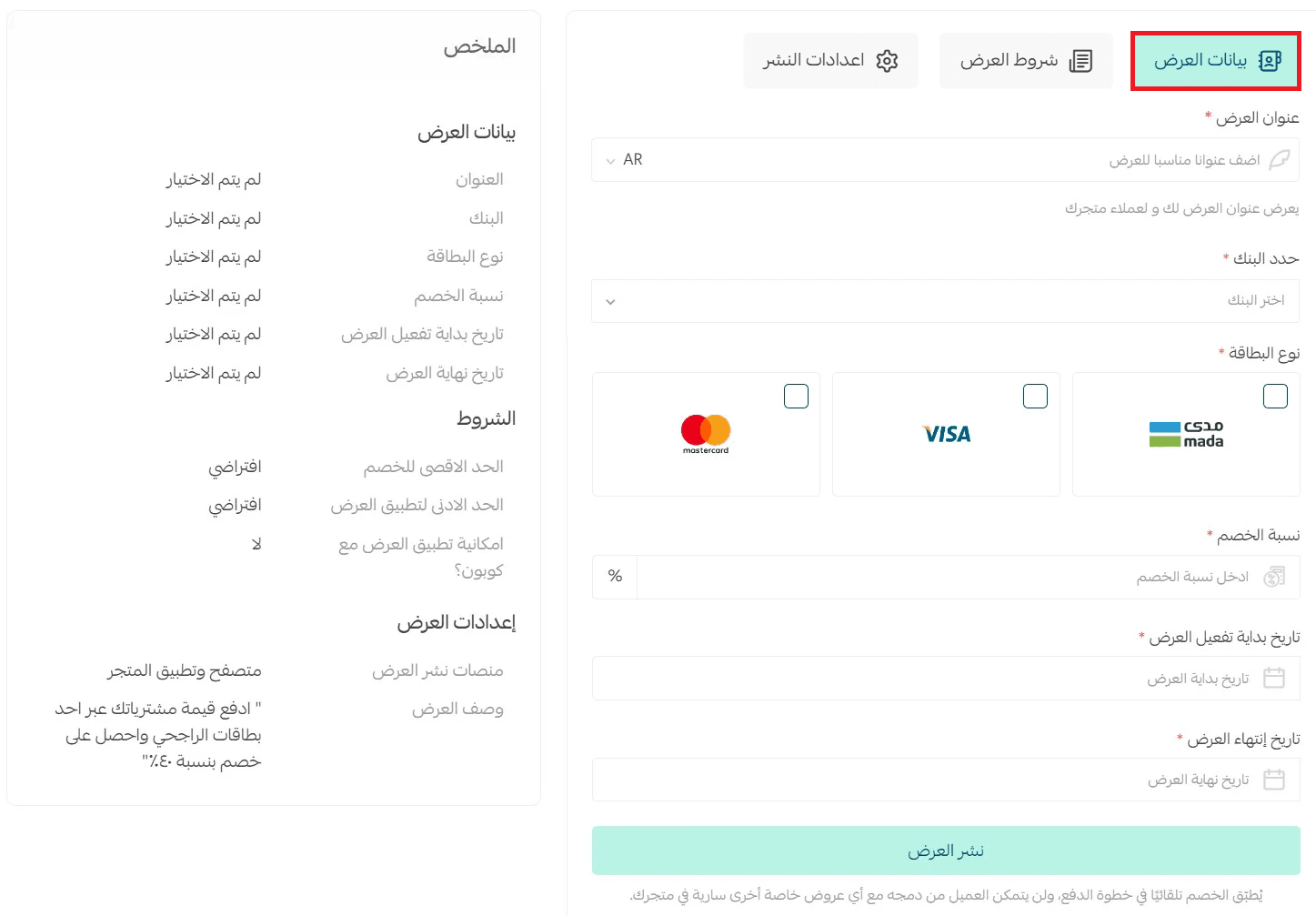
Under the Offer information tab:
- Add the offer title
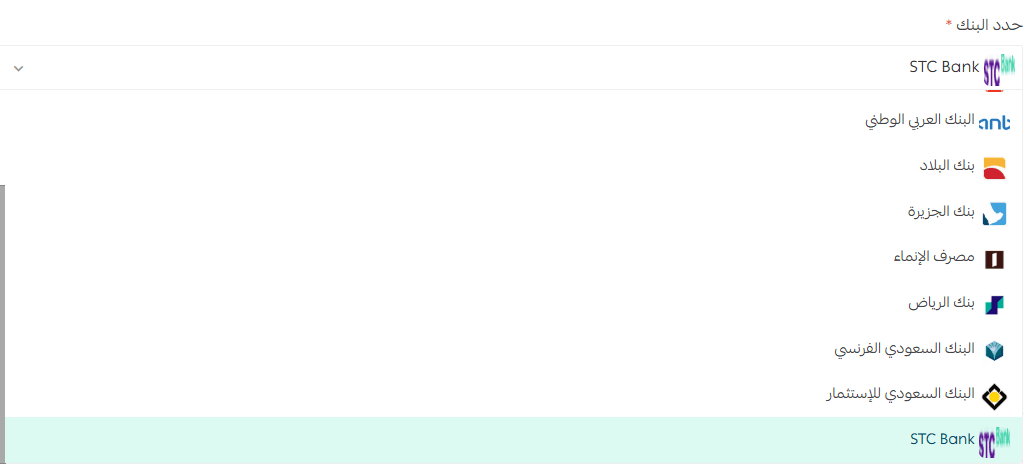
- Select the bank from the list
- Choose the card type
- Set the discount percentage
- Define the offer start and end date
3. Set offer conditions as Optional
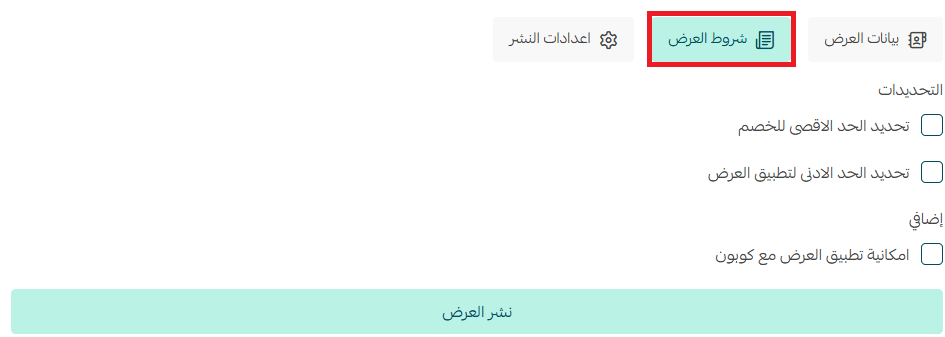
Under the Offer conditions tab, you can define:
- Minimum discount amount
- Maximum discount limit
- Whether the offer can be combined with a coupon
- All of these settings are optional.
4. Configure publishing settings
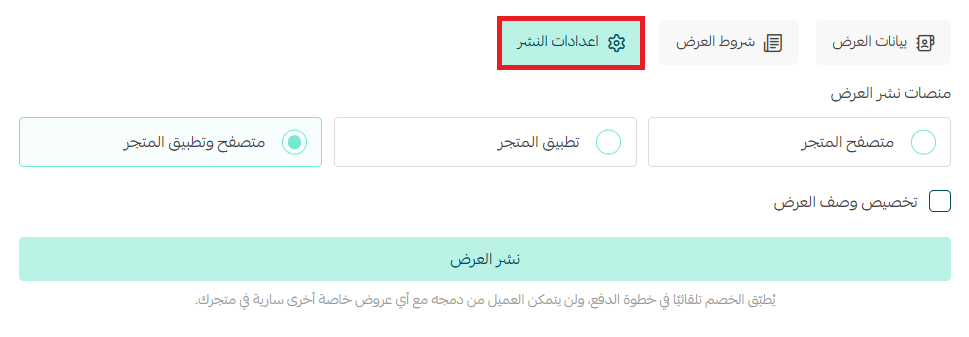
Under the (Offer Settings) tab:
- Choose where the offer will appear:
- Store browser
- Store app
- Both
- Decide whether you want to customize the offer description
5. Publish the offer
Click Publish offer to activate it based on the dates you selected.
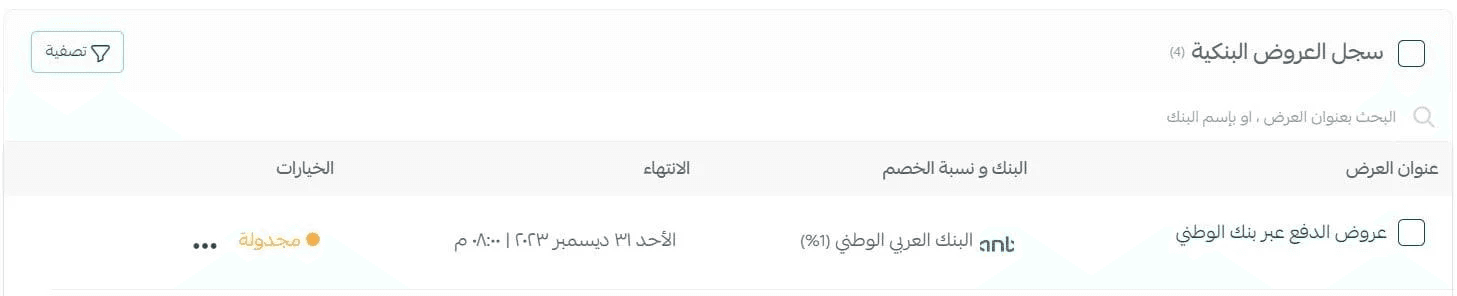
Once published, the offer will appear in your bank offers list.
Where customers will see the offer
Bank discounts appear in two key places:
- On the product details card
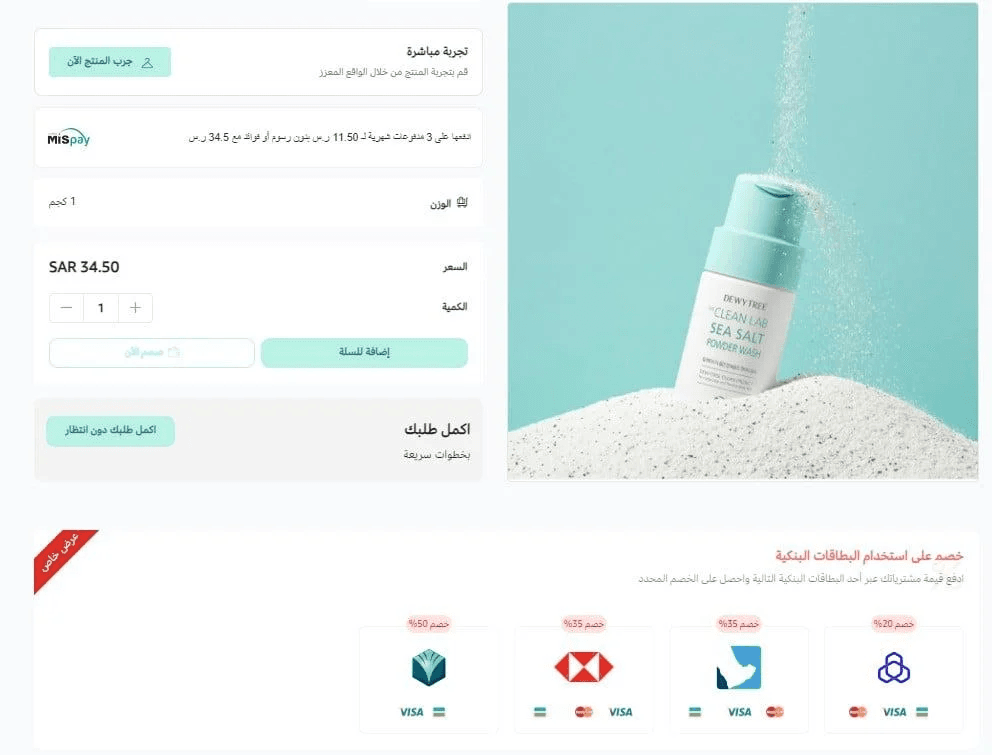
- During the checkout payment step
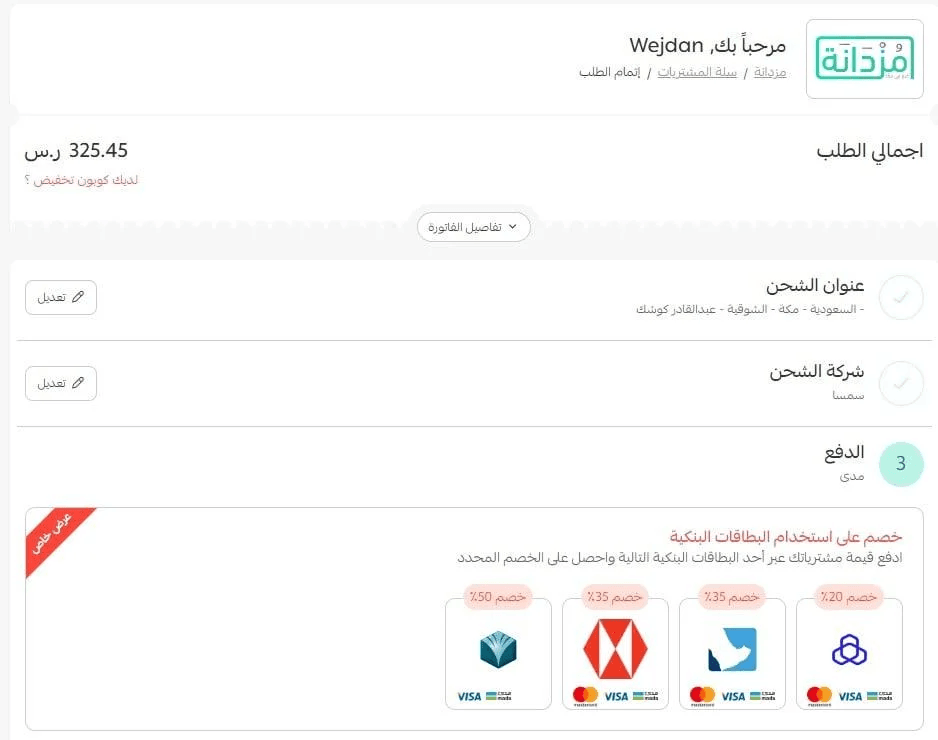
Managing bank offers
Customizing the offer description
From the Publishing Settings tab, enable:
- Customize offer description
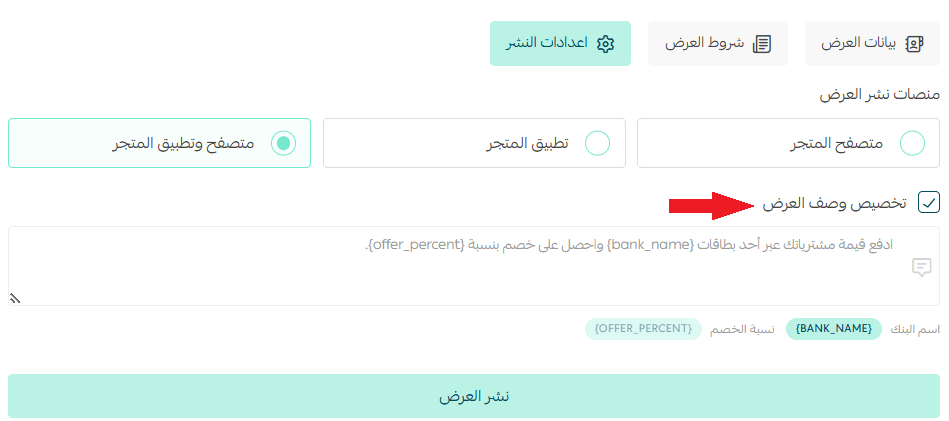
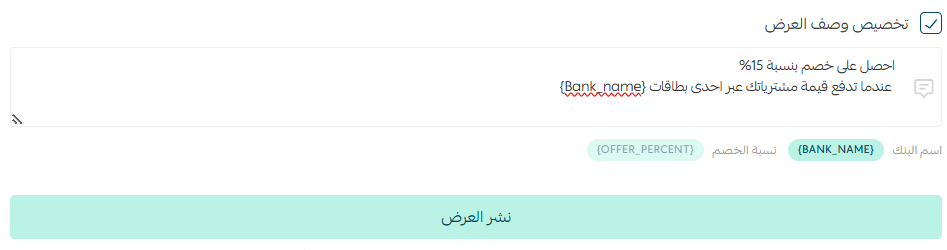
Then write your message and insert placeholders such as:
- {Bank Name}
- {Discount Percentage}
Example:
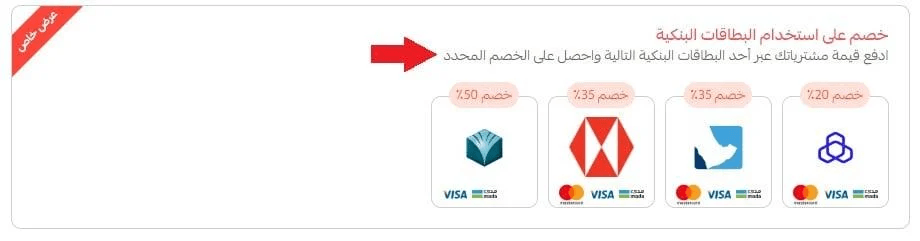
Customers will see it like this:
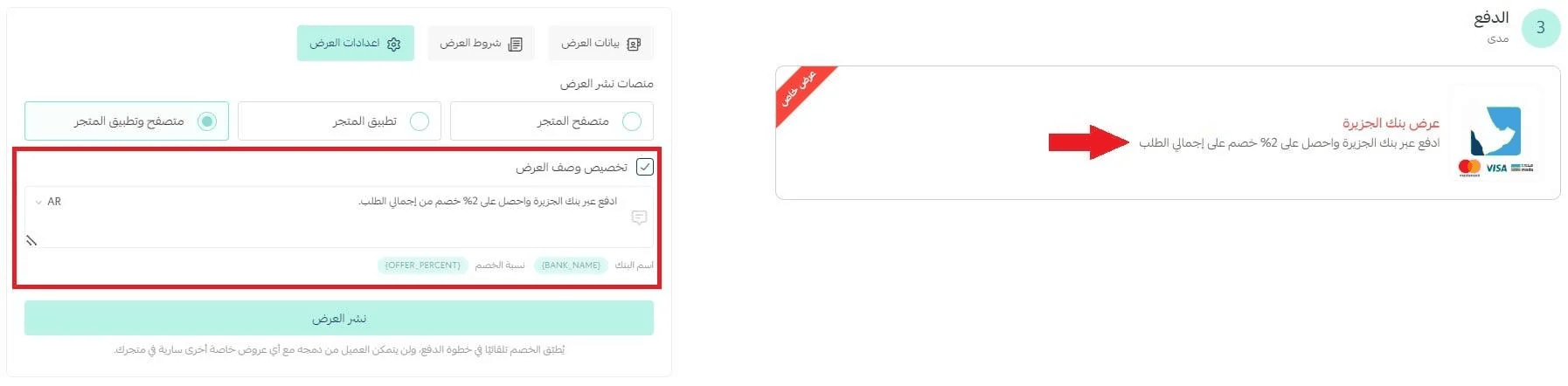
⚠️ Note: If more than one bank offer is active, the system will display the default description instead.
Viewing offer statistics
From the Bank Offers list:
- Click the offer name

A detailed statistics window will appear, including:
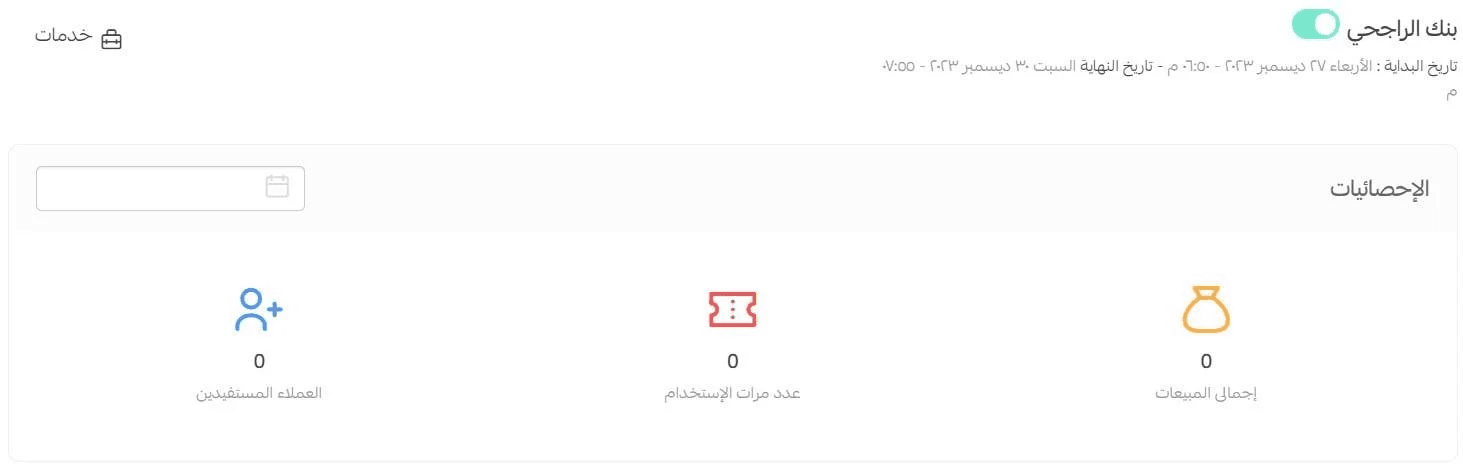
- Usage summary
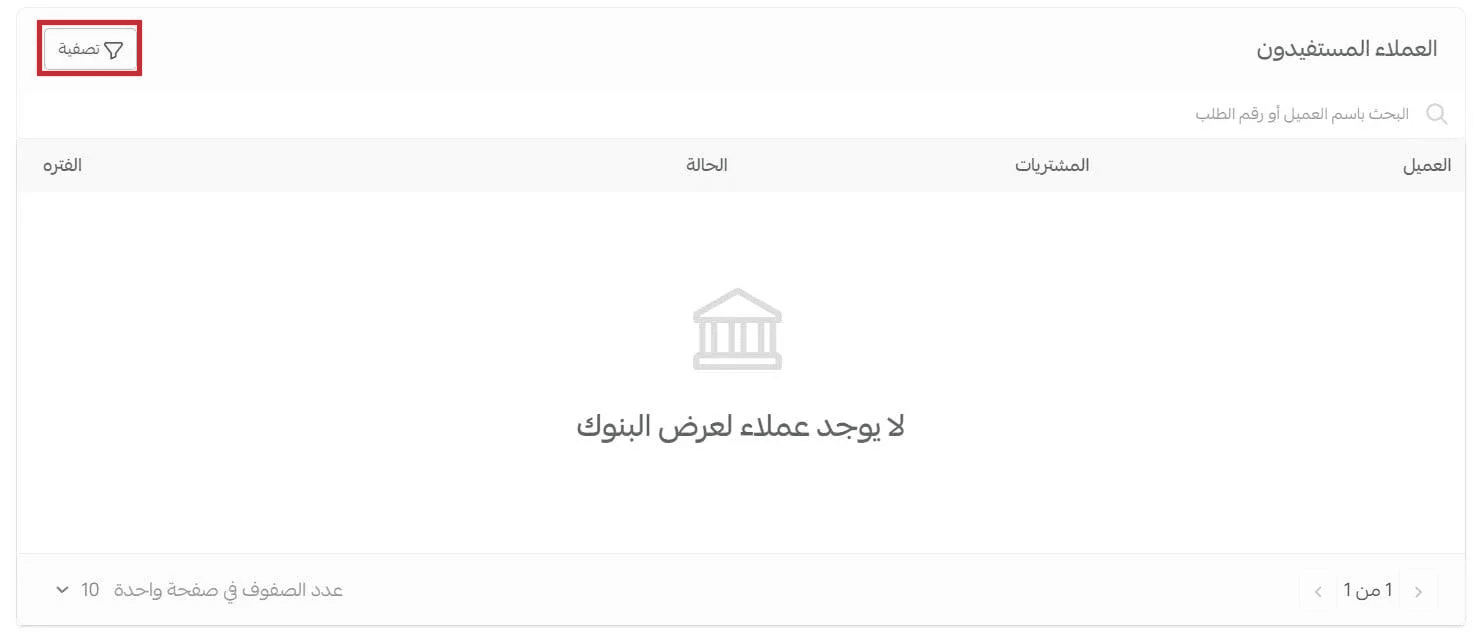
- Customers who benefited
- Filters by offer status and date
One offer per bank
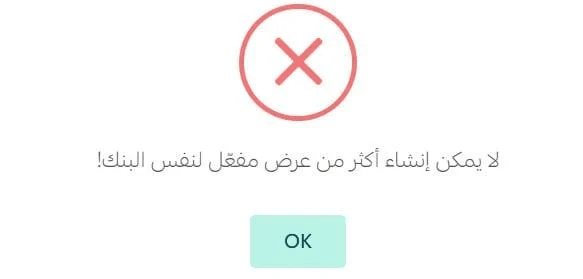
You can create only one active offer per bank in your store.
Temporarily disabling an offer
Use the Enable/Disable toggle to pause or reactivate an offer at any time.

Editing an offer after publishing
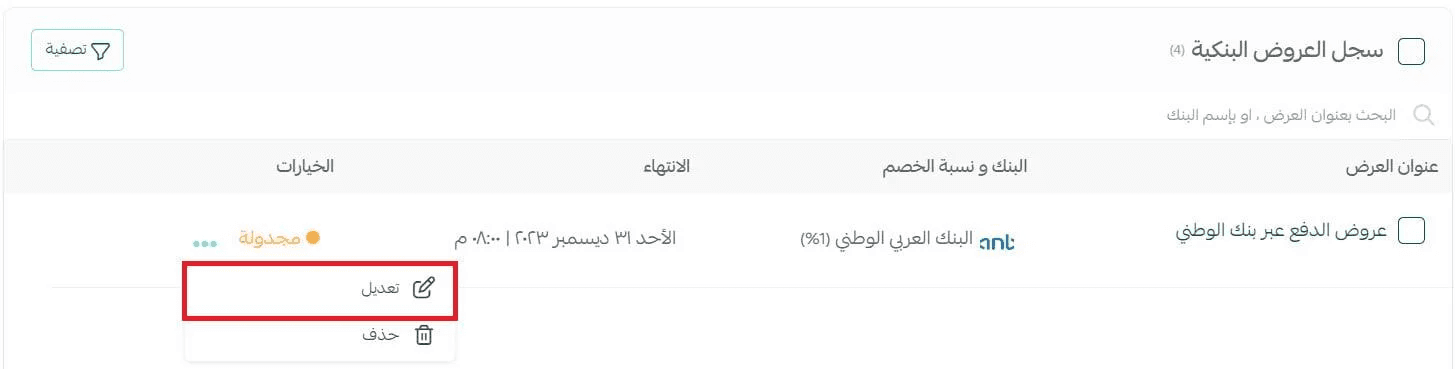
Click the options menu (...), then choose (Edit).
Deleting an offer
To delete an offer:
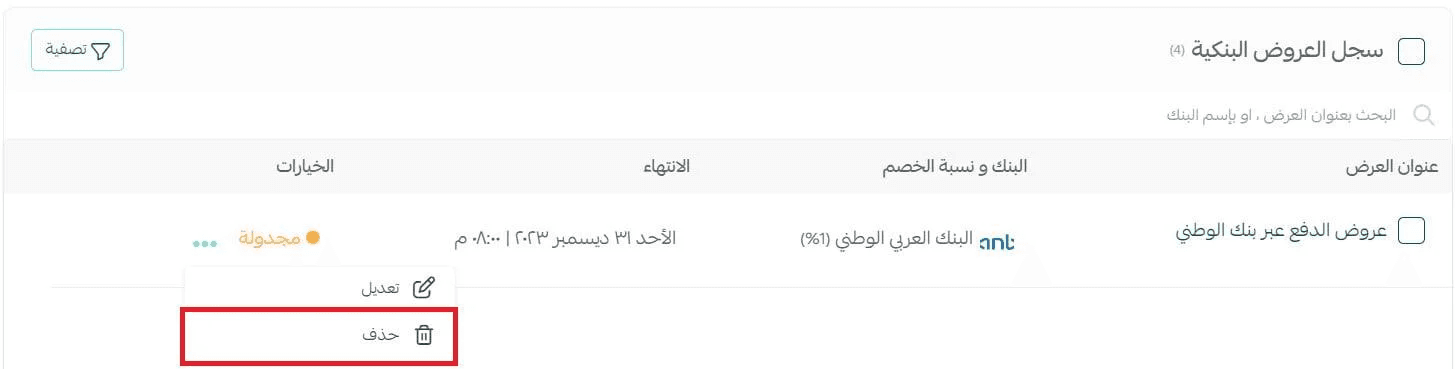
Click (...) → Delete
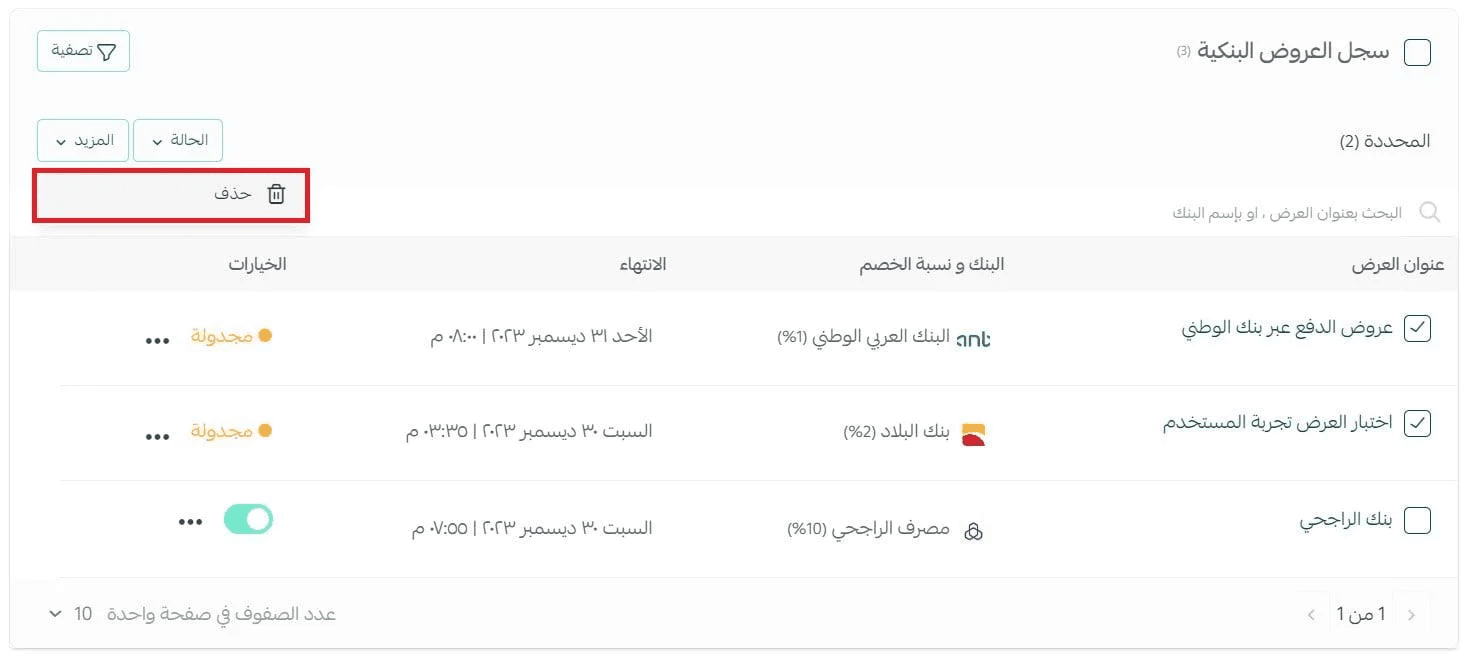
You can also delete multiple offers by selecting them and choosing (Delete) from the More menu.
Searching for a specific offer
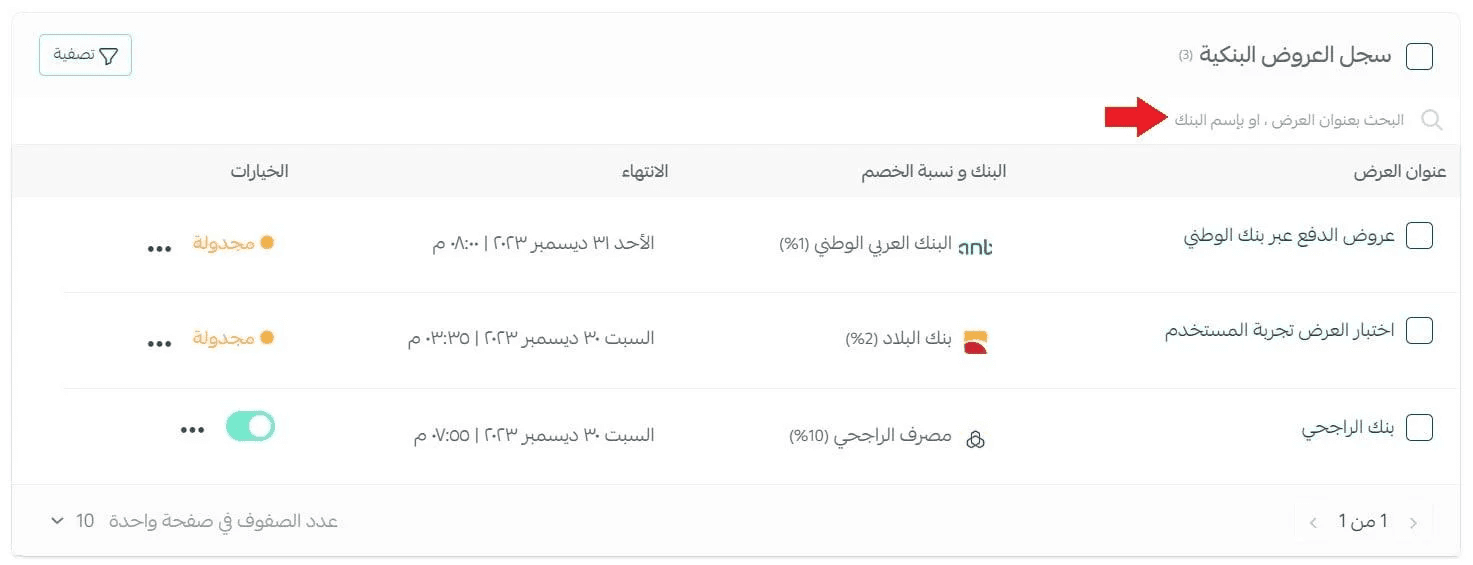
You can search using:
- Offer name
- Bank name
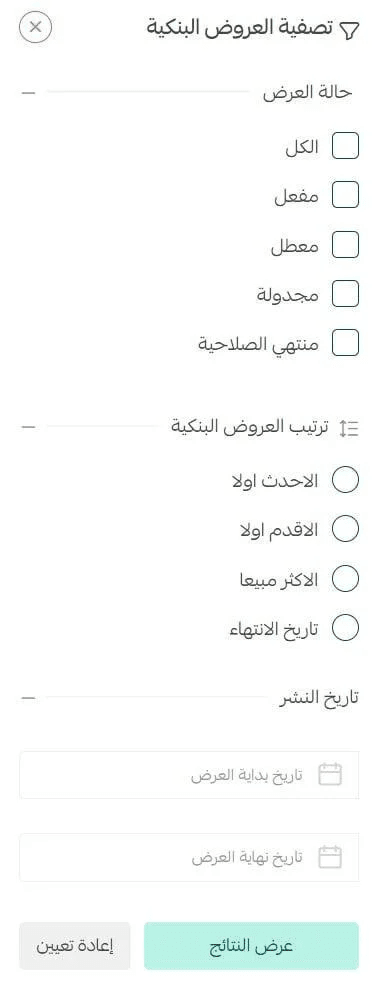
Filtering bank offers
From the offers list, click Filter and select the criteria you want.

💡 Practical examples
Sample offer descriptions
- Save more when paying with {Bank Name}! Enjoy {Discount Percentage} off all purchases, shop now!
- Limited-time deal: Get {Discount Percentage} off when paying with {Bank Name} card.
- Smart shopping starts here—pay with {Bank Name} and get an instant discount up to {Discount Percentage}.
- Paying with {Bank Name} is even more rewarding! Exclusive {Discount Percentage} discount for a limited time.
- Don’t miss out! Enjoy {Discount Percentage} off when paying with {Bank Name}.
Frequently asked questions
When is the bank discount applied?
The discount is applied automatically during checkout at the payment step.
Customers cannot combine it with other active special offers in your store.
What are the offer statuses in the bank offers list?
Offers may appear as:
- Active
- Scheduled (will activate on the selected start date)
- Expired
Is the feature supported in English?
Yes.

Which banks are supported?
Many banks support the Bank Offers feature, and the supported list continues to expand.
Which plan includes this feature?
Bank Offers are available only for stores on the Special Plan.