Is your store losing some sales because the purchasing process is long or complicated?
Many customers abandon their purchases when they have to enter multiple details or navigate between pages, especially mobile users.
For this reason, Salla developed the quick checkout feature to make purchasing faster and easier with just one click.
📌 Article overview
- What is the quick checkout feature?
- Steps to enable quick checkout in your store
- Frequently asked questions
What is the quick checkout feature?
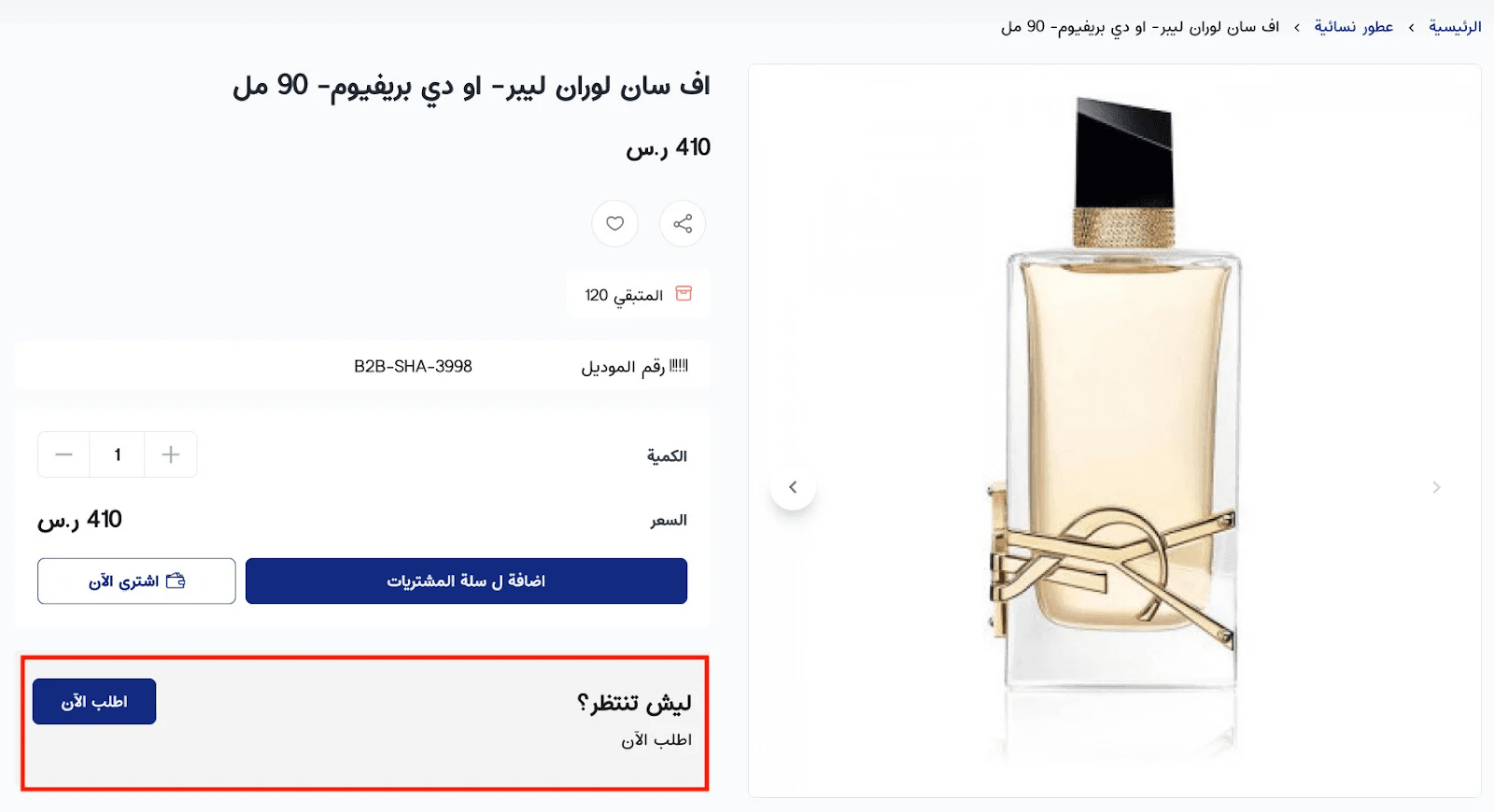
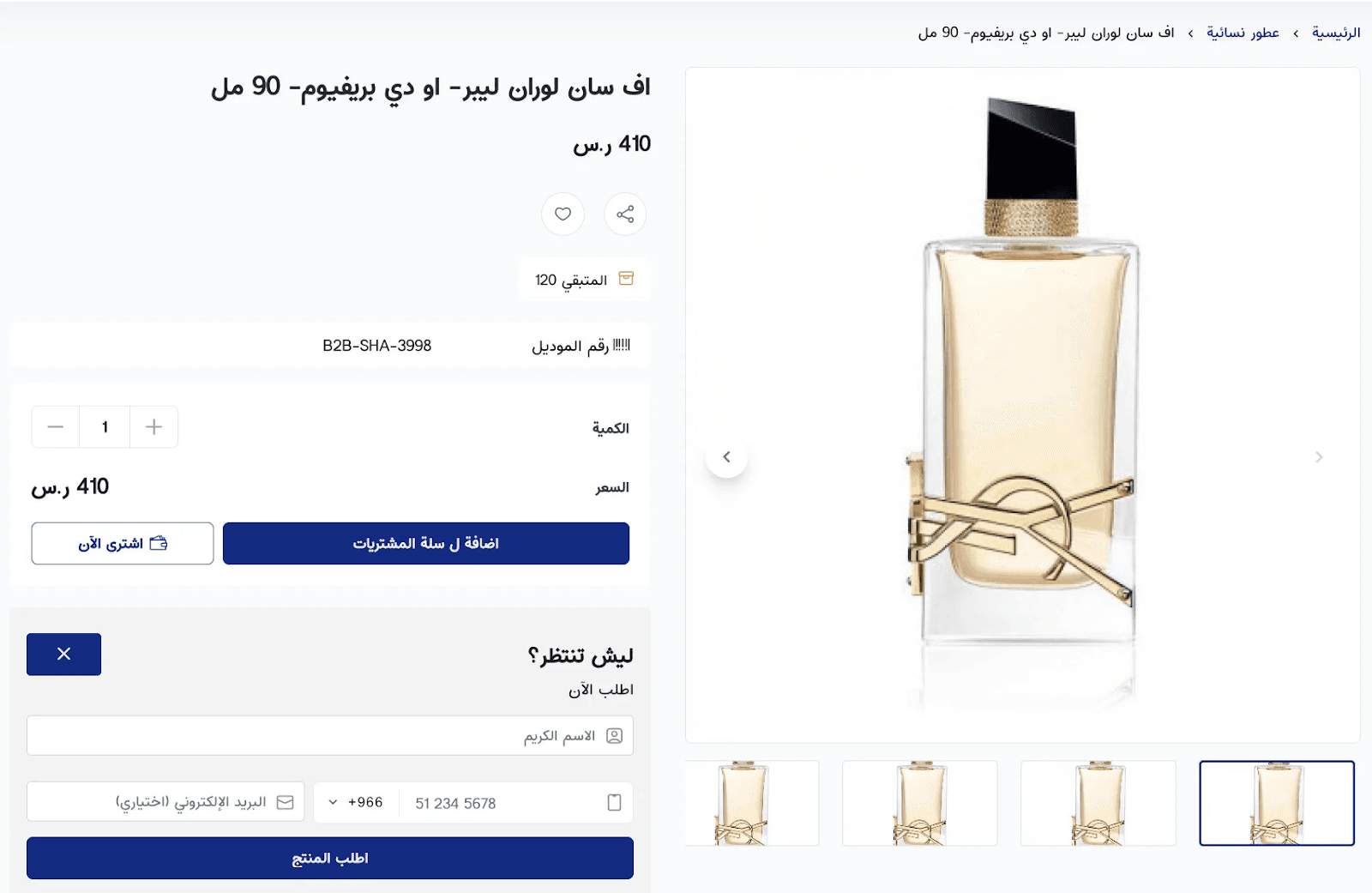
The feature allows you to turn the purchasing process into a quick action through an “Order now” button displayed below the product.
Once the customer clicks it, they can place an order easily without navigating to the checkout page or entering shipping and payment details. Only a phone number is required.
This creates a smooth and convenient experience for customers and increases the likelihood of completing orders, especially for customers with limited technical experience.
Using the quick checkout application allows you to:
- Increase conversion rates by reducing the number of purchase steps.
- Simplify the experience for new customers, especially for products that require direct communication.
- Customize the order form and adjust its text to match your business style.
- Improve instant communication with customers through WhatsApp or phone calls to finalize order details.
All of this makes the purchasing process more personal and flexible, helping you manage orders more efficiently.
Steps to enable quick checkout in your store
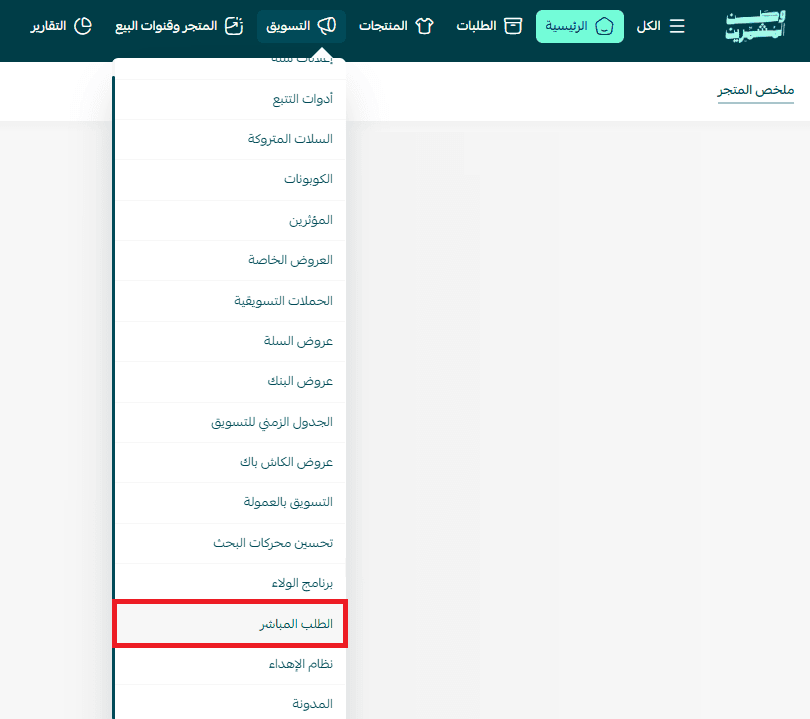
- From the main menu, click Marketing, then select Quick checkout.
- From the quick checkout customization page, click Enable.
- Customize the page according to your preferences, then click Save.

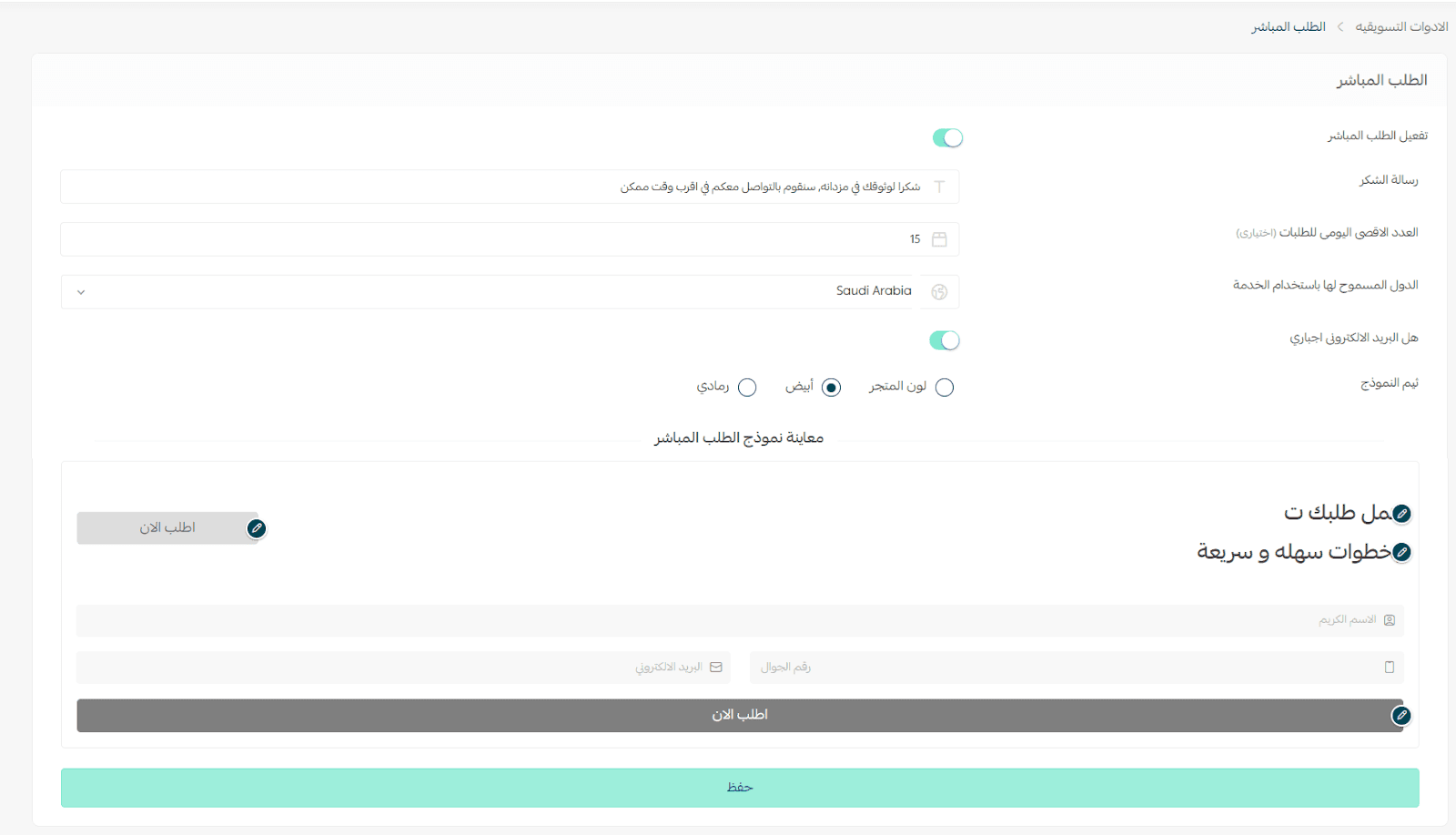
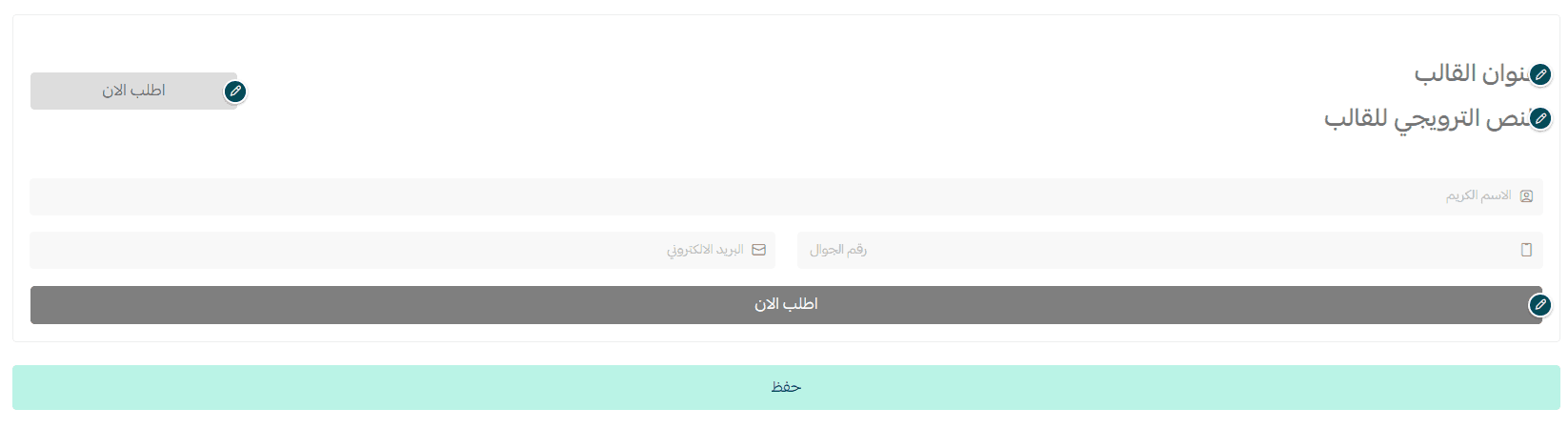
You can modify the text directly by clicking on the text you want to edit and entering the new content.
Frequently asked questions
What should I do after receiving a new quick checkout order?
- Contact the customer using the registered phone number via call or WhatsApp to collect shipping details and confirm the payment method.
- From the order page, click Edit Order to add shipping and payment details.
- In the Shipping section, click Edit, then enter the customer’s address, select the shipping method, and click Save.
- Go to the Payment section and copy the payment link to send it to the customer.
Note: The payment link will be automatically sent to the customer via SMS or WhatsApp, and if the customer entered an email address, the link will also be sent via email.
Important clarification about quick checkout
Quick checkout does not require the customer to enter shipping details, because the customer simply requests the product without selecting shipping or prepayment options.
Therefore, these orders remain pending until the merchant adds the shipping and payment details after contacting the customer.
They may temporarily appear with zero shipping cost.
Quick checkout = product request without shipping or payment details.
The merchant completes the remaining details later.
How does a customer place an order using quick checkout?
On the product page, the quick checkout option appears below the product.
The customer clicks Order now.
- The customer enters the order form details and clicks Order Product.
- A confirmation message appears indicating the order was submitted.
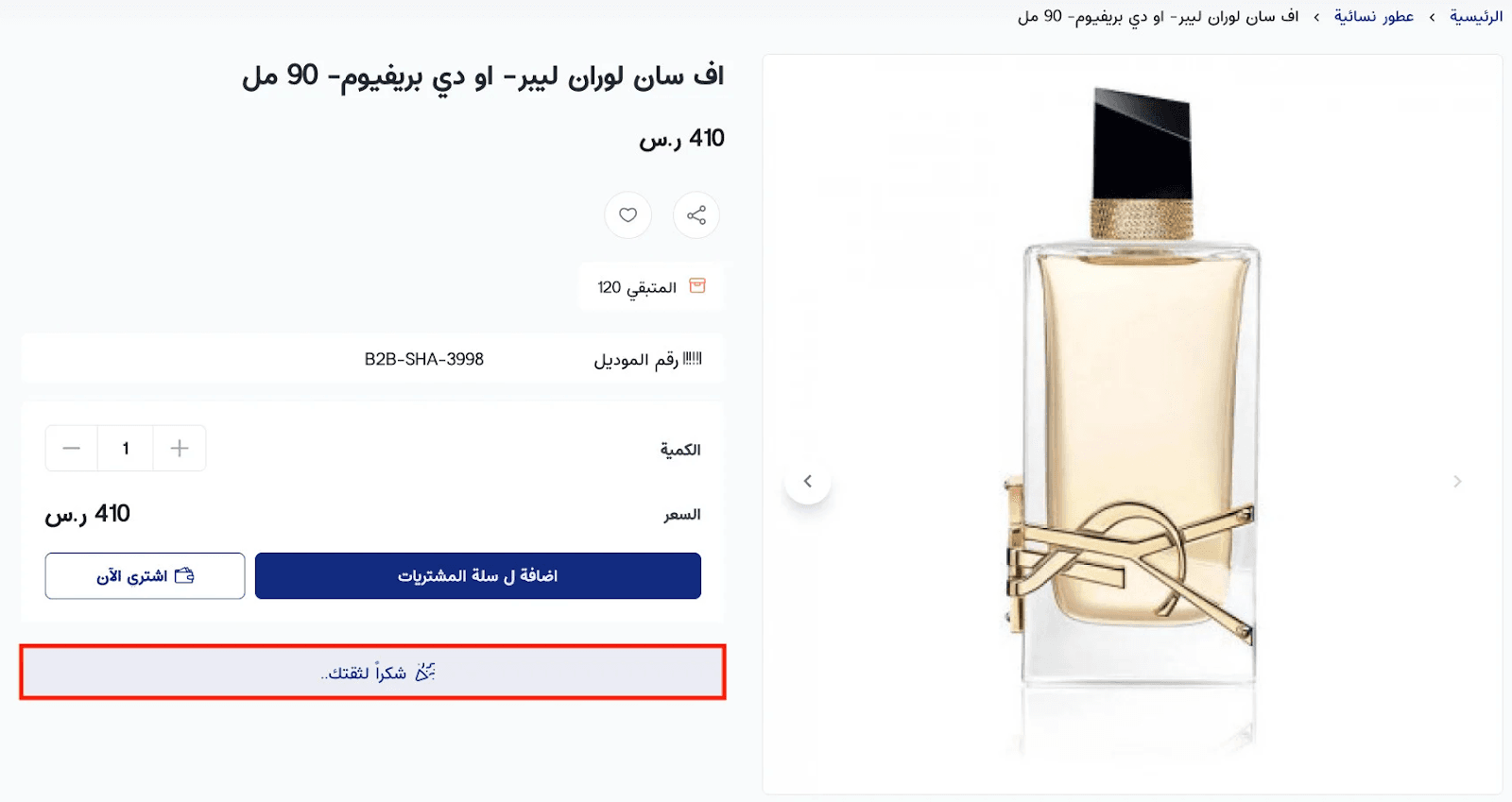
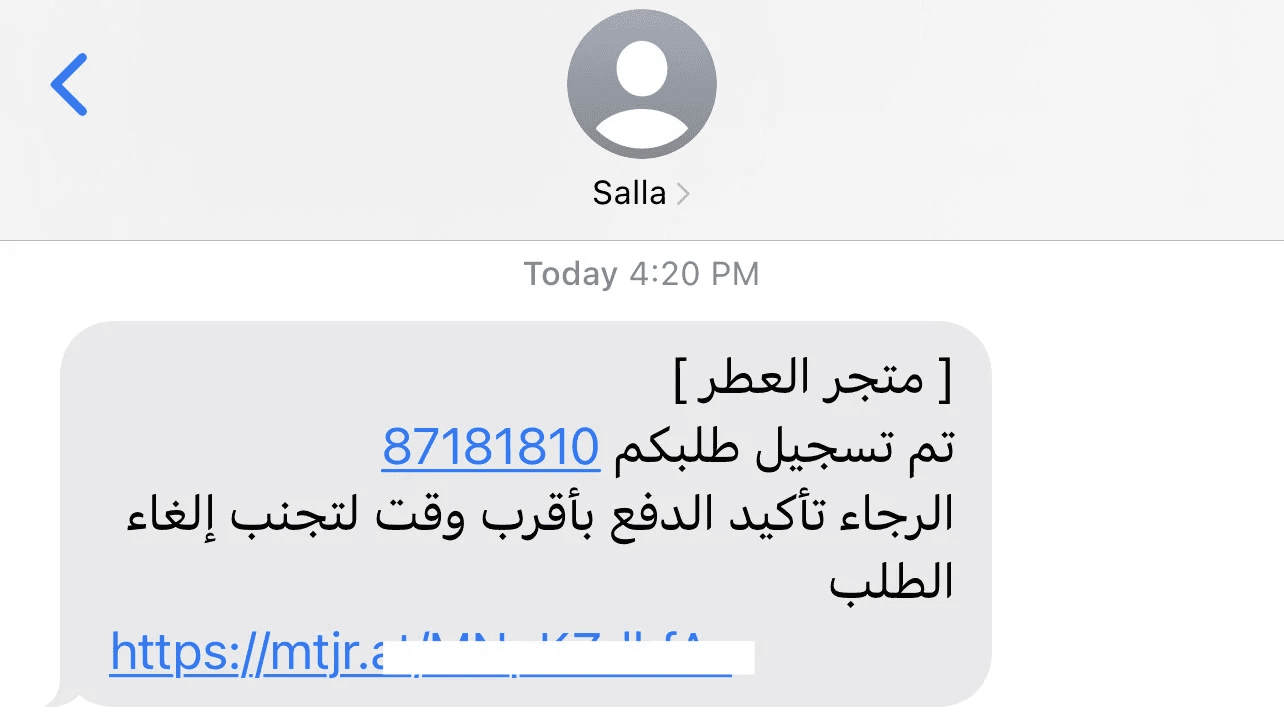
At this stage, the customer receives an SMS containing a payment link to confirm the order.
How can I identify quick checkout orders?
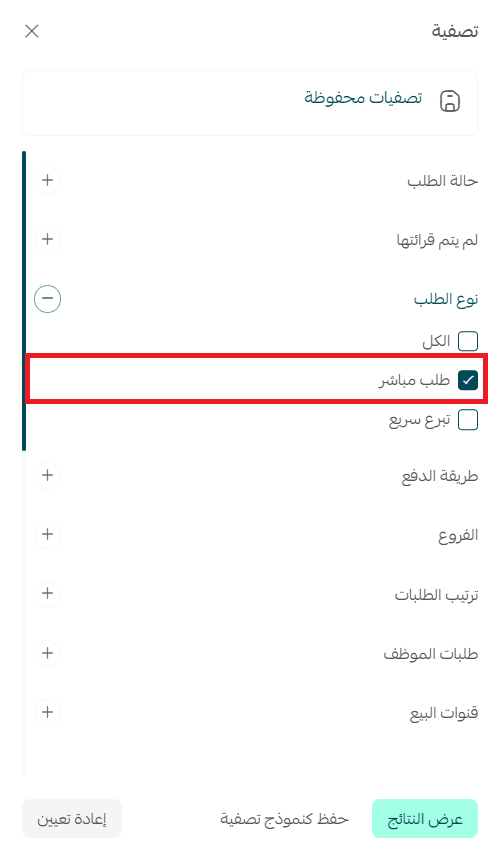
You can filter orders by Order Type → quick checkout in the orders page.
Is quick checkout supported in the mobile app?
Yes, quick checkout is supported in the app.
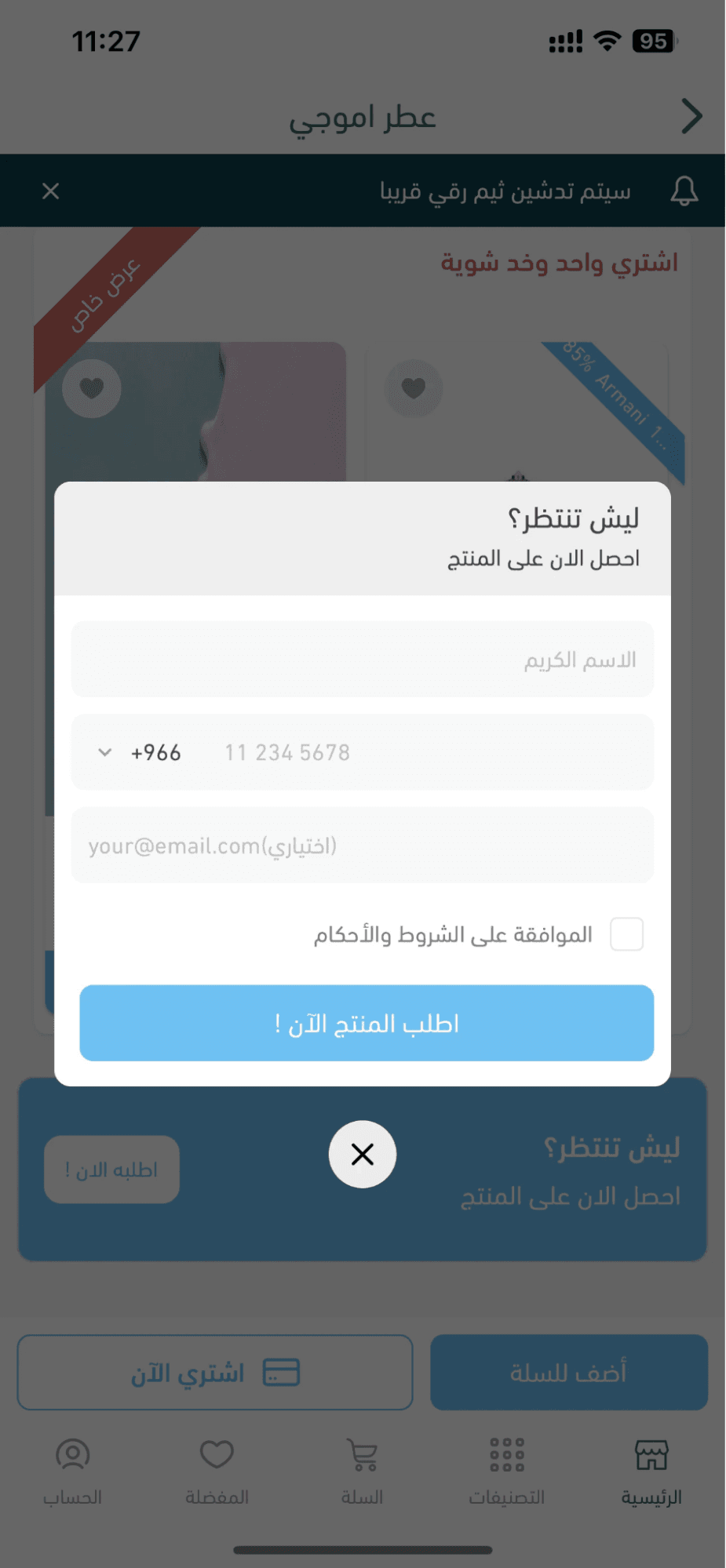
Is quick checkout supported in all themes?
Quick checkout is supported only in the new themes.
🚀 Make purchasing faster and more flexible in your store today.
Enable quick checkout and allow your customers to place orders easily without complications, because every quick click could mean a new sale.