Firebase by Google allows you to manage and analyze your store app's performance, send in-app marketing campaigns, and track customer engagement through reports and statistics that help you improve user experience and increase the effectiveness of your marketing campaigns.
📌 Main topics
- What is Firebase?
- Conditions for using Firebase with the store app
- How to create an in-app marketing campaign
- Track app statistics and measure campaign performance
- Frequently asked questions
What is Firebase?
It is a set of integrated services provided by Google for developers, and Firebase helps you develop and operate high-quality apps with essential tools for the app, such as customer data analysis, among others.
Firebase enhances your ability to focus on solving your store customers' problems without wasting time analyzing app data.
Conditions for using Firebase with the store app
Your store on Salla is automatically linked to the service using the Google email provided to the Salla team during the app creation.
Access the Firebase service using the email used to launch the service with the Salla support team.
Note: For any questions or challenges in accessing the service, contact the app maker support via Salla Chat.
How to create an in-app marketing campaign
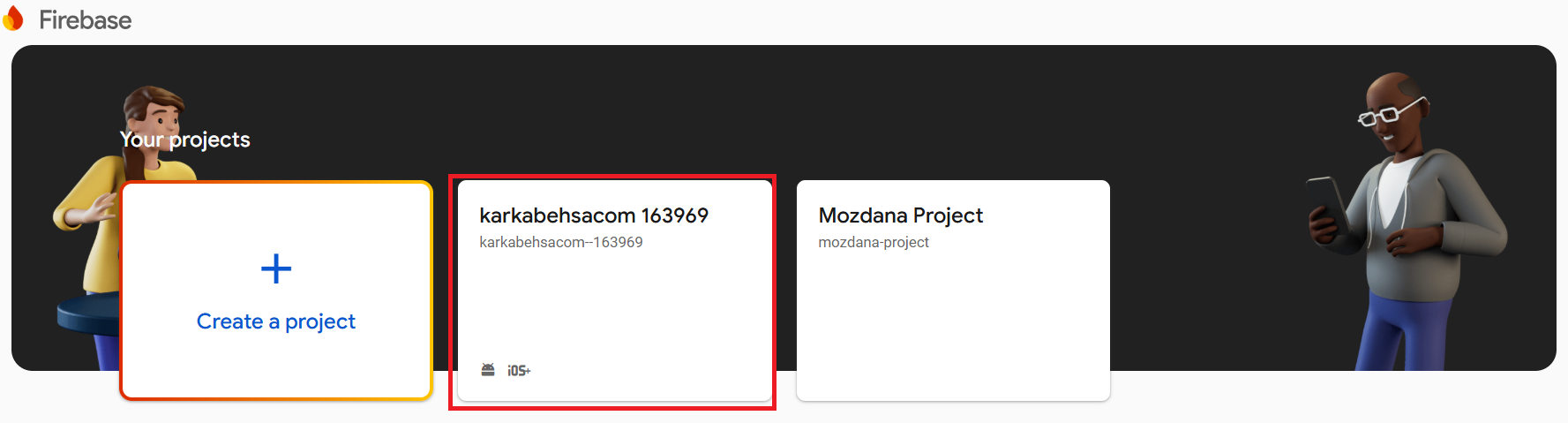
1. From the home page of Firebase, choose the project you want to create the marketing campaign for.
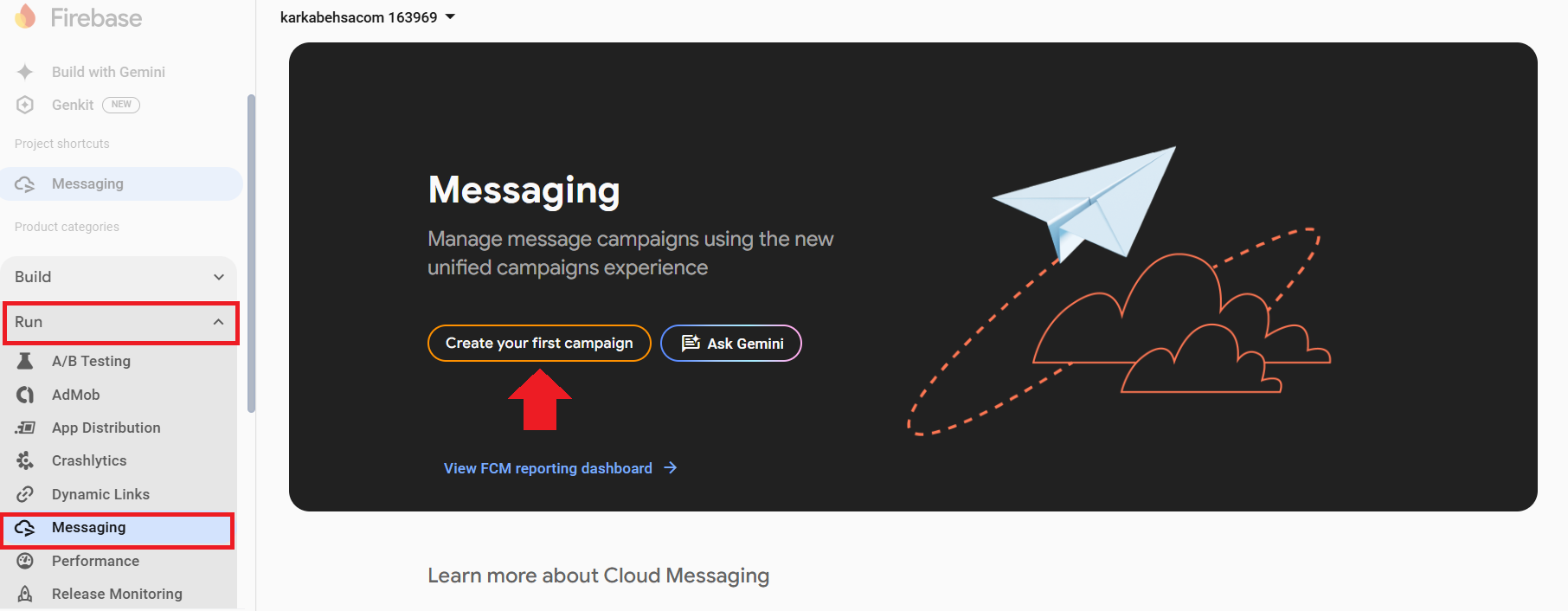
2. After opening the project page, from the side menu, click (Run) then click (Messaging).
If it's your first campaign, click (Create your first campaign).
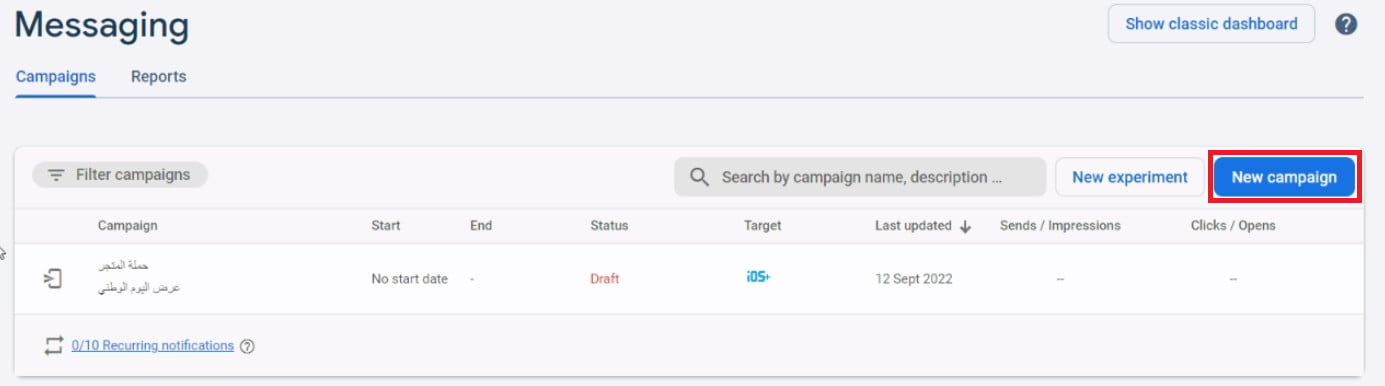
And if there was a previous campaign, to create a new campaign, click (New campaign).
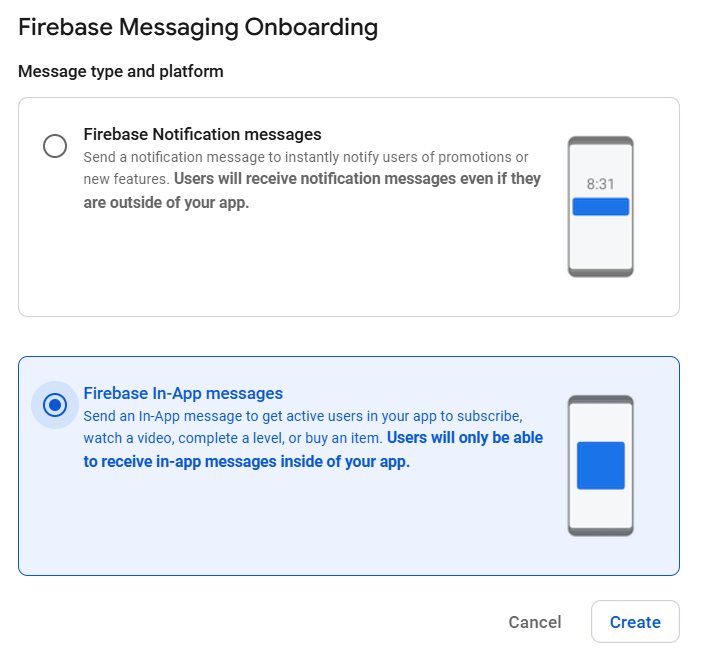
3. Choose the campaign type (Firebase In-App messages) then click (Create).
4. Enter the campaign information, specify the campaign format, and choose the appropriate designs
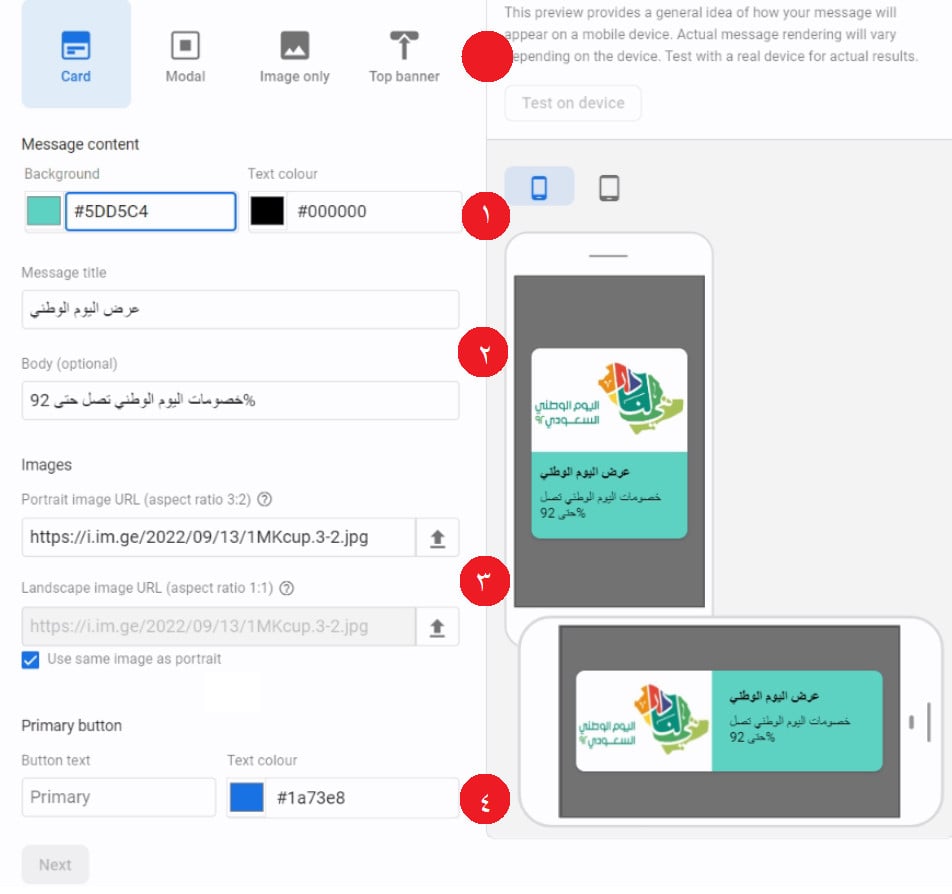
1- Specify the campaign format.
2- Enter the main text and optional subtext on the ad.
3- Enter the portrait and landscape image URLs - or you can use the same image for both. (The image URL must meet the required format, and note that image uploads are only available in paid service plans).
4- Enter the button title and color. If the campaign is for a specific product or category, the merchant can place the store's link from the browser in the designated place after writing the button name:
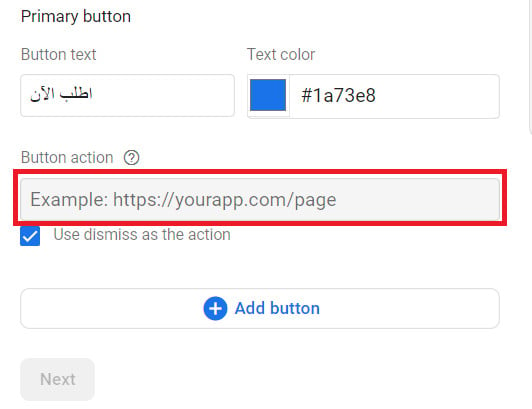
To add more than one button in the popup, click (Add button)
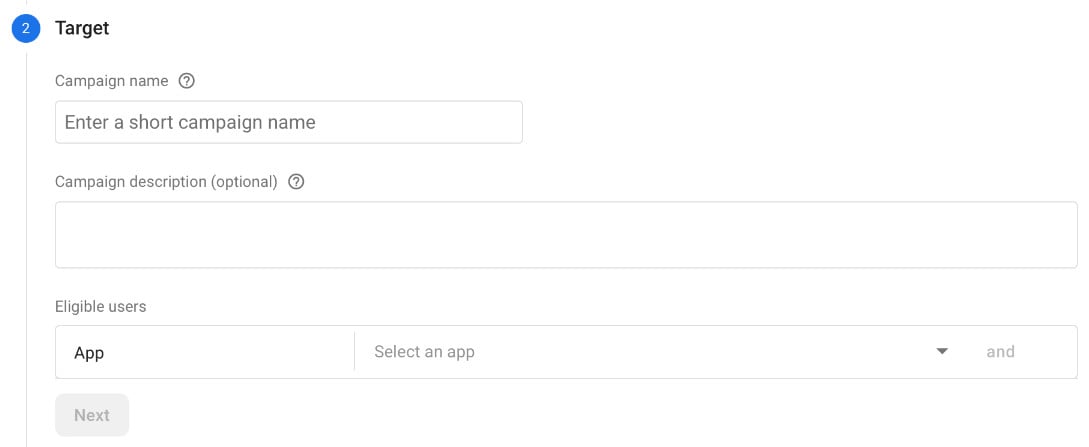
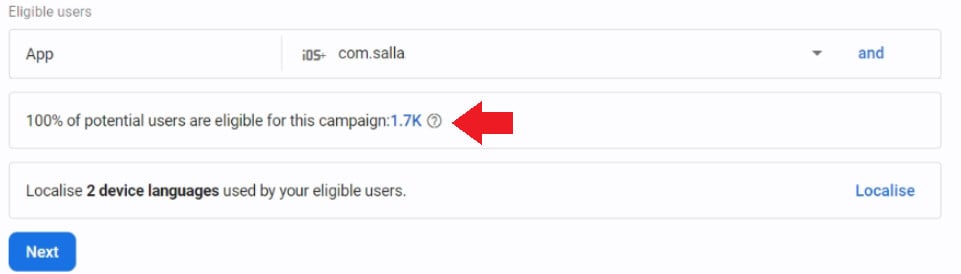
5. Enter the campaign name and the app you want it to be displayed on (Android - iOS)
You can also add a condition for the campaign to be displayed based on country, language, version, etc.
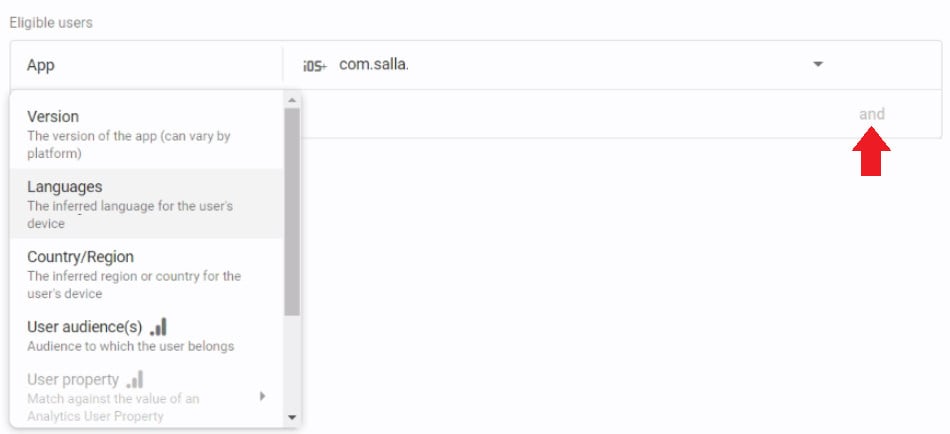
After choosing the app type and conditions, the number of campaign targets will appear.
6. Enter the campaign schedule, and add triggers that will display the campaign to the customer when they perform it by clicking (+Event).
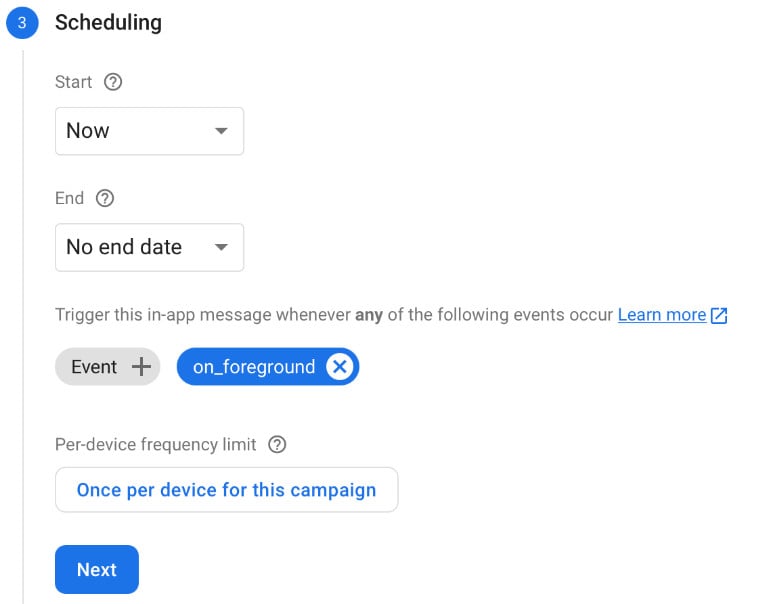
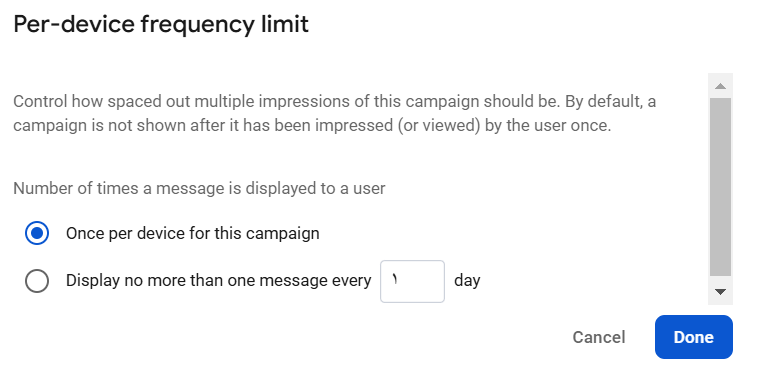
To specify how the campaign appears click (Once per device for this campaign)
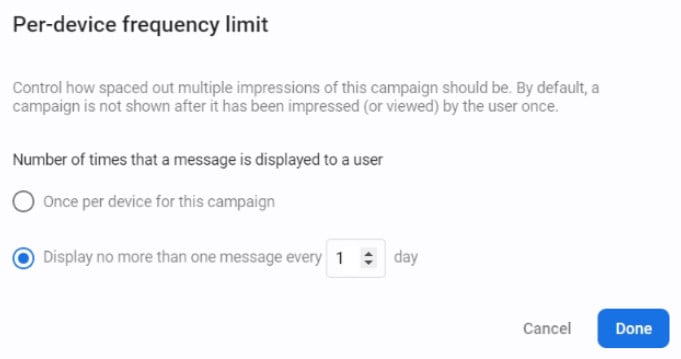
First option - Display the campaign only once on each device.
Second option - Display the campaign once every day or every two days or ..
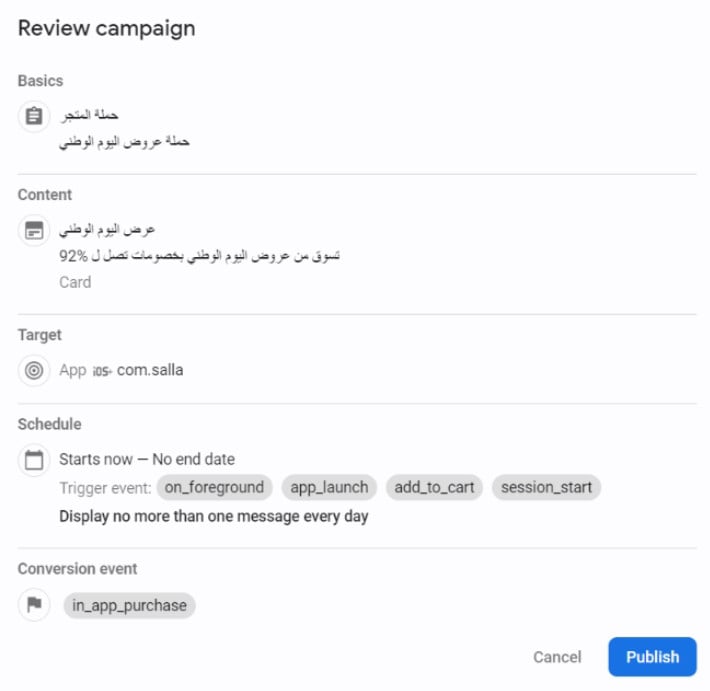
7. Click (review) to preview the campaign.
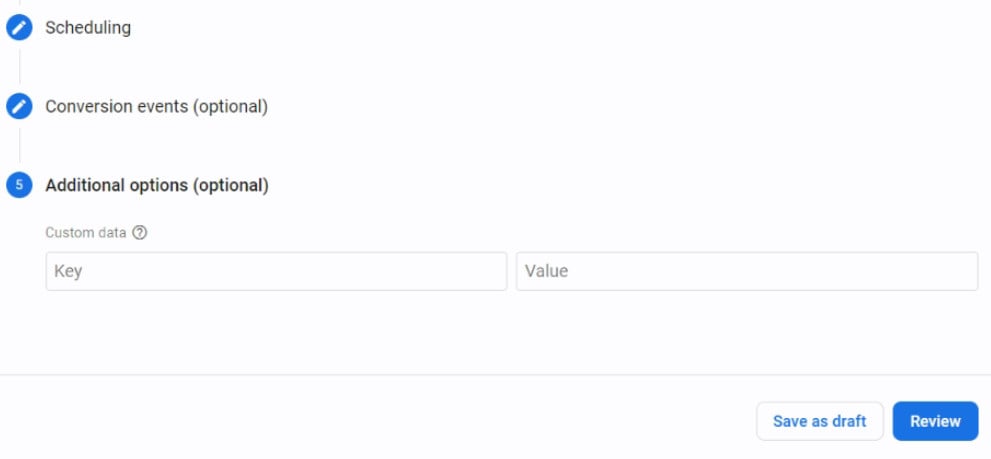
After the campaign details appear and are reviewed, then (publish) to publish the campaign.
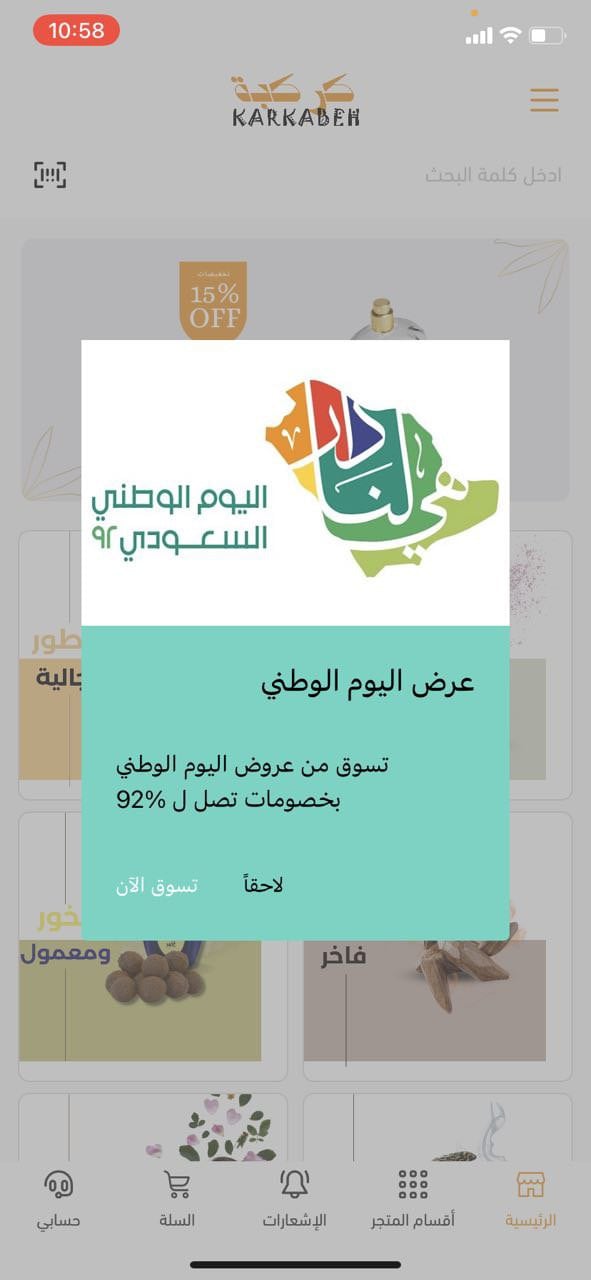
The campaign will appear to the customer according to the settings as follows:
How many times is the campaign ad displayed per day?
The campaign is displayed according to the settings chosen during creation.
First option - Display the campaign only once on each device.
Second option - Display the campaign once every day or every two days or ..
What is the difference between the available message layouts in Firebase?
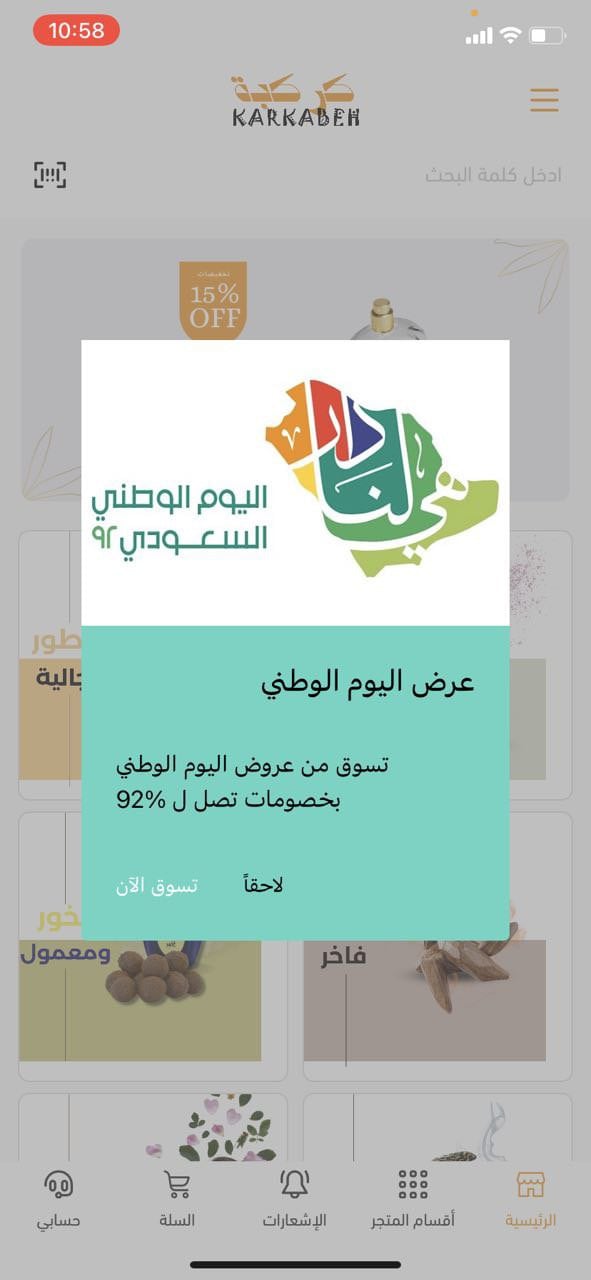
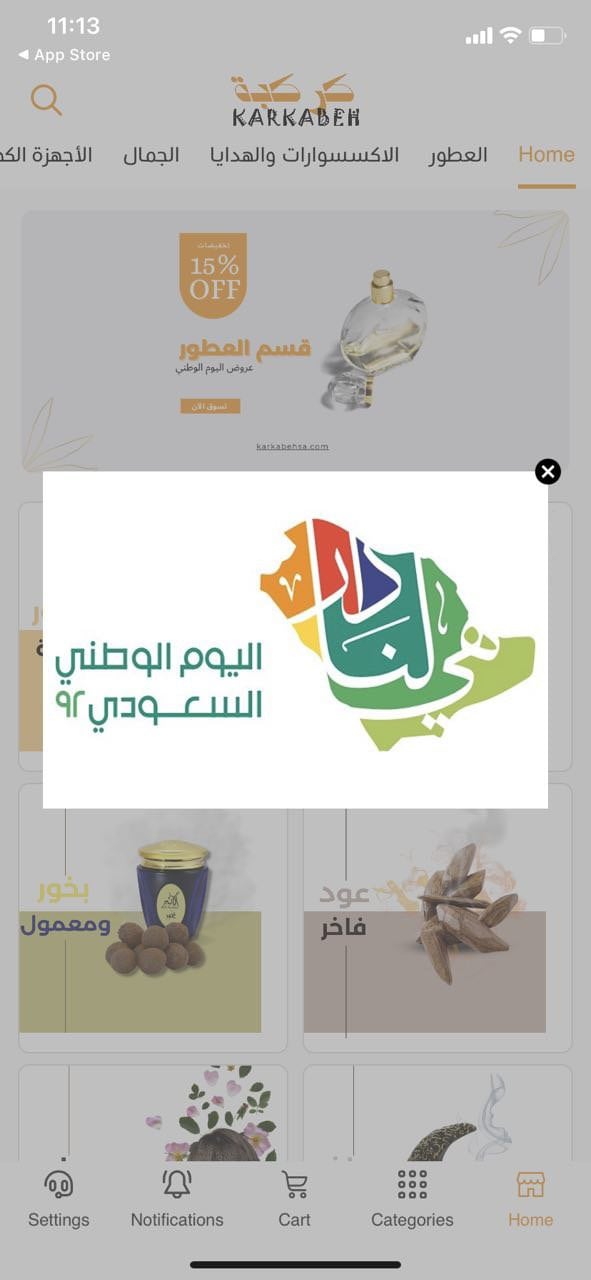
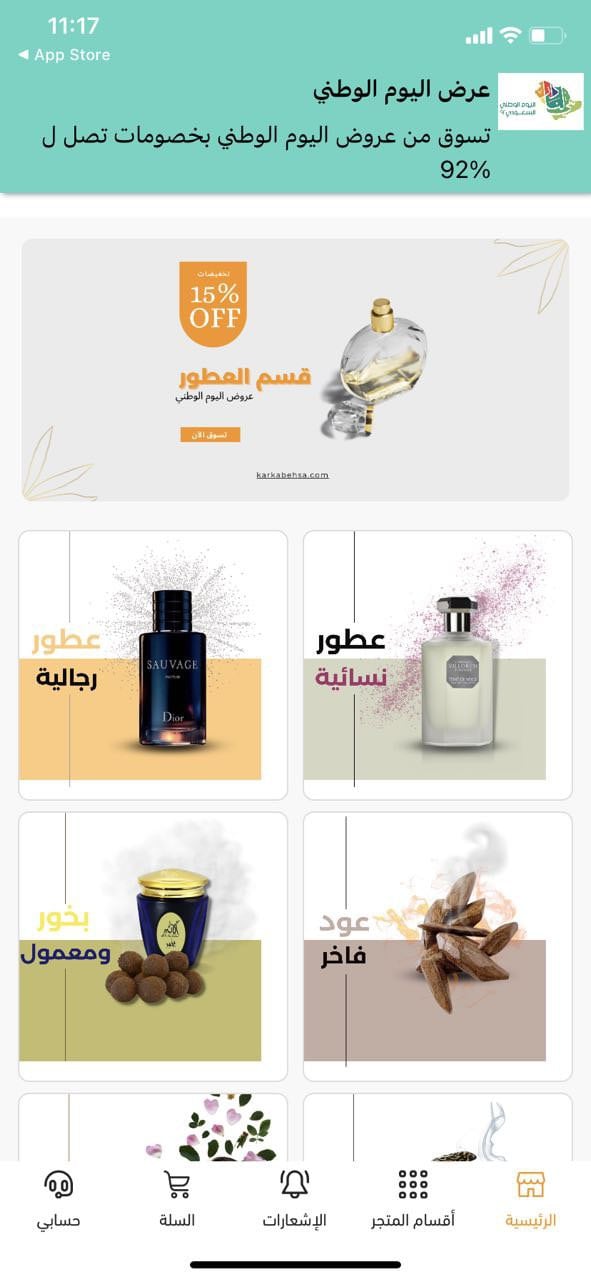
There are four campaign window layouts:
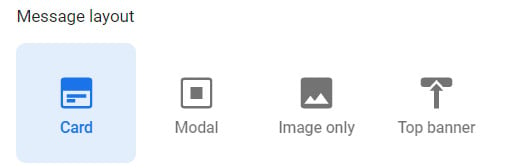
Card
Modal
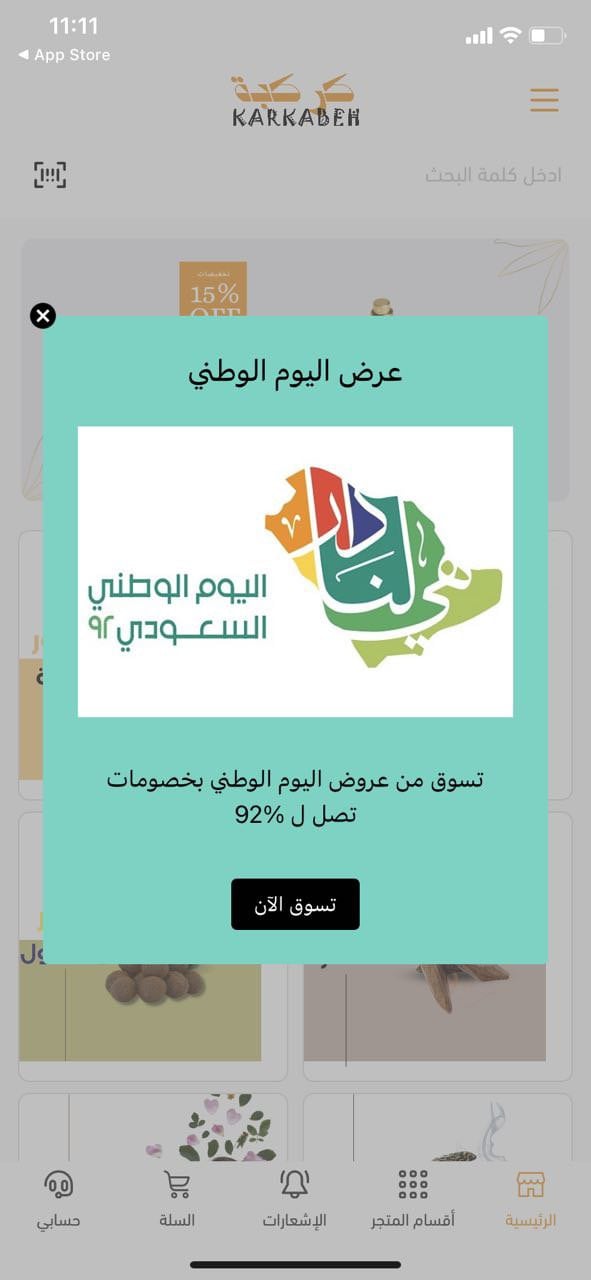
Image only
Top banner
Track app statistics and measure campaign performance
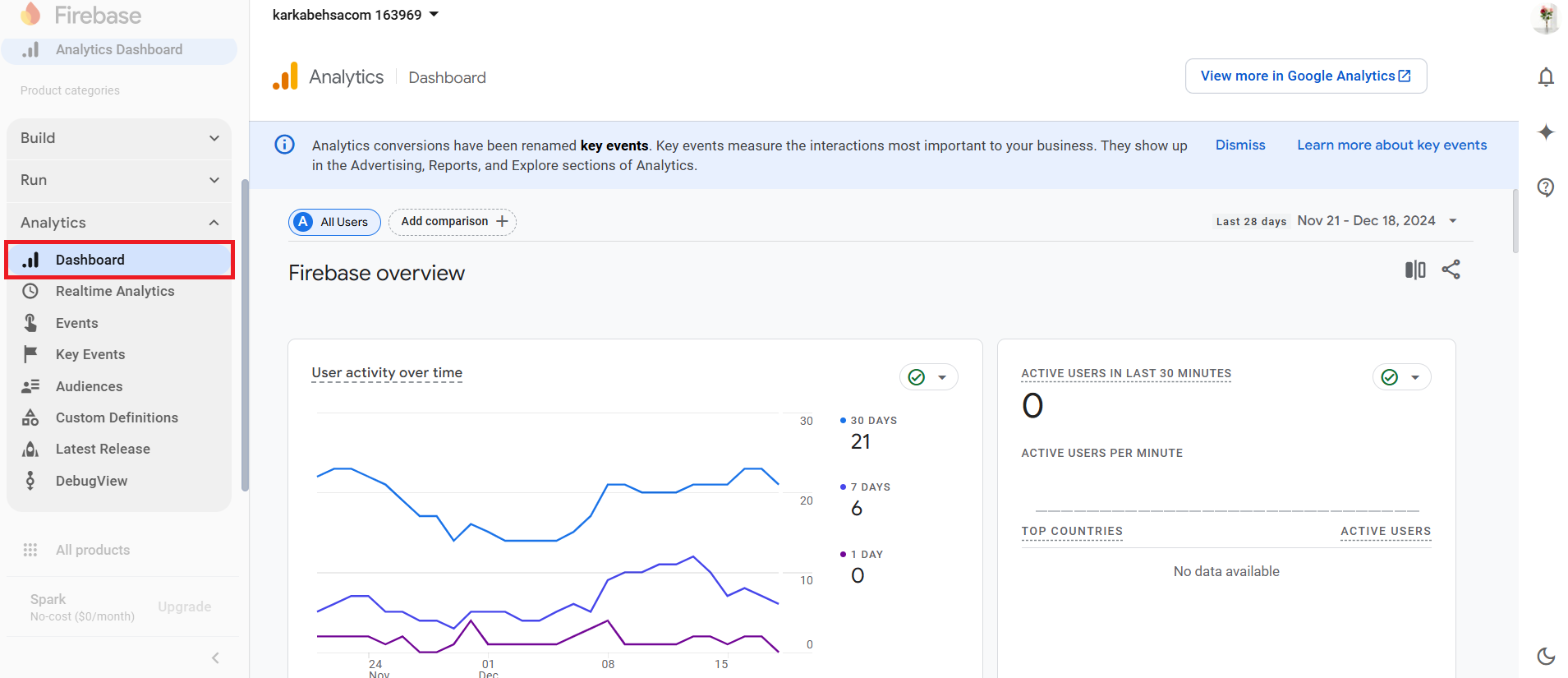
From the left menu of your store project control panel, go to statistics (Analytics), then click (Dashboard) to preview the app statistics briefly.
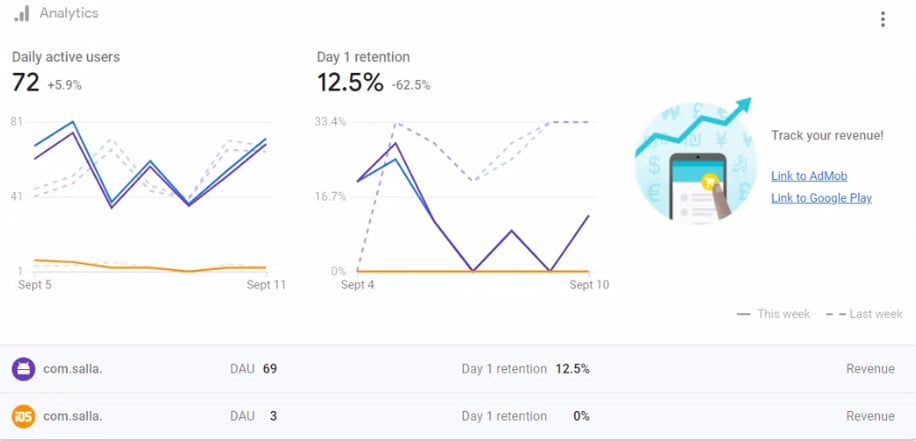
The panel contains various statistics, including Daily active users.
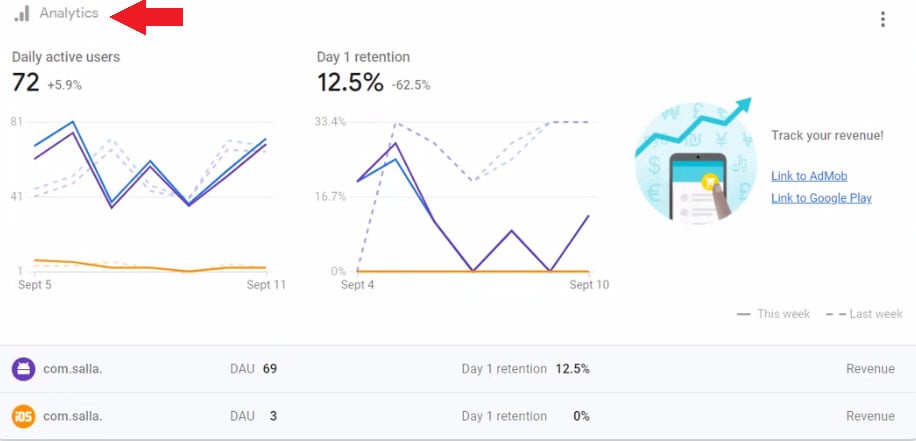
How can I measure the success of a campaign or event on my app?
From the project control panel, click (Dashboard), then click (Analytics).
From the Analytics page, specify the report date according to your needs, such as setting the report for the time period when you launched a campaign on Snapchat, for example.
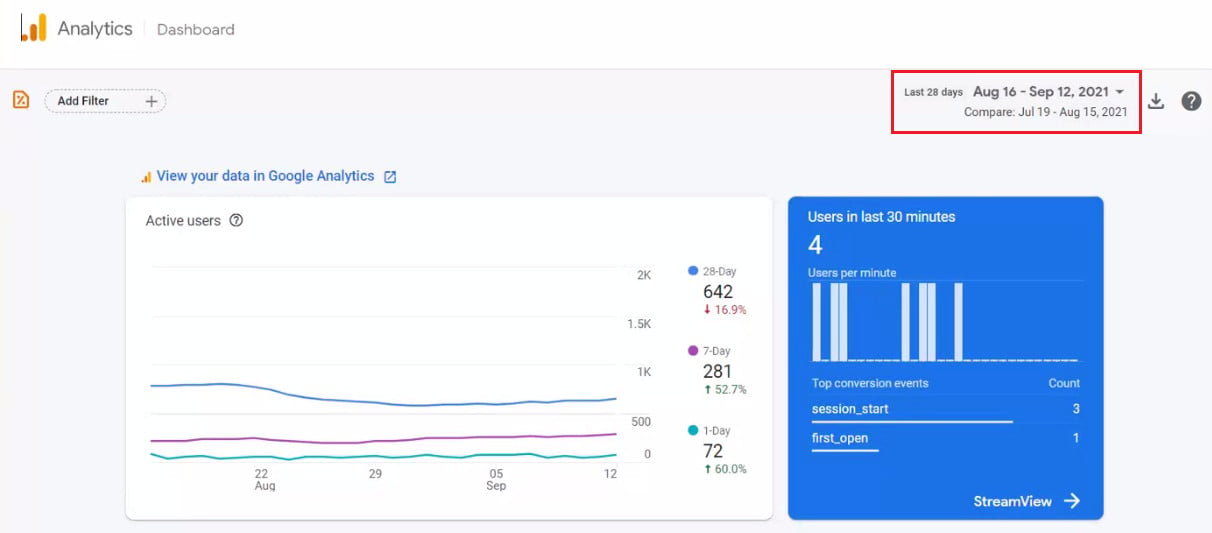
Then preview different reports such as active users, conversion rates, and more.
How can I know the number of users who installed my app?
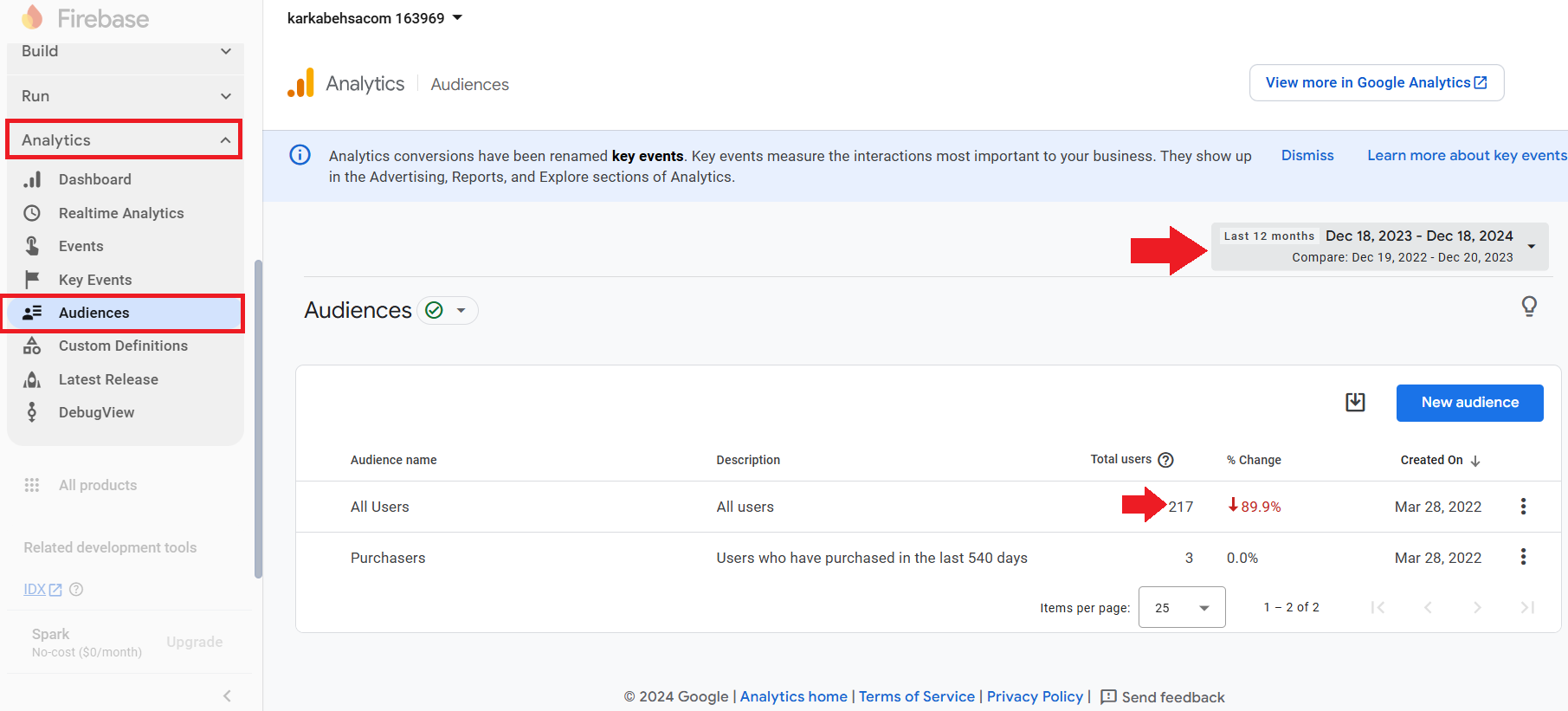
From the project control panel, click (Dashboard), then click (Analytics), then click (Audiences).
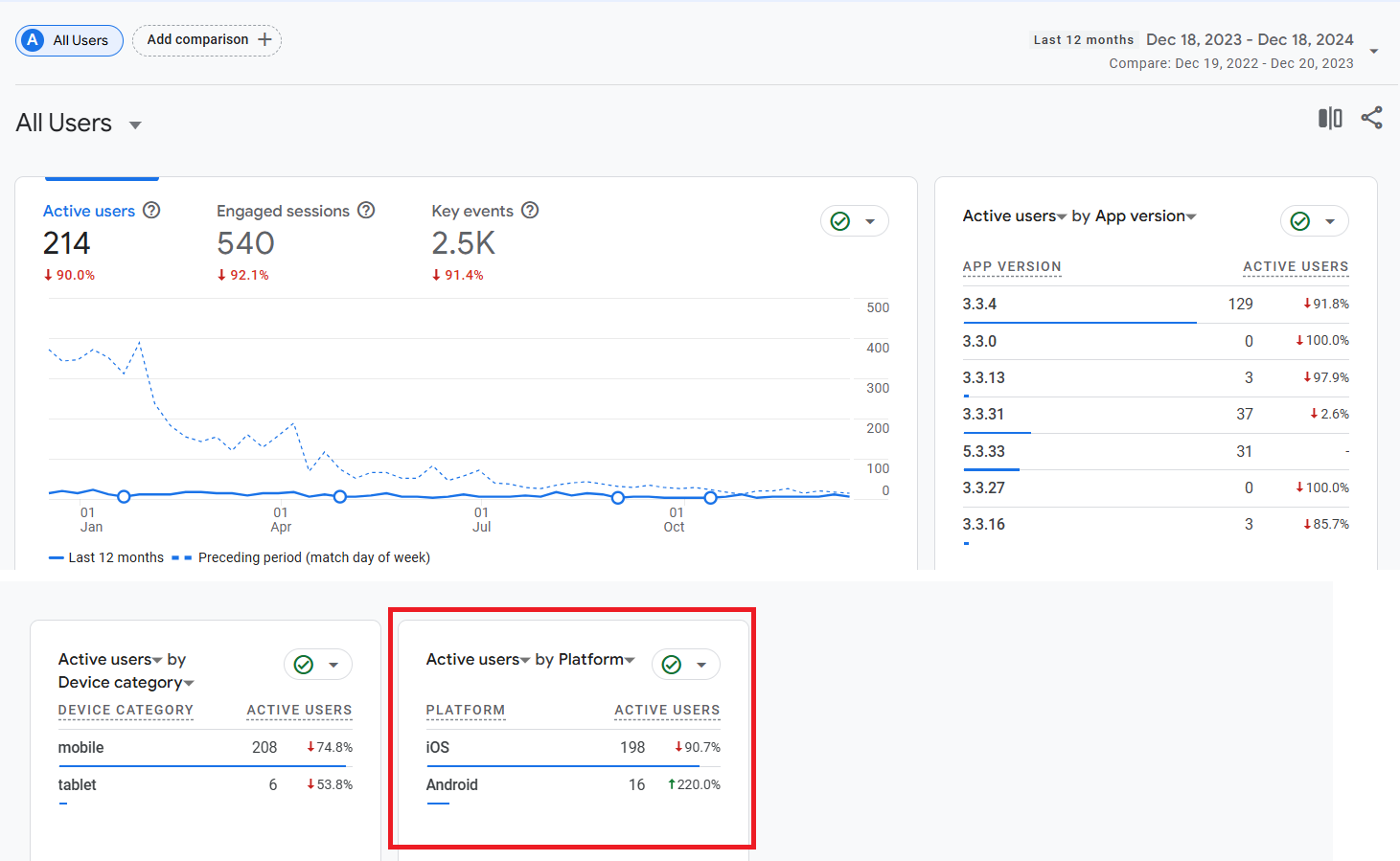
From the Active users - by Platform section, you can know the number of users for each system, whether Android or iPhone.
Frequently asked questions
How can I log in to Firebase?
Use the Google account linked to the app during the store app creation. If you encounter any issues accessing, you can contact the app maker support via Salla Chat.
How often does the campaign appear to the user?
It depends on the campaign settings you specify during creation, whether:
- Once per device.
- Or repeatedly according to the time period you specify.
What are the available in-app message formats?
You can choose from several designs, such as:
- Card
- Modal
- Image Only
- Top Banner
How do I know the number of app users?
From Analytics > Audiences you can view the number of active users, with their distribution by operating system.
💡 Firebase is not limited to sending marketing campaigns, but it also provides you with a clearer view of user behavior and campaign performance, helping you improve customer experience, increase engagement, and make data-driven marketing decisions.