Almalath ERP
Stock counts that drift between your store and your accounting system cost you twice — once in reconciliation time, and again when you sell something you don't have. Almalath ERP gives Salla stores automatic synchronization of items, orders, and inventory. It also brings accounting, warehouses, point of sale, HR, and payroll together in one system. In this guide, you'll learn how to connect the Almalath ERP app to your Salla store and how to remove it.
To connect Almalath ERP on Salla, click All in the main menu, then open the App Store from the helper tools section. Search for the app, open the Almalath ERP page, click Install, choose your plan, review the permissions, click Go to payment, and complete the payment.
📌 Article overview
- How to connect the Almalath ERP app
- Managing the Almalath ERP app
- Frequently asked questions
🚀 How to connect the Almalath ERP app on Salla
1. From the main menu, click (All), then from the helper tools section click (App Store).

2. Search for the app using the search field.

3. From the Almalath ERP page, click (Install).
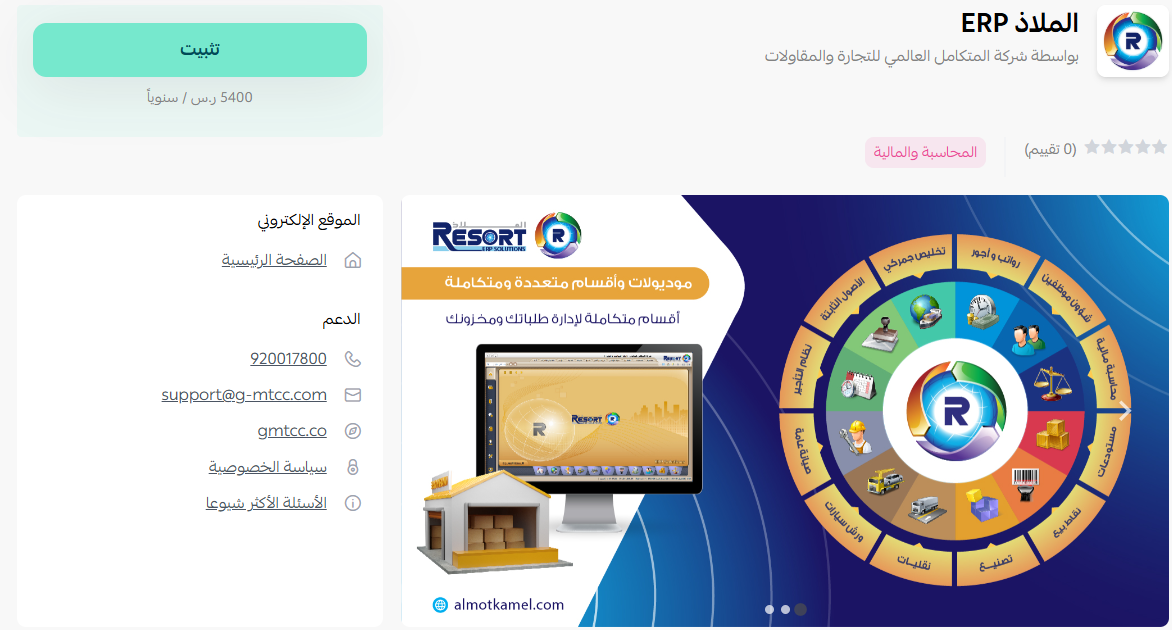
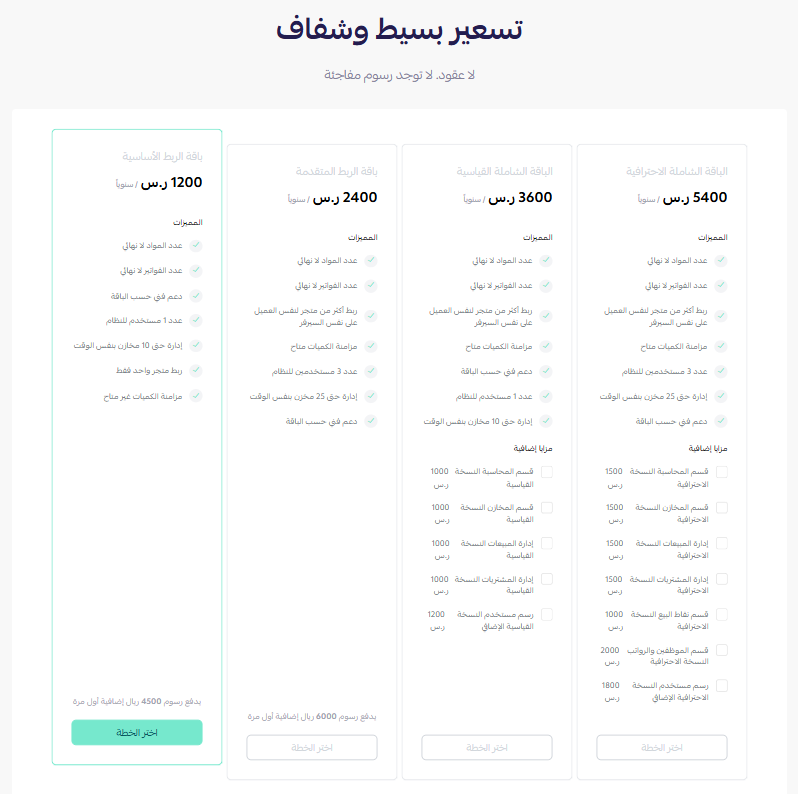
4. Choose the plan that fits your business to continue with the installation.
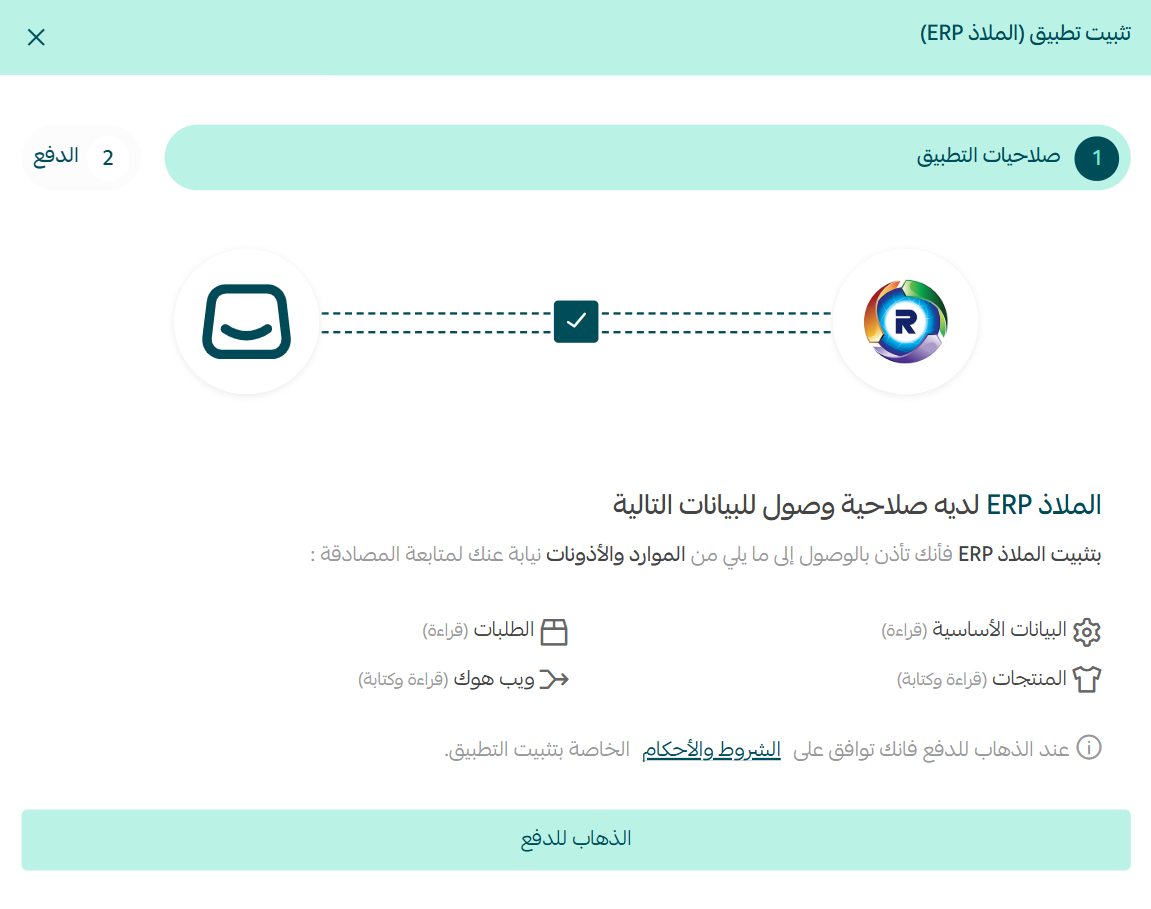
5. Review the requested permissions, then click (Go to payment).
Complete the payment to activate the app's features.
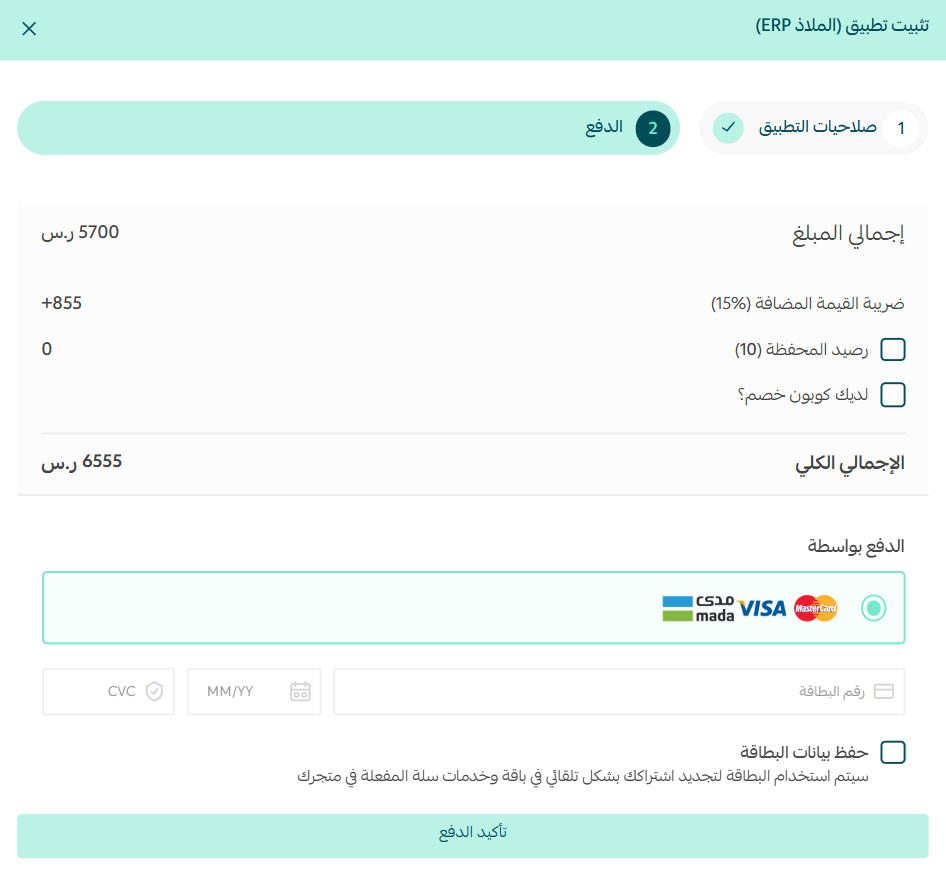
The Almalath ERP app is now installed on your store.
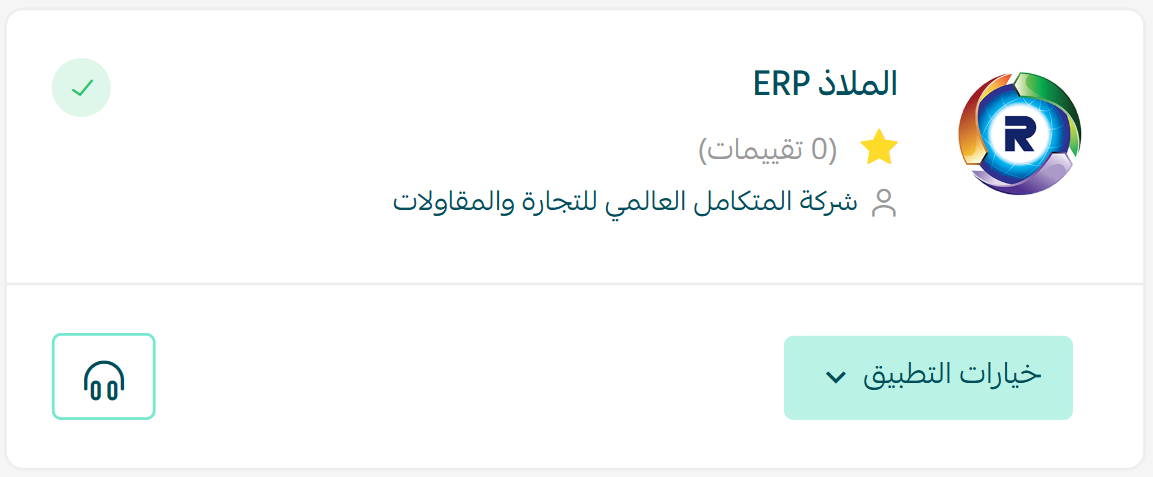
🚀 Managing the Almalath ERP app
Removing the app
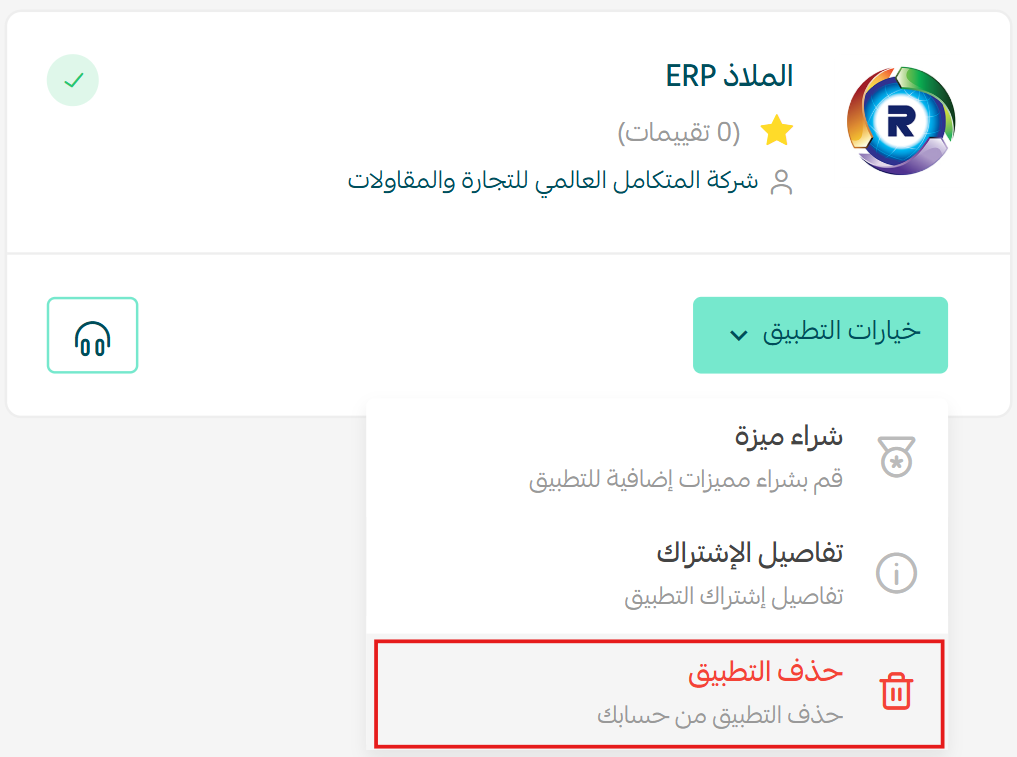
Click (App options), then click (Delete app).
Frequently asked questions
❓ What does Almalath ERP synchronize?
Items, orders, and inventory are synchronized automatically between Almalath ERP and your Salla store.
❓ What else does the system cover?
Accounting, warehouses, point of sale, HR, and payroll, all within one integrated system.
❓ How do I remove the app?
Click App options, then click Delete app.
For more detail, see the Almalath ERP documentation.
Automatic stock sync is worth more than the hours it saves, because it removes the gap where overselling happens. Connect it before your next busy season rather than during it.