In digital store management, there are times when restoring deleted orders becomes necessary. This may be for review, auditing, or completing pending actions.
The Deleted Orders page allows you to view previously deleted orders along with essential information such as customer name and order value. You can customize displayed fields and search for specific orders with ease.
In this guide, you will learn how to view and restore deleted orders efficiently and with confidence.
View and Restore Deleted Orders
1. Open Orders
From the main menu, click Orders.

2. Open Deleted Orders
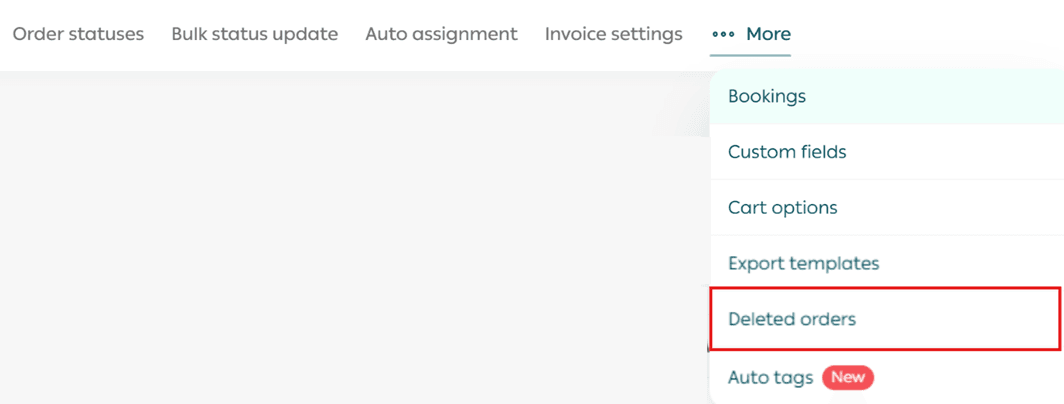
From the More tab, click Deleted Orders.
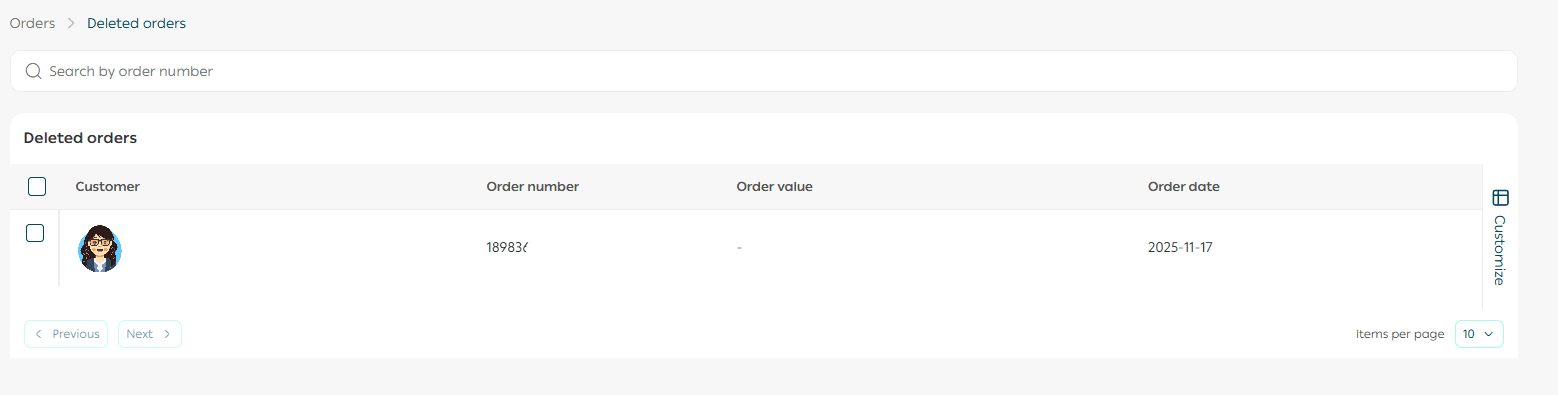
The Deleted Orders page displays information about orders removed from the store. By default, it shows:
- Customer name
- Order value
- Order date
3. Customize displayed fields
To customize which fields are shown, click Customize and select the fields you want to display.

4. Search for deleted orders
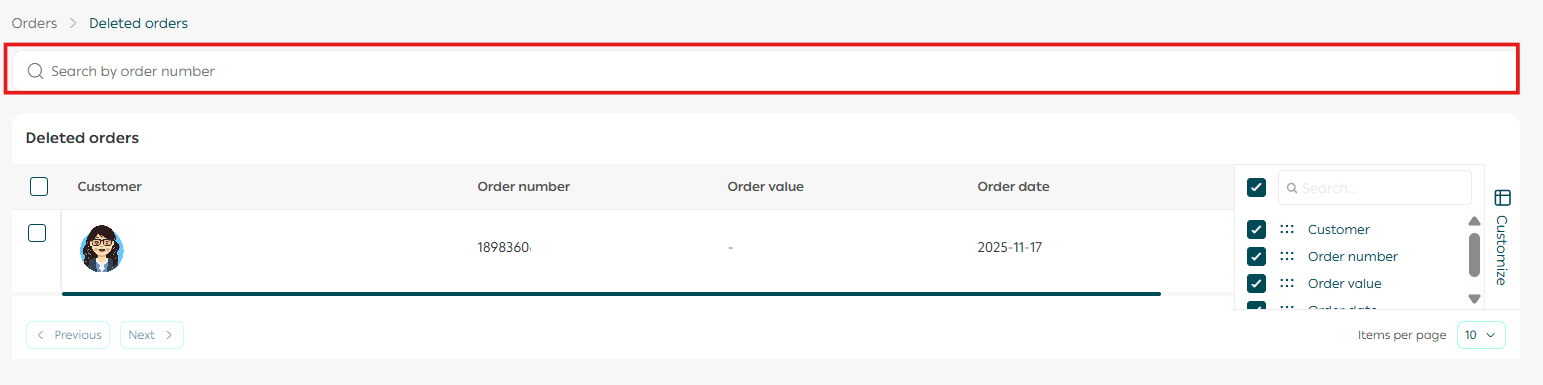
Use the search field to find specific orders by:
- Order number
- Customer name
- Shipment number
5. Restore deleted orders
Select the orders you want to restore, then click Restore.
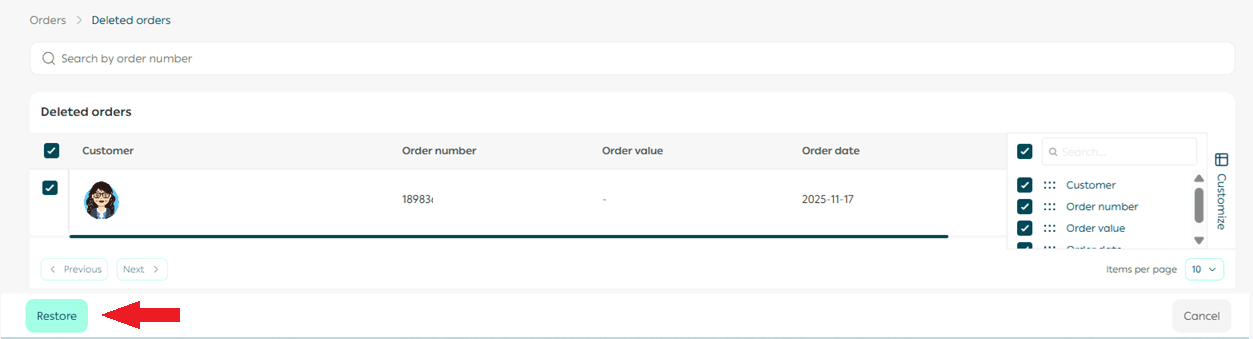
The selected orders will be restored immediately.
Final Takeaway
The Deleted Orders page gives you peace of mind and flexibility.
With clear visibility and easy restoration, you can confidently manage order records without fear of permanent loss or disruption.