Digital card products such as recharge cards or digital accounts require accuracy, speed, and clear management. When set up correctly, they provide instant delivery, reduce manual work, and significantly improve customer satisfaction.
In this guide, you will learn how to add a digital card product, manage card codes by country and value, control availability, and sell digital cards efficiently through your store.
📌 Article overview
- Add basic product information
- Configure advanced product settings
- Manage digital card codes
- Use custom fields
- Control the digital card through product actions
- Purchase digital cards from Souq Eljomla
Add and manage a digital card
1. Go to Products
From the main menu, click Products.

2. Create a new digital card
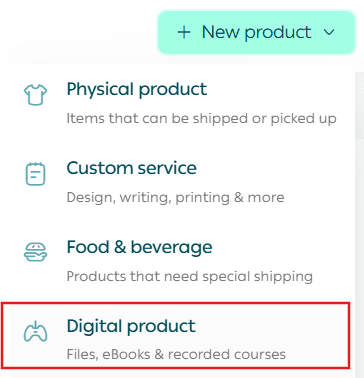
From + Create New Product, click Add, then select Digital Card.
Add Basic Product Information
Enter the basic product details, then click Save.
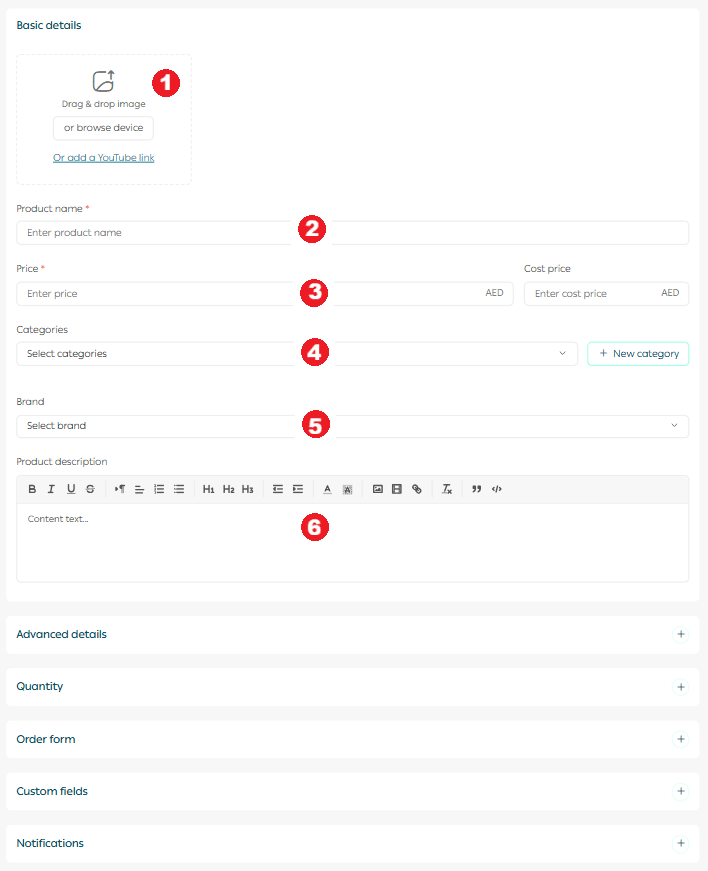
Required basic information
- Product images
Add one or more images that clearly represent the digital card.
2. Product name
The name that customers will see in your store.
3. Product price
Set the selling price and cost price to track profits accurately.
4. Product category
Categories help organize products, improve reports, and make products easier to find.
5. Brand
Select the brand associated with the digital card.
6. Mahally and Souq Eljomla categories
Assign the product to Mahally or Souq Eljomla categories if applicable.
7. Product description
Write a clear and detailed description. You can format text, add images, videos, and links to explain how the card works and what the customer receives.
Note: Mahally and Souq Eljomla are currently available only for stores in Saudi Arabia.
Advanced product settings
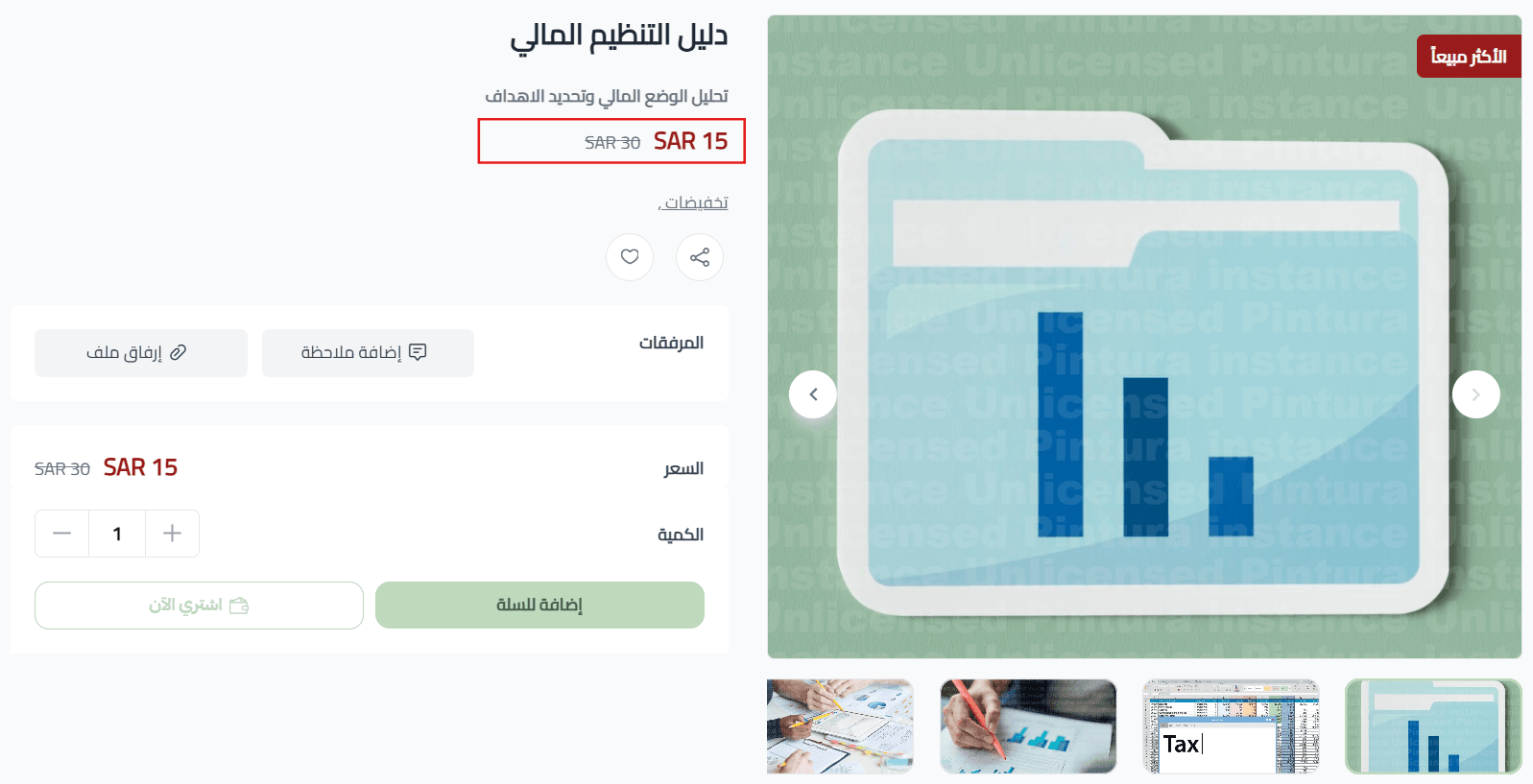
1. Product subtitle
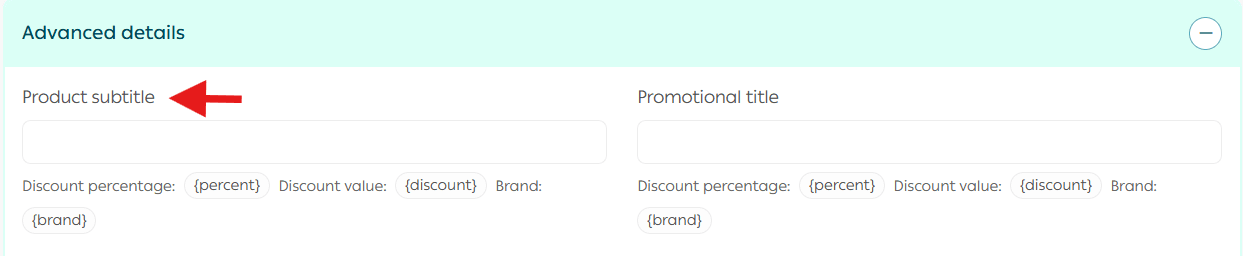
A short supporting line that highlights an important detail.
It appears directly below the product name.
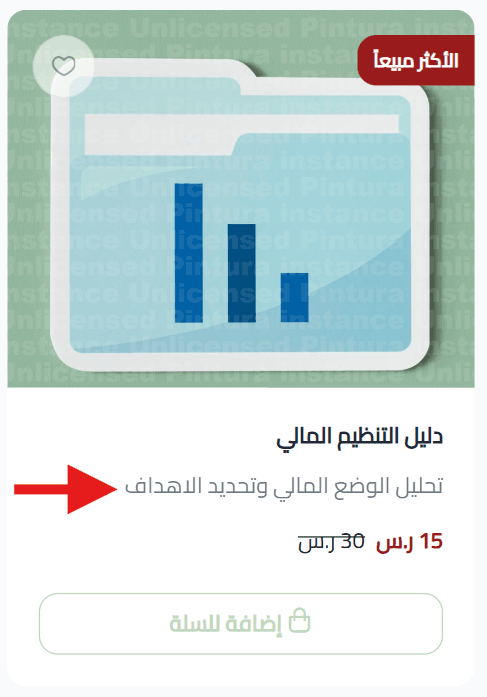
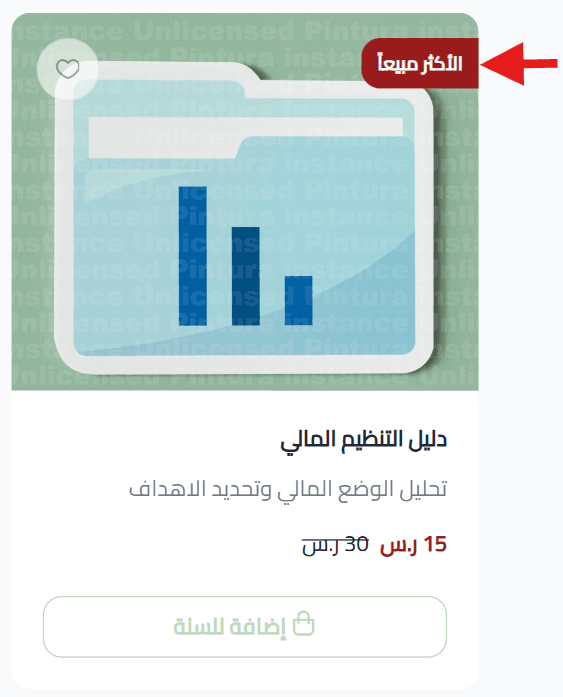
2. Promotional title
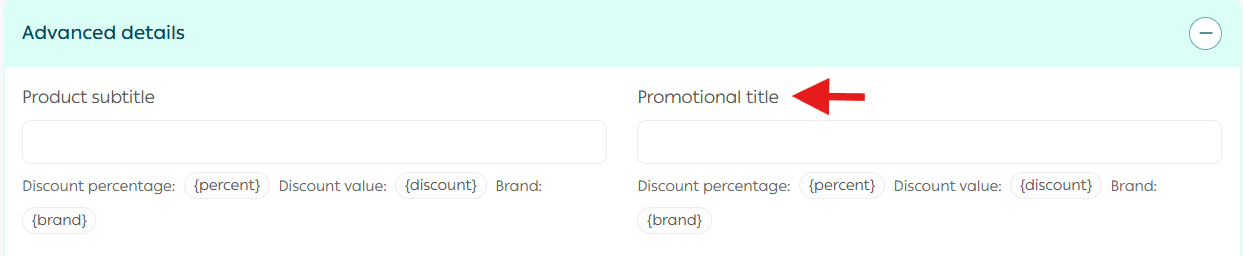
A label shown on the product image to draw attention to offers, benefits, or special features.
3. Discounted price and schedule
Set a discounted price and define the start and end dates for the offer.

This helps automate promotions without manual updates.
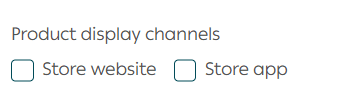
4. Product display channels
Control where the product appears:
- Website
- Store app
- Mahally
You can also select the branches where the product is available.
Note: Mahally is available only for stores in Saudi Arabia.
5. Product requirements

Tax settings: Define whether the digital card is taxable.
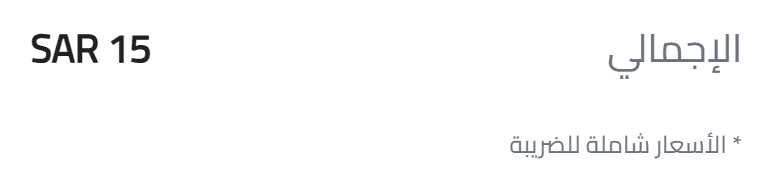
A tax notice will appear next to the price for customers.
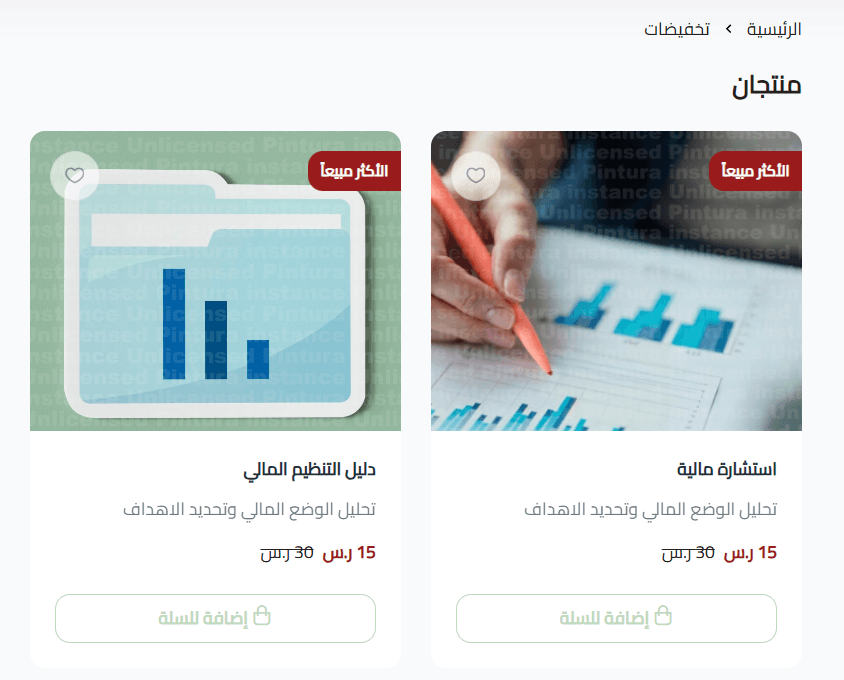
6. Product tags

Add one or more tags to help customers discover the product.
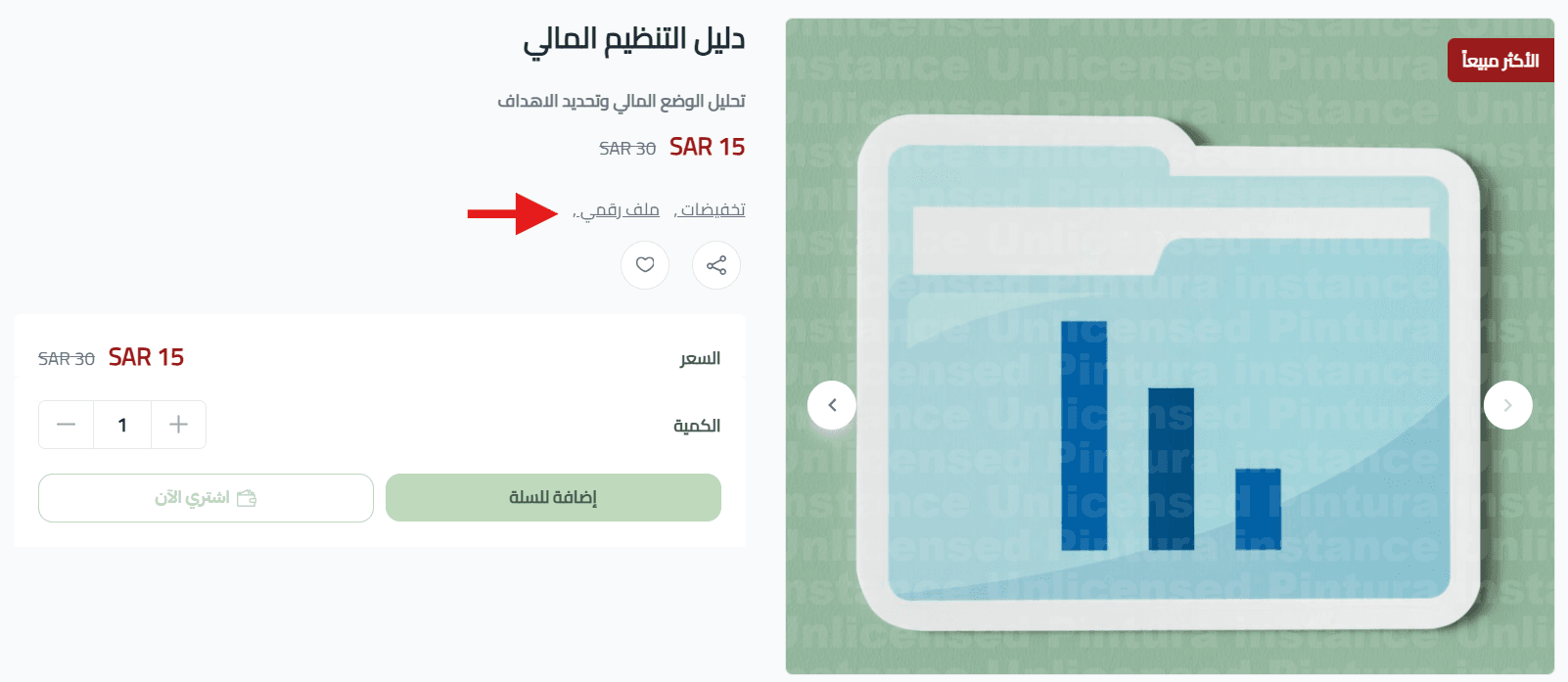
When a customer clicks a tag, they see all products using the same tag.
7. SEO optimization settings
Improving product visibility in search engines helps attract more customers and increase sales. Salla provides built in SEO tools for product pages:
- Product page title
Include the product name, category, and brand.
- SEO friendly product URL
Customize the URL to include product name, category, brand, and SKU.
- Meta description
Write a description that includes product name, category, and brand to improve indexing.
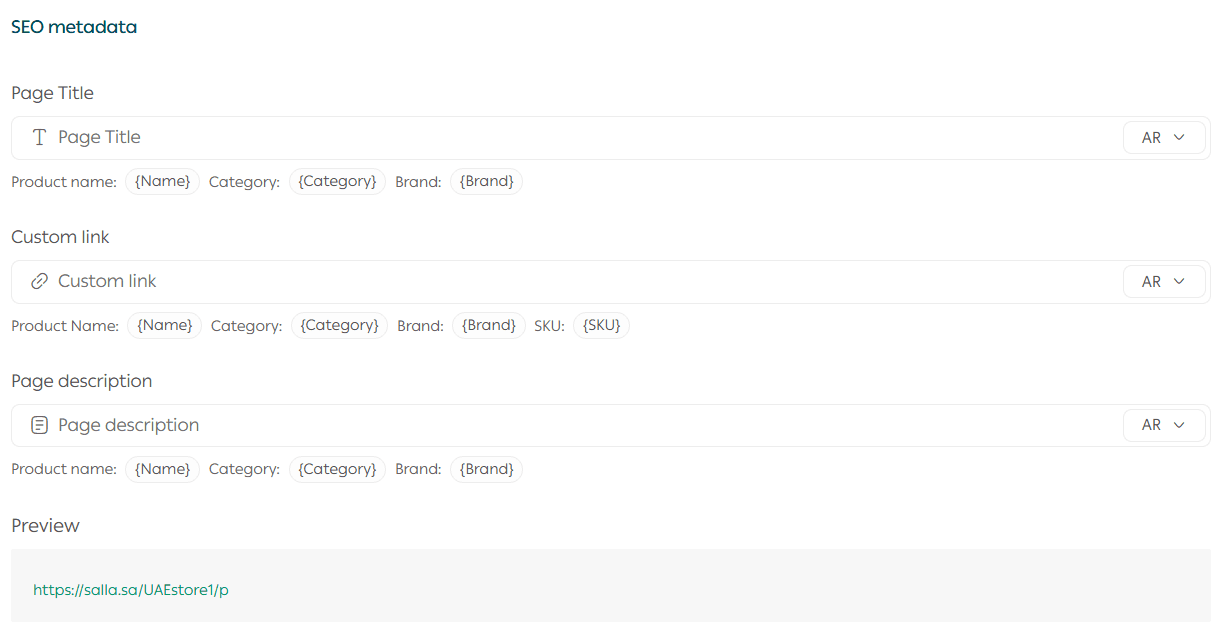
Why adding SKU to the URL matters
- Improves search engine accuracy
- Helps distinguish similar products
- Makes it easier for customers to find products using SKU
Clear URLs improve both SEO performance and user experience.
Manage Digital Card Codes
You can add digital card codes using multiple methods depending on your business needs.
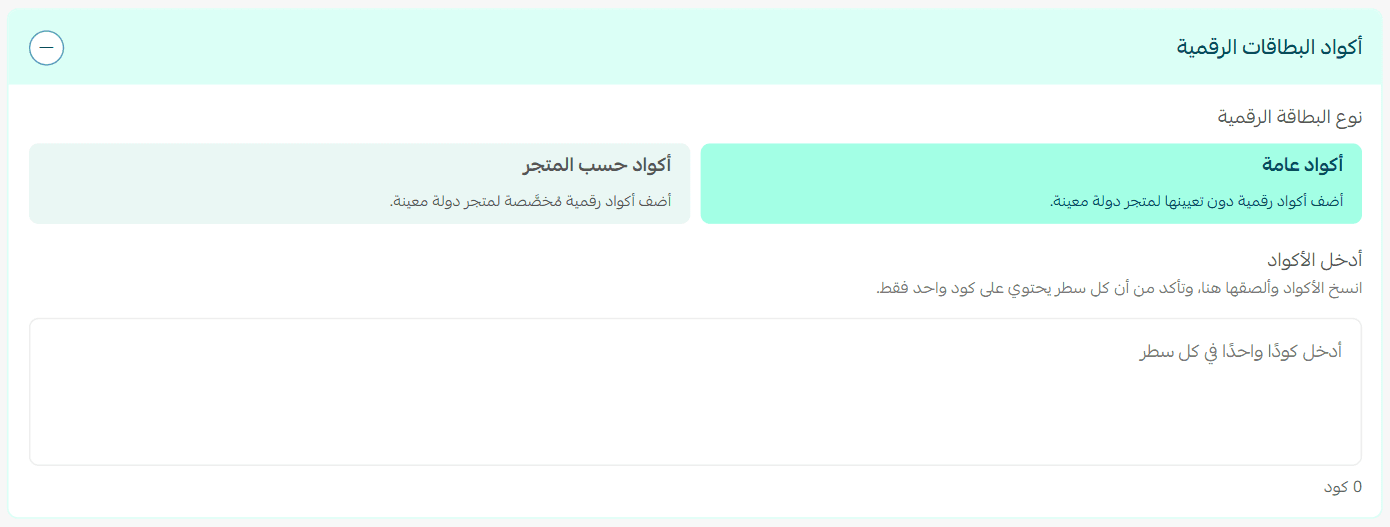
1. General codes
From Digital Card Codes, open the General Codes tab.
Enter codes that are not linked to a specific country.
Note: Each code must be entered on a separate line.
2. Codes by store country
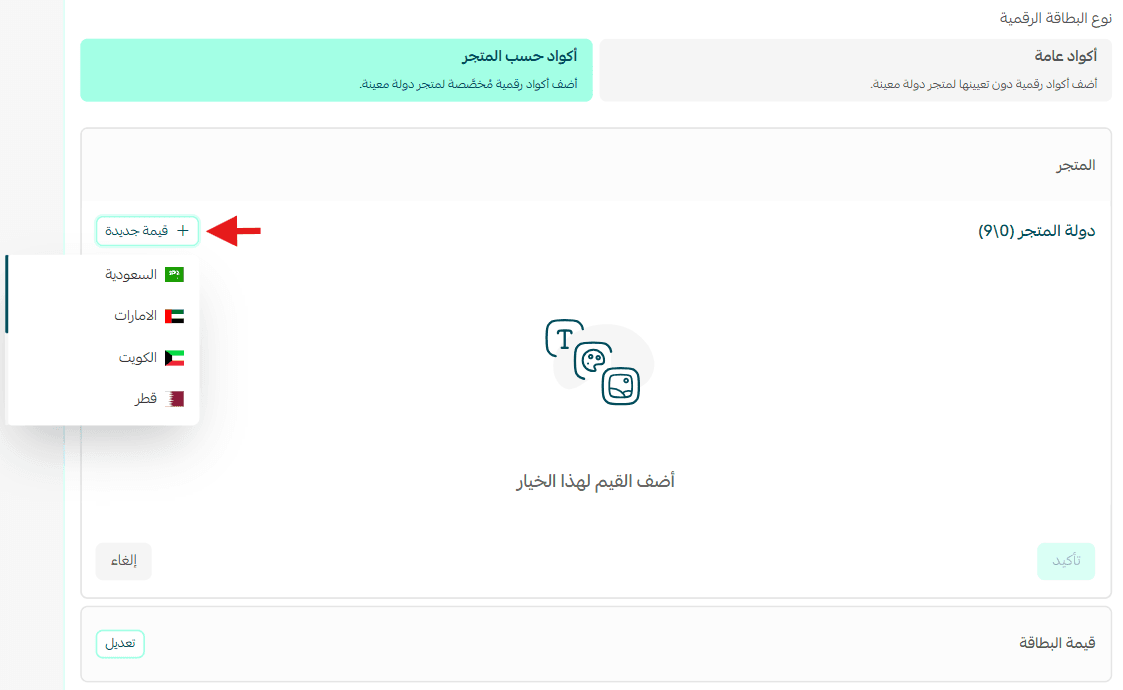
From Digital Card Codes, open the Codes by Store tab.
Add a store country
Click + New Value to add a store country.
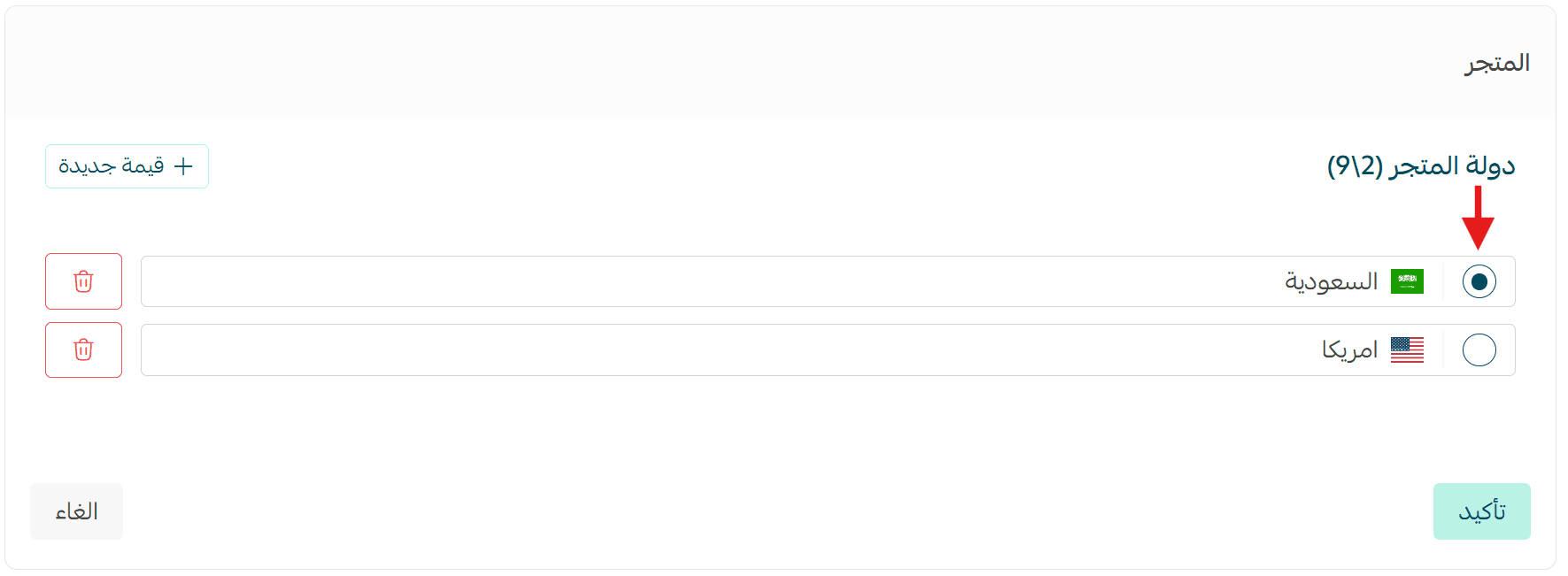
You can set a default country or remove unused options.
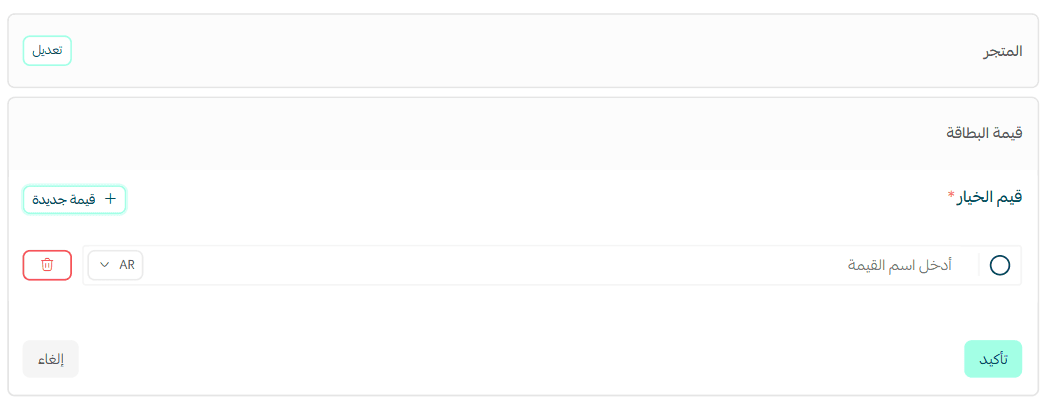
Add card values
Enter the prices at which the digital card will be sold, then click + New Value.
Add codes
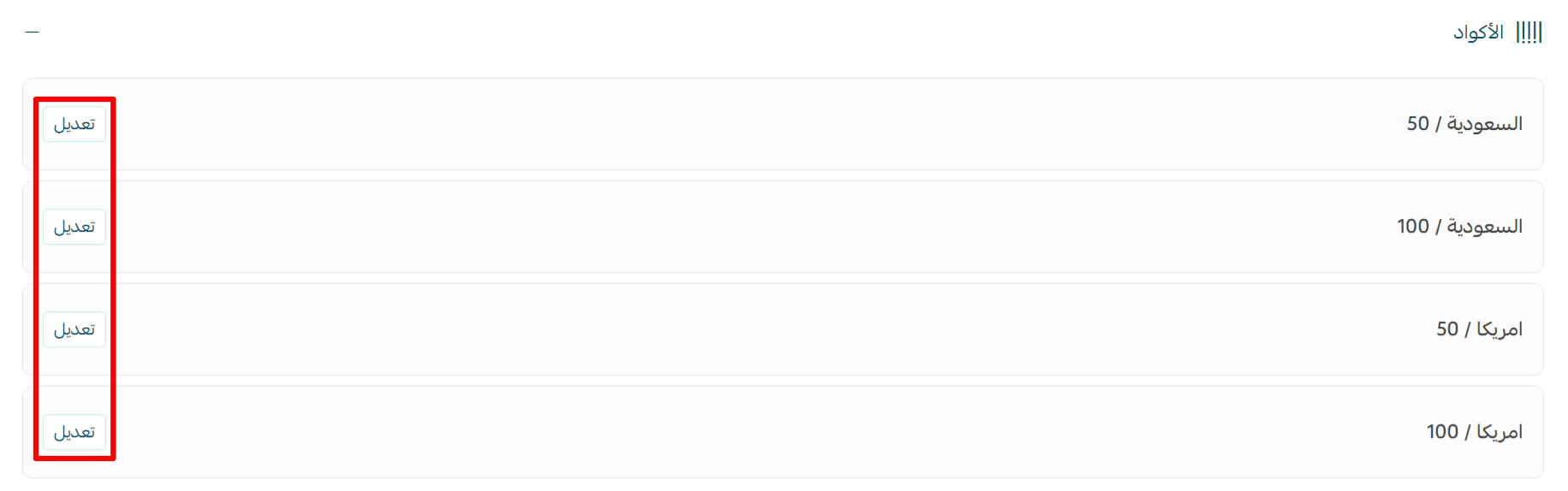
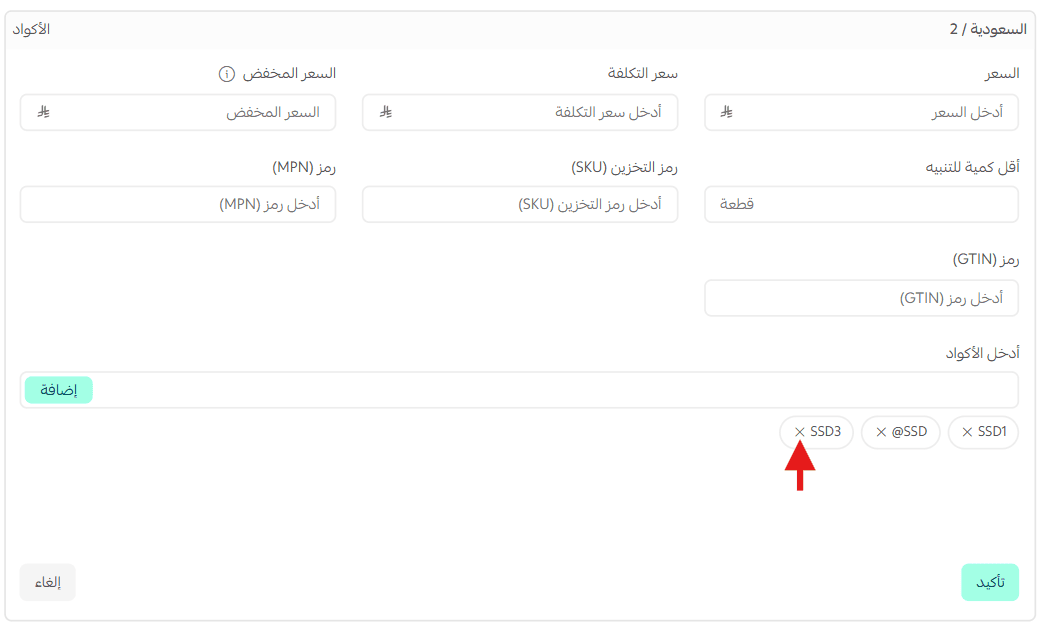
Click Edit, then enter the following:
- Cost price
- Discounted price
- Minimum quantity alert
Add the codes.
To remove a specific code, click the X next to it, then click Confirm.
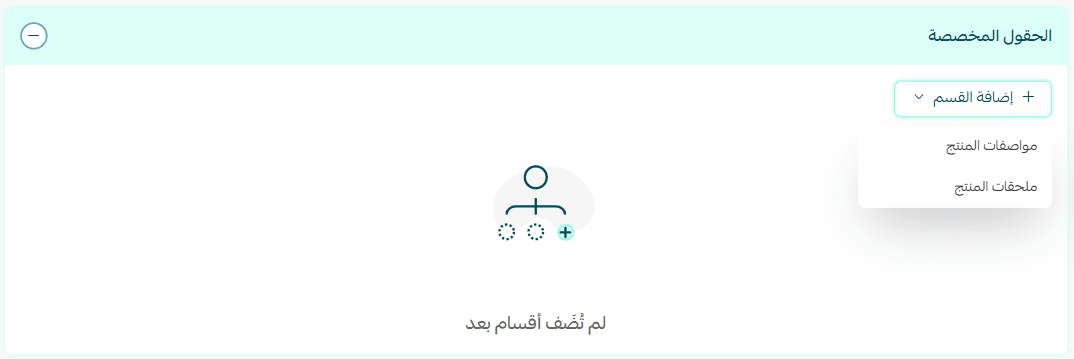
Custom Fields
From Custom Fields, click + Add Section and choose the field type.
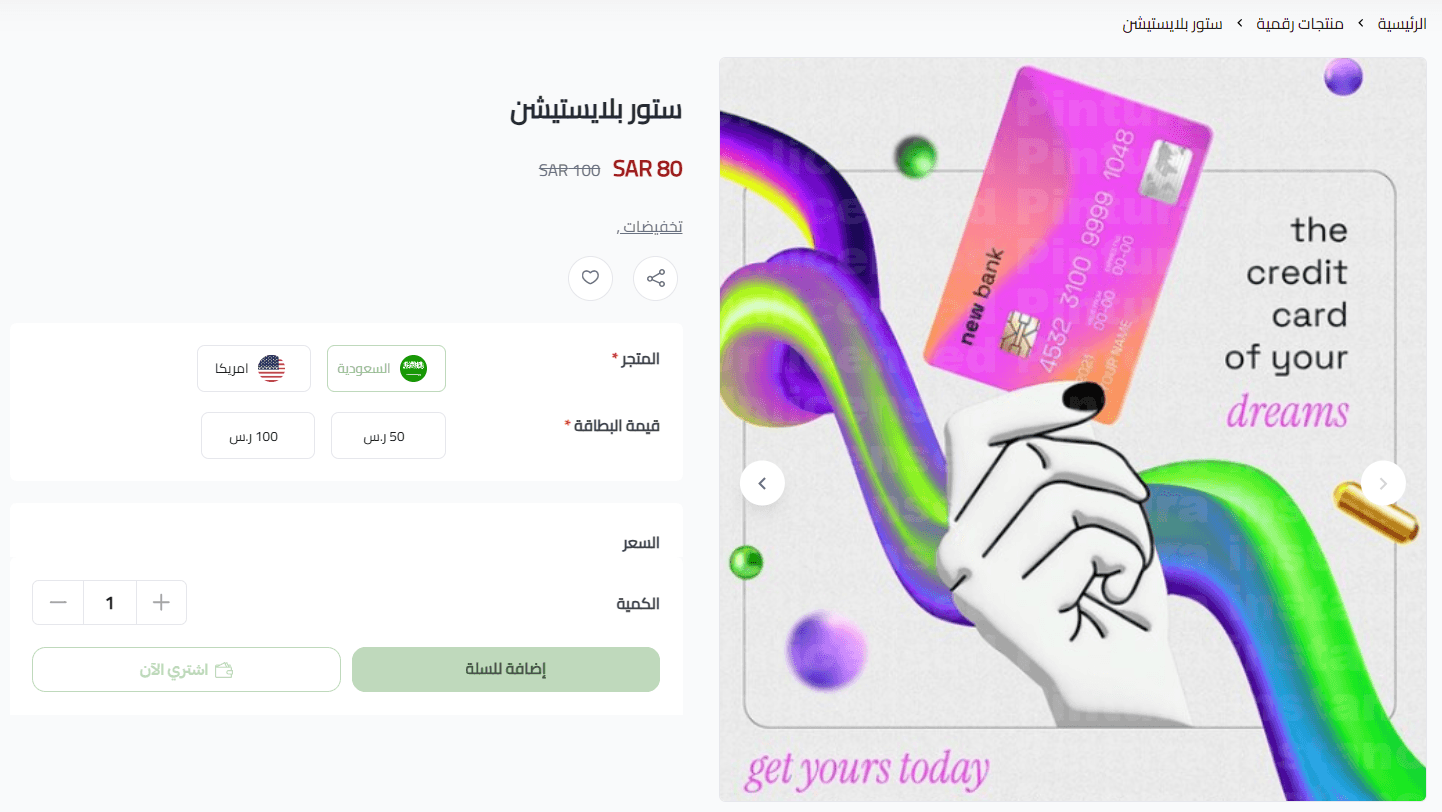
Enter the required data and click Confirm.
Custom fields help explain additional details and improve clarity for customers.
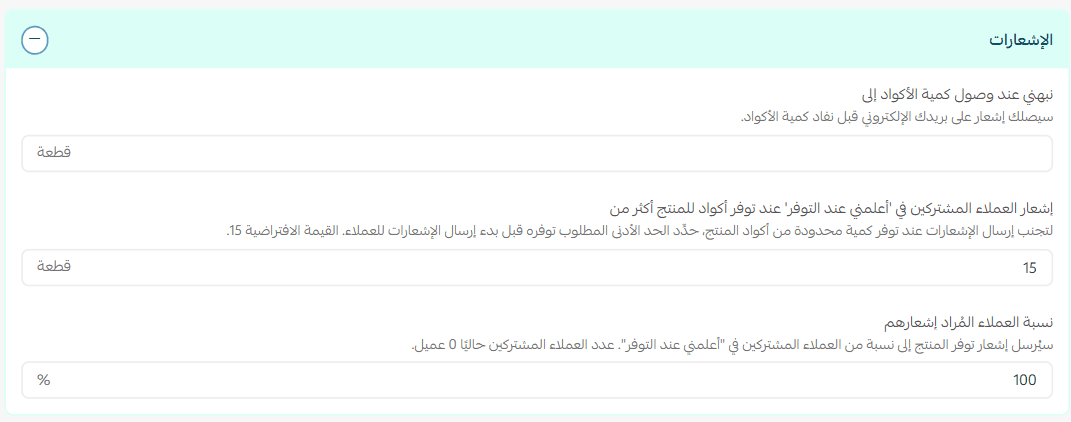
Alerts and Notifications
From the product action bar, you can manage:
- Code availability
- Quantities
- Alert thresholds
This ensures you never run out of digital codes unexpectedly.
Purchase Digital Cards from Souq Eljomla
Important note: This feature is currently available only for stores in Saudi Arabia.
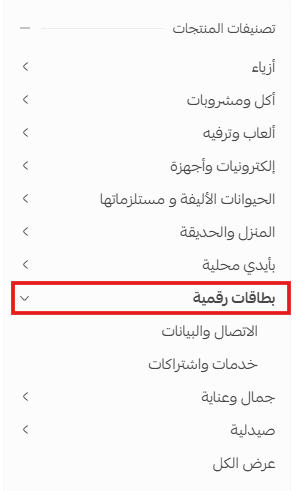
Steps
- Open the Souq Eljomla page.
- Filter products by Digital Cards and select the product you need.
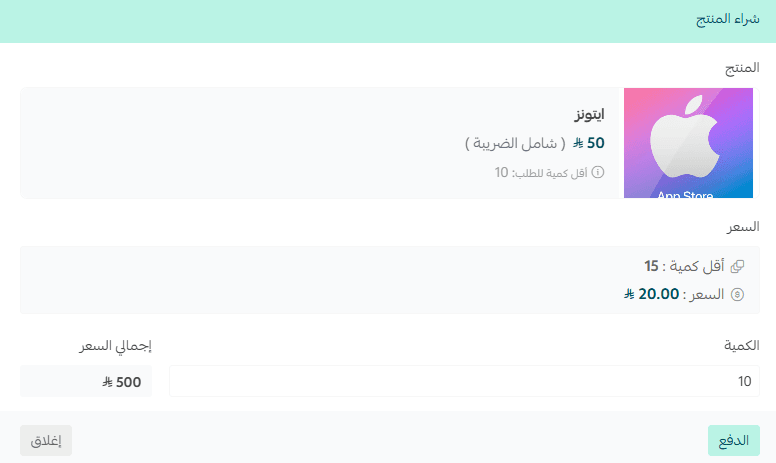
3. Complete the payment process.
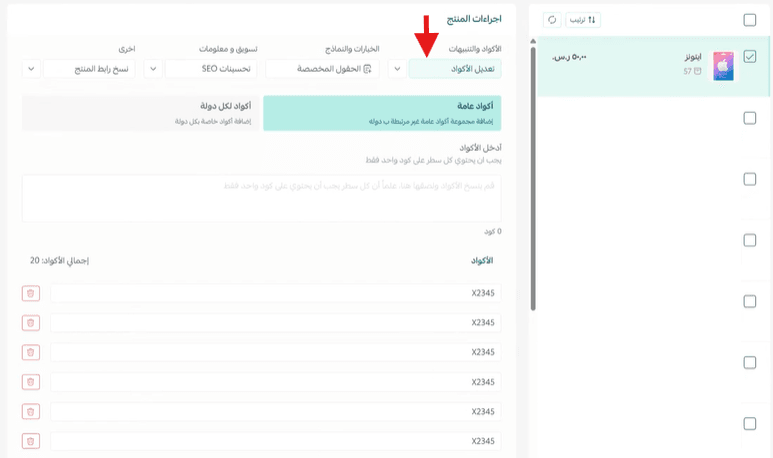
Once the order status changes to Completed, the product will appear in your store.
Click Edit Codes, add the codes manually, then click Save.
Supplier reliability
You can review supplier details directly from the product card.
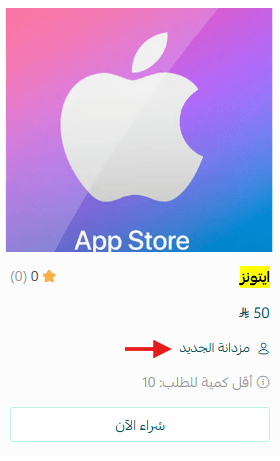
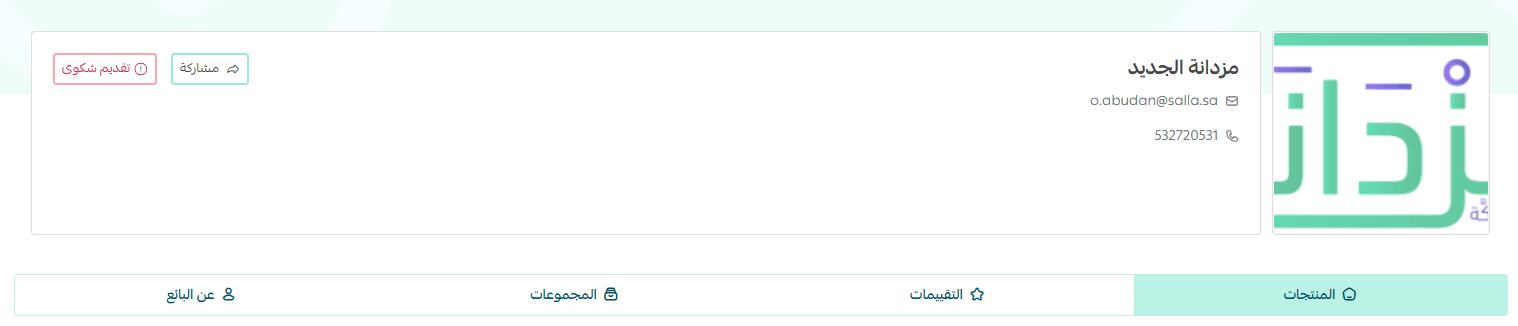
Click the supplier name to view:
- Ratings
- Available products
- Seller information
This helps you verify supplier credibility before purchasing.
Frequently Asked Questions
Can I view sold digital card codes?
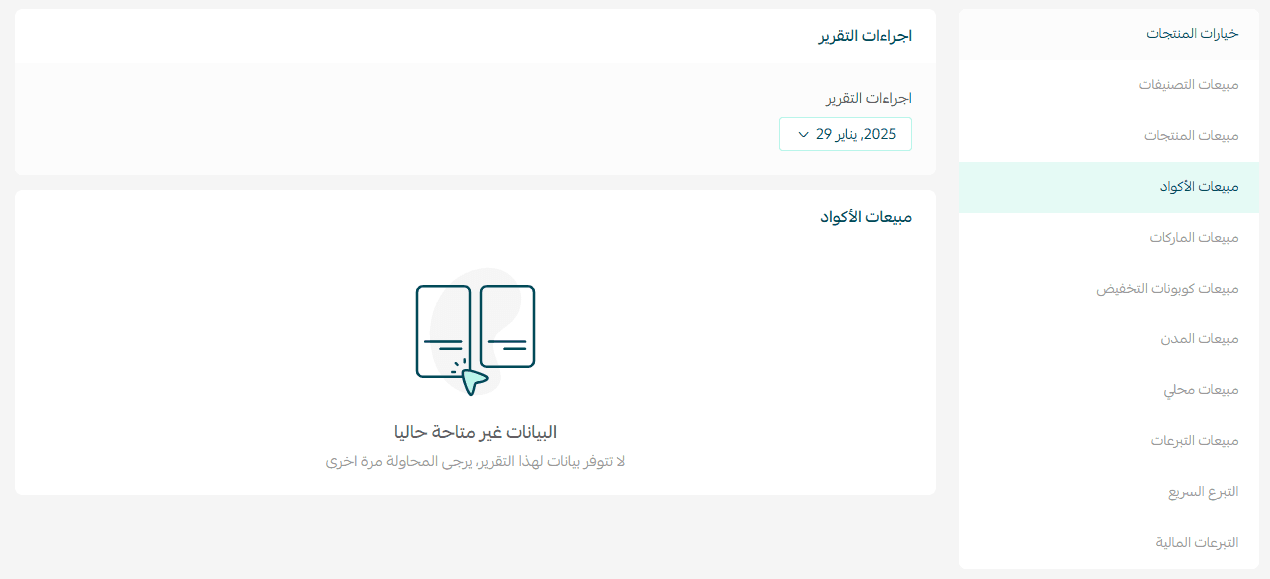
Yes. Go to Reports, then open the Sales tab and select Code Sales.
When can the customer copy the digital card code?
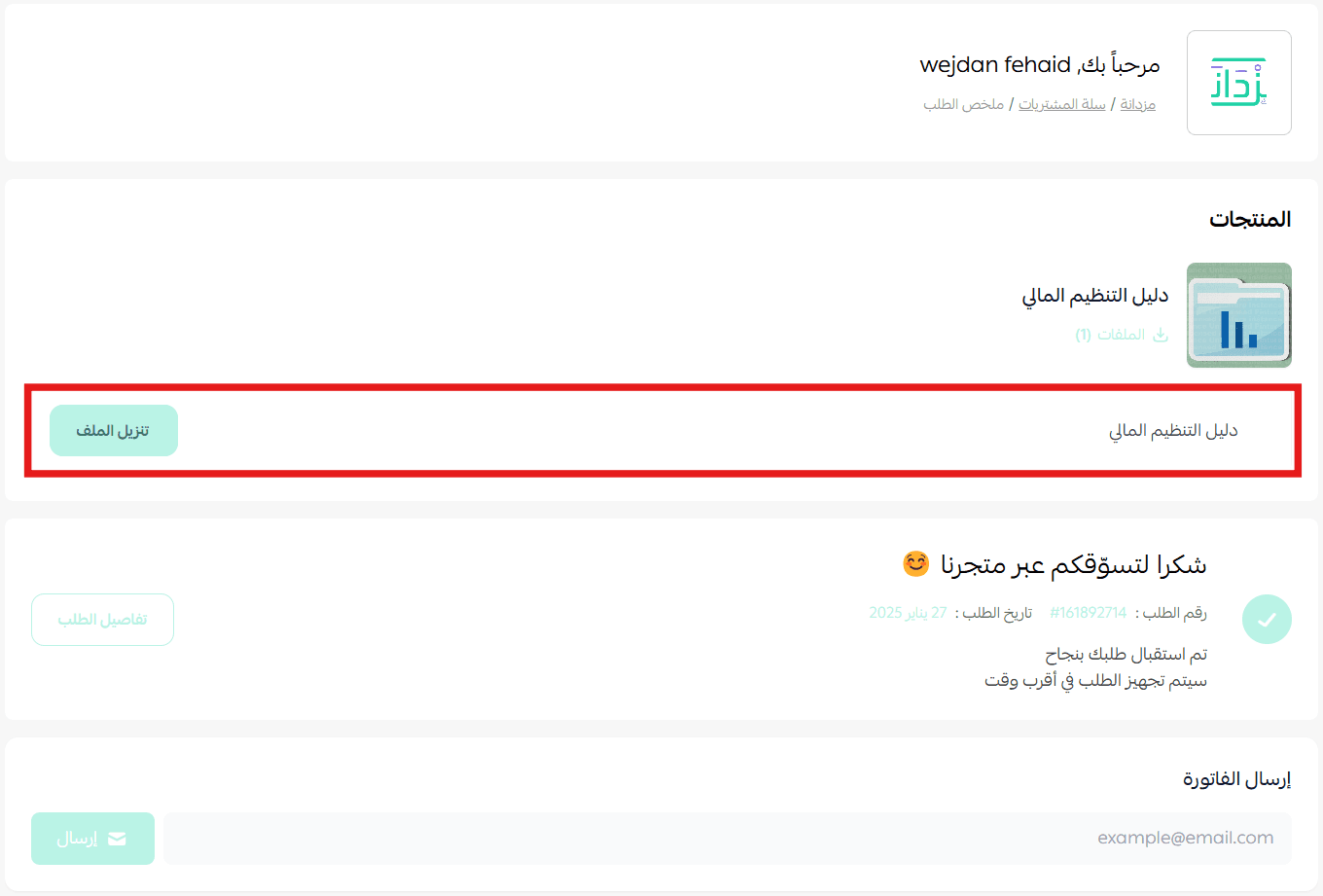
The code is delivered immediately after purchase once the order status is set to Completed.
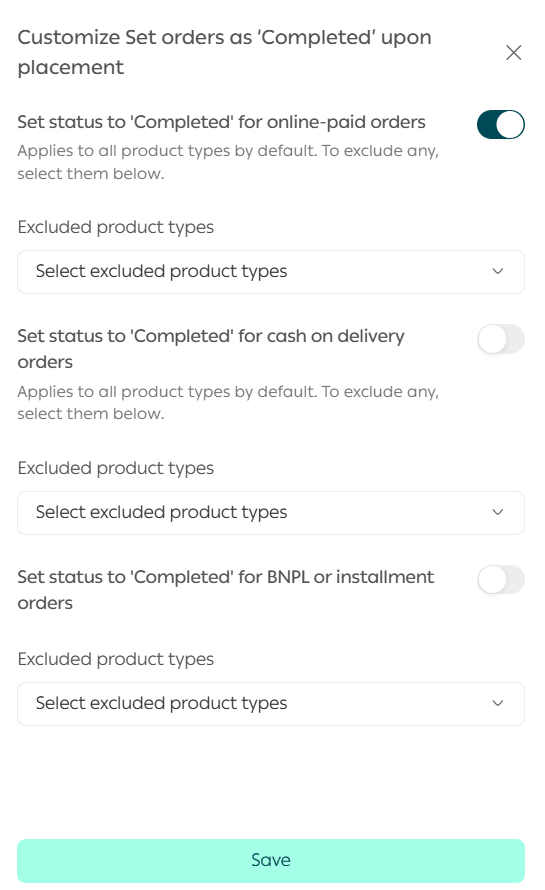
To configure this:
- Go to Orders, then Order Settings.

- Click Customize next to the completed order status.

- Enable Completed on electronic payment, select excluded product types if needed, then click Save.
Customers will then be able to copy the code instantly after payment.
Takeaway
Digital card products combine instant fulfillment with automated inventory control. When configured correctly, they reduce operational effort, improve delivery speed, and create a seamless experience for your customers.