The My Apps page in your Apple Developer account is your central hub for managing all your apps in one place. From editing core app information to monitoring ratings and responding to reviews, this page gives you full control over how your app appears on the App Store and how it’s managed behind the scenes.
Through My Apps, you can:
- Manage app metadata and availability
- Control user access and permissions
- Monitor customer feedback and engagement
- Maintain your app professionally and efficiently
📌 Article overview
- How to access the My Apps page
- Viewing core app details under Ready for Sale
- Managing App Information
- Hiding an app from the Apple App Store
- Viewing and responding to app ratings and reviews
How to access the My Apps page
- Sign in to your Apple Developer account via the official Apple Developer website.
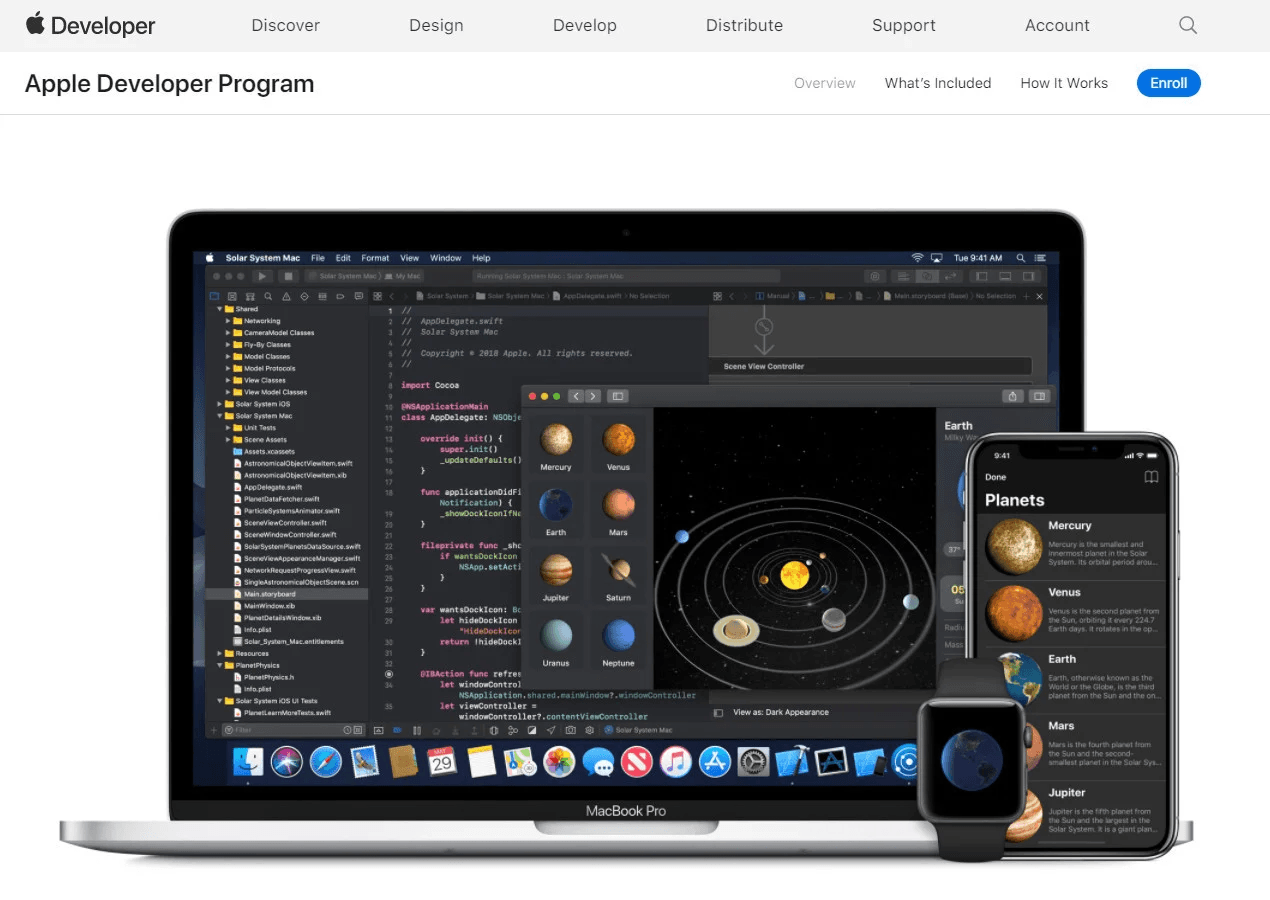
2. Go to your Apple Developer Program account by clicking Account.

📖 Learn more:
- Creating an Apple Developer Account (Company or Organization)
- Creating an Apple Developer Account (Individual)
3. Sign in to your account. You may be asked to enter a verification code sent to your registered mobile number.
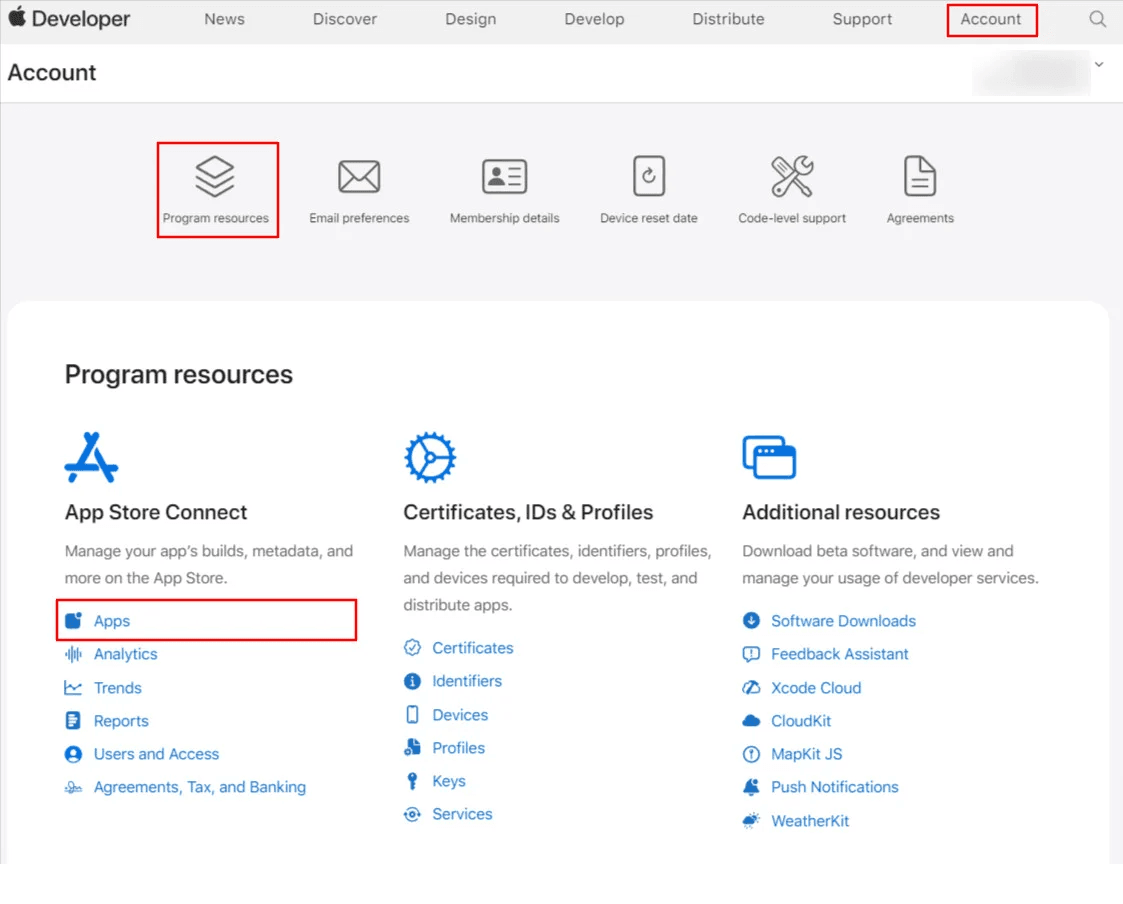
4. Click Program Resources, then select Apps under App Store Connect.
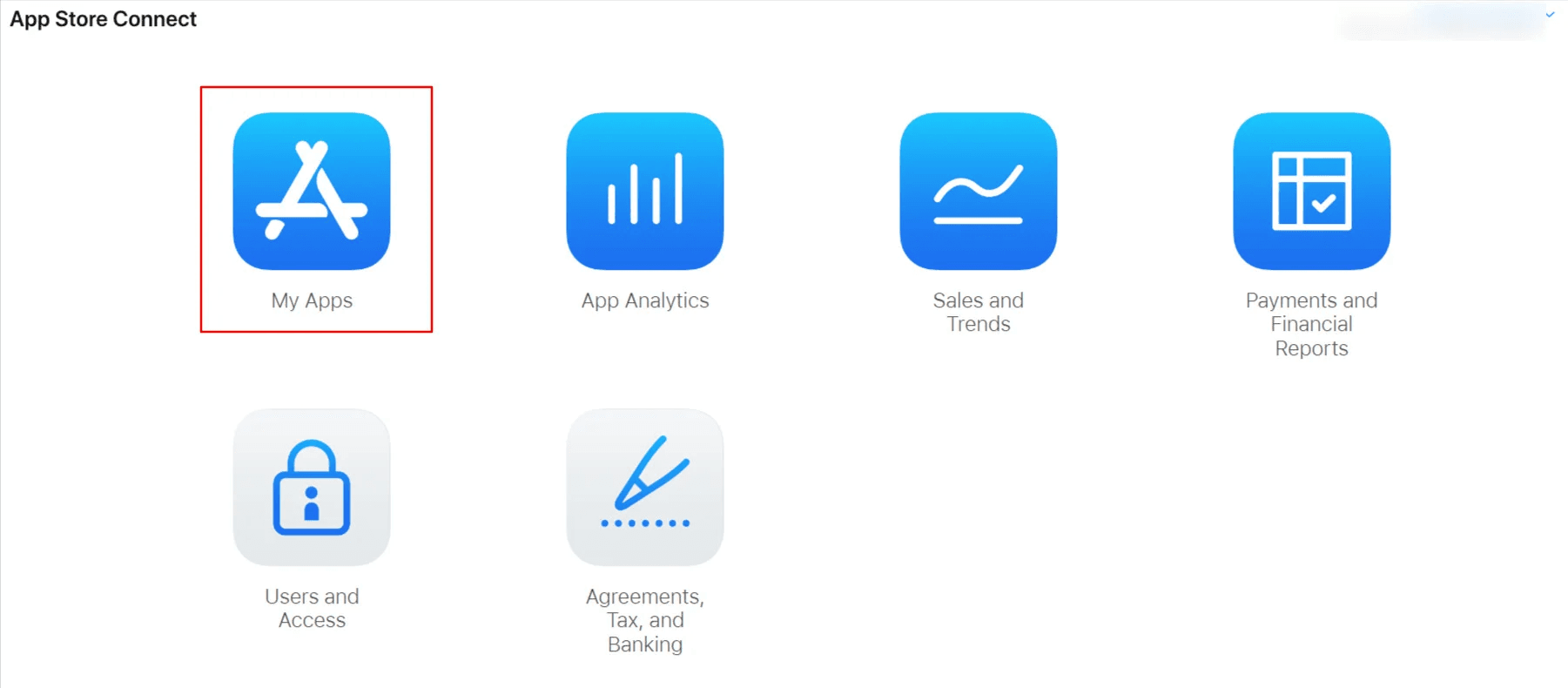
5. Alternatively, from the App Store Connect dashboard, click My Apps.
6. You’ll see a list of all your apps. Click the app you want to manage.
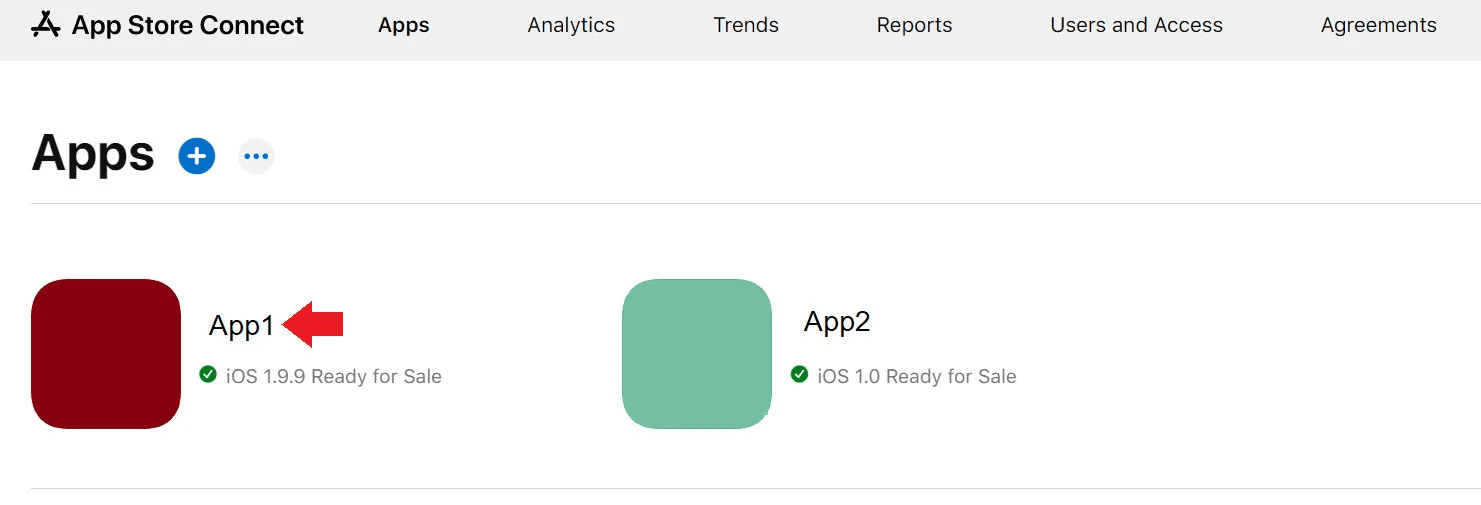
The app’s main dashboard will open, with the app navigation panel displayed on the left.
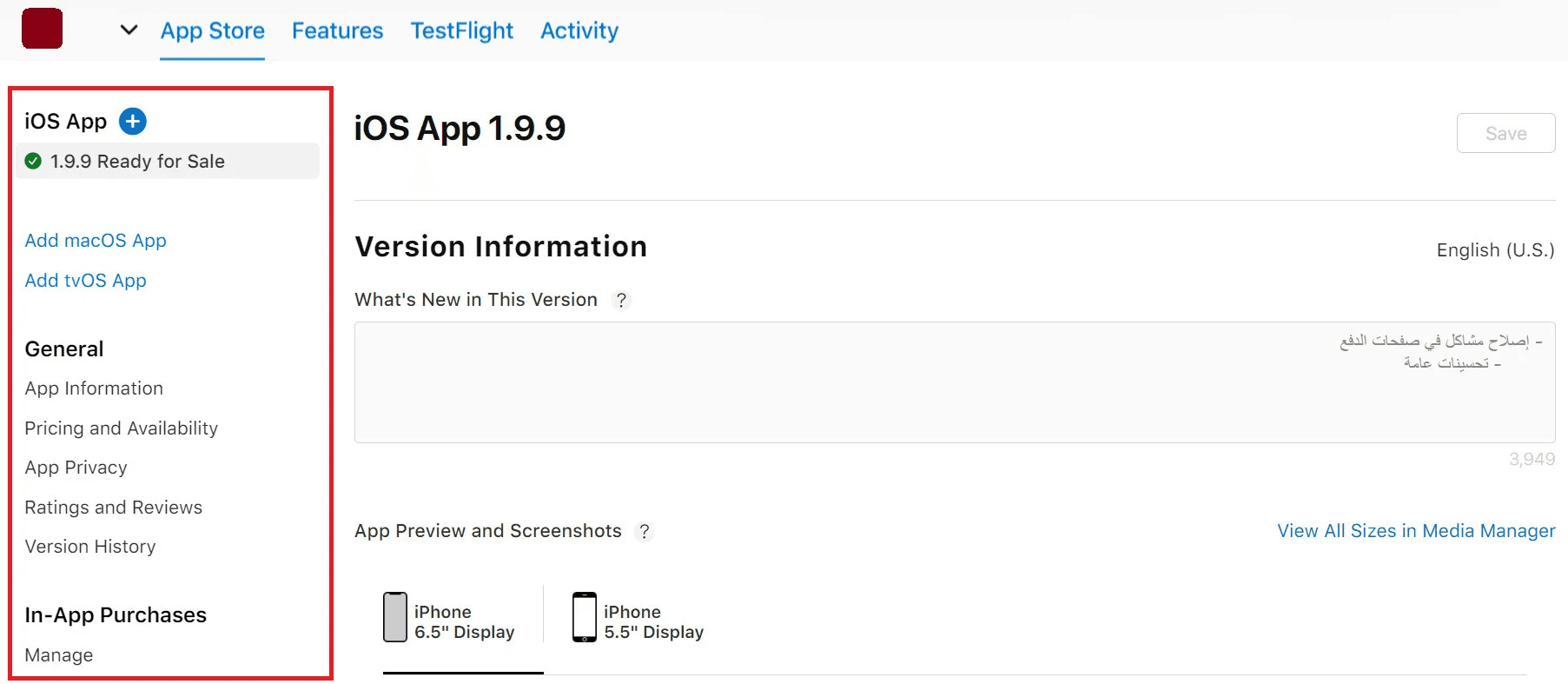
Key app management sections
Below is an overview of the most important areas within the app management dashboard.
Viewing published app data (Ready for sale)
- From the app dashboard, click Ready for Sale to view the information currently published on the App Store, such as:
- App name
- Description
- Promotional text
- Screenshots
- Other store listing details
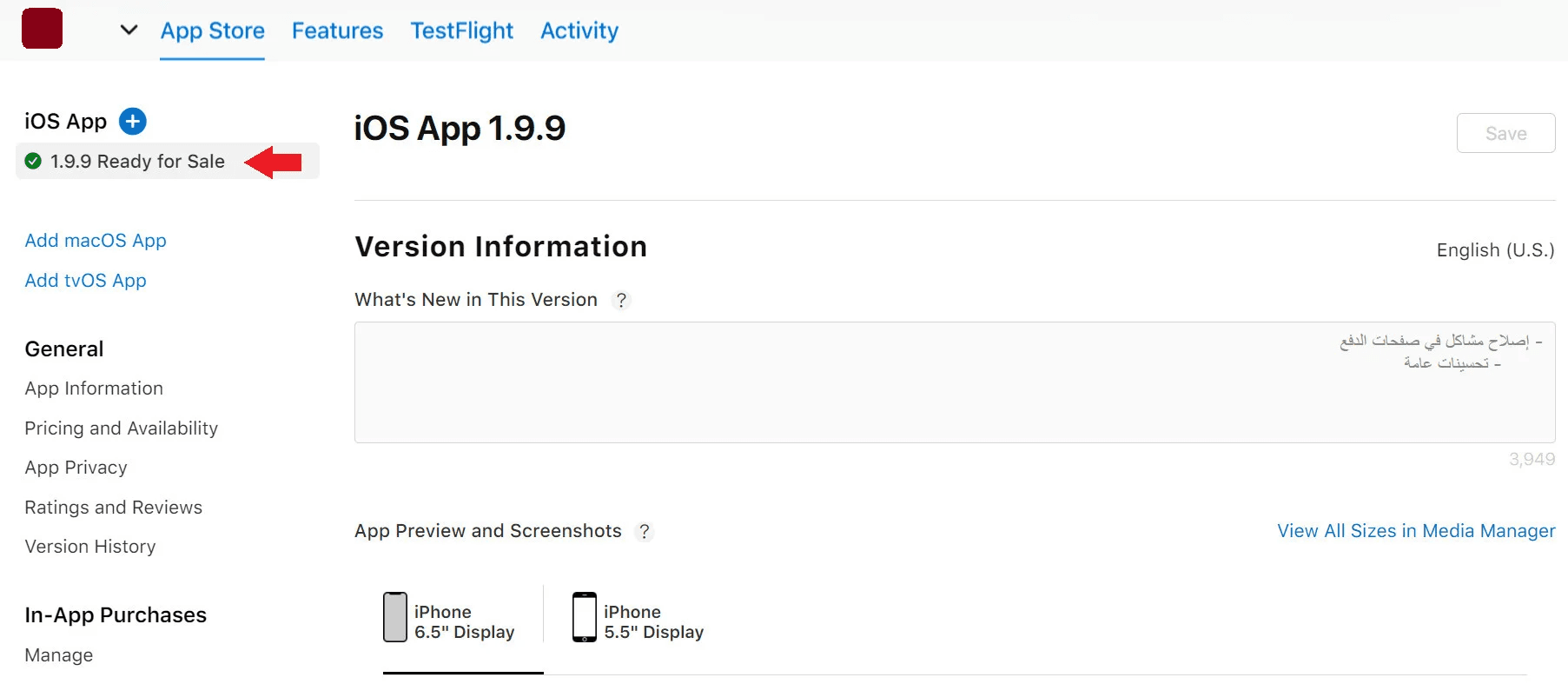
You can update certain fields for an already published version. If needed, you may request assistance from the Salla support team.
📖 Learn more about updating app metadata.
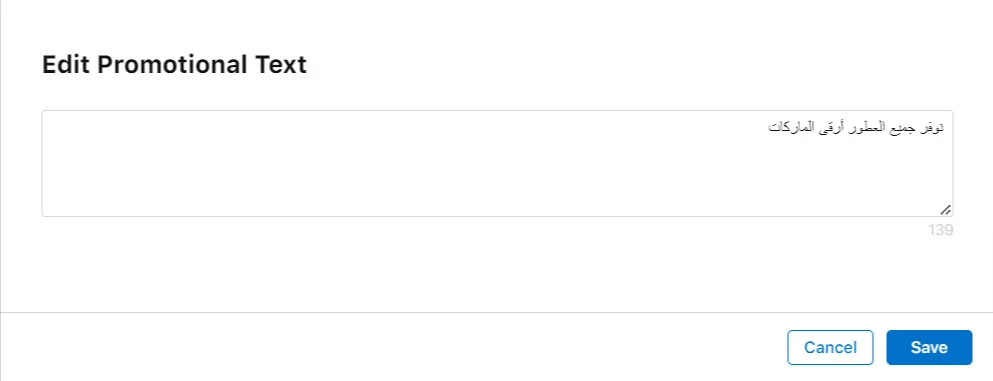
2. The only field you can edit directly without submitting a new app version is Promotional Text.
Click Edit to update the text shown below your screenshots on the App Store.

3. Click Save to apply changes.
Note: Updates may not appear immediately, as Apple reviews all changes before publishing them.
App Information
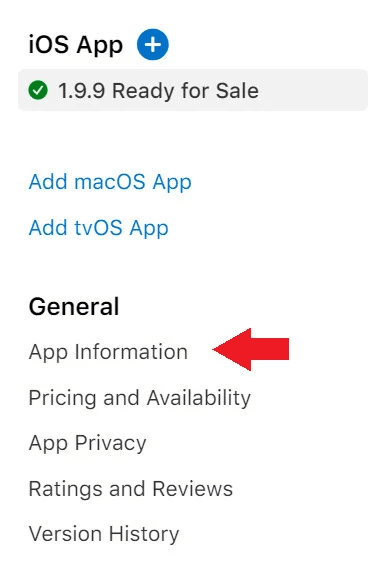
- From the app dashboard, click App Information.
This page displays additional core app details, including:
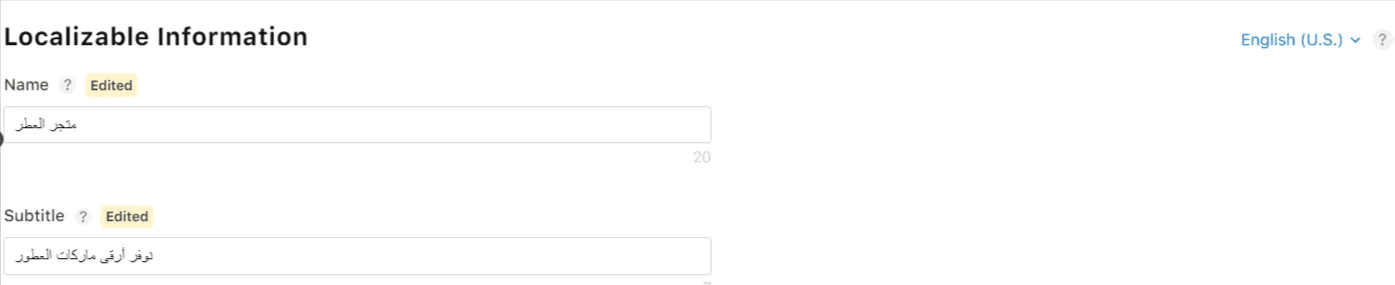
Localizable Information
- App name
- Subtitle
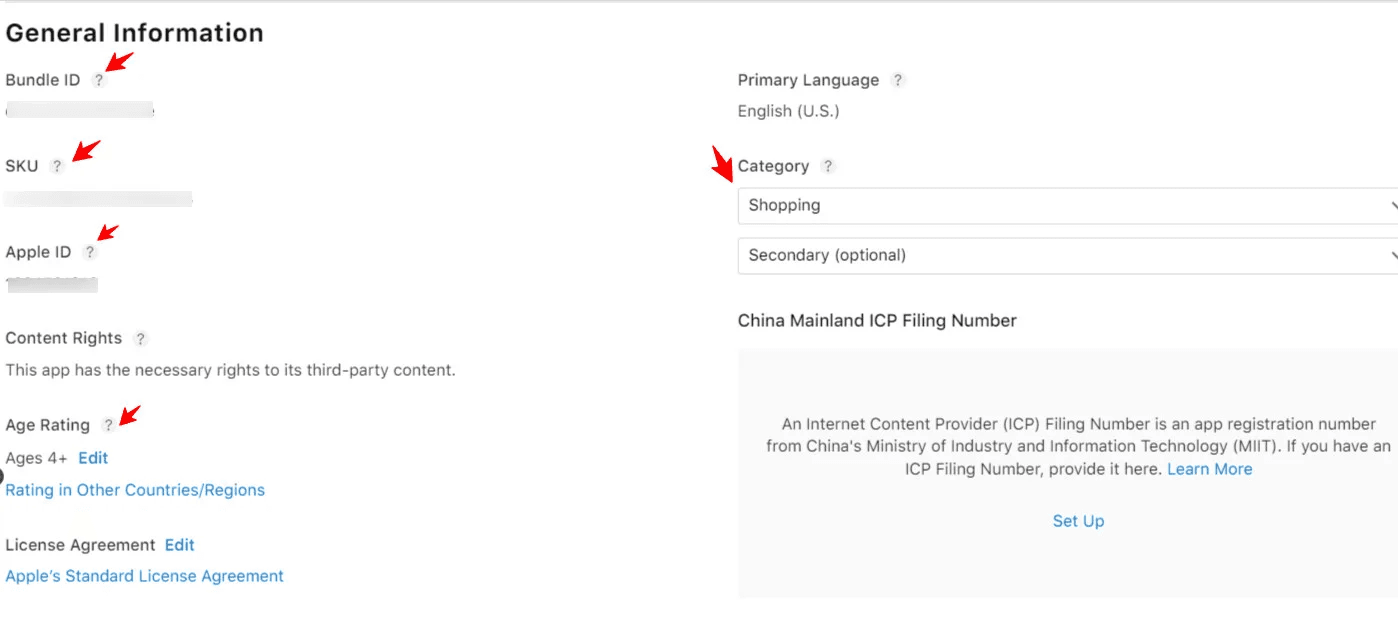
General Information
- Bundle ID – The identifier used in Xcode
- SKU – A unique internal identifier (not visible on the App Store)
- Apple ID – Automatically assigned by Apple to your app
🔔 Important Notes
- These details may be required when integrating your app with external services
- These fields cannot be edited
📖 Learn more about updating app information.
Viewing the App Store Link
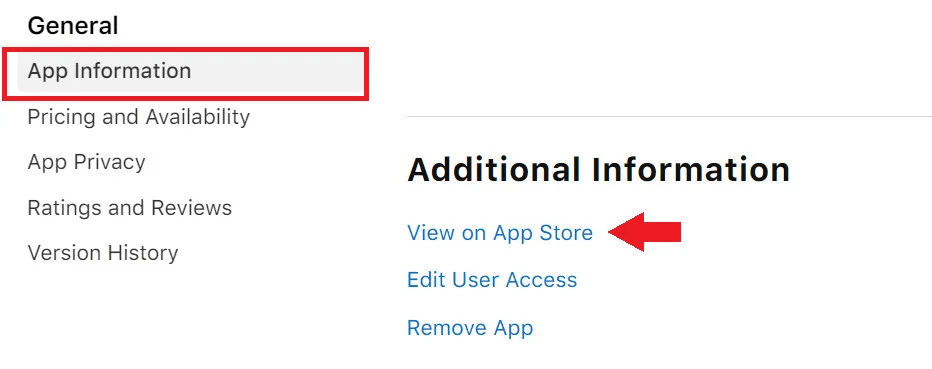
From Additional Information, you can access your app’s App Store page:
- Go to App Information
- Click View on App Store
Managing User Access
From App Information, you can manage app users and permissions:
- Click Edit User Access
- You’ll be redirected to the Users section in App Store Connect
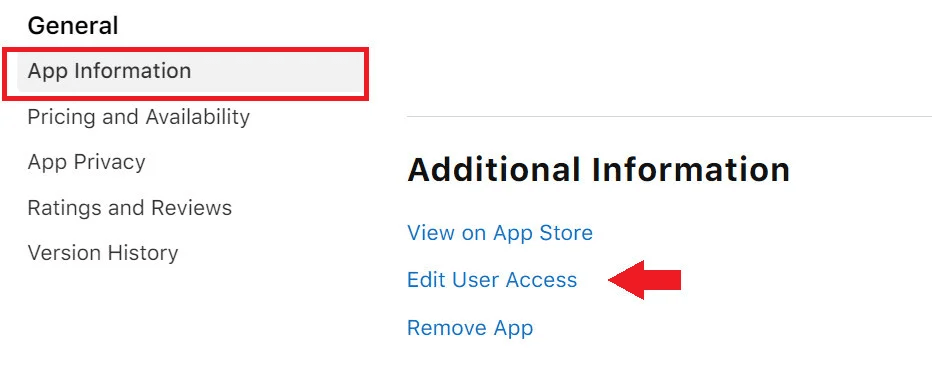
This area is explained in detail within the Apple App Management dashboard.
Deleting an App from the App Store
⚠️ Warning: Deleting an app permanently removes it from the App Store.
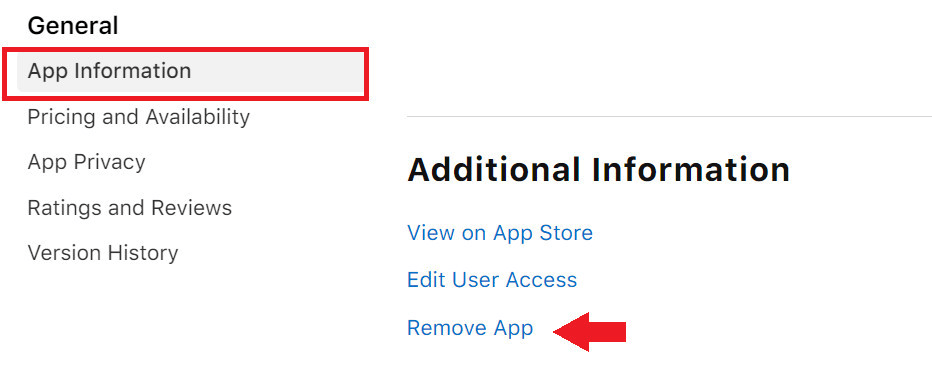
This action is irreversible and should be handled carefully. We recommend contacting the Salla App Support team before proceeding.
Hiding an App from the Apple App Store
This option is useful if you want to temporarily remove your app from public visibility (for maintenance or updates) without deleting it.
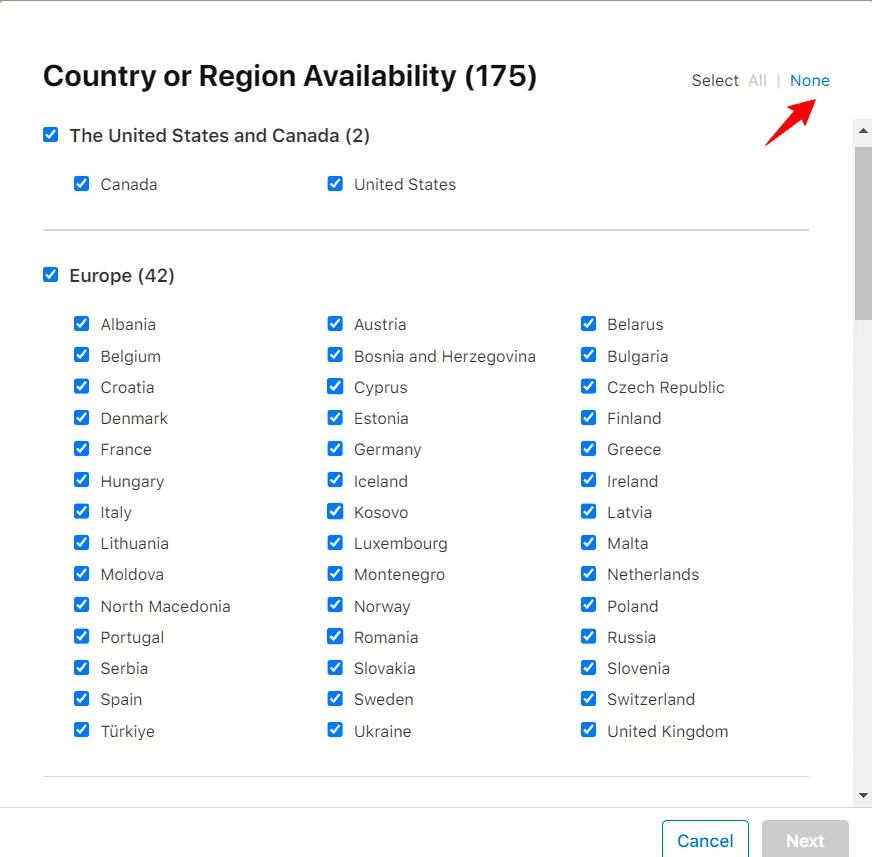
- From the app dashboard, click Pricing and Availability, then click Manage.
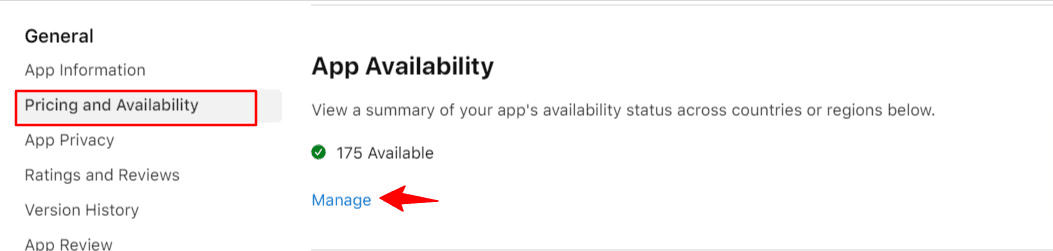
2. Select Manage Availability to:
- Control which countries your app is available in
- Remove the app entirely from the App Store
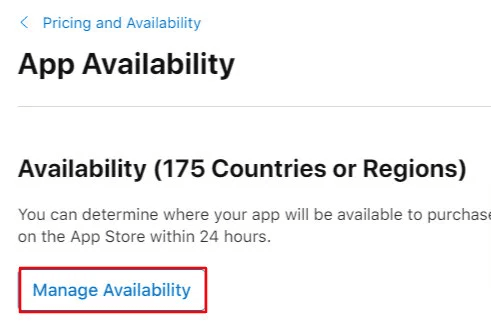
✨ To make the app visible again, select None, then save your changes.
3. To hide the app in specific countries, simply deselect the desired countries and save.
Viewing and Responding to App Ratings & Reviews
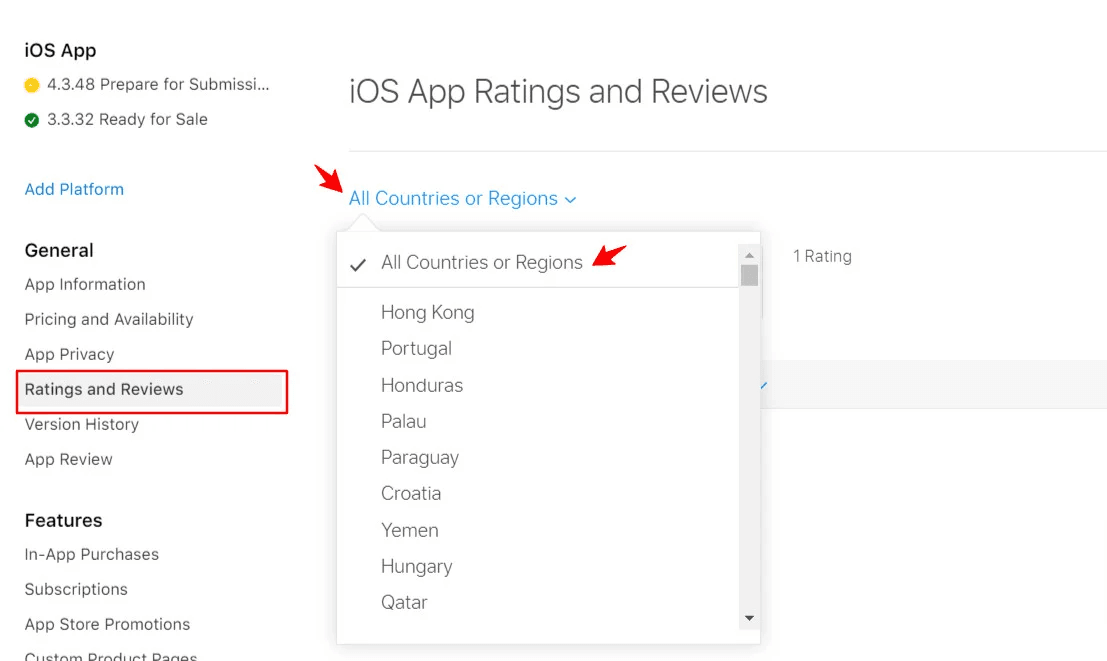
- From the app dashboard, click Ratings and Reviews, then select All countries and regions.
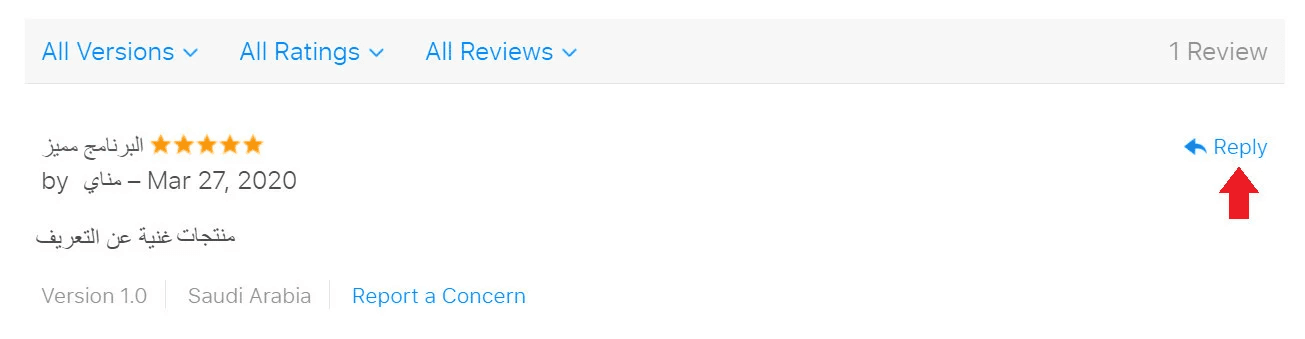
2. To respond to a review, click Reply next to the review.
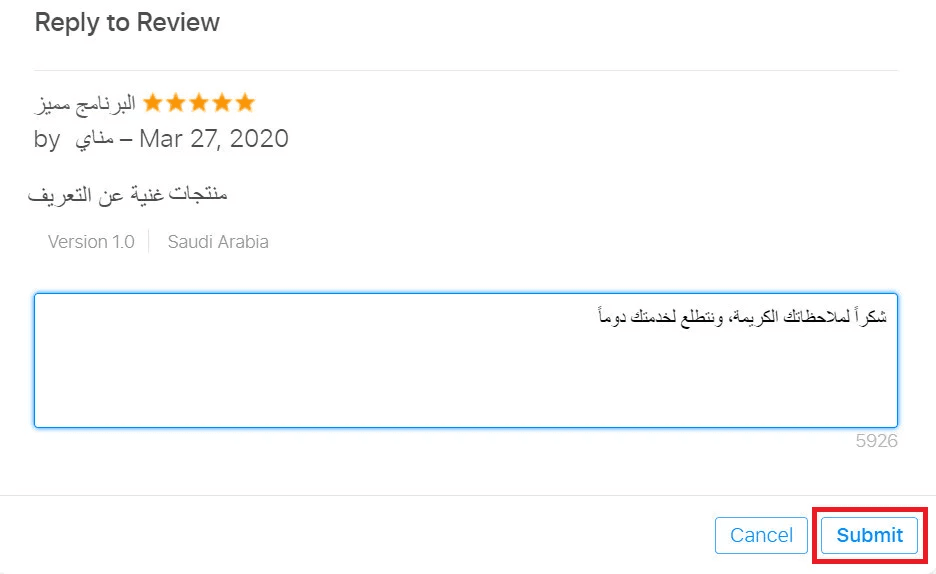
3. Enter your response and click Submit.
Apple reviews responses before publishing, so replies may not appear immediately.
Review Filtering Options
You can filter reviews by:
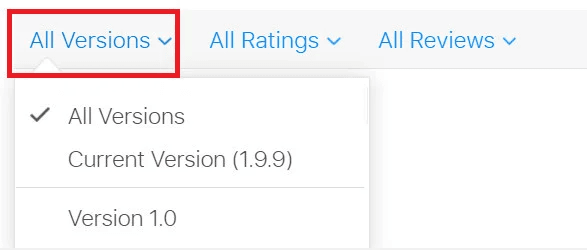
- App version
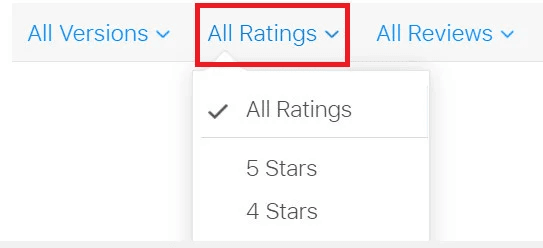
- Star rating
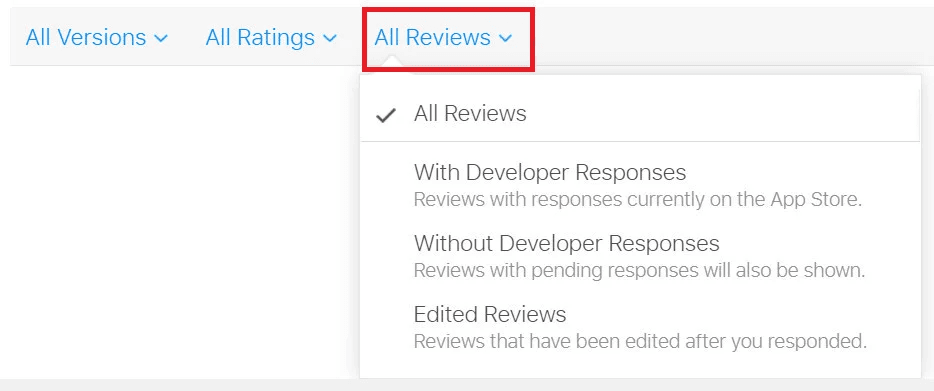
- Response status:
- Replied reviews
- Unreplied reviews
- Reviews edited after a response
If a review is unfair or violates guidelines, click Report a Concern.
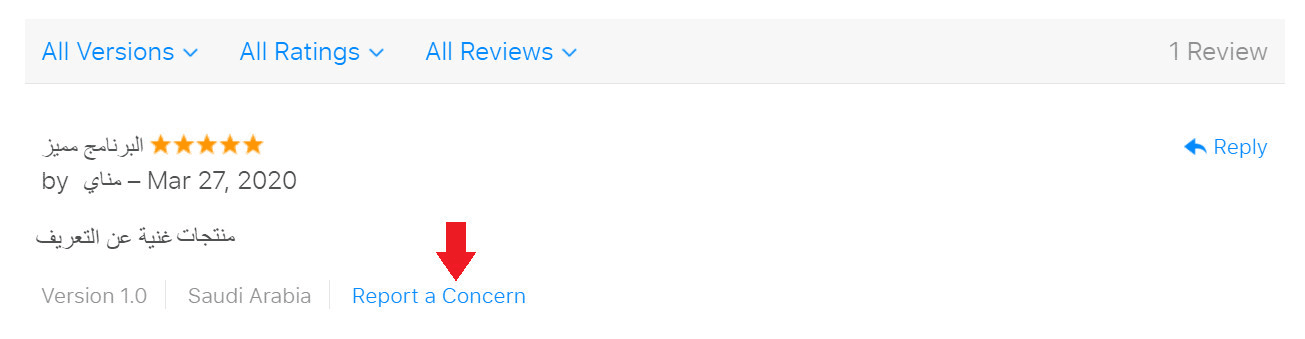
Apple will review your report and may remove the review if justified.
🌟 Best Practices for Managing App Reviews
- Responding to reviews improves user trust and app ratings.
- You can reply to reviews regardless of when they were posted.
- Users are notified when you respond and may update their rating.
- You can edit responses at any time—only the latest reply is visible.
- Keep responses concise, respectful, and free of personal data or marketing content.
- Match your responses to your brand voice.
- Prioritize low ratings and reviews mentioning technical issues.
- Responding to older reviews with updates about fixes can re-engage users.
- Reply quickly to new reviews after major releases to encourage engagement.
- Enable email alerts to track updates to reviews you’ve already replied to.