Do you know exactly which apps are running in your store right now, and what each one is costing you?
Finding the right tool to grow a store is hard enough; keeping track of the tools you already installed is harder. The Salla App Store solves both from one place: you browse and install apps by category, then manage every subscription, activation, and renewal from a single page. The result is full control over what runs in your store, and a lot less time spent chasing it. In this guide, you'll learn how the apps page is organized, how to subscribe to an app, how to cancel a subscription or stop auto-renewal, and how to rate, update, and get support for the apps you already have.
The Salla App Store is where you browse, install, and manage every app in your store. The apps page has three tabs: App Store for browsing and installing, My apps for managing what is already installed, and App settings for notification and display preferences.
📌 Article overview
- What the Salla App Store gives you
- The sections of the apps page
- How to subscribe to an app
- How to manage an app subscription
- How to manage installed apps
- Frequently asked questions
🎯 What the Salla App Store gives you
✅ One simple, organized place to browse and install apps
✅ Clear categories, so you can find the app your store actually needs
✅ The ability to rate apps and contact their providers directly for support or questions
✅ Full control from the apps page: search, filter, activate, configure, and cancel
✅ A precise view of every app's status (active, inactive, awaiting payment) along with its subscription details and features
🚀 The sections of the apps page
1. From the main menu, click (All), then under helper tools click (My apps).
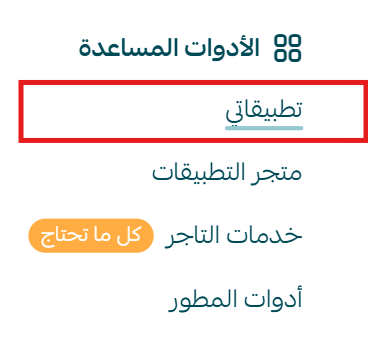
2. The apps page opens, split into three main tabs.

The App Store tab
The (App Store) tab lists every app available on the platform.
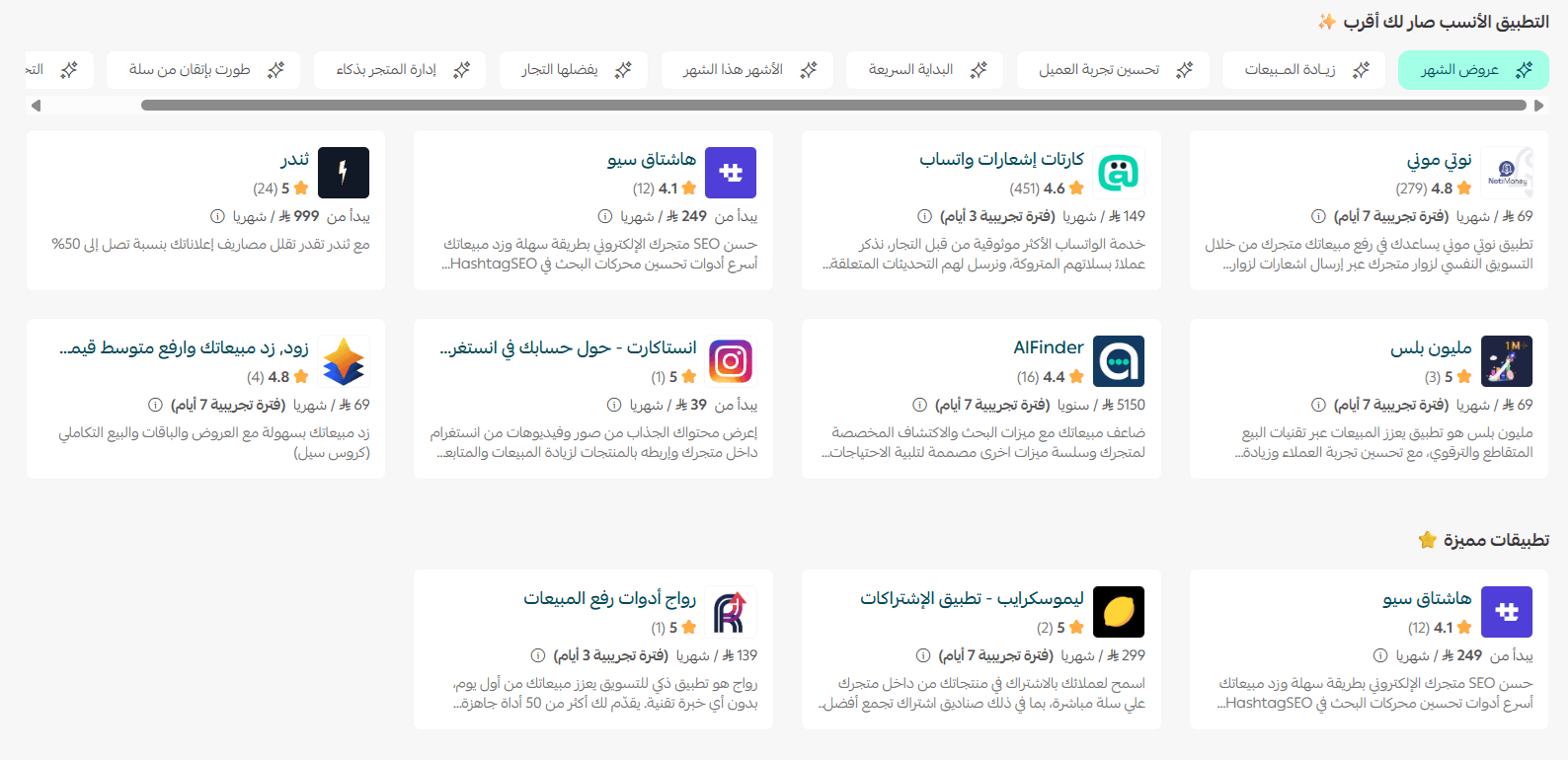
You can search for a specific app and install it straight from this tab.
The My apps tab
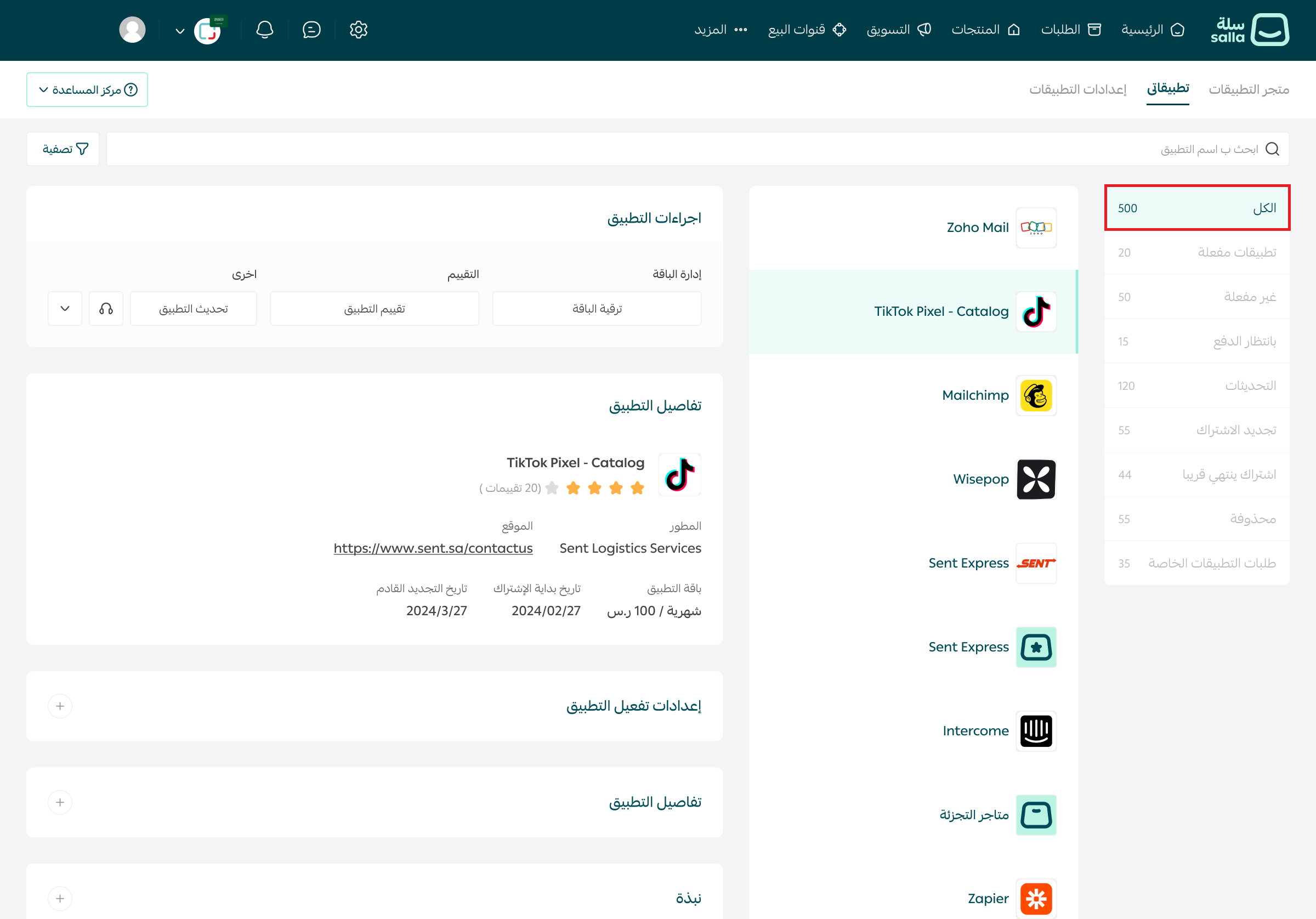
The (My apps) tab shows every app installed in your store. You manage each one separately here, open its details, or search for a specific app.
Inside this tab you'll find:
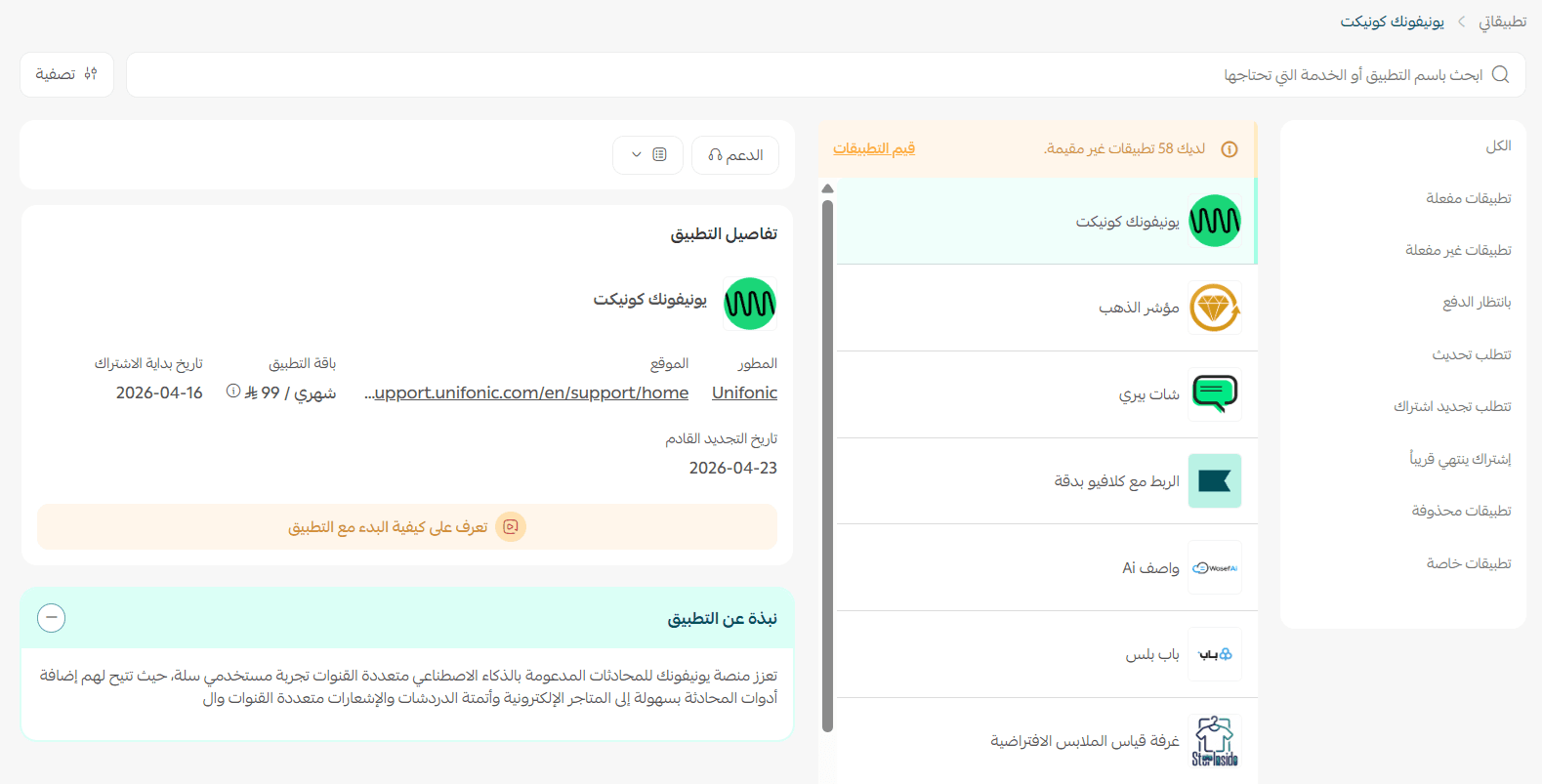
- Search and filter bar, to find one app by name or narrow the list down with filters.
- App status list, to view apps by state: active apps, inactive apps, awaiting payment, updates, subscription renewal, subscription ending soon, deleted, and custom app requests.
- App actions, the operations you can run on the app you're looking at, such as activation, rating, deletion, canceling the subscription, and upgrading the plan.
- App details, showing the app's plan, subscription period, and subscription end date.
- App activation settings, holding the data you need to supply to finish activating the app.
- About the app, with additional detailed information.
- Overview, a short profile of the company that developed or supplies the app.
The App settings tab
The (App settings) tab is where you control notification preferences and how apps are displayed in your store.

🚀 How to subscribe to an app
1. From the (App Store) tab, choose the app you want, then click (Install app).

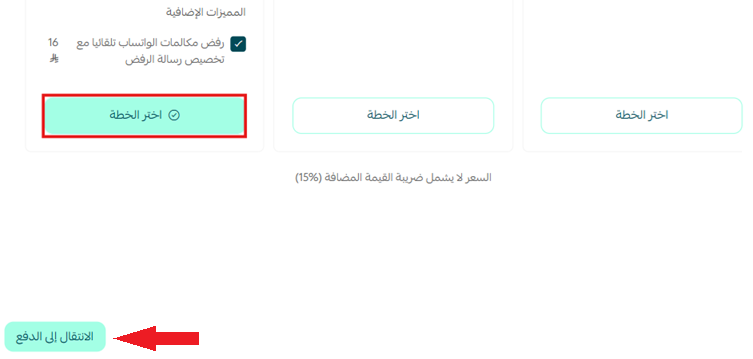
2. Compare the monthly and annual plans, pick the one that fits, then click (Go to payment).
📝 Important notes
You can cancel and get your money back within 7 days of subscribing, and only within that window.
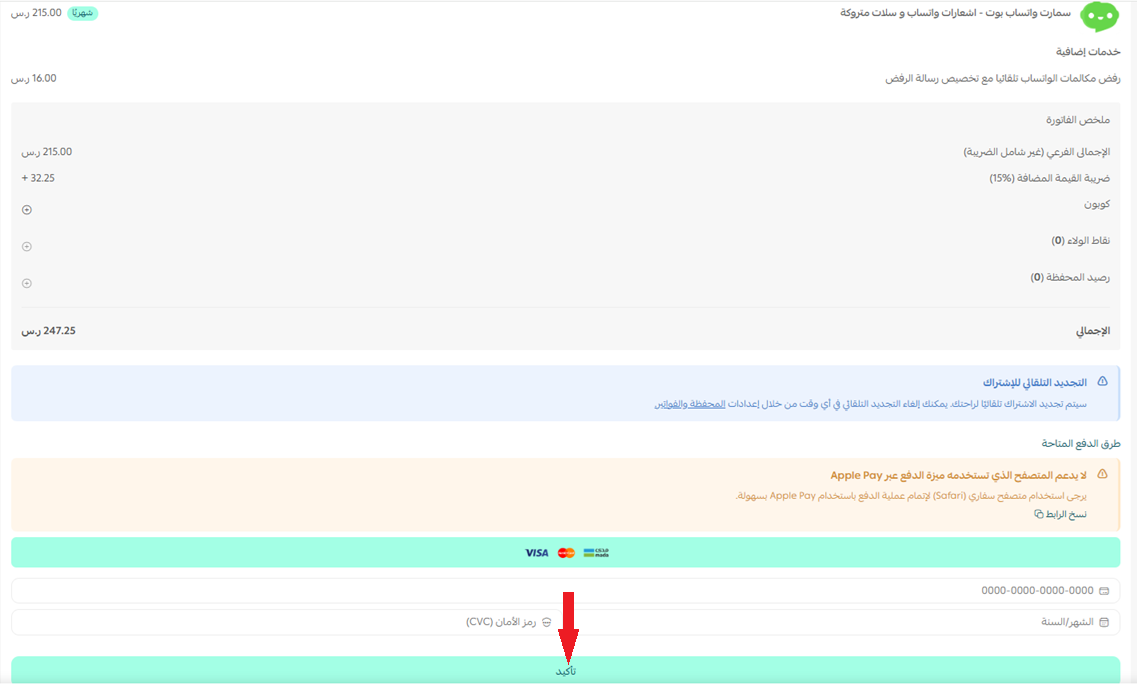
3. Choose a payment method and click (Confirm) to complete the payment and install the app in your store.
🚀 How to manage an app subscription
Cancel an app subscription
1. From the (Active apps) list, select the app you want to cancel.
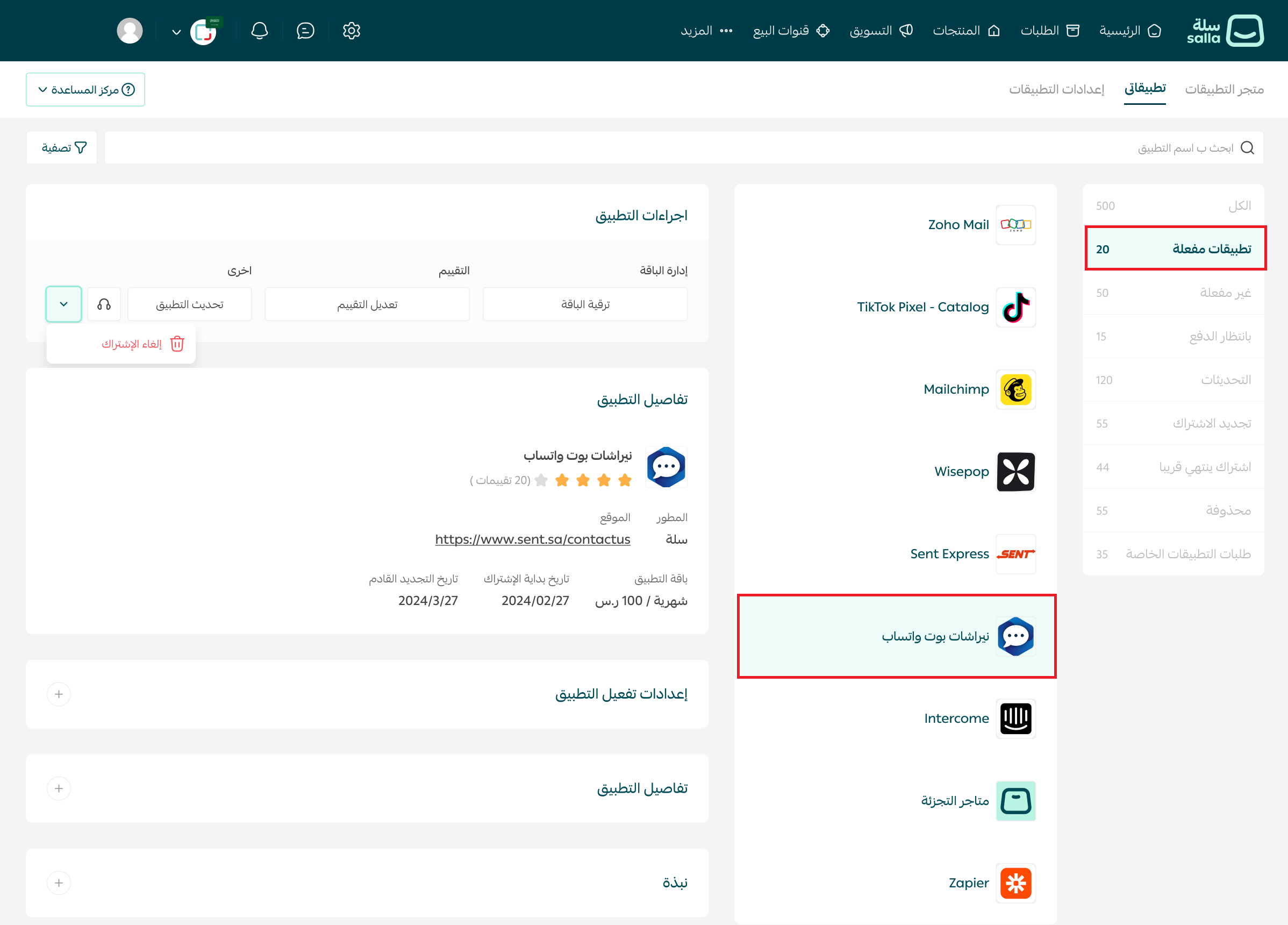
2. In the (App actions) section, choose (Cancel subscription).

3. A confirmation appears. Click (Exit) to back out, or (Cancel subscription) to go through with it.

The subscription ends and the app moves to the inactive apps list.

Turn off automatic renewal
From the main menu, click (All), then under settings and tools click (Wallet and invoices).
In the subscriptions section, click the (...) next to an active subscription, then click (Stop automatic renewal).

📝 Important notes
- A check mark (✓) next to a subscription means automatic renewal is on.
- A dash (-) next to a subscription means automatic renewal is off.
🚀 How to manage installed apps
Rate an app
💡 Note: You can rate an app 14 days after installing it.
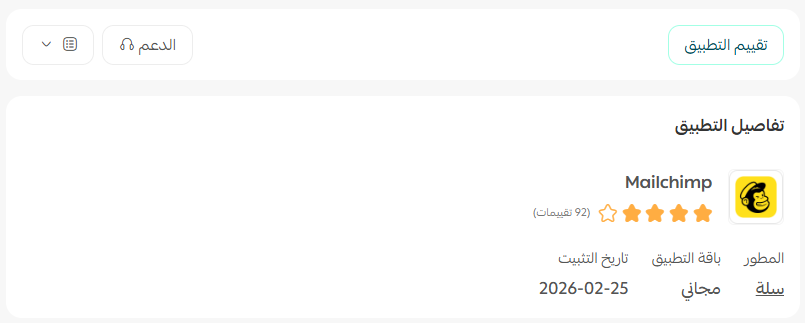
1. Open the app details, and in the app actions section click (Rate app).
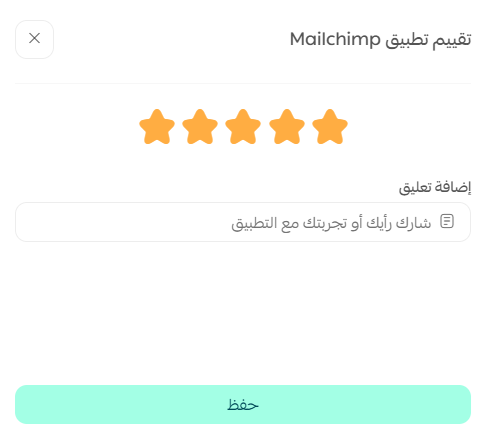
2. Give your rating, write a comment about your experience to help other merchants, then click (Save).
Update an app
From the app actions menu, click (Update app) to update it right away.
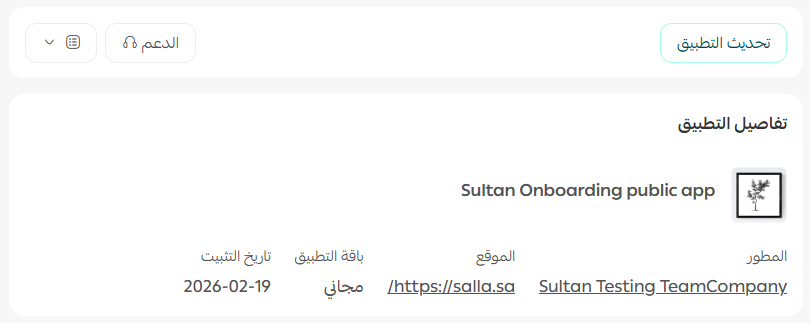
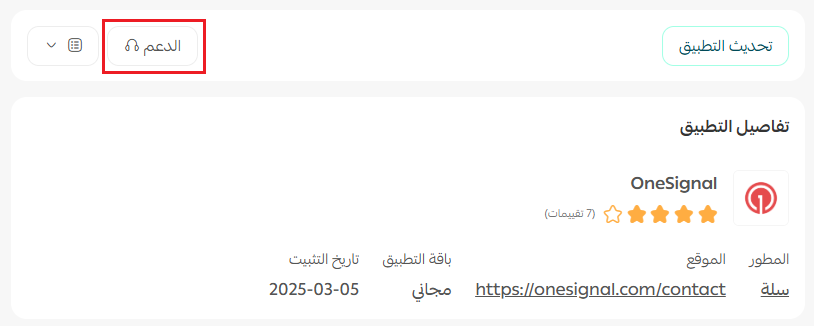
Request support
Contact Salla support by email to ask a question or get help with a problem.
❓ Frequently asked questions
Will I be warned before an app subscription expires?
Yes. You get a reminder to renew before the subscription ends, so the app does not stop working.

Can I cancel a subscription and get a refund?
Yes, within 7 days of subscribing for the first time. After 7 days the amount paid is not refundable.
Where do I find the apps I installed earlier?
Open the (My apps) tab and choose the (All) section to see everything you have installed.
How do I check an app's status (active, inactive, awaiting payment)?
Use the (App status list) in the (My apps) tab.

Can I contact the app provider directly?
Yes. The app page carries the provider's contact information, so you can reach them directly with questions or support requests.
Can I change my subscription plan later?
Yes. If the provider offers more than one plan, you can upgrade or switch from the (App actions) section.
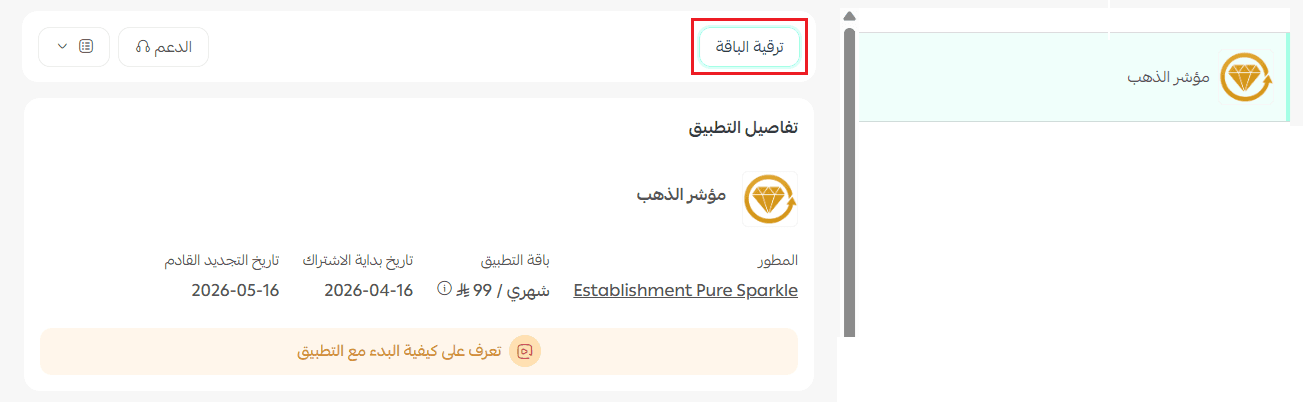
When I upgrade, do I only pay the difference?
Not quite. The unused value left on your current plan is calculated first, then the new plan starts as a fresh subscription with that value deducted. The formula is:
What you pay = price of the new plan − remaining value of the current plan
💡 Example: your current plan is SAR 100 per month with 10 days left on it, worth roughly SAR 30. The new plan is SAR 200 per month. So you pay SAR 200 − SAR 30 = about SAR 170 to upgrade.
How do I activate an app after installing it?
Go to the (App actions) section, where you'll find the activation button. Then open (App activation settings) and enter the data the app needs to finish activating.

Apps are easiest to control when you review them regularly. Once a quarter, open the (My apps) tab, look at what is active, what is renewing, and what you stopped using, and cancel anything that is no longer earning its place.