Are you spending on ads without knowing which ones actually bring in sales?
Plenty of merchants run TikTok campaigns and never see what happens after the click, which caps how efficient those campaigns can ever get. TikTok Pixel - Catalog closes that gap: it measures performance accurately, helps you reach the right audience, and syncs your store's products straight into your TikTok catalog. In this guide, you'll learn what the app does, what you need before you start, and how to create your pixel, connect it to your store, and confirm that your events are being tracked.
TikTok Pixel - Catalog links your Salla store to your TikTok ad account. Create a pixel in TikTok Events Manager, install the app from the Salla App Store, paste your Pixel ID into the app settings and save, then finish the event setup in TikTok and test it with Pixel Helper.
📌 Article overview
- What the TikTok Pixel - Catalog app does
- What you need before you connect
- How to connect TikTok Pixel - Catalog, stage by stage
- Frequently asked questions
🎯 What the TikTok Pixel - Catalog app does
It's an analytics tool that measures the impact of your TikTok ad campaigns. You can watch sales and traffic, and find the audience your ads should be going to.
The three things merchants use a pixel for:
1. Measuring campaign performance. Track how your ad performs and how many conversions it drives, based on the chain of events you define.
2. Optimizing ad delivery. Set an event as your optimization goal and the system targets the users most likely to take that action on your site, such as adding to cart, signing up, or completing checkout.
3. Building audiences from behavior. Track users on your site, then create custom or lookalike audiences based on how they engaged and where they are in the funnel. Those audiences are what you retarget later.
What you need before you connect
- A TikTok account.
- A TikTok for Business account.
📝 Important note
If you haven't created a TikTok for Business account yet, go through the frequently asked questions below and set it up before you start.
🚀 How to connect TikTok Pixel - Catalog to your store
Stage 1: create a pixel in your TikTok account
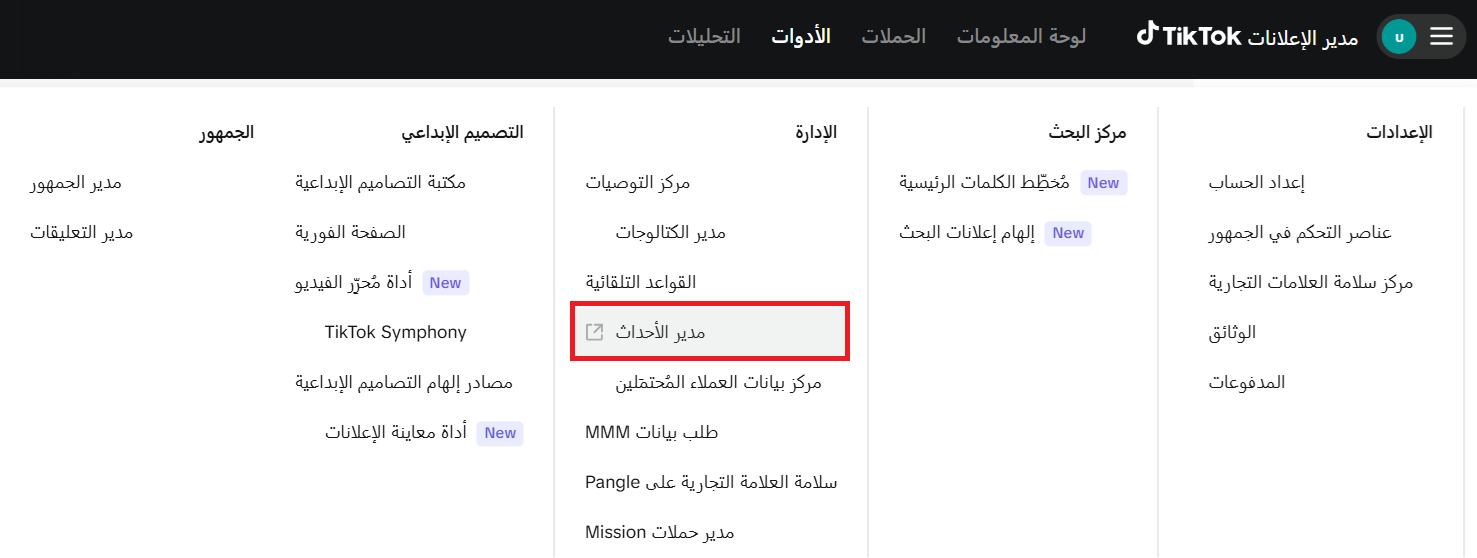
1. Sign in to TikTok Ads Manager, open the (Tools) menu, and click (Events Manager).
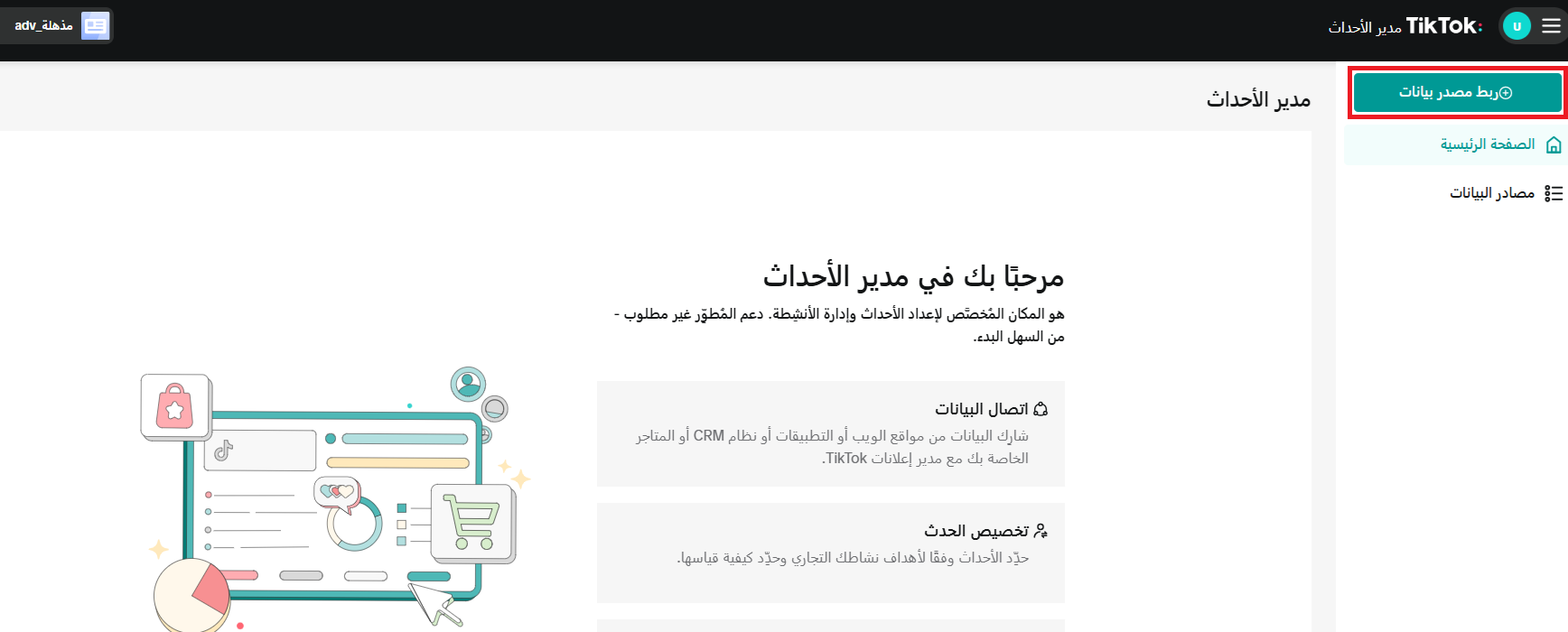
2. On the Events Manager page, click (Connect data source).
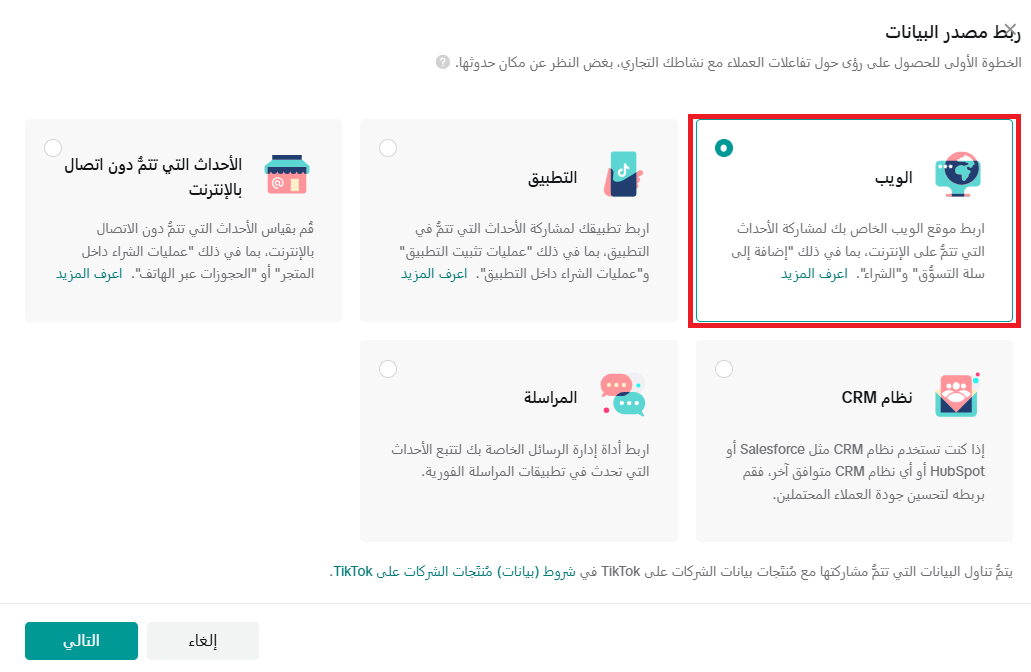
3. Choose (Web), then click (Next).
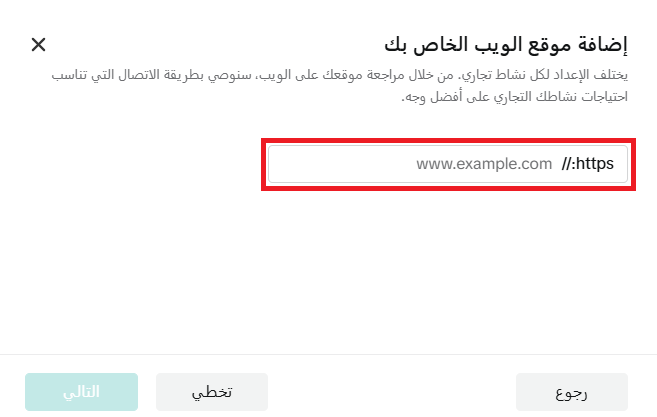
4. Add your store's web address, then click (Next).
5. Choose (Manual setup) as your data connection method, then click (Next).
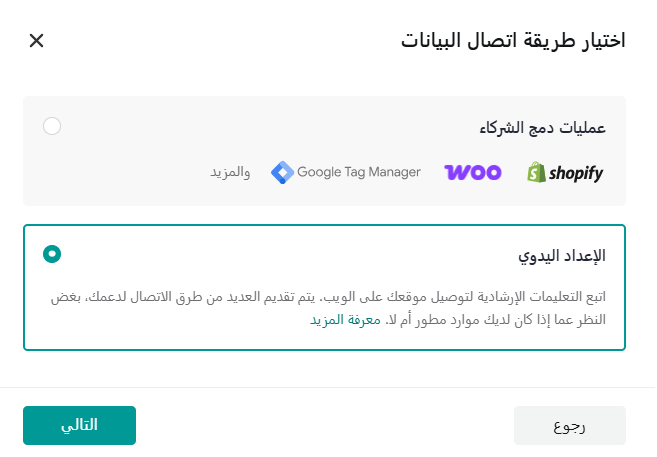
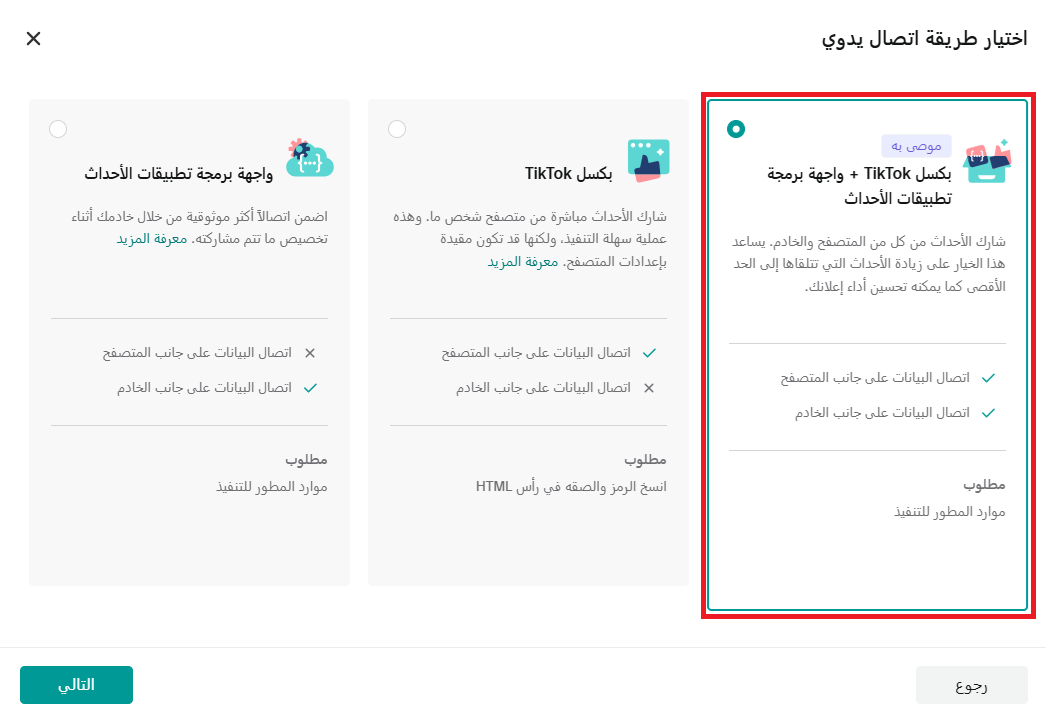
6. Choose (TikTok Pixel + Events API) as the manual connection method, then click (Next).
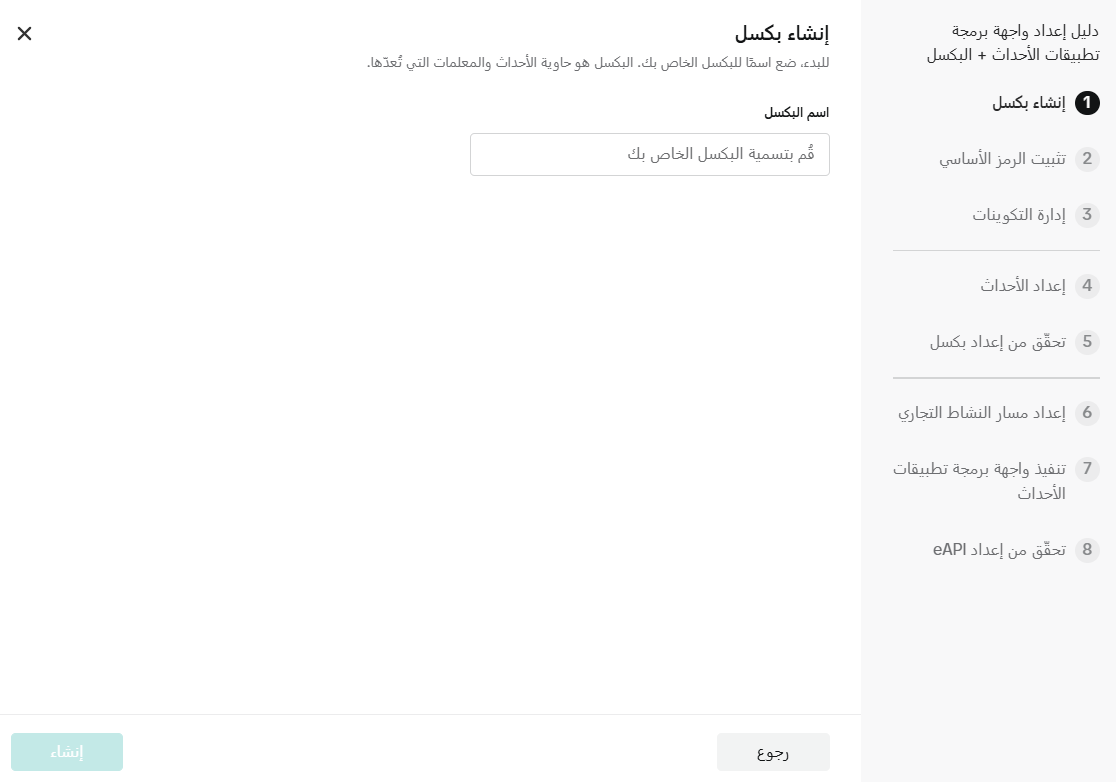
7. Enter a pixel name of no more than 128 characters, then click (Create).
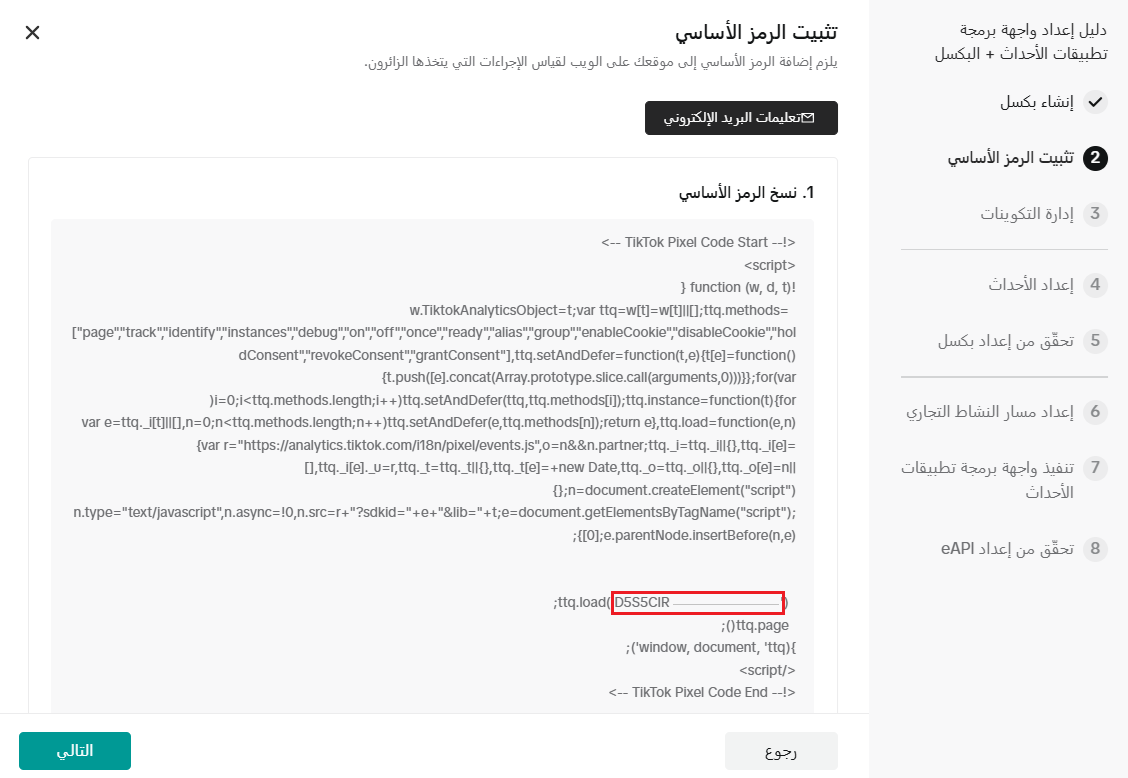
8. Copy the base code and keep it for the next stage.
📝 Important note
You don't need the whole code, only the part marked in the screenshot.
Stage 2: install and activate the app on your Salla store
1. From the main menu, click (All), then under helpful tools, click (App Store).

2. Search for the app using the search field.

3. On the TikTok Pixel - Catalog app, click (Install).

Once the installation finishes, the app shows up on your installed apps page.

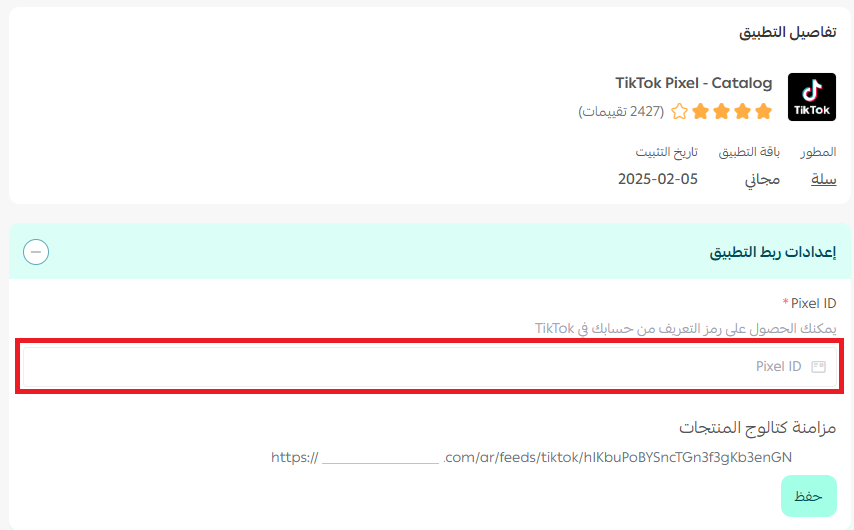
4. To activate the app, open its settings, paste the PIXEL ID you copied from TikTok in the previous stage, then click (Save).
Stage 3: finish the setup in TikTok
1. Go back to the Events API page in TikTok.
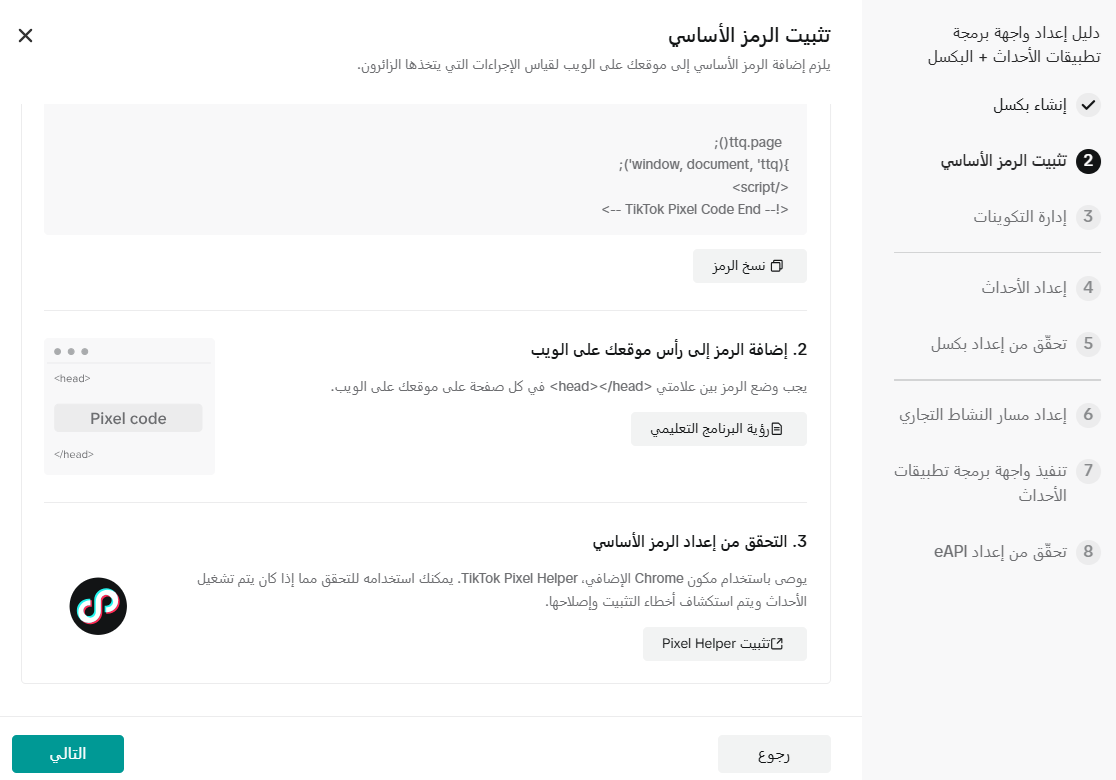
2. On the window that opens, click (Next).
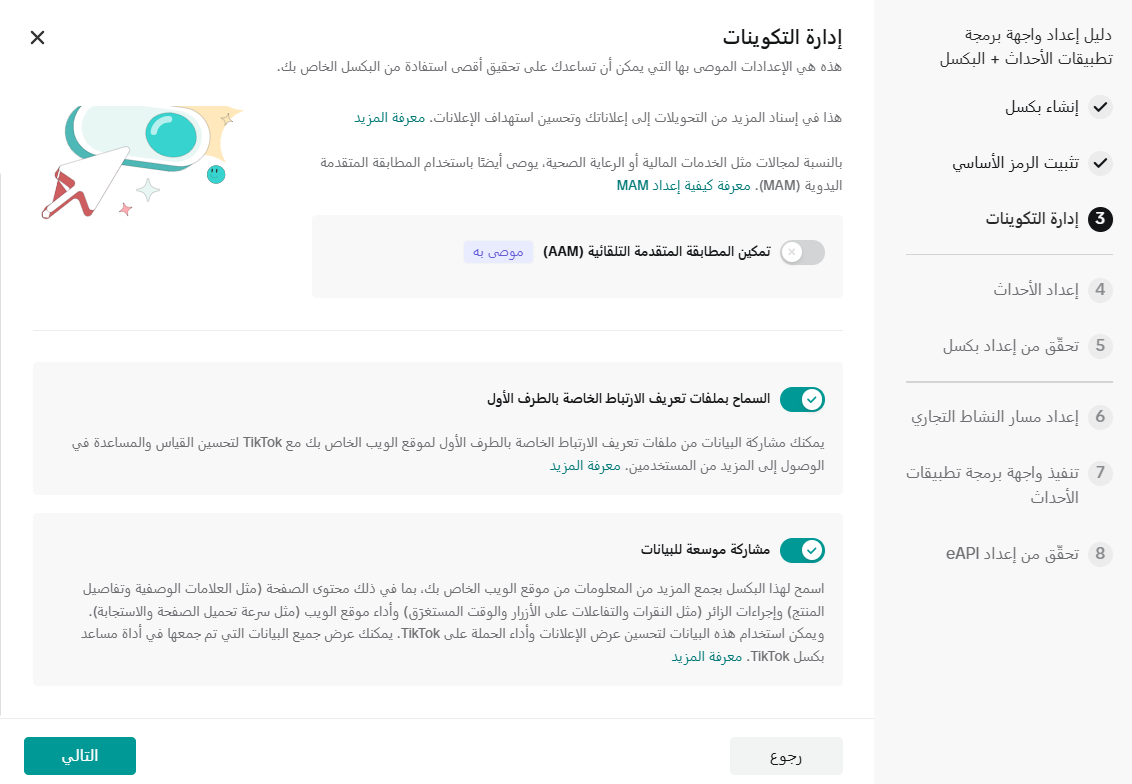
3. On the event setup page, click (Next).
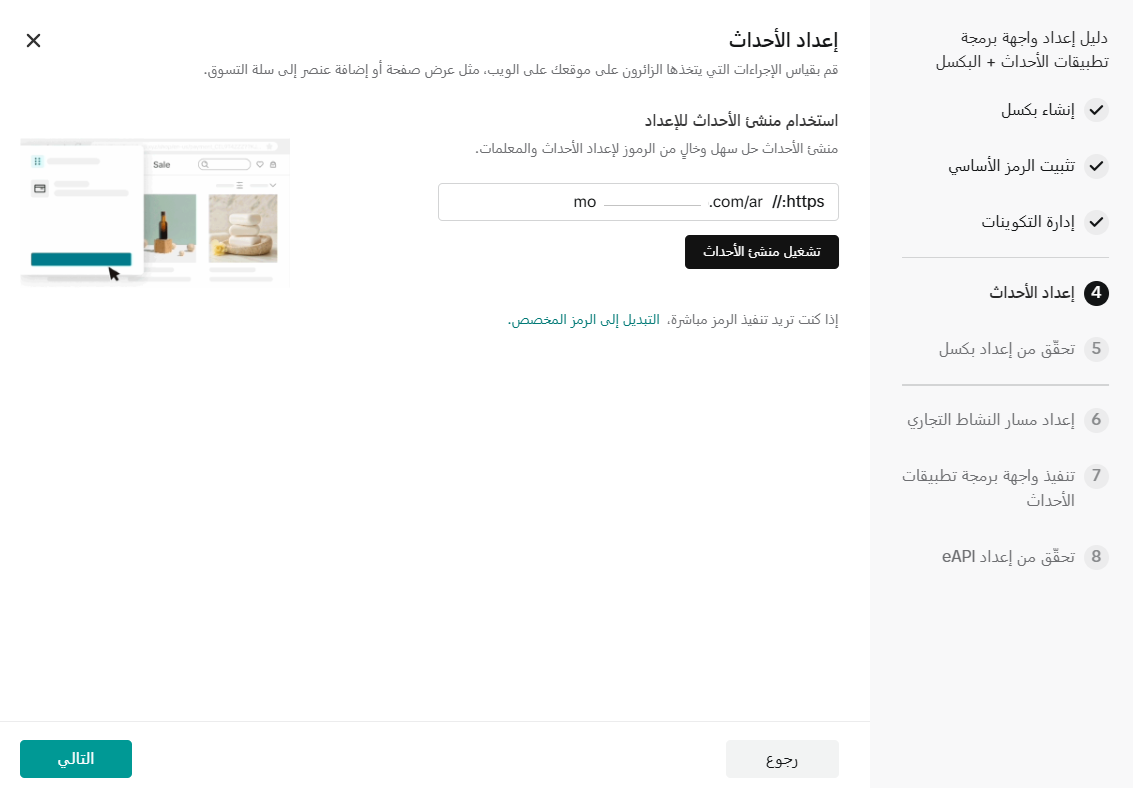
4. Test your events.
Install Pixel Helper, the TikTok pixel assistant, to check your events. It shows you what the pixel is reading, and you can come back to it any time to confirm tracking still works.
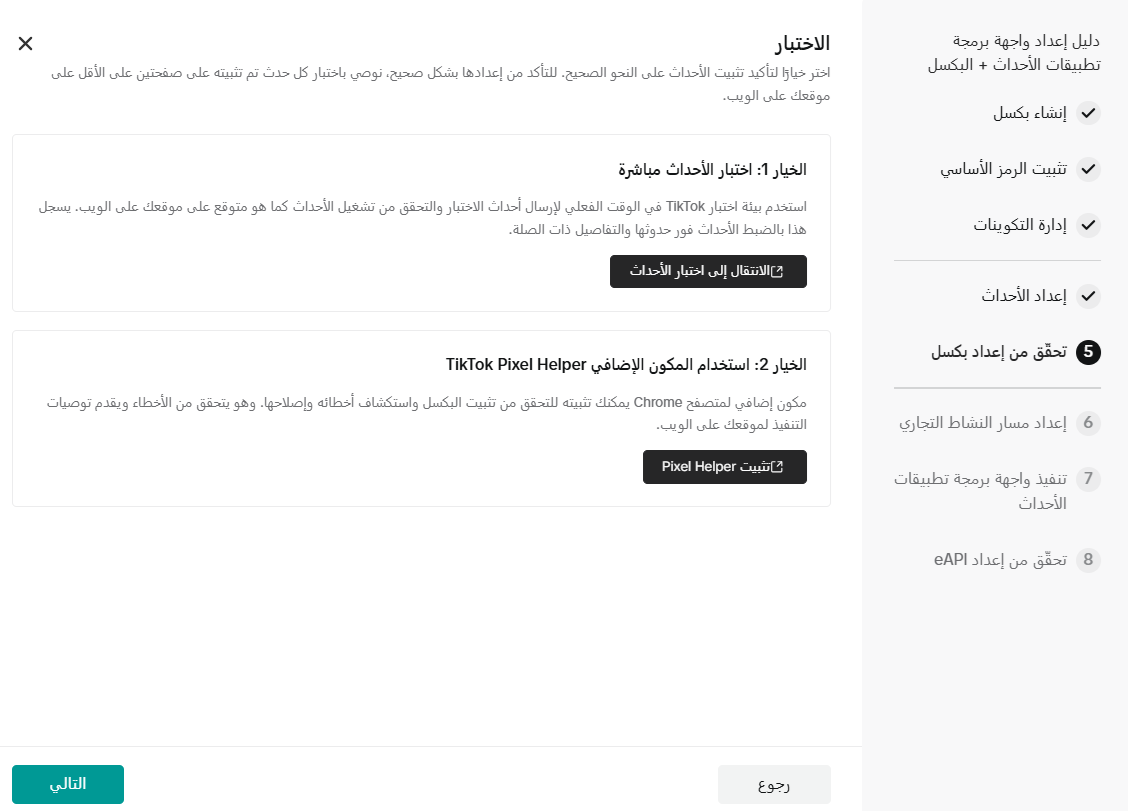
With the extension installed, open your store, browse it, add a product to the cart, then go to checkout and complete an order so a few events get recorded.
Open your extensions from this icon and choose the TikTok Pixel Helper.

The events it picked up are listed for you.
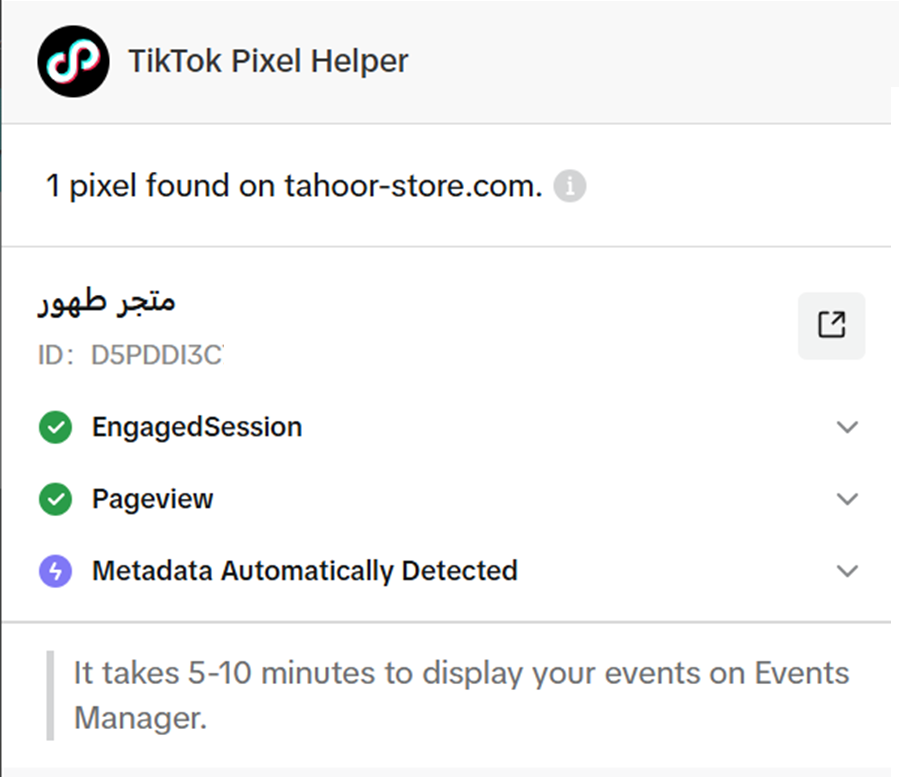
5. The event selection page appears. Leave it as it is, or edit it if you want to add more events.
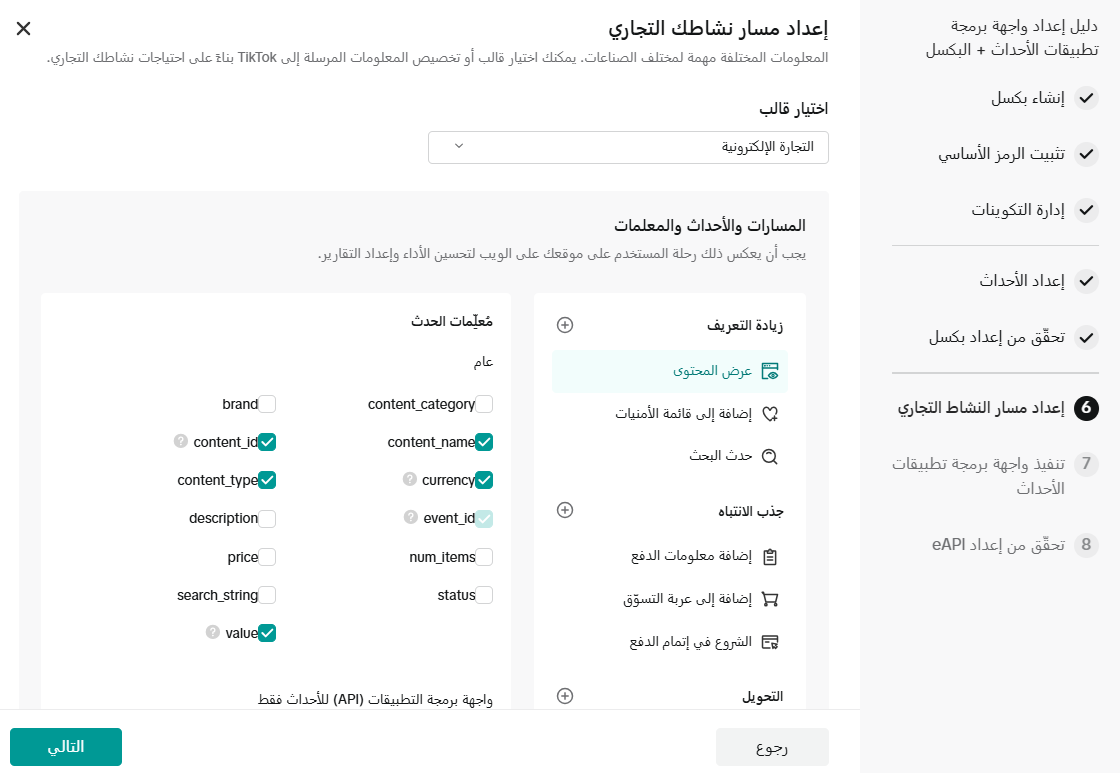
6. Click (Next).
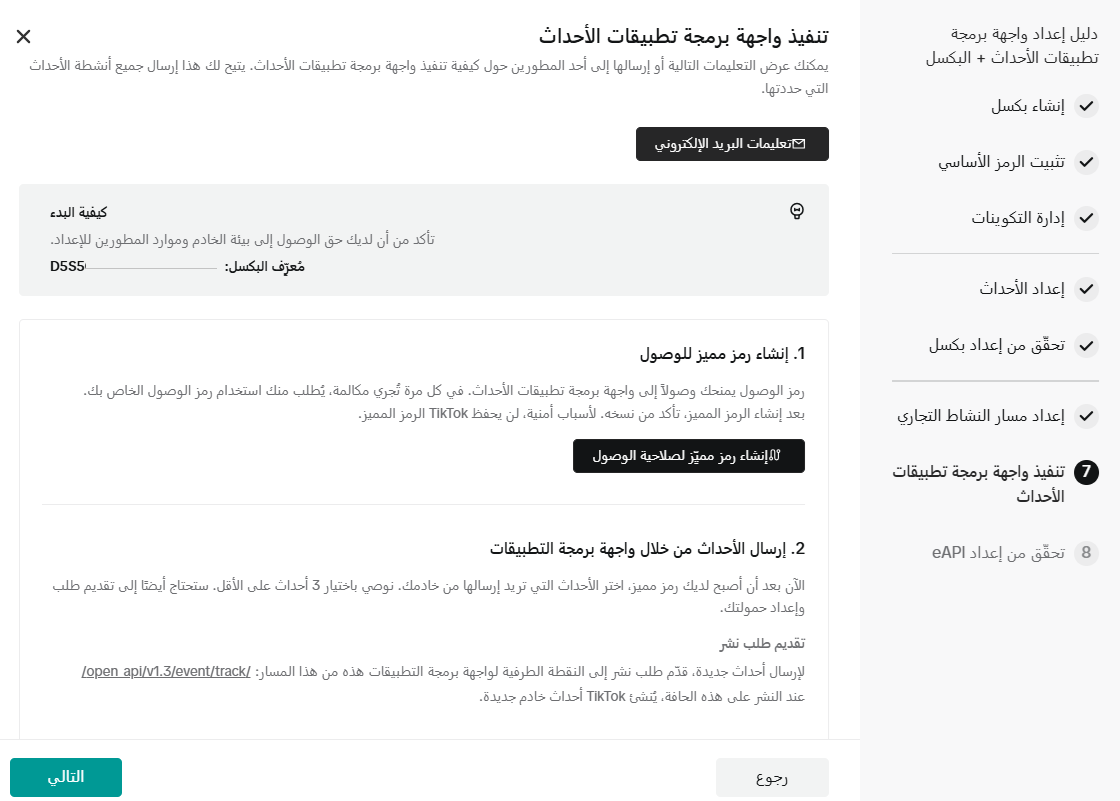
Then click (Finish).
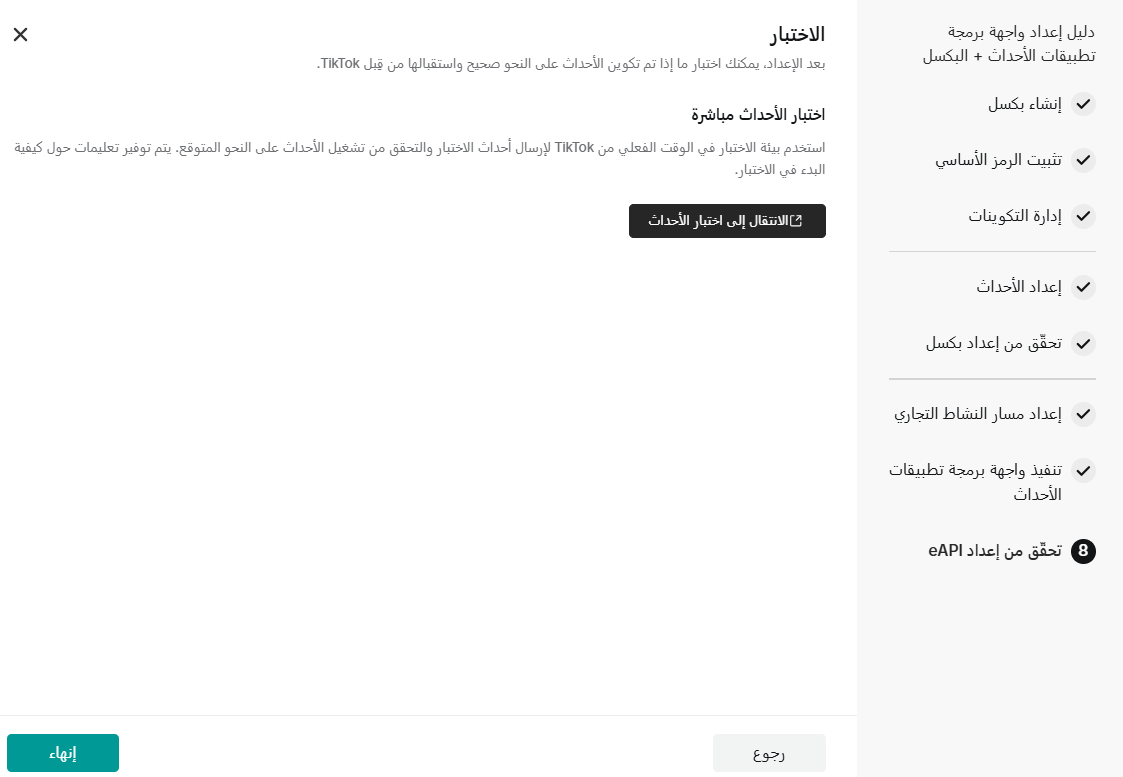
🎉 Nicely done. Your pixel is connected.
Go ahead and create your first sales campaign on TikTok.
Frequently asked questions
❓ How do I get started with TikTok for Business?
Your route from TikTok to a connected store looks like this:
1. Create a TikTok for Business account.
2. Add an ad account for your store.
3. Create a pixel code.
4. Install the TikTok app on your store and connect it to that pixel code.
5. Create a new catalog for your products.
6. Sync your store's products with the catalog you created on TikTok.
❓ How do I register for TikTok for Business?
1. Open the TikTok registration page and click (Register for TikTok for Business).

2. Enter an email address and password for the new account, then click (Sign up).

3. On the Ads Manager home page, enter the advertiser's business details, then click (Continue).
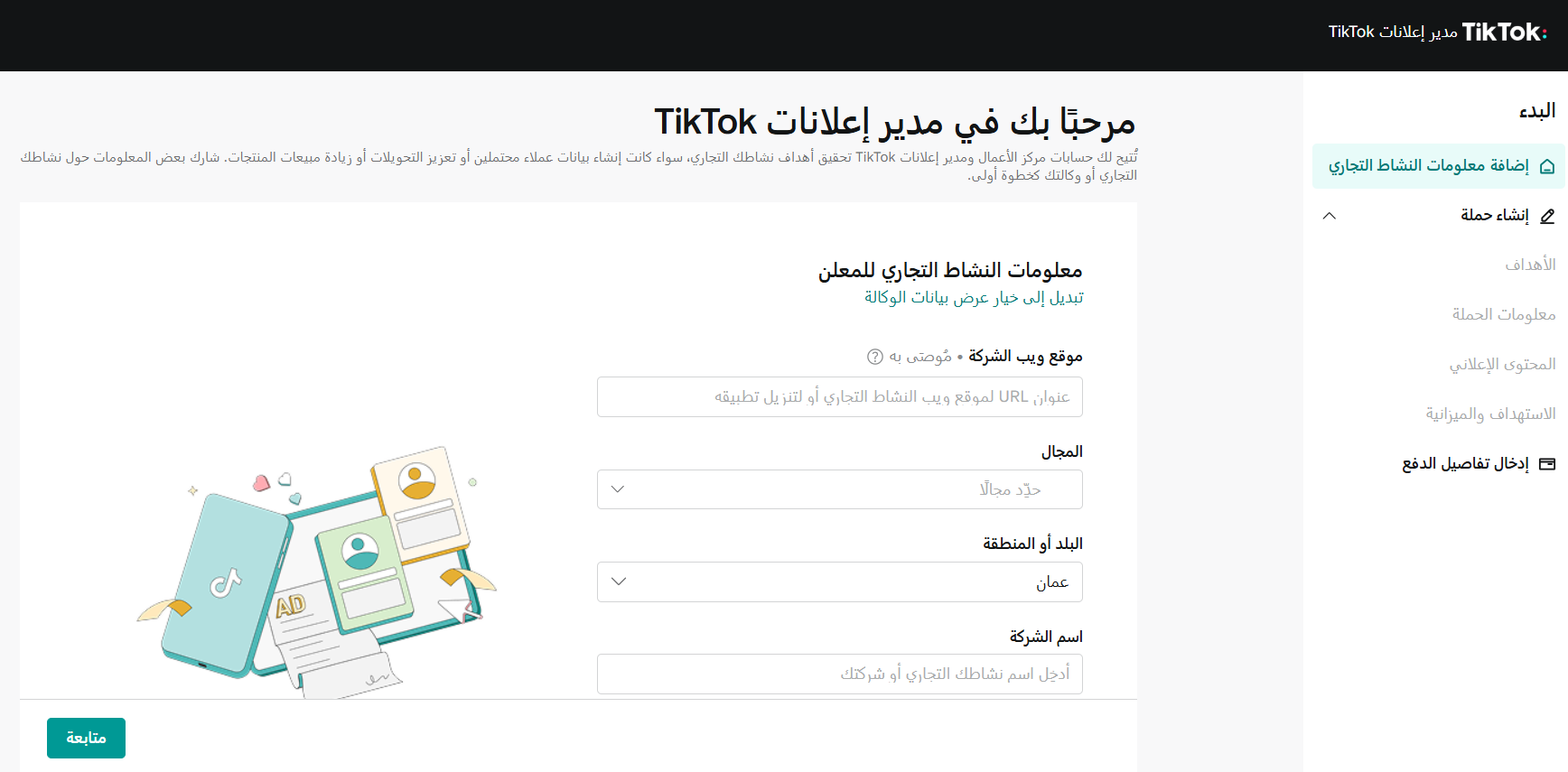
Once registration is done, the TikTok for Business home page looks like this:
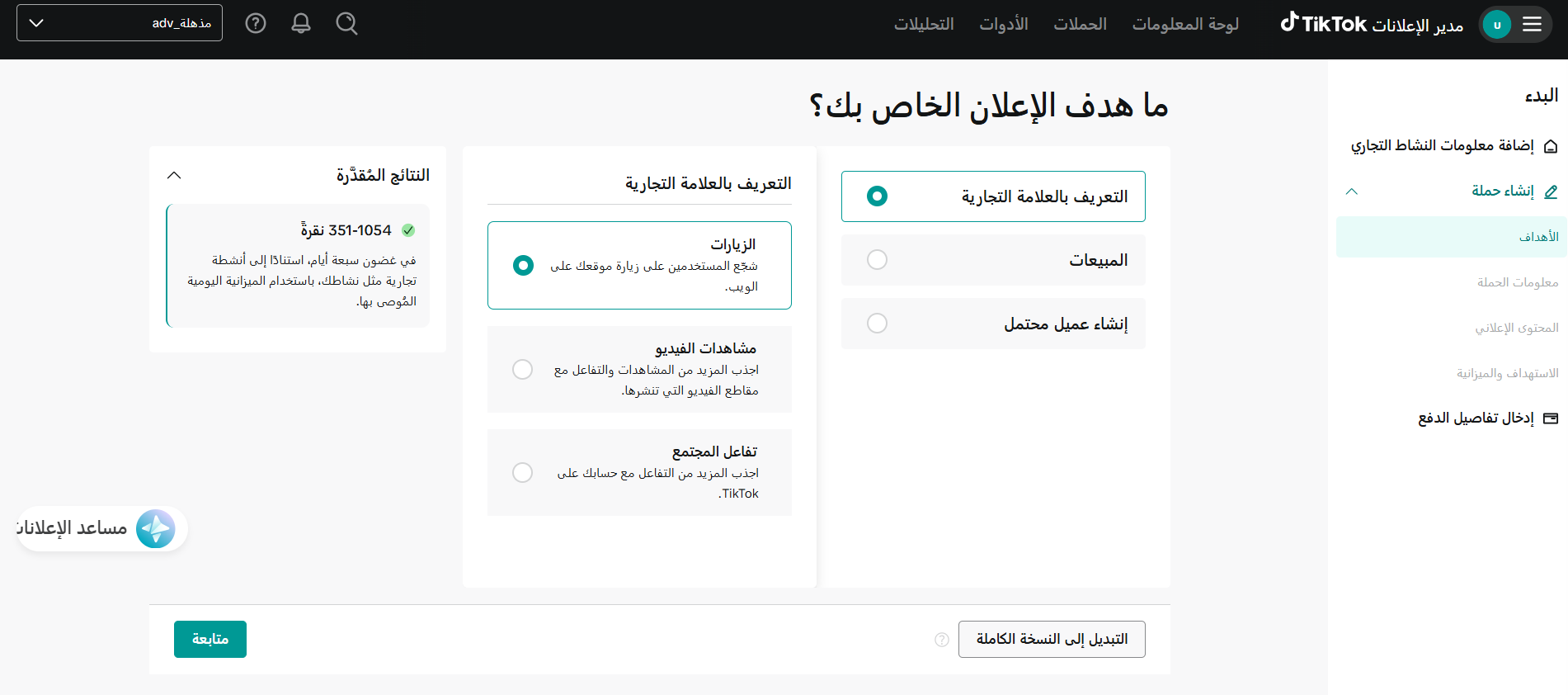
❓ How do I create a product catalog on TikTok?
1. On the Catalog Manager page, click (Add catalog).

2. Give the catalog a clear name, pick the TikTok Business Center account you want it created under, then choose the catalog's industry, target location, and currency, and click (Create).
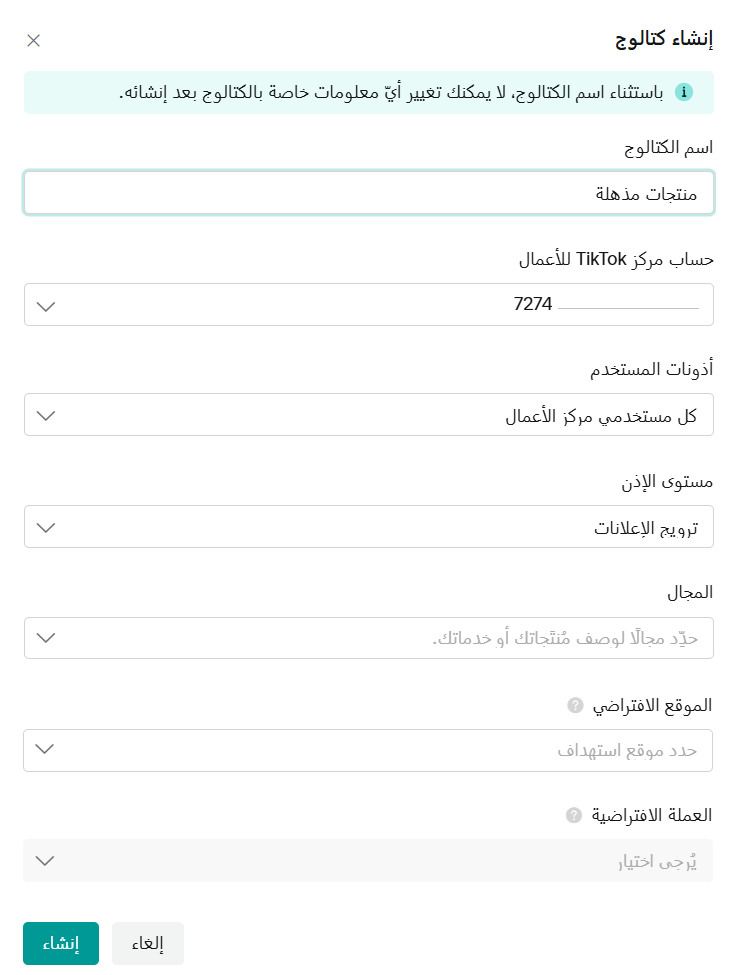
From here, review the requirements and add your products to the catalog.
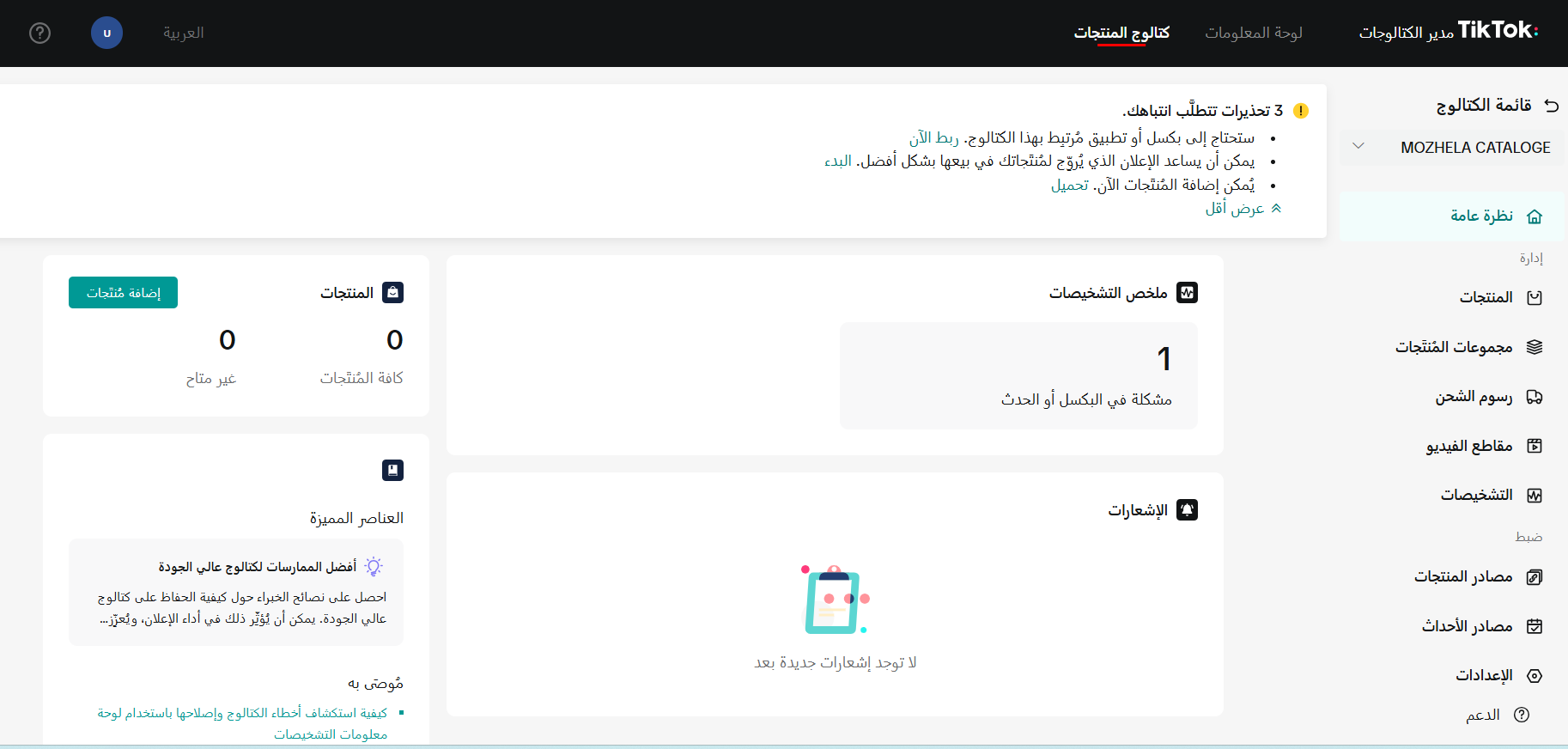
❓ Can I sync my TikTok product catalog with my store's products?
Yes, here's how:
1. On your installed apps page, open the TikTok Pixel app and copy the product catalog sync link.
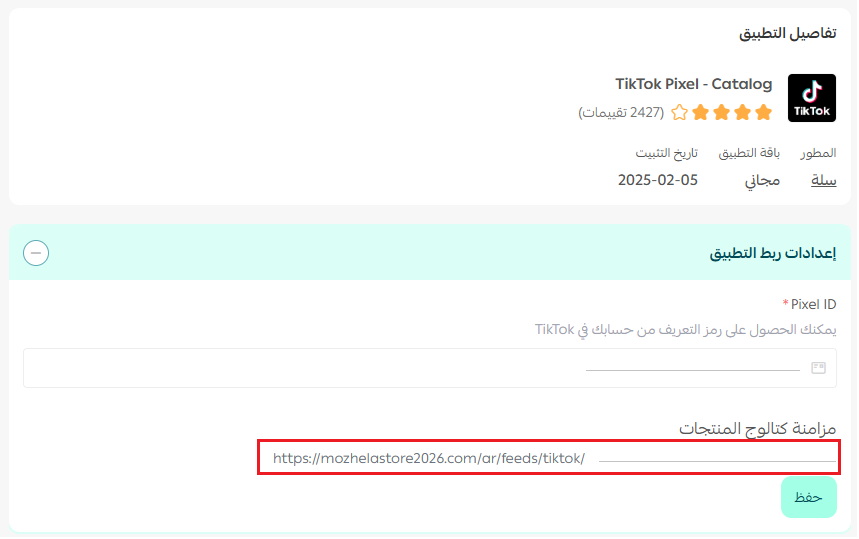
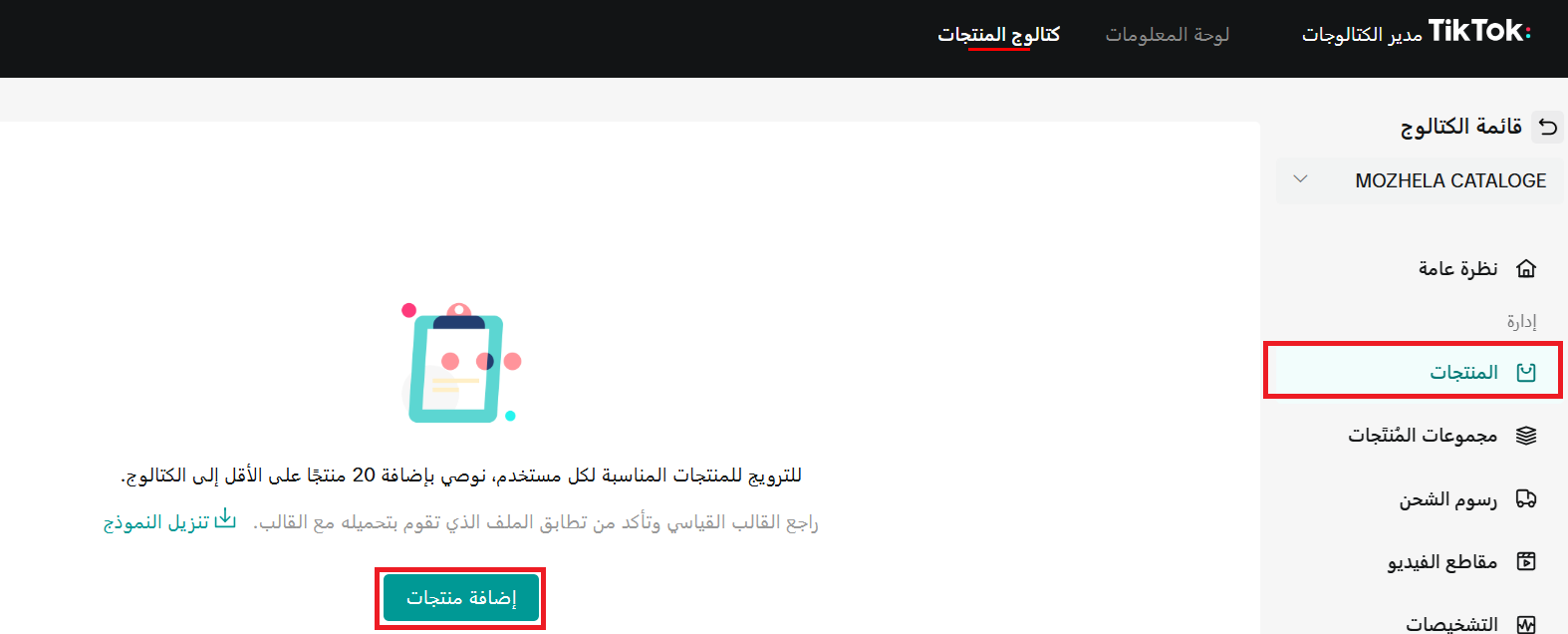
2. Paste that link into your TikTok settings. From the side menu of the Catalog Manager page, click (Products), then click (Add products).
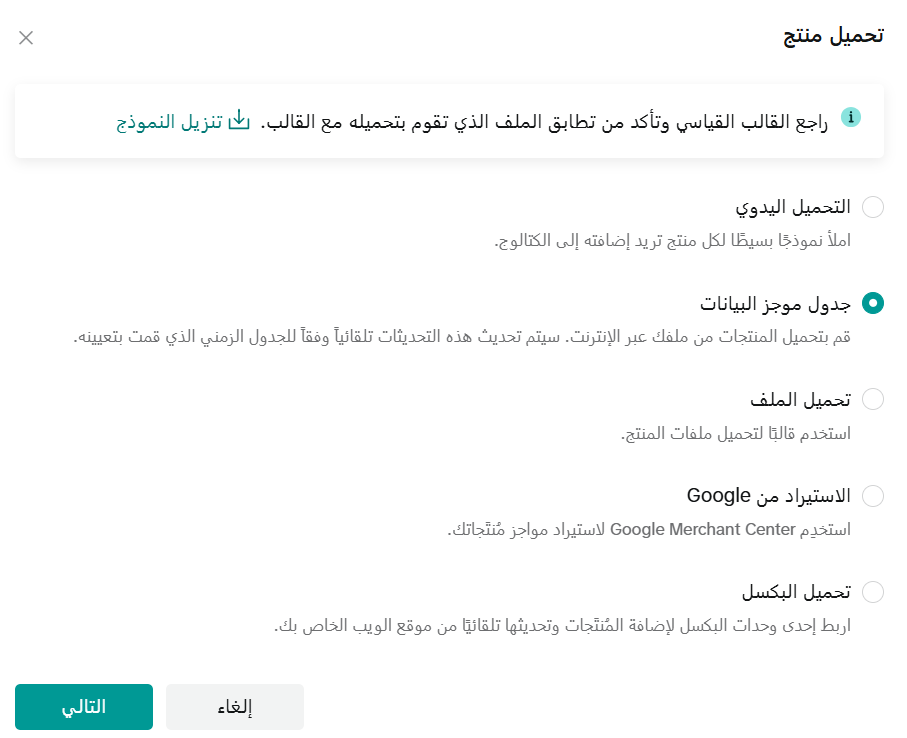
3. Choose (Data feed) as the upload method, then click (Next).
4. Give the feed a descriptive name, then paste the URL you copied from the TikTok app settings on your store.
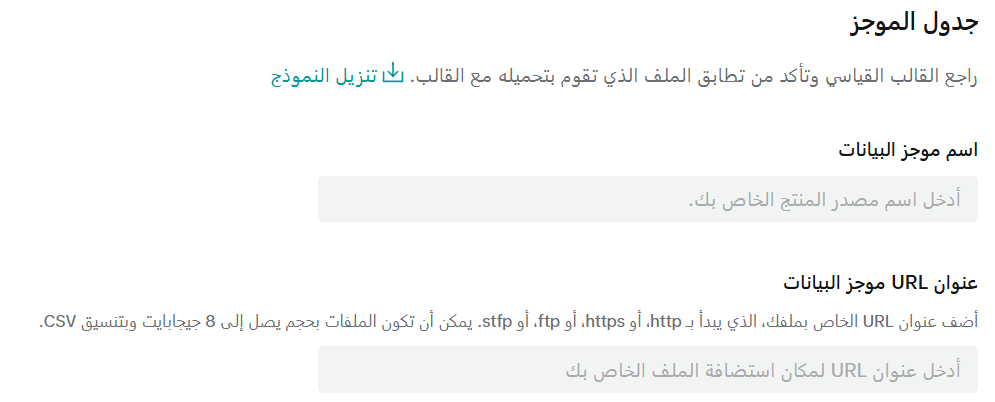
5. Set how often products sync automatically (hourly, daily, weekly, or monthly) and how they update (add new products, or replace all current products with the new ones), then click (Import).
📝 Important note
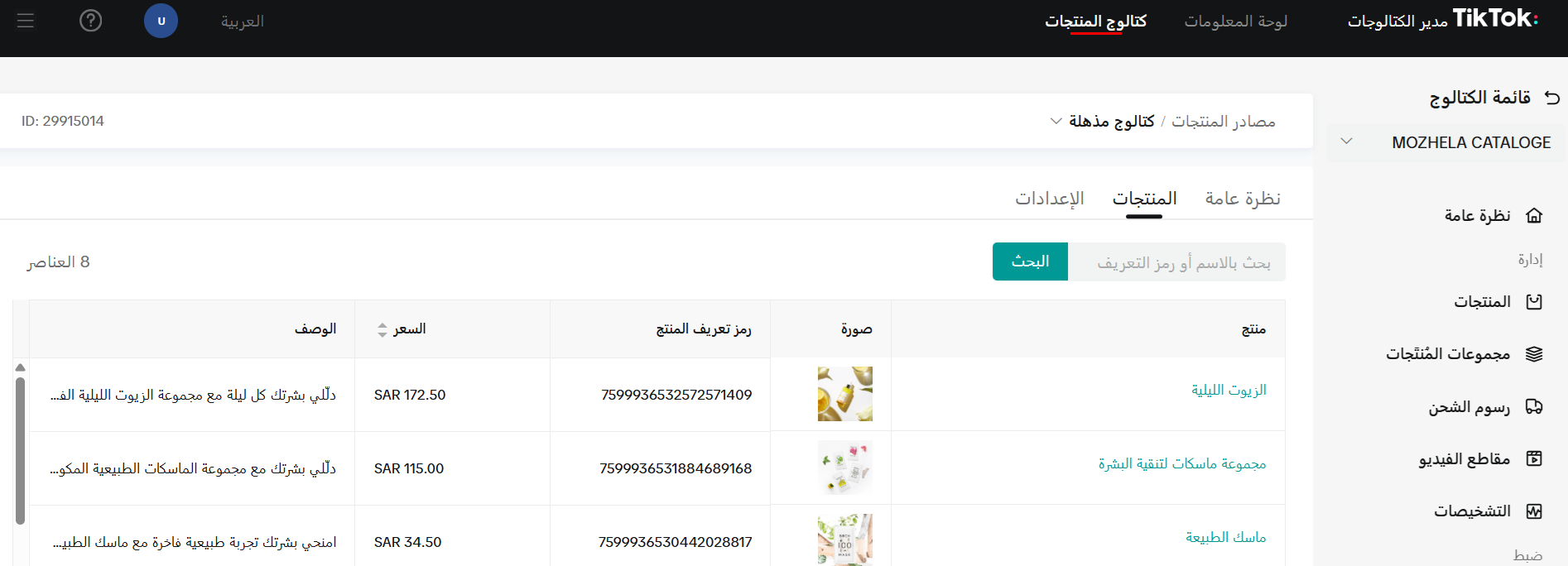
The data feed table shows which products were added and which were rejected, and you can export the results to an Excel sheet.

Review the products that synced from the Products tab.
Connect your store to TikTok Pixel - Catalog and put real data behind your campaigns. The sooner you turn it on, the sooner you get clearer insight, sharper targeting, and faster growth in sales.