Do your customers struggle to understand shipping options or choose the most suitable one? Are they seeing shipping companies that do not efficiently serve their areas, or options that do not reflect your store’s identity?
The shipping routes feature gives you precise control over the shipping experience by customizing what appears to customers at checkout based on order type, location, or even branded naming.
In this article, we present practical and creative examples for each type of route to help you deliver a smooth, reliable, and professional shipping experience that matches your brand.
Example 1: Company selection
The challenge: Some merchants want to offer different shipping companies based on location, such as assigning stronger carriers for remote areas or limiting options in major cities. Additionally, some customers prefer certain carriers based on their experience or delivery speed.
Store case: An online store selling sports equipment and healthy food products.
Solution using routes: Create a route that displays shipping options from 4 trusted companies, selected based on region or product category, allowing the customer to choose the most suitable option.
Steps to configure the route:
- Create a new route of the type company selection, and choose the shipping companies you want the customer to select from.
- Define the conditions for displaying these companies, such as limiting them to specific major cities in the Kingdom.
- Arrange the companies based on: priority, by price, Salla recommendation, capacity, or manual ranking.
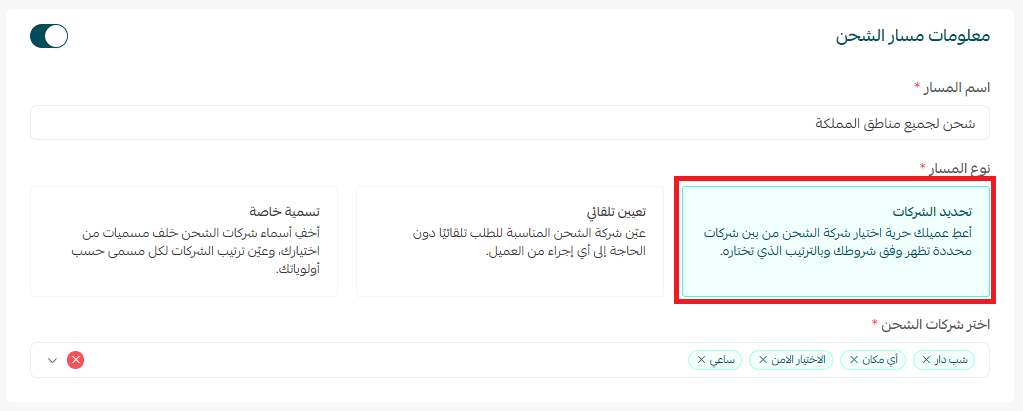
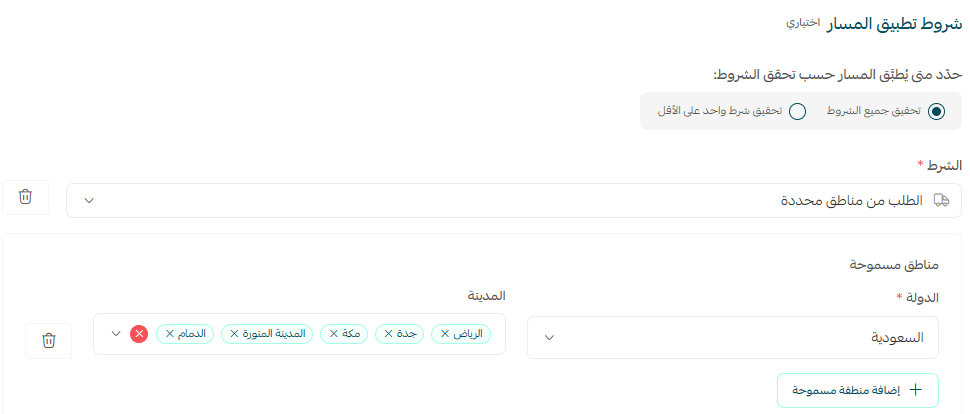
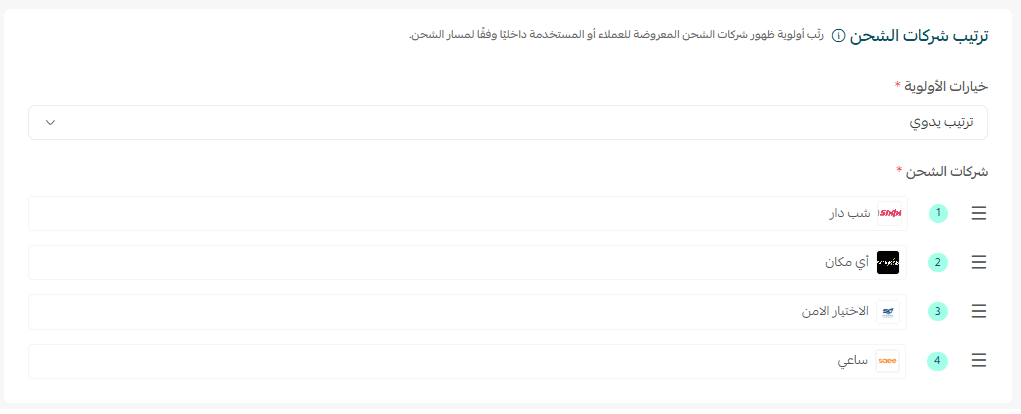
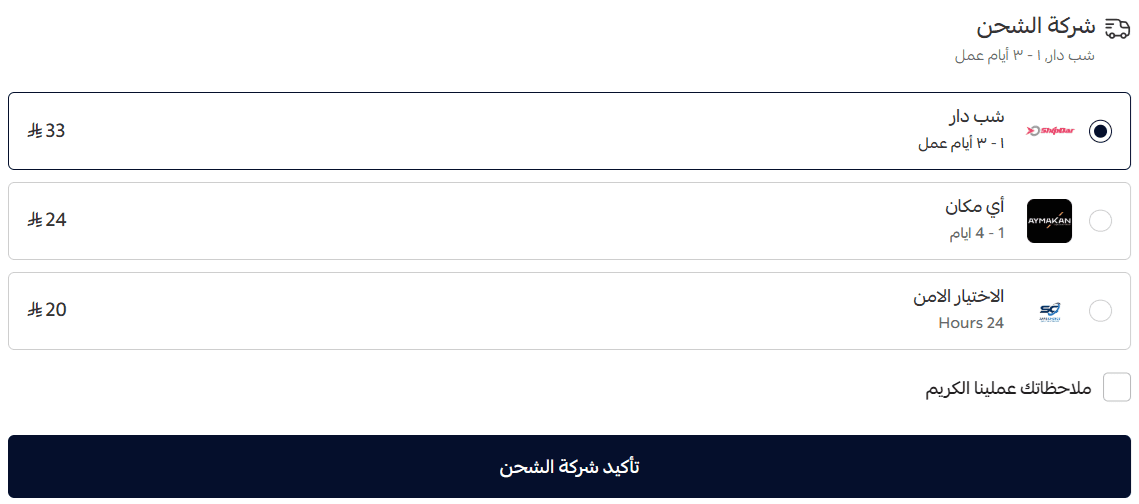
The shipping companies will appear on the checkout page accordingly.
Example 2: Auto-assign
The challenge: Some products are made-to-order (such as flowers), requiring immediate delivery without confusing the customer with multiple choices.
Store case: A flower and instant gift store in Riyadh with a high volume of orders.
Solution using routes: Create an auto-assign route for any order containing “flowers” or “special gifts,” assigning a same-day delivery company (within 2 hours) for supported cities.
Steps to configure the route:
Create a new route of type auto-assign
- Select the required shipping companies.
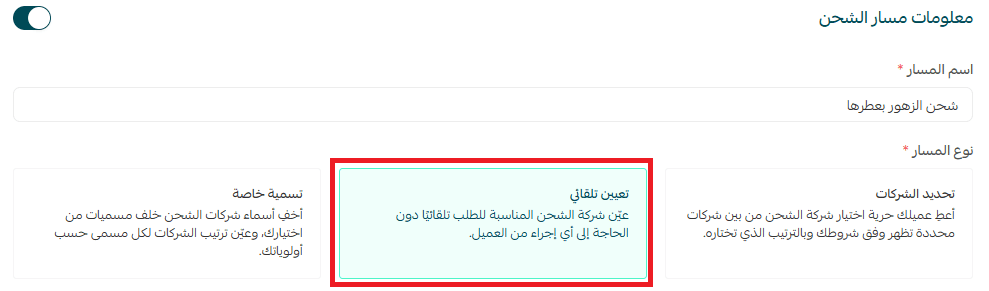

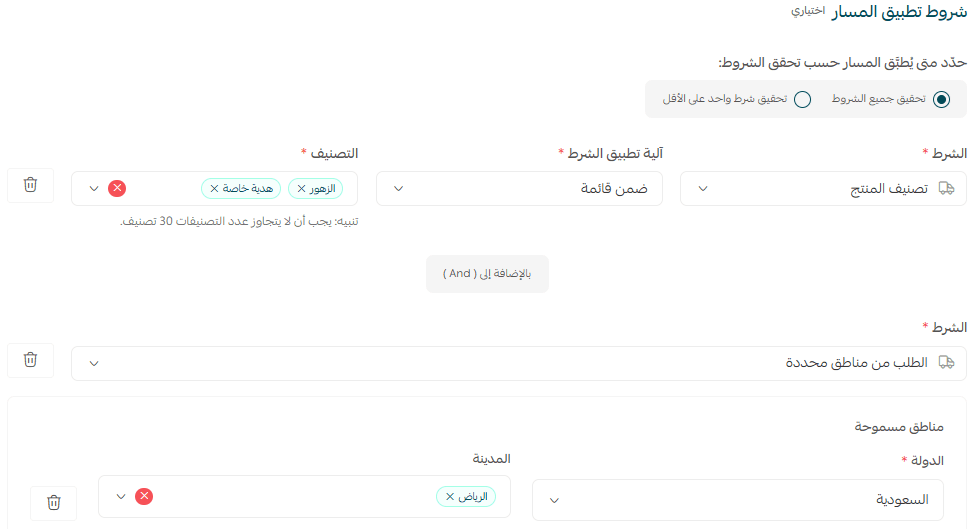
3. Set route conditions:
- Product category (flowers or special gifts)
- Customer location (Riyadh only)
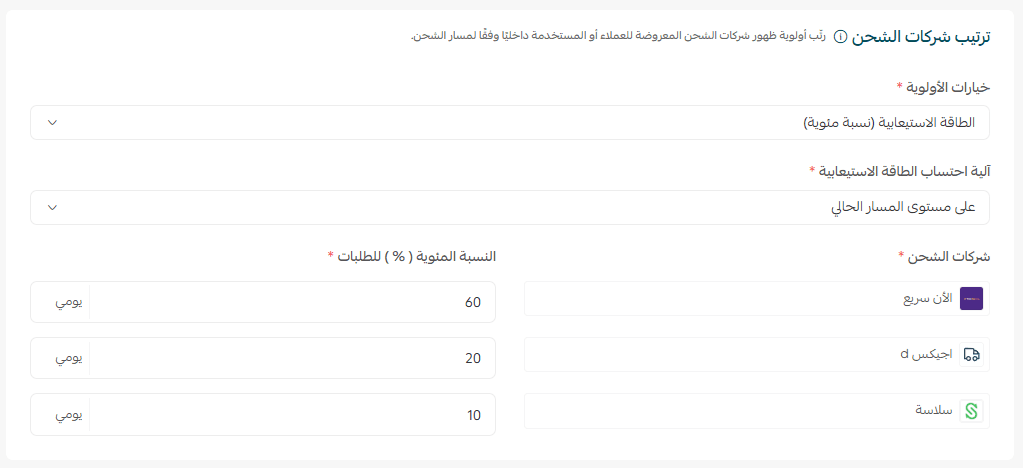
4. Arrange companies based on capacity distribution percentages.
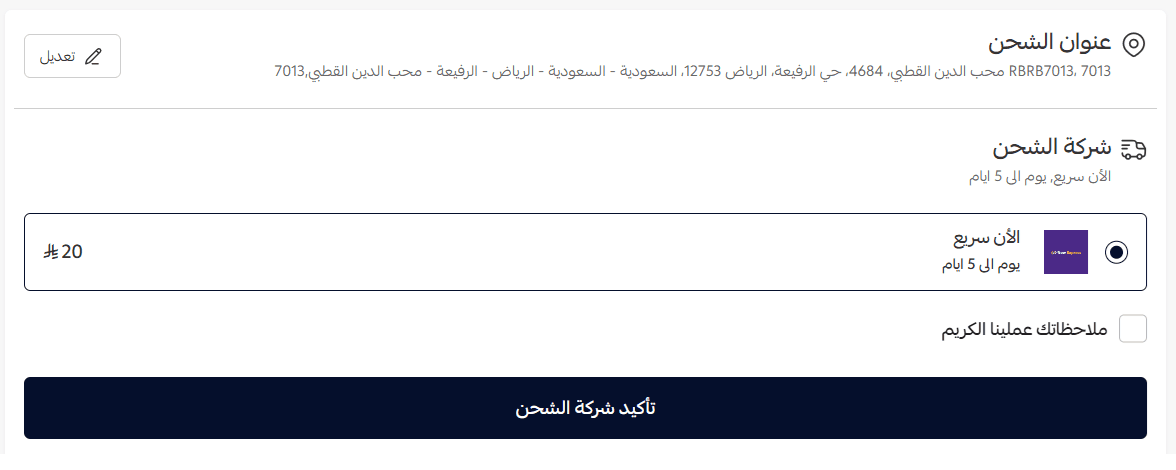
At checkout, only the most suitable shipping company will appear automatically based on capacity distribution.
Example 3: Custom naming
The challenge: Hiding actual shipping company names behind branded labels that reflect the store’s identity, while still controlling priority internally.
Store case: A luxury perfume store aiming to provide a premium delivery experience that reflects elegance and attention to detail.
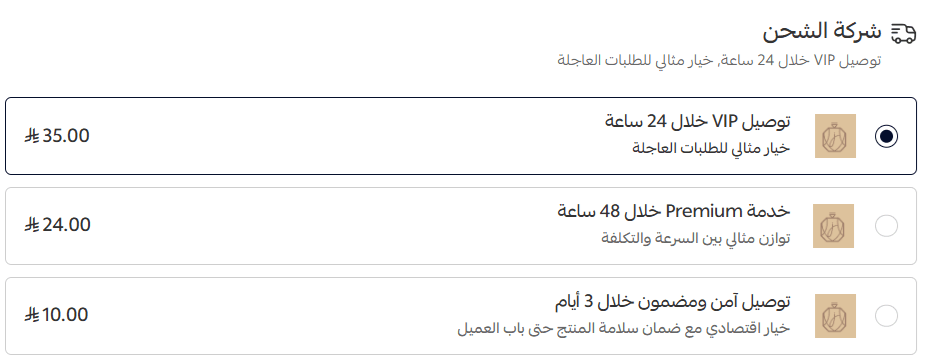
Custom route labels:
- “VIP Delivery within 24 hours”
- “Premium Service within 48 hours”
- “Secure & Guaranteed Delivery within 3 days”
The customer selects based on their preference, creating a sense of control while ensuring reliable options.
Steps to configure the route:
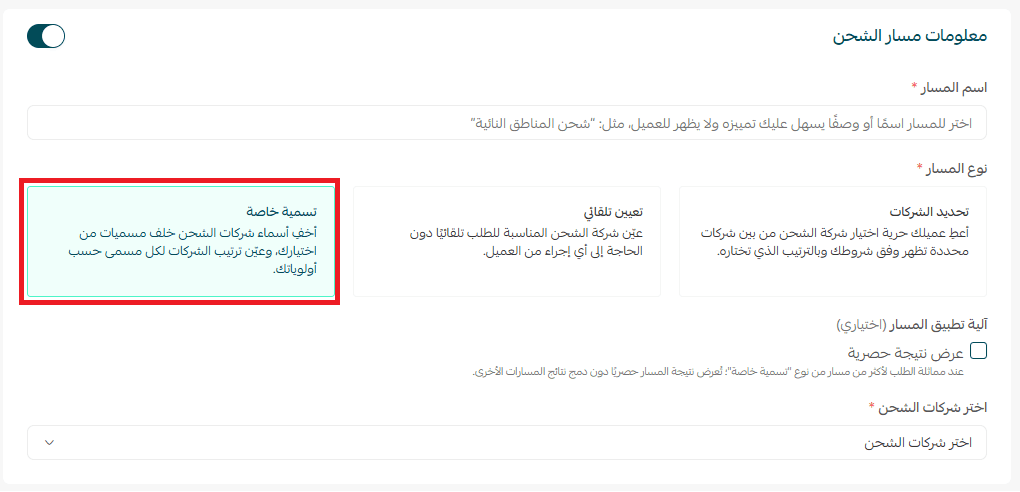
- Create a new route of type custom naming.
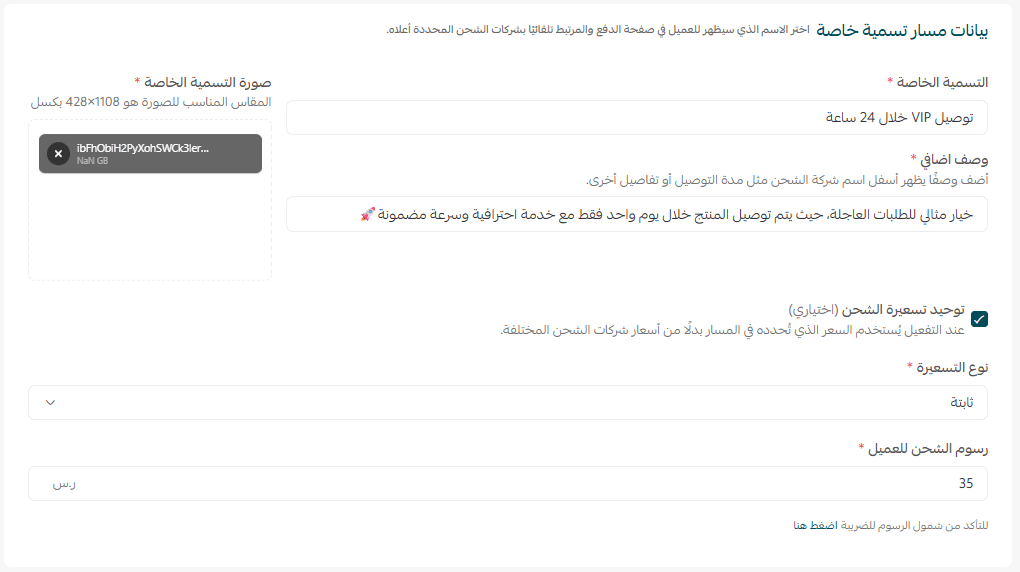
2. Enter a custom label such as “VIP Delivery within 24 hours”, and enable unified pricing.
Select fast shipping companies capable of delivering within 24 hours.

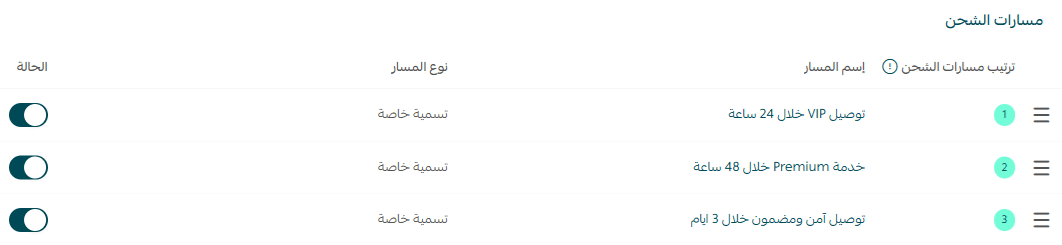
3. Add additional routes with different labels as needed.
These routes will appear on the checkout page in a clear and branded format.
This approach allows you to transform shipping from a basic operational step into a strategic, branded experience that enhances customer satisfaction and trust.