Your store has a new logo, a new name, or a sharper description - but your app listing still shows the old one.
Once your store app is live on the app stores, the details you entered when you first published it are locked. The app data update service unlocks them again, so you can change your app icon, name, subtitle, description, keywords, policy links and screenshots without rebuilding the app. In this guide, you'll learn what the service covers, who can buy it, how to purchase and submit an update, and the four review stages your request passes through before your app is relaunched.
To update your app data on Salla, open your store dashboard, go to the mobile app page and click (Update now). Pay for the update package, edit the locked fields you want to change, save, then click (Launch) to submit. Your request then passes Salla review, Apple and Google review, and relaunch.
📌 Article overview
- What the app data update service is
- Who can buy the app data update package
- Stage 1: buying the app data update
- Stage 2: Salla Team review
- Stage 3: Apple and Google review
- Stage 4: relaunching your app
- Frequently asked questions
🎯 What is the app data update service?
The app data update service appears for merchants who already have an app published or launched on the app stores. It lets you change the details that are otherwise locked after publishing:
- App icon
- App name, and the app name shown on the phone home screen
- App subtitle, description and keywords
- Privacy policy and support page links
- The screenshots you designed for the app stores
✅ Who can buy the app data update package?
Two conditions have to be met before the package appears in your dashboard:
1. Your app subscription is active.
2. Your app has already been launched on the app stores.
Once you have bought the update, changed your notifications or any other data, saved it and clicked (Launch app), your app goes through the normal cycle from review to relaunch.
🚀 Stage 1: buying the app data update
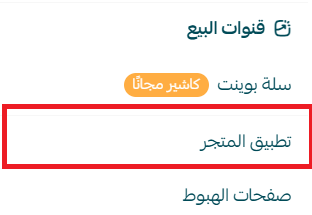
1. From the main menu, click (Store and sales channels), then (Mobile app).
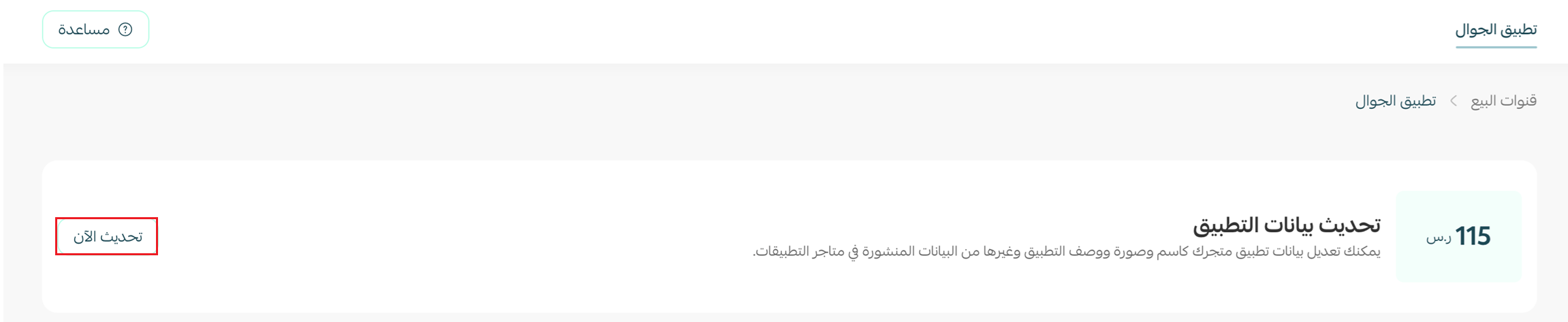
2. From the mobile app page, click (Update now).
3. Choose the payment method that suits you. If you have a discount coupon for the Salla store, enter the coupon details and click (Apply).
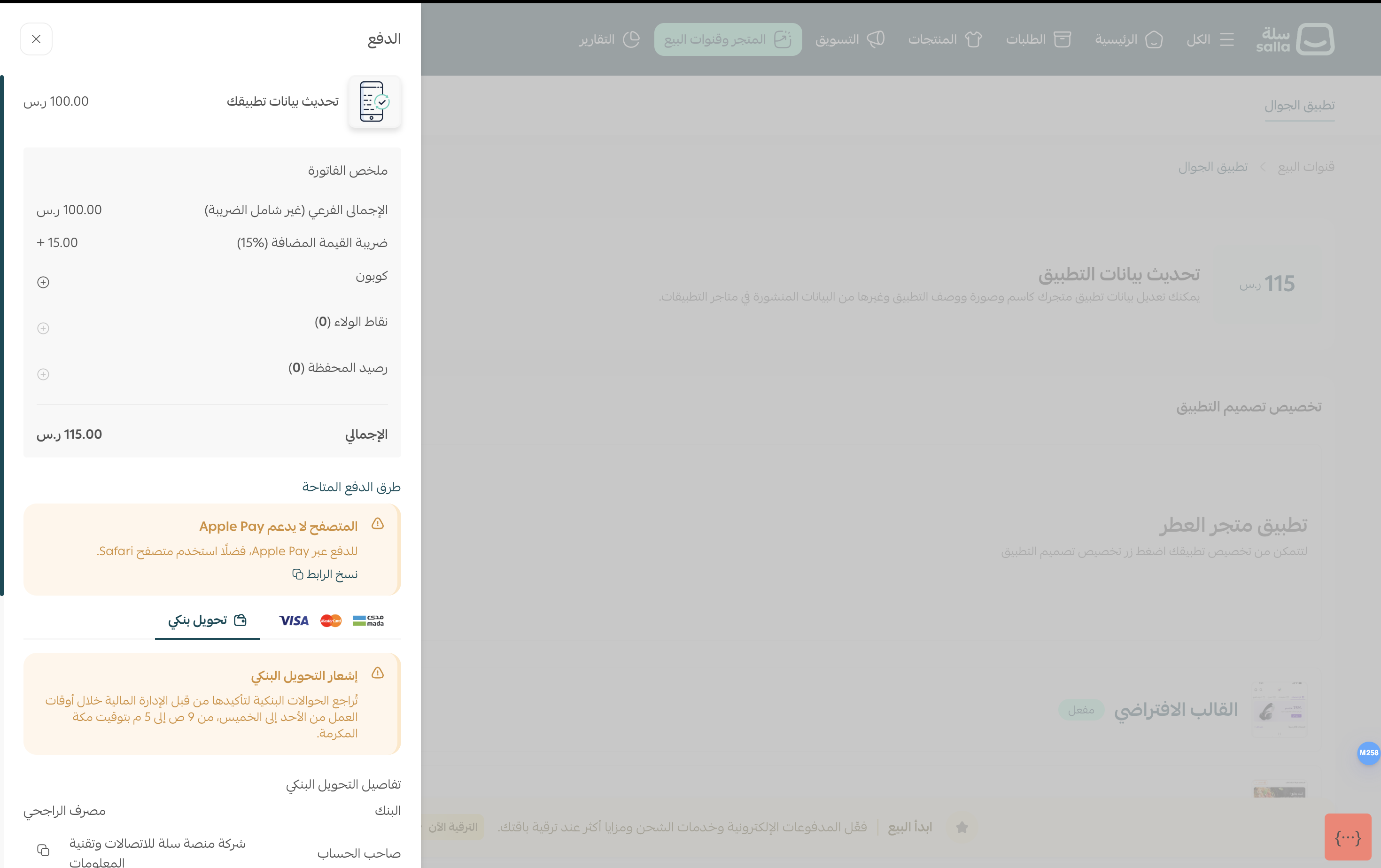
4. Complete the payment details. You can now edit your app data.
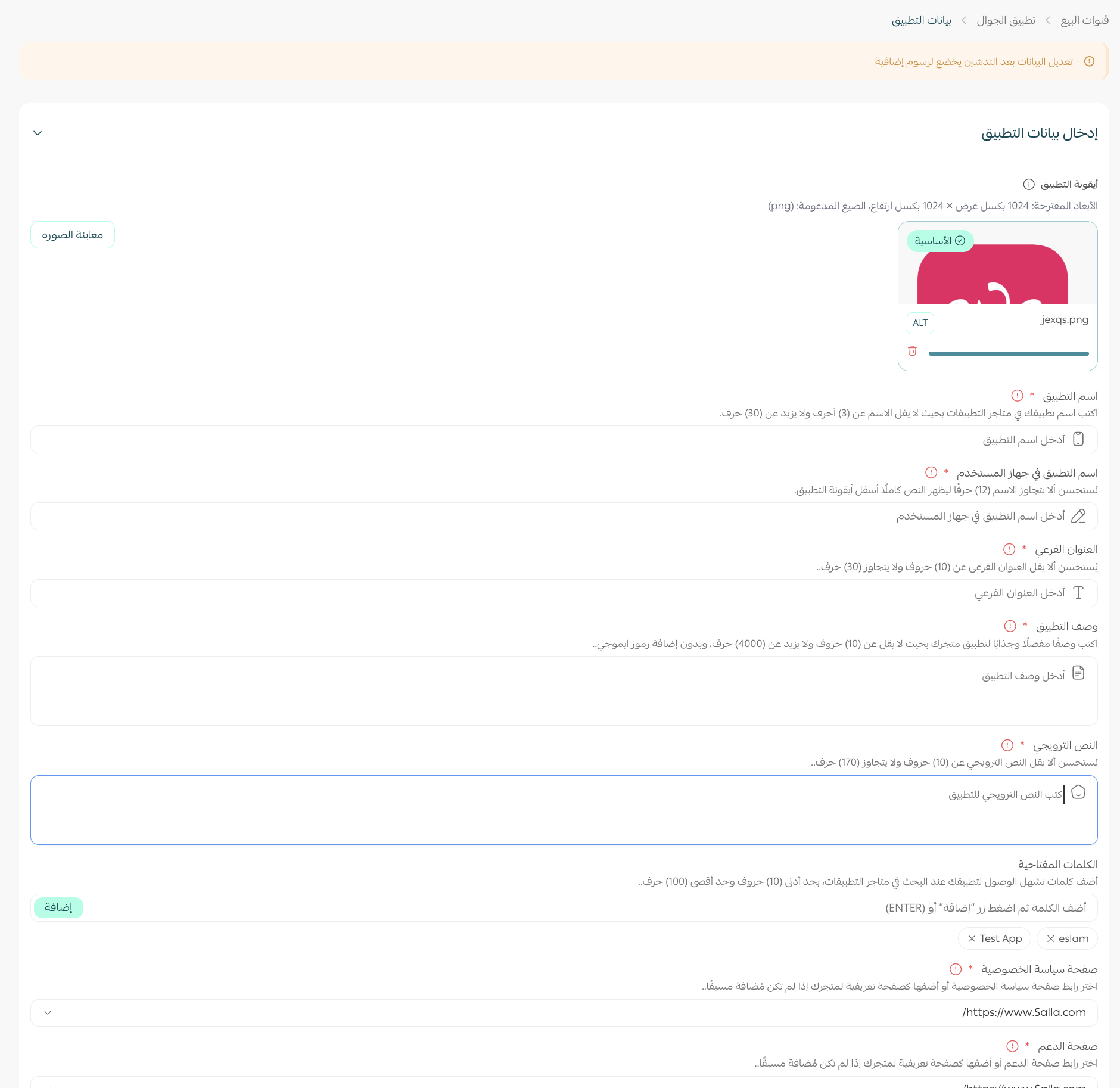
5. Click (Save) to keep your changes.

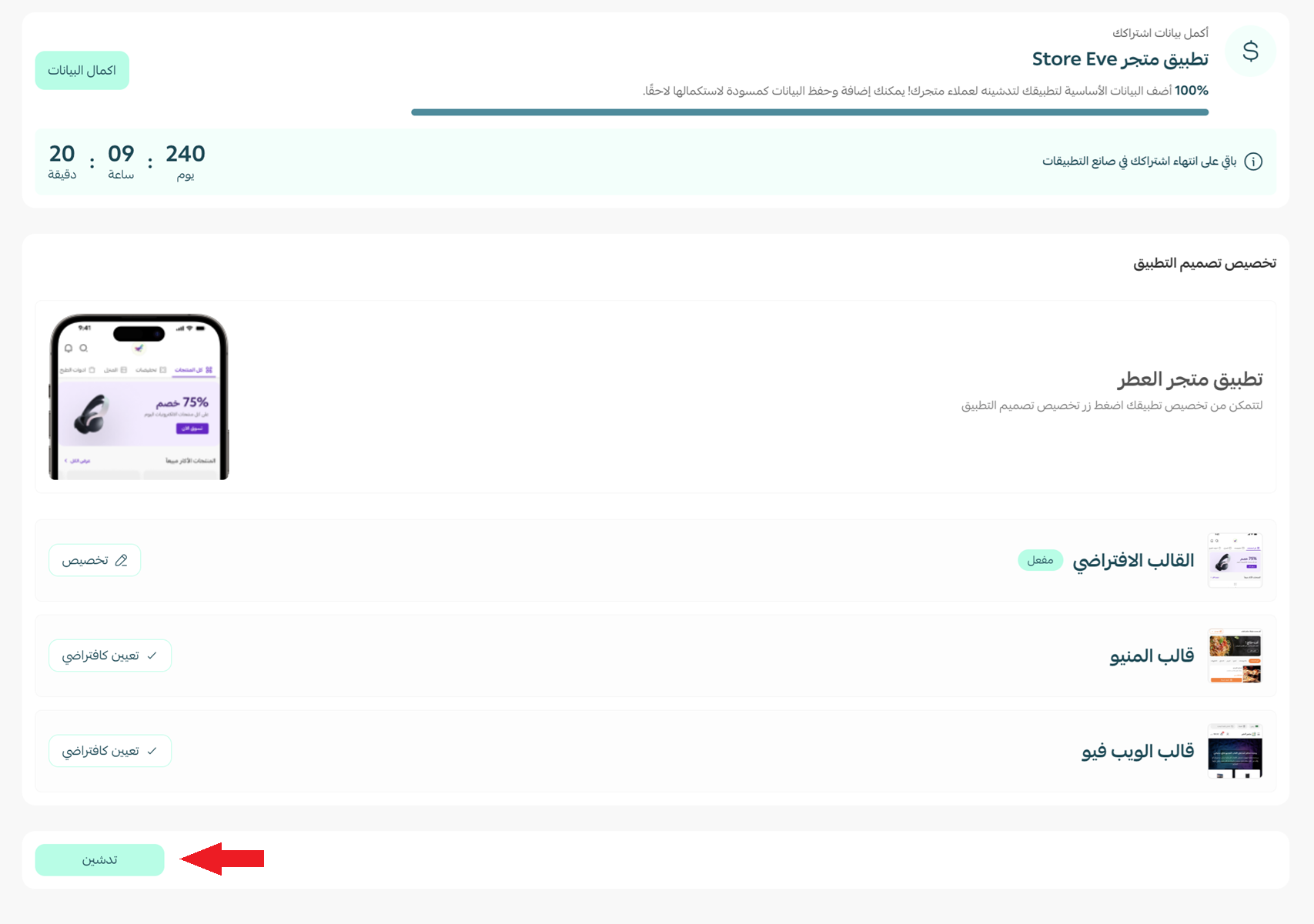
6. Click (Launch) to send the update request to the team.
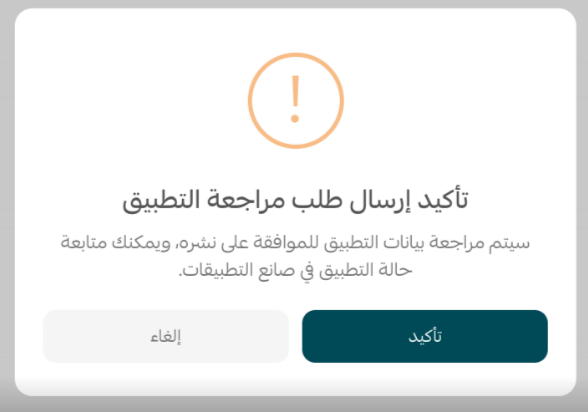
7. Click (Confirm) to finish submitting the request.
📝 Important note
Always click (Save) before (Launch). Submitting without saving sends the old data, and the request is rejected for being identical to what is already published.
🔍 Stage 2: Salla Team review
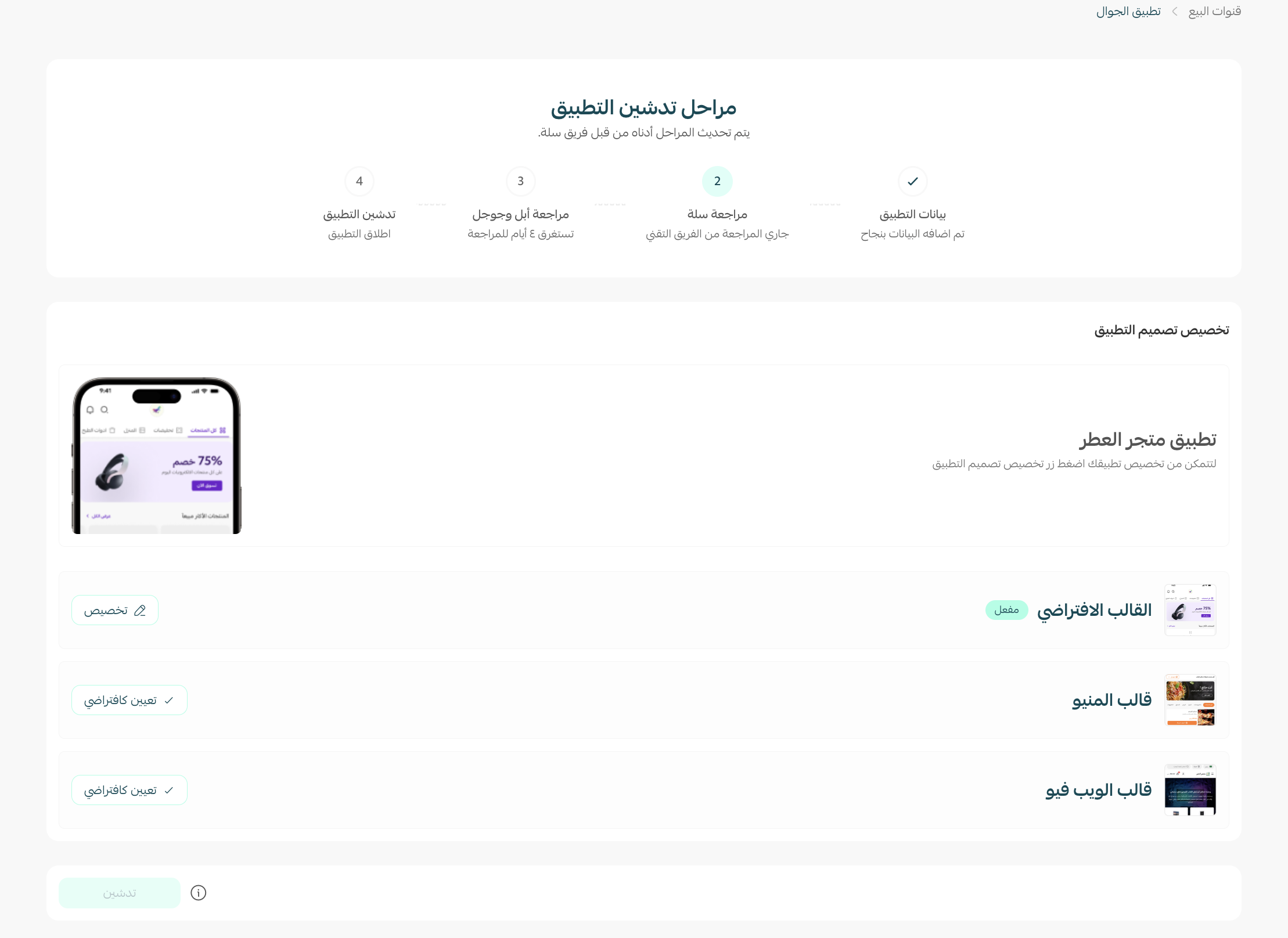
After you save and publish your data, Salla Team checks it against the app stores' requirements. If anything needs attention, the team contacts you and lets you edit the data again, so the app is accepted by the App Store and Google Play the first time.
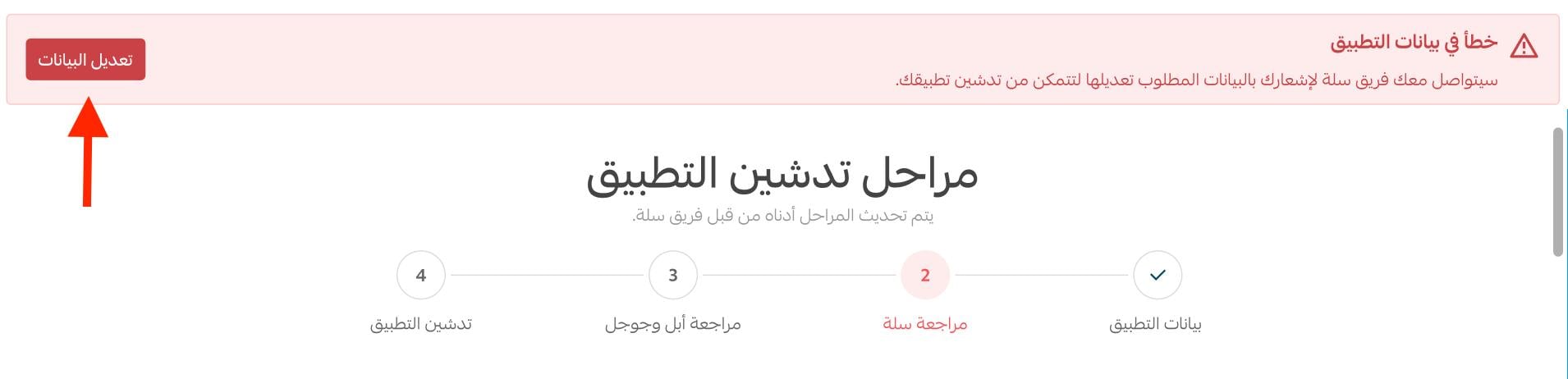
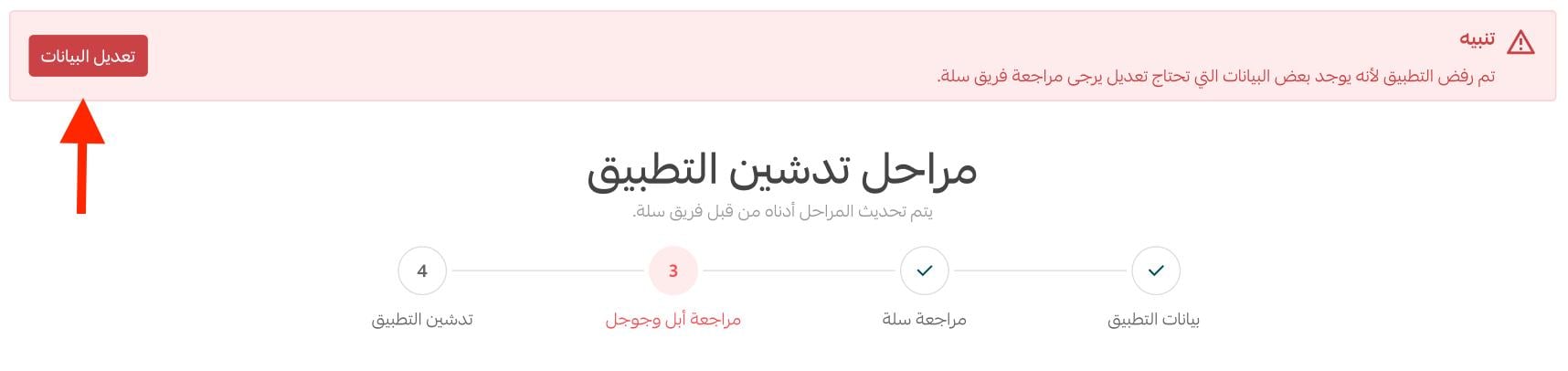
At this stage you are notified by an error message that explains exactly what needs changing. For example, if the team asks you to change the app icon, click edit data to go back to the input page, make the change and submit the request again.
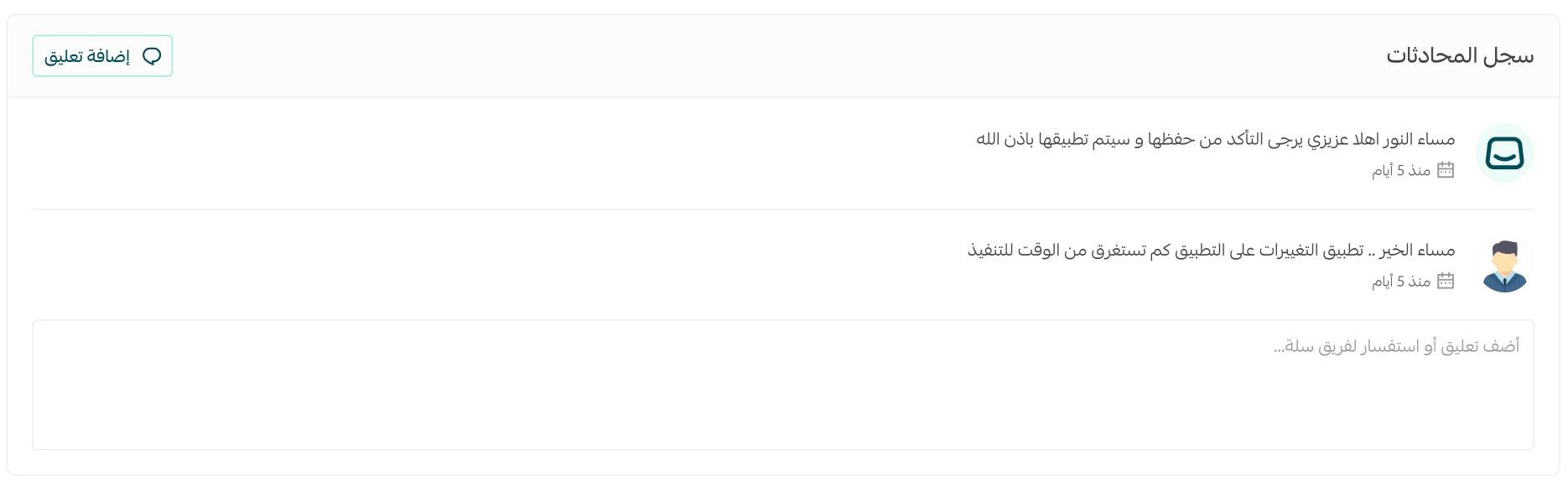
You are also notified through Salla App Maker chat. The alert usually shows as a number of unread notifications in your store dashboard, under the App Maker tab, and the messages appear in the chat log section below your app design.
What Salla Team checks
1. The subscription type you chose (own developer accounts, or no accounts).
2. The app data you entered, and whether it meets the app stores' launch requirements.
3. The documents attached to the request, such as your commercial registration or ID.
4. Your store activity, products, shipping and payment methods, and every setting that affects launching the app on the stores.
5. The team may contact you to access the accounts and verify their status, to collect anything still missing, or to correct errors in what you entered.
How to avoid rejection during Salla review
1. Follow the input requirements shown during subscription and data entry, and read the app store launch policies carefully. For more detail, see app store publishing policy and frequently asked questions about the app.
2. Make sure your store is fully and properly set up. Apps are not launched for stores that are unfinished, still under construction, or filled with test data.
3. Complete your store verification and activate your own domain.
4. Activate at least one payment method in your store.
5. Activate at least one shipping method in your store.
6. Publish at least 5 products, and check that none of them contain test data or words like "test" or "trial" in the product details.
🏪 Stage 3: Apple and Google review
If developer accounts are not already in place, the team starts the activation process with you so the app can be launched on the Apple and Google app stores.
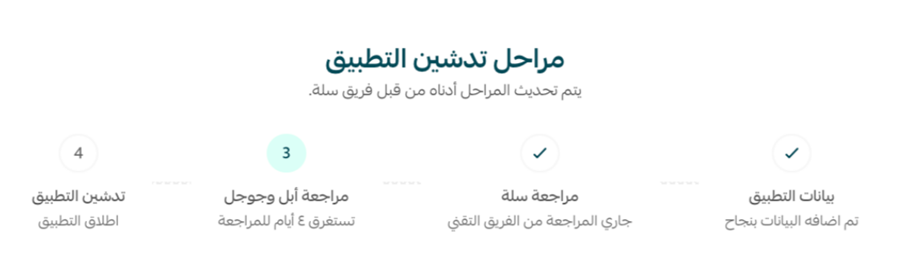
Here too you are notified by an error message that explains what needs changing. For example, the team may tell you the description was not accepted by Google. Click edit data to return to the input page, make the change and submit the request again, or contact support through the technical support chat for more detail on your case, based on the message you received.
🚩 Stage 4: relaunching your app
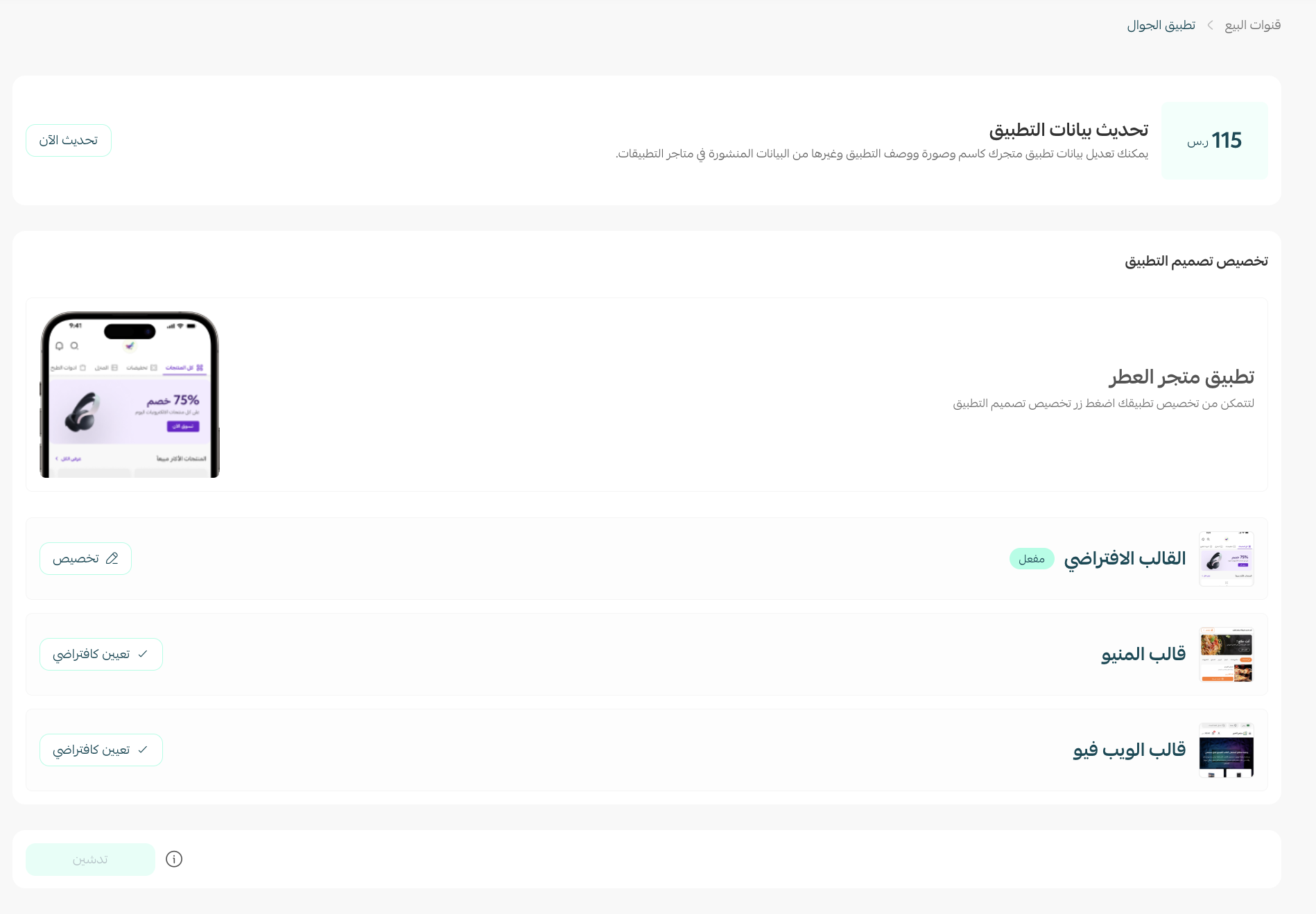
Once your data is accepted, you are taken to the main page that holds the templates, where you can finish customizing your app design.
For more detail on stage one: designing your app.
For more detail on stage two: entering your app data.
For more detail on the store wallet.
For more detail on how to order and buy from the Salla store.
❓ Frequently asked questions
Does an update request go through the same stages as the app service I bought the first time?
Yes. Salla Team verifies the data you entered and contacts you if anything breaks the rules, then the request goes to Apple and Google for review, and finally to relaunch.
Do I have to enter my data again when I buy the app data update service?
Yes. Enter the data you want to change, replace the icon if you want a new one, then click (Save data) followed by (Launch app).
Can my updates be rejected?
Yes. A data update goes through the same stages as publishing the app, and updated data can be rejected for being identical to the old data - which happens when (Save data) was not clicked before (Launch app).
How long does an update stay editable?
Until you click (Launch app). After that the request is with the review teams, and further changes are made only when the team asks you for them.
The app data update service gives you full control over your store app after launch, so it stays current with your brand instead of freezing on the day it was published. Use it whenever your identity, your offer or your screenshots move on, and keep your listing working as hard as your store does.