Imagine giving your customers a clear and personalized view of their order journey, one that reflects your store identity and the way you operate.
This is more than a visual improvement. It builds trust, transparency, and confidence at every stage of the purchase.
In this guide, you will learn how to customize order statuses easily and flexibly to match your business needs and improve your order management experience step by step.
📌 Article overview
- What is an order status
- Steps to customize order statuses
What Is an Order Status?
An order status represents the stage an order has reached after checkout.
The meaning of each status can vary from one store to another. For example, the status Fulfilled may mean the order has been shipped in one store, while in another store it may mean the order has already been delivered.
To support your store’s unique workflow and brand voice, Salla allows you to customize order status names and messages so they clearly reflect what each stage means for your business.
Types of order statuses you can customize
Order statuses in your store are divided into two main types.

1. Primary statuses
These are the core statuses used across the platform. There are nine primary statuses:
- Deleted
- Pending Review
- Pending Payment
- In Progress
- Fulfilled
- Canceled
- Refunded
- Return in Progress
- Quotation Request
2. Sub statuses
Sub statuses allow you to describe the order state with greater accuracy and clarity. They help you communicate progress in more detail without changing the core workflow.
Steps to customize order statuses
1. Open order status settings
From the Order Statuses tab.
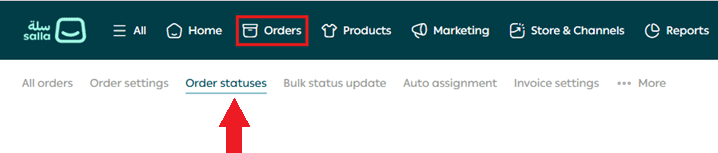
Or from Orders Management, down to the order statuses section and click Customize Statuses.
2. Customize a primary status
Click Edit next to the primary status you want to customize.

Enter a status name that matches your store’s workflow and clearly explains what this stage means for the customer.
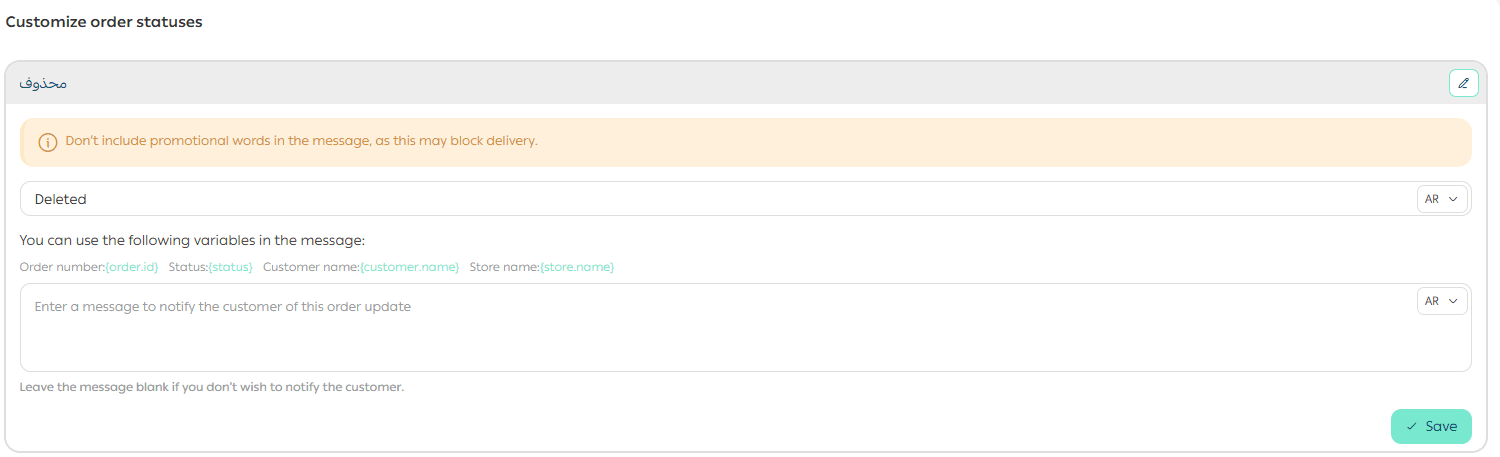
You will customize:
- Order status name, which should be short and descriptive
- Customer notification message, which explains the current order stage
3. Customize sub statuses
To add a new sub status, click Add New Status.

Enter:
- The sub status name
- The notification message sent to the customer
You can personalize the customer message by inserting dynamic fields such as:
- Order number
- Order status
- Customer name
- Store name
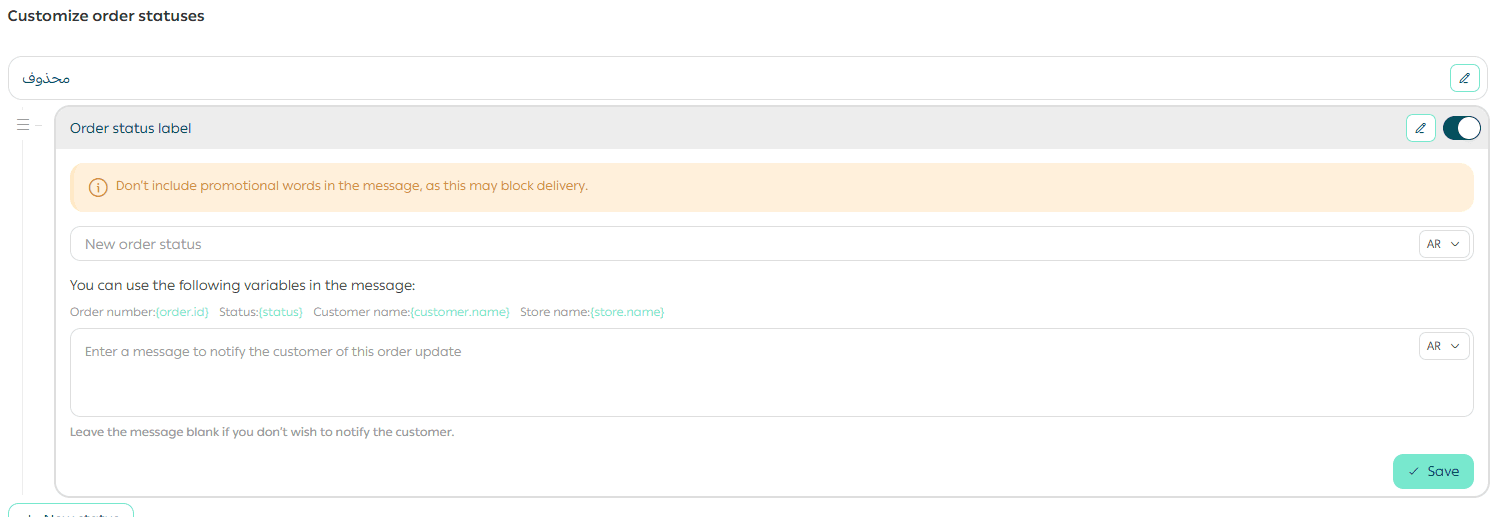
Click Save to apply your changes.
📝 Please note the following
Sub statuses cannot be deleted. However, you can control whether they appear in your store by enabling or disabling their visibility
- To prevent sending a notification for a specific status, simply remove the message text for that status
- Customizing order statuses applies to previous, current, and future orders. All existing orders will reflect the updated status names and messages

Final Takeaway
Custom order statuses help your store speak clearly at every step of the order journey.
By aligning status names and messages with your workflow, you reduce confusion, build trust, and deliver a more transparent experience that customers appreciate.