This article answers the most common questions about using languages in your store, including pricing, translation methods, activation rules, and how customers interact with multilingual stores.
Is the languages feature free?
Yes. The languages feature itself is free and becomes available as soon as you purchase the Growth theme.
As a merchant, you can choose between two translation methods or combine them:
- Instant translation: an automated translation service with a small usage fee
- Manual translation: completely free and fully controlled by you
What translation options does Salla offer?
You can translate your store using one of the following methods:
1. Instant translation
Once enabled, instant translation automatically translates your entire store with a single click.

This is ideal for quickly launching a multilingual store with minimal effort.
Learn more: Translating your store using instant translation
2. Manual translation
Manual translation allows you to translate any text or section of your store yourself, giving you full control over wording and tone.

You can:
- Assign the task to a store staff member
- Work with an external translation provider
- Edit all translations using the built-in text editor
Learn more: Manual translation using the text editor
Why does a newly added language appear disabled?
New languages are disabled by default so you can:
- Choose the preferred translation method
- Prepare and review translated content
- Ensure the store is ready before showing it to customers
This prevents unfinished or inaccurate translations from appearing live.
How do I make a language visible to customers?
My moving the toggle you activate the language within your store.

The language will immediately become available to store visitors.
Can I combine instant translation and manual translation?
Yes. You can combine both methods.
A common and effective approach is to:
- Start with instant translation to save time
- Disable instant translation
- Refine and polish the content manually for a more professional result
Important note: If instant translation remains enabled, it may overwrite manual edits. Always disable it before making manual changes.
How can I check if my store translation is complete?
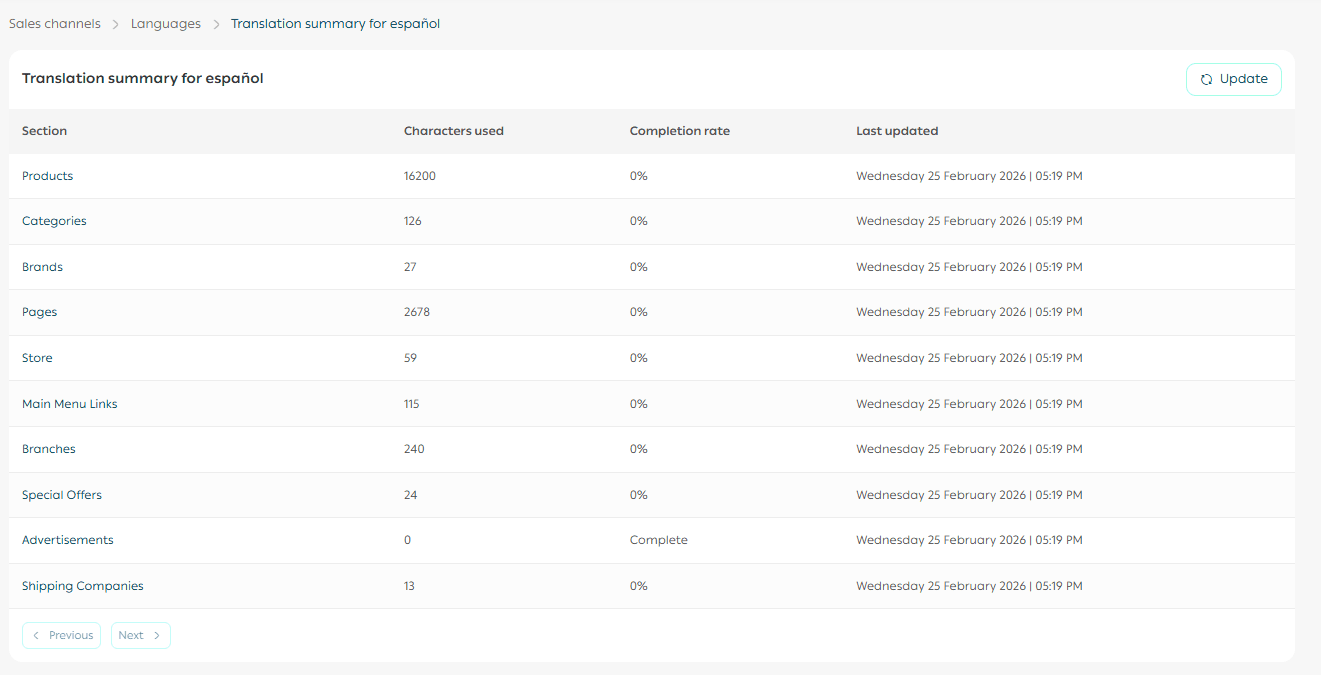
You can track translation progress using the translation summary for each language.

The summary shows:
- Completion percentage for each store section
- Untranslated character count
- Last update date
To complete a section, click its name.
For example, click Products to continue translating product content.
Do I need to top up translation credit for each language separately?
No. Translation credit is shared across all languages.
Once instant translation is enabled:
- Credit is charged per translated character
- Usage is automatically deducted from the same balance
The standard package is 1 million characters, usable across all languages.
Does used translation credit appear in wallet reports and invoices?
No. Only the purchase of translation credit appears in your wallet and invoices.
Actual usage details are recorded exclusively in the Translation History.
Can I request a refund after purchasing translation credit?
No. Translation credit purchases are non-refundable, whether the credit has been used or not.
Can I enable languages on themes other than Growth?
No. Currently, only Growth and Raed themes support multilingual stores.
The remaining six themes do not support languages at this time.
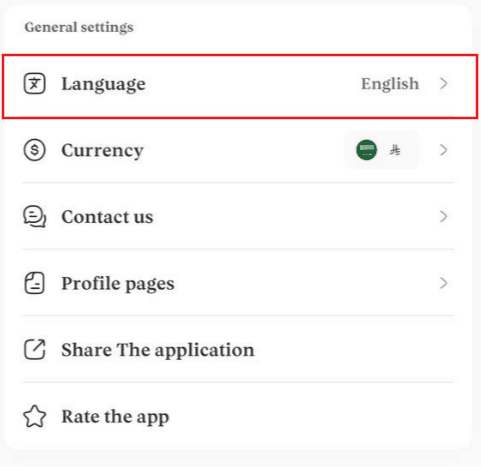
How can customers browse the mobile app in their preferred language?
Customers can now use the app in their preferred language.
They can change the app language by:
- Going to the Account page
- Selecting a language from the available store languages
Requirements for this feature:
- The app must be updated to the latest version
- Languages must be enabled and translated in the store
- Translations must be manually added in the App Maker design