Offering modern payment methods in your store enhances both speed and professionalism.
You can enable card payments in Salla Point POS via SoftPOS, allowing you to accept payments directly from your mobile device.
This gives you greater flexibility when completing orders and provides your customers with a secure and seamless payment experience, without needing additional hardware.
📌 Article overview
- Connecting to a Geidea account
- Requesting payment devices from Geidea
- Assigning devices to responsible employees
- Responsible employee
- Submitting a device activation request
Note: The SoftPOS, Air feature is only available on Android devices that support NFC.
Connecting to a Geidea account
To start enabling card payments in Salla Point POS, you need to connect your store to a Geidea account.
Steps:
- From the main menu, go to Store & Channels → Salla Point
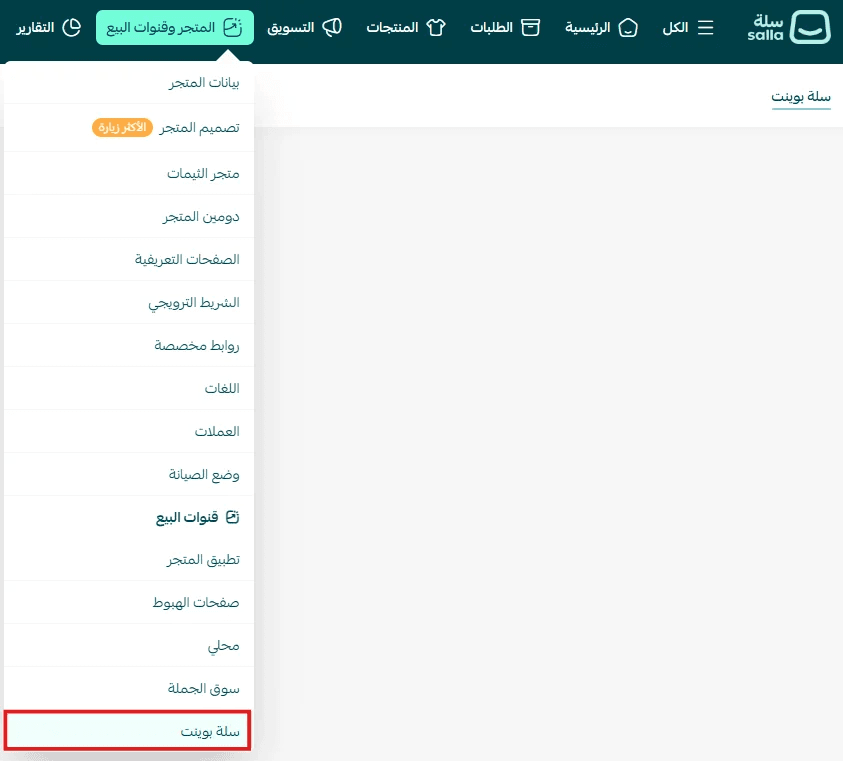
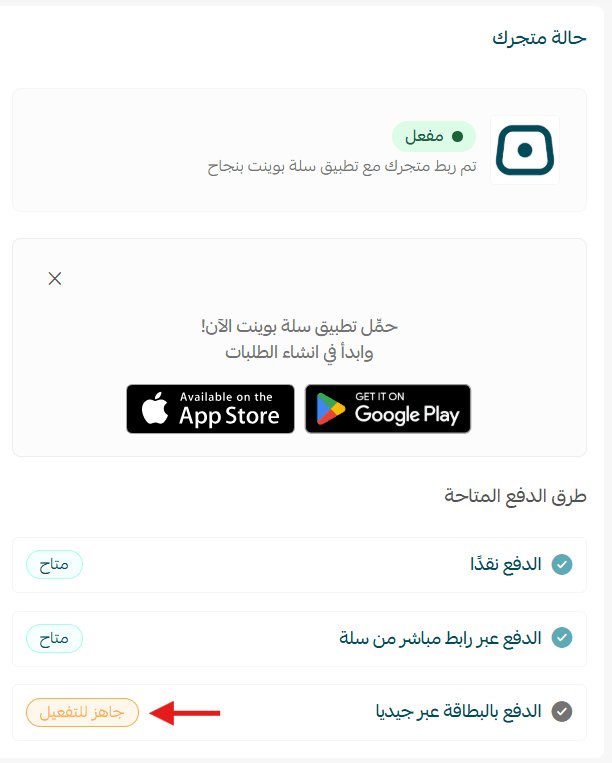
- Special plan: Card payment status will appear as (Ready to activate)
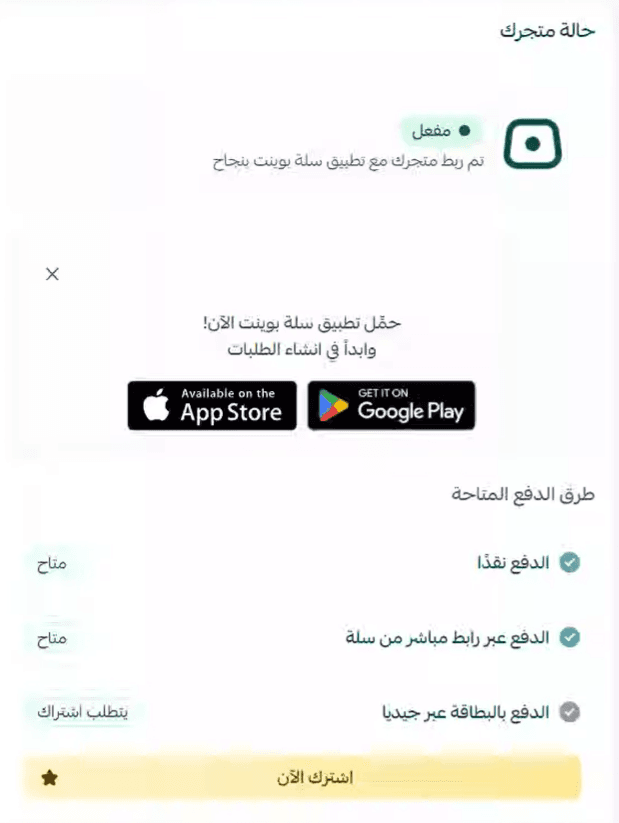
- Pro & Plus plans: Card payment status will appear as Subscribe now, and you will be redirected to subscribe
- From the Salla Point page, go to the POS payments tab
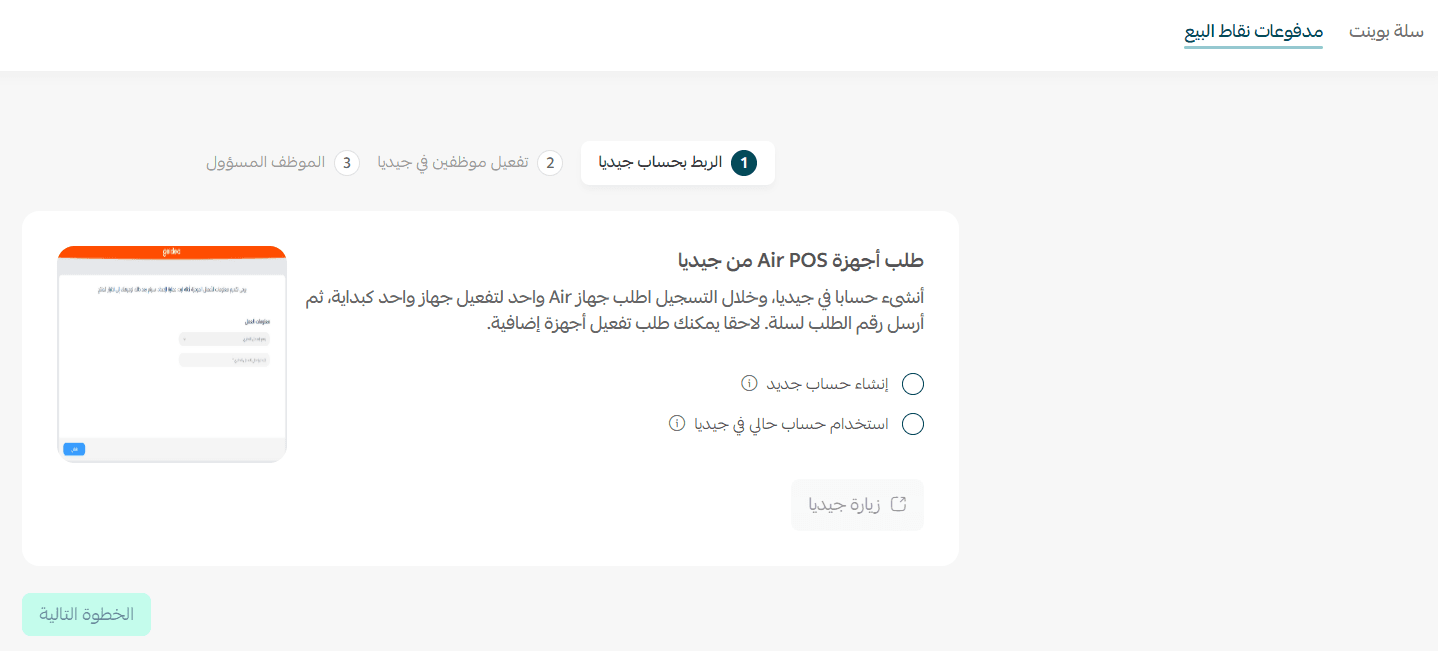
Option 1: Create a new Geidea account
- Click Create new account
- You will be redirected to Geidea to complete the account setup
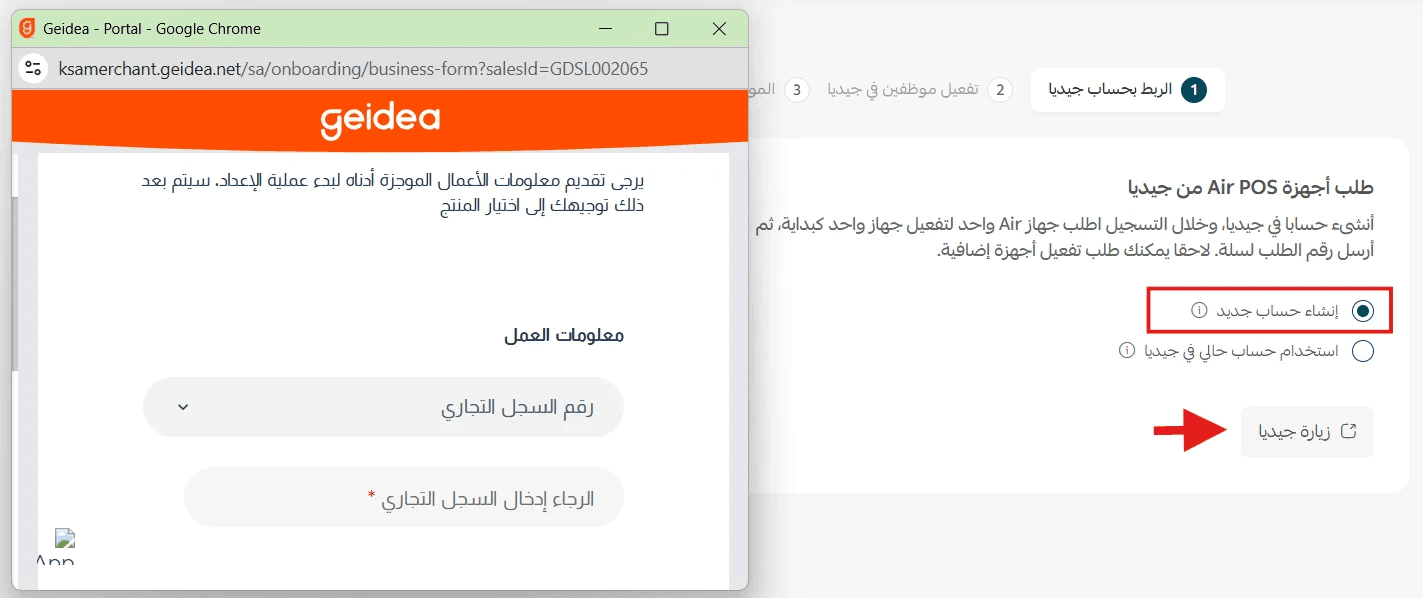
🔔 SoftPOS pricing from Geidea:
- Free for merchants with a commercial registration (individuals or companies)
- Freelance licenses may be subject to annual fees, depending on the agreement with Geidea
For more details, refer to the article requesting payment devices from Geidea.
Option 2: Use an existing Geidea account
- Click Use existing Geidea account
- Log in through Geidea
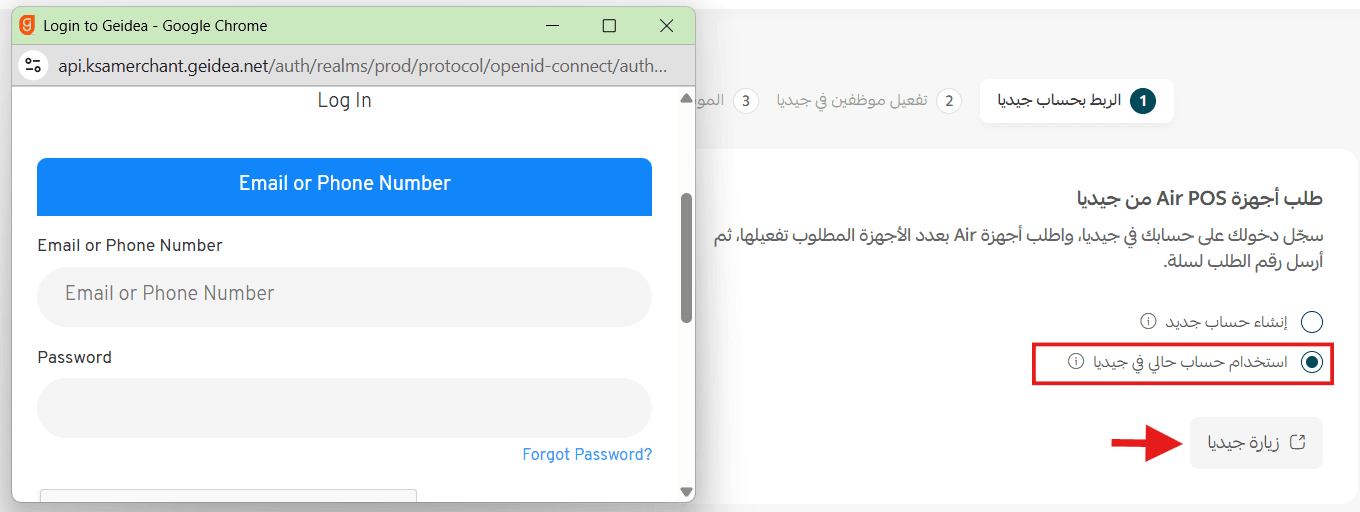
🔔 Note: If you already have a Geidea account but it is not linked to Salla Point, you must connect it first. The number of devices depends on your plan and subscription.
Requesting payment devices from Geidea
Go to the Geidea platform to request your payment device(s), and keep your order number.
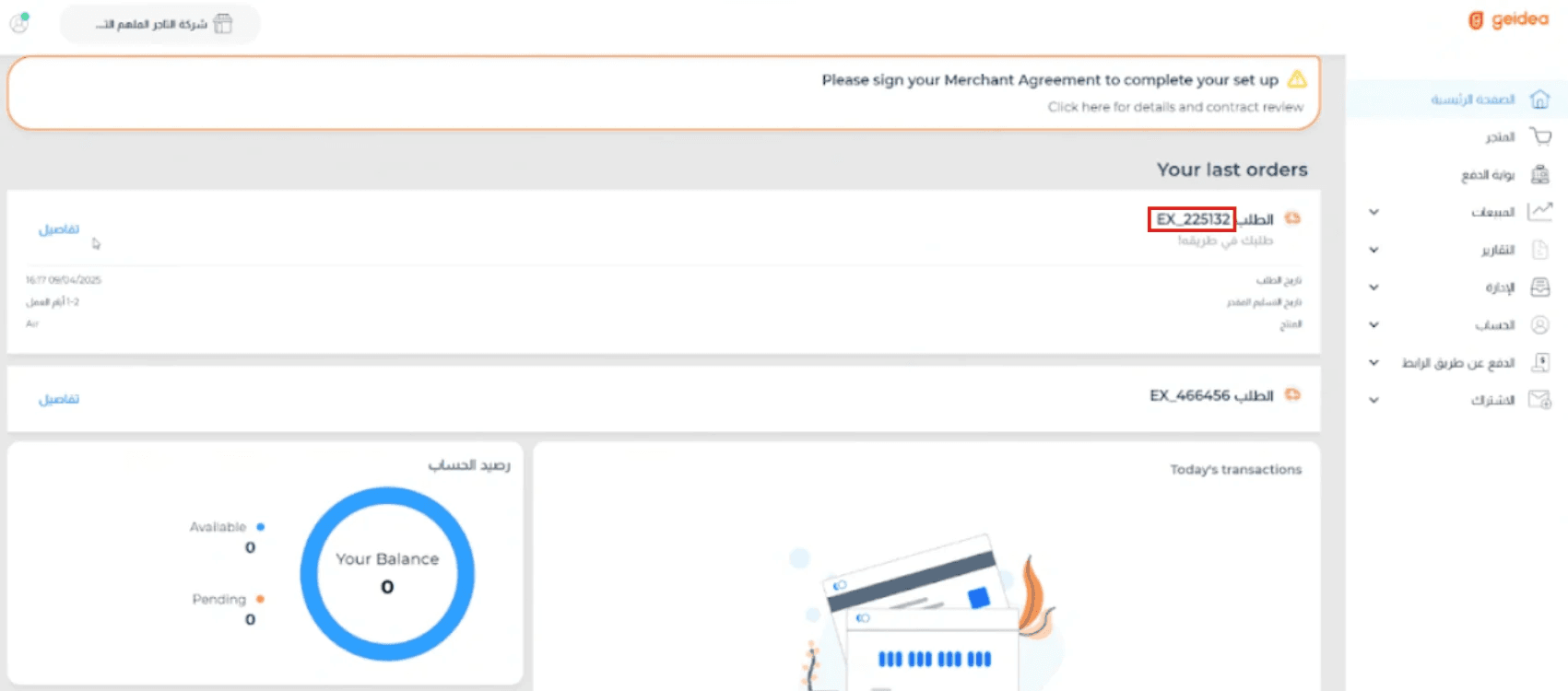
For more details, refer to the article requesting payment devices from Geidea.
Assigning devices to responsible employees
After linking your account, you need to assign devices:
- Enter your Geidea order number
- Specify the number of devices requested
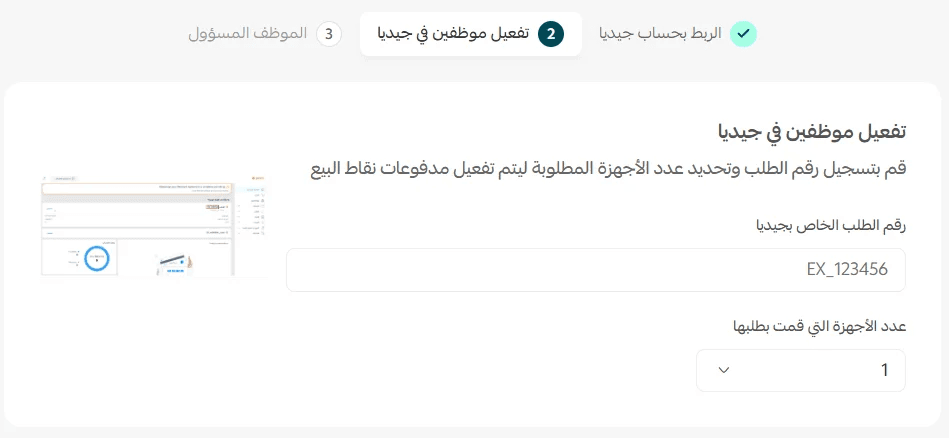
Important:
- Each payment device must be assigned to a responsible employee
- Each device has a unique Terminal ID issued by Geidea
- This ID works on one device only and cannot be used on multiple phones at the same time
Notes:
- If you choose Create new account, you can select one device only initially (more can be added later)
- If you use an existing account, you can select multiple devices
Responsible employee
The responsible employee is a key part of the activation process. This can be:
- The main user of the device
- A branch manager
- The store owner
Key points:
- The Terminal ID is linked to the responsible employee
- An OTP (verification code) is sent to that employee for security
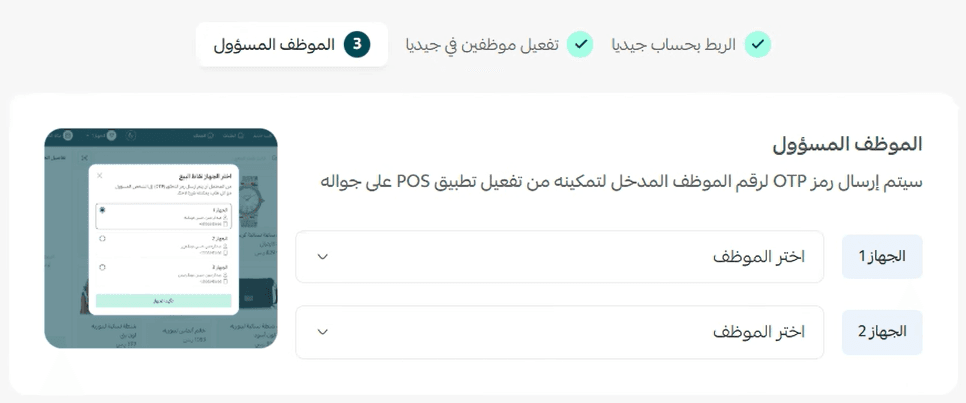
📝 Note: One employee can be assigned to multiple devices
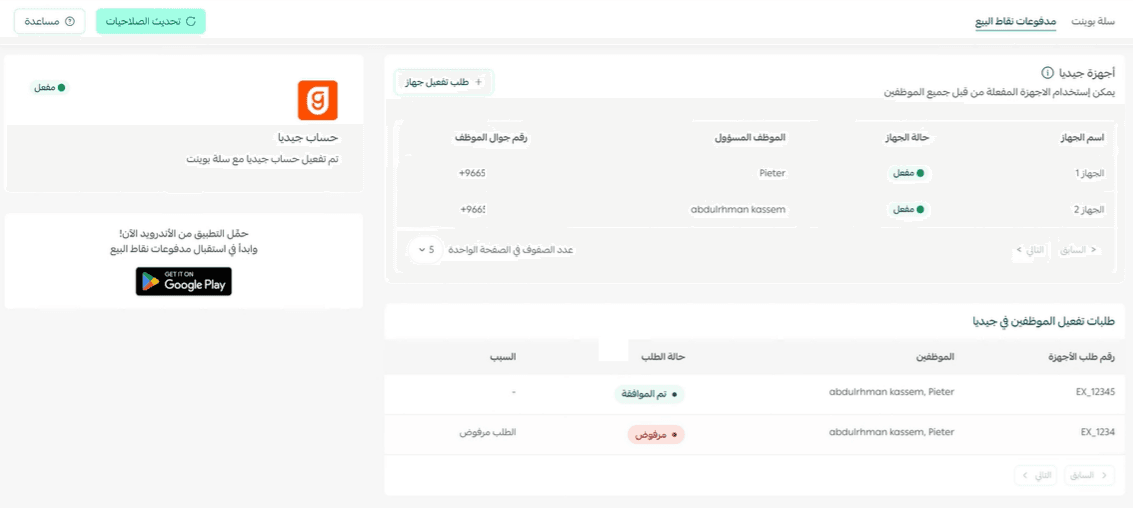
After approval, the POS payments page will appear like this:
Submitting a device activation request
- From the POS payments page, click Request device activation
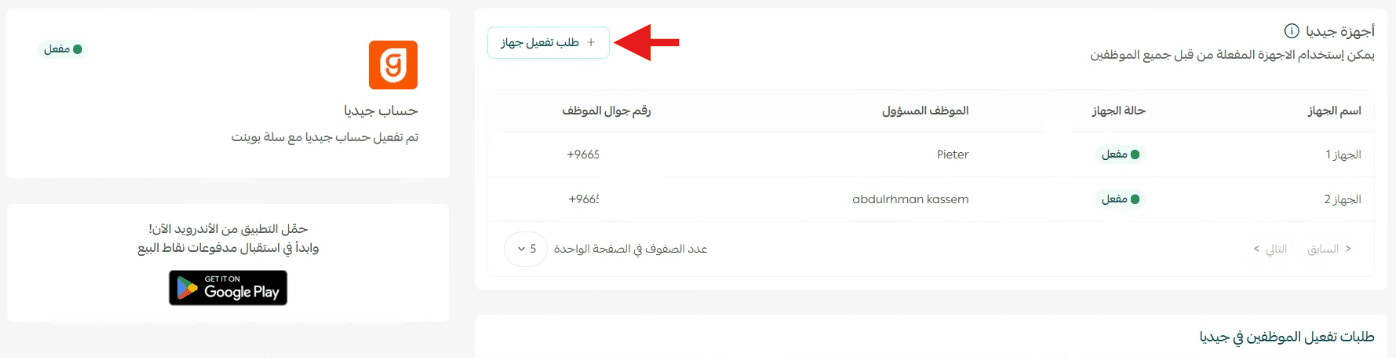
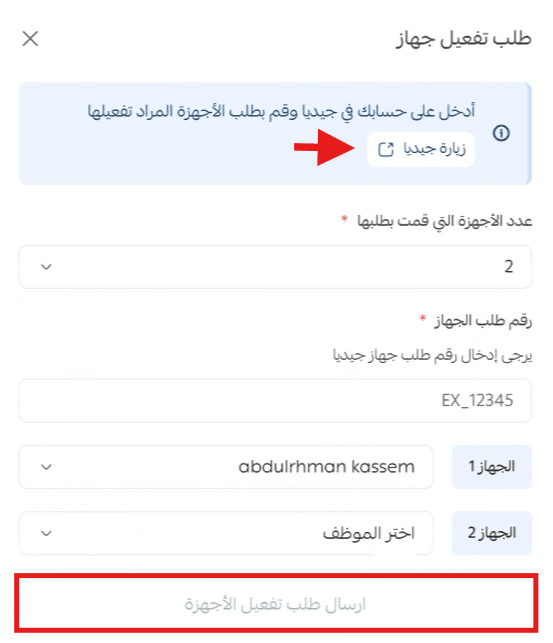
- From the activation tab:
- Click Visit Geidea and request the devices
- Enter the order number
- Assign employees
- Click Submit activation request
🎉 The device is now successfully activated!
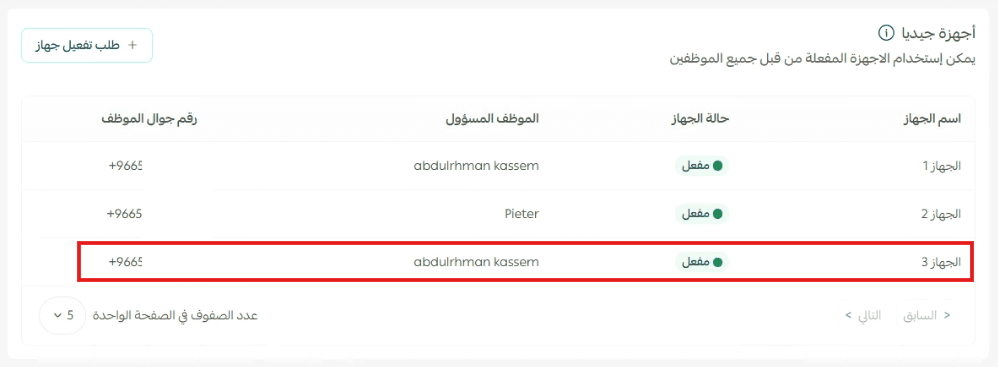
Notes:
- A store can have multiple devices, each assigned to different employees
- A device is not required for every employee; one device can be shared
- Orders are recorded on behalf of the employee currently logged into the app
- Orders cannot be registered under a different employee than the actual user
Frequently asked questions
How long does activation take?
Typically, 3 to 5 business days
Why is the Terminal ID linked to a specific employee?
For security and tracking purposes, ensuring accurate monitoring of financial transactions
Can a merchant request multiple devices for the same employee?
Yes, depending on the plan and subscription
Why can’t the same device be used on multiple phones?
Because each Terminal ID is limited to one device, based on the payment system and NearPay requirements
Does every employee need a device?
No. Each device serves one point of sale. If you have one POS, one device is enough. Multiple simultaneous POS setups require multiple devices
What happens if a payment fails?
The order will not be completed. If successful, the transaction is automatically processed as a bank transfer through Salla
Can card payments be refunded?
Currently, refunds are processed manually by the merchant. Support for direct refunds is planned in future updates