Adding a bank account to your store allows you to receive payouts and manage balance withdrawals directly from your dashboard.
Whether you're setting up your first bank account or updating an existing one, Salla gives you full control over how your funds are received and managed.
In this guide, you'll learn how to add a bank account, withdraw your store balance, and troubleshoot common payout issues.
📌 In this article
- Add a bank account
- Withdraw your store balance
- Frequently asked questions
Add a Bank Account
1. From the main menu of the control panel, click on the (Store Settings) icon.

2. From the settings section, choose (Payments), then click (Manage Payments).
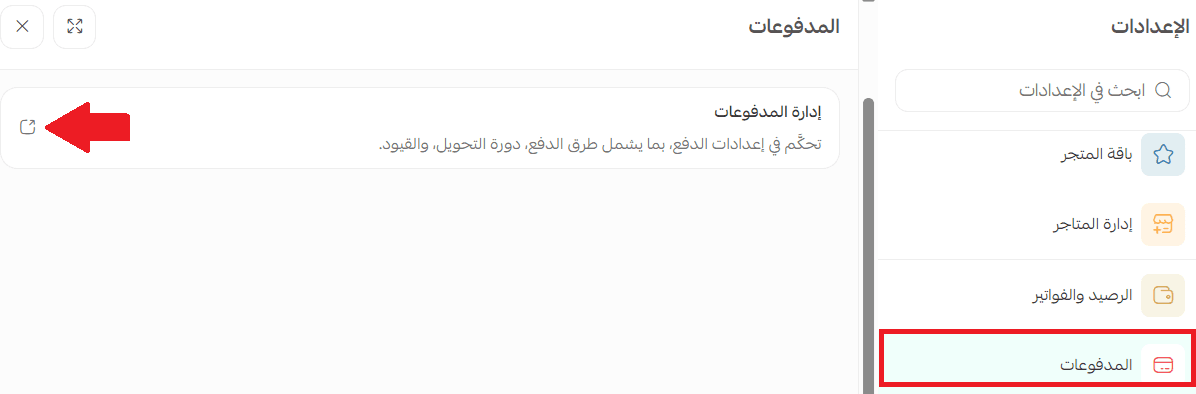
3. From the Payment Methods page, in the Bank Accounts section, click (+New Account).

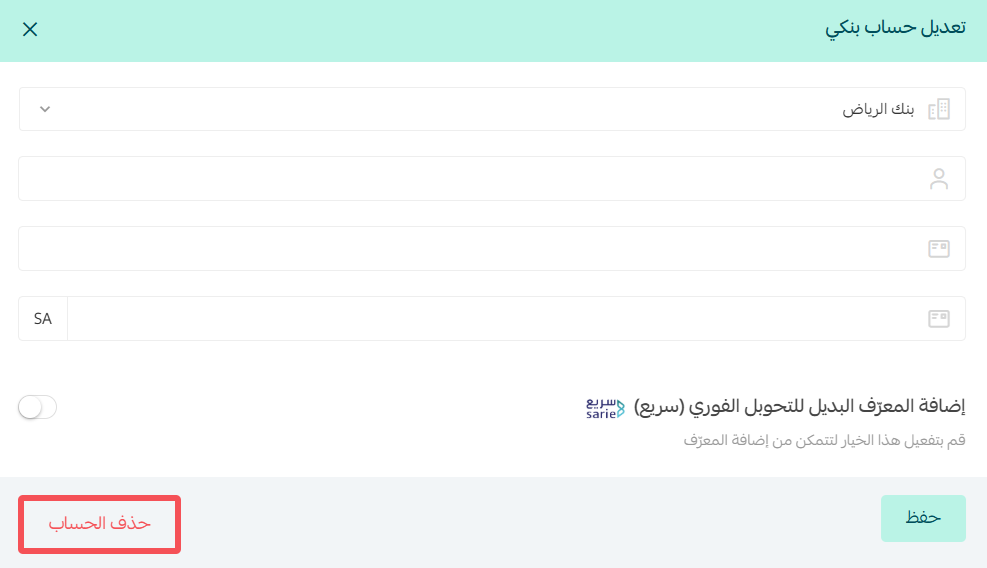
4. Enter the required information, then click (Save).
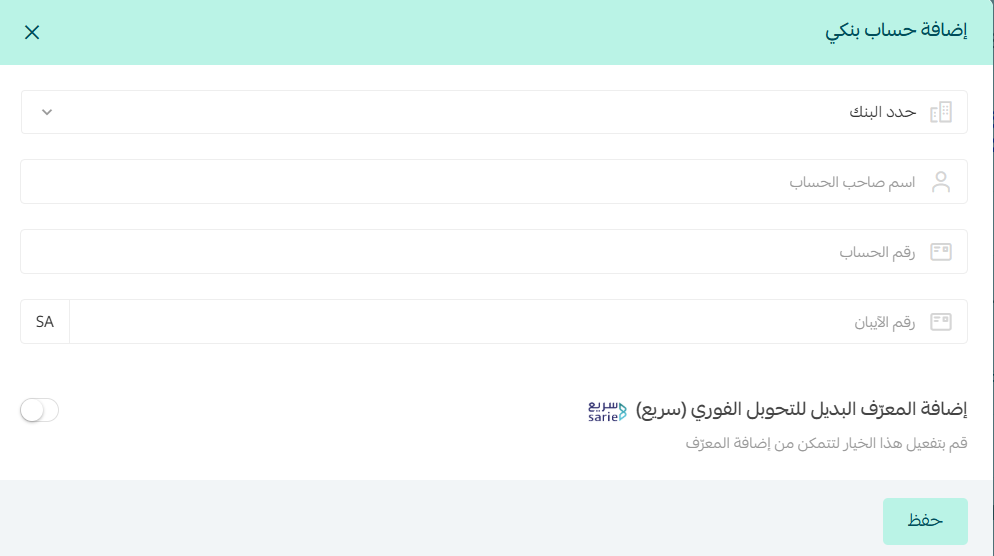
You'll need to provide:
- Bank name
- Account holder name
- Bank account number
- IBAN number
Optional alternative identifier
For more details on adding an alternate identifier and the Fast Transfer System
Withdraw your store balance
1. From the main menu of the control panel, click on the (Store Settings) icon.
2. From the settings section, choose (Balance and Invoices).
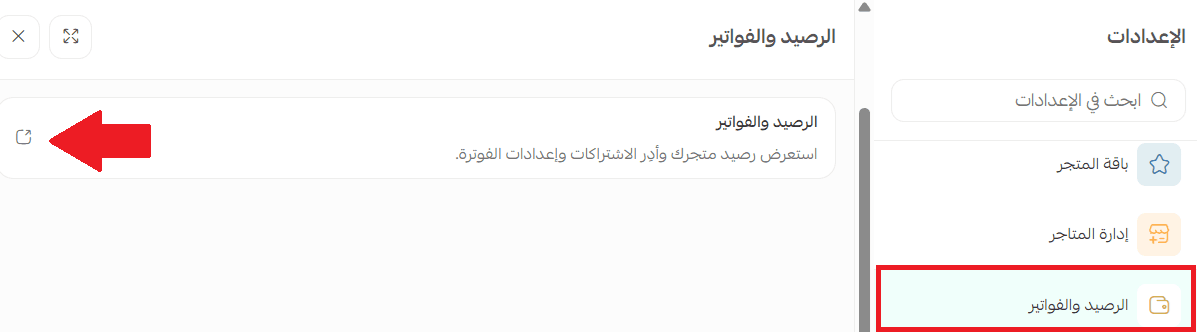
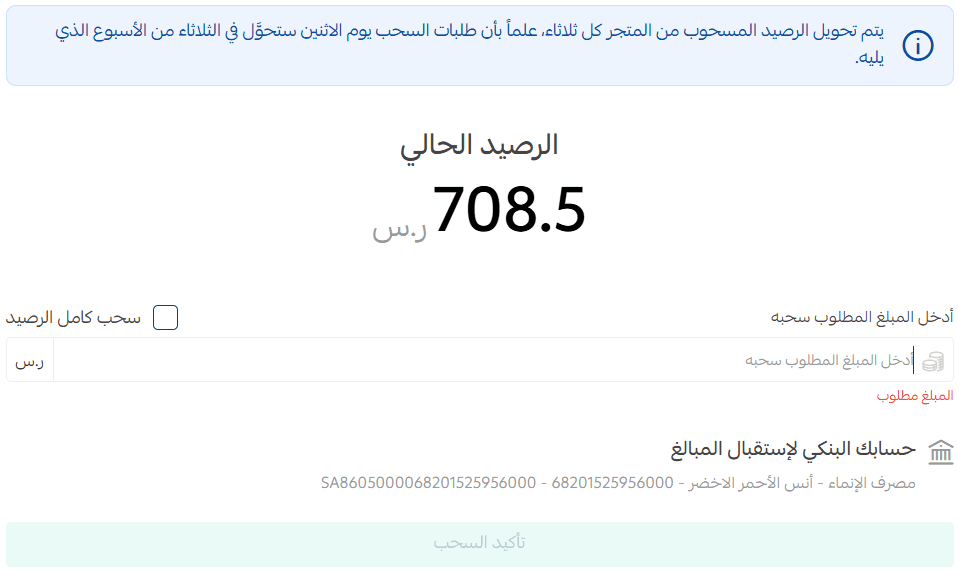
3. From the Balance and Invoices page, in the Store Balance section, click (Withdraw Balance).
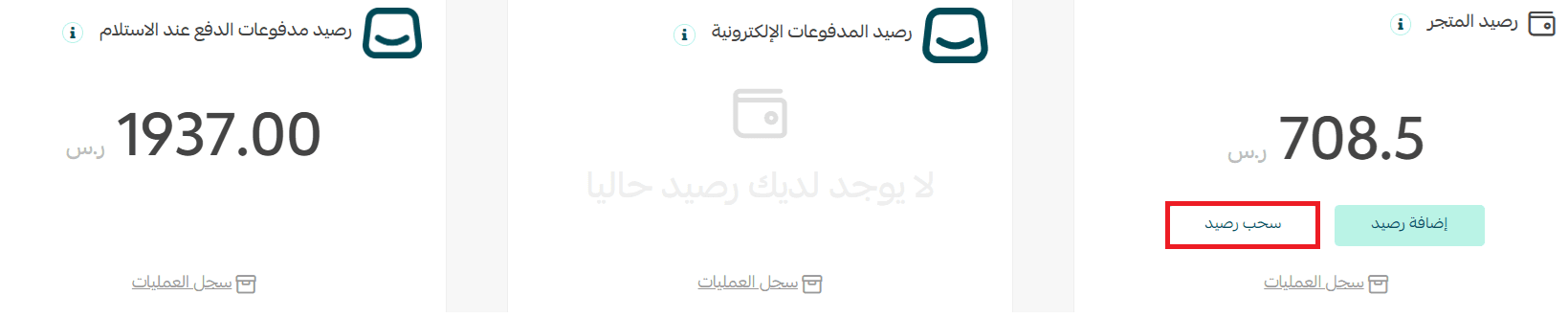
4. You can withdraw the full balance by selecting (Withdraw Full Balance) or enter a specific amount, then choose the bank account and click Confirm Withdrawal.
Frequently Asked Questions
What is the balance withdrawal mechanism in Salla?
The balance is transferred to the bank account periodically, provided that:
The documentation details are correct and complete.
There are no errors in the bank account details.
There are no open complaints against the store.
What are the possible reasons for delays in transferring amounts to the bank account?
Transfers may be delayed in the following cases:
- The bank account holder's name does not match the documentation details.
- There is formatting or decoration in the name (such as incorrect symbols or spaces).
- There is an error in the bank account details.
- There is an open complaint against the store.
How can I correct bank account details in Salla?
You can update the bank account details through the following steps:
From the control panel, go to Store Settings.
Select Payment Methods.
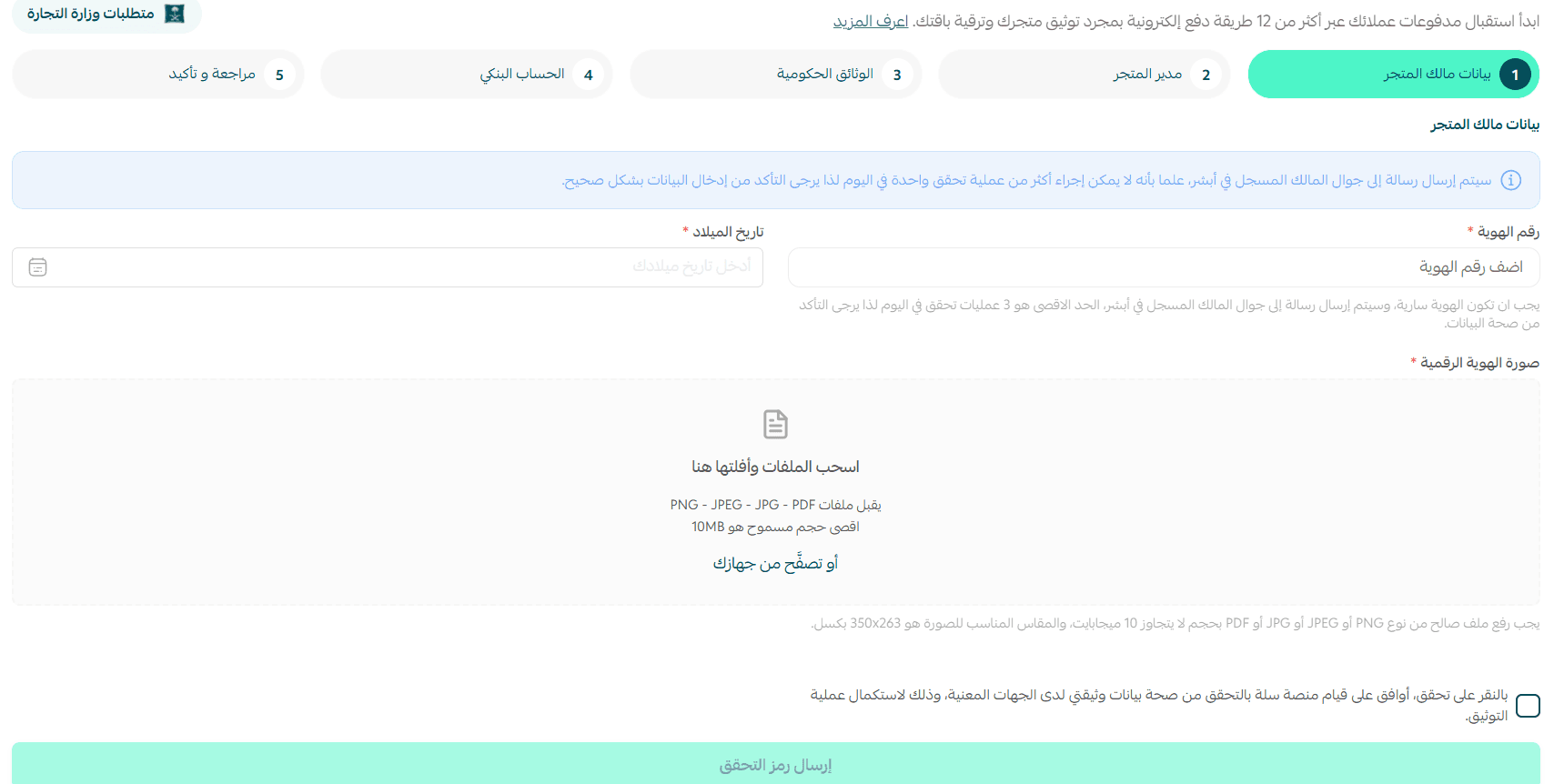
Click on Store Verification, then choose Update Documentation Details.
Edit the bank account name, ensuring: It is written exactly as it appears on the IBAN certificate.
Do not copy and paste the name (it's better to type it manually), then submit the request for review.
What is the difference between the bank account in Store Verification and the bank account in Payment Methods?
- The bank account in the Store Verification page:
It is used to transfer your dues from Salla to your bank account and does not appear to your store's customers.
- The bank account in Payment Methods:
It is used to enable customers to pay via bank transfer and appears to them during order completion.
You can add and activate more than one bank account as desired.
?How can I delete a bank account
You can delete the account at any time by clicking Delete Account from the account page itself.
Can the bank account be used in more than one store on Salla?
Yes, the same bank account and national ID can be used to create more than one store on Salla.
?Can I update the bank account
Yes, click on the bank account you wish to update.
Update the bank details, then click (Save).