A customer wants to send an order back. Do you know exactly what to click, and what happens to their money?
Returns are part of running a store, and the way you handle them decides whether a customer buys from you again. Salla gives you everything you need to manage order returns from the order page itself: move the order through the right status, refund the full amount or part of it, edit quantities or prices, and check that the money actually left your balance. In this guide, you'll learn how to return a full order, how to return part of one, how refunds work with buy now, pay later providers, and how to confirm a refund landed.
To return an order on Salla, open (Orders), select the order, set its status to (Restoring) while you review it, then set it to (Restored) and choose your return options. Click (Refund the customer), pick the refund method, enter the amount, and confirm. The money is sent back through the original payment gateway.
📌 Article overview
- How to customize your order statuses
- The two ways to return an order
- Refunds on buy now, pay later payments (Tamara, Tabby, MISpay)
- How to confirm a refund in your payments balance
- Frequently asked questions
🚀 How to customize your order statuses
Returns are much easier to track when your order statuses say what is actually happening. Salla gives you two statuses built for this: (Restoring), for an order you are reviewing, and (Restored), for one you have accepted back.
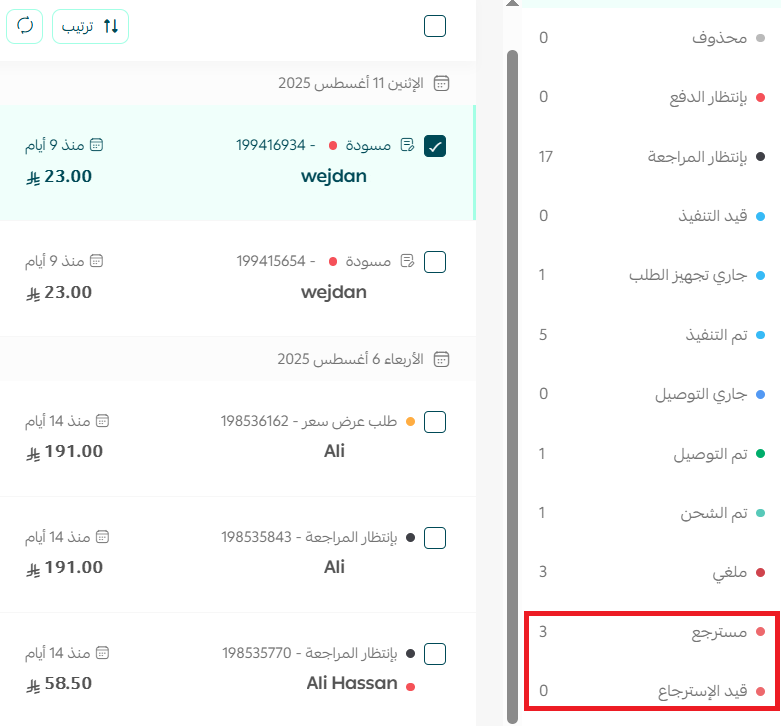
For the full walkthrough, see customizing your order statuses.
🎯 The two ways to return an order
Every return on Salla falls into one of two cases:
- The customer sends the whole order back.
- The customer keeps part of the order, or the order details change.
👣 Return a full order
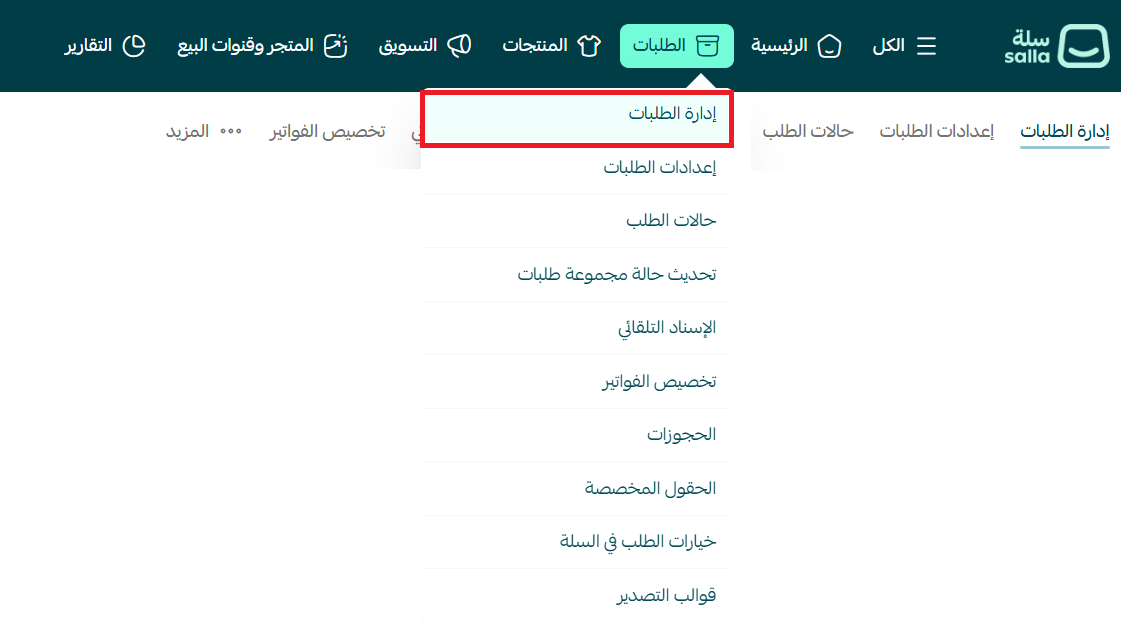
1. From the main menu, click (Orders), then click (Manage orders).
2. On the orders page, select the order you want to return, or search for it by order number.

3. On the order page, change the order status to (Restoring), then click (Execute action).
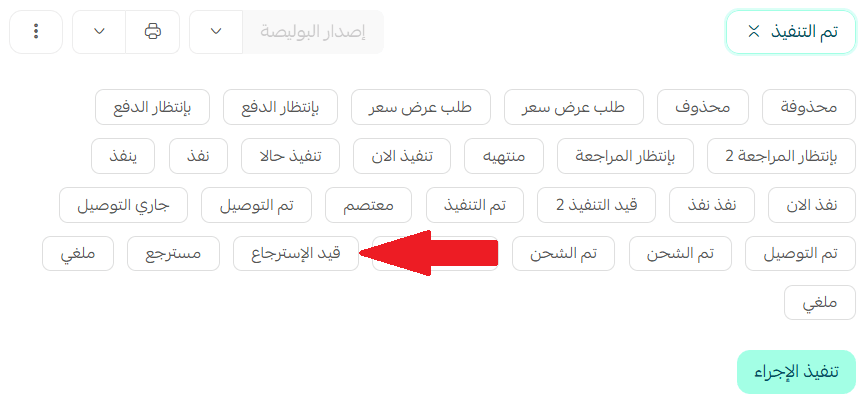
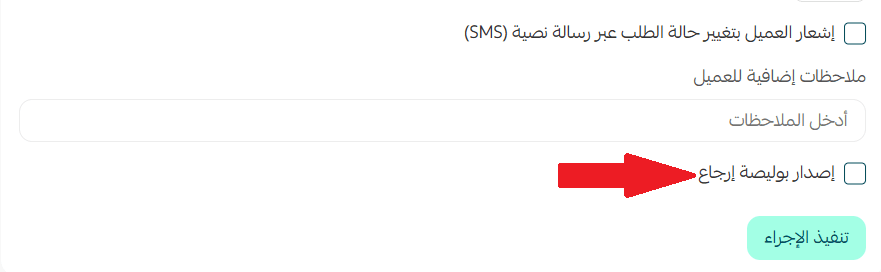
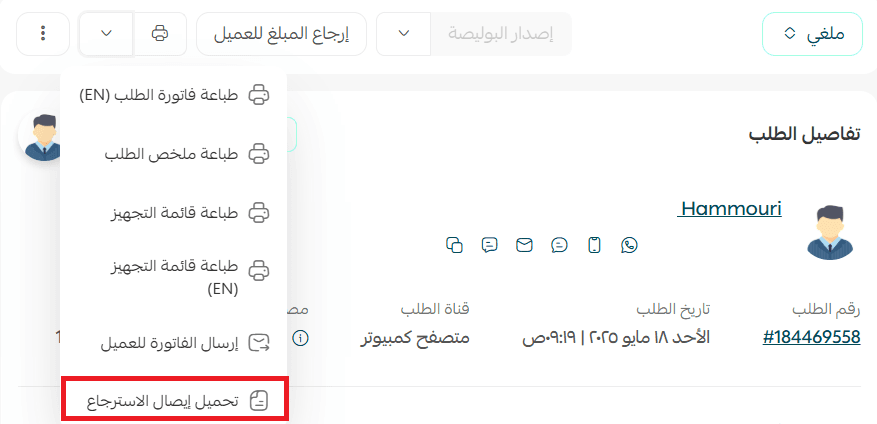
4. Use (Restoring) while you review the returned order. In this status you can issue a return waybill.
📝 Important notes
Setting an order to (Restoring) does not refund the customer. No money moves until you refund it yourself.
5. Back on the order page, set the status to (Restored), choose your return options, then click (Execute action):
- Add notes for the customer about the return.
- Issue a return waybill (optional).
- Return the products to stock (optional).
- Deduct the store loyalty points the customer earned from this order.
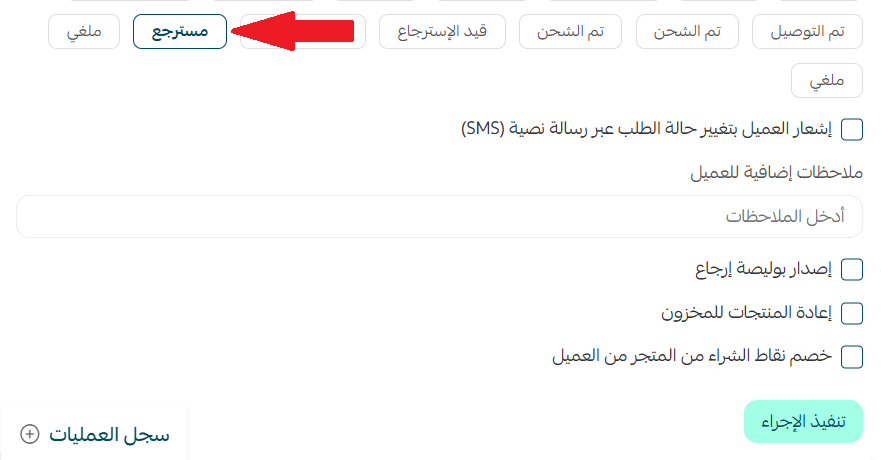
6. Once the status is updated, click (Refund the customer) to send the money back.

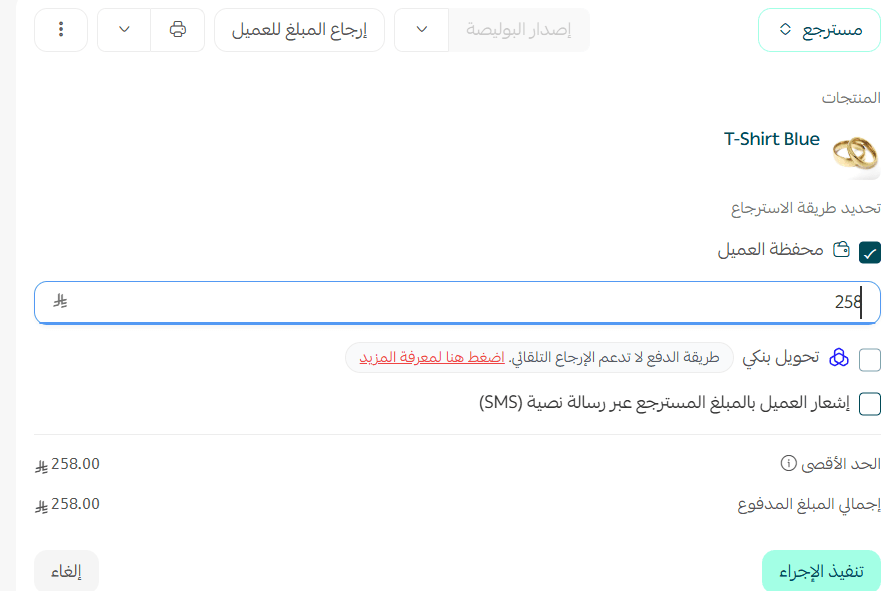
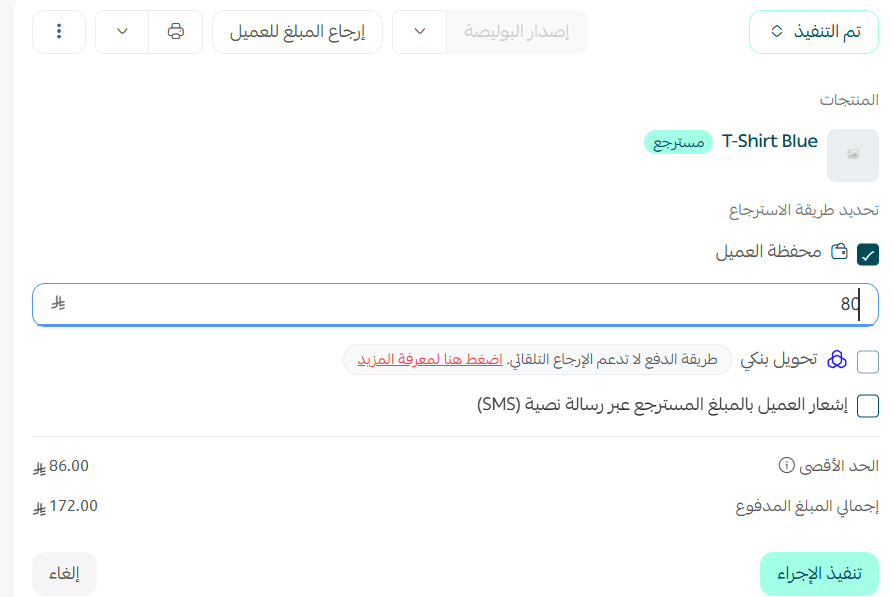
7. The refund details open. Choose the refund method, enter the amount you are returning, then click (Execute action).
📝 Important notes
Credit added to the store wallet can only be spent on another purchase in your store. Once it is in the wallet, it cannot be moved to the customer's bank card.
The refund is stuck and I can't finish the steps
Once you confirm the refund, Salla sends the money straight back to the payment gateway. How long it then takes to reach the customer is up to the policy of the bank that issued their card.
💡 Example: a mada payment is usually back with the customer the same day. A Visa or Mastercard payment can take around 14 days, and occasionally longer if the bank holds it up.
🚨 Warning: if the customer paid with mada, the refund cannot be processed more than 30 days after the transaction date, under Saudi Payments requirements. Visa payments follow the payment gateway's own policies and are not subject to this limit.
👣 Return part of an order, or edit its quantities and prices
At the bottom of the order page, click (Edit order).

Editing an order leads to one of two outcomes:
The order total goes up
Raising a product's price, or increasing the quantity of one or more products, increases the order total. The customer now owes the difference.
💡 Example: you increase the quantity of (Night oils set) from one piece to two.
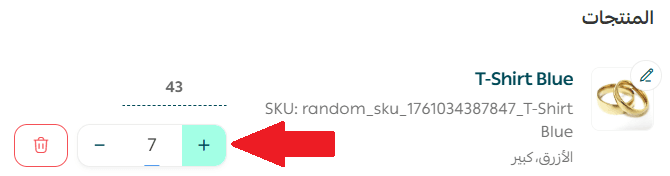
The order total rises, leaving an outstanding amount for the customer to pay.
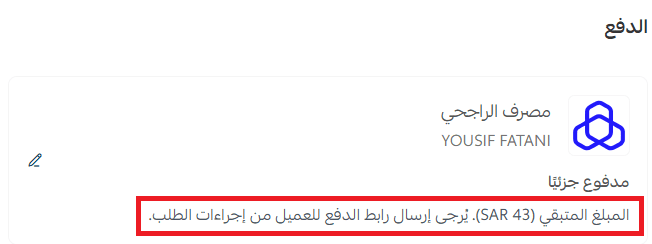
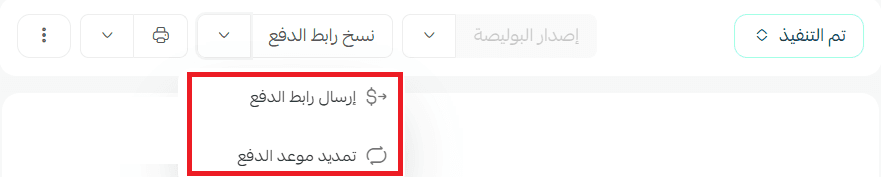
To let the customer know, click (Copy link) and send them the link. It takes them to a checkout page where they can pay the difference with the method they used the first time, or with a different one. A customer who paid the original order with mada can pay the difference with Tamara, for example.

You can also send the payment link to the customer directly, or extend the payment due date.
The order total goes down
Lowering a product's price, or reducing the quantity of one or more products, brings the order total below what the customer already paid. That difference has to go back to them.
💡 Example: you reduce the quantity of the lavender serum from two pieces to one.
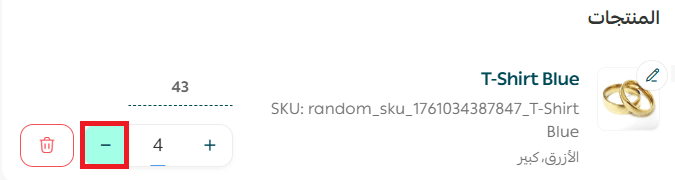
The order total drops, and an amount is now owed back to the customer.
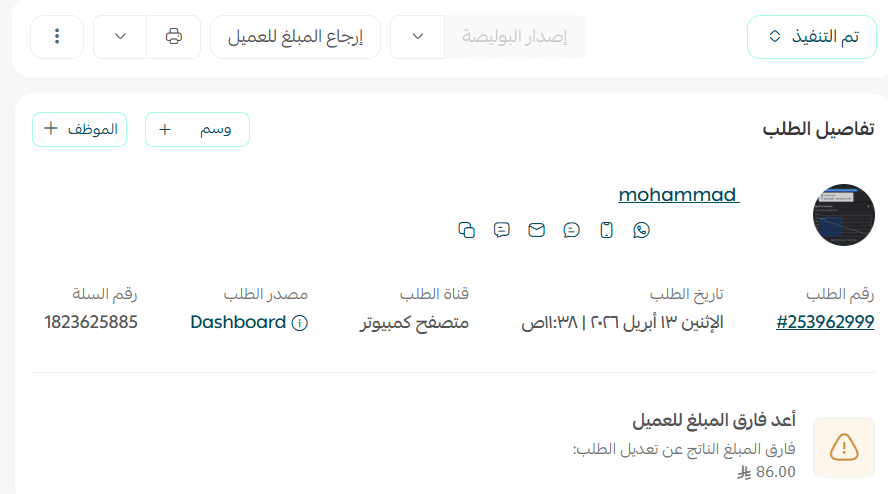
To send it back, click (Refund).

Then enter the amount you are refunding, either the full outstanding amount or part of it, and write a clear note explaining it.
💳 Refunds on buy now, pay later payments (Tamara, Tabby, MISpay)
Tamara. You can refund the full amount or part of it straight from your Salla dashboard when the customer paid with Tamara.
How it works: the (Refund) button appears on the order exactly as it does for other supported methods such as Visa or mada. When you run the refund, the amount is taken from Tamara rather than from your Salla payments balance, and it is recorded automatically in your Tamara account as a refund.
Tabby and MISpay. Payments made through Tabby or MISpay cannot be refunded from the Salla dashboard. Sign in to your Tabby or MISpay account to complete the refund there.
In short: refunding through Salla is available only for Tamara. For Tabby and MISpay, run the refund from your account with that provider.
🔍 How to confirm a refund in your payments balance
To be sure the money left your account and went back to the customer, check your payments balance:
1. From the main menu, click (All), then click (Wallet and invoices). Your store balance appears.
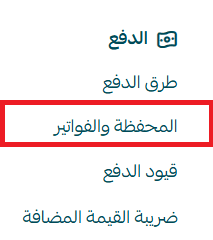
2. Open (Transaction log).

3. Review the financial movements listed there.

4. Search the transactions for the order number to confirm the refund was recorded successfully.

Frequently asked questions
❓ How do I refund a customer on Salla?
Change the order status to (Restored), then click (Refund the customer).
❓ What are the conditions for refunding a customer?
To complete a refund through Salla, all of the following must be true:
1. The payment method is one of the supported ones: mada, Visa, Apple Pay, or Tamara.
2. Your payments balance holds enough funds, where the payment method requires it.
3. For mada payments, the refund is made within 30 days of the transaction date.
4. For Visa payments there is no equivalent time limit; the refund follows the payment gateway's policies.
❓ What do I do if those conditions aren't met?
If the refund can't go through Salla, you have two alternatives:
- Transfer the amount directly to the customer's bank account after getting their IBAN.
- Add the amount to the customer's wallet in your store so they can spend it on a later purchase.
❓ How long does a refund take to reach the customer?
Salla sends the amount back to the payment gateway as soon as you confirm the refund. From there it depends on the customer's bank: mada refunds usually arrive the same day, while Visa and Mastercard refunds can take around 14 days, sometimes longer.
✅ Apps that help with returns
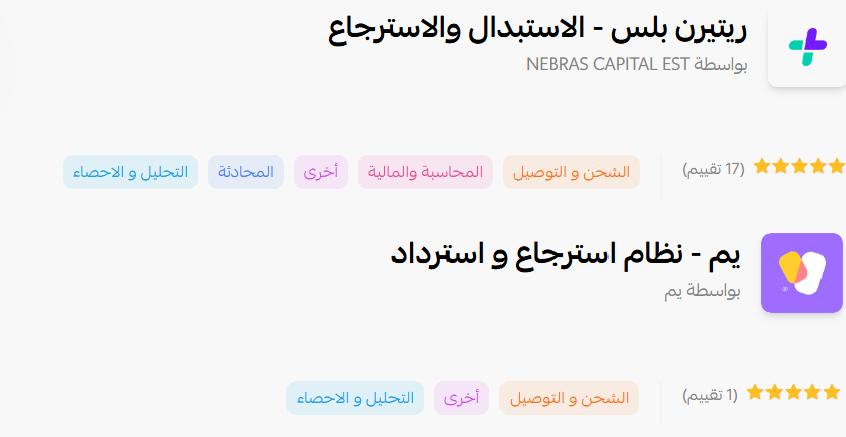
You can make the returns experience smoother with the Return Plus app or the Yum app, both built to organize returned orders. They track returns accurately, which speeds up the process and keeps customers happier with how it was handled.
Returns will always cost you something. Handling them quickly and clearly is what keeps that cost to one order instead of one customer.