The Digital Theme is designed specifically for digital product stores, offering a modern design and an engaging shopping experience. It enables advanced browsing by country or value, includes a section for managing previous purchases, and supports full dark mode along with visually appealing promotional elements.
📌 Article overview
- Steps to install the Digital Theme
- Header and footer features
- Design customization options
- New elements added to the theme
- Exclusive features of the Digital Theme
Steps to install the Digital Theme
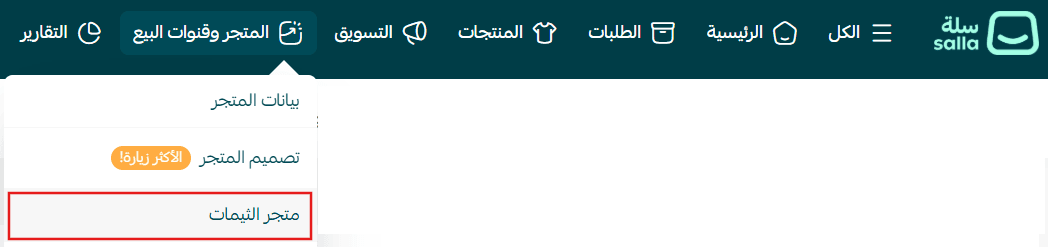
- From the main menu, click (Store & Channels) → (Theme Store)
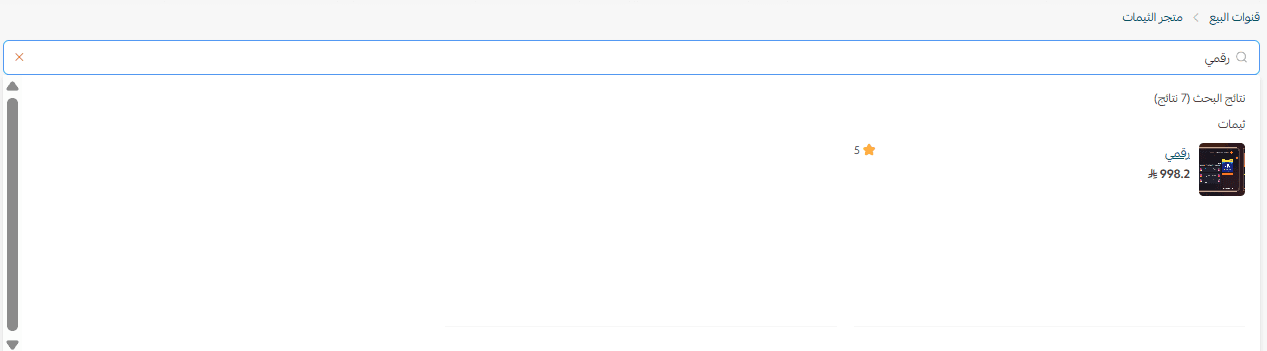
2. Search for Digital Theme, then select it from the results
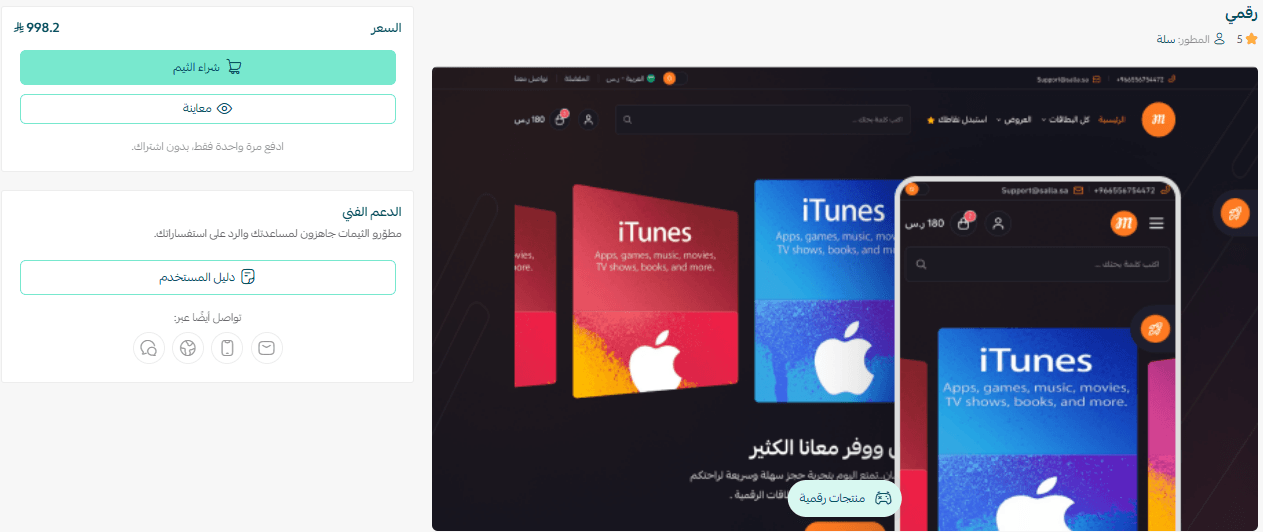
3. Open the theme details page and click (Purchase), then complete checkout
4. After installation, go to Store Design → select the theme → click (+ New Theme Copy from Default)
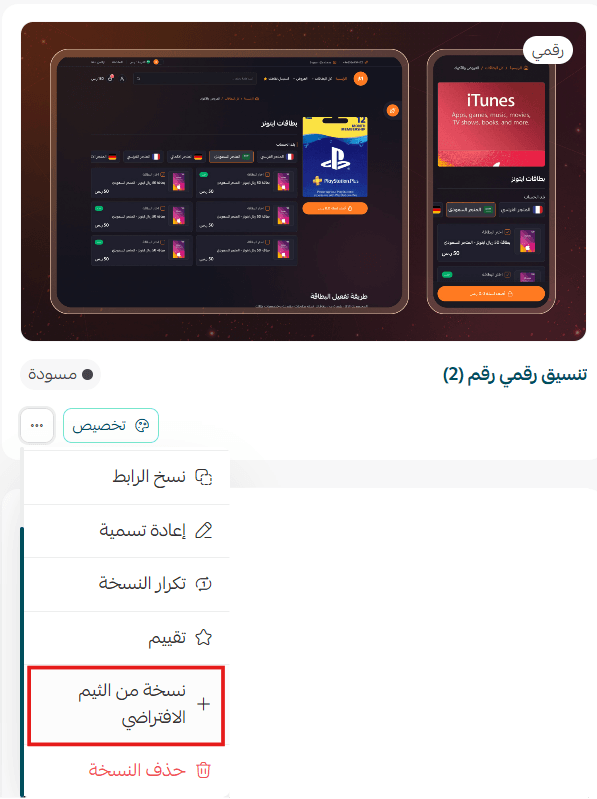
You can then customize the theme copy as needed and preview your store from the customization page.
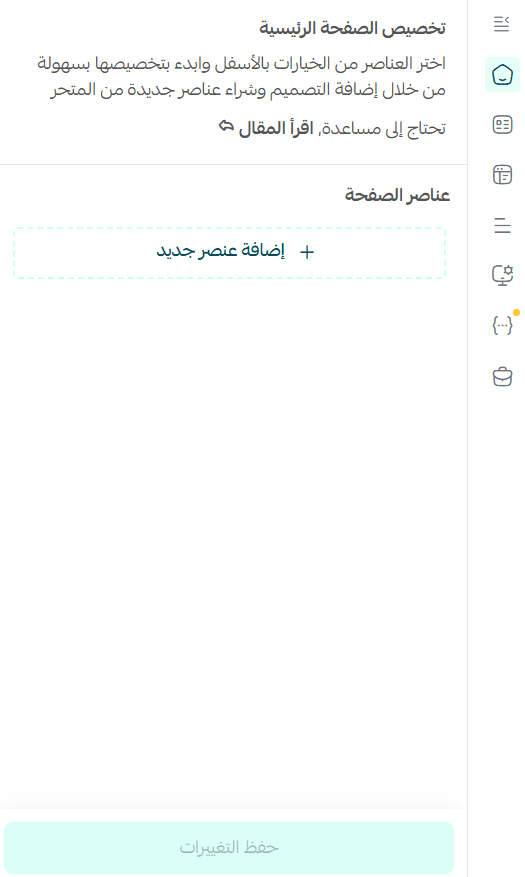
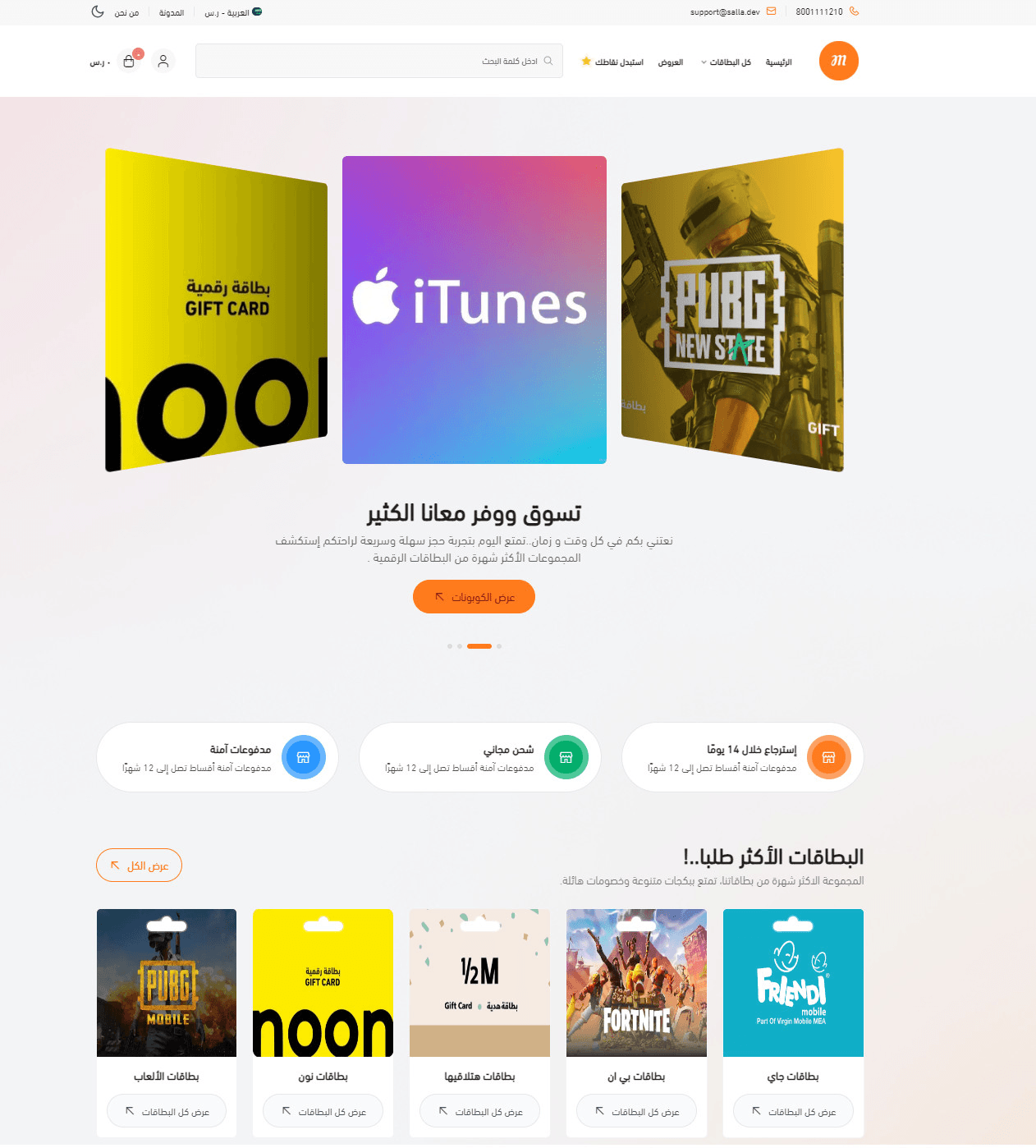
Preview a store using the Digital Theme
Make your store more attractive and professional, and provide a seamless shopping experience that boosts loyalty and sales.
Header and footer features
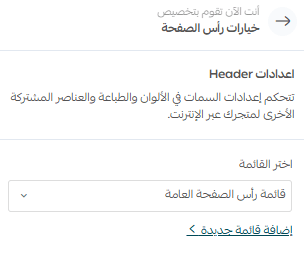
Header
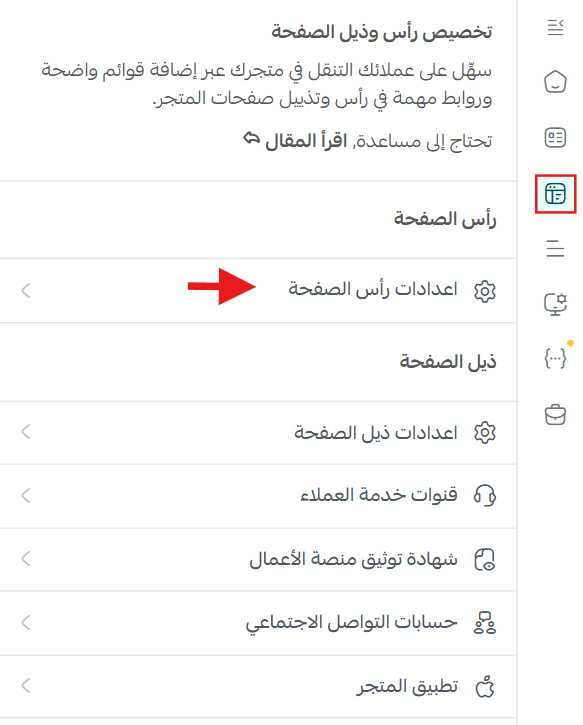
You can choose which elements appear at the top of your store.
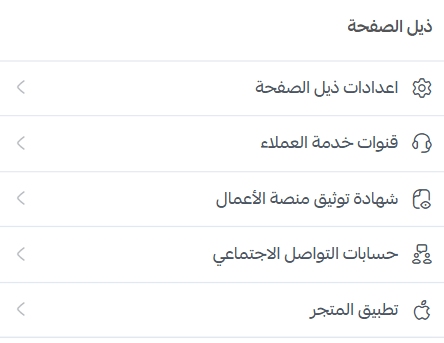
Footer
Includes:
- Customer support channels (phone, email, etc.)
- Business platform verification badge
- Social media links (Facebook, Instagram, X, etc.)
- Mobile app download links (iOS & Android)
Design customization options
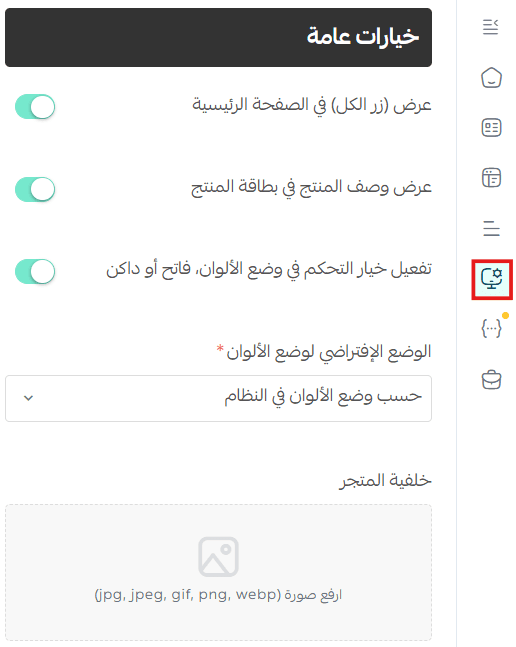
- Dark & Light Mode Support
Fully supported to create an immersive experience—especially suited for gamers and digital product audiences.
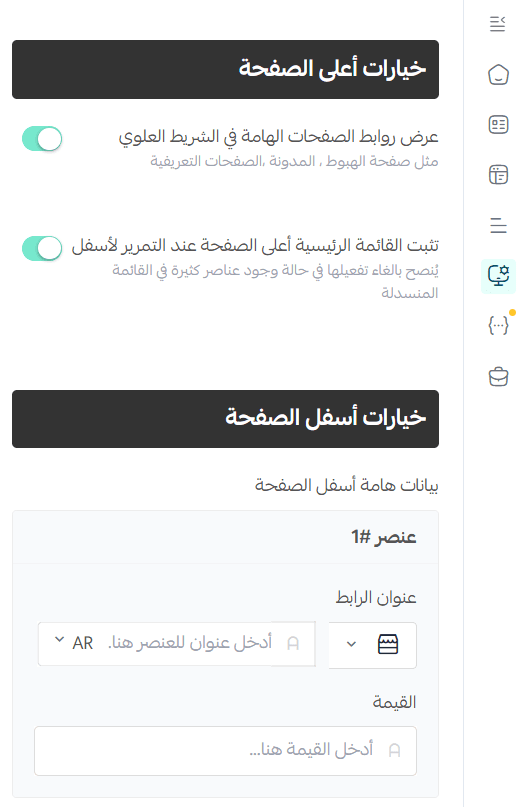
2. Custom footer highlights
You can add up to 3 elements to display key information at the bottom of the page.
New elements
The theme includes new performance-optimized elements.
To add them:
- Go to theme customization → (Page Elements)
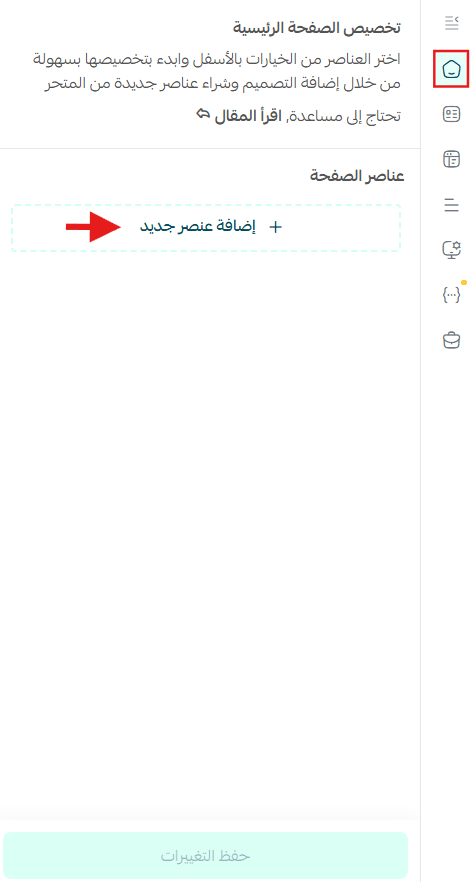
- Choose from the available elements list
New theme-specific elements are marked with a ⭐
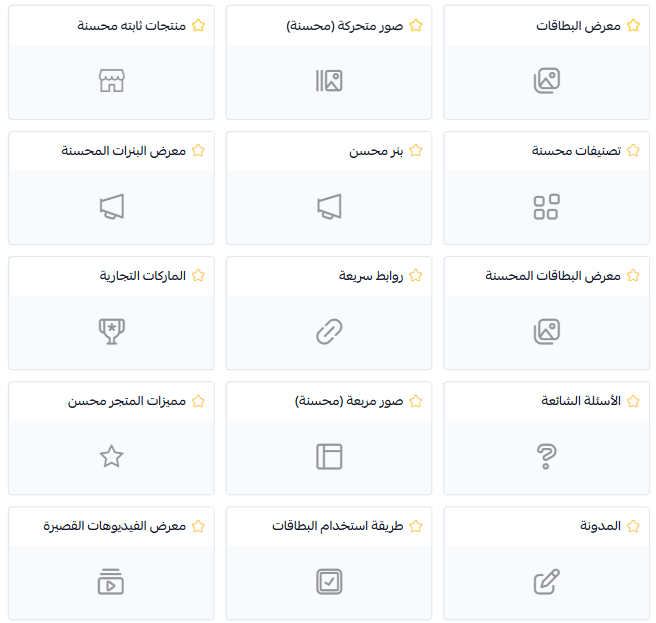
Exclusive features
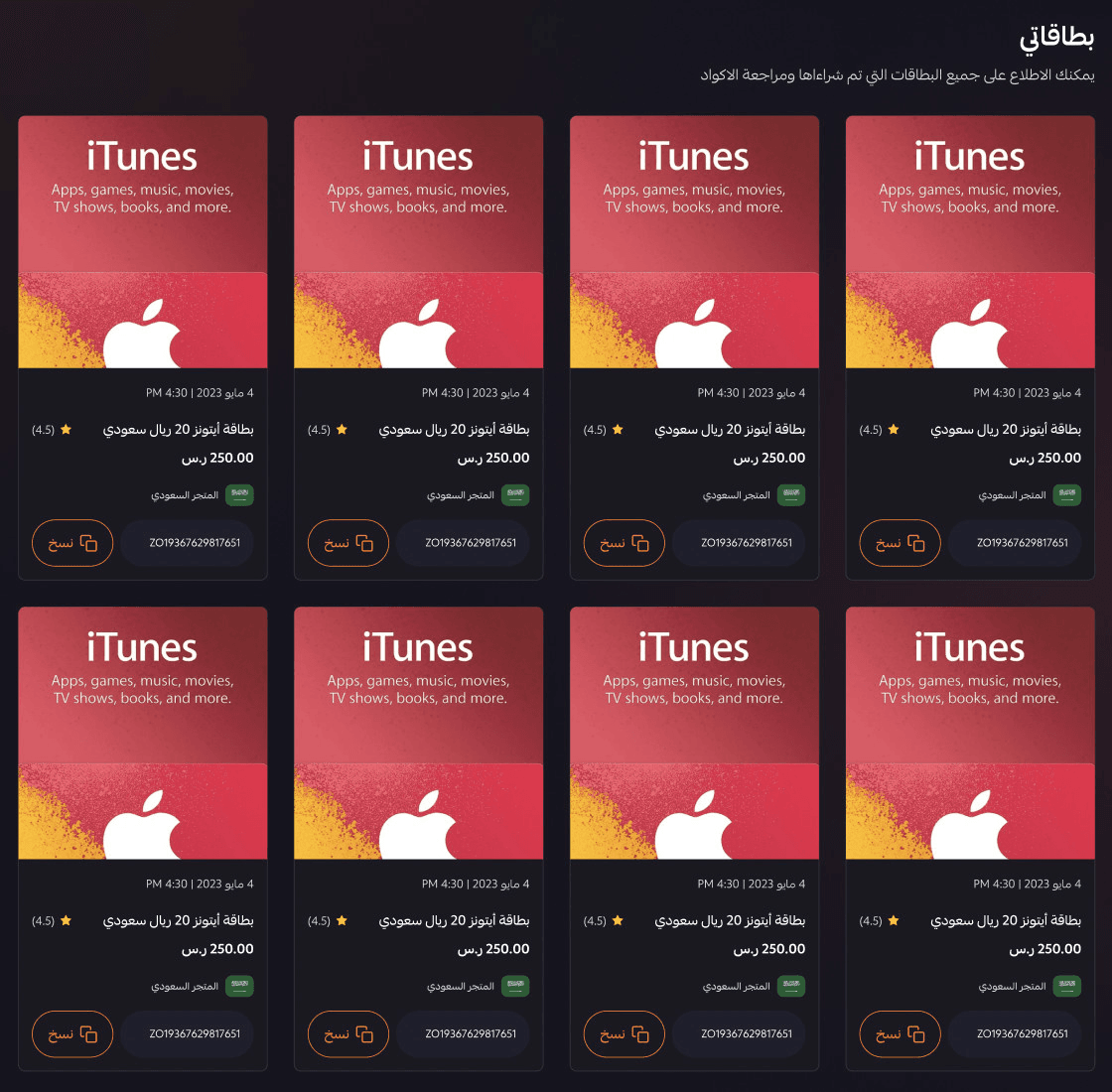
“My cards” feature
- Displays only digital products
- Allows adding a dedicated “Cards” section inside the customer’s orders page
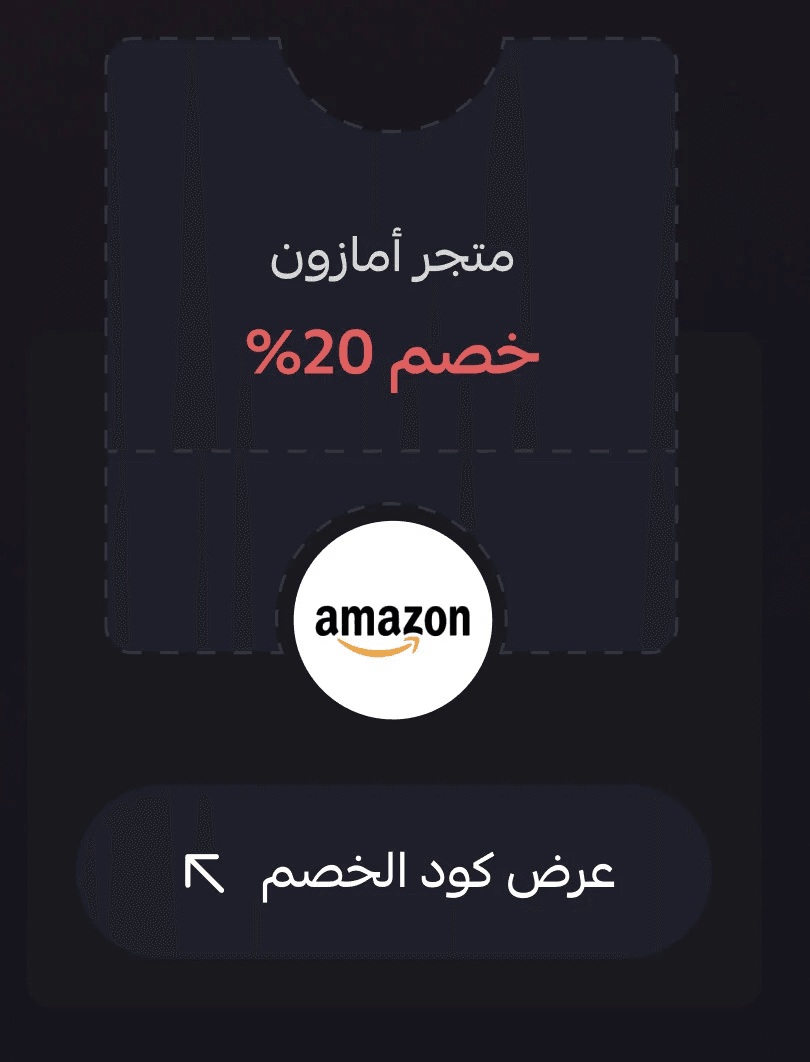
Coupon-style product display
Each card can show:
- Product image
- Product name
- Promotional title
- “View Code” button
Clicking View Code Details opens the product details page.
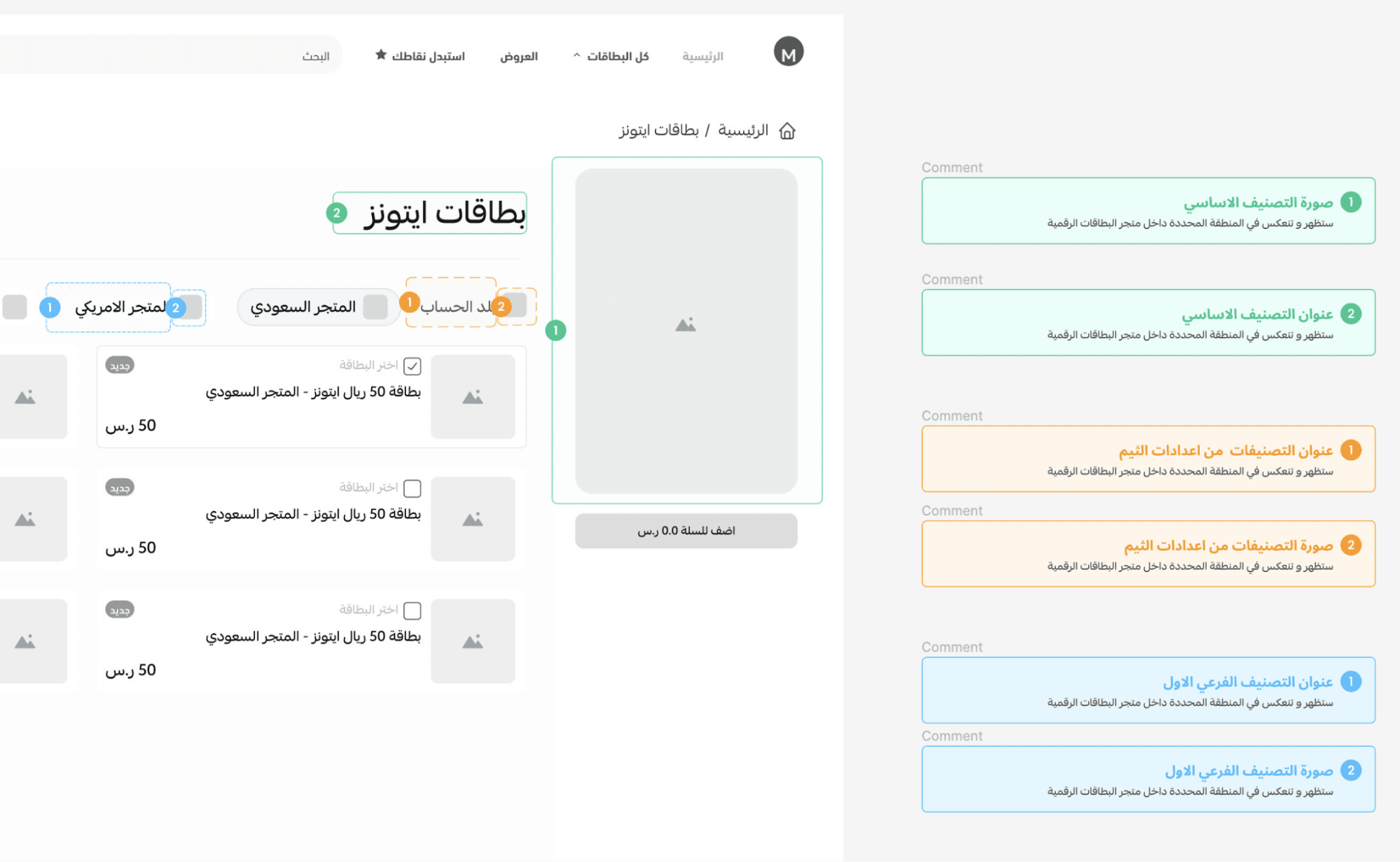
“View All Cards” feature
Displays:
- Category image
- Category title
- “View all packages” button

When clicked, it shows products with:
- Name, images, icons
- Ability to select one or multiple products and add to cart
- Out-of-stock indicator
- Disabled add-to-cart if no selection is made
Product card display
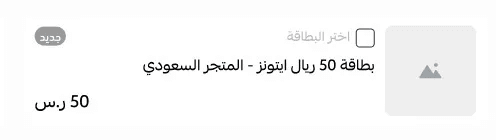
Each product card includes:
- Product name
- Image
- Price and discounted price
- Tags (if available)
Category display scenarios
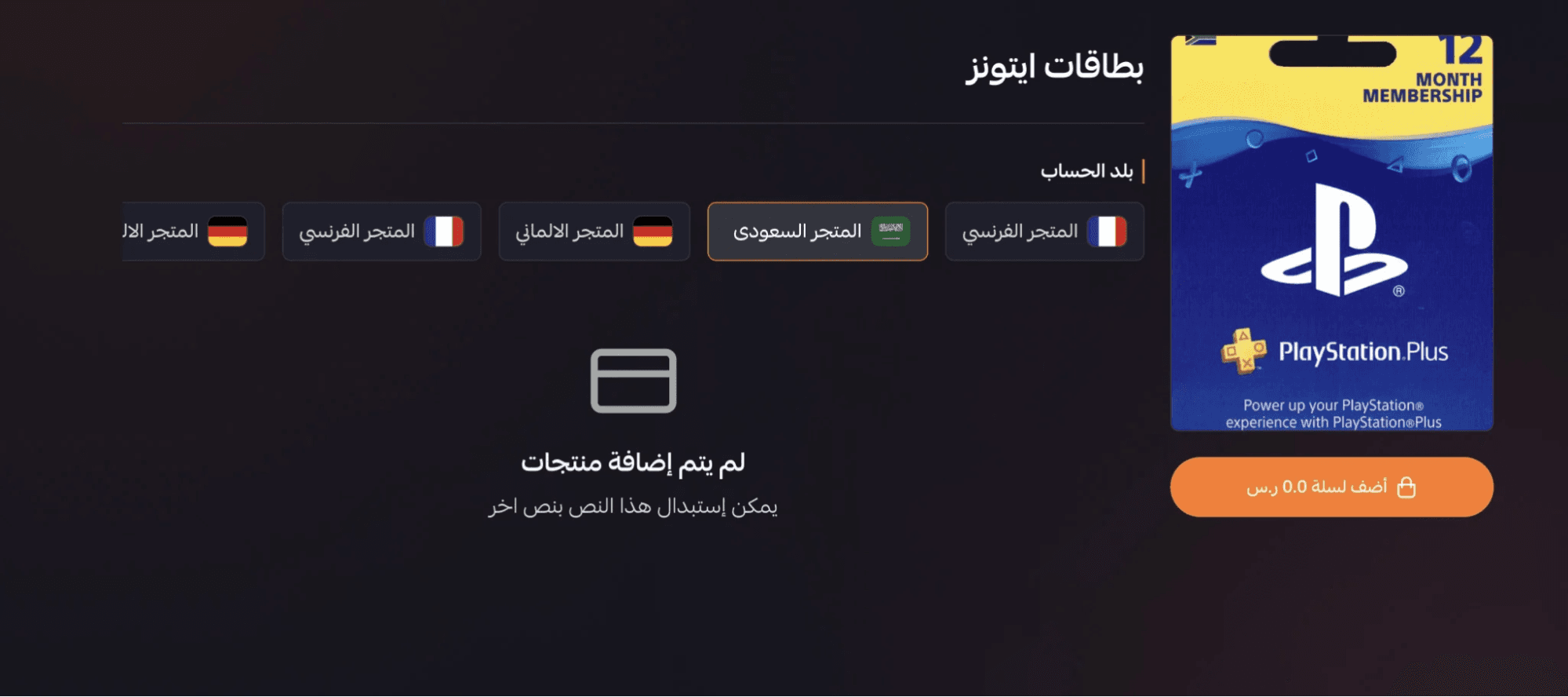
- Categories with subcategories and products
- Categories with subcategories only
Frequently asked questions
Are there changes to the product page?
Yes, including:
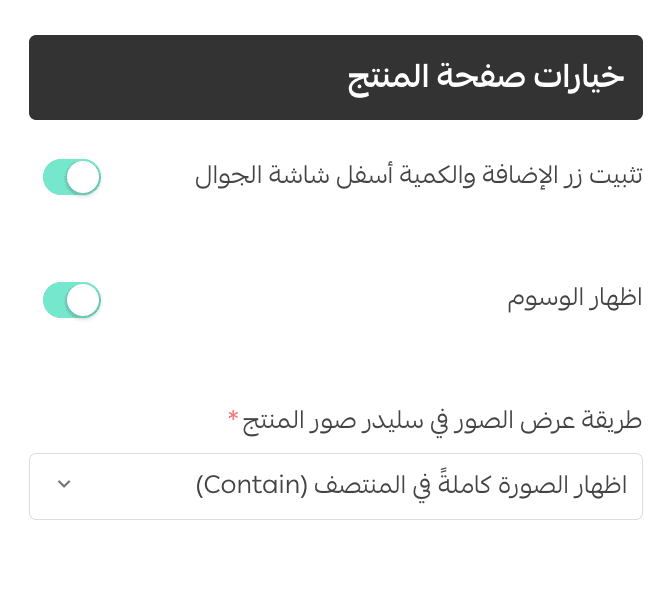
- Sticky add-to-cart button and quantity selector on mobile
- Tag display support
- Flexible image slider options