Running a store often means moving information between multiple tools. Orders need to be tracked, teams need notifications, inventory needs updating, and reports need to stay current.
With Zapier, you can automate these workflows without writing code. Connect your Salla store to thousands of apps and let routine tasks happen automatically, giving you more time to focus on growing your business.
📌 Article overview
- What is Zapier?
- Steps to integrate with Zapier
- Step-by-step guide to connect your Salla store with external apps
- Common examples of integrating Zapier with Salla
- Key Zapier terminology
- Frequently Asked Questions
What is Zapier?
Zapier is an automation platform that connects different applications and services without requiring any coding.
It allows information to move automatically between your store and other tools, helping you reduce manual work and streamline everyday processes.
Through Zapier, you can connect your Salla store with more than 2,000 applications to create, update, or sync data automatically.
🚀Steps to integrate with Zapier
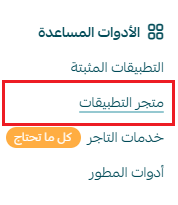
From the main menu, click (All), then from the Utilities section, click (App Store)
Search for the app using the search field

From the Zapier App page, click (Install)

Log in with your email
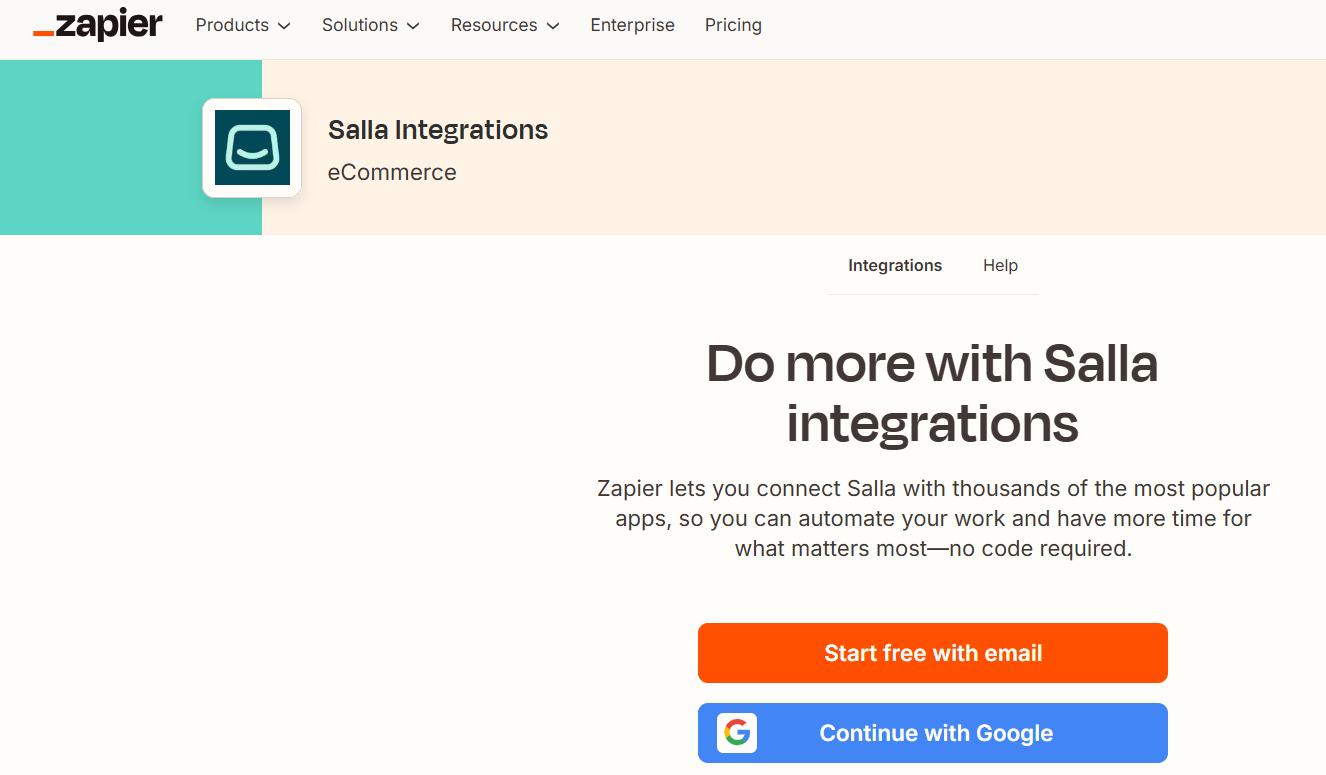
And you will see the Zapier control panel
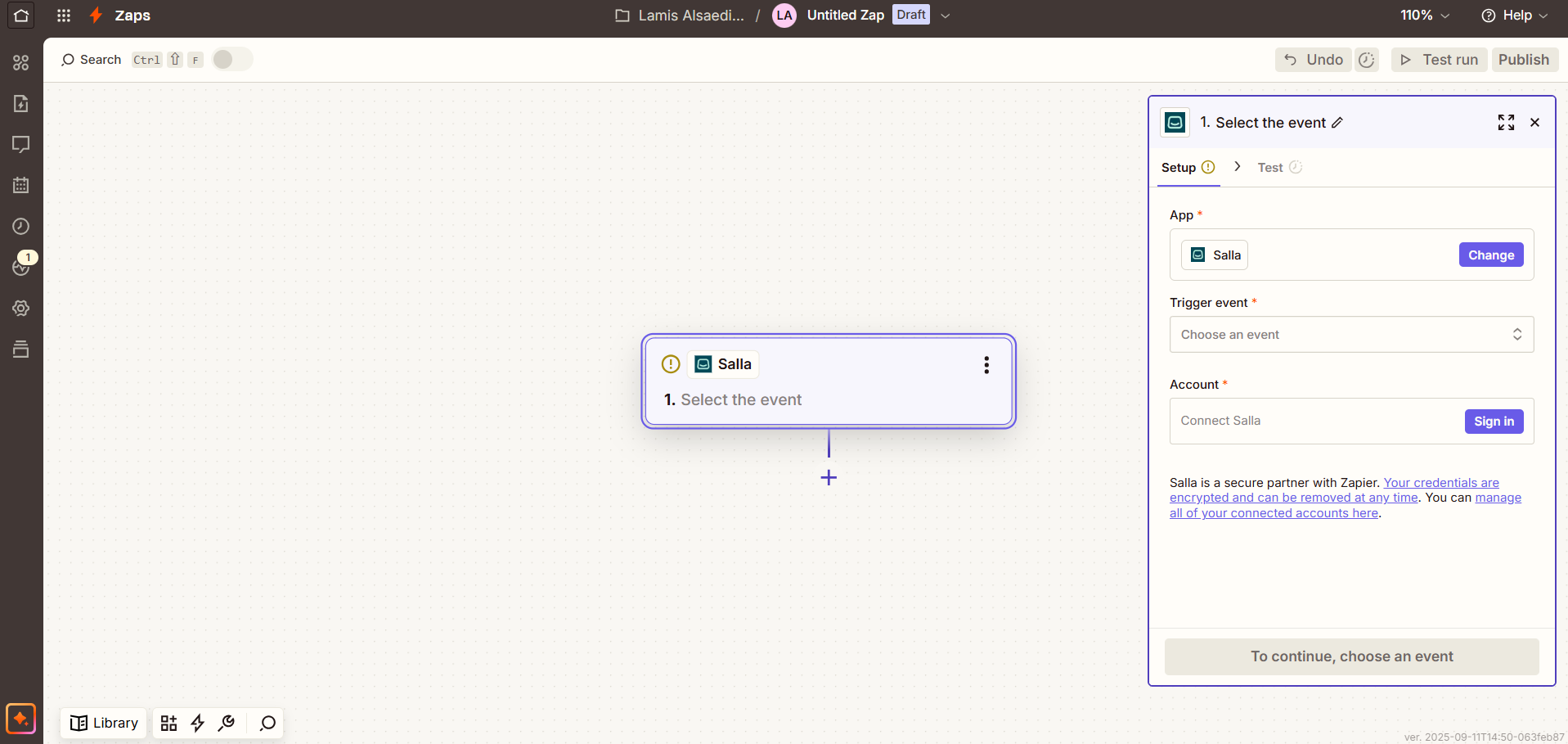
🚀Step-by-step guide to connect your Salla store with external apps
For this example, we'll connect a Salla store to Google Sheets
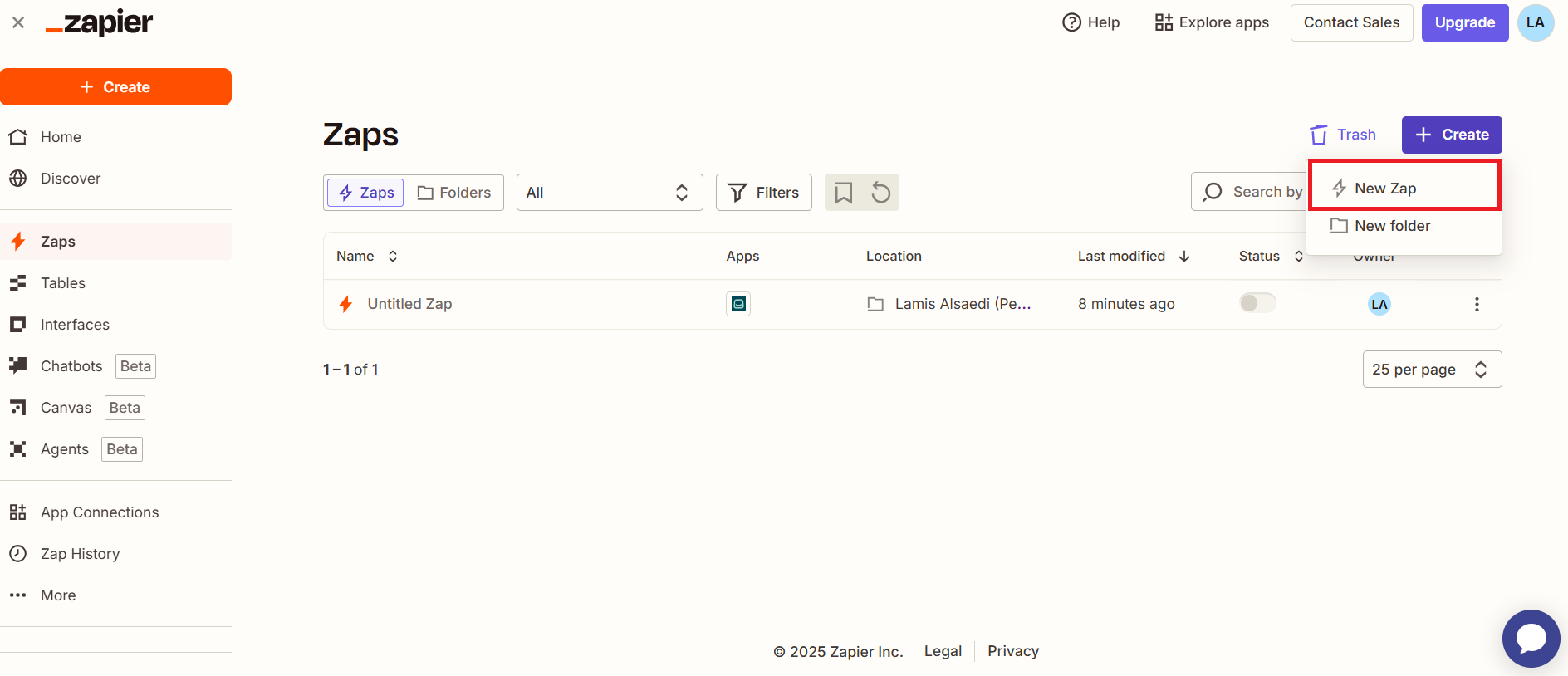
Create a New Zap
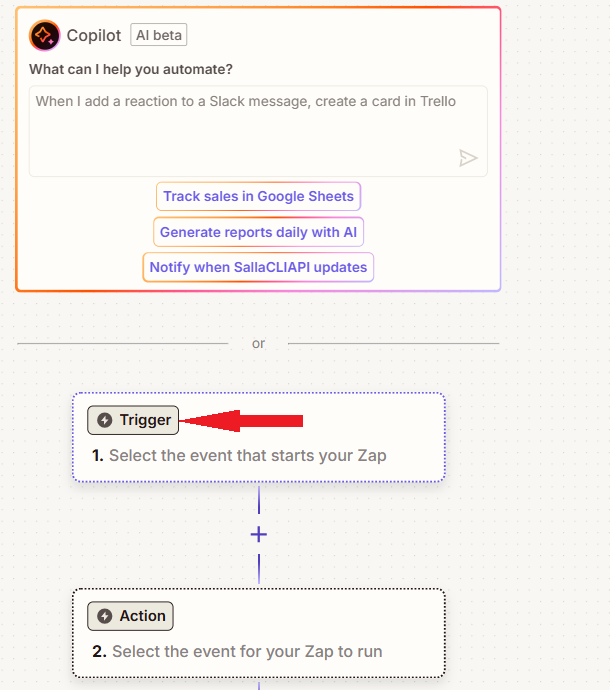
From the main interface of the Zapier platform, click Create then choose New Zap.
Select a Trigger
Click Trigger.
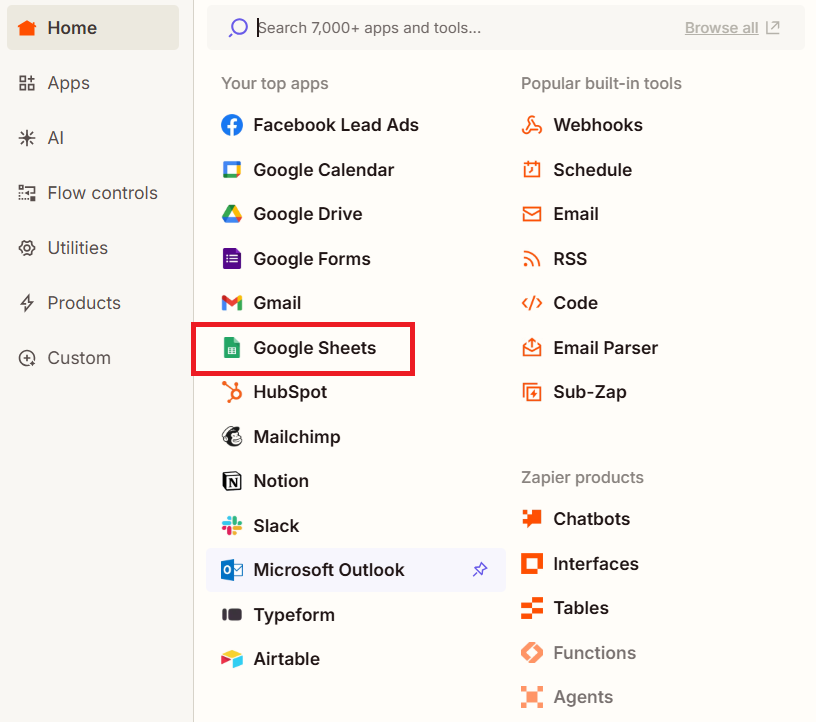
Choose the app that contains the source data, such as Google Sheets.
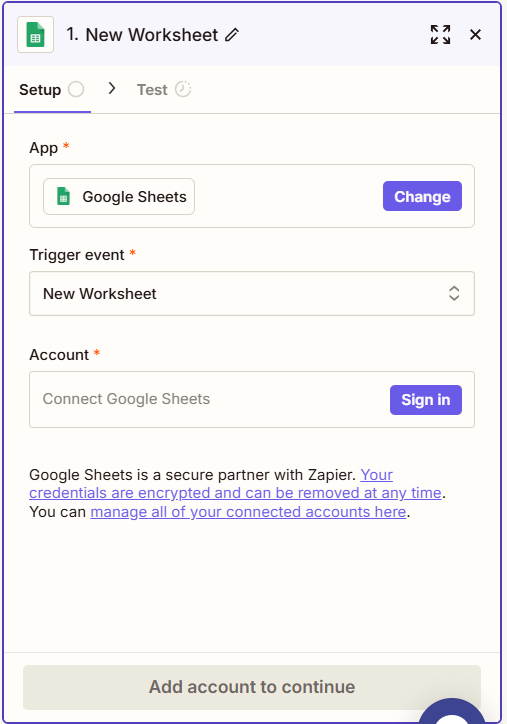
Select the desired event, such as New Worksheet.
Connect the Account
Choose (Google Sheets) for example
Then select the event
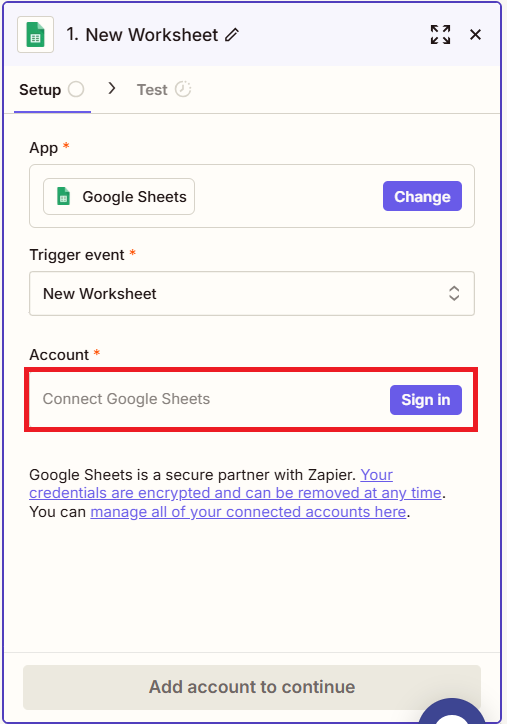
If this is your first time connecting your account, click Sign in and log in to Google Sheets
Then click Continue after connecting.
Select File and Sheet
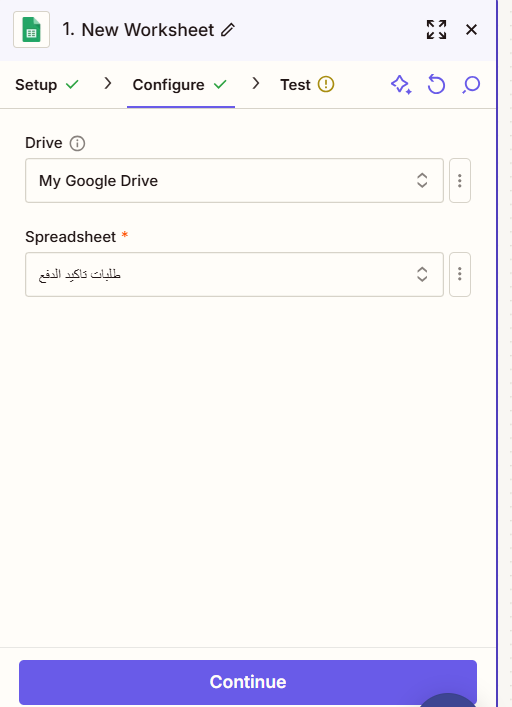
Drive: Choose the Google Drive account that contains the file.
Spreadsheet: Select the file you want to link (such as Sales or Salla Orders).
Worksheet: Choose the sheet within the file you want to monitor.
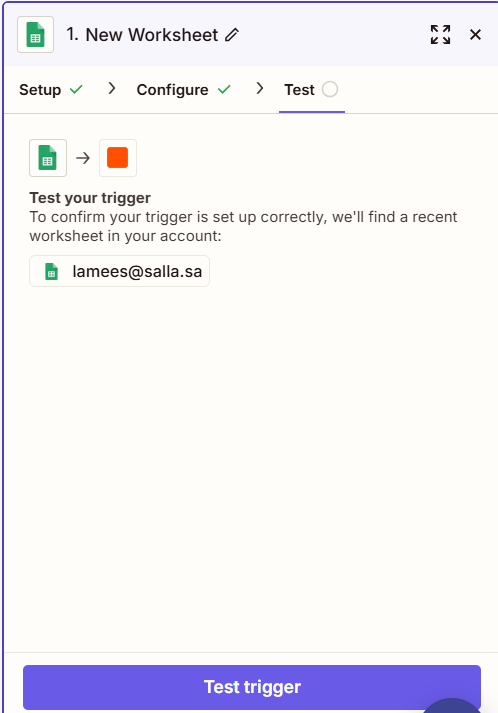
Click Continue then test the Trigger by clicking Test Trigger to ensure Zapier reads the data correctly.
Test trigger to ensure data is read successfully.
💡 Common Examples of Integrating Zapier with Salla
The integration can help you automate your e-commerce store tasks such as:
1. Automatically adding orders to Google Sheets
Whenever a customer completes an order, its details are automatically added to a sheet to track sales.
2. Sending automatic notifications to the team
When a new order is created or its status is updated, an automatic email is sent.
3. Automatically updating inventory
When a product is sold, the inventory is updated in external apps or spreadsheets without manual intervention.
4. Sending reminder messages to customers
Payment or order receipt reminders can be sent using apps connected to Zapier.
5. Automatically generating sales reports
Linking order data with Google Data Studio or Excel to create weekly or monthly reports automatically.
🚀 Key Zapier Terminology
Zapier comes with its own set of terms and common language, and learning them can help you understand what's possible with the service, including
Zap
An automated workflow between apps. For example, creating a Zap that works when a specific product's data is updated and reflects it in Google Sheet
Trigger
The event that Zapier will track to start the action; in our example above, the trigger is "Product Data Change"
Action
The command that the Zap performs upon the event; when "Product Data Change" occurs, the action "Add Updated Product Data to Google Sheet" is initiated
Task
Each completed automation process; every time the event "Product Data Change" is tracked and the action "Add Updated Product Data to Google Sheet" is successfully performed, it counts as a completed task
Frequently Asked Questions
?How can I create an account on Zapier
Zapier offers a variety of pricing options to help your business grow
To view the plans and pricing: Zapier Plans and Pricing
Free account features:
- 5 Zaps
- 100 tasks per month
- 15-minute update interval
- Single-step automations only
?What are the steps to create an account on Zapier
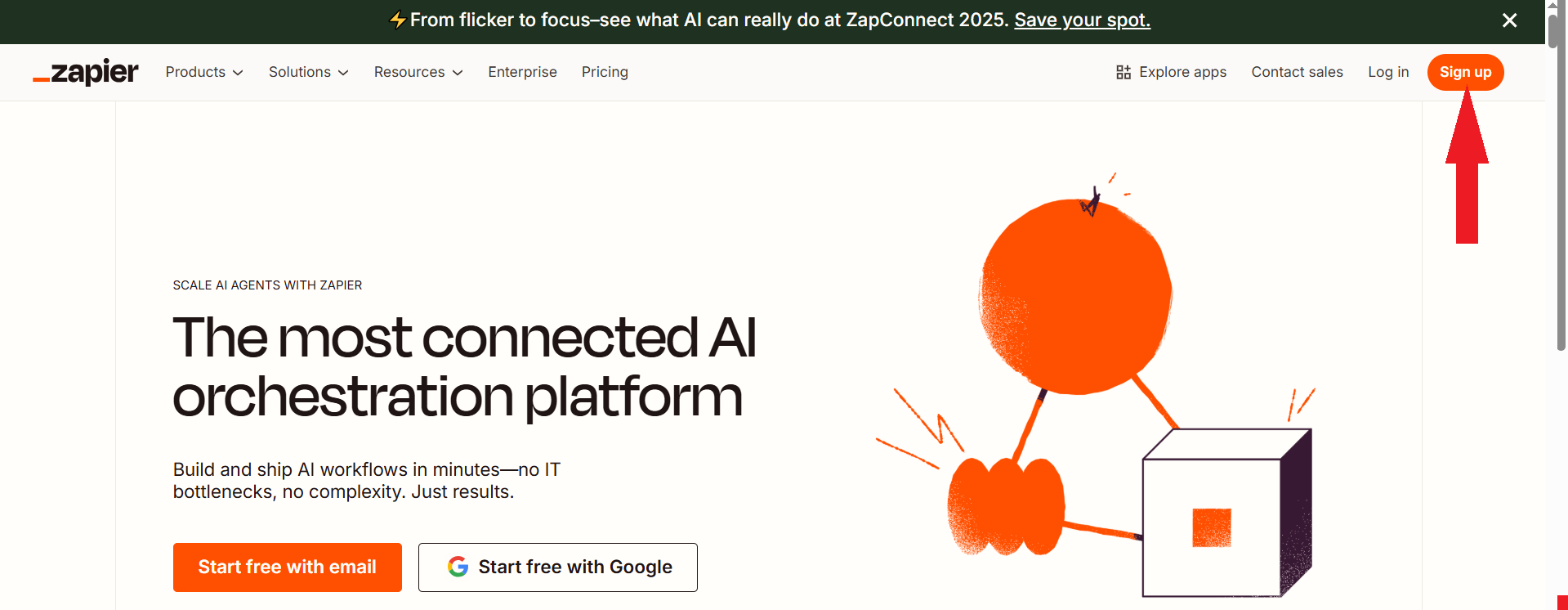
Go to the Zapier website and click Sign up
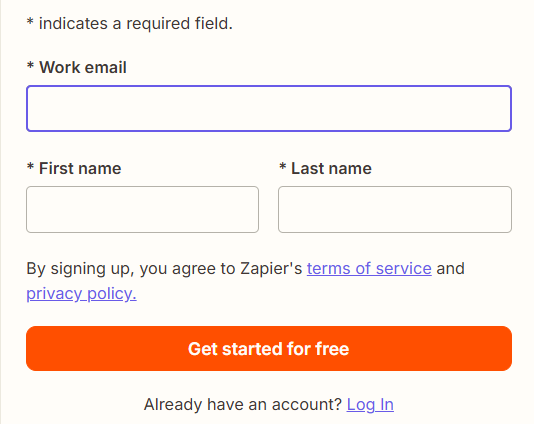
Enter your email address, first name, and last name
Create a password for your account
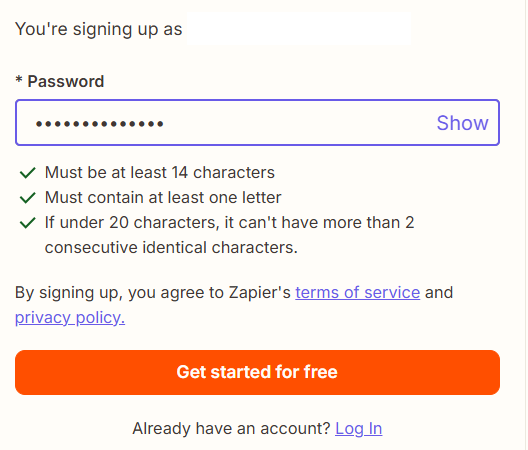
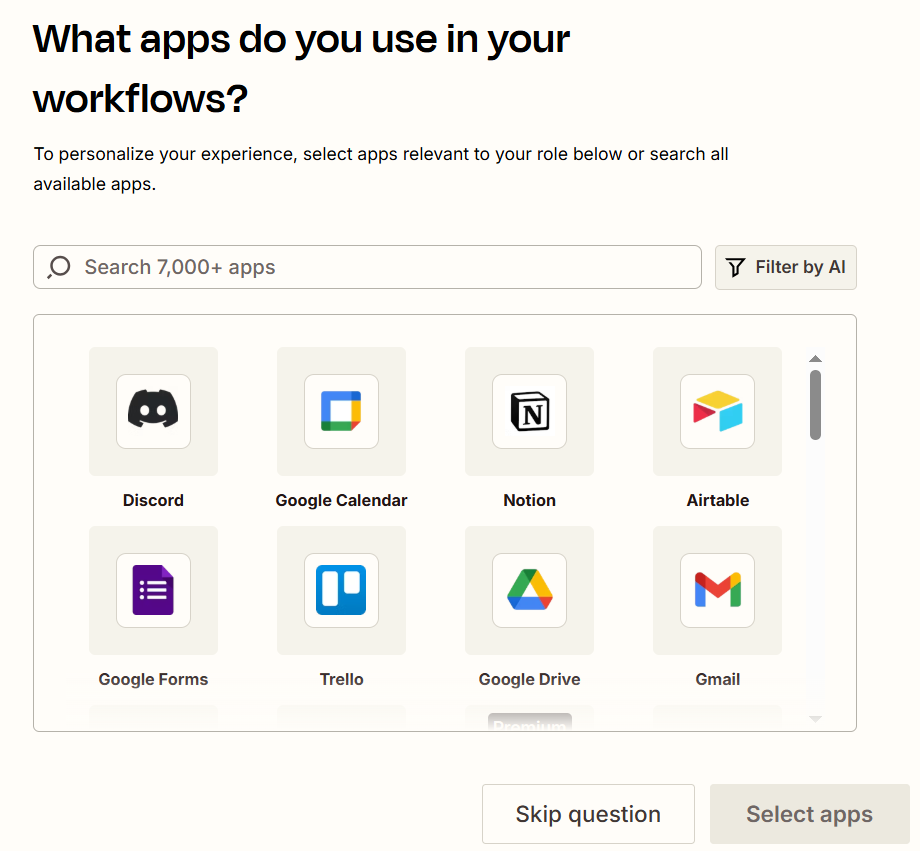
Select the three applications you use most often
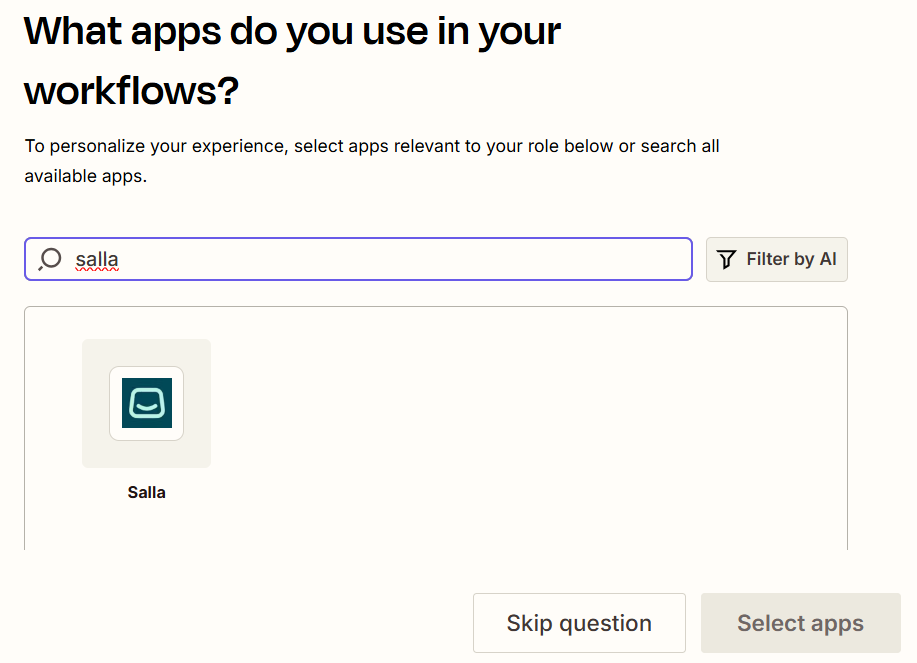
You can search for Salla and add it to your most-used applications
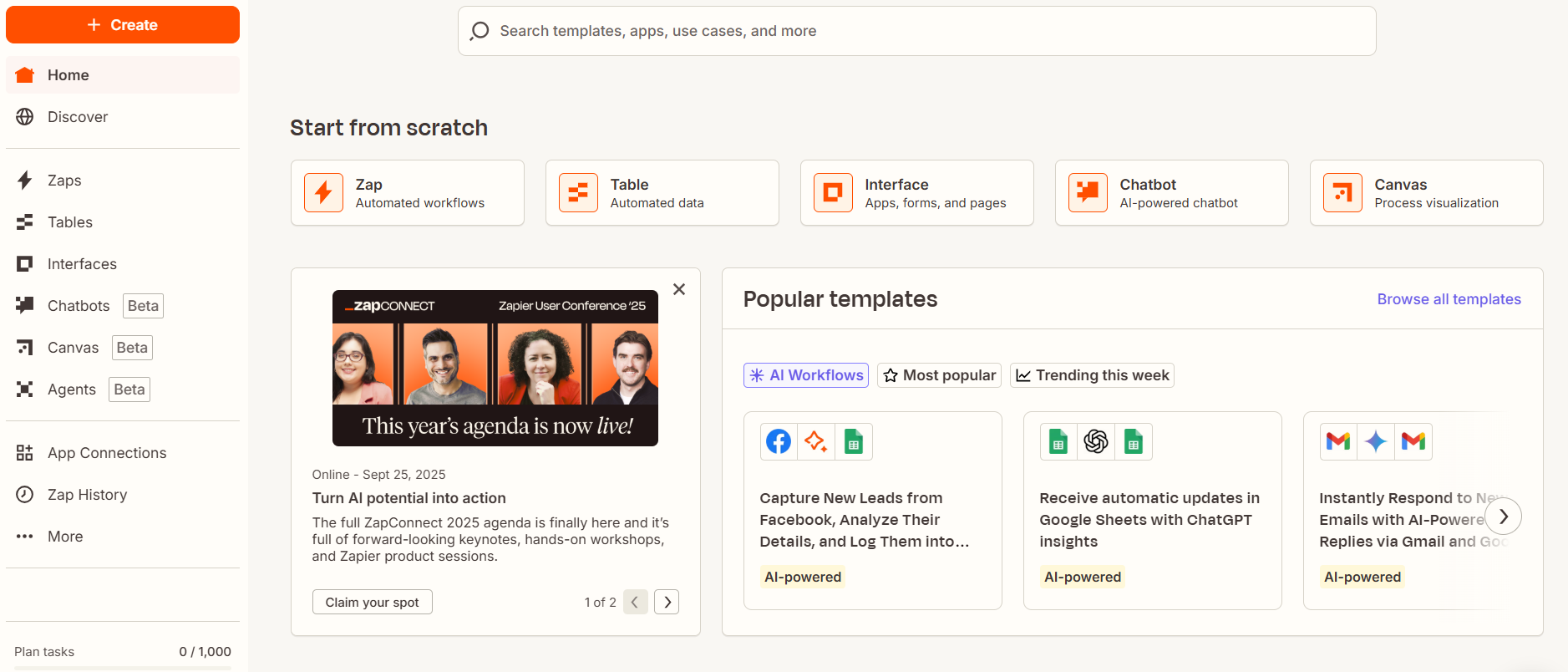
Once completed, you'll be redirected to your main Zapier dashboard
? Which plans include this feature
Zapier is available on:
Salla Plus (Annual)
Salla Pro (Monthly)
Salla Pro (Annual)