Are your customers struggling to complete purchases from your landing pages? Many merchants face challenges such as complex product options, bookings, donations, or unclear error messages, leading to lower conversion rates and reduced customer satisfaction.
With the new checkout flow update, you can now deliver a smooth and clear purchasing experience inside landing pages, with full control over the buy now button.
📌 Article overview
- Features of the new checkout page
- Activating new checkout flow on landing pages
- Practical use cases
- FAQs
Features of the new checkout page
With the variety of products, booking options, and donations, having a smart and adaptive checkout is essential:
- Handles all customer scenarios (logged-in users, mobile/email registration)
Displays clear error messages for out-of-stock items or missing required options
Maintains a consistent experience across desktop and mobile
This update resolves fragmentation in the purchase journey inside landing pages, making the experience smoother and more reliable.
With the new checkout flow, you can:
- Choose the page type: Product landing page or Promotional landing page (without direct purchase)
- Control the Quick purchase button: fixed element, standalone element, or side sheet
- Improve mobile checkout: always opens as a side sheet with Apple Pay support (if enabled)
- Validate products and options: prevent purchasing hidden or unavailable products, enforce required selections, and validate booking/donation details
- Display clear error messages to guide customers
All these features help increase conversion rates and improve customer satisfaction, without changing your current page design.
Salla provides a fully integrated checkout system inside landing pages, supporting:
- Different customer scenarios (logged-in, mobile/email registration)
- Accurate error handling (out of stock, hidden product, missing options, inactive page)
- Full control over the quick purchase behavior
- Optimized mobile experience with responsive side sheet
Together, these features deliver a more professional and trustworthy checkout experience.
Activating new checkout flow on landing pages
- From the landing page editor, go to Design Options, then select the page type:
- Product landing page
- Promotional landing page
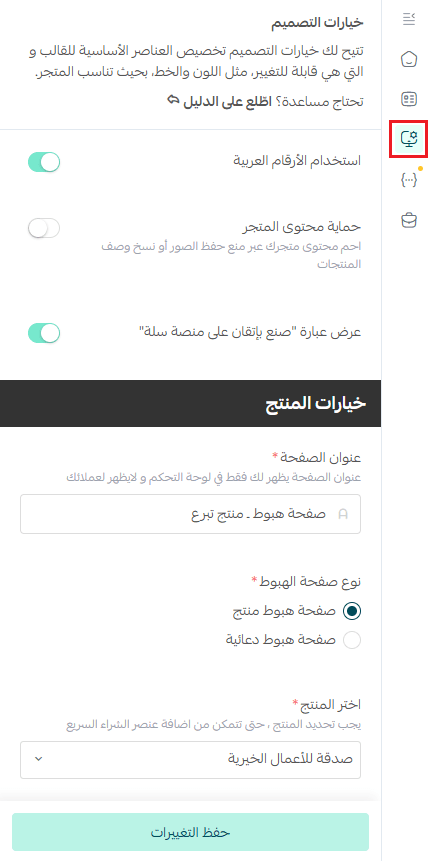
2. Select the product or main link depending on the page type
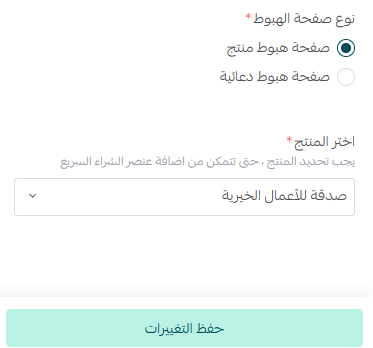
3. From the Page Sections tab:

Choose how the quick purchase element is displayed and configure checkout settings and required field validations.
Method 1: Fixed element at the top
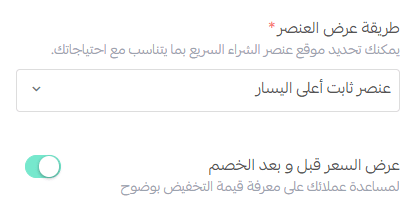
The quick purchase element will appear at the top of the landing page.
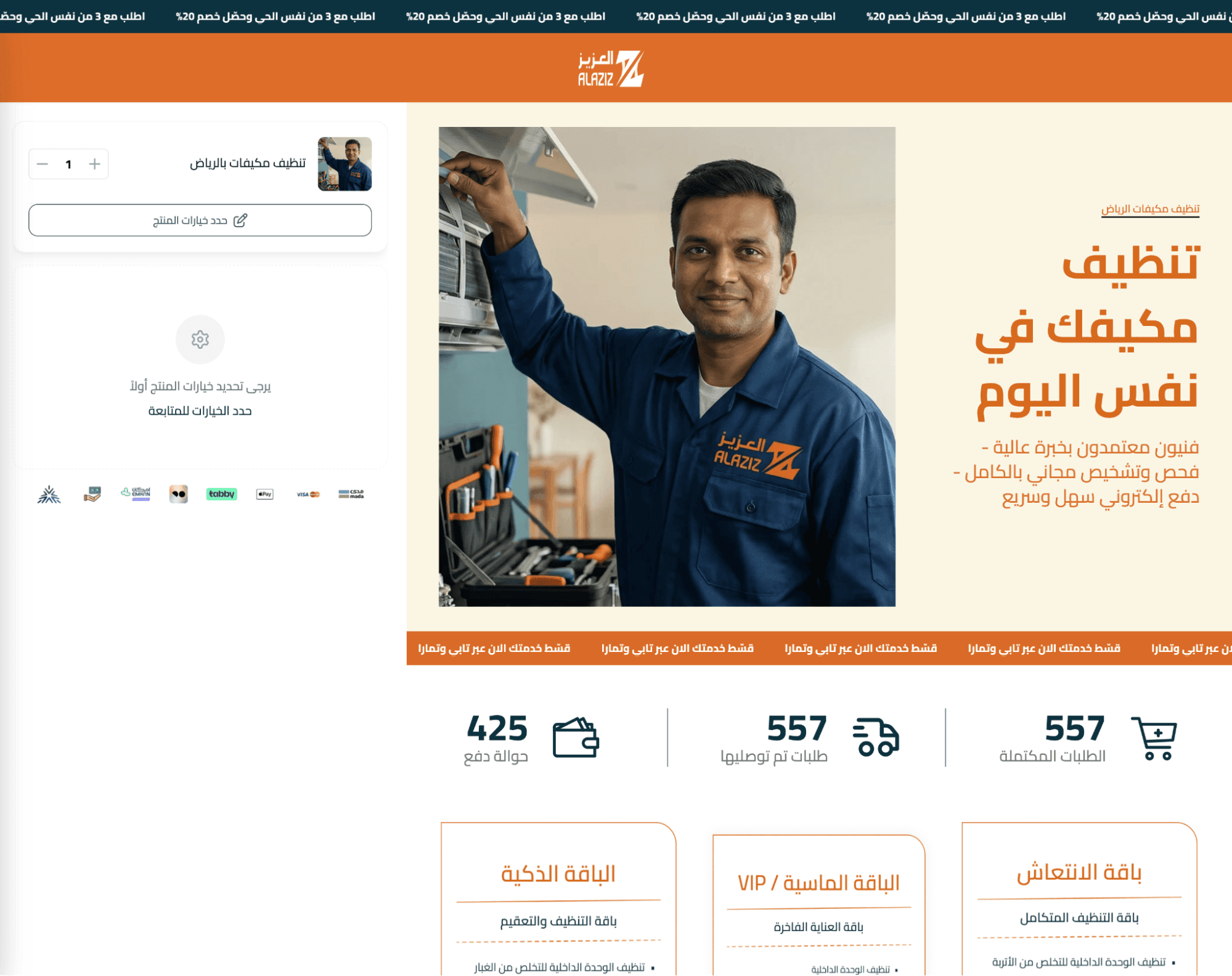
🔔 Note: If the product has options, a “Select Product Options” button will appear. After clicking it, the customer selects options, clicks Save, and proceeds to shipping and checkout.
Method 2: Standalone element
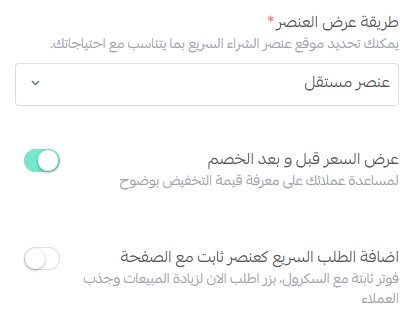
The quick purchase element appears as a separate section on the page.
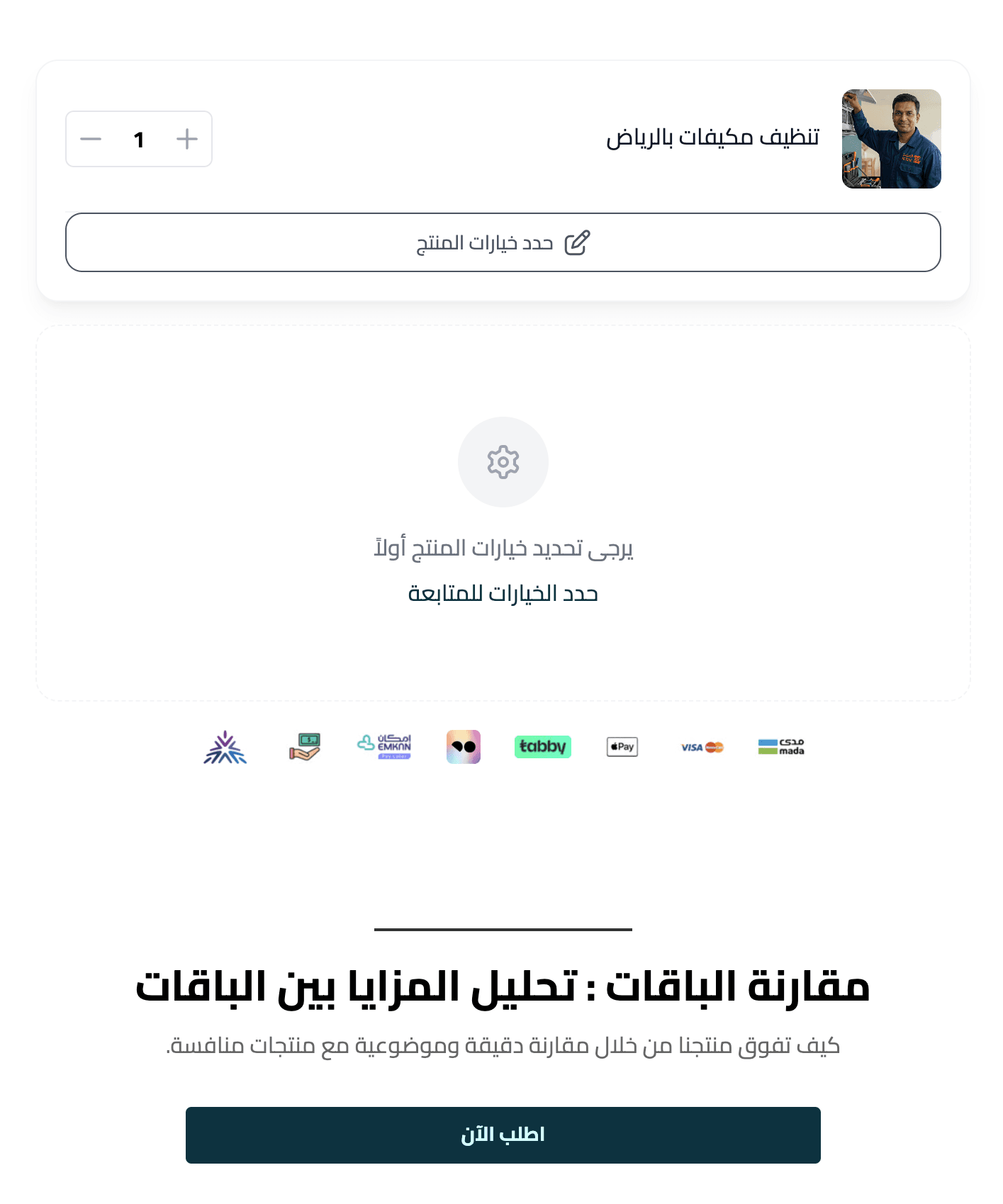
🔔 Note: If the product has options, the “Select Product Options” button will appear.
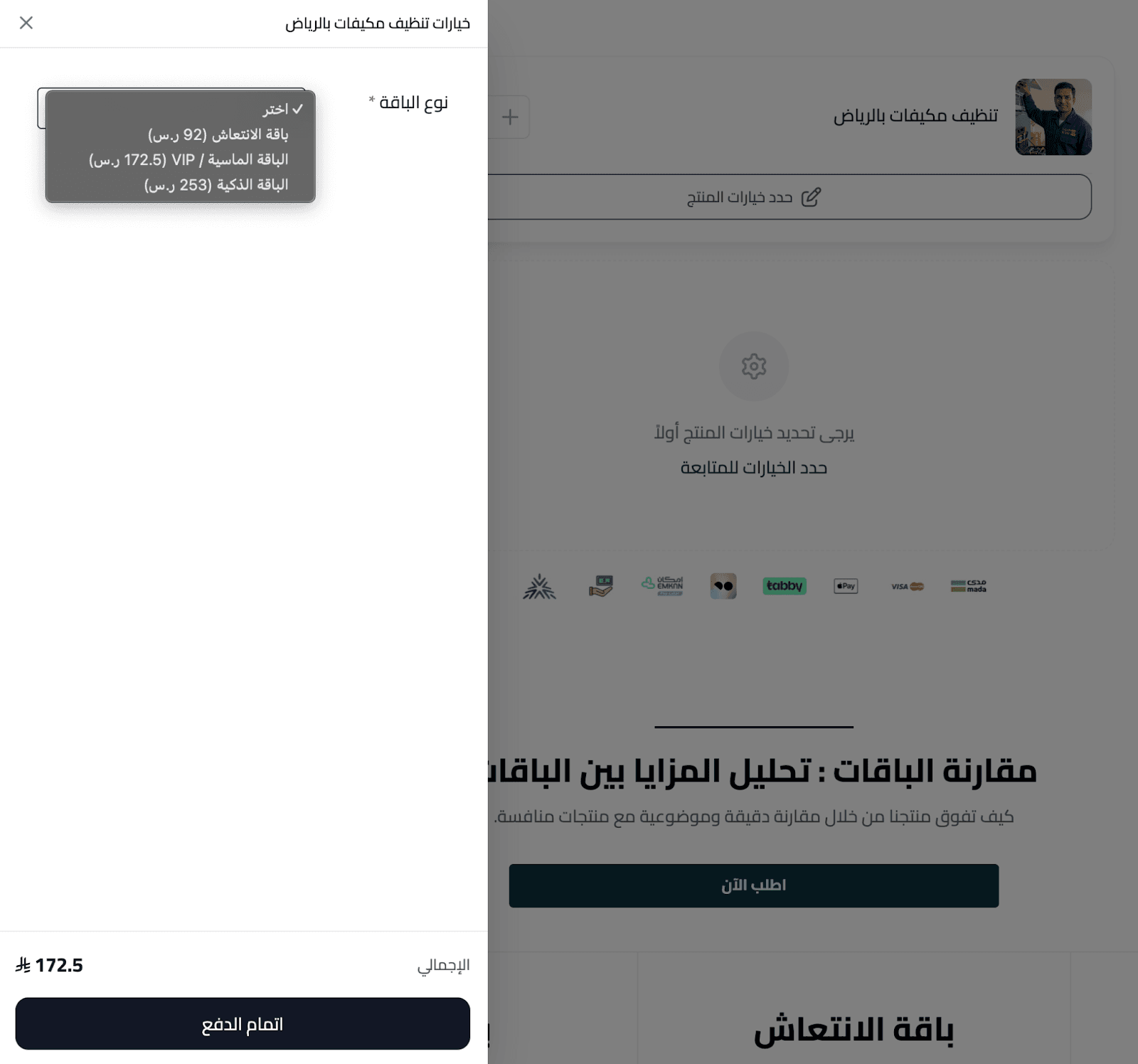
After selection, the customer returns to checkout and completes the purchase.
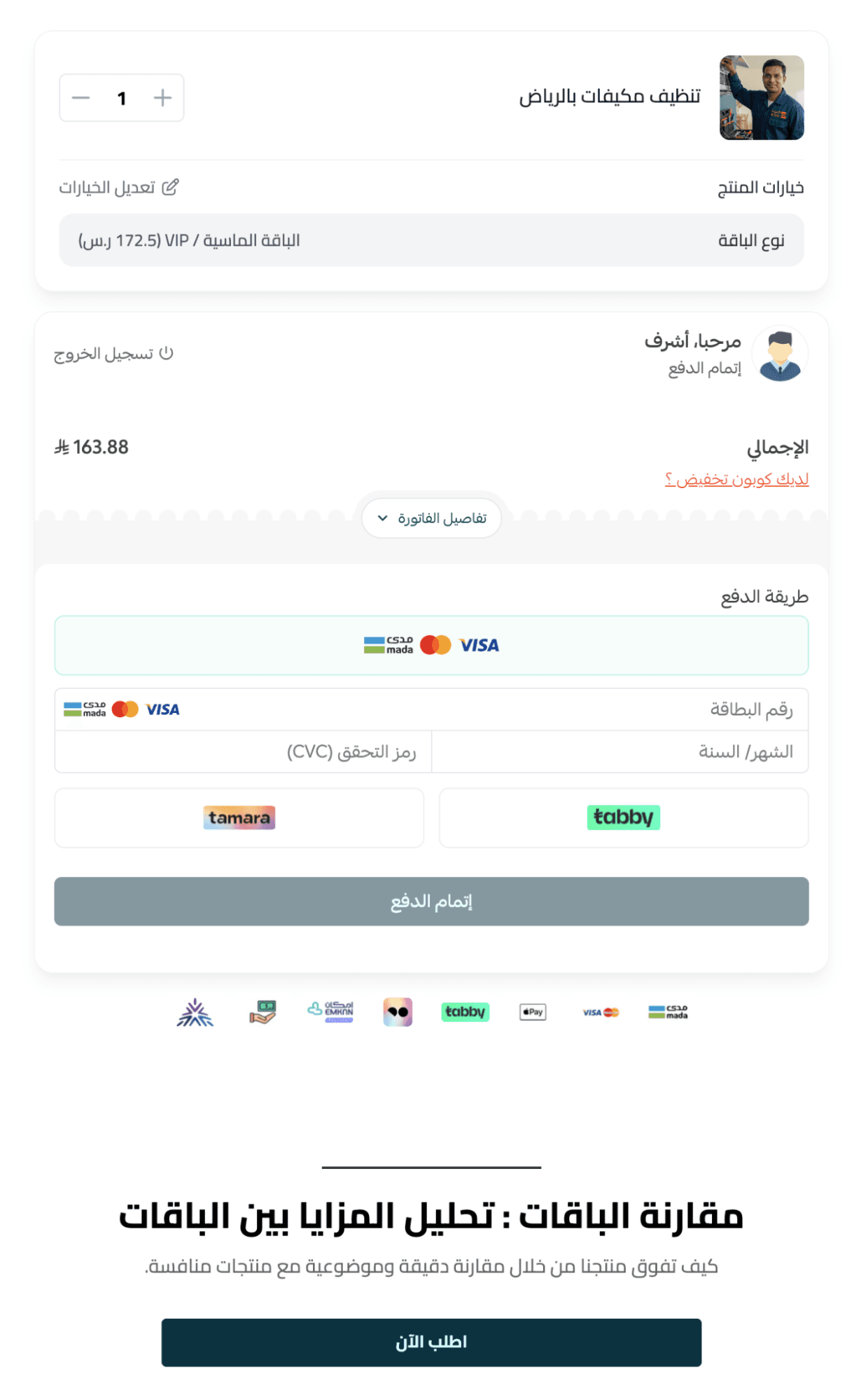
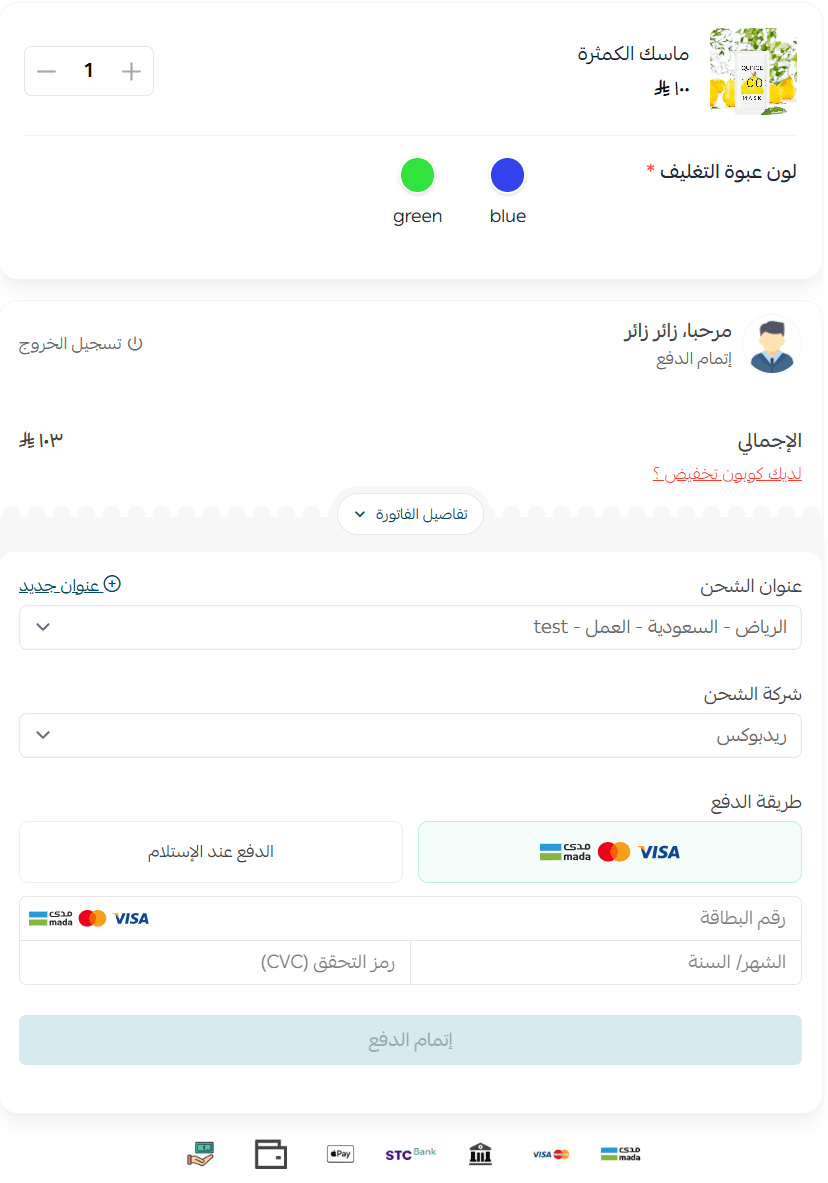
Method 3: Side sheet
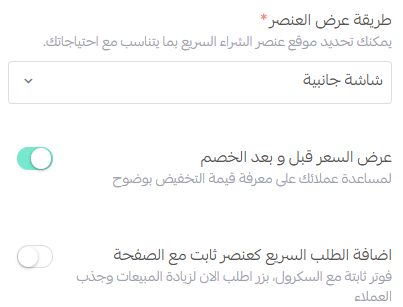
From the landing page, the customer clicks Buy now and a side sheet opens to complete the purchase.
4. Save the page and activate it for customers

This makes the purchase process easier, faster, and more secure, with a seamless experience across desktop and mobile.
Practical use cases
Boosting sales for single products
Scenario: You want to highlight a main product on a landing page
Implementation:
- Use a product landing page with quick purchase as a side sheet
- Display all product options inside the side sheet
- Add urgency messaging like: “Buy now before it’s out of stock”
Promoting campaigns or product launches
Scenario: You want engagement without direct selling
Implementation:
- Use a promotional landing page without a product list
- Add a main button linking to another page or lead form
- Use strong visuals and branding
You can later enable quick purchase when the product becomes available.
Handling complex or multi-option products
Scenario: Products with multiple options, bookings, or donations
Implementation:
- Use quick purchase as a side sheet
- Enable validation for all required fields (date, options, donation amount)
This prevents errors and ensures correct purchases.
Improving mobile experience
Scenario: Most customers use mobile devices
Implementation:
- Always open checkout as a side sheet
- Enable Apple Pay (if available)
- Reduce steps to minimize drop-offs
Reducing failed orders
Scenario: Customers encounter errors like out-of-stock or missing options
Implementation:
- Enable clear error messages
- Add proactive notices like:
- “Limited stock available”
- “Make sure to select all options”
This reduces frustration and improves conversions.
Strategic tips
Always analyze page data to identify top المنتجات and drop-off points
Match Quick Buy type to product complexity (side sheet for complex, standalone for simple)
Run A/B testing on landing pages to optimize conversion rates
Frequently asked questions
Does this update affect existing landing pages?
No, unless you manually update the page and enable New Checkout Flow.
What’s the difference between product and promotional landing pages?
- Product landing page: Focuses on driving immediate purchases
- Promotional landing page: Focuses on engagement without direct buying
How can I control quick purchase behavior?
You can configure it as:
- Fixed top element
- Standalone element
- Side sheet
Behavior adjusts automatically based on product type and options.
What happens if a product is out of stock or hidden?
Clear messages appear, such as:
- “This product is out of stock. Please select another product.”
- “This product is hidden and won’t appear on the landing page.”
The button becomes disabled to prevent incorrect orders.
Is Checkout mobile-friendly?
Yes. On mobile, checkout always opens as a side sheet, with Apple Pay support (if enabled).
How are logged-in customers handled?
- Logged-in users skip login and have their data auto-filled
- Others can register via mobile (OTP) or email
What if I can’t activate Checkout on a landing page?
Make sure:
- The page is updated to use New Checkout Flow
- Product settings are correct
- Quick purchase is properly configured
- Required fields are filled