Are you struggling with managing content and attracting readers, which affects your blog visibility and sales? In this article, you’ll learn how to create a new blog post through your dashboard in simple, step-by-step instructions.
Get ready to turn this challenge into an opportunity to boost customer engagement and improve your store’s SEO!
Steps to create a new blog post on your store blog
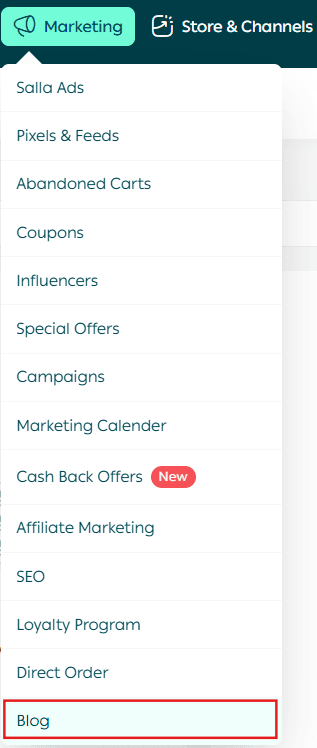
- From the Marketing tab, click Blog.
2. From the blog page, click (+ New Post).

The New Post creation page will appear as follows:
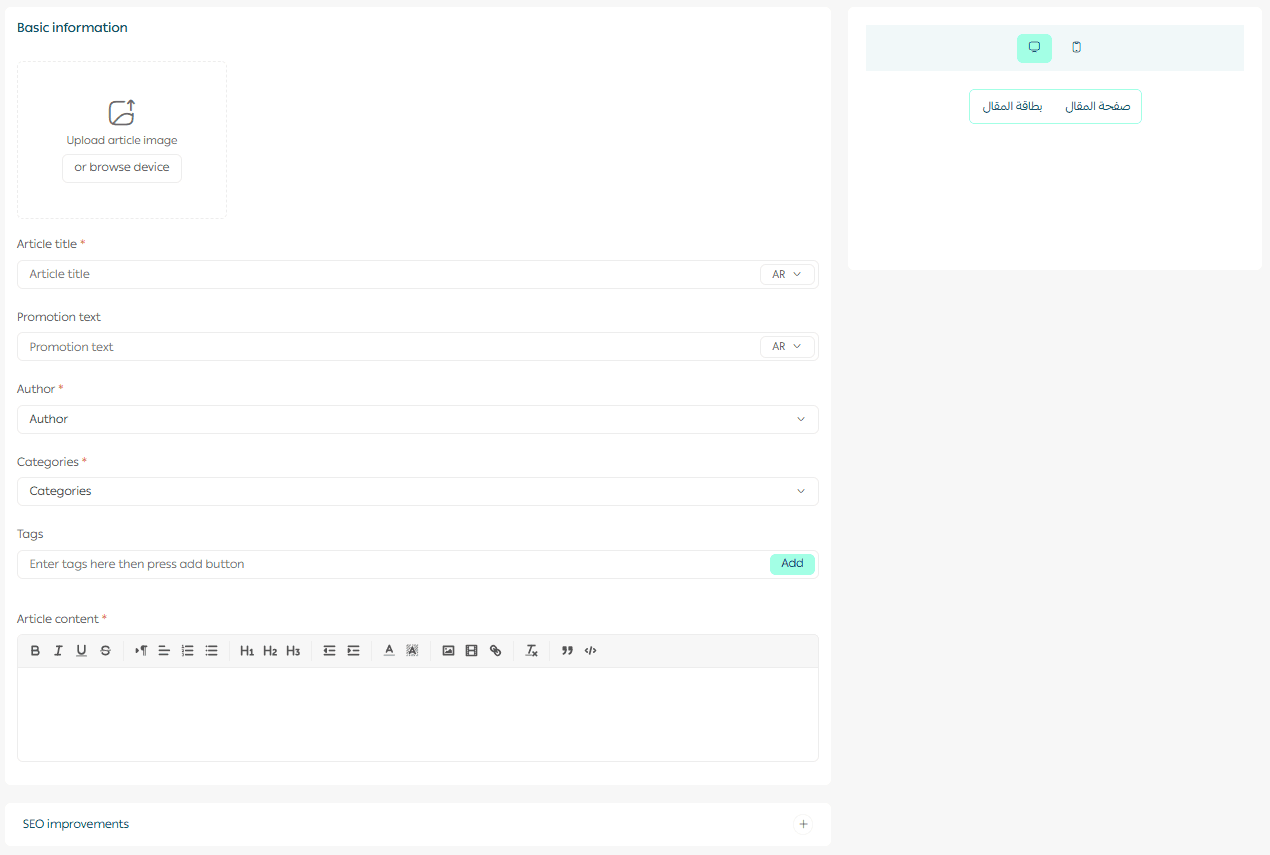
It includes the following sections:
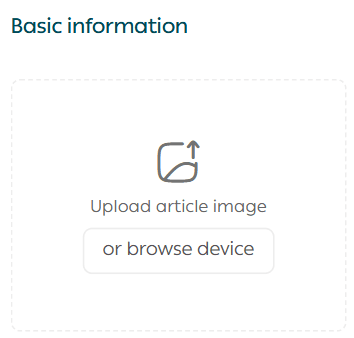
Cover Image & Author
Choose a cover image that reflects the topic and content of the article.
Select the author name from the list of writers (employees who have permission to add new blog posts).
Article Title
Write a short, attractive title that clearly represents the content of the article.

Promotional Text
Write a brief description highlighting the benefit the reader will gain, or addressing a pain point in an engaging way.

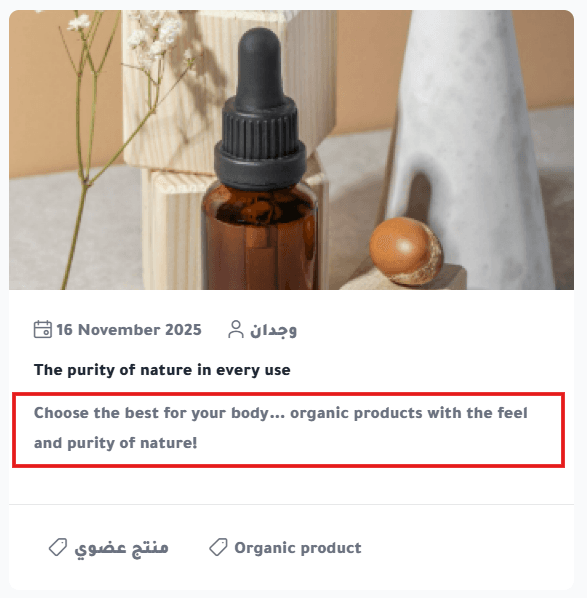
The promotional text will appear under the article title as shown:
Author
Select the article author to display within the post details in your store.

Content Description
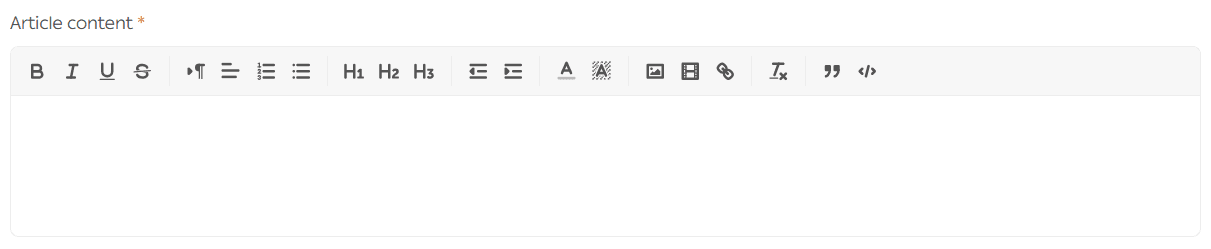
Write the main article content, with a maximum of 6000 characters.
You can also format the text and add videos, images, and links using the formatting toolbar.
Categories
Select the categories the article belongs to.
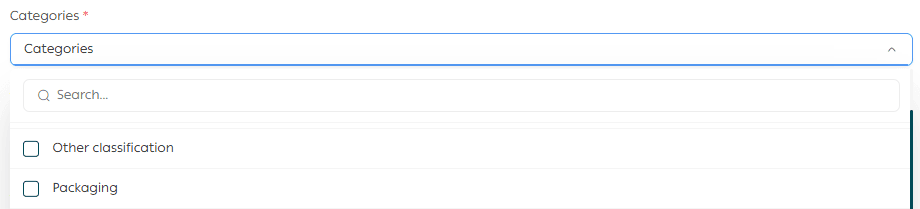
These categories are managed from the Services menu on the main blog page.
Tags
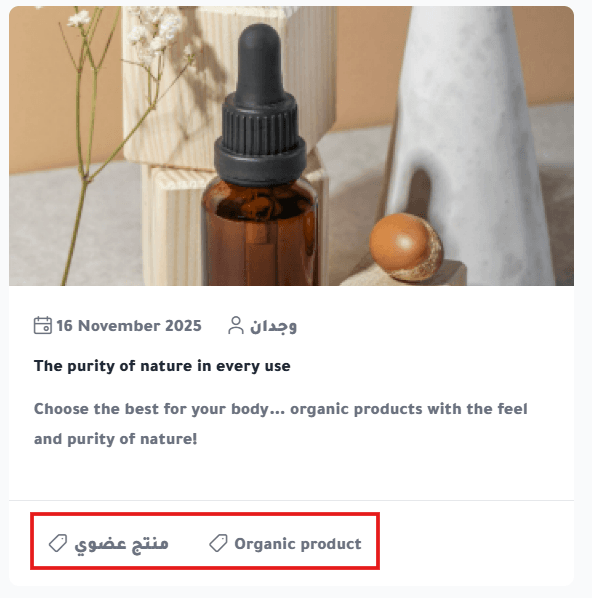
Add tags to help customers find the article quickly.

The article tags will appear below the post, as shown:
SEO Improvements
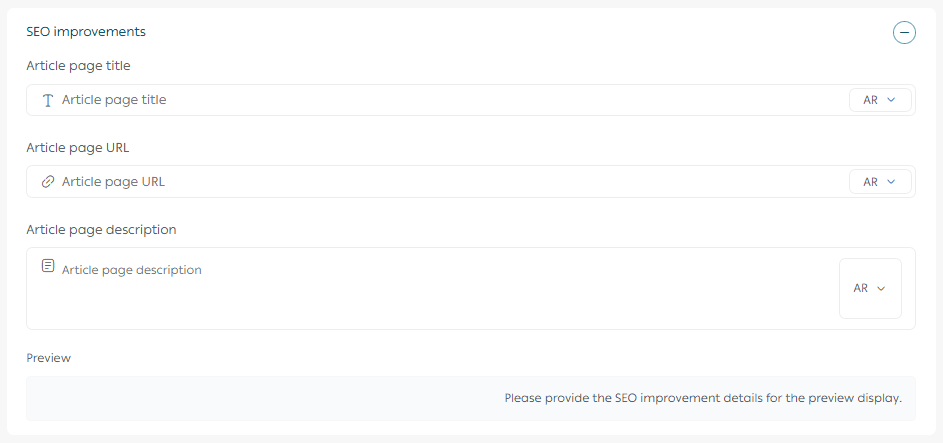
Add the article page title and description, ensuring they include the most important keywords related to the article topic and your store’s business activity.
Click Save to save the article for the first time without publishing it.

A preview feature will be available soon before publishing articles.
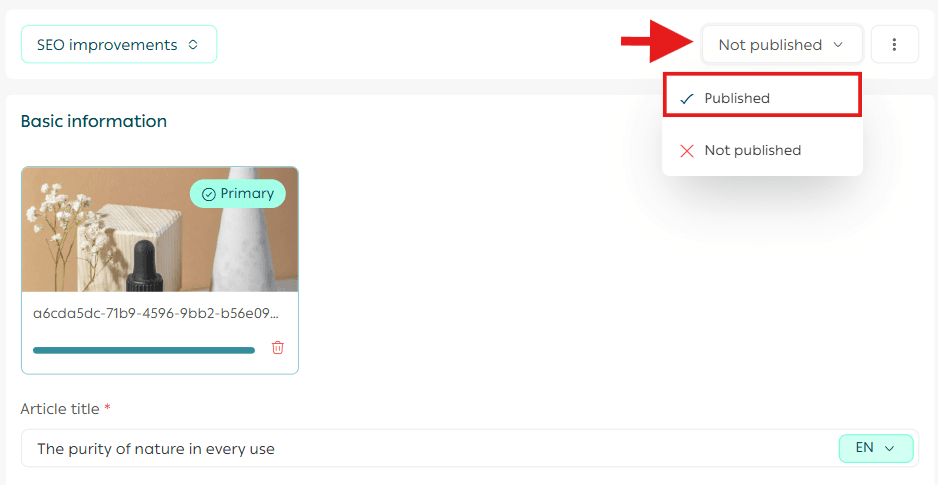
After saving, you can publish the article through Post Actions, then select Published to make it visible on your store blog page.
For more details about managing your store blog on Salla.