Salla Point POS provides multiple payment options, giving merchants greater flexibility when completing sales and allowing customers to choose the method that suits them best.
📌 Article overview
- Card payment
- Cash payment
- Payment via link
- Installment payment
💳 Card payment
Accept payments instantly by tapping the card or using Apple Pay on your mobile device.
- From the order details page, select card payment.
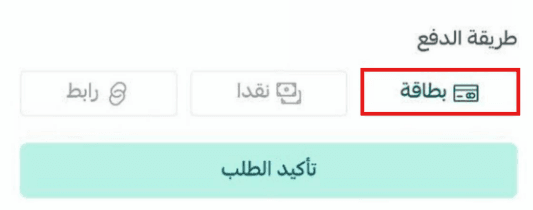
- Click confirm order to proceed.

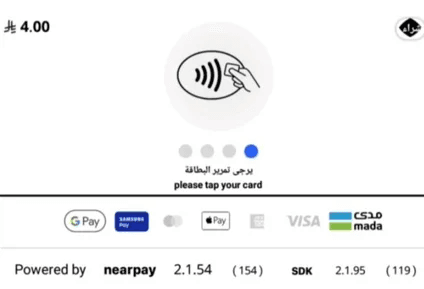
- Tap the card on the device to complete the payment.
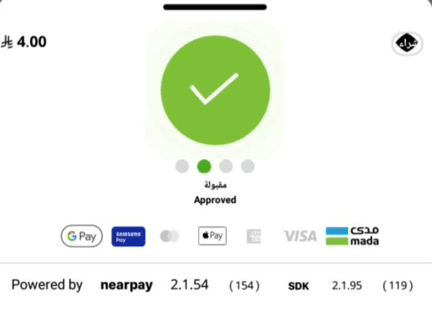
🎉 Payment accepted, and the order has been successfully created!
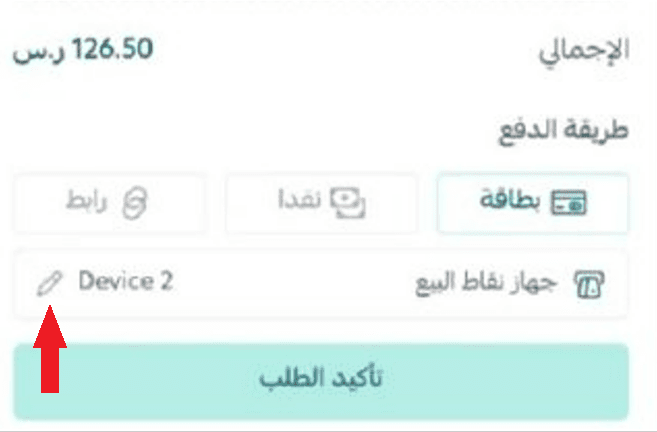
📝 Note: The POS device used is the one selected during login to the Salla Point app. You can change the device using the edit option.
📝 Note: Card payment is available free of charge only for Special plan merchants, and only on Android devices that support NFC.
For more details, see the how to activate card payments article.
💵 Cash payment
Receive payments directly from the customer in cash.
- From the order details page, select cash payment.
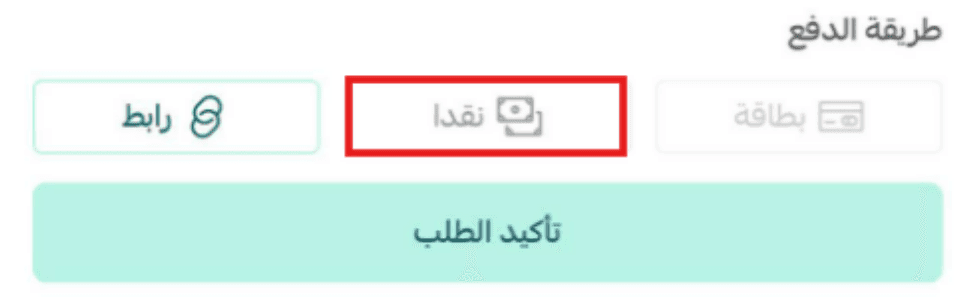
- Click confirm order to complete the order.

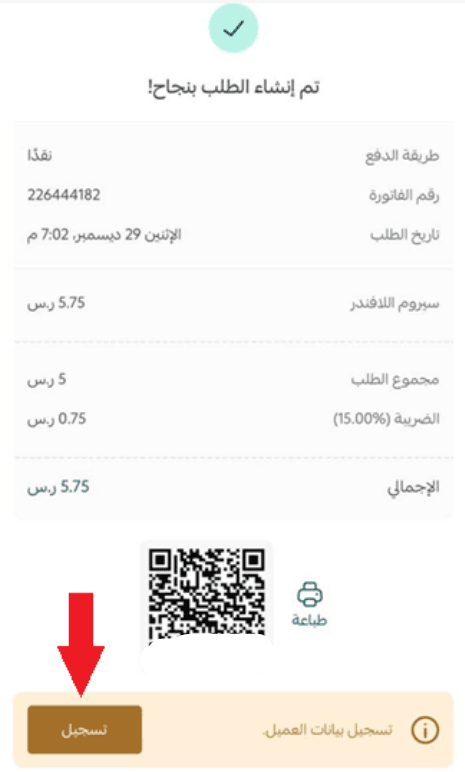
- After confirming, click register to send the order invoice to the customer.
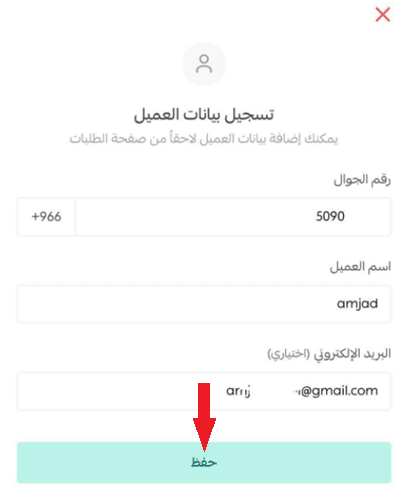
- Enter the customer’s details and contact information, then click save to store the data and send the invoice.
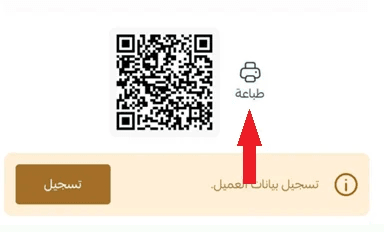
You can print a simplified tax invoice that includes order details and the return and exchange policy using the print option.
🔗 Payment via link
Create a payment link or QR code for each order, allowing the customer to choose their preferred payment method.
- From the order details page, select payment link.
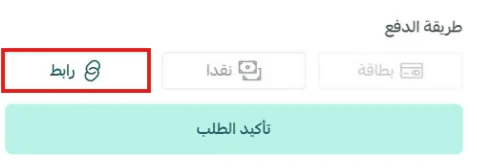
- Click confirm order to proceed.

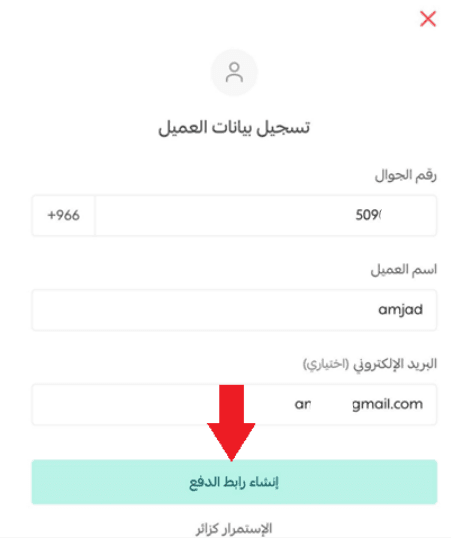
- Enter the customer details and click generate payment link.
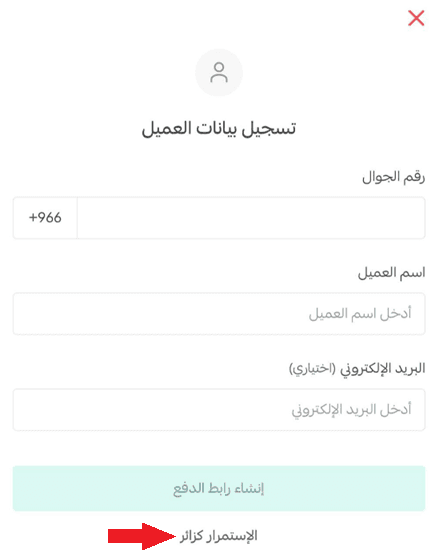
Or click continue as guest to create the payment link and add customer details later from the order page.
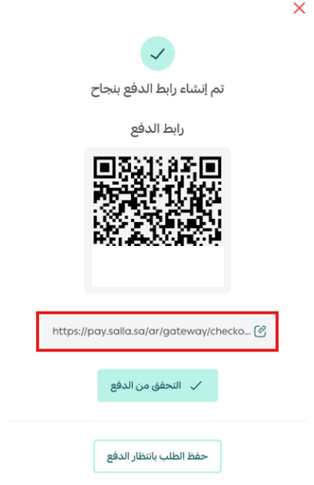
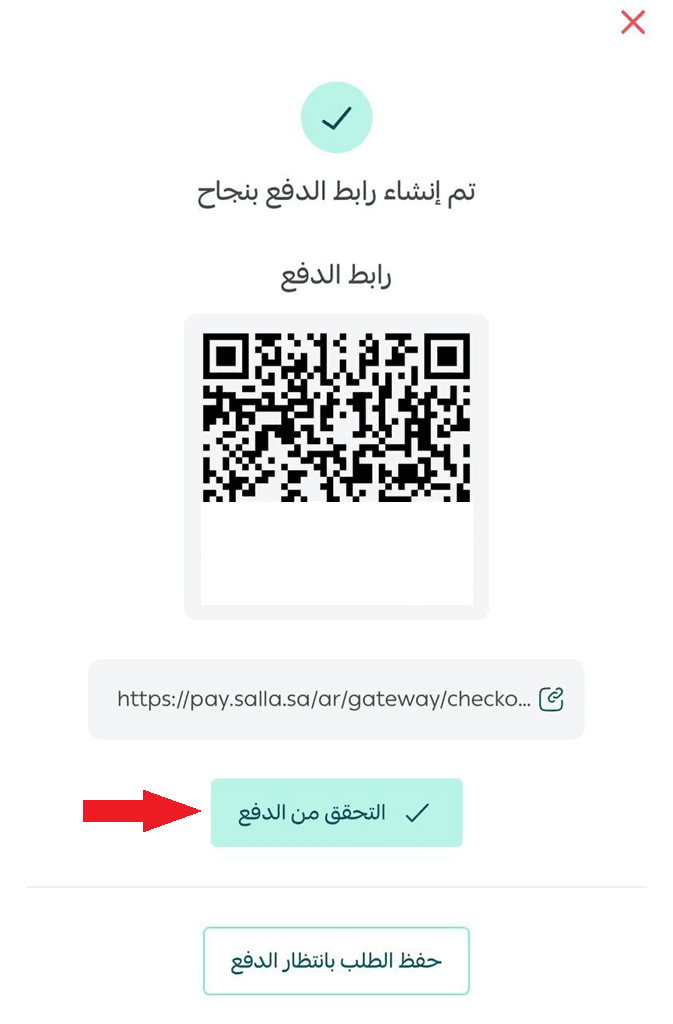
🎉 The payment link has been sent successfully! You can share the QR code or copy the payment link with the customer.
Using the payment link, the customer selects their preferred payment method and clicks confirm payment to complete the order.
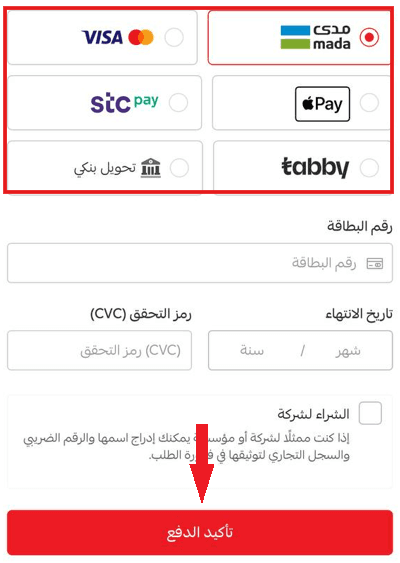
📝 Note: The payment link is sent via SMS if the store has an active SMS service provider.
- Verify that the payment is completed by clicking check payment.
🔄 Installment payment
Enable your customers to create orders and pay later using available installment options.
- From the order details page, select payment link.
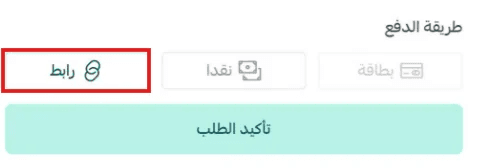
- Click confirm order to create the order.

- Enter the customer details and click generate payment link.
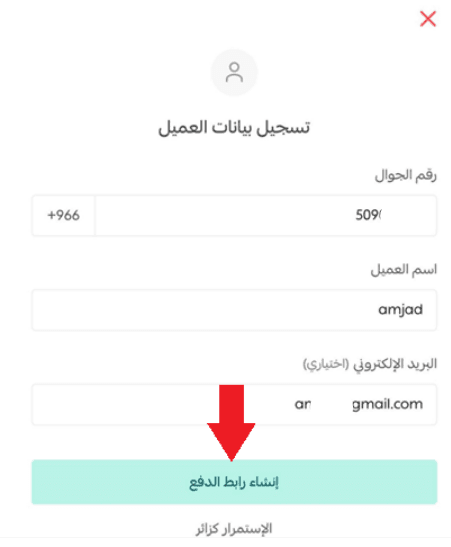
🎉 The payment link has been sent successfully! You can share the QR code or copy the payment link with the customer.
- Click save order as pending payment to keep the order in the orders list while waiting for installment payment completion.
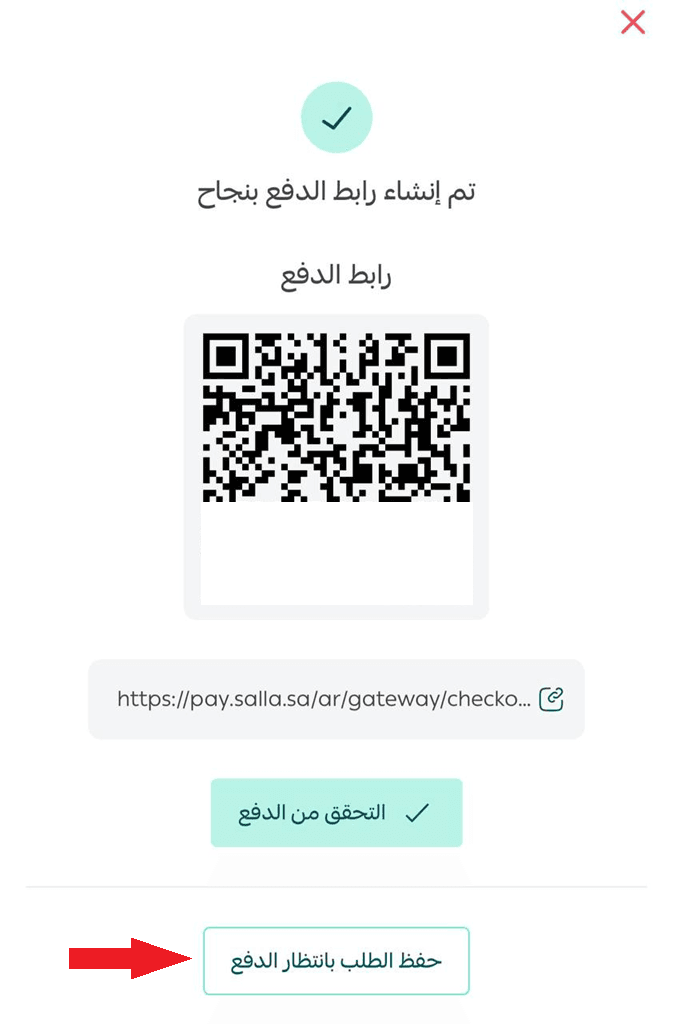
- Through the payment link, the customer selects an available installment option and clicks confirm payment to complete the order.
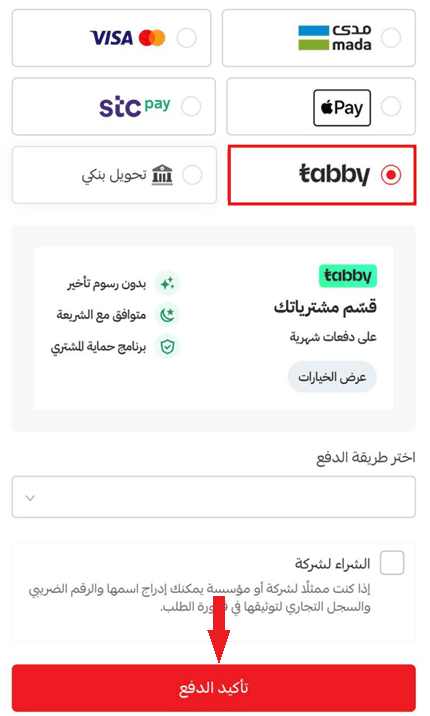
6. Once the installment process is completed, the order will be confirmed in the orders list.