Merchants at time may face limited service options or difficulty negotiating with providers. The Service Customization feature gives you more flexibility, allowing you to define pricing, timelines, and specific requirements, so you get a solution tailored to your needs.
📌 Article overview
- How to access Merchant Services
- How to customize a service
How to access Merchant Services
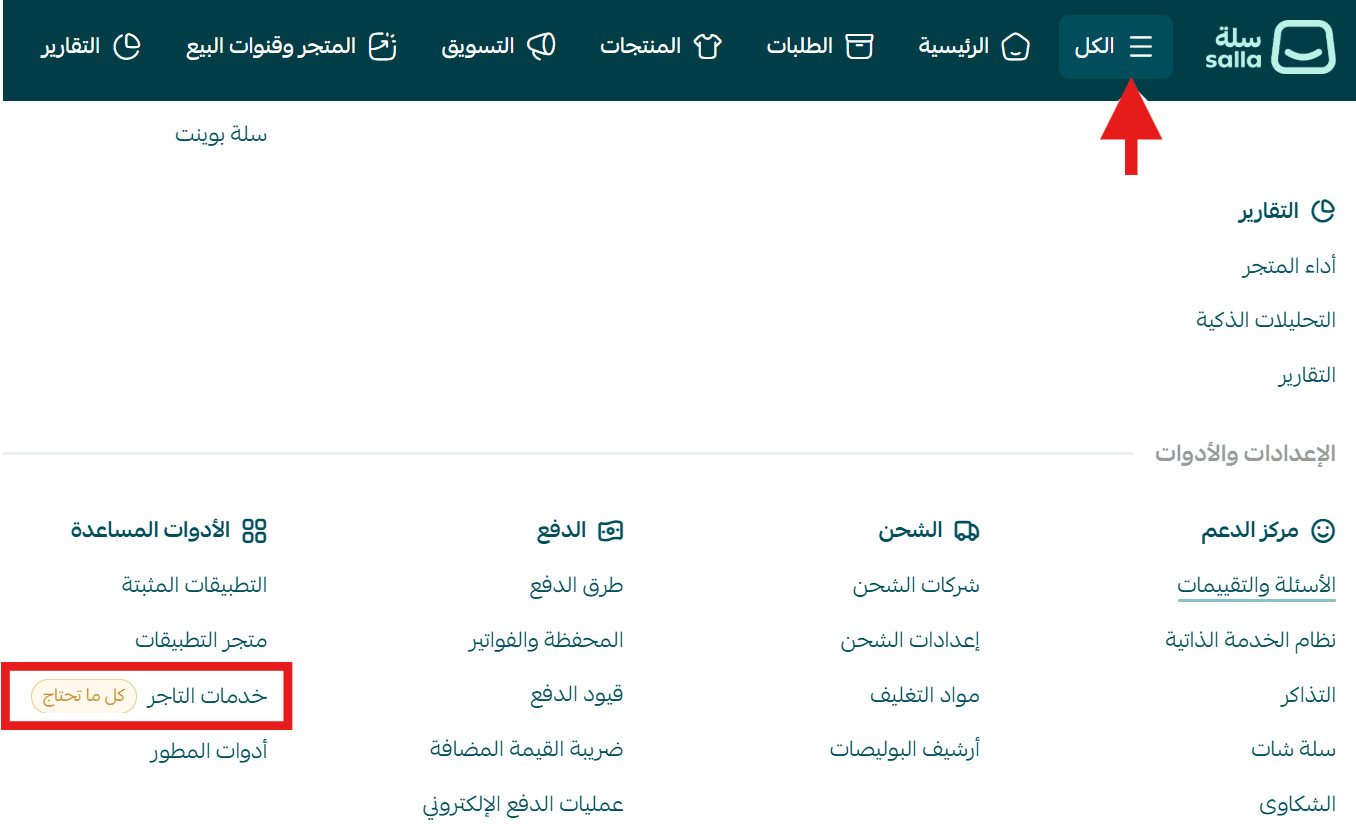
- From the main menu, click All
- Under Support Tools, select Merchant Services
How to customize a service
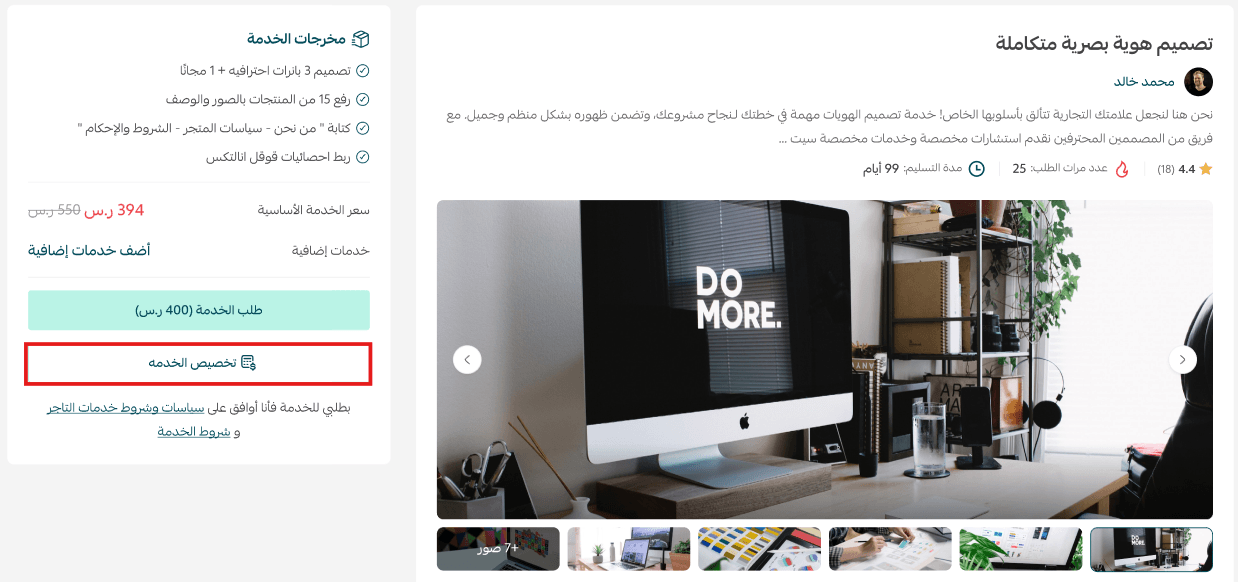
- Open the service details
From the service page:
- Review the service details
- Click Customize Service
You can use this feature if you need additional requirements or a different price than what’s listed.
2. Submit your customization request
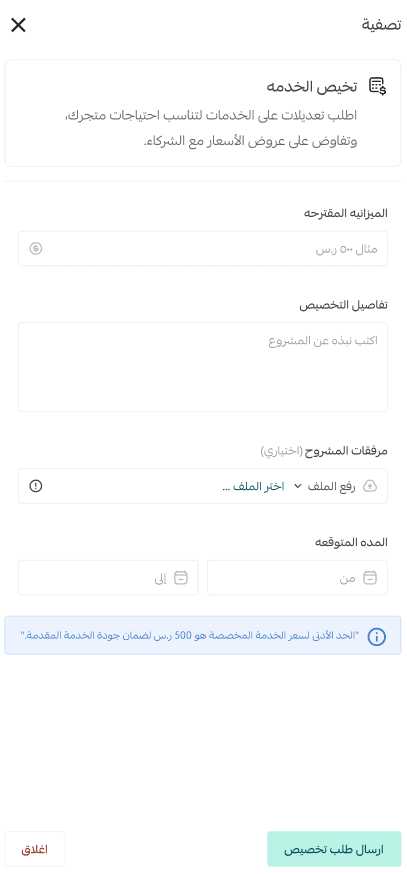
A form will appear where you can provide your requirements:
- Proposed budget based on your needs
- Customization details explaining your requirements clearly
- Upload files related to your project
- Expected timeline for delivery
Click Submit Request when done.
3. Wait for provider response
Your request will be sent successfully.
The service provider will review it and may:
- Accept the request
- Reject it
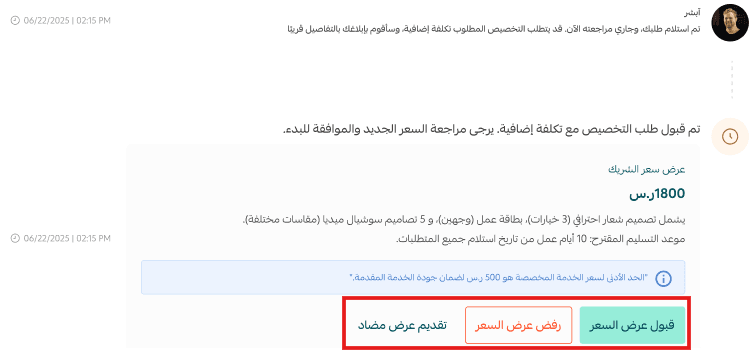
- Send a price proposal
4. Review and negotiate
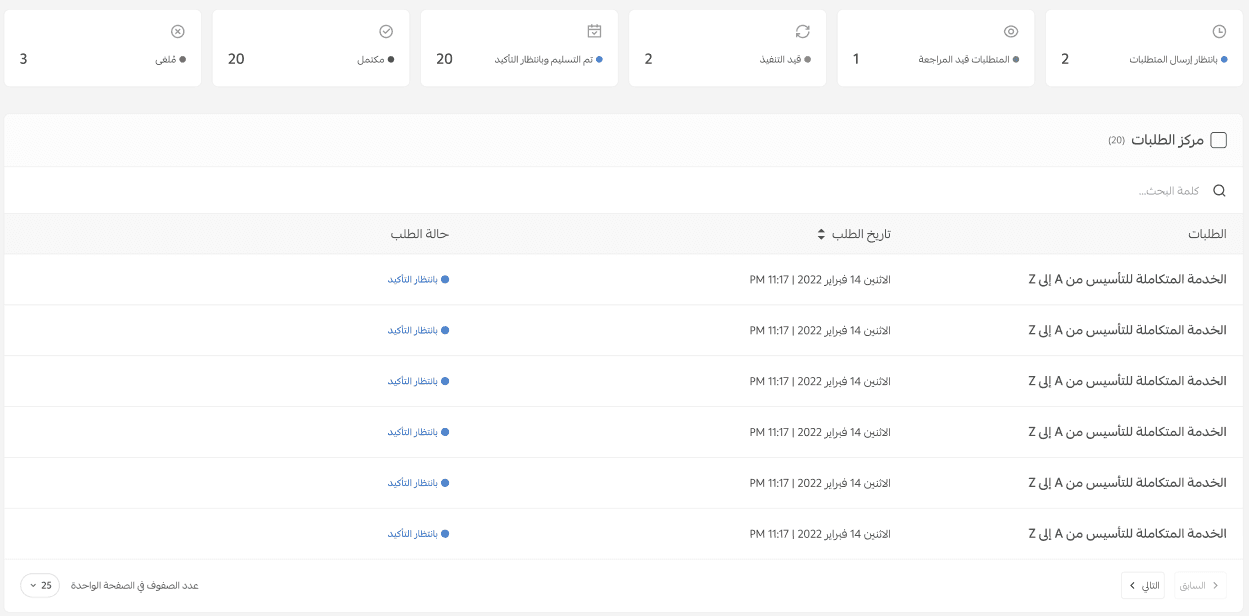
From the Request Details page:
- The provider will receive a notification with your request
- In the Activity & Comments section, you’ll see their response
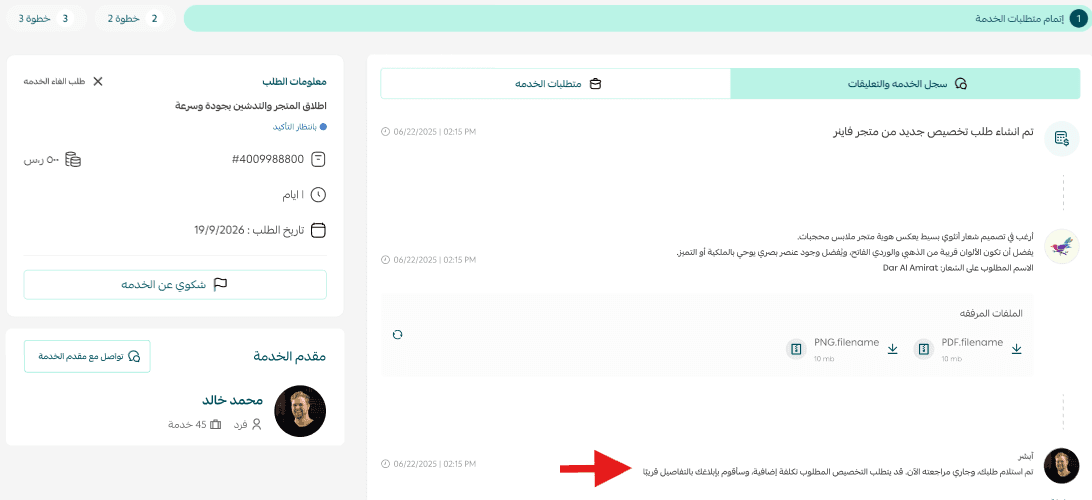
You can then:
- Accept the offer → Status changes to Waiting for Requirements
- Reject the offer → Status changes to No Agreement
- Submit a counteroffer → A new proposal will be sent
Frequently asked questions
Do all services support customization?
No. Only services that:
- Cost SAR/AED 500 or more
- Have customization enabled by the service provider
Why don’t I see the “Customize Service” button?
The button will only appear if the service provider has enabled the customization feature.