Many merchants struggle with generic invoices that do not reflect their brand identity or meet customer expectations for professionalism and clarity.
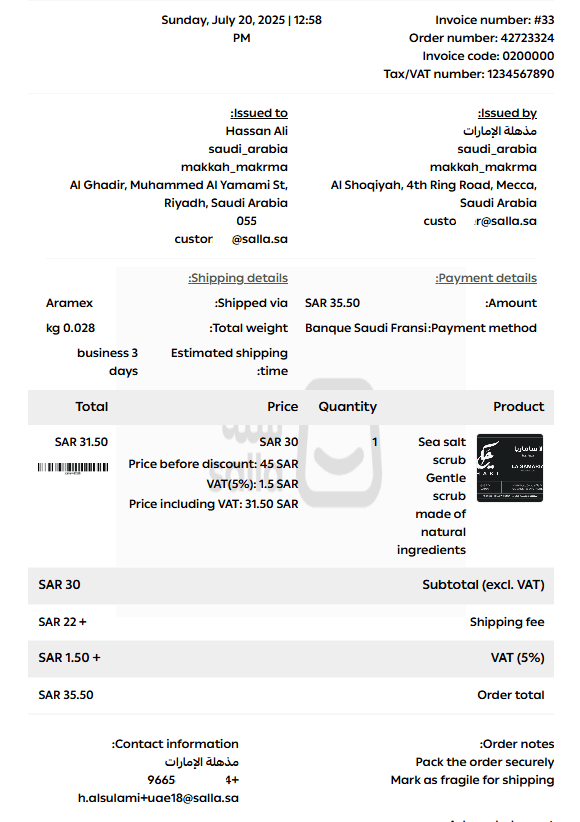
The Invoice Editor gives you full control to design invoices that truly represent your store. You can add your store stamp, apply a watermark to strengthen visual identity, and issue invoices in English to serve a wider audience.
All of this is available through a simple and intuitive interface that puts you in full control and positions your store among professional e-commerce brands.
📌 Article overview
- Choosing the order invoice issuing method
- Editing the content of order invoices
- Printing the order invoice
Choosing the order invoice issuing method
- From the main menu, click Orders, then open the Invoice settings tab.
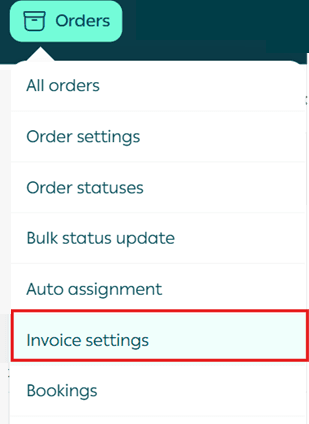
2. Set the billing options according to your usage (Salla invoices or an external billing system), then click (Save).
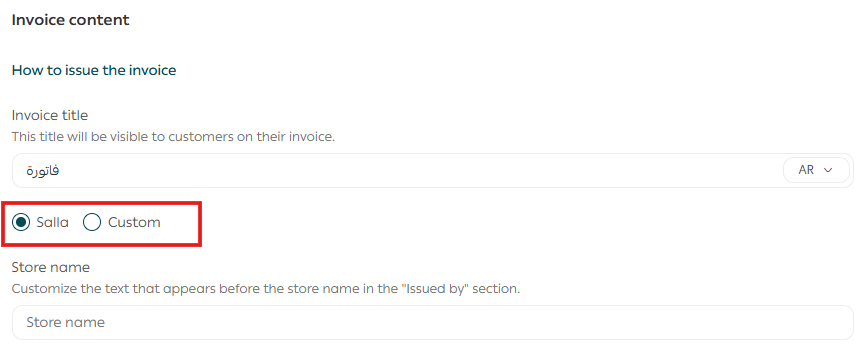
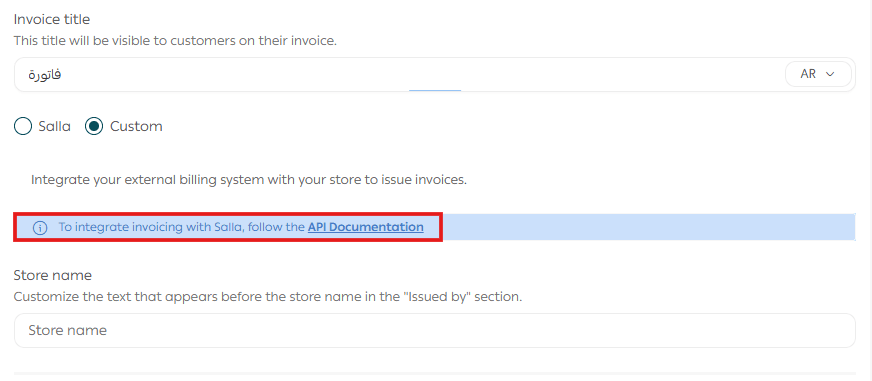
Note: If you select (Custom), you will be able to create invoices on your side by integrating with an external service provider.
Editing the content of order invoices
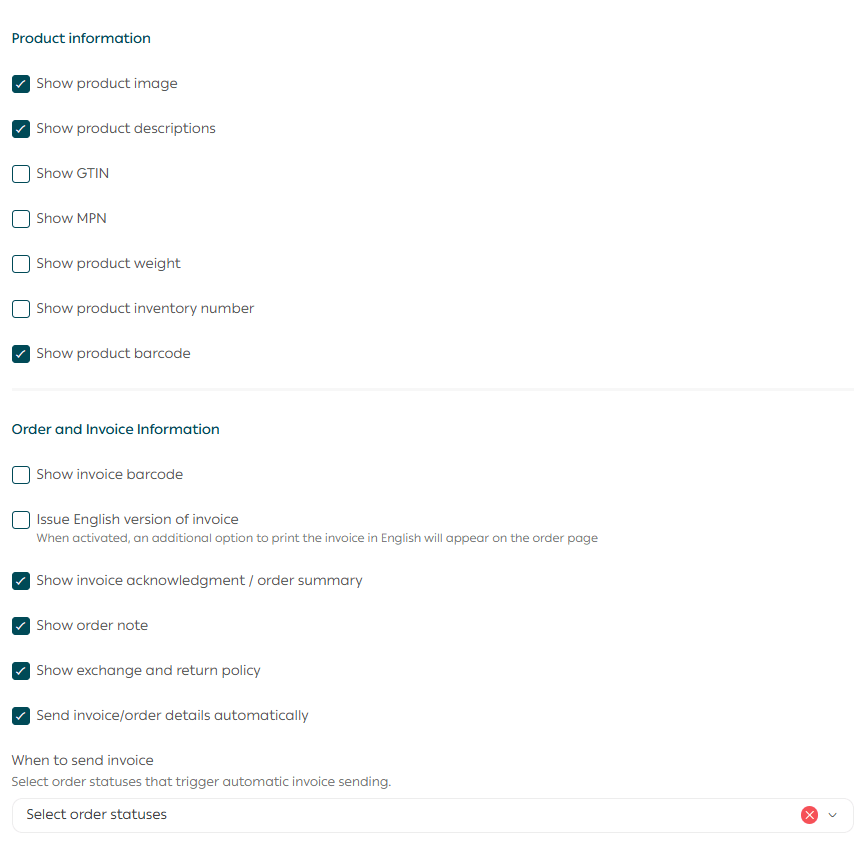
Through the invoice customization page, you will be able to:
1. Modify the invoice appearance, such as the position and size of the store logo, and more.
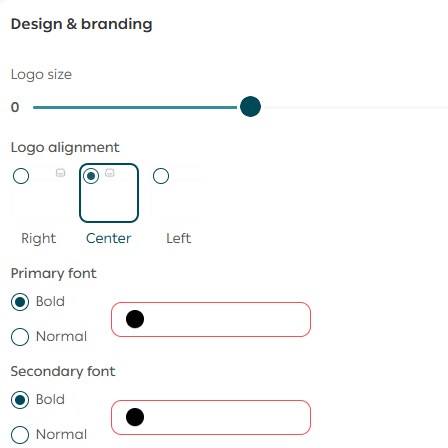
2. The ability to edit the invoice contents by showing or hiding certain elements, such as the tax number, order barcode, product barcode, product descriptions, and more.
Printing the order invoice
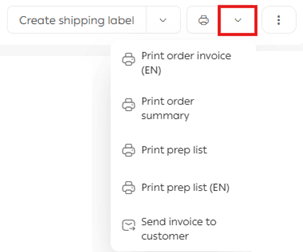
On the order details page, you will find the print icon at the top. Click the arrow and choose the appropriate action.
Note:
- The invoice will be issued automatically when the order status is changed to Completed or Returned.
- On the order details page, the option (Print Order Details) will appear if the order details were not sent via the API, and the option (Issue/Print Order Invoice) will appear if the order details were sent via the API.
For more information about printing invoices and picking lists for a group of orders check out this article.
Frequently Asked Questions
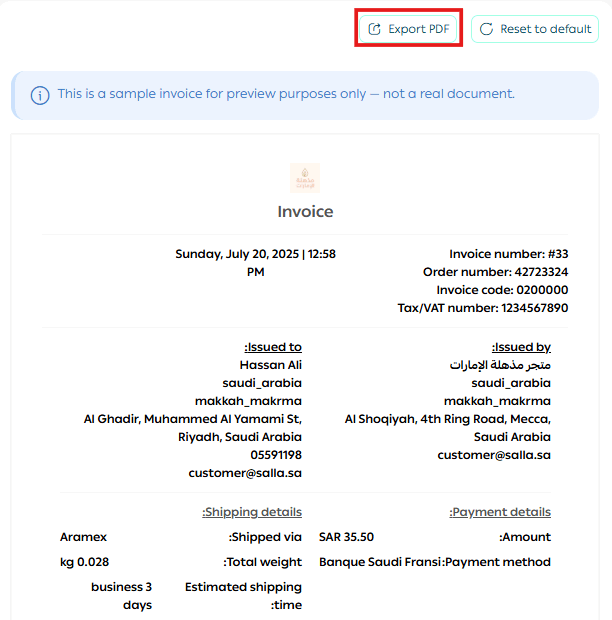
Can I preview how the invoice will look when printed on paper?
Yes. You can export the invoice as a PDF file. This allows you to preview exactly how the invoice will appear when printed.
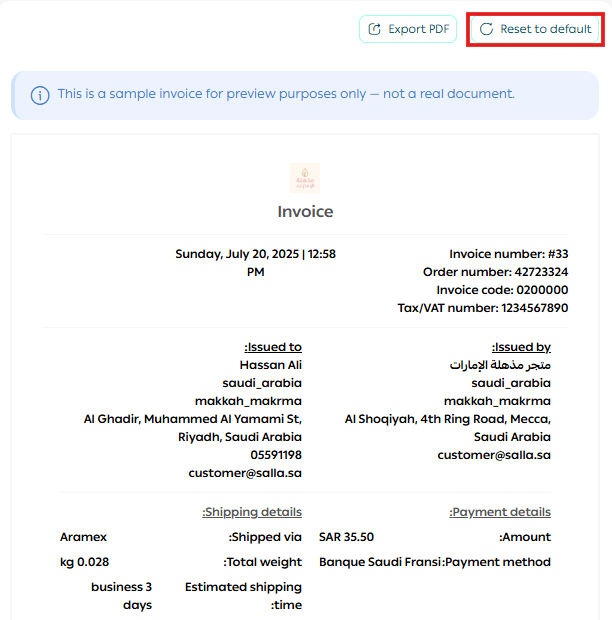
Can I restore the default invoice settings?
Yes. At the top of the invoices page, click Reset to default.
How can I issue an invoice in English?
Before starting, you must enable translation and translate your store content so the English invoice appears correctly.
For more details, refer to the guide on enabling multiple languages in your store.
Step one: Enable English invoice printing
From the Invoice Editor, enable the option Issue an English Version, then click Save.
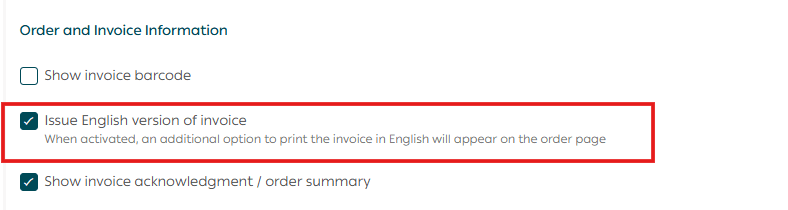
📝 Note: This step is required only once and will apply to all order invoices.
Step two: Print an English invoice for an order
From the Orders page, open the order you want, click Print Invoice, then select Print Order Invoice English.
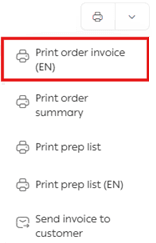
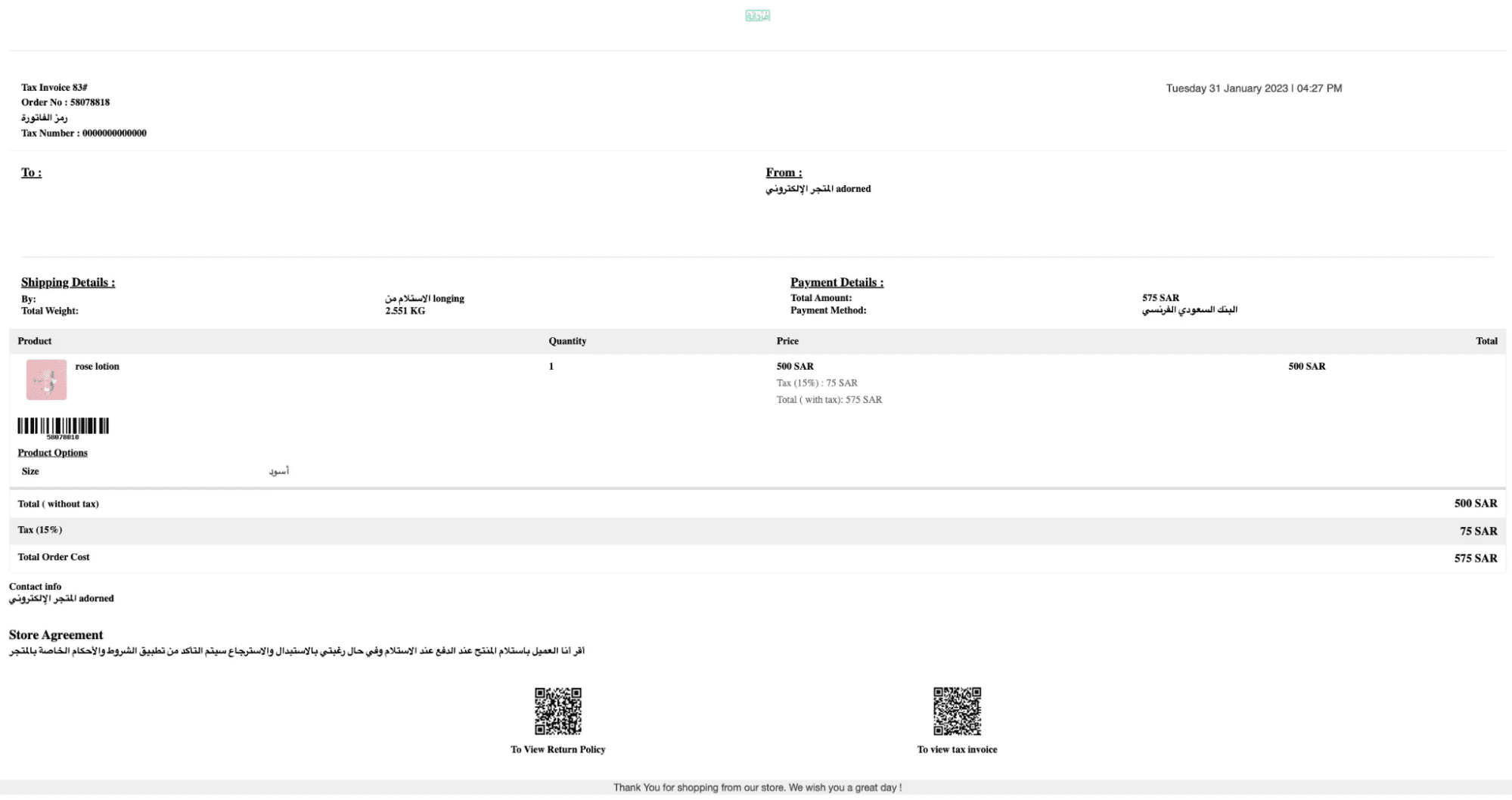
The invoice will be generated in English.
How can I add a watermark to the invoice?
From the Invoice Editor, open the Design section and select the watermark option.
Upload the image and adjust its transparency level as needed.
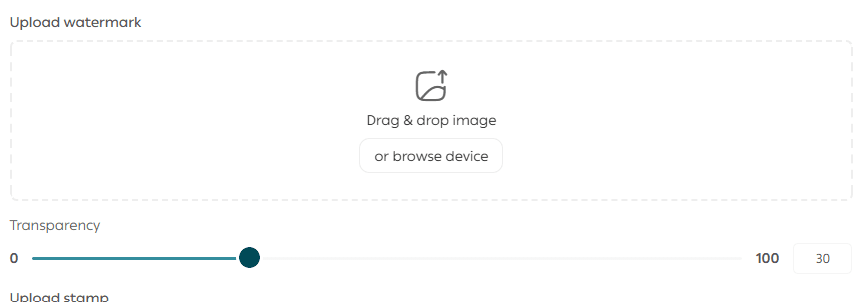
You can preview the invoice instantly on the right side of the page.
Final takeaway
The Invoice Editor transforms invoices from a basic document into a branded customer touchpoint.
With full control over content, language, and design, your invoices become a reflection of your professionalism and attention to detail.