Quick donation feature allows the customer to donate immediately without needing to add personal information such as name and email. It can be customized by the merchant from the quick donation settings in the store settings.
How store customers use quick donation:
1. When the customer enters the charity store, they will find the quick donation button that enables them to donate instantly and quickly. The quick donation button will be available on the homepage and on each category page.
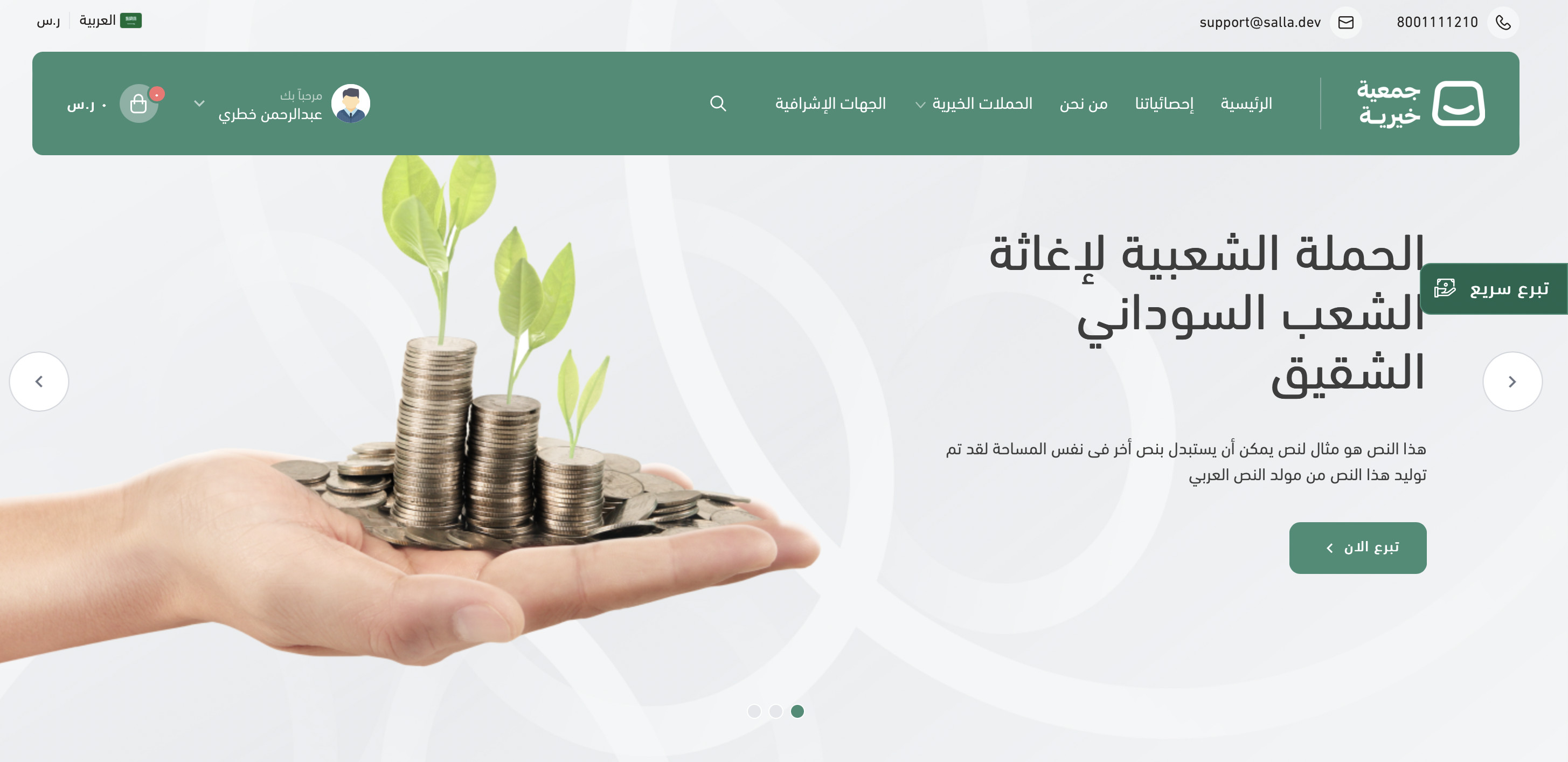
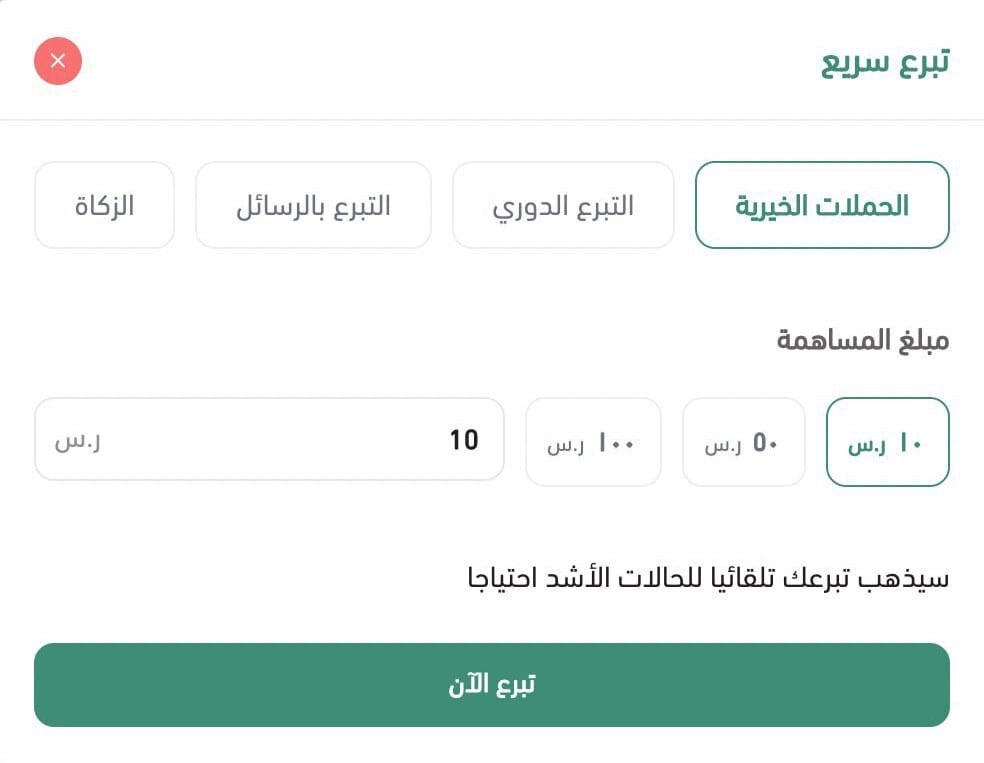
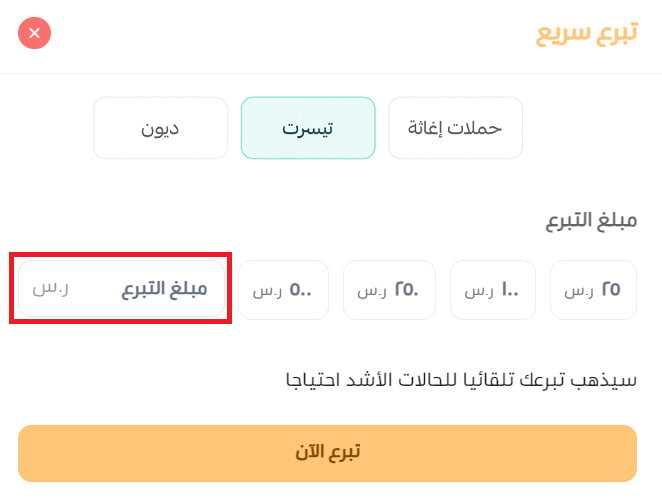
2. After the customer clicks on (Quick Donate), the window will appear:
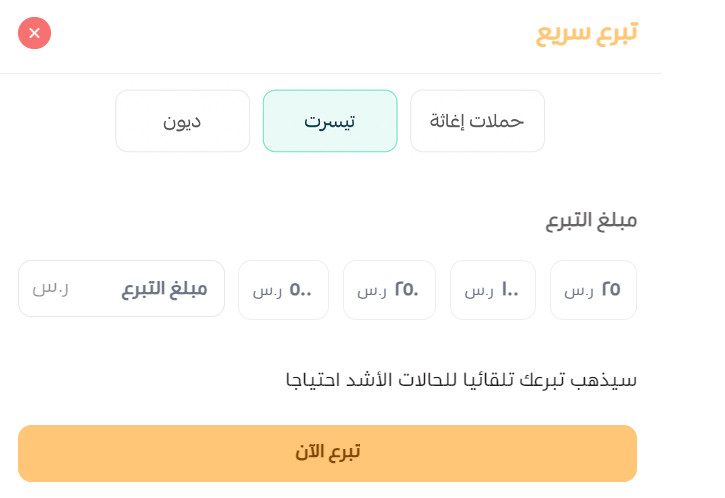
1- Quick donation category option
2- Donation amount input field
3- Donation message display
3. After selecting the donation type and choosing the amount, click (Donate Now) to proceed to the payment page.
Steps to set up quick donation:
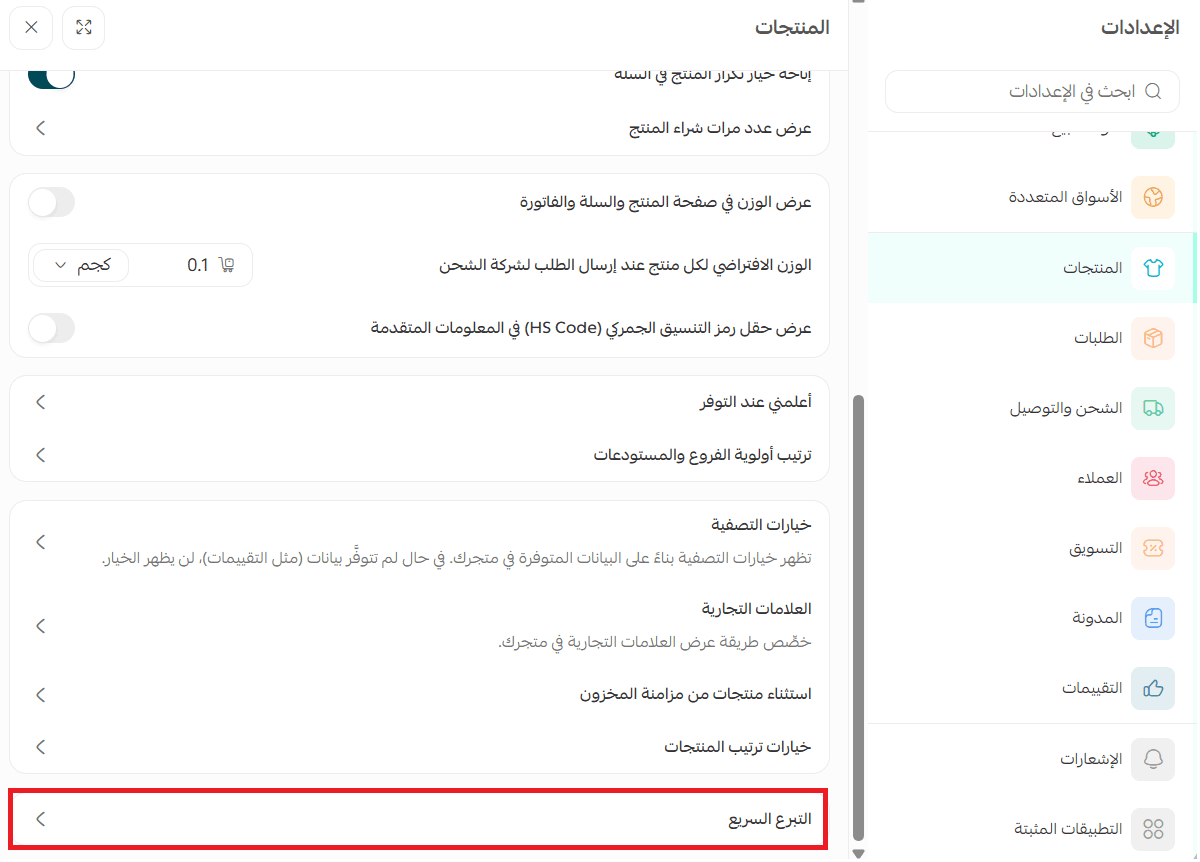
The merchant can customize the quick donation feature in the feature settings from:
1. From the main menu of the store control panel, click the store settings icon.

2. From the products section, click (Quick Donation).
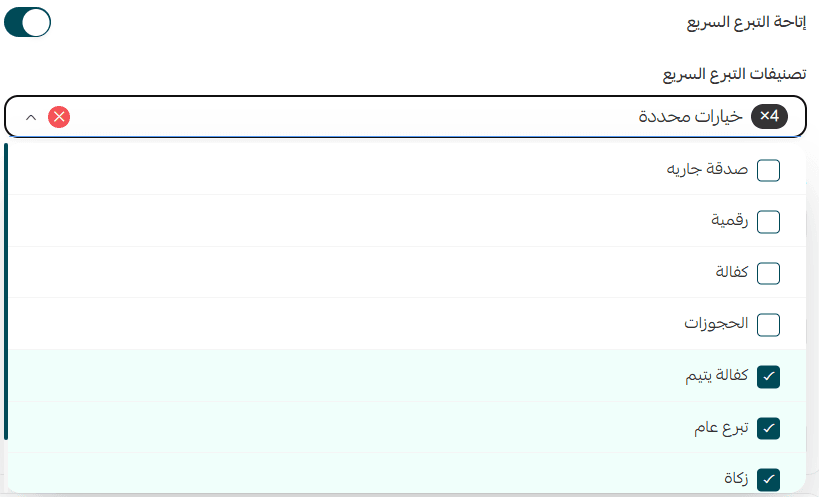
3. Choose up to four categories for quick donation.
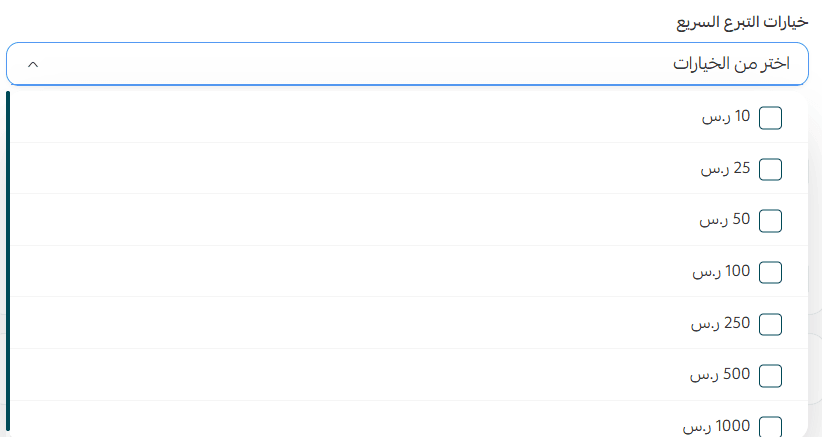
Select up to three options from the donation shares list for quick donation (optional)
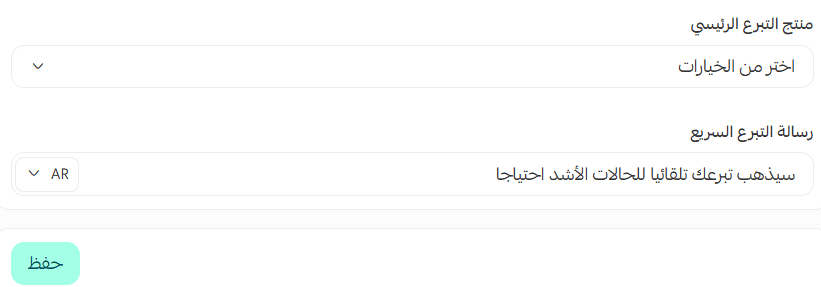
Select the main quick donation product, and you must choose one product. You can choose a hidden product if you wish.
Additionally, write the quick donation message (optional).
Frequently Asked Questions
How is the donation product chosen when using quick donation?
The pre-selected donation product in the quick donation settings is automatically used, and the customer is directed straight to the payment page without choosing a product or entering personal information.
Is the feature enabled for all types of stores?
The feature is currently available for charity stores in the donation product only.
For more details on adding a donation product
Is the feature enabled in specific themes?
Yes, the feature is only enabled in the Atta theme - a theme dedicated to charities.
For more details on Atta theme
Is the quick donation message optional?
Yes, you can write it or leave it blank.
Are quick donation shares optional?
Yes, they are optional.
Is quick donation activated if there are no categories?
No, the quick donation feature is activated if there is at least one quick donation category and a maximum of four. If there are zero, the feature is not activated at all.
Can a donation amount be made that is not available in the shares?
Yes, the customer can specify the donation amount and then enter the amount.
From the donation product page, the customer enters the amount they wish to donate.
Is the feature effective if there are no donation shares?
Yes, if the merchant deletes all donation shares in the quick donation settings, the customer will only see the amount field.
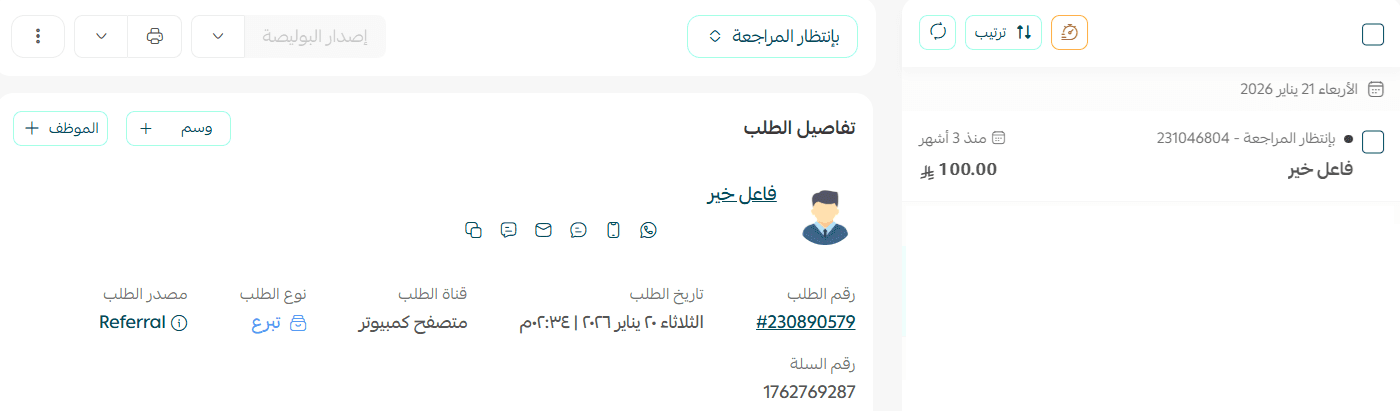
How will the order appear when made through quick donation?
On the orders page, the customer's name will appear as (Good Samaritan)
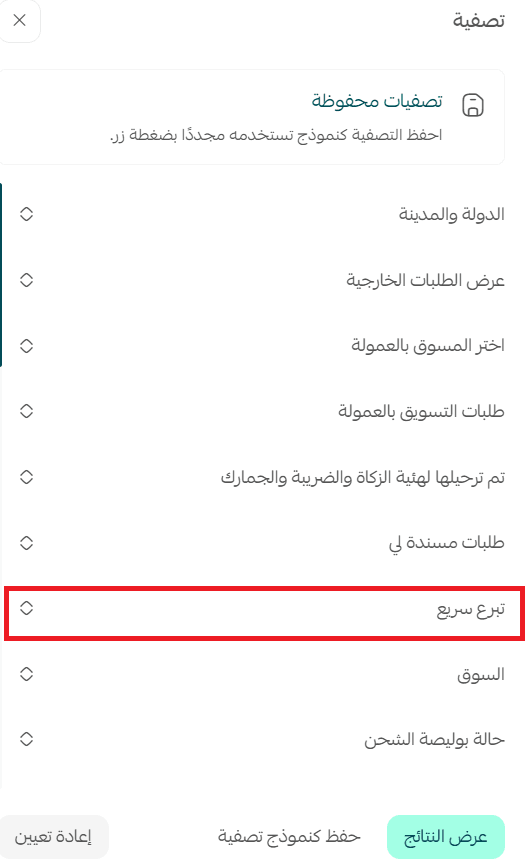
Can I view orders completed via quick donation?
Yes, by filtering orders by order type as (Quick Donation)
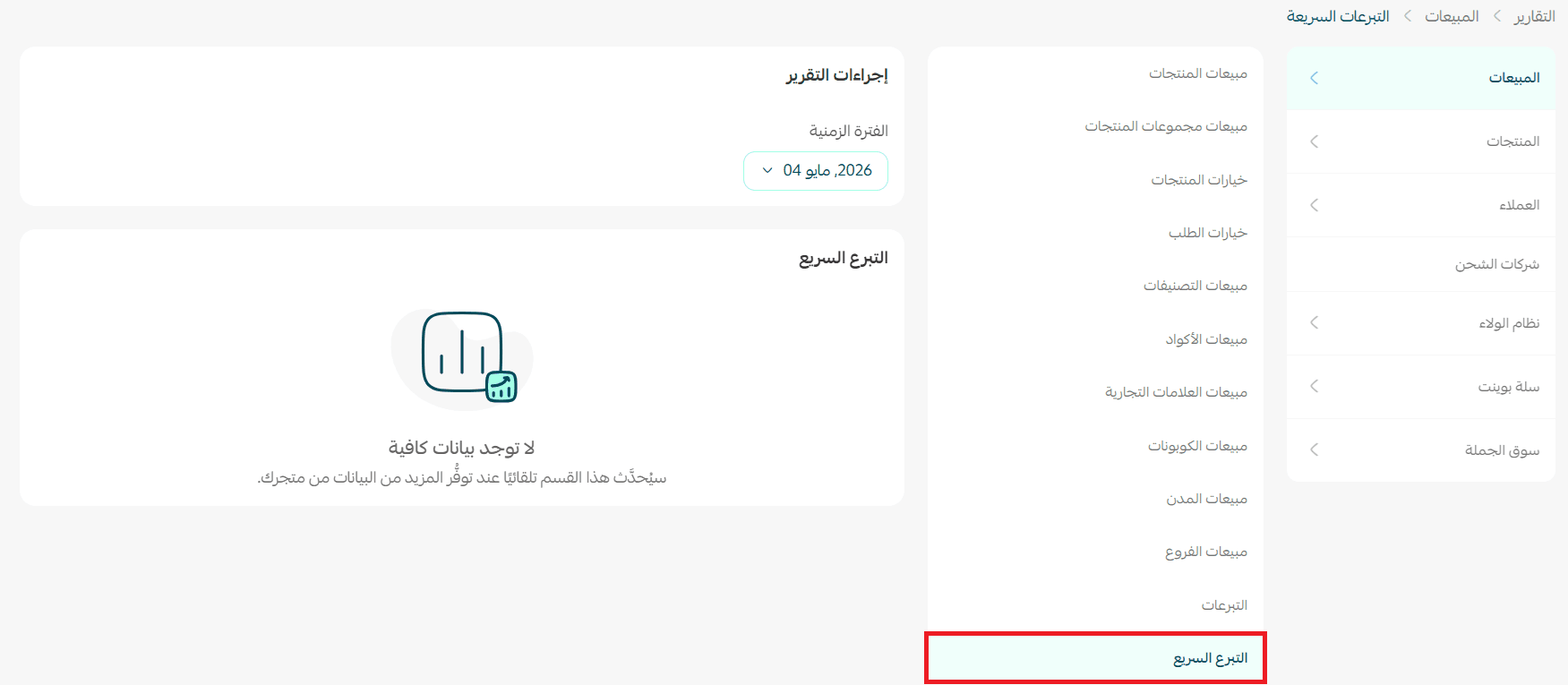
Can I view a report on quick donations?
Yes, from the reports page, choose the report type (Sales), then choose the sub-report (Quick Donation) and click (View).
For more details on viewing and printing reports