Do you know exactly what each partner can access inside your store?
When a development partner or a marketing agency needs to work on your store, they don't ask you for your password — they send a permission request instead. Managing partner permission requests from your Salla dashboard lets you see who is asking, exactly what access they want, and decide for yourself whether to grant it. In this guide, you'll learn how to review, approve, reject, and revoke partner permissions on your store.
Partner permission requests arrive in your Salla dashboard under Staff accounts, in the partner requests section. Open the request to see the partner's name, the request date, and the exact permissions asked for. You can grant those permissions, reject the request with a reason, or revoke the access at any time afterward.
📌 Article overview
- What partner permission requests let you control
- How to review a partner permission request
- How to approve or reject a request
- How to revoke partner permissions after approval
- Frequently asked questions
🎯 What partner permission requests let you control
Every request goes through you before any access is granted. From the dashboard you can:
✅ See new permission requests as they arrive
✅ Check the details of the partner who sent the request
✅ Approve a request and grant the permissions it asks for
✅ Reject a request and record the reason
✅ Revoke the permissions later whenever you need to
Handling access this way means you get:
🔒 Your store data protected behind an explicit approval
🎯 Each partner limited to the permissions their role actually needs
📊 A clear, professional record of who works on your store
⚙️ Full control over access without any technical setup
The result is a store you can open up to outside help with confidence, granting access precisely rather than handing over the keys.
👣 How to review a partner permission request
When a partner asks to manage your store, the request appears in your dashboard on the Staff accounts page, in the partner requests section.

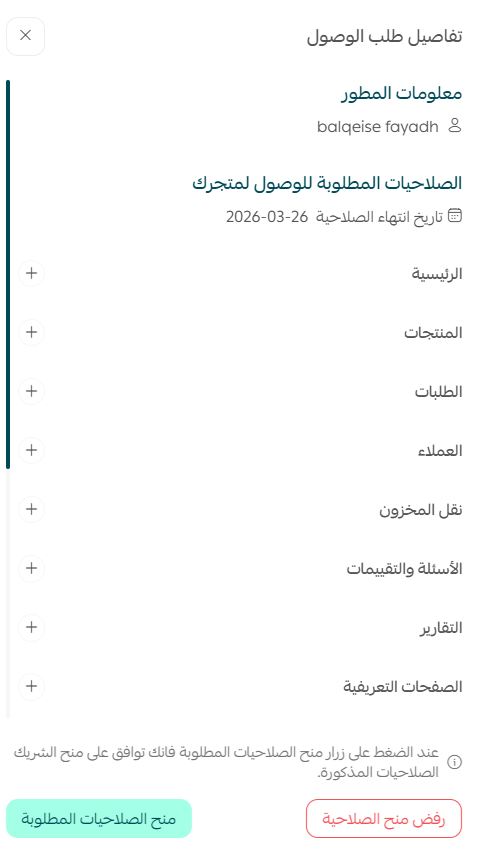
Click (Request details) and you'll see:
- The name of the development partner
- The date of the request
- The type of permissions being requested
- The status of the request (under review)
First: approve or reject the request
With the request open, you have two options.
1. Review the permissions the partner is asking for.
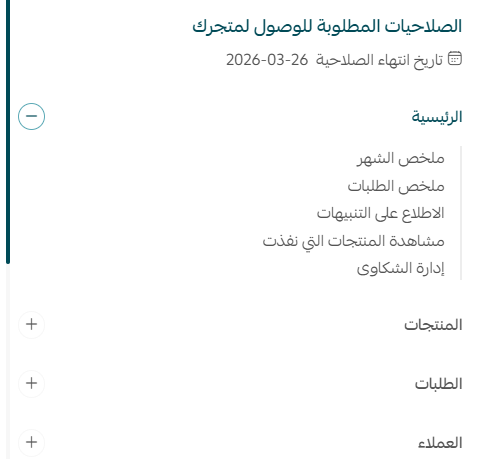
2. To approve, click (Grant requested permissions).
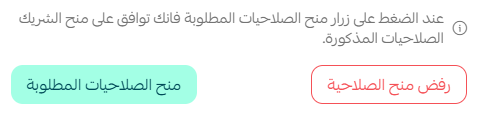
As soon as you approve, the partner receives only the permissions listed in the request — nothing more — and can start working on your store within those limits.

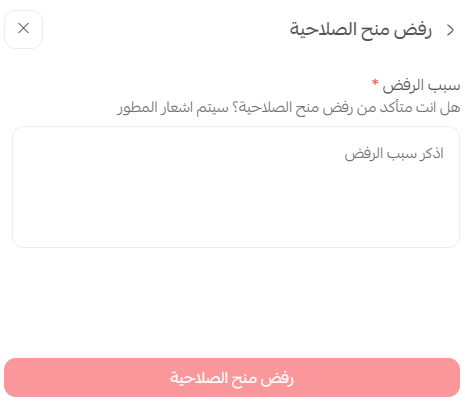
To turn the request down instead, click (Reject permission request) and add the reason if you want to record one.
Common reasons to reject a request:
- There is no prior agreement with the partner.
- The permissions requested don't match the work involved.
- You already have as many partners as you need.
- The partner's identity hasn't been verified.
Second: revoke permissions after approval
Approving a request isn't permanent. You can withdraw a partner's access whenever you need to.
Open the list of partners connected to your store, select the partner, then click (Inactive) or remove their access.

Their permissions stop working immediately.
If you'd rather cut the connection entirely, you can also delete the partner from your store for good.

📝 Important notes
A partner only ever gets the permissions named in the request you approved. Anything outside that list stays out of reach.
Setting a partner to inactive stops their access but keeps them in your partner list, so you can switch them back on later. Deleting removes them completely.
❓ Frequently asked questions
Where do partner permission requests appear?
On the Staff accounts page in your dashboard, under the partner requests section. Requests waiting on you show a status of under review.
Does approving a request give the partner full access to my store?
No. The partner receives only the specific permissions listed in the request. Anything they didn't ask for remains unavailable to them.
Can I take permissions back after I've approved them?
Yes, at any time. Select the partner in your partners list and set them to inactive or remove their access, and their permissions stop working right away.
Do I have to give a reason when I reject a request?
A reason is optional, but adding one is useful — it leaves a record of why the request was turned down if the partner follows up.
What's the difference between deactivating a partner and deleting one?
Deactivating suspends their permissions while keeping them on your partner list. Deleting removes the partner from your store entirely.
Start now by reviewing the partner requests waiting on your store and granting only the access each one genuinely needs.