Is your store account as protected as the money moving through it?
Your account details are the front door to your dashboard, and keeping them current is a security job as much as an admin one. From one page you can manage your store account on Salla — update your name, email address and mobile number, change your password, turn on two-factor authentication, review which devices are signed in, and sign out everywhere at once. In this guide, you'll learn how to reach your profile settings and what each option on that page does.
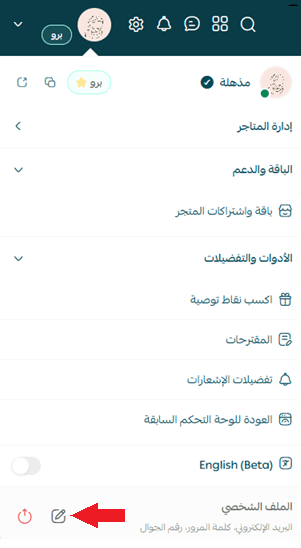
Open your profile settings from the main menu by clicking your store name, then (Edit profile). From there you can update your personal details, change your password, enable two-factor authentication, review registered devices, set up quick access, log out of all devices, and switch the dashboard language or night mode.
📌 Article overview
- Profile settings
- Frequently asked questions
🚀 Profile settings
1. From the main menu, click your store name, then click (Edit profile).
Edit your personal details
Click (Edit profile) to change the employee name, the email address, or the mobile number on the account.
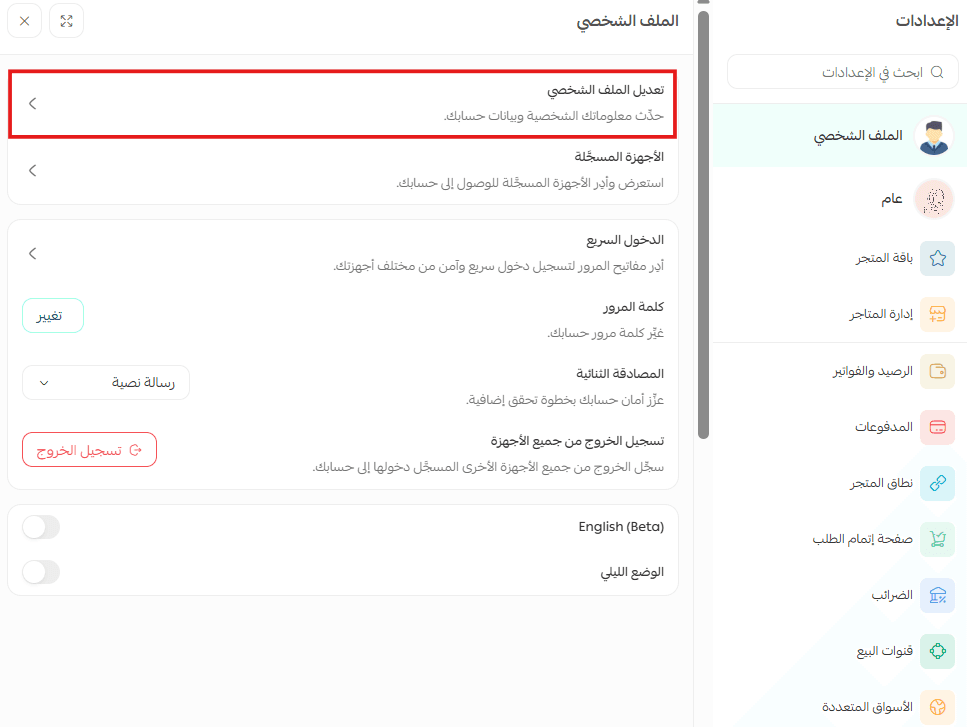
📝 Note: when you change the email address, the verification code is sent to the mobile number registered on the store.
Change your password
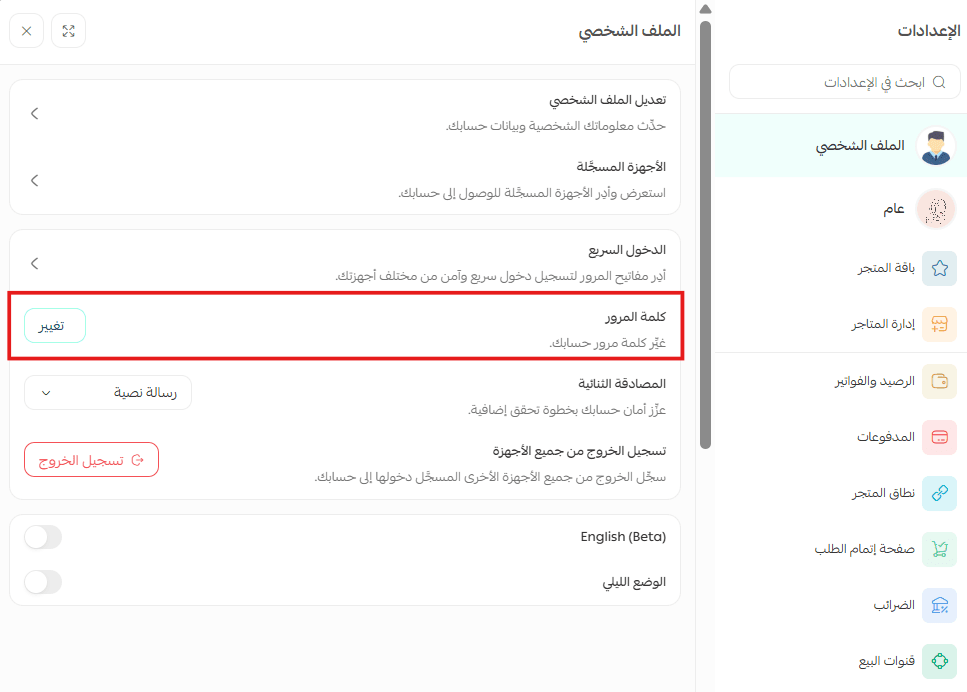
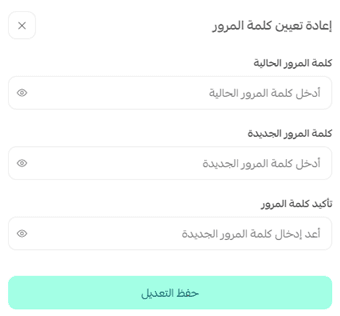
Enter your current password and the new one, then click (Save changes).
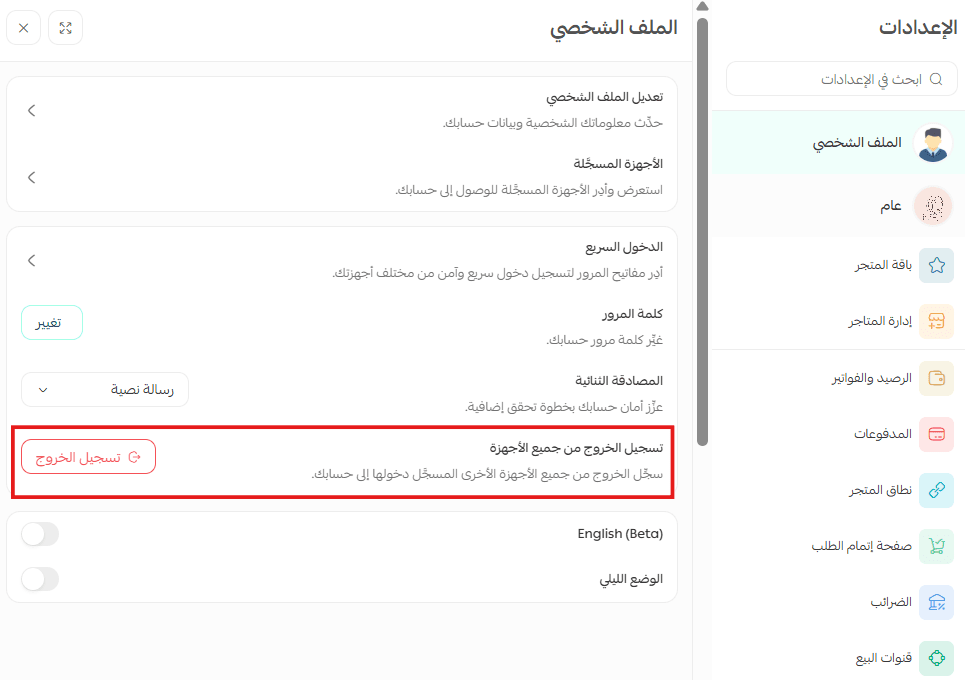
Log out of all devices
Signing out everywhere ends every active session on the account, including the one you are using right now. You will be asked for your password to confirm it.
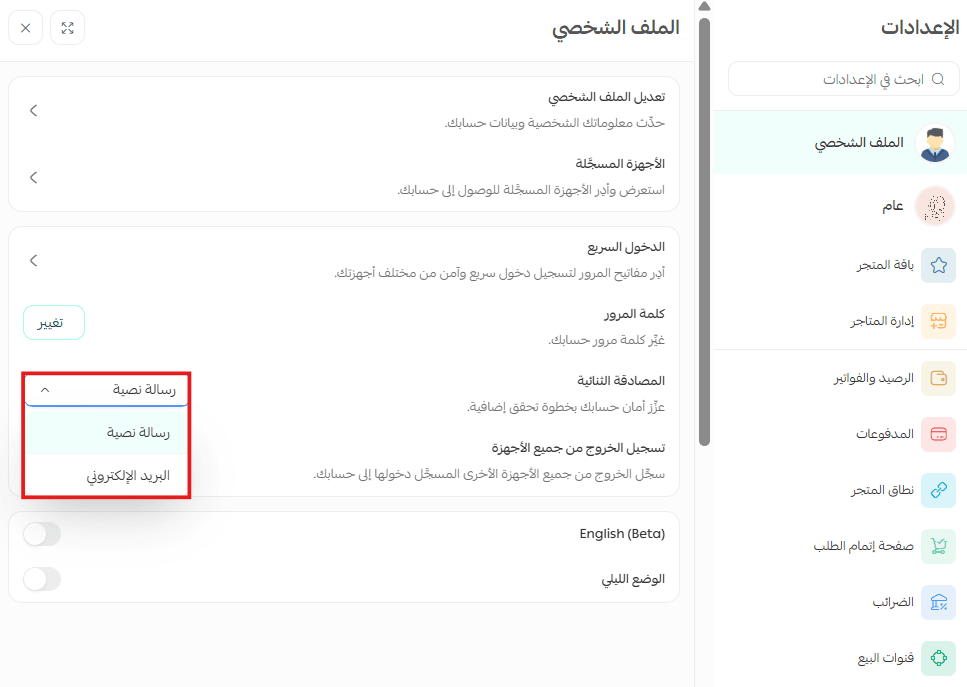
Two-factor authentication
Two-factor authentication adds a second verification step when you sign in, so a leaked password on its own is not enough to reach your dashboard. [Verify: which second factor Salla sends — a code to the registered mobile number, or an authenticator app.]
Registered devices
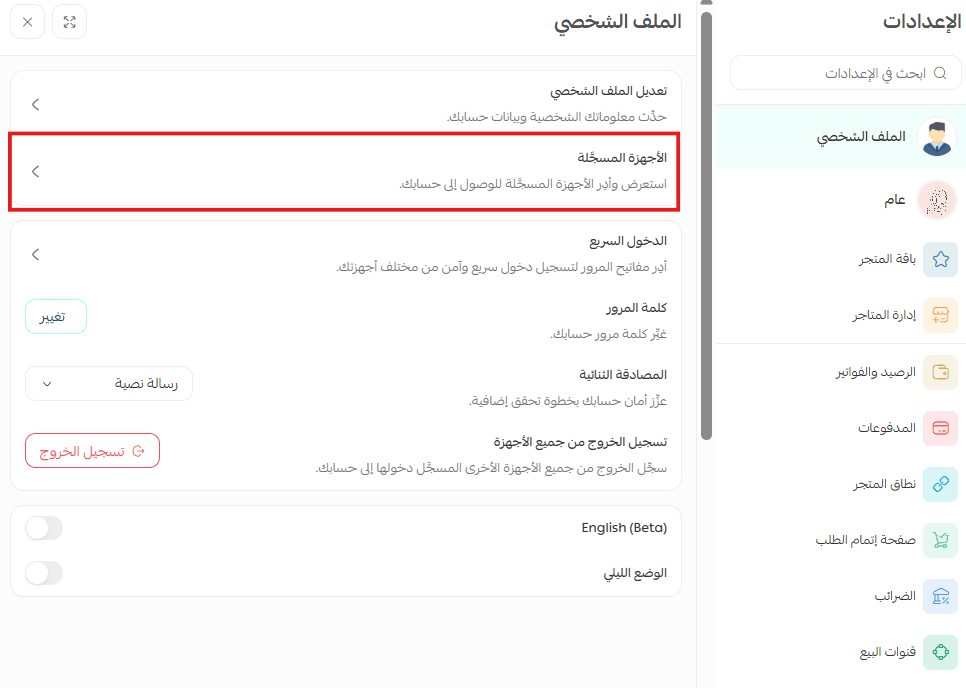
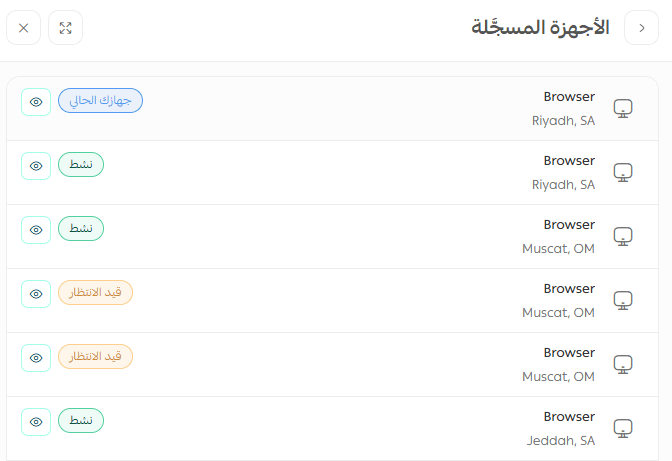
The devices registered to this store are listed for you to review.
Quick access
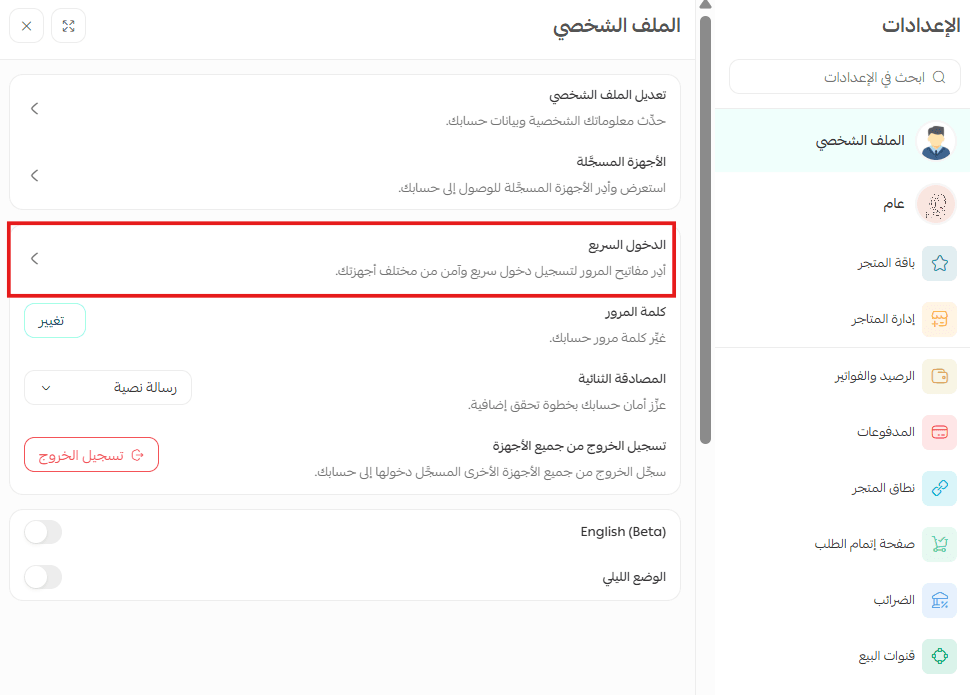
Your devices and their details appear here, and you can register a new device for quick access.
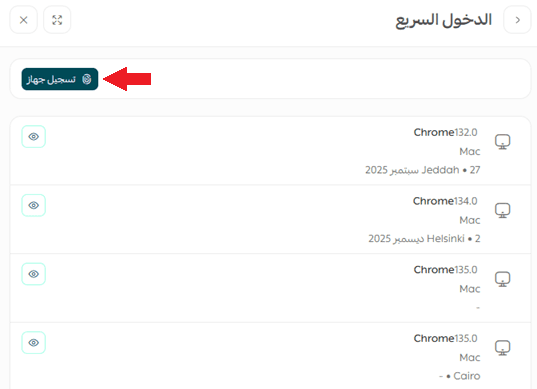
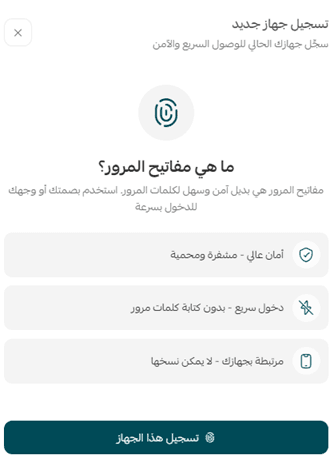
Click (Register this device) and fill in the details.
Dashboard settings
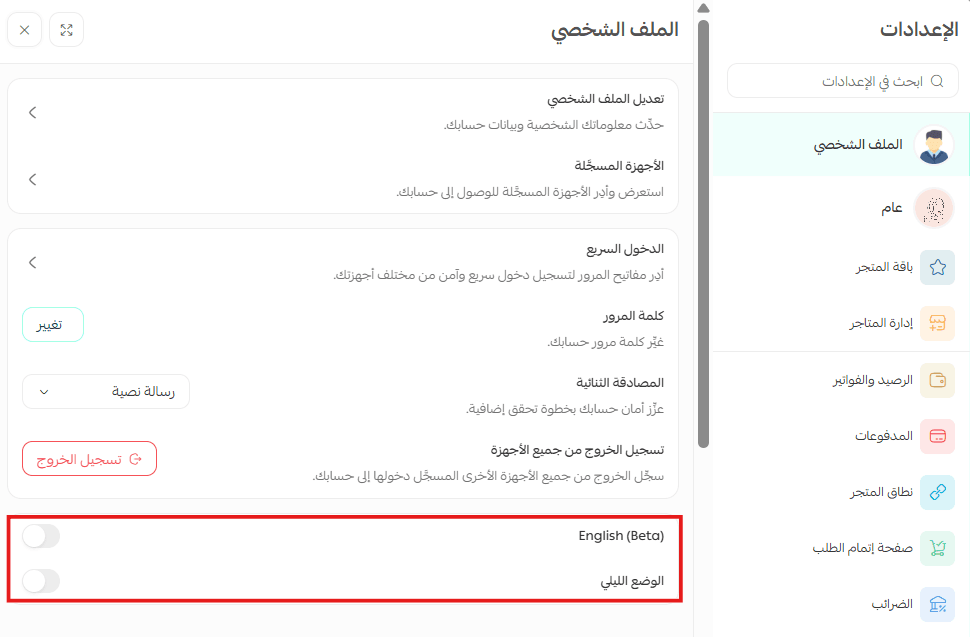
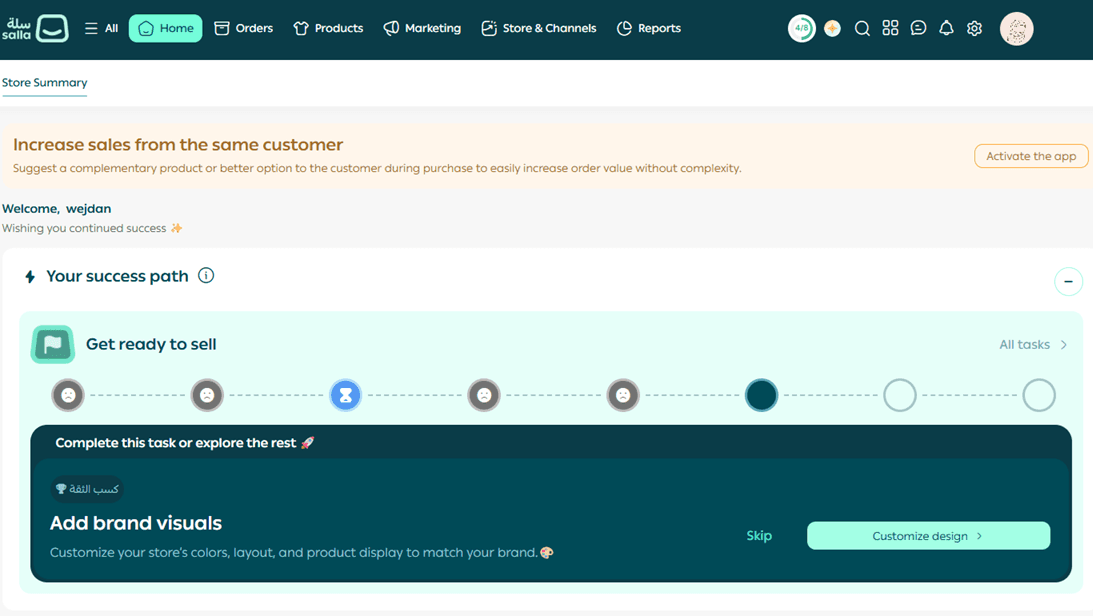
- Switch the dashboard to English
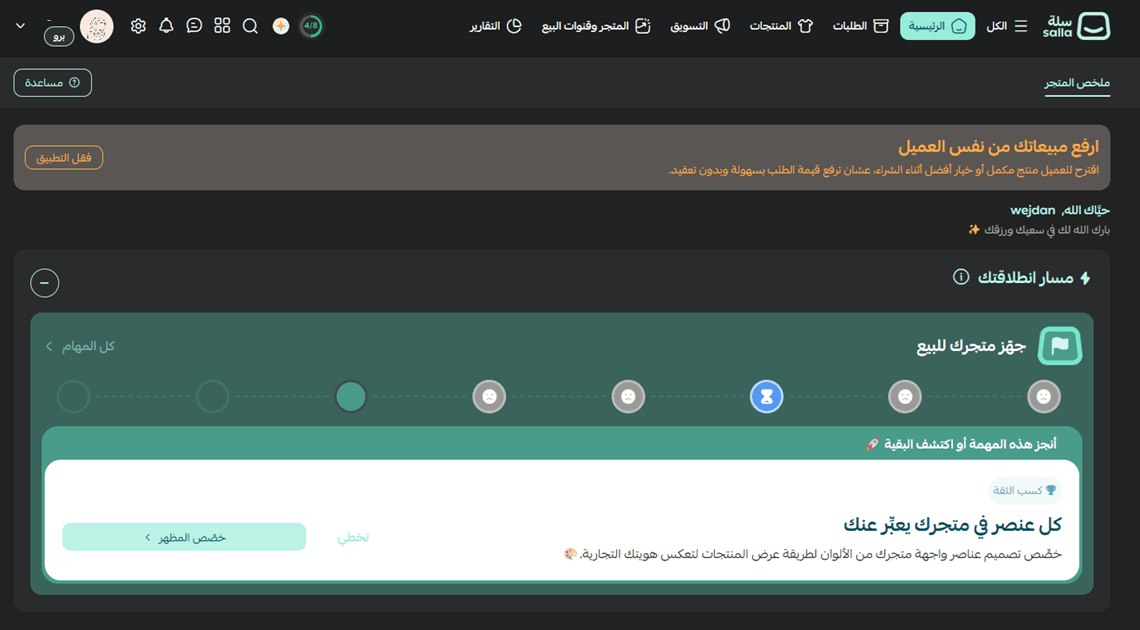
- Turn on night mode
📝 Important notes
Changing your email address sends the verification code to the mobile number on the store, not to the new email address. Make sure that number is current before you start.
Logging out of all devices also ends your current session, so expect to sign in again straight away.
Frequently asked questions
❓ What do I do if I forget my password?
Use the forgot password option on the login page and follow the instructions to set a new one.
❓ Does logging out of all devices end my current session too?
Yes. Choosing to log out of all devices ends every active session, including the device you are using at the time.
❓ When should I log out of all devices?
Whenever you suspect an unauthorized login, or after using your store account on a shared or public device.
❓ Do I need my password to log out of all devices?
Yes. Confirming the action requires your password, which keeps someone else from ending your sessions.
❓ Where do I change the dashboard language?
In the dashboard settings on the same profile page, where you can also turn night mode on.
Account settings are the kind of page you visit twice a year and are grateful for once. Keep your email and mobile number current, turn on two-factor authentication, and you will never have to recover an account under pressure.