Are you finding it difficult to track subscriptions and financial transactions, leading to delayed payments or missing important billing information?
With billing settings, Salla provides a centralized and professional way to manage your store’s invoicing preferences, so you can control payment methods, receive payouts smoothly, and keep your business details always up to date.
This guide walks you through everything you need to configure billing settings with confidence.
📌 Article overview
- Billing settings page
- Setting a default payment method
- Adding a credit card
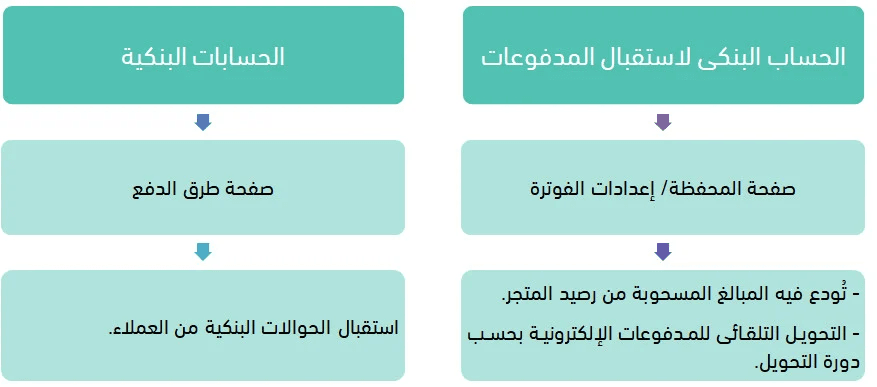
- Bank account for receiving payouts
- Adding a billing email address
- Adding a company address
Billing settings page
To access billing settings:
- From the main menu, go to All
Under Settings & Tools, click Payment Methods
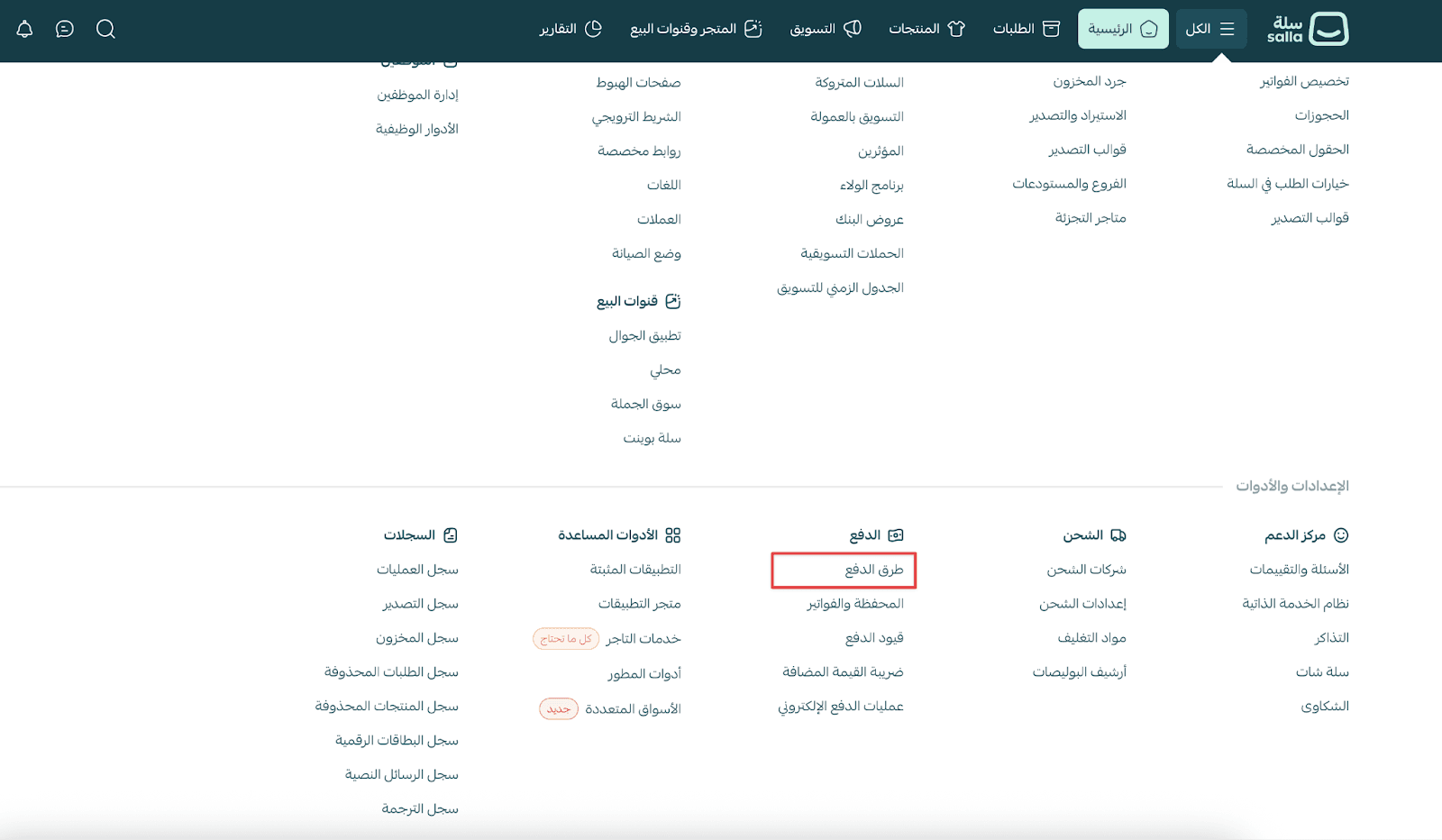
- Select the Wallet & Invoices tab
- You will find a dedicated section for managing Billing Settings
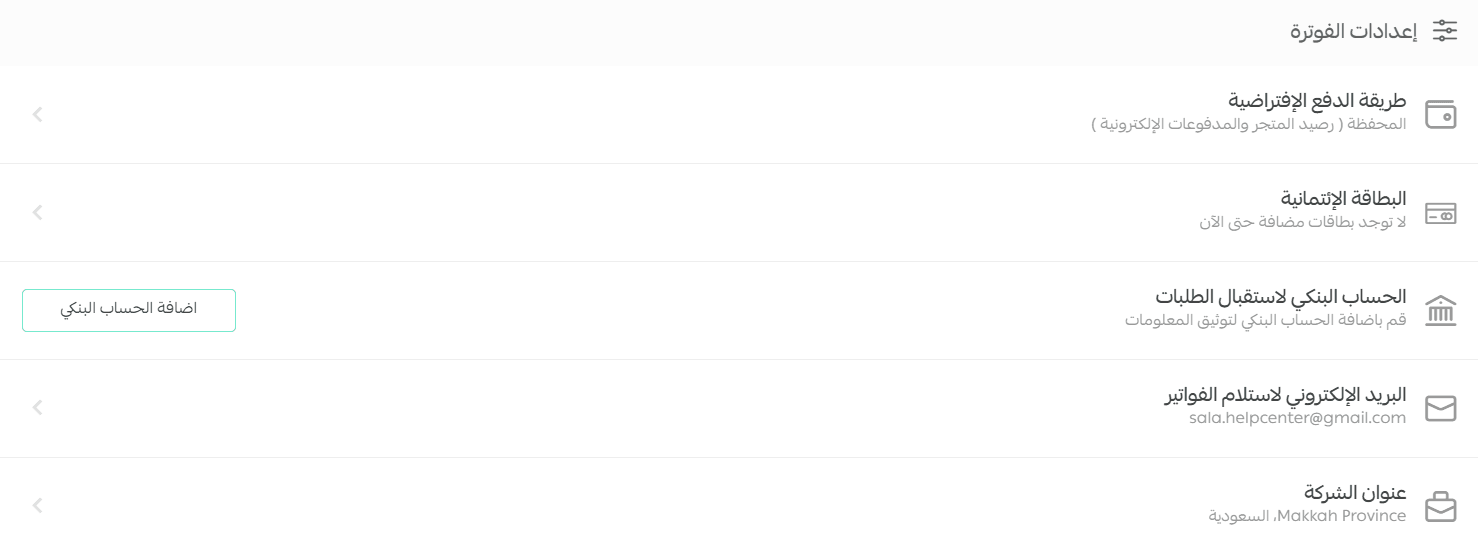
1. Setting the default payment method
Your default payment method is used for:
- Automatic subscription renewals
- Store plan upgrades
- Other recurring billing services
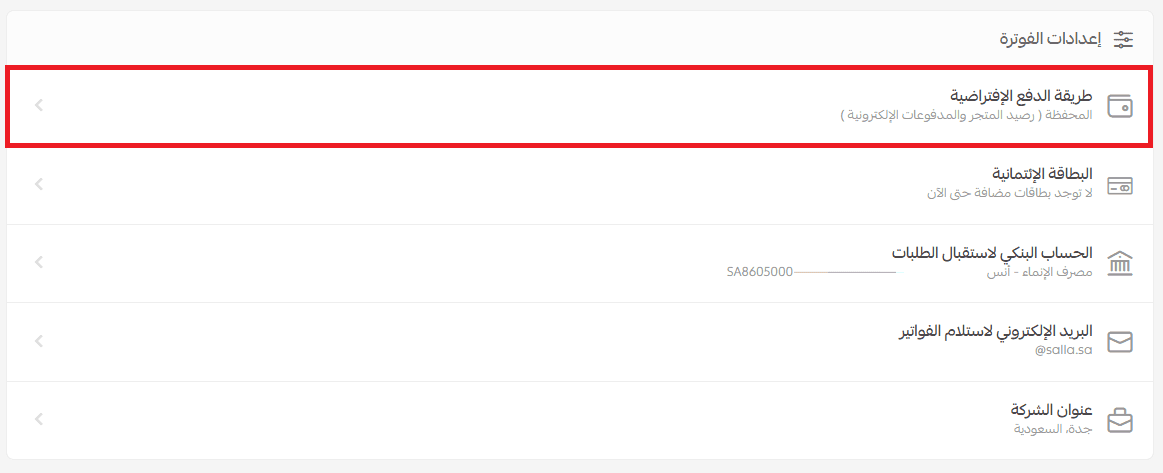
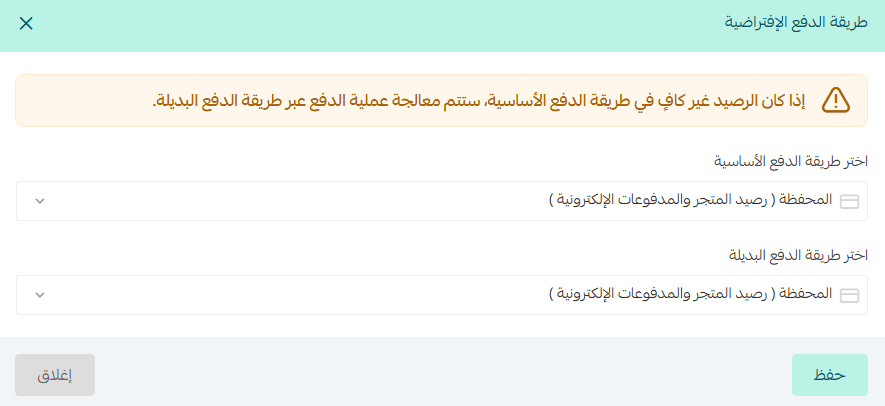
From the payment method dropdown:
- Select the primary payment method for automatic renewals
- Then choose a backup payment method as an alternative option
2. Adding a credit card
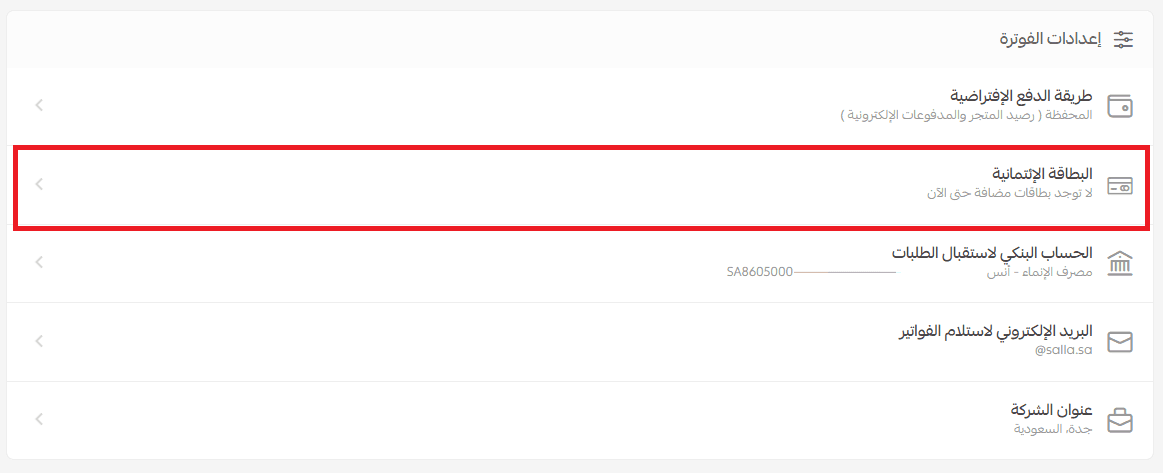
You can add a credit card to renew your subscription automatically with ease.
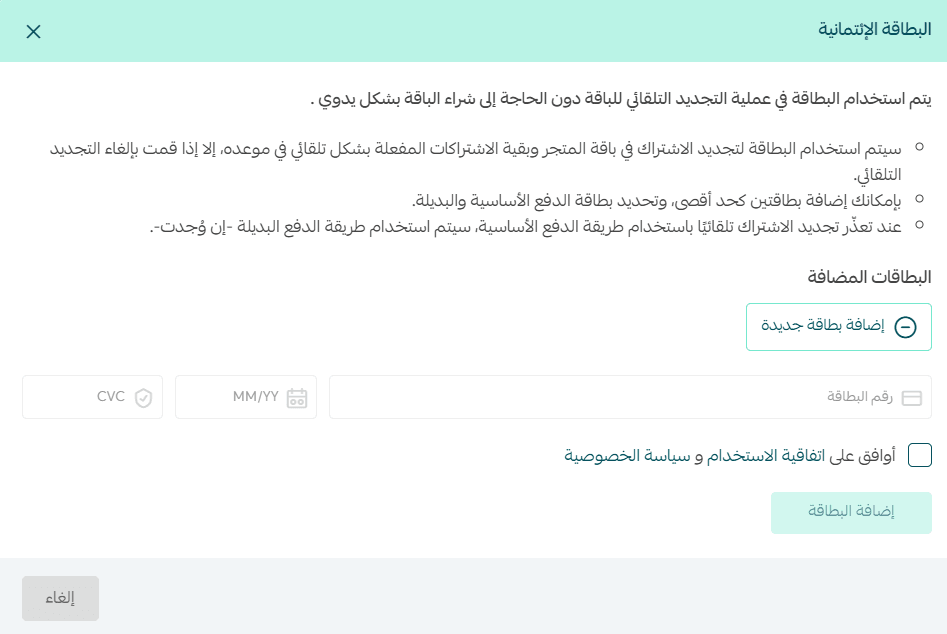
Important note: Only one credit card can be saved at a time. If you add a new card, it will automatically replace the previous one.
When subscribing for the first time:
If the credit card is saved:
- The card becomes the primary payment method
- Store Wallet balance becomes the backup method
If the credit card is not saved:
- Store Wallet balance becomes the primary payment method
- No backup method will be available
⚠️ Warning
If all saved credit cards are removed while auto-renewal is enabled:
- Store Wallet balance will automatically become the default payment method
- No alternative method will exist unless updated manually
3. Bank account for receiving payouts
The bank account you previously added during store verification will appear here.
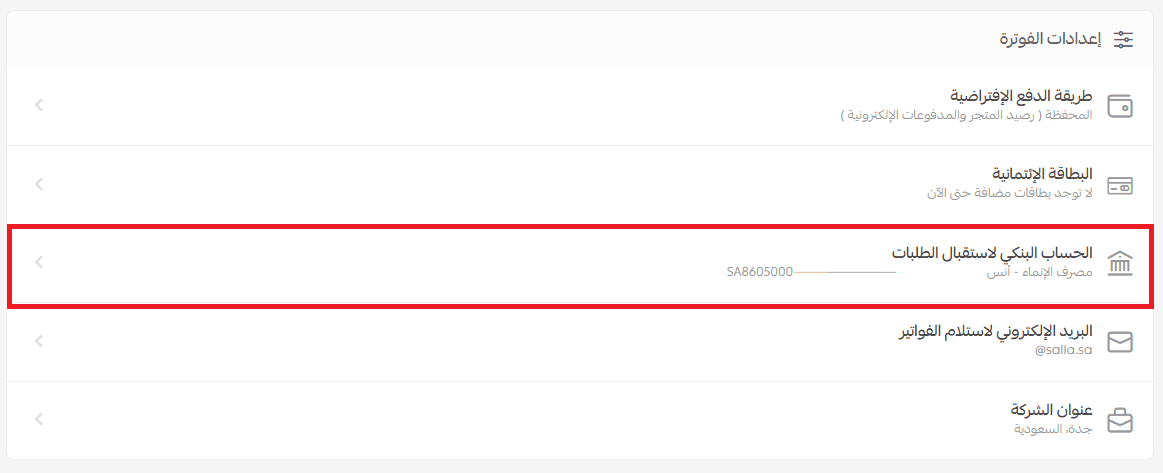
This account is used to receive funds from:
- Store Wallet balance
- Electronic Payments balance
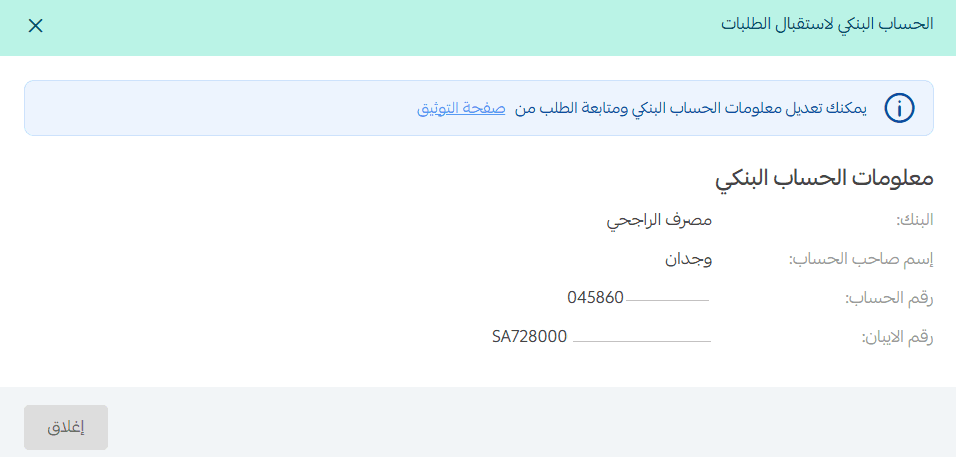
Important note: Any edits made to bank account details must first be reviewed by the Salla team. You will be notified once the update is approved as part of store verification.
4. Adding a billing email address
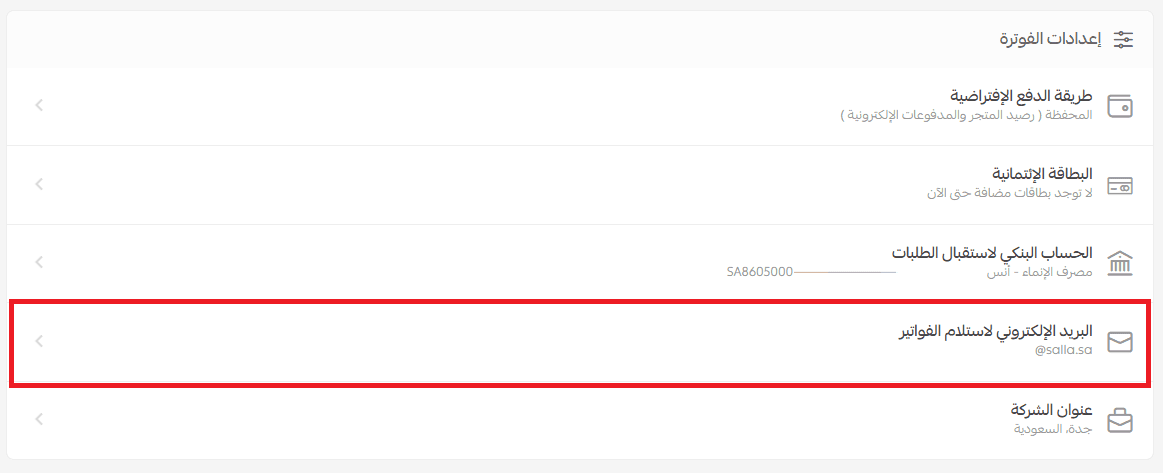
You can add an official email address to receive all store invoices.
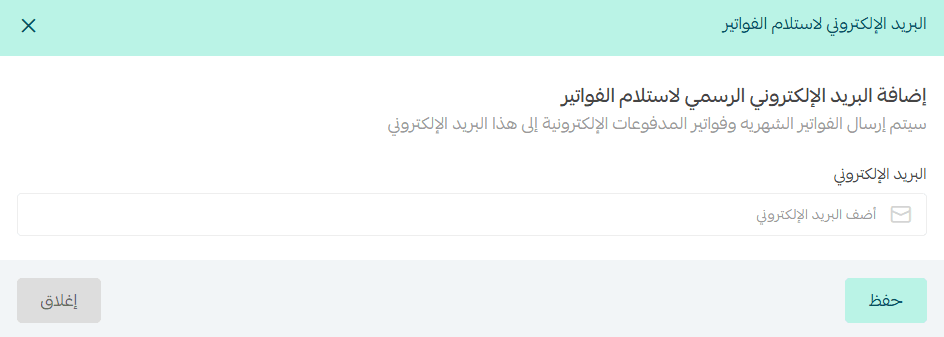
Note: If no billing email is added, Salla will automatically use the email registered on your account.
5. Adding a company address
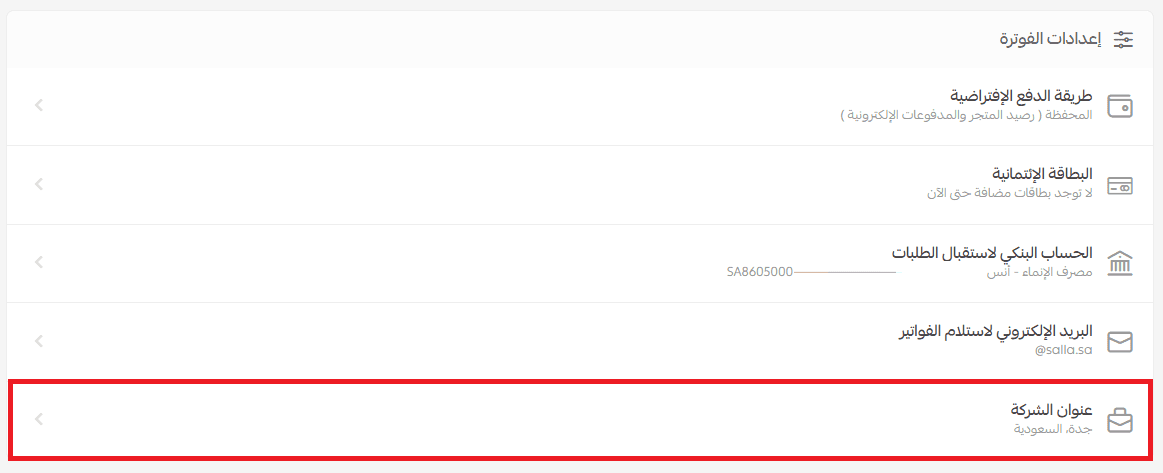
Add your company address so it appears on your Tax Invoice.
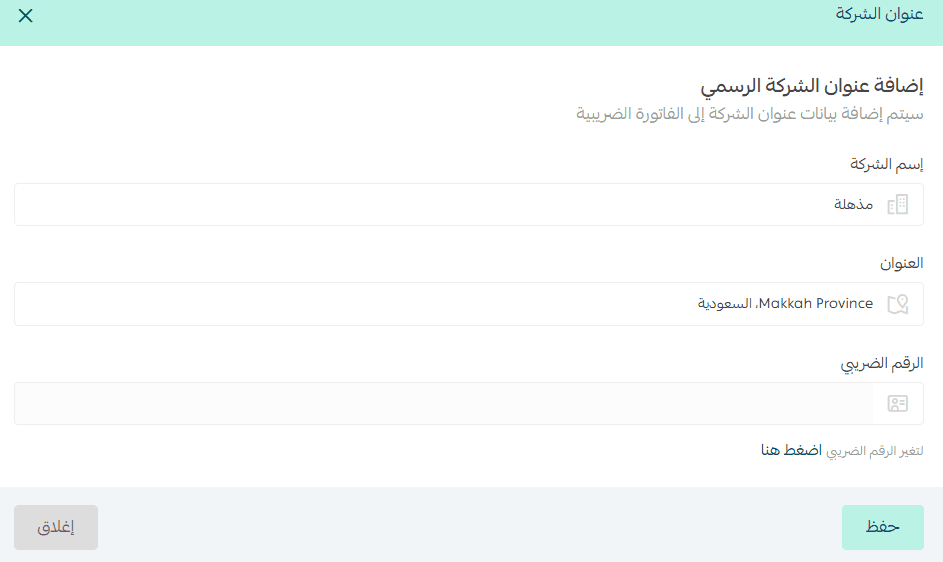
The address will be displayed on invoices in the official tax format.
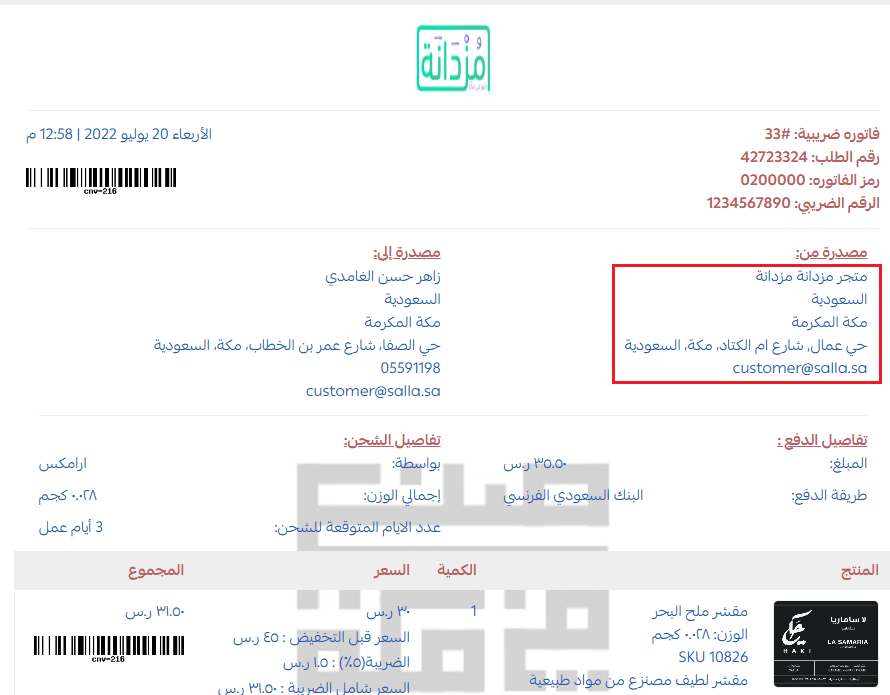
For more information, refer to the VAT setup guide.
Frequently asked questions
What is the difference between the payout bank account and the bank accounts listed under Payments?
The payout bank account is used specifically for receiving:
- Wallet withdrawals
- Electronic payment transfers
While bank accounts under the Payments section may relate to customer payment options or transfer methods.
When are purchase invoices issued?
Purchase invoices are issued monthly, covering all merchant purchases made through the Salla App Store and platform services.
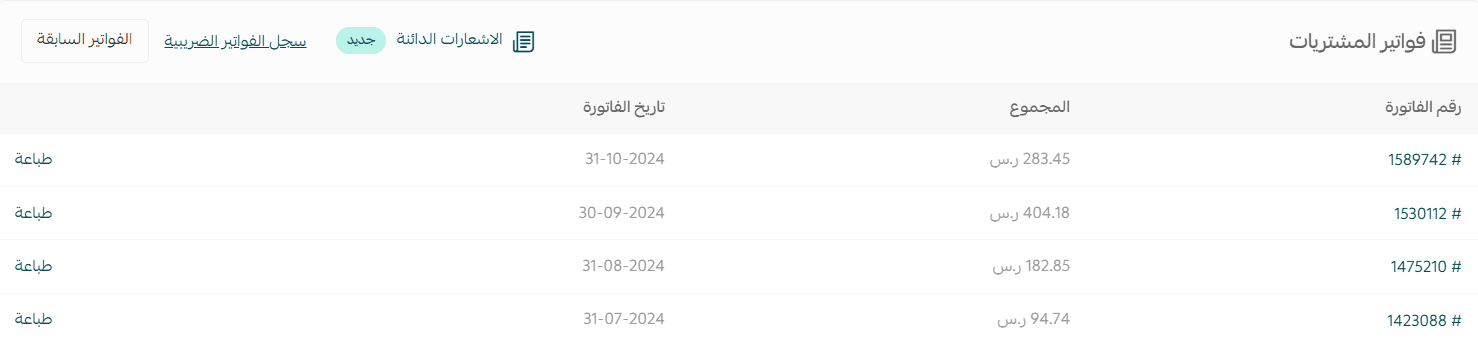
How can I view invoice details?
To view any invoice:
- Click the invoice number
- The full invoice breakdown will open in detail
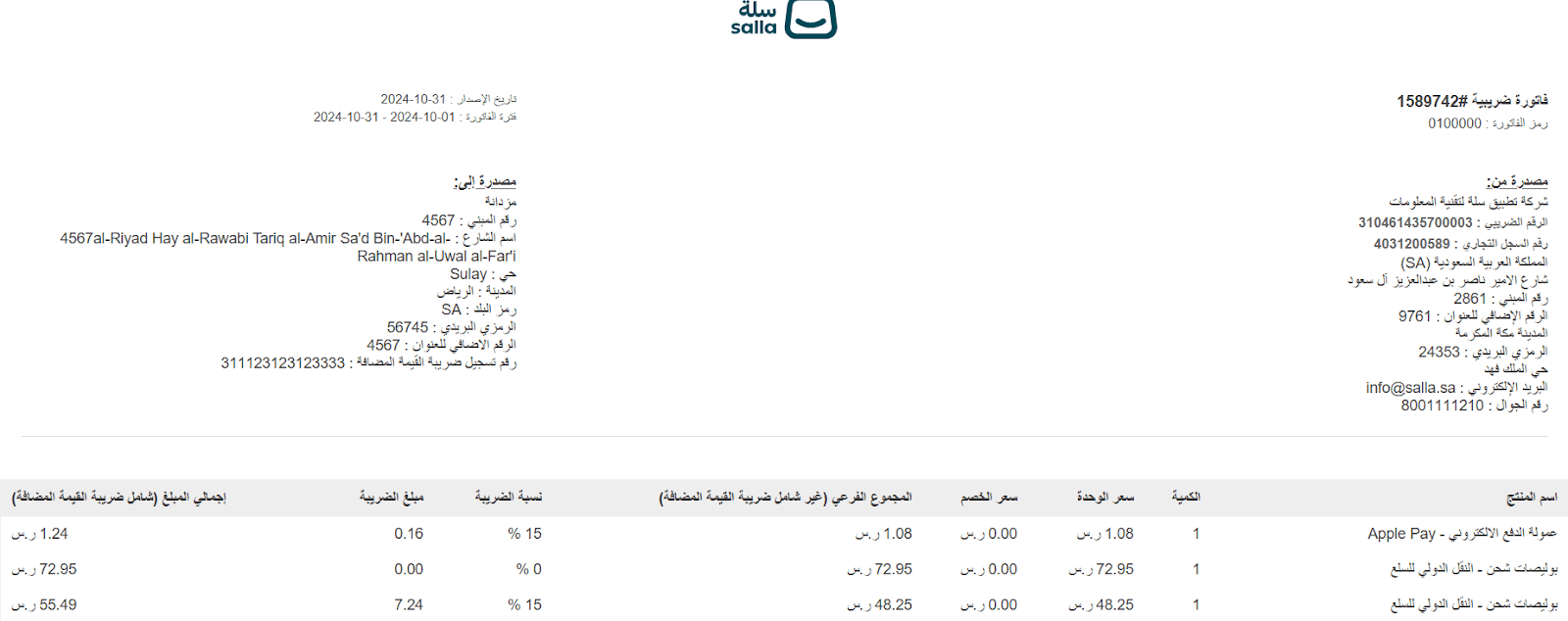
Note: Payment processing fees VAT is included in the monthly Purchase Invoice issued by Salla.
🎯 Keep your billing information accurate to ensure smooth renewals, clear invoicing, and uninterrupted store services.